


If you cannot open your images, documents, or files and they have a .upsil0n extension, then your computer is infected with the Upsilon ransomware.
The Upsilon Ransomware is a malicious program that encrypts the personal documents found on the victim’s computer with the “.upsil0n” extension, then displays a message which offers to decrypt the data if payment in Bitcoin is made.
What is the Upsilon ransomware?
Upsilon is a file-encrypting ransomware infection that restricts access to data (documents, images, videos) by encrypting files with the “.upsil0n” extension. It then attempts to extort money from victims by asking for “ransom”, in the form of Bitcoin cryptocurrency, in exchange for access to data.
The Upsilon ransomware will scan your computer for images, videos, and important productivity documents and files such as .doc, .docx, .xls, .pdf. When these files are detected, the ransomware will encrypt them and change their extension to “.upsil0n”, so that you are no longer able to open them.
Once the Upsilon ransomware has encrypted the files on your computer, it will display a ransom note and instructions on how to contact the authors of this ransomware.
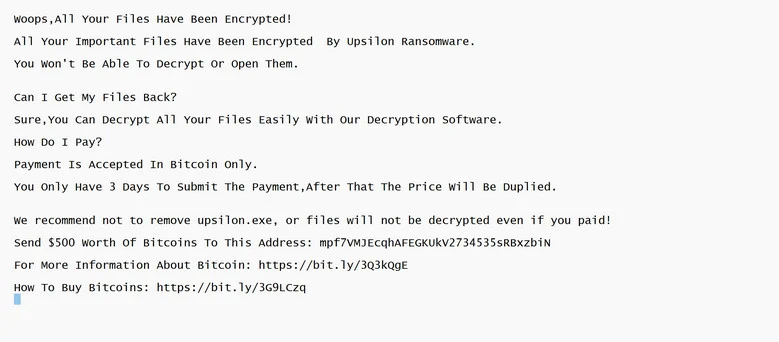
This is the ransom note that the Upsilon ransomware will show to its victims:
Woops,All Your Files Have Been Encrypted!
All Your Important Files Have Been Encrypted By Upsilon Ransomware.
You Won’t Be Able To Decrypt Or Open Them.
Can I Get My Files Back?
Sure,You Can Decrypt All Your Files Easily With Our Decryption Software.
How Do I Pay?
Payment Is Accepted In Bitcoin Only.
You Only Have 3 Days To Submit The Payment,After That The Price Will Be Duplied.
We recommend not to remove upsilon.exe, or files will not be decrypted even if you paid!
Send $500 Worth Of Bitcoins To This Address: mpf7VMJEcqhAFEGKUkV2734535sRBxzbiN
Unfortunately, it is not currently possible to decrypt the files encrypted by the Upsilon ransomware. It may, though, be possible in the future if the decryption keys are recovered from the cybercriminals’ servers. Therefore, if you do not plan on paying the ransom, it is advised that you make an image of the encrypted drives so that you can possibly decrypt them in the future.
How did the Upsilon ransomware get on my computer?
The Upsilon ransomware is distributed via spam email containing infected attachments, fake software cracks, or by exploiting vulnerabilities in the operating system and installed programs.
Here’s how the Upsilon ransomware might get on your computer:
- Spam emails: Cybercriminals spam out an email, with forged header information, tricking you into believing that it is from a shipping company like DHL or FedEx. The email tells you that they tried to deliver a package to you, but failed for some reason. Sometimes the emails claim to be notifications of a shipment you have made. Either way, you can’t resist being curious as to what the email is referring to – and open the attached file (or click on a link inside the email). And with that, your computer is infected with the Upsilon ransomware.
Be alert for people trying to trick you. Whether it’s your email, phone, messenger, or other applications, always be alert and on guard for someone trying to trick you into clicking on links or replying to messages. Remember that it’s easy to spoof phone numbers, so a familiar name or number doesn’t make messages more trustworthy. - Cracks and keygens: The Upsilon ransomware is distributed using fake software cracks or through free programs you download off of the Internet.
Avoid using Peer-to-Peer (P2P) file-sharing programs, keygens, cracks, and other pirated software that can often compromise your data, privacy, or both. - Exploits: The Upsilon ransomware was also observed attacking victims by exploiting vulnerabilities in the program installed on the computer or the operating system itself. Commonly exploited software includes the operating system itself, browsers, Microsoft Office, and third-party applications.
Keep your operating system and apps up to date. Whenever an update is released for your device, download and install it right away. These updates often include security fixes, vulnerability patches, and other necessary maintenance.
Remove the Upsilon ransomware and recover the files
It’s important to understand that by starting the removal process you risk losing your files, as we cannot guarantee that you will be able to recover them. Your files may be permanently compromised when trying to remove this infection or trying to recover the encrypted documents.
We cannot be held responsible for losing your files or documents during this removal process.
It’s recommended to create a backup image of the encrypted drives or files before proceeding with the malware removal instructions so that you can restore them if the decryption keys are recovered from the cybercriminals’ servers. To create a backup for your encrypted files or drives, you can use EaseUS Todo Backup Free.
Please perform all the steps in the correct order. If you have any questions or doubts at any point, stop and ask for our assistance.
- STEP 1: Start your computer in Safe Mode with Networking
- STEP 2: Use Malwarebytes to remove Upsilon ransomware
- STEP 3: Use HitmanPro to scan for Trojans and other malware
- STEP 4: Double-check for malware infections with ESET Online Scanner
- STEP 5: Restore the files encrypted by the Upsilon ransomware
STEP 1: Start your computer in Safe Mode with Networking
In this first step, we will start your computer in Safe Mode with Networking to prevent Upsilon malicious drivers and services from loading at Windows start-up. We’re using Safe mode because it starts Windows in a basic state, using a limited set of files and drivers.
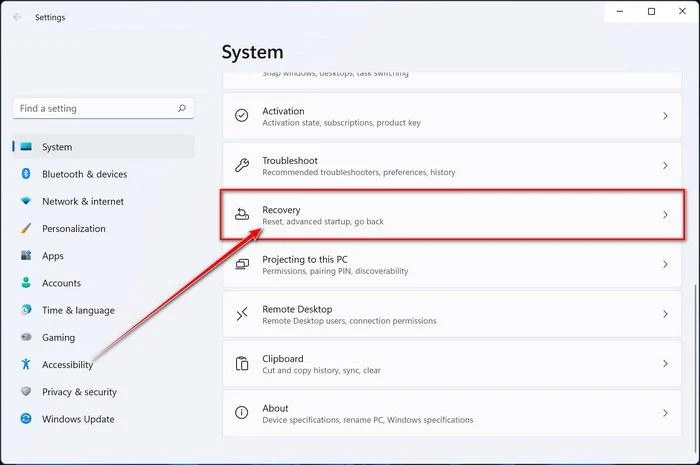
- Press Windows key + I to open Settings. If that doesn’t work, right-click the Start button and select Settings. Then, in the right-hand pane, click Recovery.
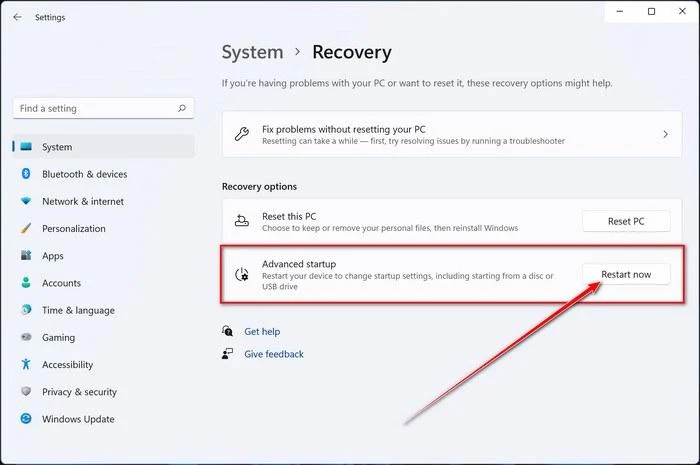
- Under Advanced startup, click Restart now. Save any open work first — your PC will restart immediately.
Your PC will restart into the Windows Recovery Environment. From there, follow these steps to reach Safe Mode:
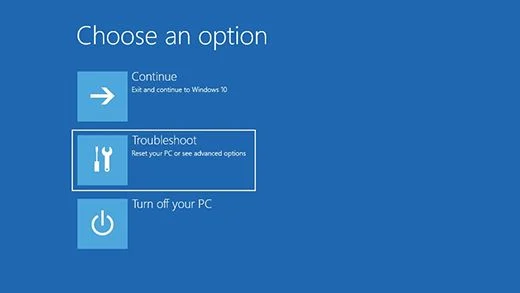
- On the Choose an option screen, select Troubleshoot.
- On the Troubleshoot screen, click Advanced Options.
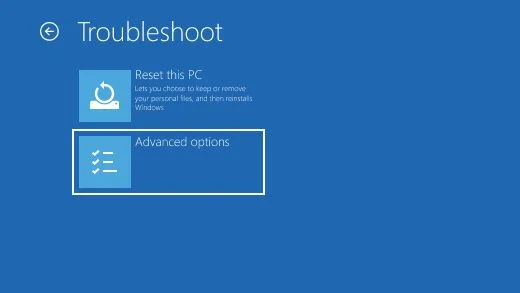
- On the Advanced Options page, click Startup Settings.
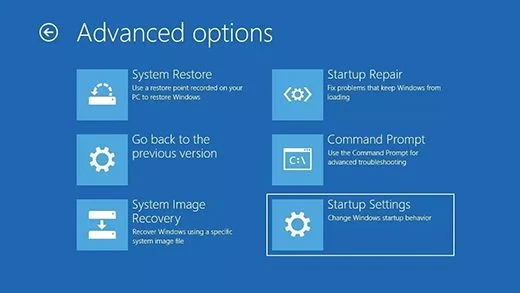
- On the Startup Settings page, click Restart.
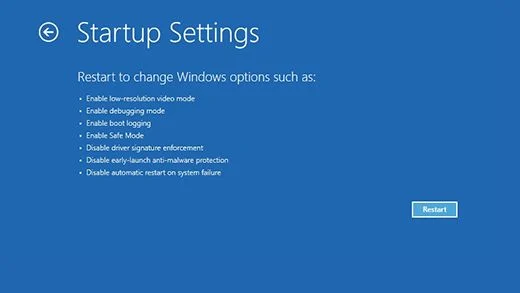
- After your PC restarts, you’ll see a list of startup options. Press 5 or F5 to start Safe Mode with Networking.
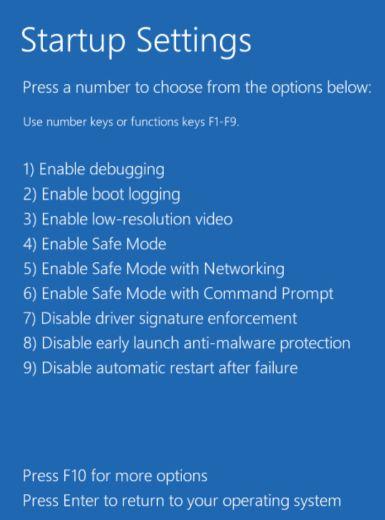
- You’ll know you’re in Safe Mode when “Safe Mode” appears in the corners of the screen. Now continue with the next step of this guide — downloading and running Malwarebytes (explained in Step 2).
- Press Windows key + I to open Settings. If that doesn’t work, click the Start button and select Settings (the gear icon).
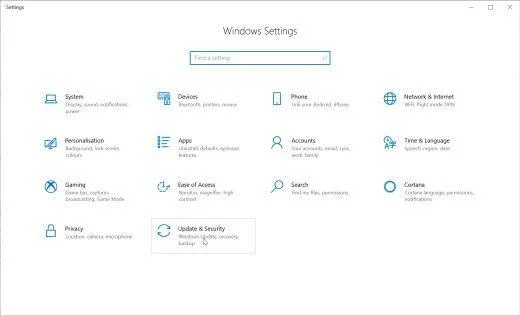
- In the Windows Settings window, select Update & Security, then click Recovery.
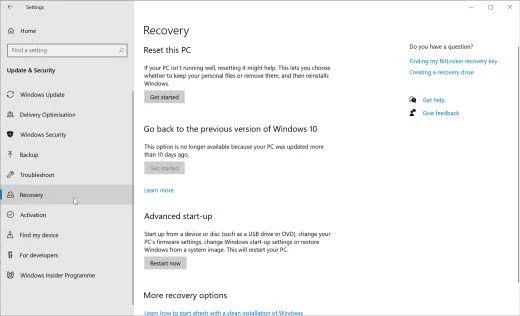
- Under Advanced startup, click Restart now. Save any open work first — your PC will restart immediately.
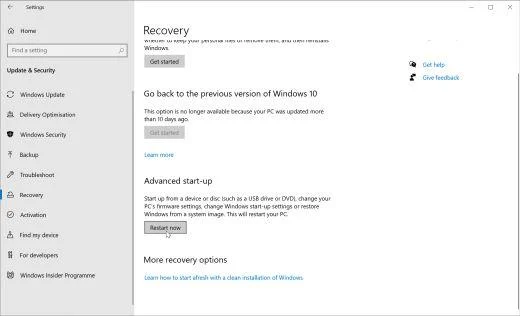
Your PC will restart into the Windows Recovery Environment. From there, follow these steps to reach Safe Mode:
- On the Choose an option screen, select Troubleshoot.
- On the Troubleshoot screen, click Advanced Options.
- On the Advanced Options page, click Startup Settings.
- On the Startup Settings page, click Restart.
- After your PC restarts, you’ll see a list of startup options. Press 5 or F5 to start Safe Mode with Networking.
- You’ll know you’re in Safe Mode when “Safe Mode” appears in the corners of the screen. Now continue with the next step of this guide — downloading and running Malwarebytes (explained in Step 2).
STEP 2: Use Malwarebytes to remove Upsilon ransomware
While the computer is in Safe Mode with Networking, we will download, install and run a system scan with Malwarebytes.
Malwarebytes is one of the most popular and trusted anti-malware tools for Windows — and it’s completely free for removing infections. It catches threats that many antivirus programs miss, including adware, browser hijackers, and trojans. Follow the steps below to scan your PC and remove what Malwarebytes finds.
Download Malwarebytes
Click the button below to download the latest version of Malwarebytes for Windows from the official source. The free version is all you need — it will scan your computer and remove adware, browser hijackers, and other malicious software at no cost.
Download MalwarebytesOfficial installer for Windows 11 and 10. Your download starts right away.Want real-time protection? See Malwarebytes Premium Malwarebytes Free for WindowsScans and removes malware at no cost
-
Install Malwarebytes
When the download finishes, open your Downloads folder and double-click the MBSetup file. If Windows shows a User Account Control pop-up, click “Yes” to allow the installation.

Follow the On-Screen Prompts to Install Malwarebytes
The setup wizard will walk you through a few quick screens:
-
Choose where you’re installing the program — “Personal Computer” or “Work Computer” — then click Next.

-
Malwarebytes will now install on your device. This usually takes under a minute.

-
When installation is complete, the “Welcome to Malwarebytes” screen will open automatically.

-
On the final screen, click Open Malwarebytes to launch the program.

-
Optional: Check for rootkits with a Custom Scan
You don’t need to change any settings for a normal scan. The standard Threat Scan in the next step is enough for most problems, so you can go straight to it.
If you also want to check for rootkits, use a Custom Scan. In current versions of Malwarebytes, rootkit scanning is only available there:
- On the Scanner tile, click the three-dot menu and select Advanced Scan.
- Choose Custom Scan. In its options, check Scan for rootkits.
- Select your system drive (usually C:\) as the location to scan, then start the scan. It takes longer than a Threat Scan.
- When it finishes, review and quarantine the results as described in the steps below.
Rootkit scanning isn’t available on Windows devices with ARM processors.
Start the Scan
Click the blue Scan button. Malwarebytes will automatically update its virus database and start checking your computer for malware.

-
Wait for the Scan to Finish
The scan checks your entire system for browser hijackers and other malicious programs, so it can take 5 to 20 minutes depending on your computer. Feel free to do something else — just check back occasionally to see the progress.

-
Quarantine the Detected Threats
When the scan is done, you’ll see a list of everything Malwarebytes found — malware, adware, and potentially unwanted programs. Click the “Quarantine” button to remove all of them at once.

Malwarebytes will now remove the malicious files and registry entries and move them safely into quarantine.

-
Restart Your Computer
Some threats can only be fully removed after a reboot. If Malwarebytes asks you to restart, click Yes. Once you’re logged back in, Malwarebytes has finished removing the threats it found.

When the malware removal process is complete, your computer should start in normal mode (if not, simply restart your device to exit Safe Mode) and continue with the rest of the instructions. We do recommend that you run another scan with Malwarebytes once you’re in Normal mode to make sure all the malicious files were removed.
STEP 3: Use HitmanPro to scan for Trojans and other malware
In this third step, while the computer is in normal back, we will download and run a scan with HitmanPro to remove the Upsilon ransomware and other malicious programs.
HitmanPro is a second-opinion scanner — it’s designed to catch what your main antivirus might have missed. Instead of relying on a single detection engine, it checks the behavior of files in the locations where malware usually hides. Anything suspicious is checked online, where it’s analyzed by several antivirus engines in HitmanPro’s Scan Cloud.
Good news: scanning is completely free, with no limits. You only need a license when it’s time to remove what was found — and even then, you can activate a free one-time 30-day trial to remove what it finds at no cost. The trial works once per computer. After that, removal needs a paid license, and the purchase screen shows the current price.
-
Download HitmanPro
Click the button below to download HitmanPro. Remember — the scan is free, so you have nothing to lose by checking your PC.
Download HitmanProFree scan. Removing threats needs the free 30-day trial. Opens the official HitmanPro page in a new tab. HitmanProSecond-opinion malware scanner from Sophos
 -
Install HitmanPro
When the download finishes, open your Downloads folder and double-click the file “hitmanpro_x64.exe”. (On 32-bit Windows 10, the file is named “hitmanpro.exe”.)
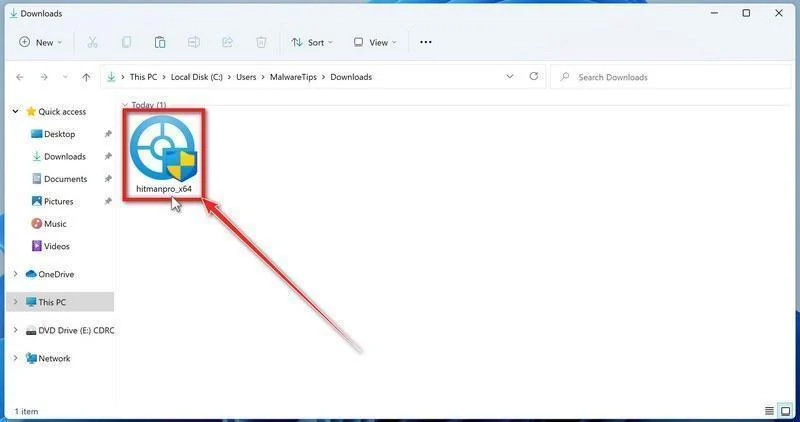
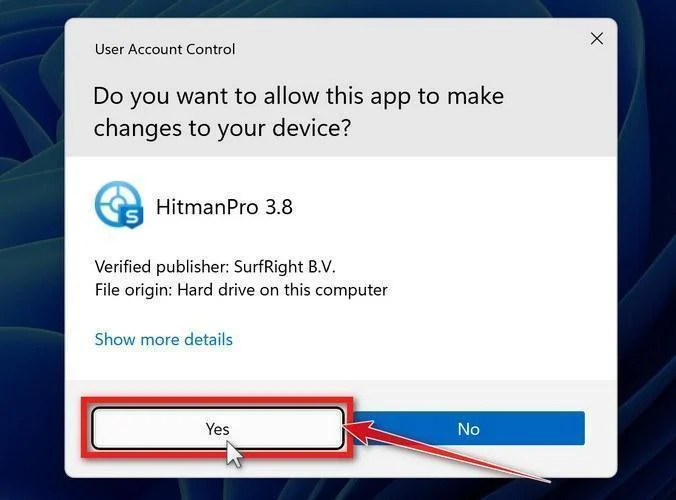
If a User Account Control pop-up asks whether HitmanPro can make changes to your device, click “Yes” to continue.
-
Follow the On-Screen Prompts
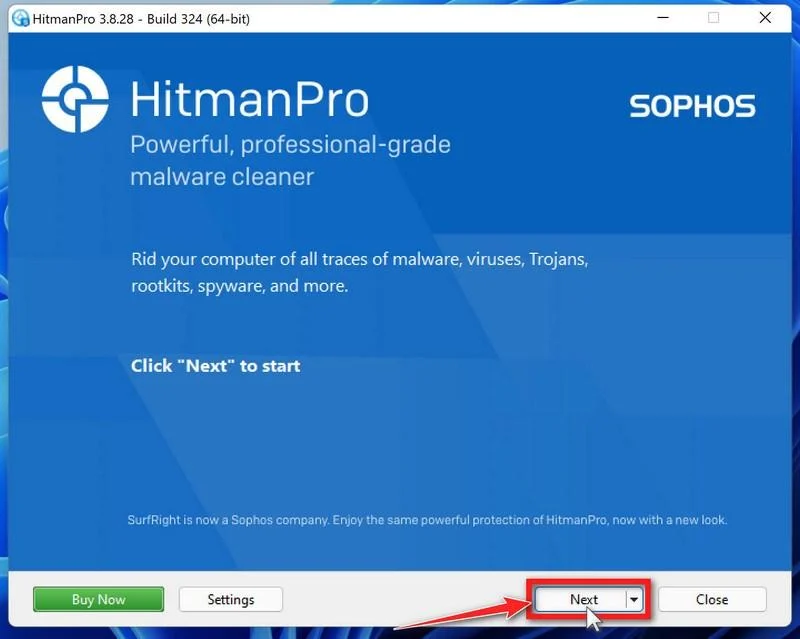
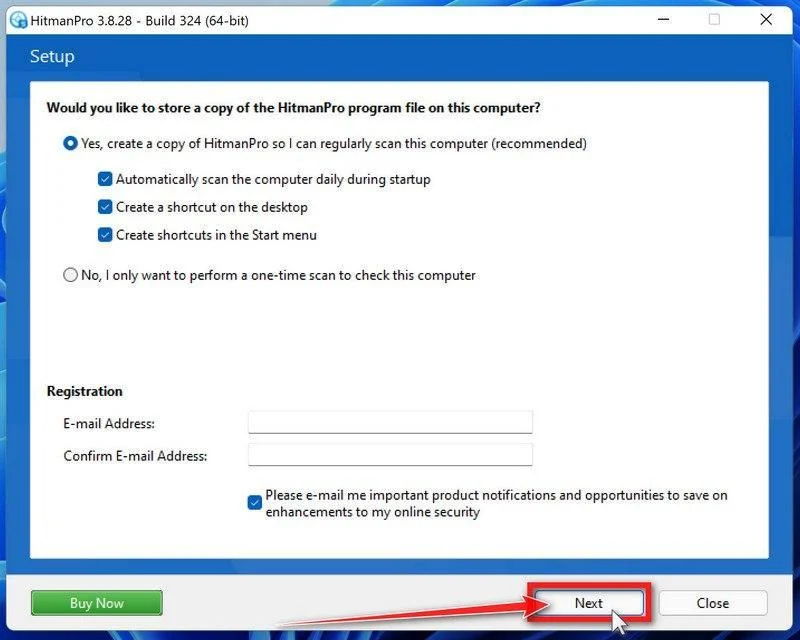
On the HitmanPro start screen, click “Next” to begin the system scan. No lengthy setup required — it goes straight to work.
-
Wait for the Scan to Finish
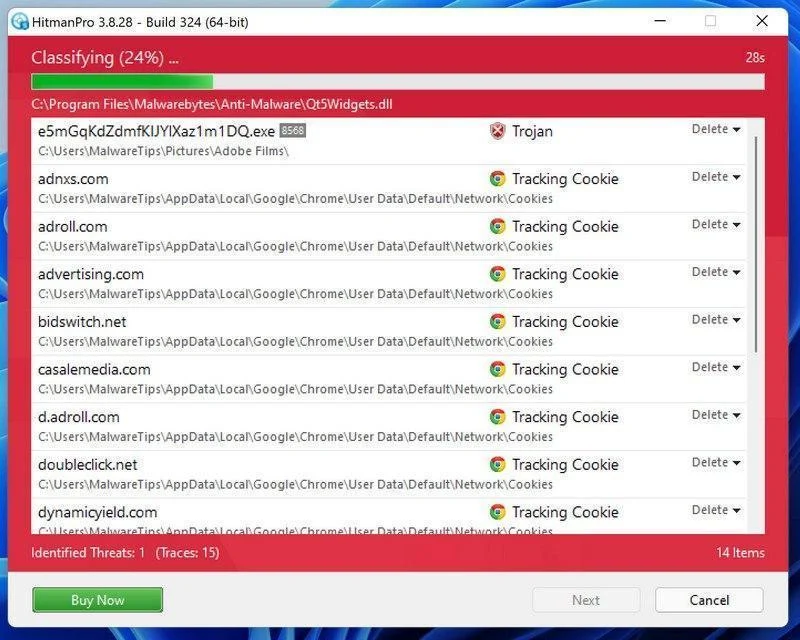
HitmanPro will now check your computer for malicious programs. This usually takes just a few minutes thanks to its cloud-based scanning.
-
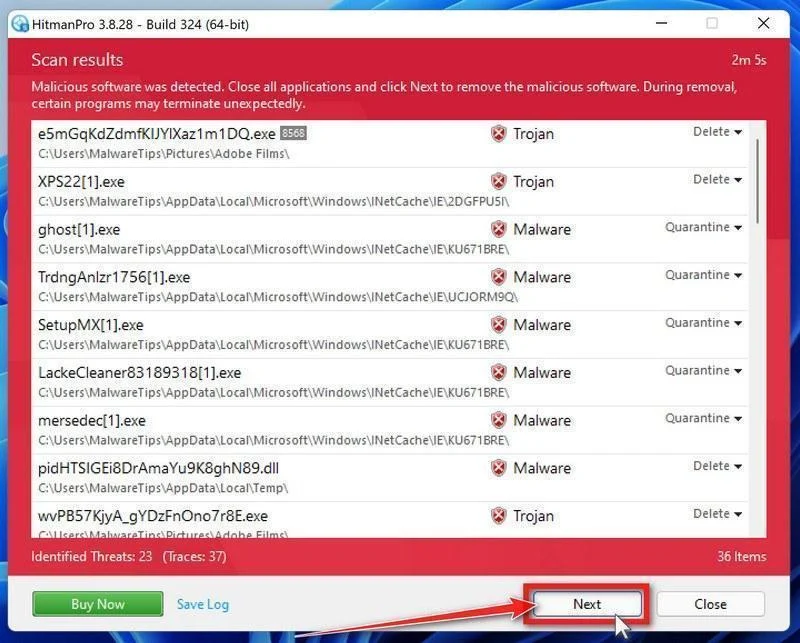
Review the Results and Click “Next”
When the scan is done, HitmanPro will show you everything it found. Click “Next” to remove the detected threats.
-
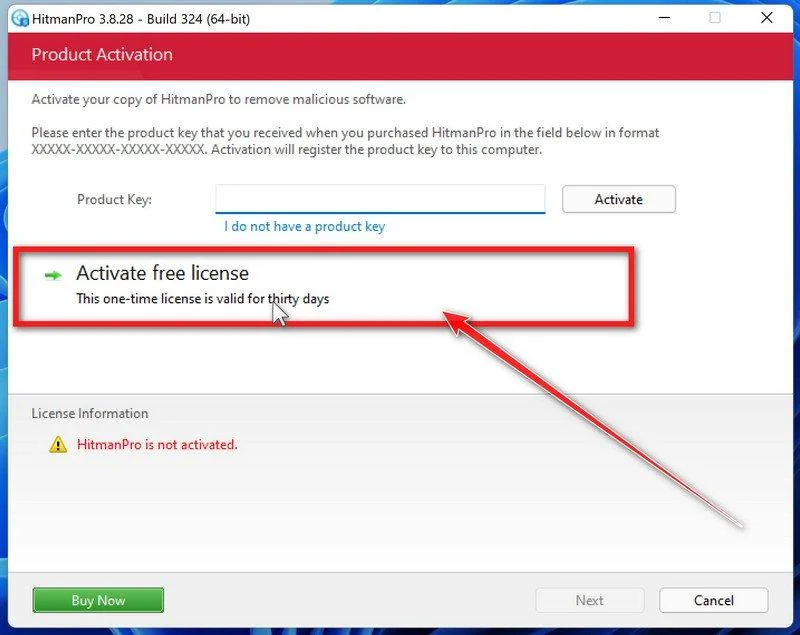
Click “Activate Free License”
To remove the malicious files, click the “Activate free license” button. This starts your free 30-day trial — no payment details needed — and unlocks the full cleanup.
When the removal is complete, HitmanPro will show a summary of everything it cleaned. Click Next, then click Reboot if prompted. If there’s no reboot prompt, click Close. Then check whether the problems you noticed have stopped. If they come back, save the HitmanPro log and ask for help in our forum.
STEP 4: Double-check for malicious programs with ESET Online Scanner
In this fourth step, we run a scan with ESET Online Scanner to remove any leftover files from the Upsilon ransomware and other malicious programs.
ESET Online Scanner is a free second-opinion scanner that performs a deep, full-system check for viruses, trojans, rootkits, and other malware. We use it as the final step because it’s thorough and can catch threats the earlier scans missed. A clean result is a good sign, but no scanner can guarantee that a computer is malware-free.
-
Download ESET Online Scanner
Click the button below to download ESET Online Scanner.
Download ESET Online ScannerOpens the official download page in a new tab. ESET Online ScannerFree one-time malware scan from ESET
 -
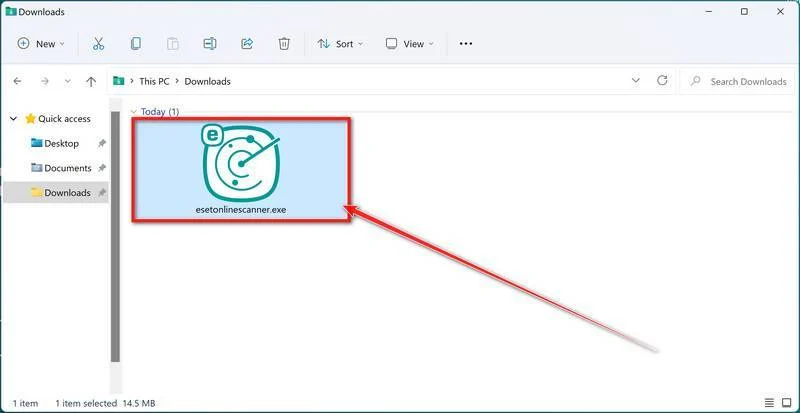
Run the Installer
When the download finishes, open your Downloads folder and double-click “esetonlinescanner.exe“.
-
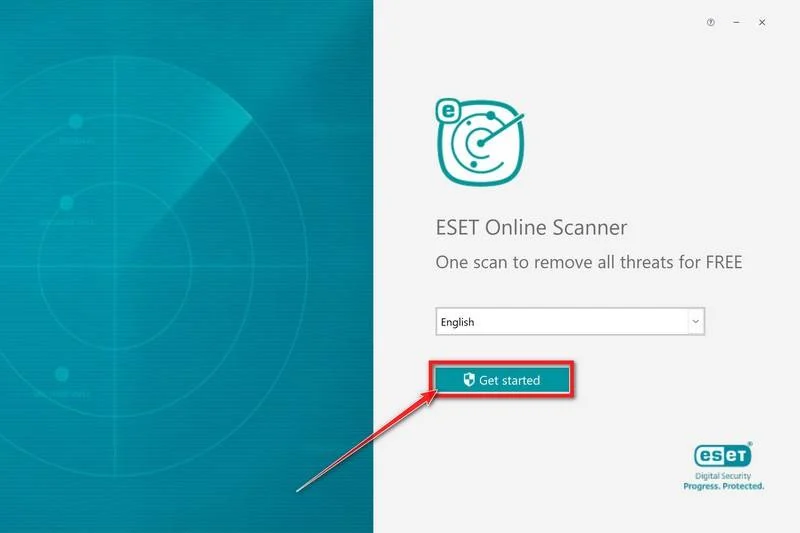
Install ESET Online Scanner
On the start screen, select your language from the drop-down menu and click Get started.
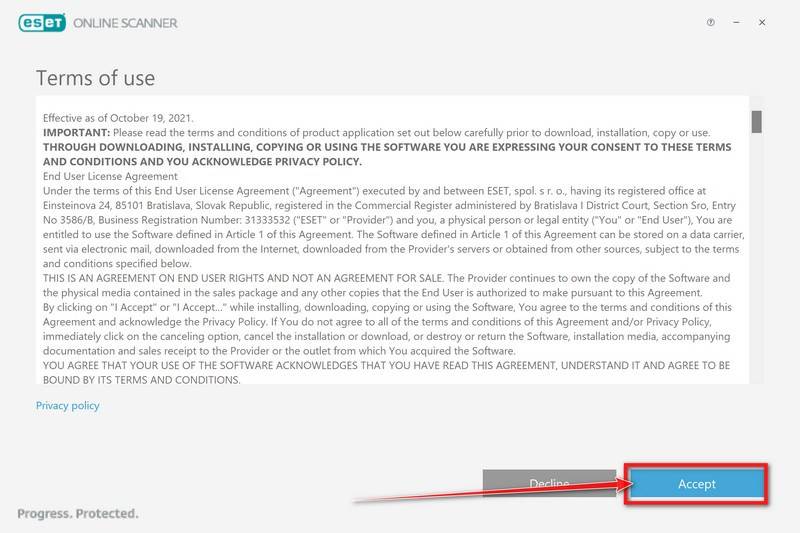
On the Terms of use screen, click Accept.
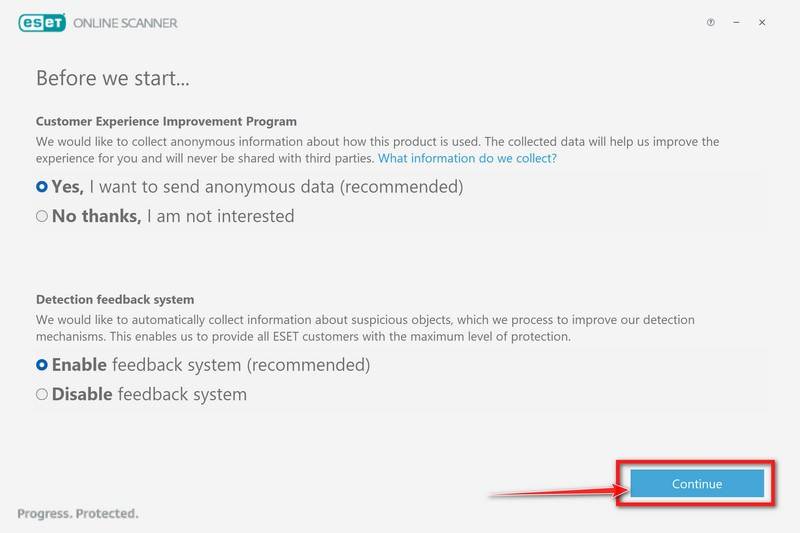
Choose your preferences for the Customer Experience Improvement Program and the Detection feedback system (either choice is fine), then click Continue.
-
Start a Full Scan
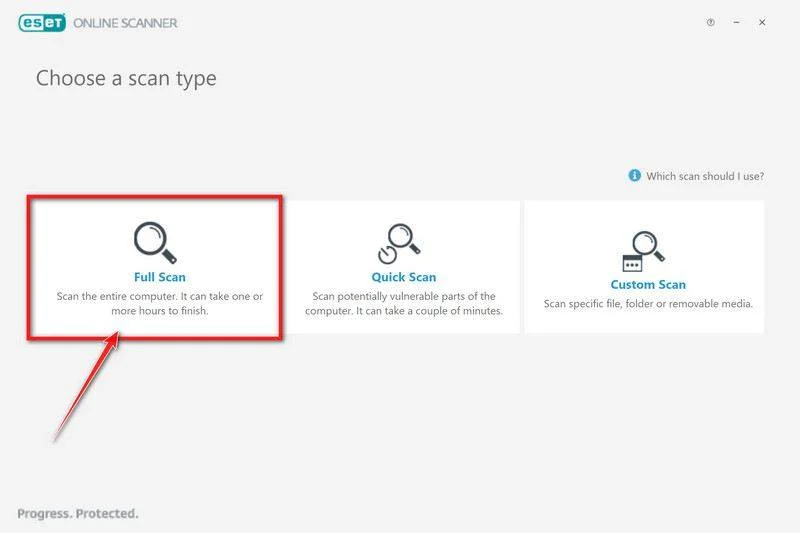
Click Full Scan — this checks your entire computer, not just the common hiding spots.
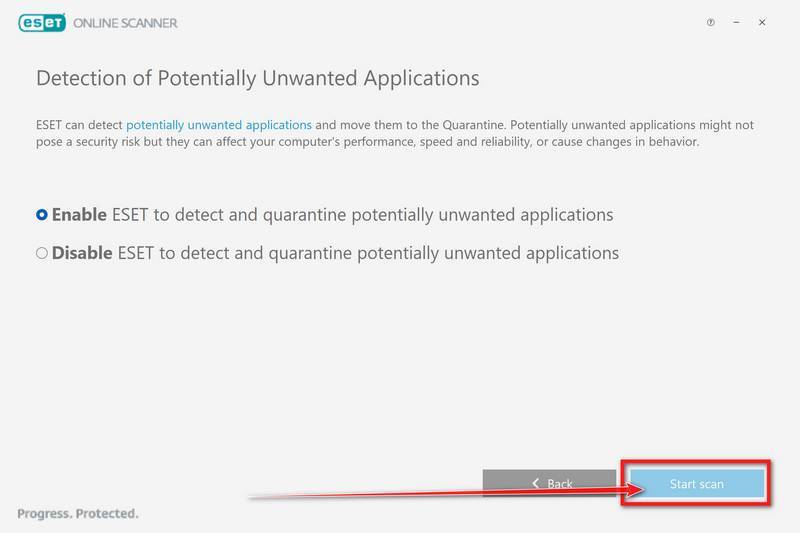
Select Enable for Detection of Potentially Unwanted Applications — this lets ESET catch adware and bundled junk programs, not just viruses. Then click Start scan.
-
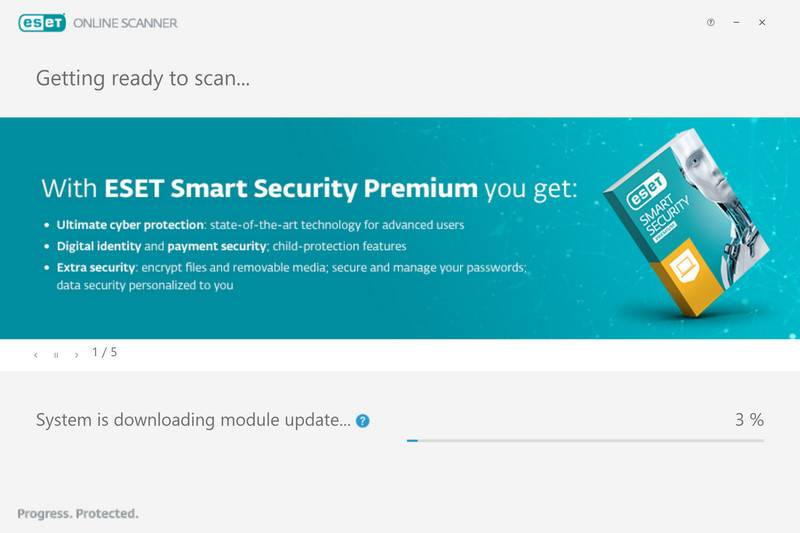
Wait for the Scan to Finish
ESET will now check every file on your computer. Because it’s a full scan, this can take a while — often an hour or more, depending on how much data you have. Leave it running in the background and check on it from time to time.
-
Review the Results
When the scan completes, the Found and resolved detections screen appears. Detected threats are usually cleaned and quarantined automatically. Click View detailed results to see exactly what was removed, and ask for help in our forum if any item could not be cleaned.
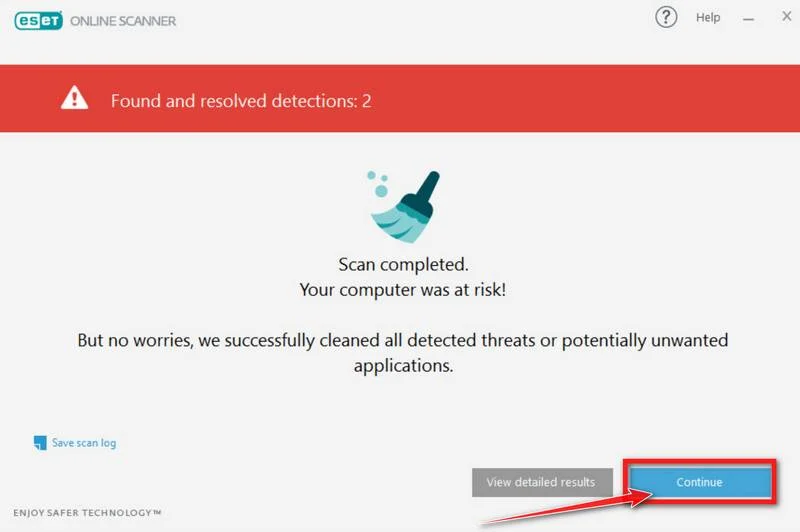
If ESET found nothing, restart your computer and check whether the problems you noticed have stopped. If they continue, ask for help in our forum.
STEP 5: Restore the files encrypted by the Upsilon ransomware
Unfortunately, in most cases, it’s not possible to recover the files encrypted by this ransomware virus because the private key which is needed to unlock the encrypted files is only available through the attackers. However, below we’ve listed three options you can use to try and recover your files.
Option 1: Search a decryption tool for this ransomware
The cybersecurity community is constantly working to create ransomware decryption tools, so you can try to search these sites for updates:
- https://id-ransomware.malwarehunterteam.com/
- https://decrypter.emsisoft.com/
- https://noransom.kaspersky.com/
- https://www.avast.com/ransomware-decryption-tools
Option 2: Use EaseUS Data Recovery Wizard Free to recover the encrypted files
EaseUS Data Recovery Wizard Free can restore files and repair corrupted files with simple clicks. Its powerful scanning algorithms can identify and retrieve huge file type library, including all of the popular video files, audio files, photos, and document formats.
While the free version only allows you to recover 2 GB of data, this can be helpful to see if the recovery is possible and restore back the most important files from your computer.
-
Download EaseUS Data Recovery Wizard Free.
You can download EaseUS Data Recovery Wizard Free by clicking the link below.
Download EaseUS Data Recovery WizardOpens the download page in a new tab. EaseUS Data Recovery WizardFile recovery tool with a free version
 -
Double-click on the EaseUS Data Recovery Wizard Free setup file.
When EaseUS Data Recovery Wizard Free has finished downloading, double-click on the setup file to install EaseUS Data Recovery Wizard on your computer. In most cases, downloaded files are saved to the Downloads folder.
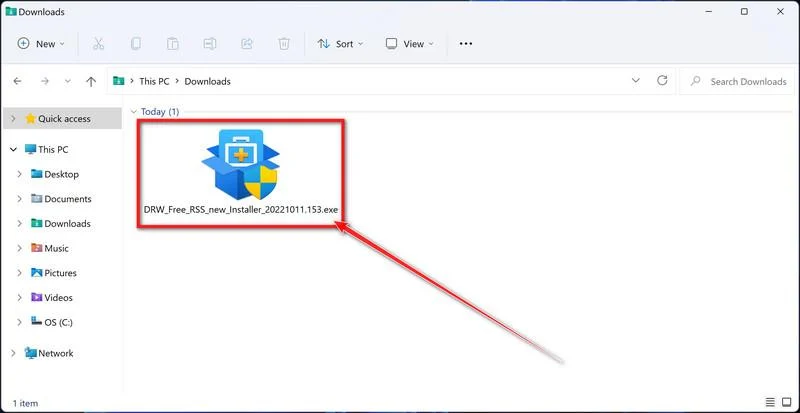
You may be presented with a User Account Control pop-up asking if you want to allow EaseUS to make changes to your device. If this happens, you should click “Yes” to continue with the EaseUS Data Recovery Wizard Free installation.
-
Follow the on-screen prompts to install EaseUS Data Recovery Wizard.
When the EaseUS Data Recovery Wizard installation begins, click on the “Install Now” as seen in the image below.
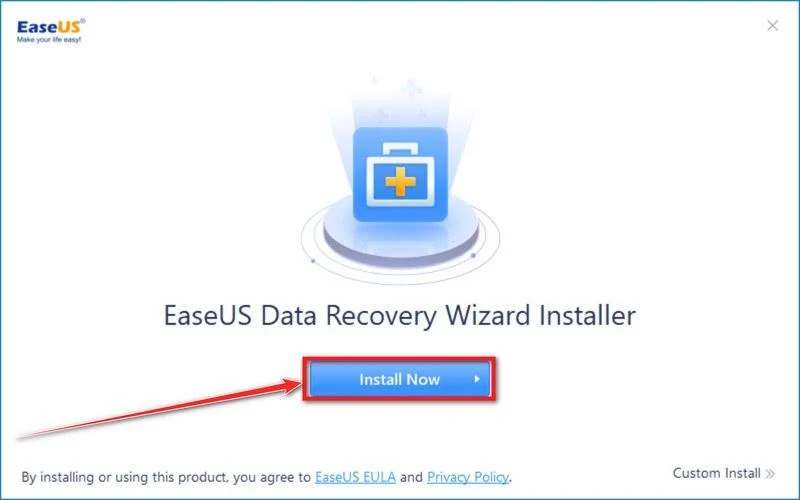
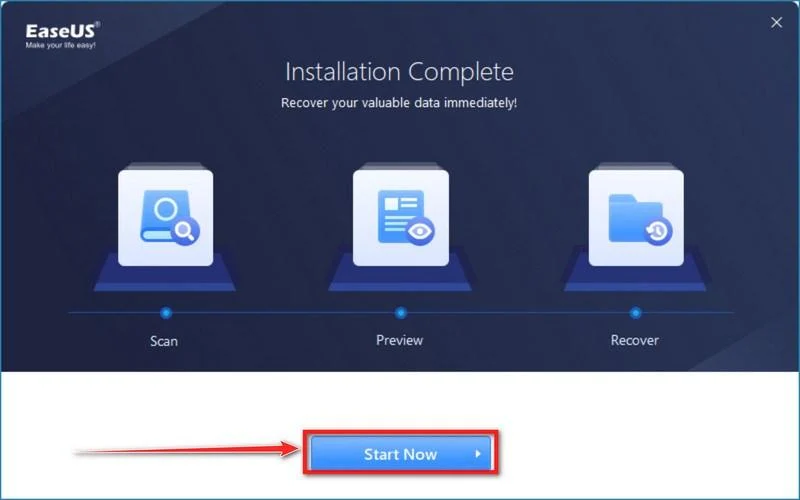
When your EaseUS Data Recovery Wizard installation completes, click the “Start Now” button to start the program.
-
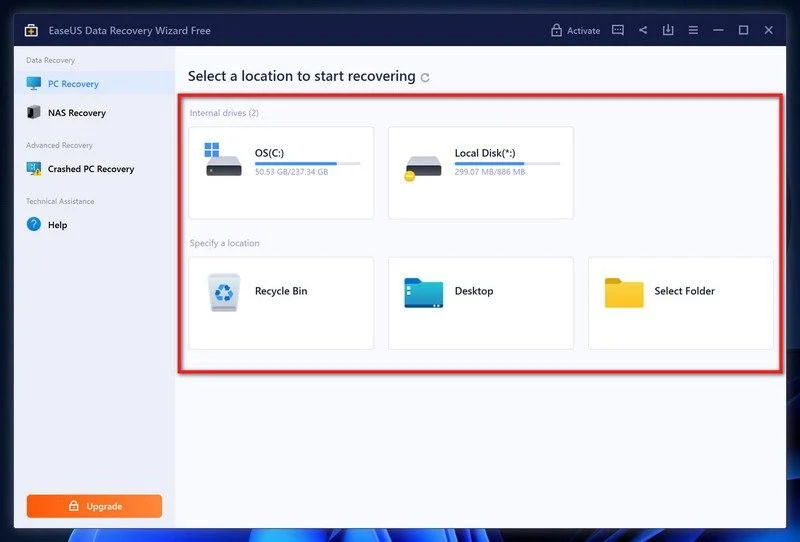
Select a location to start recovering the encrypted files.
Choose the drive or folder where you are the encrypted files that you want to recover and click “Scan“.
-
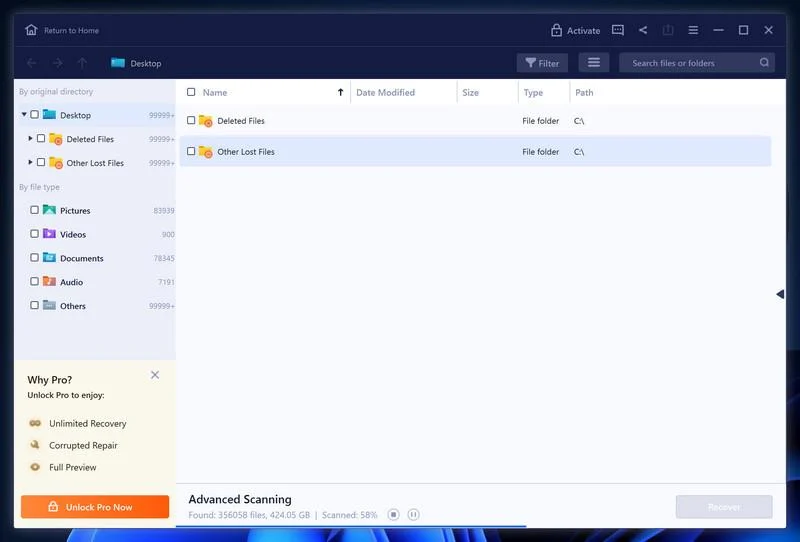
Wait for the EaseUS Data Recovery Wizard scan to complete.
EaseUS Data Recovery Wizard will now scan your computer files that can be restored. This process can take a few minutes, so we suggest you do something else and periodically check on the status of the scan to see when it is finished.
-
Find the files you want to recover.
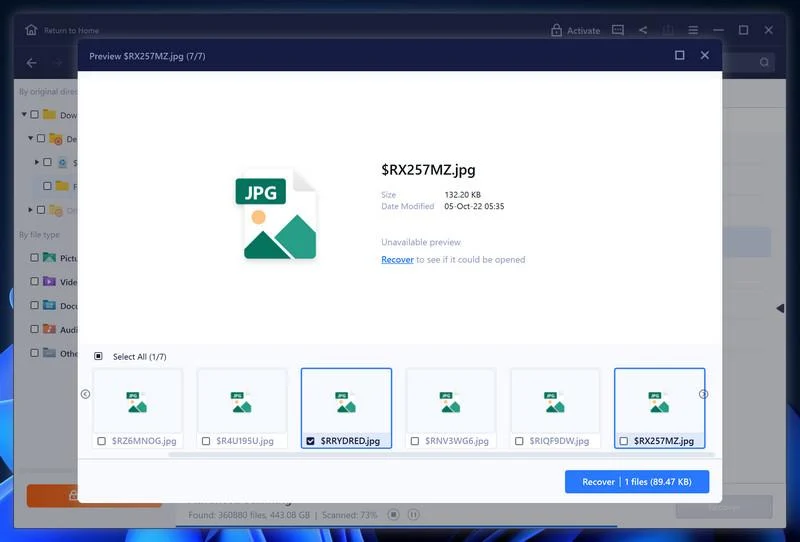
When the EaseUS Data Recovery Wizard scan is finished scanning it will show a screen that displays the files that can be recovered. This tool can recover a lot of data, use the “Filter” button to quickly filter specific file types and find the files that you want to recover.
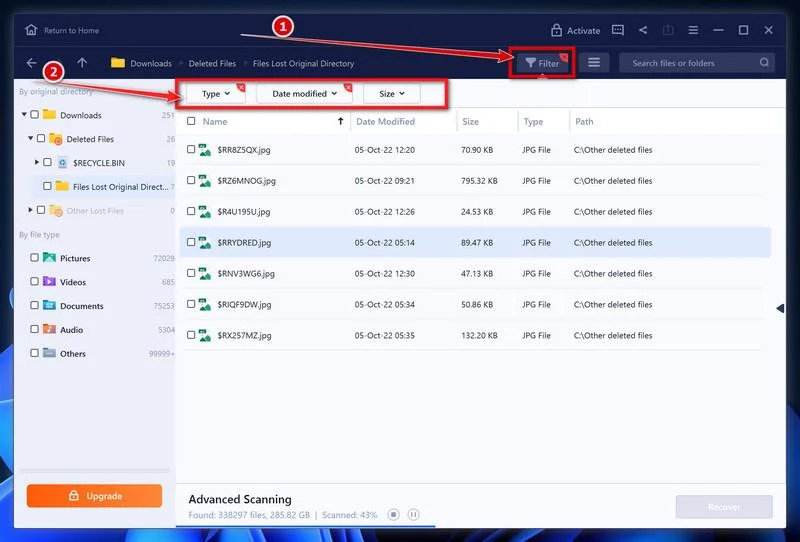
Click the “Preview” button or double-click on a file for a full preview.
-
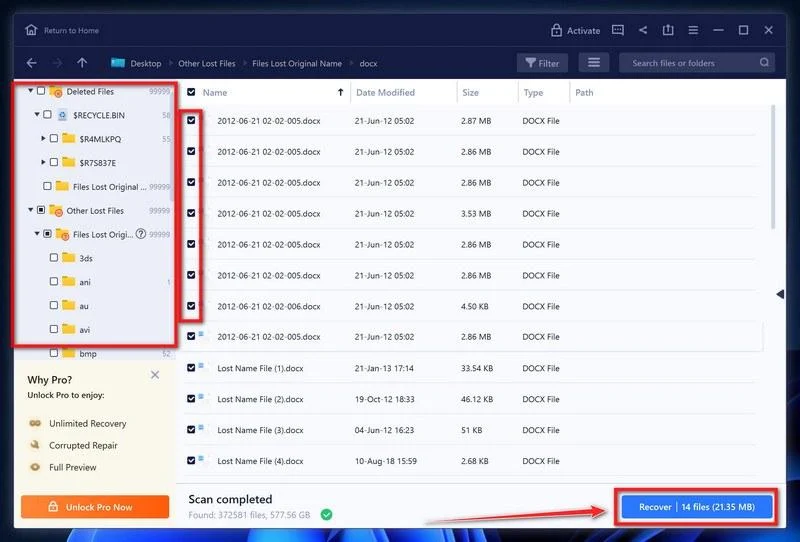
Select your files and click “Recover”.
Finally, select the the files you want to recover and click “Recover“.
Choose a safe location to save all the files.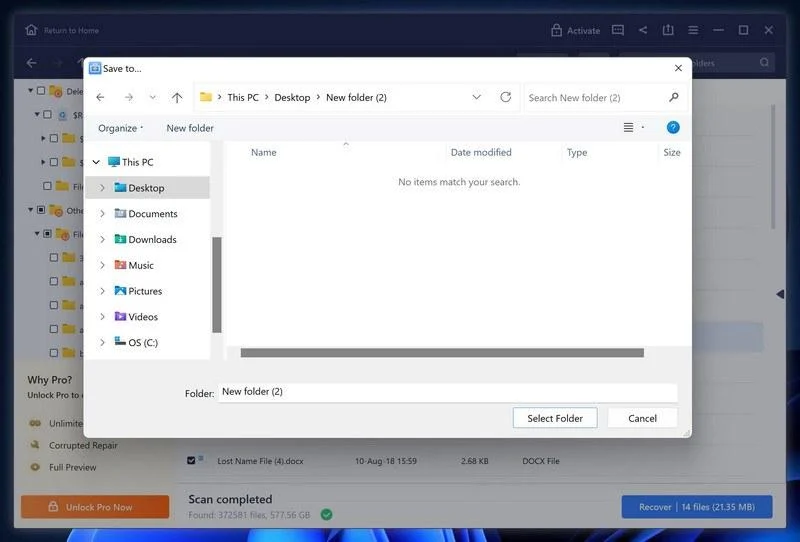
The free version only allow you to recover 2 GB of data, however, this will allow you to recover the most important files and see if EaseUS Data Recovery Wizard can correctly recover them.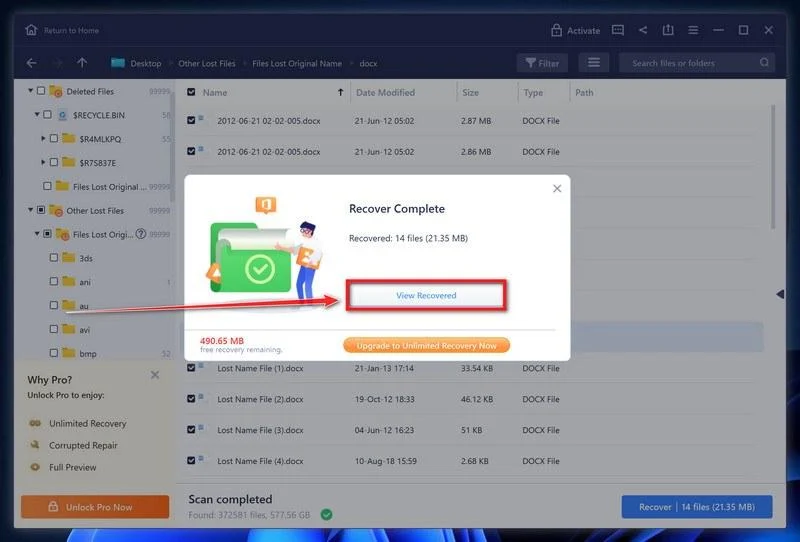
Option 3: Try to restore your files with ShadowExplorer
This ransomware will attempt to delete all shadow copies when you first start any executable on your computer after becoming infected. Thankfully, the infection is not always able to remove the shadow copies, so you should continue to try restoring your files using this method.
-
Download ShadowExplorer.
You can download ShadowExplorer from the below link.
Download ShadowExplorerOpens the official download page in a new tab.ShadowExplorerRestores files from Windows Shadow Volume Copies -
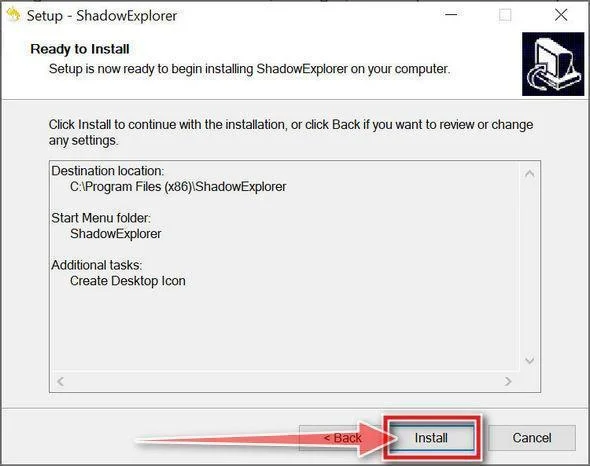
Install ShadowExplorer.
Double-click on the ShadowExplorer-x.x-setup file to start the installation process, then follow the on-screen promts to install this program.
-
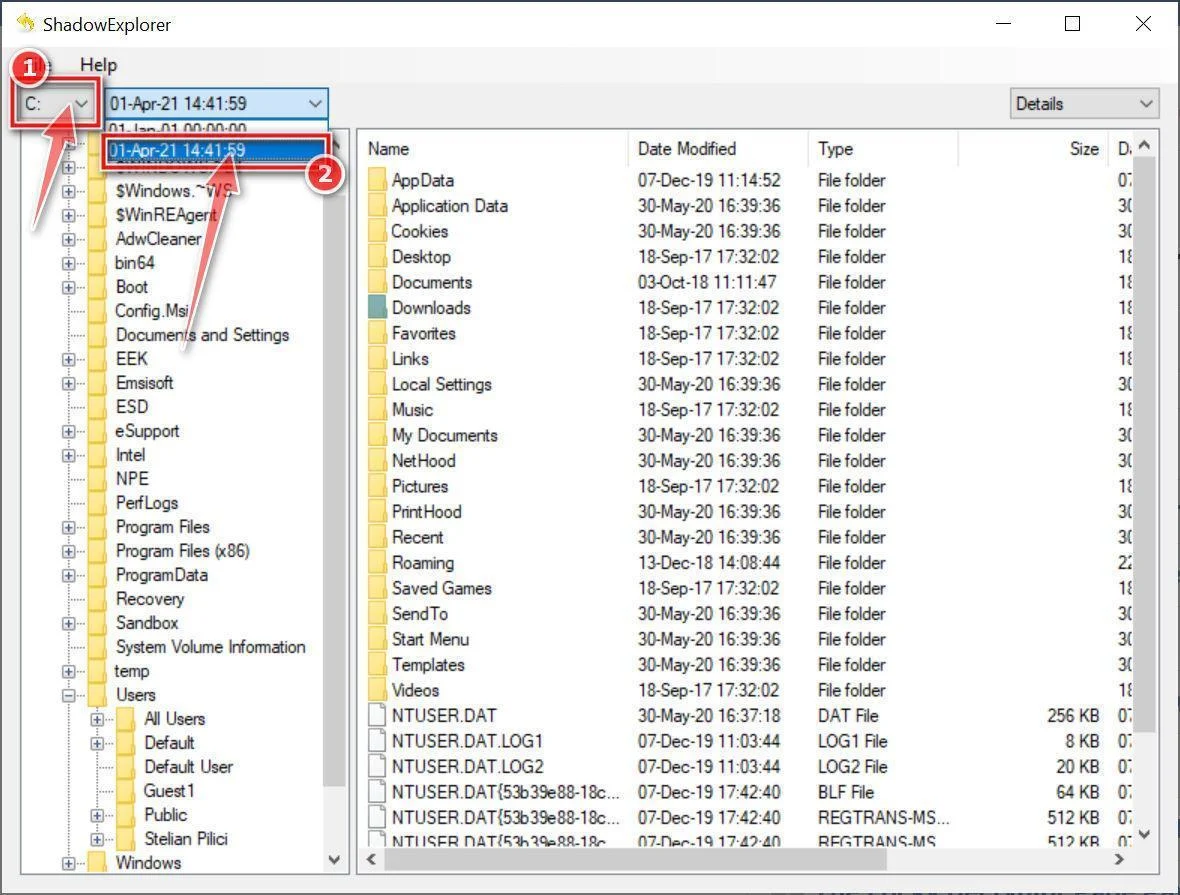
Select snapshot date.
Open ShadowExplorer and then from the top bar select the drive where the files that you want to save are located, then select from the snapshot available one previous to this infection.
-
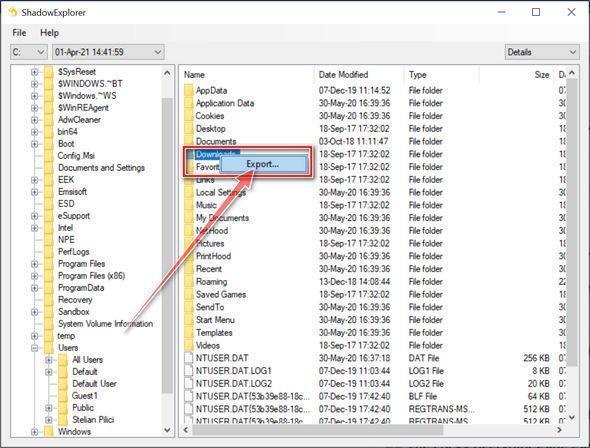
Export the files that you want to recover.
Once you have found a copy of the original file or folder, right-click on it and the select “Export”. A window will prompt you where you want to save the file or folder.
Your computer should now be free of the Upsilon ransomware infection and other malware.
If you are still having problems with your computer after completing these instructions, then please follow one of the steps:
- Run a computer scan with Emsisoft Emergency Kit
- Ask for help in our Malware Removal Assistance for Windows forum.

Join the discussion
0 commentsShare your experience or ask a question about this article.
Your progress
Did these steps help?
Let us know how the guide worked for you.
Describe what you see and the step you reached. Keep passwords and other private information out.
Discussion
Start the conversation
Have a question or something useful to share? Add the first comment.