

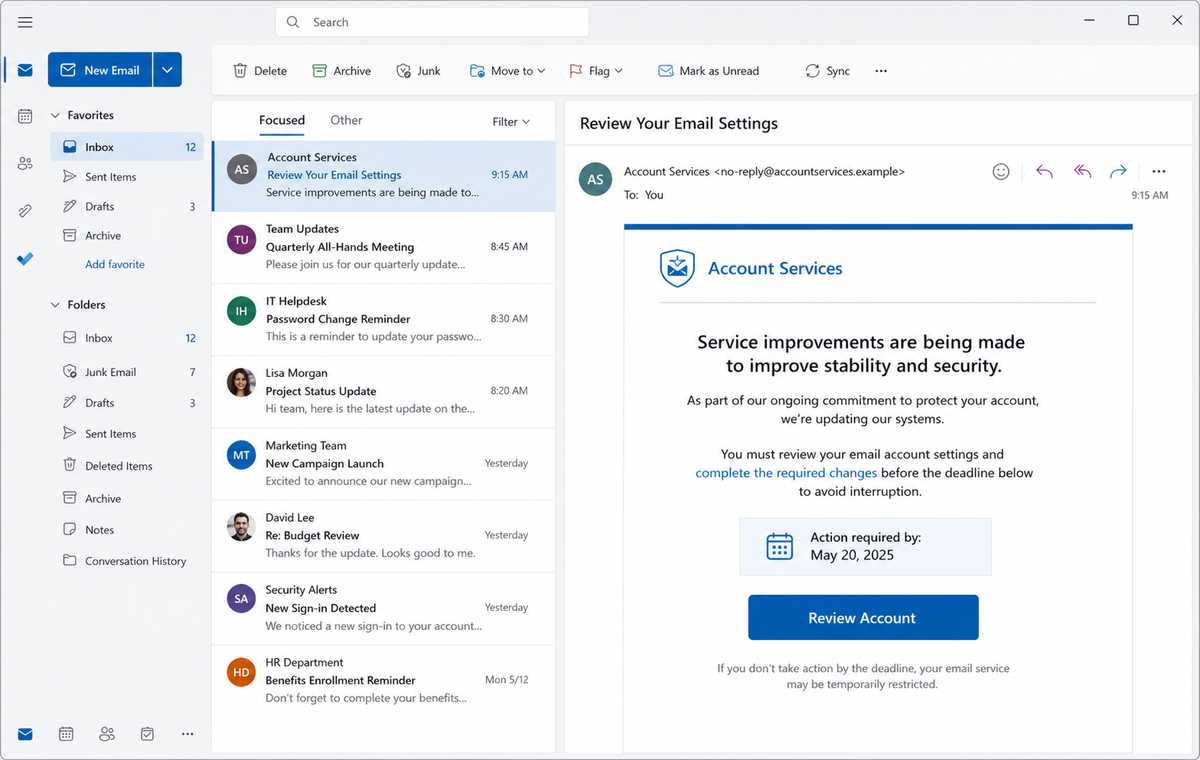
A support notice says your email provider is improving account stability and security. Review the settings before the deadline, it warns, or uninterrupted access to the mailbox may no longer be guaranteed.
The Review Your Email Settings Scam is a credential-phishing campaign. Its calm maintenance language leads to an unrelated compromised website that asks for the same password used on the real email service.
Nothing in the opening message looks like a prize or obvious emergency. That restraint is part of the trap, because software upgrades and account reviews are familiar tasks in business inboxes.
Do not use Review Account. Open the real provider through its official application or a bookmark, then check whether any matching settings task exists inside the authenticated account.
Overview
Routine service improvements provide a low-drama pretext
The email claims the provider is making improvements to enhance account stability and security. It asks the recipient to review the settings for the named mailbox and complete required changes before a precise deadline.
A Review Account button appears to be an administrative shortcut. The wording avoids explaining what setting changed, which policy applies, or why a password must be supplied through a new destination.
The button reached a compromised unrelated domain
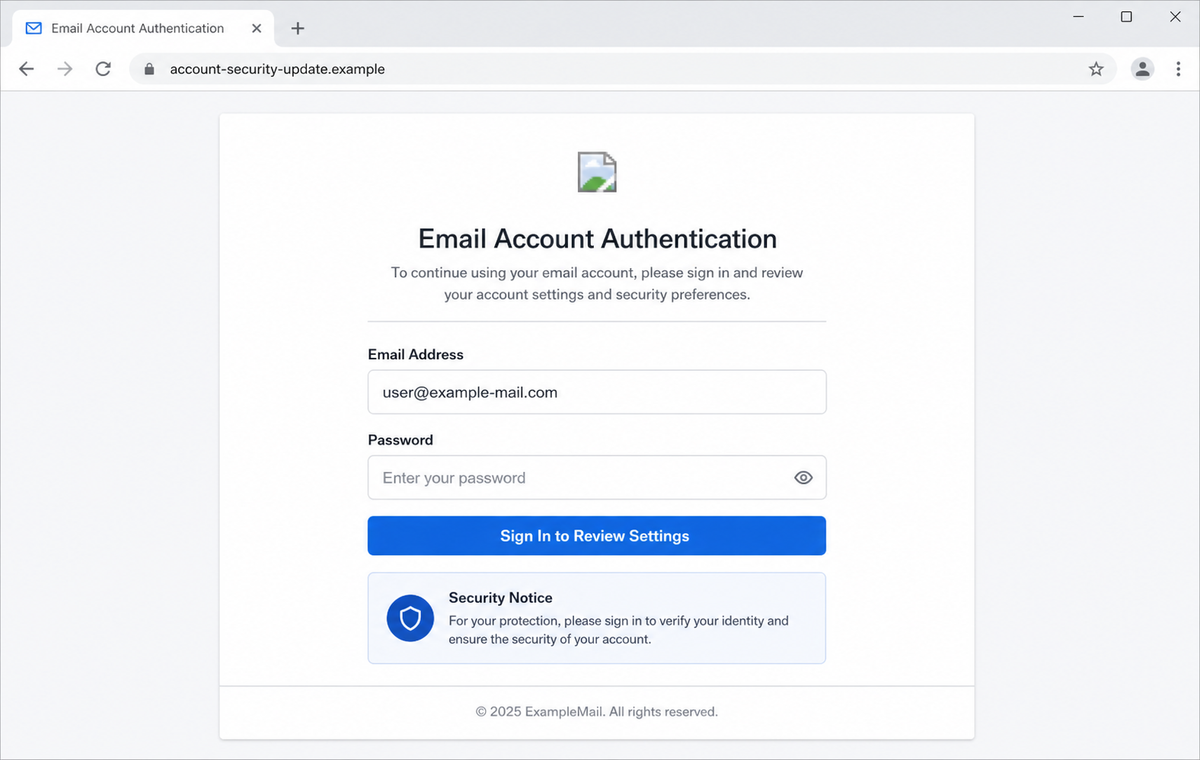
The campaign used premiosindifiscomg[.]org.br, a domain with no clear relationship to a major email provider. When examined, the page contained a login form while some copied branding images were broken.
Broken images do not make the page harmless. They show that the visual disguise can be incomplete while the credential form and data-collection code continue to function.
The phishing kit adapts its theme to the submitted address
The destination can examine the email domain and display a matching authentication label. A Gmail address, for example, may trigger a Gmail-style screen, while another provider receives different colors or wording.
That personalization is generated by the attacker. The page's registered hostname remains the real identity check, and any password entered there can be sent directly to the campaign operator.
- The email claims vague service improvements are underway.
- Account stability and security are used as reassuring themes.
- The recipient must complete unspecified changes before a deadline.
- Review Account is presented as the required maintenance route.
- No named setting or policy is documented in the message.
- The button used premiosindifiscomg[.]org.br in the reviewed campaign.
- The destination displayed a provider-style email login form.
- Some branding images were broken while the password field still worked.
- The login theme may change according to the recipient's address.
- Submitted credentials can expose the mailbox and linked services.
How Genuine Providers Announce Settings and Security Changes
Email services do change interfaces, authentication methods, storage policies, and security settings. Managed work or school accounts can also require administrator-approved updates, so the general idea is not impossible.
A genuine task should be traceable inside the official account, help center, service-status page, or administrator portal. The provider should identify what is changing and what the account owner actually needs to do.
Security-sensitive changes normally use a stable provider domain and an established sign-in flow. The user can reach the same destination by typing the provider's address rather than depending on a message button.
A provider may ask the user to authenticate again before changing important settings. That request becomes trustworthy only after the user independently confirms the hostname and starts from the real account route.
Business administrators should be able to verify the notice through their tenant console, vendor contract, or support ticket. A generic “Support Team” signature cannot replace those records.
When no matching task appears after a direct sign-in, the safest conclusion is that the email invented the maintenance event. Supplying a password will not improve stability or security, it will weaken both.
Clues That Expose the Fake Settings Review
The message never describes the settings that supposedly require attention. It uses broad language about improvements and uninterrupted access, allowing the same template to fit many providers and account types.
A precise timestamp creates authority without supplying an account record, change notice, release version, policy link, or support case that can be verified outside the message.
The destination domain is unrelated to the provider being imitated. A compromised website may have a long operating history, valid HTTPS, and a harmless original purpose, yet still host an injected phishing page.
Provider detection is another warning sign when it occurs on an unrelated host. Reading the portion after @ requires no privileged access and lets a phishing kit select convincing labels automatically.
Broken logos reveal the copied nature of the page, but perfect logos would not make it genuine. Branding is visual content that criminals can download, reproduce, or load remotely.
The requested password is the campaign's objective. Account settings can be reviewed safely after an independent login, so there is no reason to disclose credentials through the unknown Review Account route.
How the Review Your Email Settings Scam Works
Step 1: Provider-neutral messages reach many mailbox types
Attackers send the same maintenance notice to addresses collected from breaches, websites, contact databases, and guessed company formats. The message avoids a fixed brand so it can target consumer and hosted accounts alike.
The recipient's address can be inserted automatically to create the impression that the support team knows the account.
Step 2: Service improvement language lowers suspicion
Rather than announcing a breach, the email describes routine stability and security work. Recipients accustomed to software updates may see the request as ordinary housekeeping.
The positive language also hides the fact that no actual change, release, or setting is named.
Step 3: A deadline turns an optional review into a required task
The message supplies an exact completion time and warns of interrupted access. A person who relies on the mailbox for work may act quickly to avoid missing customer or internal messages.
The countdown exists only in the email and can be changed for every campaign wave.
Step 4: Review Account redirects through a compromised website
The button sends the browser away from the provider to an attacker-controlled path. The reviewed campaign used premiosindifiscomg[.]org.br, which does not authenticate any webmail account.
A lock icon can still appear because HTTPS certificates validate the connection to that domain, not the story printed on the page.
Step 5: The page chooses branding from the email address
A query parameter or submitted address tells the phishing kit which provider theme to show. The page may prefill the username so only the password seems missing.
This automatic tailoring turns publicly visible information into a false sign of provider recognition.
Step 6: One or more password attempts are recorded
The fake form can save the first password and display an error, leading the victim to enter another. It may then redirect to the real inbox so the failure appears temporary.
Attackers test the captured values against the genuine provider and other services where passwords may have been reused.
Step 7: Mailbox access supports account takeover and impersonation
Inside the inbox, criminals can read private conversations, find invoices, request password resets, and establish hidden forwarding. They may delete alerts while monitoring replies from valuable contacts.
Messages sent from the genuine address can then request payments, files, or credentials with far more credibility than the original maintenance email.
Company and Checkout Checks
Open the provider account without the email
Use the official application, a saved bookmark, or a password-manager entry. Review notifications, recent security activity, and settings after confirming the full hostname.
A legitimate required change should remain visible even when Review Account is ignored.
Demand a specific change record
Look for the named feature, effective date, help article, administrator announcement, or service-status notice. Broad promises about stability do not explain why a credential form is needed.
For managed accounts, ask IT through the known help desk instead of replying to the sender.
Inspect the destination before any password entry
Hover over the button or copy its address without opening it. Compare the registered hostname with the provider's documented login domain and reject unrelated country-code or compromised sites.
Do not let a prefilled email address or matching color scheme overrule the hostname.
Verify through established support records
A business account should have an administrator, vendor portal, invoice, or contract that identifies the provider. Use those records to ask whether a review is required.
Never use a telephone number or support link that appears only on the suspicious page.
Warning Signs to Check Before You Act
- The provider is described generically as Account Services.
- No actual setting or service improvement is identified.
- A precise deadline has no matching account record.
- Interrupted access is threatened to force quick action.
- Review Account points to an unrelated registered domain.
- The destination uses a compromised site rather than a provider portal.
- Brand images are broken or loaded inconsistently.
- The login label changes after the email address is supplied.
- The username is prefilled to simulate account recognition.
- The page requests the current mailbox password.
- No matching maintenance task appears after direct sign-in.
- The sender cannot be verified through the real support team.
A real service update can be confirmed from the provider side. When the only evidence is an email button leading to an unrelated password form, the settings review is a pretext for account theft.
What to Do if You Have Fallen Victim to This Scam
- Change the exposed password immediately. Open the email provider's official application, account page, and security dashboard through a saved bookmark or its official application, not through the Review Your Email Settings message. Set a long password through the real provider after that review-settings message. Change matching or closely related passwords on other accounts.
- Treat the password entered after the email settings review as compromised. Set a long password through the real provider after that review-settings message. Change matching or closely related passwords on other accounts. Audit the authentication methods registered after this review-settings case. Remove unknown telephone numbers, recovery addresses, app passwords, and security keys.
- End the access created through the email settings review. Sign out all other sessions from the provider’s official settings page, revoke unfamiliar OAuth grants, and reconnect trusted mail applications only after the password change. This closes tokens that can survive a simple reset.
- Review the mailbox for changes connected with the email settings review. Remove unknown forwarding addresses, delegates, inbox rules, filters, and automatic replies. The mailbox history surrounding this review-settings incident may expose attacker activity. Inspect sent mail, deleted items, trash, and recovery messages.
- Protect the wider account chain. Prioritize email, forwarding destinations, and connected applications. The mailbox involved in that review-settings message may unlock other accounts through reset links. Change those credentials before an intruder does.
- Review provider-specific sign-ins and security settings. Check recent activity, trusted devices, recovery options, application passwords, mailbox delegates, forwarding rules, filters, and connected applications. Preserve screenshots of unknown sessions or configuration changes before removing them.
- Check the device used to open the email settings review. Use Malwarebytes after that review-settings message whenever an attachment or browser add-on was opened. Review installed software before returning to banking or email.
- Reduce the chance of reopening a related page. AdGuard or another reputable DNS and content blocker may stop known phishing hosts and malicious advertisements tied to the email settings review. Keep checking destination addresses after this review-settings case. New campaign domains can appear faster than blocklists update.
- Report the phishing message. Use the mail provider's Report Phishing control and notify the email provider, the compromised website host, and the organization's IT or security team. Keep the original headers for this review-settings incident, not only a cropped screenshot. Administrators can use them to trace and block related messages.
- Warn mail administrator and contacts who received suspicious messages through a separate channel. Explain that the email settings review may have exposed the account and ask them to distrust recent file shares, password requests, invoices, payment changes, or urgent replies until the timeline is confirmed.
- Expect follow-up fraud based on the email settings review. Anyone citing this review-settings incident while promising recovery must be verified independently. A demand for money first is a warning sign. Seek support for this review-settings phishing attempt through known channels. A provider or incident responder verified for this review-settings phishing attempt is safer than an unsolicited fixer.
Frequently Asked Questions
Is the Review Your Email Settings email genuine?
The campaign reviewed here is phishing. It invents a settings deadline and leads to an unrelated website that asks for the recipient's email password.
Can a real provider require settings changes?
Yes, especially for managed accounts, but the requirement should be documented inside the official service or by the known administrator. Verify it without using the email button.
Why does the fake page know my provider?
A phishing kit can read the domain in your email address and select matching labels or colors. That simple automation does not mean the provider recognized the session.
Does a broken logo mean the phishing page failed?
No. The missing picture may only affect appearance. The password field and collection code can continue working even when copied branding does not load.
What if I entered a wrong password first?
Change every plausible password you submitted. Fake forms often record failed-looking attempts, and the second entry may reveal another credential reused elsewhere.
Is reading the settings email itself dangerous?
Opening the message normally does not reveal your password. The main risk begins when you follow its link, submit information, download a file, or install requested software.
The Bottom Line
The Review Your Email Settings Scam makes a vague maintenance task sound mandatory, then replaces the provider's real account page with an adaptive credential form on an unrelated domain.
Begin from the official application or bookmark and look for a specific, documented change. Matching branding, a prefilled address, and HTTPS cannot authenticate the wrong hostname.
If a password was entered, replace it immediately, sign out other sessions, inspect recovery and forwarding settings, secure linked accounts, warn contacts, scan downloaded content, and report the compromised destination.

Join the discussion
0 commentsShare your experience or ask a question about this article.
Discussion
Start the conversation
Have a question or something useful to share? Add the first comment.