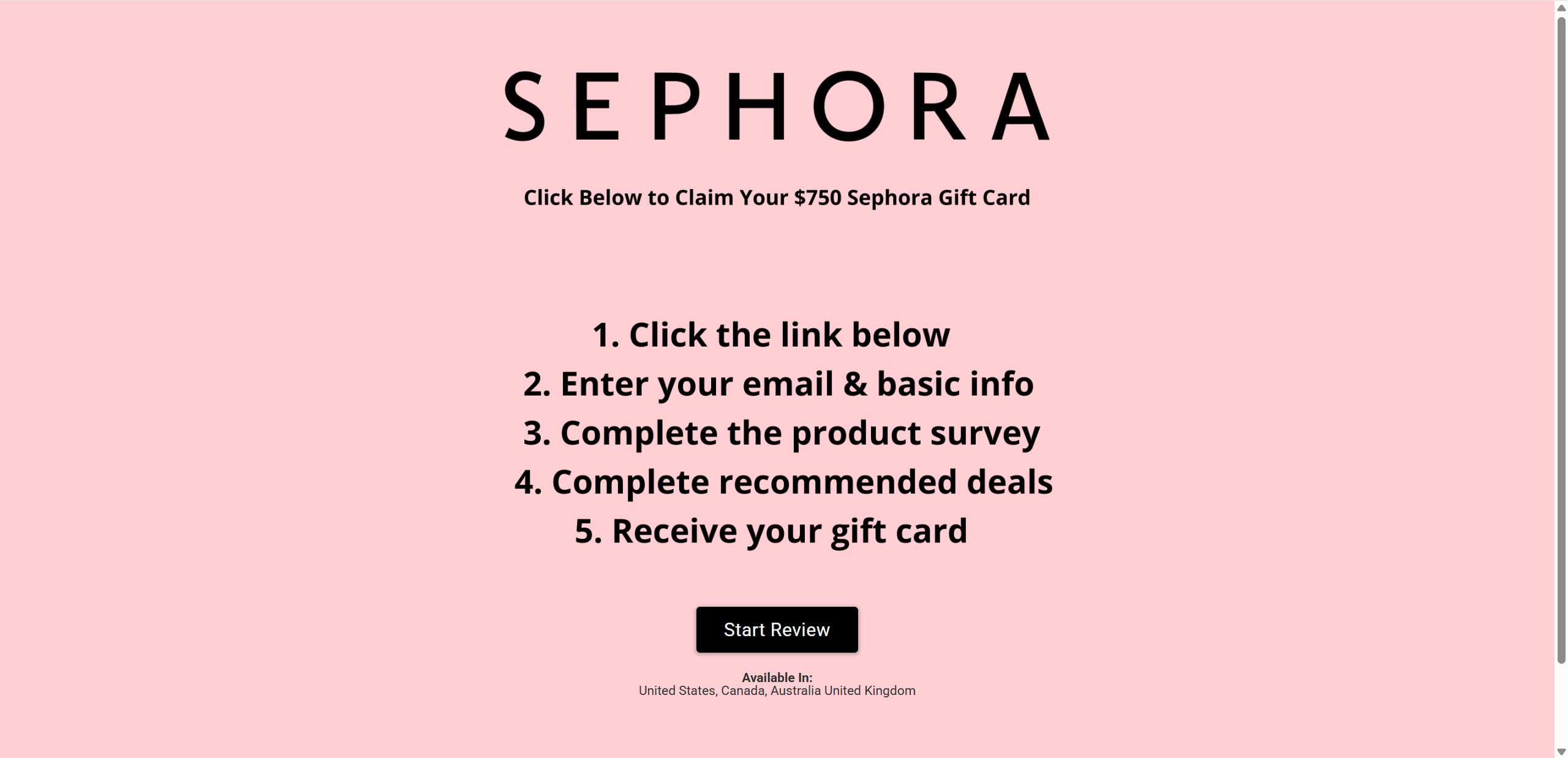
“Click here to claim your $750 Sephora Gift Card!” It’s a headline that demands attention—especially for beauty enthusiasts and Sephora fans. But what if that tempting offer isn’t from Sephora at all? What if it’s actually a bait-and-switch scam?
That’s exactly what the website Reviewsepho.com is doing. Disguised as a legitimate survey or product review offer, this site claims you’ll receive a generous $750 Sephora gift card after just a few quick steps. But in reality, victims are funneled through a series of deceptive affiliate links and never see the promised reward.
In this article, we’ll break down how the scam works, what it’s designed to do, why it’s dangerous, and how you can protect yourself or recover if you’ve already clicked.
Scam Overview: The $750 Sephora Gift Card That Never Arrives
The Reviewsepho.com site appears like a real brand promotion. With minimalist design, large text, and clear steps, it promises users the opportunity to earn a $750 Sephora gift card simply by completing a short review and a few quick “deals.”
But despite the familiar branding and smooth layout, the site is not affiliated with Sephora. Instead, it serves as a funnel to drive users through high-converting affiliate offers. These affiliate links lead to surveys, app downloads, product trials, and subscription services that pay a commission to the scammers.
The Setup: Why It Seems Legitimate
Scams like this work because they’re designed to look trustworthy. The branding is clean and aligned with Sephora’s aesthetic—featuring pink tones, simple fonts, and clear action buttons like “Start Review.”
Victims are told to:
Click a link
Enter personal info like email and name
Complete a basic product survey
Follow through with 3–4 recommended offers
Receive the promised gift card
It sounds simple, but the goal isn’t to deliver a reward. The real goal is to redirect users through multiple third-party affiliate deals. Each action you take earns money for the scammer—while you walk away with nothing.
How the Reviewsepho.com Scam Works
Step 1: Enticing the Click
The scam begins with ads that appear across social platforms like Facebook, TikTok, and Instagram, or via pop-ups and spam emails. These ads typically say things like:
“You’ve been selected for a $750 Sephora gift card!”
“Sephora wants your opinion—get rewarded!”
“Complete a short survey and win big!”
Clicking these ads takes you directly to Reviewsepho.com.
Step 2: A Fake Landing Page with Clear Instructions
The website looks minimalistic and professional. It outlines steps to receive your gift card, including:
Filling out a product review
Completing “partner deals”
Confirming your eligibility
There’s no small print or official branding to verify the promotion. And that’s the first red flag.
Step 3: The Data Collection Phase
Before moving forward, you’re asked to provide your email, name, and sometimes a phone number or address. This information is then used for marketing, sold to third-party advertisers, or stored for future scam attempts.
Step 4: Redirects Through Affiliate Links
After entering your data, clicking “Next” or “Continue” doesn’t confirm anything. Instead, you’re redirected through a series of affiliate links. These include:
Surveys: Long, repetitive forms designed to collect more personal data.
App Downloads: Often mobile apps that are monetized with ads, in-app purchases, or malicious code.
Subscription Trials: “Free” trials for streaming services, weight loss supplements, or sweepstakes entries that require credit card details.
Product Offers: Deals that require payment for shipping or include recurring charges hidden in the terms.
Each site you’re redirected to may look different, and some even mimic real brands. But none of them are affiliated with Sephora.
Step 5: Endless Loops and No Reward
After completing one or more offers, users are often told:
“You didn’t complete the offers correctly.”
“More steps are required to qualify.”
“Verify your information again.”
In many cases, users are redirected to even more affiliate sites, with no clear end in sight. The gift card is never delivered. There is no confirmation email. No support team. Just a dead end.
What to Do If You Fell for the Scam
If you clicked through Reviewsepho.com or submitted your info, take the following steps immediately:
1. Stop Interacting and Close the Site
Exit all tabs
Clear your browser cache and cookies
2. Change Your Passwords
If you entered your email or any login info, update your passwords right away—especially if you use the same password on other sites.
3. Monitor Your Credit and Bank Statements
If you submitted payment info:
Cancel any unfamiliar subscriptions
Dispute unauthorized charges
Notify your bank to watch for suspicious activity
4. Run a Security Scan
Downloaded any apps or browser extensions? Run an antivirus and anti-malware scan to check for:
Adware
Keyloggers
Tracking scripts
5. Unsubscribe from Emails and Block Spam Numbers
You may receive follow-up spam after submitting your contact info. Use email filters and phone call blockers to manage this.
Sephora Customer Support: Alert them to the misuse of their brand
7. Freeze Your Credit (if necessary)
If you submitted your full name, birthdate, and address, freeze your credit to prevent identity fraud.
8. Warn Others
Scammers thrive when victims stay silent. Share your story on:
Reddit (r/scams)
Scam forums
Facebook awareness groups
Is Your Device Infected? Scan for Malware
If your computer or phone is slow, showing unwanted pop-ups, or acting strangely, malware could be the cause. Running a scan with Malwarebytes Anti-Malware Free is one of the most reliable ways to detect and remove harmful software. The free version can identify and clean common infections such as adware, browser hijackers, trojans, and other unwanted programs.
Malwarebytes works on Windows, Mac, and Android devices. Choose your operating system below and follow the steps to scan your device and remove any malware that might be slowing it down.
Malwarebytes for WindowsMalwarebytes for MacMalwarebytes for Android
Run a Malware Scan with Malwarebytes for Windows
Malwarebytes stands out as one of the leading and widely-used anti-malware solutions for Windows, and for good reason. It effectively eradicates various types of malware that other programs often overlook, all at no cost to you. When it comes to disinfecting an infected device, Malwarebytes has consistently been a free and indispensable tool in the battle against malware. We highly recommend it for maintaining a clean and secure system.
Download Malwarebytes
Download the latest version of Malwarebytes for Windows using the official link below. Malwarebytes will scan your computer and remove adware, browser hijackers, and other malicious software for free.
(The above link will open a new page from where you can download Malwarebytes)
Install Malwarebytes
After the download is complete, locate the MBSetup file, typically found in your Downloads folder. Double-click on the MBSetup file to begin the installation of Malwarebytes on your computer. If a User Account Control pop-up appears, click “Yes” to continue the Malwarebytes installation.
Follow the On-Screen Prompts to Install Malwarebytes
When the Malwarebytes installation begins, the setup wizard will guide you through the process.
You’ll first be prompted to choose the type of computer you’re installing the program on—select either “Personal Computer” or “Work Computer” as appropriate, then click on Next.
Malwarebytes will now begin the installation process on your device.
When the Malwarebytes installation is complete, the program will automatically open to the “Welcome to Malwarebytes” screen.
On the final screen, simply click on the Open Malwarebytes option to start the program.
Enable “Rootkit scanning”.
Malwarebytes Anti-Malware will now start, and you will see the main screen as shown below. To maximize Malwarebytes’ ability to detect malware and unwanted programs, we need to enable rootkit scanning. Click on the “Settings” gear icon located on the left of the screen to access the general settings section.
In the settings menu, enable the “Scan for rootkits” option by clicking the toggle switch until it turns blue.
Now that you have enabled rootkit scanning, click on the “Dashboard” button in the left pane to get back to the main screen.
Perform a Scan with Malwarebytes.
To start a scan, click the Scan button. Malwarebytes will automatically update its antivirus database and begin scanning your computer for malicious programs.
Wait for the Malwarebytes scan to complete.
Malwarebytes will now scan your computer for browser hijackers and other malicious programs. This process can take a few minutes, so we suggest you do something else and periodically check the status of the scan to see when it is finished.
Quarantine detected malware
Once the Malwarebytes scan is complete, it will display a list of detected malware, adware, and potentially unwanted programs. To effectively remove these threats, click the “Quarantine” button.
Malwarebytes will now delete all of the files and registry keys and add them to the program’s quarantine.
Restart your computer.
When removing files, Malwarebytes may require a reboot to fully eliminate some threats. If you see a message indicating that a reboot is needed, please allow it. Once your computer has restarted and you are logged back in, you can continue with the remaining steps.
Once the scan completes, remove all detected threats. Your Windows computer should now be clean and running smoothly again, free of trojans, adware, and other malware.
If your current antivirus allowed this malicious program on your computer, you may want to consider purchasing Malwarebytes Premium to protect against these types of threats in the future. If you are still having problems with your computer after completing these instructions, then please follow one of the steps:
Malwarebytes for Mac is an on-demand scanner that can destroy many types of malware that other software tends to miss without costing you absolutely anything. When it comes to cleaning up an infected device, Malwarebytes has always been free, and we recommend it as an essential tool in the fight against malware.
Download Malwarebytes for Mac.
You can download Malwarebytes for Mac by clicking the link below.
When Malwarebytes has finished downloading, double-click on the setup file to install Malwarebytes on your computer. In most cases, downloaded files are saved to the Downloads folder.
Follow the on-screen prompts to install Malwarebytes.
When the Malwarebytes installation begins, you will see the Malwarebytes for Mac Installer which will guide you through the installation process. Click “Continue“, then keep following the prompts to continue with the installation process.
When your Malwarebytes installation completes, the program opens to the Welcome to Malwarebytes screen. Click the “Get started” button.
Select “Personal Computer” or “Work Computer”.
The Malwarebytes Welcome screen will first ask you what type of computer are you installing this program, click either Personal Computer or Work Computer.
Click on “Scan”.
To scan your computer with Malwarebytes, click on the “Scan” button. Malwarebytes for Mac will automatically update the antivirus database and start scanning your computer for malware.
Wait for the Malwarebytes scan to complete.
Malwarebytes will scan your computer for adware, browser hijackers, and other malicious programs. This process can take a few minutes, so we suggest you do something else and periodically check on the status of the scan to see when it is finished.
Click on “Quarantine”.
When the scan has been completed, you will be presented with a screen showing the malware infections that Malwarebytes has detected. To remove the malware that Malwarebytes has found, click on the “Quarantine” button.
Restart computer.
Malwarebytes will now remove all the malicious files that it has found. To complete the malware removal process, Malwarebytes may ask you to restart your computer.
After scanning, delete any detected threats. Your Mac should now be free from adware, unwanted extensions, and other potentially harmful software.
If your current antivirus allowed a malicious program on your computer, you might want to consider purchasing the full-featured version of Malwarebytes Anti-Malware to protect against these types of threats in the future. If you are still experiencing problems while trying to remove a malicious program from your computer, please ask for help in our Mac Malware Removal Help & Support forum.
Run a Malware Scan with Malwarebytes for Android
Malwarebytes for Android automatically detects and removes dangerous threats like malware and ransomware so you don’t have to worry about your most-used device being compromised. Aggressive detection of adware and potentially unwanted programs keeps your Android phone or tablet running smooth.
Download Malwarebytes for Android.
You can download Malwarebytes for Android by clicking the link below.
In the Google Play Store, tap “Install” to install Malwarebytes for Android on your device.
When the installation process has finished, tap “Open” to begin using Malwarebytes for Android. You can also open Malwarebytes by tapping on its icon in your phone menu or home screen.
Follow the on-screen prompts to complete the setup process
When Malwarebytes will open, you will see the Malwarebytes Setup Wizard which will guide you through a series of permissions and other setup options. This is the first of two screens that explain the difference between the Premium and Free versions. Swipe this screen to continue. Tap on “Got it” to proceed to the next step. Malwarebytes for Android will now ask for a set of permissions that are required to scan your device and protect it from malware. Tap on “Give permission” to continue. Tap on “Allow” to permit Malwarebytes to access the files on your phone.
Update database and run a scan with Malwarebytes for Android
You will now be prompted to update the Malwarebytes database and run a full system scan.
Click on “Update database” to update the Malwarebytes for Android definitions to the latest version, then click on “Run full scan” to perform a system scan.
Wait for the Malwarebytes scan to complete.
Malwarebytes will now start scanning your phone for adware and other malicious apps. This process can take a few minutes, so we suggest you do something else and periodically check on the status of the scan to see when it is finished.
Click on “Remove Selected”.
When the scan has been completed, you will be presented with a screen showing the malware infections that Malwarebytes for Android has detected. To remove the malicious apps that Malwarebytes has found, tap on the “Remove Selected” button.
Restart your phone.
Malwarebytes for Android will now remove all the malicious apps that it has found. To complete the malware removal process, Malwarebytes may ask you to restart your device.
When the scan is finished, remove all detected threats. Your Android phone should now be free of malicious apps, adware, and unwanted browser redirects.
If your current antivirus allowed a malicious app on your phone, you may want to consider purchasing the full-featured version of Malwarebytes to protect against these types of threats in the future. If you are still having problems with your phone after completing these instructions, then please follow one of the steps:
Restore your phone to factory settings by going to Settings > General management > Reset > Factory data reset.
After cleaning your device, it’s important to protect it from future infections and annoying pop-ups. We recommend installing an ad blocker such as AdGuard. AdGuard blocks malicious ads, prevents phishing attempts, and stops dangerous redirects, helping you stay safe while browsing online.
Frequently Asked Questions About the Reviewsepho.com Sephora Scam
Is Reviewsepho.com affiliated with Sephora?
No. Reviewsepho.com is not affiliated with Sephora in any way. The site illegally uses Sephora’s branding to gain trust and lure users into clicking on deceptive affiliate links.
Can I really get a $750 Sephora gift card from Reviewsepho.com?
No. The promised $750 gift card is a bait tactic. Victims are redirected through affiliate surveys, app downloads, and paid trial offers, but no legitimate reward is ever delivered.
What happens when I click the “Start Review” button?
Clicking the button takes you through a funnel of third-party affiliate sites, which include:
Surveys designed to collect personal data
App downloads that generate revenue for the scammer
Subscription offers that require credit card information These steps are how the scammers make money—not how you earn a reward.
Is it dangerous to submit my personal information?
Yes. Entering your name, email, phone number, or payment info can result in:
Spam emails and scam calls
Identity theft risks
Unwanted subscriptions or unauthorized charges
Why do they ask me to complete “deals”?
The “deals” are affiliate marketing offers. The scam operators are paid every time a user completes one—whether it’s signing up for a trial, downloading an app, or entering personal data.
I never received the gift card. Is there any way to claim it?
No. There is no actual gift card or prize behind the promotion. If you’ve gone through the process and reached the end without receiving anything, it’s because the entire system is designed to exploit—not reward—you.
What should I do if I downloaded something from the site?
Sephora customer support to inform them of the brand misuse
How do I avoid gift card scams like this in the future?
Only trust official brand websites or verified social media accounts
Avoid promotions that require completing unrelated offers or deals
Never give out credit card info to claim a reward
Use browser tools that block known scam or affiliate-farming websites
Are all survey or reward sites scams?
Not all—but many are. Be extra cautious with sites that:
Offer unusually high-value rewards for low effort
Redirect you repeatedly
Don’t provide contact info or terms of service
Use brand logos without permission
The Bottom Line
The Reviewsepho.com scam is a well-designed trap that misleads users with the promise of a $750 Sephora gift card. In truth, it’s a sophisticated affiliate marketing scheme that generates revenue by redirecting users through surveys, app installs, and subscription offers—all while harvesting data and offering nothing in return.
Always verify promotional offers by checking with the official brand. If a deal requires you to complete multiple unrelated tasks and share sensitive data, it’s likely a scam.
Be cautious. Stay informed. And remember: Sephora—and other major brands—will never ask you to click through affiliate links or download random apps in exchange for a reward.
Thomas is an expert at uncovering scams and providing in-depth reporting on cyber threats and online fraud. As an editor, he is dedicated to keeping readers informed on the latest developments in cybersecurity and tech.