

If you received an email claiming to be from the ShinyHunters hacking group, demanding $2000 in Litecoin, do not rush to pay.
The message is designed to scare you. It claims your devices were hacked, your camera and microphone were accessed, your private files were stolen, and embarrassing videos will be sent to your contacts.
It sounds serious because ShinyHunters is a real cybercriminal name. But that does not mean this email is real, or that the sender has access to your device.
This article breaks down how the ShinyHunters email scam works, why it feels convincing, and what you should do next.
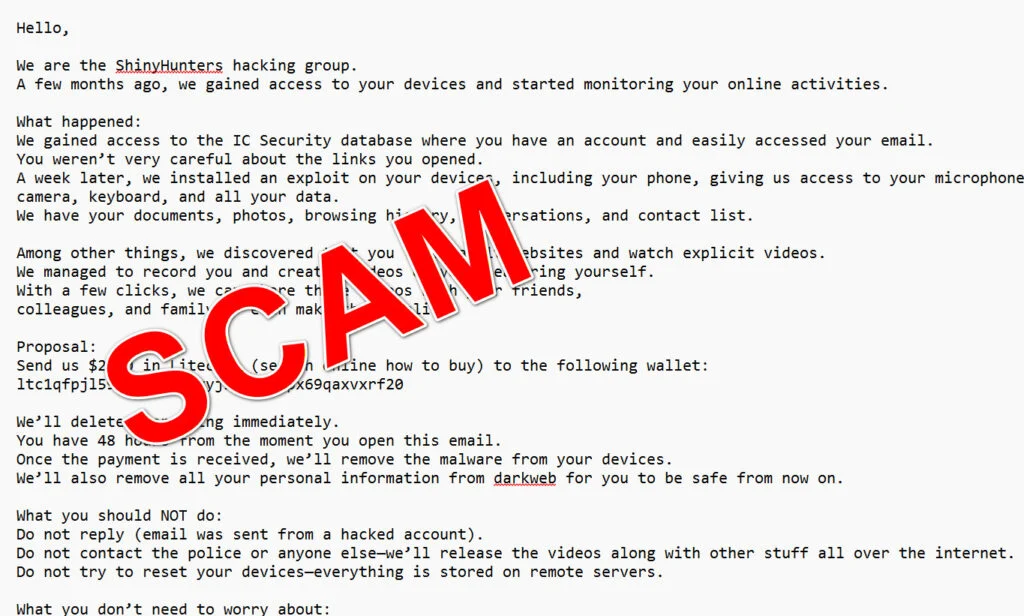
Scam Overview
What Is the ShinyHunters Hacking Group Email Scam?
The ShinyHunters hacking group email scam is an extortion email that uses the name of a real cybercriminal group to make a fake threat sound more believable.
The message usually begins with something like:
“We are the ShinyHunters hacking group.”
Then it claims the sender hacked your devices, watched your online activity, recorded you through your webcam, collected your contacts, and copied your personal data.
After that, the email demands cryptocurrency.
In the version shown here, the scammer asks for $2000 in Litecoin and gives this wallet address:
ltc1qfpjl5999jwpjq7kvyjld9akaspx69qaxvxrf20
The scammer gives you 48 hours to pay and warns you not to contact the police, reset your devices, or reply to the email.
This is classic sextortion pressure.
The message is built to make you feel:
- Shocked
- Embarrassed
- Watched
- Isolated
- Rushed
- Afraid of public exposure
That emotional reaction is the scammer’s weapon.
Why the ShinyHunters Name Makes the Scam More Frightening
This scam is more convincing than a random blackmail email because it borrows a real hacking group’s name.
ShinyHunters is not an invented name. The FBI has described ShinyHunters as a cybercriminal group specializing in large-scale data breaches and extortion, often targeting major companies across sectors like technology, finance, and retail. The FBI also warned that victims may receive extortion emails signed as ShinyHunters, and that threat actors may falsely claim to have sensitive or compromising material, including embarrassing photos or videos that often do not exist.
That detail matters.
The scammer is using a real cybercrime brand to create fear. It is similar to someone pretending to be from the FBI, Microsoft, PayPal, or your bank. The name is familiar enough to sound powerful, but the email itself still needs proof.
And this email does not provide proof.
It does not show a real recording. It does not list your actual documents. It does not show your contact list. It does not name your device. It does not provide a screenshot. It does not prove that malware exists.
It only makes threats.
The Claims Made in the Email
The scam email makes several alarming claims. It says:
- The sender is part of ShinyHunters
- They gained access to a database where you had an account
- They used your email to access or target you
- You clicked unsafe links
- They installed an exploit on your devices
- They accessed your phone, microphone, camera, keyboard, and data
- They copied your documents, photos, browsing history, conversations, and contact list
- They recorded you watching explicit videos
- They will send the alleged videos to friends, colleagues, and family
- They will delete everything if you pay
- They will remove malware after payment
- They will remove your personal information from the dark web
- They will release the material if you contact police or reset your devices
This sounds like a complete compromise.
But the wording is broad. It is written to apply to many people at once.
The email does not say which phone. It does not say which operating system. It does not say which file was copied. It does not show one contact from your contact list. It does not identify the supposed exploit.
That is a major red flag.
Why the “Database Breach” Claim Is Used
The scam says the sender gained access to a database where you had an account, in this case “IC Security.”
This part is meant to make the threat feel connected to real-world data breaches.
Many people have accounts on dozens of websites. Many companies have suffered breaches. Scammers know this. They often mention a company, app, database, or platform to make the email feel more personalized.
But a vague claim about a database is not proof that your devices were hacked.
Even if your email address appeared in a real data leak somewhere, that does not mean criminals control your phone, camera, microphone, keyboard, or files.
A data breach can expose an email address. A device hack is a different thing.
The scam email deliberately blurs that line.
It wants you to think:
“They have my email, so maybe they really got into my device.”
That is the trap.
Why the Litecoin Demand Is Suspicious
The scammer asks for payment in Litecoin instead of a bank transfer or card payment.
This is deliberate.
Cryptocurrency payments are difficult to reverse after they are sent. There is no standard chargeback like with many card payments. There is no bank support team that can simply cancel the transaction once it is confirmed.
That is why blackmail scammers like crypto.
The FBI advises cryptocurrency scam victims to report wallet addresses, transaction hashes, amounts, dates, times, and other details when filing a complaint. The FBI also warns people to be cautious with cryptocurrency recovery services, especially those charging upfront fees.
In plain English: if you send the Litecoin, getting it back may be very hard.
That is why you should not pay.
The “48 Hours” Deadline Is Manipulation
The scam gives you 48 hours from the moment you open the email.
That deadline is not there because something technical happens after 48 hours.
It is there to stop you from thinking.
The scammer does not want you to:
- Search the wording online
- Ask a friend
- Contact your email provider
- Report the message
- Run a security scan
- Check if this is a known scam
- Sleep on it
- Calm down
A deadline creates urgency. Urgency creates mistakes.
This is one of the oldest scam tactics in the book.
The “Do Not Contact Police” Warning Is Another Red Flag
The email tells you not to contact police or anyone else.
That is not because the scammer has special control over your life. It is because outside help weakens the scam.
Scammers want you isolated.
If you speak to someone, that person may immediately recognize the pattern. If you report it, the wallet address and email details may become part of a larger investigation. If you talk to IT support, they may confirm there is no sign of compromise.
The scammer wants you alone with the fear.
Do not give them that advantage.
How the ShinyHunters Email Scam Works
Step 1: Scammers Choose a Powerful Name
The first move is branding.
Instead of saying “I am a hacker,” the sender says:
“We are the ShinyHunters hacking group.”
That sounds more serious because ShinyHunters is associated with real cybercrime and extortion activity. Security researchers describe ShinyHunters as a financially motivated extortion operation active since at least 2019, known for large-scale data theft, SaaS-focused intrusions, and pay-or-leak tactics.
The scammer is using that reputation as a shortcut.
They want you to think:
“This group is real, so maybe this email is real too.”
But a real group name does not verify the sender.
Anyone can type “We are ShinyHunters” into an email.
Step 2: They Mention a Database to Make It Feel Personal
The email claims they gained access to a database where you had an account.
This gives the message a fake origin story.
It suggests the attack began with a breach, then moved to your email, then moved to your devices.
That chain sounds technical, but it is not proven.
A real breach notification usually comes from a company, a security team, a regulator, or a trusted monitoring service. It includes details such as affected data types, recommended actions, and official support channels.
This scam email does not do that.
It uses the database claim as a bridge to the bigger threat.
Step 3: They Blame You for Clicking Links
Next, the scammer says you were not careful about links you opened.
This is psychological.
It makes the victim feel responsible. If the victim feels guilty, they may be less likely to question the attacker.
The message is basically saying:
“You caused this. You were careless. Now you have to pay.”
That framing is intentional.
It shifts the victim from anger to shame.
Step 4: They Claim They Installed an Exploit
The email then says the scammer installed an exploit on your devices, including your phone.
This is where the story becomes bigger.
Now the scammer claims access to:
- Camera
- Microphone
- Keyboard
- Documents
- Photos
- Browsing history
- Conversations
- Contacts
That list is designed to feel overwhelming.
It covers almost every private area of your digital life. But again, the email gives no evidence.
A real attacker with full access could provide something specific. They could name a file. They could show a screenshot. They could list a few contacts. They could identify the phone model.
Most sextortion scammers do not do that because they do not have real access.
They rely on fear, not evidence.
Step 5: They Add the Adult Website Claim
The email then says the scammer discovered that you visit adult websites and watch explicit videos.
This is the core of the sextortion scam.
The scammer wants embarrassment to take over.
They do not need to know your real browsing history. They know that adult content is common, private, and emotionally sensitive. They use that topic because it makes people hesitate.
Even if the claim is false, the fear can still feel real.
That is why this scam works on many different types of people. The email does not need accuracy. It needs pressure.
Step 6: They Claim to Have Recordings
The scam says they recorded you through your camera and created compromising videos.
This is the most frightening claim in the message.
But look closely.
The scammer does not attach a sample. They do not show a still image. They do not provide a timestamp. They do not describe your room. They do not identify your device.
They only say the video exists.
That is not proof.
The FTC has warned about blackmail emails that claim the sender hacked your computer and recorded you visiting adult websites, then demand cryptocurrency to avoid exposure. The FTC’s advice is direct: stop, do not pay, and recognize it as a scam.
Step 7: They Demand $2000 in Litecoin
After creating fear, the email offers a way out.
Send $2000 in Litecoin.
This amount is large enough to hurt, but still low enough that some frightened victims may try to pay quickly.
The scammer may even tell you to search online for how to buy Litecoin. That instruction is meant to reduce friction. They are guiding victims who may not already use crypto.
This is not a professional negotiation.
It is a payment funnel.
Step 8: They Promise to Delete Everything
The scammer says they will delete everything immediately after payment.
Do not trust that promise.
Criminals who threaten to expose people for money are not reliable contract partners. Even if they had something, payment would not guarantee deletion. And if they do not have anything, the promise is meaningless.
Paying can make the situation worse.
Once you pay, the scammer knows:
- Your email address is active
- You are scared
- You can access cryptocurrency
- You may pay again
That can invite follow-up threats.
Step 9: They Claim They Will Remove Malware
The email says the scammer will remove malware from your devices after payment.
That is another manipulation tactic.
It makes the payment sound practical, as if you are buying cleanup service. But there is no reason to believe the malware exists in the first place.
If you are worried about your device, run a scan with trusted security software. Check for unknown apps and browser extensions. Review your account activity.
Do not pay a criminal to “remove” malware they have not proven exists.
Step 10: They Claim They Will Remove Your Data From the Dark Web
The email also says they will remove your personal information from the dark web.
That claim is nonsense in most cases.
Data shared or sold on criminal forums is not something one scammer can simply erase from the internet. Once data is copied, it can be duplicated and resold many times.
This line is included to sound helpful.
It turns the scammer from attacker into “protector,” but only if you pay.
That is manipulation, not a service.
Red Flags in the ShinyHunters Scam Email
Here are the biggest warning signs:
- It uses the name of a real hacking group to create fear
- It claims full device access without proof
- It says your camera and microphone were hacked
- It says compromising videos exist but does not show evidence
- It demands $2000 in Litecoin
- It gives a 48-hour deadline
- It tells you not to contact police
- It tells you not to reset your devices
- It claims the wallet is generated specifically for you
- It promises to delete everything after payment
- It uses shame and adult-content accusations
- It gives broad claims but no verifiable details
- It tries to isolate you from help
The strongest red flag is simple: the email threatens a terrible consequence but does not prove the threat is real.
What To Do If You Received the ShinyHunters Email Scam
1. Do Not Pay
Do not send Litecoin to the wallet.
Paying does not guarantee safety. It can also encourage more threats.
2. Do Not Reply
Do not respond to the email.
Do not ask for proof. Do not argue. Do not threaten the sender. Do not tell them you reported it.
Any reply confirms that your email address is active.
3. Save the Email as Evidence
Before deleting anything, save:
- The full email
- The sender address
- The subject line
- The date and time
- The Litecoin wallet address
- The payment amount
- Any headers if available
- Any links or attachments, without opening them
If you already paid, save the transaction hash.
4. Report It
Report the message to your email provider as phishing or extortion.
You can also file a cybercrime complaint through IC3, the FBI’s Internet Crime Complaint Center. IC3 describes itself as the central hub for reporting cyber-enabled crime and says people should file a report even if they are unsure whether their complaint qualifies.
If you are outside the United States, report it to your local cybercrime authority.
5. Change Important Passwords
If the email includes a password you recognize, change it immediately.
Start with:
- Banking
- Social media
- Cloud storage
- Shopping accounts
- Work accounts
- Crypto accounts
Use a unique password for every account.
6. Turn On Two-Factor Authentication
Enable two-factor authentication on important accounts.
Your email account should be the first priority. If someone controls your email, they may be able to reset passwords for other accounts.
Use an authenticator app when possible.
7. Scan Your Devices
If you did not click links or open attachments, your device is probably not infected because of this email alone.
Still, it is reasonable to run a full scan with trusted security software.
Also check:
- Unknown programs
- Unknown browser extensions
- Remote access tools
- Suspicious startup apps
- Recently installed apps
- Camera and microphone permissions
8. Check Your Email Security Settings
Review your email account for signs of real compromise.
Look for:
- Unknown forwarding addresses
- Strange filters
- Recovery email changes
- Recovery phone changes
- Unknown logged-in devices
- Suspicious login history
- Connected apps you do not recognize
Remove anything suspicious.
9. Warn Others If Needed
If this came to a work email, notify your IT or security team.
If it came to a personal email, warn family members if they might receive similar messages.
These campaigns often target many people at once.
10. Ignore Follow-Up Threats
You may receive another email later.
It may use a different wallet. It may claim the deadline is almost over. It may use more aggressive language.
Do not engage.
Block, report, and move on.
Is Your Device Infected? Run a Free Malware Scan
Slow performance, constant pop-ups, or strange behavior? These are classic signs of a malware infection. The fastest way to find out is to scan your device with Malwarebytes Free — one of the most trusted malware removal tools available.
The free version detects and removes the most common threats, including:
- Adware — the cause of those annoying pop-ups
- Browser hijackers — unwanted redirects and changed homepages
- Trojans and spyware — hidden programs stealing your data
- Potentially unwanted programs (PUPs) — software you never asked for
👉 Select your device below — Windows, Mac, or Android — then follow the simple steps to download Malwarebytes, scan your system, and remove any threats it finds. The scan usually takes 5 to 20 minutes.
Run a Malware Scan with Malwarebytes for Windows
Malwarebytes is one of the most popular and trusted anti-malware tools for Windows — and it’s completely free for removing infections. It catches threats that many antivirus programs miss, including adware, browser hijackers, and trojans. Follow the steps below to scan and clean your PC in just a few minutes.
Download Malwarebytes
Click the button below to download the latest version of Malwarebytes for Windows from the official source. The free version is all you need — it will scan your computer and remove adware, browser hijackers, and other malicious software at no cost.
Download MalwarebytesOfficial installer for Windows 11 and 10. Your download starts right away.Want real-time protection? See Malwarebytes Premium Malwarebytes Free for WindowsScans and removes malware at no cost
-
Install Malwarebytes
When the download finishes, open your Downloads folder and double-click the MBSetup file. If Windows shows a User Account Control pop-up, click “Yes” to allow the installation.

Follow the On-Screen Prompts to Install Malwarebytes
The setup wizard will walk you through a few quick screens:
-
Choose where you’re installing the program — “Personal Computer” or “Work Computer” — then click Next.

-
Malwarebytes will now install on your device. This usually takes under a minute.

-
When installation is complete, the “Welcome to Malwarebytes” screen will open automatically.

-
On the final screen, click Open Malwarebytes to launch the program.

-
Enable “Scan for Rootkits”
Before scanning, turn on rootkit detection so Malwarebytes can find even the most hidden threats. Click the Settings gear icon on the left side of the screen.

In the settings menu, find “Scan for rootkits” and click the toggle so it turns blue.

Done? Click “Dashboard” in the left pane to return to the main screen.
Start the Scan
Click the blue Scan button. Malwarebytes will automatically update its virus database and start checking your computer for malware.

-
Wait for the Scan to Finish
The scan checks your entire system for browser hijackers and other malicious programs, so it can take 5 to 20 minutes depending on your computer. Feel free to do something else — just check back occasionally to see the progress.

-
Quarantine the Detected Threats
When the scan is done, you’ll see a list of everything Malwarebytes found — malware, adware, and potentially unwanted programs. Click the “Quarantine” button to remove all of them at once.

Malwarebytes will now remove the malicious files and registry entries and move them safely into quarantine.

-
Restart Your Computer
Some threats can only be fully removed after a reboot. If Malwarebytes asks you to restart, click Yes. Once you’re logged back in, Malwarebytes has finished removing the threats it found.

That’s it — your Windows PC is now clean of trojans, adware, and other malware, and should be back to running smoothly.
If you are still having problems with your computer after completing these instructions, then please follow one of the steps:
- Run a computer scan with ESET Online Scanner
- Ask for help in our Windows Malware Removal Help & Support forum.
Run a Malware Scan with Malwarebytes for Mac
Malwarebytes for Mac is a free on-demand scanner that removes the malware other security software tends to miss — adware, browser hijackers, and unwanted programs included. Cleaning an infected Mac with Malwarebytes has always been completely free, and it’s our go-to recommendation. Follow the steps below to scan and clean your Mac in just a few minutes.
-
Download Malwarebytes for Mac
Click the button below to download the latest version of Malwarebytes for Mac.
Download MalwarebytesOfficial installer for macOS. Your download starts right away.Want real-time protection? See Malwarebytes PremiumMalwarebytes Free for MacScans and removes malware at no cost -
Open the Malwarebytes setup file
When the download finishes, open your Downloads folder and double-click the setup file to begin the installation.

-
Follow the On-Screen Prompts to Install Malwarebytes
The Malwarebytes for Mac Installer will guide you through a few quick screens. Click “Continue” and keep following the prompts until the installation completes.



When the installation is complete, Malwarebytes opens to the Welcome to Malwarebytes screen. Click “Get started“.
-
Select “Personal Computer” or “Work Computer”
Malwarebytes will ask what type of computer you’re installing it on. Click either Personal Computer or Work Computer, whichever applies.

-
Start the Scan
Click the “Scan” button. Malwarebytes will automatically update its detection database and begin checking your Mac for malware.

-
Wait for the Scan to Finish
Malwarebytes will scan your Mac for adware, browser hijackers, and other malicious programs. This can take a few minutes, so feel free to do something else — just check back occasionally to see the progress.

-
Quarantine the Detected Threats
When the scan is done, you’ll see a list of everything Malwarebytes found. Click the “Quarantine” button to remove all the threats at once.

-
Restart Your Mac
Malwarebytes will now remove all the malicious files it found. Some threats can only be fully removed after a reboot — if Malwarebytes asks you to restart, allow it. Once you’re logged back in, your Mac is clean.

That’s it — your Mac is now free of adware, rogue browser extensions, and other potentially harmful software.
If you are still experiencing problems while trying to remove a malicious program from your computer, please ask for help in our Mac Malware Removal Help & Support forum.
Run a Malware Scan with Malwarebytes for Android
Malwarebytes for Android automatically detects and removes dangerous threats like malware and ransomware so you don’t have to worry about your most-used device being compromised. Aggressive detection of adware and potentially unwanted programs keeps your Android phone or tablet running smooth.
-
Download Malwarebytes for Android.
You can download Malwarebytes for Android by clicking the link below.
Get Malwarebytes for AndroidOpens Google Play in a new tab.Want real-time protection? See Malwarebytes Premium for AndroidMalwarebytes for AndroidScans your phone and removes malware at no cost -
Install Malwarebytes for Android on your phone.
In the Google Play Store, tap “Install” to install Malwarebytes for Android on your device.

When the installation process has finished, tap “Open” to begin using Malwarebytes for Android. You can also open Malwarebytes by tapping on its icon in your phone menu or home screen.

-
Follow the on-screen prompts to complete the setup process
When Malwarebytes will open, you will see the Malwarebytes Setup Wizard which will guide you through a series of permissions and other setup options.
This is the first of two screens that explain the difference between the Premium and Free versions. Swipe this screen to continue.
Tap on “Got it” to proceed to the next step.
Malwarebytes for Android will now ask for a set of permissions that are required to scan your device and protect it from malware. Tap on “Give permission” to continue.
Tap on “Allow” to permit Malwarebytes to access the files on your phone.
-
Update database and run a scan with Malwarebytes for Android
You will now be prompted to update the Malwarebytes database and run a full system scan.

Click on “Update database” to update the Malwarebytes for Android definitions to the latest version, then click on “Run full scan” to perform a system scan.

-
Wait for the Malwarebytes scan to complete.
Malwarebytes will now start scanning your phone for adware and other malicious apps. This process can take a few minutes, so we suggest you do something else and periodically check on the status of the scan to see when it is finished.

-
Click on “Remove Selected”.
When the scan has been completed, you will be presented with a screen showing the malware infections that Malwarebytes for Android has detected. To remove the malicious apps that Malwarebytes has found, tap on the “Remove Selected” button.

-
Restart your phone.
Malwarebytes for Android will now remove all the malicious apps that it has found. To complete the malware removal process, Malwarebytes may ask you to restart your device.
That’s it — your Android phone is now clean — no more malicious apps, adware, or browser redirects.
If you are still having problems with your phone after completing these instructions, then please follow one of the steps:
- Restore your phone to factory settings by going to Settings > General management > Reset > Factory data reset.
- Ask for help in our Mobile Malware Removal Help & Support forum.
Stay Protected: Block Ads and Malicious Sites
Now that your device is clean, keep it that way. Most infections start with a malicious ad or a fake download button — so blocking them at the source is your best defense.
We recommend AdGuard, which blocks malicious ads, phishing pages, and dangerous redirects before they can reach you.
👉 Download AdGuard and browse safely
What If You Already Paid?
If you already sent Litecoin, stop communicating with the scammer immediately.
Do not send more money.
Then take these steps:
- Save the email and all messages.
- Save the Litecoin wallet address.
- Save the transaction hash.
- Contact the crypto exchange or wallet service you used.
- File a report with IC3 or your local cybercrime authority.
- Change your passwords.
- Enable two-factor authentication.
- Monitor your accounts for suspicious activity.
Be very careful with people claiming they can recover your crypto. Many “crypto recovery” services are scams too, especially if they demand an upfront fee.
FAQ
Is the ShinyHunters email real?
The name ShinyHunters is real, but that does not mean this email is real. Scammers often impersonate known hacking groups to make fake blackmail messages feel more credible.
Did ShinyHunters really hack my device?
The email alone does not prove that. If the message provides no screenshot, no file name, no contact list, and no specific technical proof, treat it as an extortion scam.
Should I pay the $2000 in Litecoin?
No. Paying does not guarantee anything will be deleted or that the scammer will leave you alone.
Why does the email mention adult websites?
It uses embarrassment as pressure. This is a common sextortion tactic. The scammer wants you to panic and stay quiet.
Can they really see when I opened the email?
Some emails can contain tracking pixels, but many scam messages simply say this to create fear. Do not click links, download images, or reply.
Should I reset my device?
Not because the email says so. If you clicked a suspicious link, opened an attachment, or see real signs of compromise, scan the device first and consider professional help. For most recipients, changing passwords and checking account security is enough.
Should I report the Litecoin wallet?
Yes. If you file a report, include the wallet address, payment amount, email text, sender details, and transaction hash if you paid.
The Bottom Line
The ShinyHunters hacking group email scam is a fear-based sextortion message.
It borrows the name of a real cybercriminal group, then uses fake device-hacking claims, adult-content threats, and a $2000 Litecoin demand to pressure victims into paying.
Do not pay. Do not reply.
Save the evidence, report the email, secure your accounts, and scan your devices if needed.
The message is designed to make you panic. Slow down, check the facts, and do not let a threatening email make decisions for you.

Join the discussion
0 commentsShare your experience or ask a question about this article.
Discussion
Start the conversation
Have a question or something useful to share? Add the first comment.