

Imagine opening your inbox and seeing a message from what appears to be Spotify: “We can’t process your payment. Please update your billing information to avoid interruption of your Premium service.” The email looks professional, the branding seems legitimate, and there’s even a big green button that says “Update Details.” However, clicking that button may not lead you to Spotify — it might lead you into the hands of a scammer trying to steal your personal and financial information.
The “Spotify Can’t Process Your Payment” email scam is part of a growing wave of phishing attacks that have been targeting unsuspecting users worldwide. These attacks are becoming more frequent and more sophisticated. In this detailed guide, we’ll walk you through everything you need to know about this specific scam: how it works, how to spot it, and what actions you should take if you’ve been affected.
Scam Overview
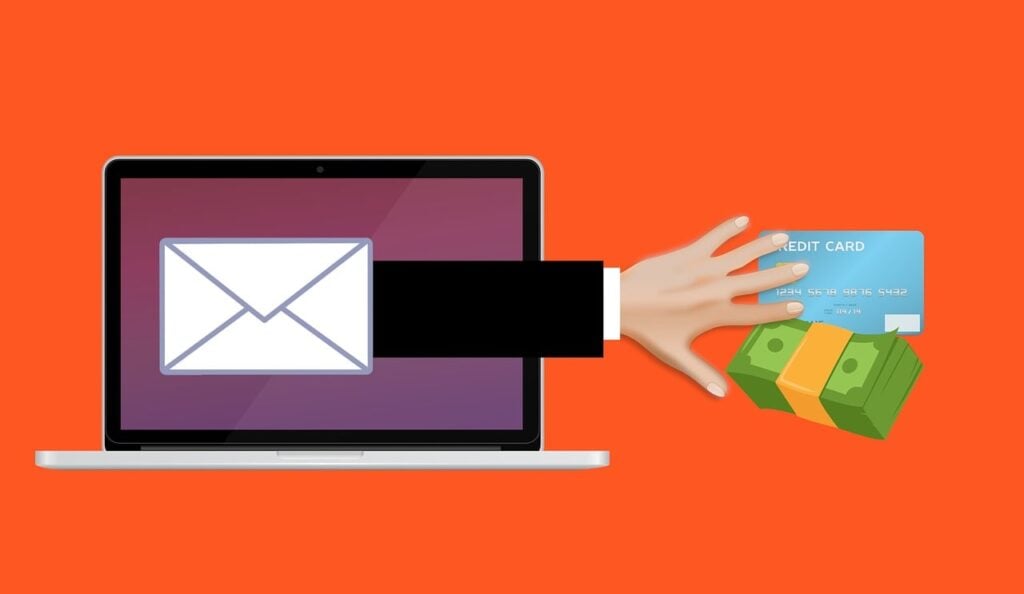
This scam involves fraudulent emails designed to trick recipients into believing that Spotify was unable to process their most recent payment. These emails often refer to Spotify Premium or Family subscriptions and claim that unless you update your payment details, your service will be interrupted.
Appearance and Design
Cybercriminals put substantial effort into making the email appear authentic. Most versions of the scam message include:
- The Spotify logo and standard brand colors
- A subject line that triggers urgency, such as “We can’t process your payment” or “Your Spotify subscription is at risk”
- Copy that urges the user to act immediately by updating their payment method
- A call-to-action button labeled “Update Details” or “Fix Billing Info”
Clicking the button usually redirects the user to a fraudulent phishing website that mimics the real Spotify login or billing page with shocking accuracy.
Objective of the Scam
The primary goals of these scams include:
- Stealing Spotify account login credentials
- Capturing credit or debit card details, including the CVV and expiration date
- Harvesting additional personal details like full names, addresses, and phone numbers
- Selling the harvested data on the dark web or using it to commit further fraud
Once your data has been compromised, it may be used to take over other accounts, perform unauthorized purchases, or even conduct identity theft.
Who Are the Targets?
While the email can be sent to anyone, users with Spotify accounts are at higher risk. However, the scam doesn’t discriminate. Even people who do not use Spotify Premium may receive these emails as part of a mass phishing campaign.
The widespread nature of the attack increases the likelihood of catching unsuspecting users off guard.
Why This Scam Is Effective
This scam continues to claim victims because:
- It leverages the fear of service disruption
- The branding and language closely match real Spotify communications
- The fake websites are professionally designed to mimic legitimate Spotify pages
- Most users aren’t trained to detect phishing attempts
Combined, these tactics make it very easy to fall for the scam if you’re not paying close attention.
How the Scam Works (Step-by-Step Breakdown)
Step 1: Receiving the Email
The first contact typically arrives in your inbox with an alarming subject line such as:
“We can’t process your payment”
“Payment Failed: Update Now to Avoid Service Disruption”
The body of the email includes language that encourages urgent action, suggesting that your Spotify account will be downgraded or closed unless you update your payment information immediately. The message is accompanied by a prominent button labeled something like “Update Details” or “Fix Payment”.
Step 2: Clicking the Link
When the unsuspecting user clicks the button in the email, they are redirected to a phishing website. These fake sites are usually hosted on URLs designed to resemble Spotify’s official domain. Examples include:
spotify-update-billing.comspotify-secure-account.netspotify-premium-verification.org
On mobile devices, these deceptive links are even harder to detect because only partial URLs are visible.
Step 3: Entering Information
The spoofed website looks nearly identical to Spotify’s real login page. Once there, users are asked to:
- Input their Spotify username and password
- Enter billing information such as full name, address, and phone number
- Provide payment details, including card number, expiration date, and CVV code
Every piece of information entered is collected in real-time and sent to the scammer’s server.
Step 4: Misuse of Data
After stealing your information, scammers may:
- Log in to your Spotify account and change credentials
- Make unauthorized purchases
- Attempt to use the same credentials on other popular services
- Sell your personal and financial data on underground markets
These activities can lead to a cascade of further security and privacy issues.
Step 5: Redirection
To maintain the illusion of legitimacy, some fake websites redirect you to the real Spotify homepage after data capture. This tactic reduces suspicion and delays victim awareness.
What to Do If You Have Fallen Victim to This Scam
If you suspect that you’ve interacted with a phishing email or entered your information on a fake website, it’s crucial to act swiftly to minimize potential harm.
1. Change Your Spotify Password Immediately
- Visit the official Spotify site at
https://www.spotify.com - Navigate to Account Settings
- Change your password to a strong, unique one
2. Review Account Activity
- Log in to your Spotify account
- Review recent logins and active devices
- Remove unfamiliar devices and log out from all sessions if necessary
3. Contact Spotify Support
- Use the official Spotify support portal to report the incident
- Provide all relevant details to help them investigate and secure your account
4. Notify Your Bank or Card Provider
- Inform your bank immediately if you submitted credit card information
- Cancel the affected card and request a replacement
- Monitor your bank account for unauthorized charges
5. Secure Your Email Account
- Change the password to your associated email address
- Enable two-factor authentication (2FA) if it is available
- Ensure that your email account hasn’t been compromised
6. Report the Scam Email
- Forward the email to Spotify at
phish@spotify.com - Report it to your email provider as phishing
7. Check for Password Reuse
- If you used the same password on other services, change those passwords immediately
- Consider using a password manager to create and store secure credentials
Is Your Device Infected? Run a Free Malware Scan
Slow performance, constant pop-ups, or strange behavior? These are classic signs of a malware infection. The fastest way to find out is to scan your device with Malwarebytes Free — one of the most trusted malware removal tools available.
The free version detects and removes the most common threats, including:
- Adware — the cause of those annoying pop-ups
- Browser hijackers — unwanted redirects and changed homepages
- Trojans and spyware — hidden programs stealing your data
- Potentially unwanted programs (PUPs) — software you never asked for
👉 Select your device below — Windows, Mac, or Android — then follow the simple steps to download Malwarebytes, scan your system, and remove any threats it finds. The scan usually takes 5 to 20 minutes.
Run a Malware Scan with Malwarebytes for Windows
Malwarebytes is one of the most popular and trusted anti-malware tools for Windows — and it’s completely free for removing infections. It catches threats that many antivirus programs miss, including adware, browser hijackers, and trojans. Follow the steps below to scan and clean your PC in just a few minutes.
Download Malwarebytes
Click the button below to download the latest version of Malwarebytes for Windows from the official source. The free version is all you need — it will scan your computer and remove adware, browser hijackers, and other malicious software at no cost.
Download MalwarebytesOfficial installer for Windows 11 and 10. Your download starts right away.Want real-time protection? See Malwarebytes Premium Malwarebytes Free for WindowsScans and removes malware at no cost
-
Install Malwarebytes
When the download finishes, open your Downloads folder and double-click the MBSetup file. If Windows shows a User Account Control pop-up, click “Yes” to allow the installation.

Follow the On-Screen Prompts to Install Malwarebytes
The setup wizard will walk you through a few quick screens:
-
Choose where you’re installing the program — “Personal Computer” or “Work Computer” — then click Next.

-
Malwarebytes will now install on your device. This usually takes under a minute.

-
When installation is complete, the “Welcome to Malwarebytes” screen will open automatically.

-
On the final screen, click Open Malwarebytes to launch the program.

-
Enable “Scan for Rootkits”
Before scanning, turn on rootkit detection so Malwarebytes can find even the most hidden threats. Click the Settings gear icon on the left side of the screen.

In the settings menu, find “Scan for rootkits” and click the toggle so it turns blue.

Done? Click “Dashboard” in the left pane to return to the main screen.
Start the Scan
Click the blue Scan button. Malwarebytes will automatically update its virus database and start checking your computer for malware.

-
Wait for the Scan to Finish
The scan checks your entire system for browser hijackers and other malicious programs, so it can take 5 to 20 minutes depending on your computer. Feel free to do something else — just check back occasionally to see the progress.

-
Quarantine the Detected Threats
When the scan is done, you’ll see a list of everything Malwarebytes found — malware, adware, and potentially unwanted programs. Click the “Quarantine” button to remove all of them at once.

Malwarebytes will now remove the malicious files and registry entries and move them safely into quarantine.

-
Restart Your Computer
Some threats can only be fully removed after a reboot. If Malwarebytes asks you to restart, click Yes. Once you’re logged back in, Malwarebytes has finished removing the threats it found.

That’s it — your Windows PC is now clean of trojans, adware, and other malware, and should be back to running smoothly.
If you are still having problems with your computer after completing these instructions, then please follow one of the steps:
- Run a computer scan with ESET Online Scanner
- Ask for help in our Windows Malware Removal Help & Support forum.
Run a Malware Scan with Malwarebytes for Mac
Malwarebytes for Mac is a free on-demand scanner that removes the malware other security software tends to miss — adware, browser hijackers, and unwanted programs included. Cleaning an infected Mac with Malwarebytes has always been completely free, and it’s our go-to recommendation. Follow the steps below to scan and clean your Mac in just a few minutes.
-
Download Malwarebytes for Mac
Click the button below to download the latest version of Malwarebytes for Mac.
Download MalwarebytesOfficial installer for macOS. Your download starts right away.Want real-time protection? See Malwarebytes PremiumMalwarebytes Free for MacScans and removes malware at no cost -
Open the Malwarebytes setup file
When the download finishes, open your Downloads folder and double-click the setup file to begin the installation.

-
Follow the On-Screen Prompts to Install Malwarebytes
The Malwarebytes for Mac Installer will guide you through a few quick screens. Click “Continue” and keep following the prompts until the installation completes.



When the installation is complete, Malwarebytes opens to the Welcome to Malwarebytes screen. Click “Get started“.
-
Select “Personal Computer” or “Work Computer”
Malwarebytes will ask what type of computer you’re installing it on. Click either Personal Computer or Work Computer, whichever applies.

-
Start the Scan
Click the “Scan” button. Malwarebytes will automatically update its detection database and begin checking your Mac for malware.

-
Wait for the Scan to Finish
Malwarebytes will scan your Mac for adware, browser hijackers, and other malicious programs. This can take a few minutes, so feel free to do something else — just check back occasionally to see the progress.

-
Quarantine the Detected Threats
When the scan is done, you’ll see a list of everything Malwarebytes found. Click the “Quarantine” button to remove all the threats at once.

-
Restart Your Mac
Malwarebytes will now remove all the malicious files it found. Some threats can only be fully removed after a reboot — if Malwarebytes asks you to restart, allow it. Once you’re logged back in, your Mac is clean.

That’s it — your Mac is now free of adware, rogue browser extensions, and other potentially harmful software.
If you are still experiencing problems while trying to remove a malicious program from your computer, please ask for help in our Mac Malware Removal Help & Support forum.
Run a Malware Scan with Malwarebytes for Android
Malwarebytes for Android automatically detects and removes dangerous threats like malware and ransomware so you don’t have to worry about your most-used device being compromised. Aggressive detection of adware and potentially unwanted programs keeps your Android phone or tablet running smooth.
-
Download Malwarebytes for Android.
You can download Malwarebytes for Android by clicking the link below.
Get Malwarebytes for AndroidOpens Google Play in a new tab.Want real-time protection? See Malwarebytes Premium for AndroidMalwarebytes for AndroidScans your phone and removes malware at no cost -
Install Malwarebytes for Android on your phone.
In the Google Play Store, tap “Install” to install Malwarebytes for Android on your device.

When the installation process has finished, tap “Open” to begin using Malwarebytes for Android. You can also open Malwarebytes by tapping on its icon in your phone menu or home screen.

-
Follow the on-screen prompts to complete the setup process
When Malwarebytes will open, you will see the Malwarebytes Setup Wizard which will guide you through a series of permissions and other setup options.
This is the first of two screens that explain the difference between the Premium and Free versions. Swipe this screen to continue.
Tap on “Got it” to proceed to the next step.
Malwarebytes for Android will now ask for a set of permissions that are required to scan your device and protect it from malware. Tap on “Give permission” to continue.
Tap on “Allow” to permit Malwarebytes to access the files on your phone.
-
Update database and run a scan with Malwarebytes for Android
You will now be prompted to update the Malwarebytes database and run a full system scan.

Click on “Update database” to update the Malwarebytes for Android definitions to the latest version, then click on “Run full scan” to perform a system scan.

-
Wait for the Malwarebytes scan to complete.
Malwarebytes will now start scanning your phone for adware and other malicious apps. This process can take a few minutes, so we suggest you do something else and periodically check on the status of the scan to see when it is finished.

-
Click on “Remove Selected”.
When the scan has been completed, you will be presented with a screen showing the malware infections that Malwarebytes for Android has detected. To remove the malicious apps that Malwarebytes has found, tap on the “Remove Selected” button.

-
Restart your phone.
Malwarebytes for Android will now remove all the malicious apps that it has found. To complete the malware removal process, Malwarebytes may ask you to restart your device.
That’s it — your Android phone is now clean — no more malicious apps, adware, or browser redirects.
If you are still having problems with your phone after completing these instructions, then please follow one of the steps:
- Restore your phone to factory settings by going to Settings > General management > Reset > Factory data reset.
- Ask for help in our Mobile Malware Removal Help & Support forum.
Stay Protected: Block Ads and Malicious Sites
Now that your device is clean, keep it that way. Most infections start with a malicious ad or a fake download button — so blocking them at the source is your best defense.
We recommend AdGuard, which blocks malicious ads, phishing pages, and dangerous redirects before they can reach you.
👉 Download AdGuard and browse safely
Frequently Asked Questions About the “Spotify Can’t Process Your Payment” Email Scam
What is the “Spotify Can’t Process Your Payment” email scam?
The “Spotify Can’t Process Your Payment” email scam is a phishing attack that mimics a legitimate message from Spotify. It claims there was an issue processing your Premium or Family subscription payment and prompts you to update your billing details. In reality, the email is designed to steal your Spotify login credentials, payment information, or both.
How can I tell if a Spotify payment email is fake?
There are several red flags to help you spot a fake Spotify payment email:
- The sender’s email address does not end in
@spotify.com - The URL linked in the button or text is not an official Spotify domain
- There are grammatical or formatting errors in the email
- The message creates urgency or panic, such as threats of immediate account suspension
Always verify by visiting Spotify directly instead of clicking email links.
What happens if I click the link in the scam email?
Clicking the link typically takes you to a phishing site that looks like Spotify’s login or billing page. Any information you enter there—such as your email, password, and credit card details—is captured by scammers and used for fraudulent purposes, including account takeover or identity theft.
Will my Spotify account be closed if I ignore the email?
No. If the email is a scam, ignoring it is the safest action. Spotify does not threaten account closure via unverified emails. If your account genuinely has billing issues, you will be notified securely through the Spotify app or by logging into your account at spotify.com.
I already entered my details. What should I do now?
Take the following steps immediately:
- Change your Spotify password.
- Review and remove unauthorized devices from your account.
- Notify your bank or card provider to cancel or monitor your card.
- Change passwords for any accounts that use the same credentials.
- Secure your email account and enable two-factor authentication.
- Report the phishing attempt to
phish@spotify.com.
How do scammers benefit from this Spotify email scam?
Scammers benefit by stealing valuable information, such as:
- Spotify login credentials (which can be sold or reused)
- Credit or debit card numbers for fraudulent purchases
- Personal information for identity theft
They may also use your email/password combo to try and access other platforms like Netflix, Gmail, or PayPal.
Is this scam targeting only Spotify users?
No. While the message pretends to come from Spotify, it is sent in bulk to thousands of people—Spotify users or not. The scam relies on probability and volume, hoping recipients either have a Spotify account or panic and follow instructions without verifying the sender.
Can Spotify recover my hacked account?
Yes, in most cases. If your account has been compromised, contact Spotify Support immediately. They can help you recover your account, reset your password, and remove unauthorized access.
What should I do with the scam email?
You should:
- Do not click any links or download attachments
- Mark the message as phishing in your email client
- Forward the scam email to
phish@spotify.com - Delete the message permanently from your inbox and trash
How can I protect myself from phishing scams like this?
To avoid future phishing scams:
- Always verify the sender’s email address
- Hover over links to see the true destination before clicking
- Use a password manager with unique credentials for each service
- Enable two-factor authentication wherever possible
- Stay informed about common scams and online threats
The Bottom Line
The “Spotify Can’t Process Your Payment” email scam is a well-crafted phishing attack designed to harvest sensitive user data and exploit it for malicious purposes. From mimicking Spotify’s branding to creating nearly identical fake websites, the scammers leave no detail untouched.
Awareness and vigilance are your best defenses. Protect yourself by:
- Scrutinizing every unexpected email
- Hovering over links before clicking
- Verifying the sender’s address and domain
- Using unique, strong passwords for all accounts
If you believe you’ve been compromised, take immediate action to secure your accounts and report the incident. Educating others about this type of scam can also help reduce the risk and keep more people safe.
Stay alert, stay secure, and always verify before you click.








