

A salary increase report naturally attracts attention, especially when it appears to come from the company’s Finance Team. The subject feels both personal and confidential.
The message is brief enough to resemble a routine internal share. Its real test begins when the employee tries to open the promised payroll document.
Overview
A Finance Message Employees Want to Read
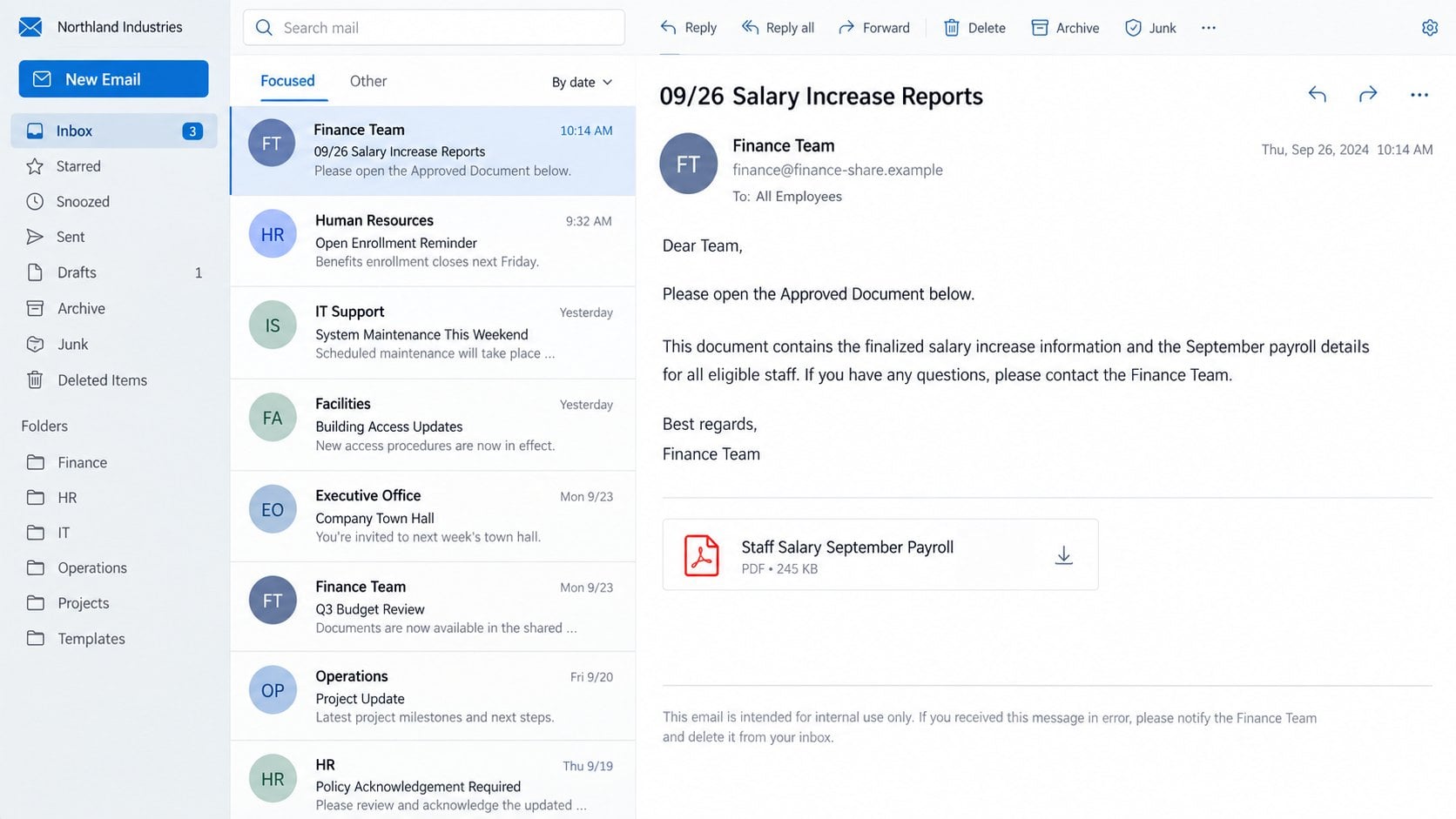
The Staff Salary Payroll scam poses as an internal document-sharing notification from a Finance Team.
Its subject may refer to salary increase reports for a particular month or year. The body asks the employee to open an approved payroll document.
Compensation information is highly relevant and normally private. That combination can make employees act quickly without discussing the message with colleagues.
The email borrows language associated with cloud-document sharing, including claims that access has been granted specifically to the recipient.
A short message can appear more authentic than an elaborate warning. Internal teams often send concise notices when a document already contains the details.
The Shared File Leads to an External Login
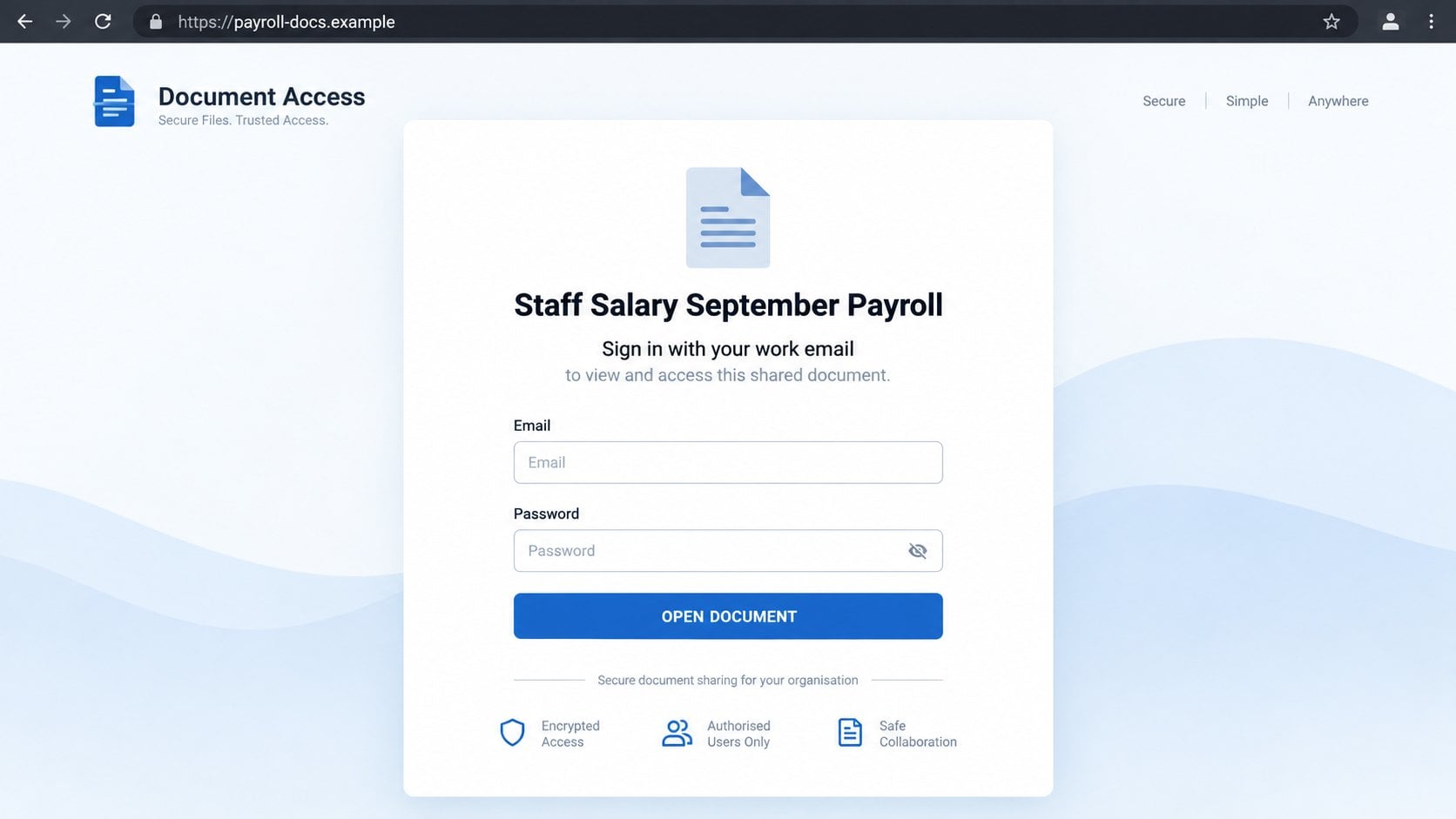
The salary document is not genuinely shared through the employer’s approved platform. Its button opens a counterfeit login page under an outside domain.
The page asks for the employee’s work email and password before displaying anything. Those credentials are the actual objective.
Some campaigns host the page on a reputable cloud service. That infrastructure belongs to the provider, but customer-uploaded content is not automatically trustworthy.
The login may imitate a familiar mail or document service. A copied interface can look accurate while sending every entry to a criminal.
The absence of a real payroll file may be hidden with an error, loading screen, or redirect to a harmless page.
One Employee Account Can Reach the Entire Company
A stolen work mailbox contains organizational charts, internal conversations, schedules, customer details, invoices, and trusted relationships.
- The subject promises sensitive compensation information.
- A Finance Team display name suggests internal authority.
- Cloud-document language makes the invitation familiar.
- The file button points outside approved systems.
- The landing page requests corporate credentials.
- Mailbox access enables convincing internal impersonation.
- The same lure can spread to coworkers and vendors.
The organization’s real Finance Team and legitimate cloud providers are not responsible for the impersonation.
This is an account-theft campaign. Its salary story is designed to obtain access rather than deliver compensation information.
How the Staff Salary Payroll Email Scam Works
Step 1: The Subject Uses Personal Financial Curiosity
Few workplace subjects receive faster attention than salary. Employees want to know whether compensation changed and how a report affects them.
The lure may arrive near a normal payroll date, annual review, budget cycle, or calendar transition. Timing can make the story feel more plausible.
Attackers do not need actual payroll data. A generic “salary increase report” creates enough uncertainty for many recipients.
The employee may also worry that everyone else received important information. That social pressure encourages opening before confirmation.
Step 2: The Finance Team Display Name Suggests Authority
The From line may show “Finance Team” even when the underlying address belongs to an unrelated account or domain.
Display names are user-controlled labels. They can imitate departments, executives, vendors, or automated systems without proving identity.
A legitimate internal message should align with the company domain and normal payroll communication method.
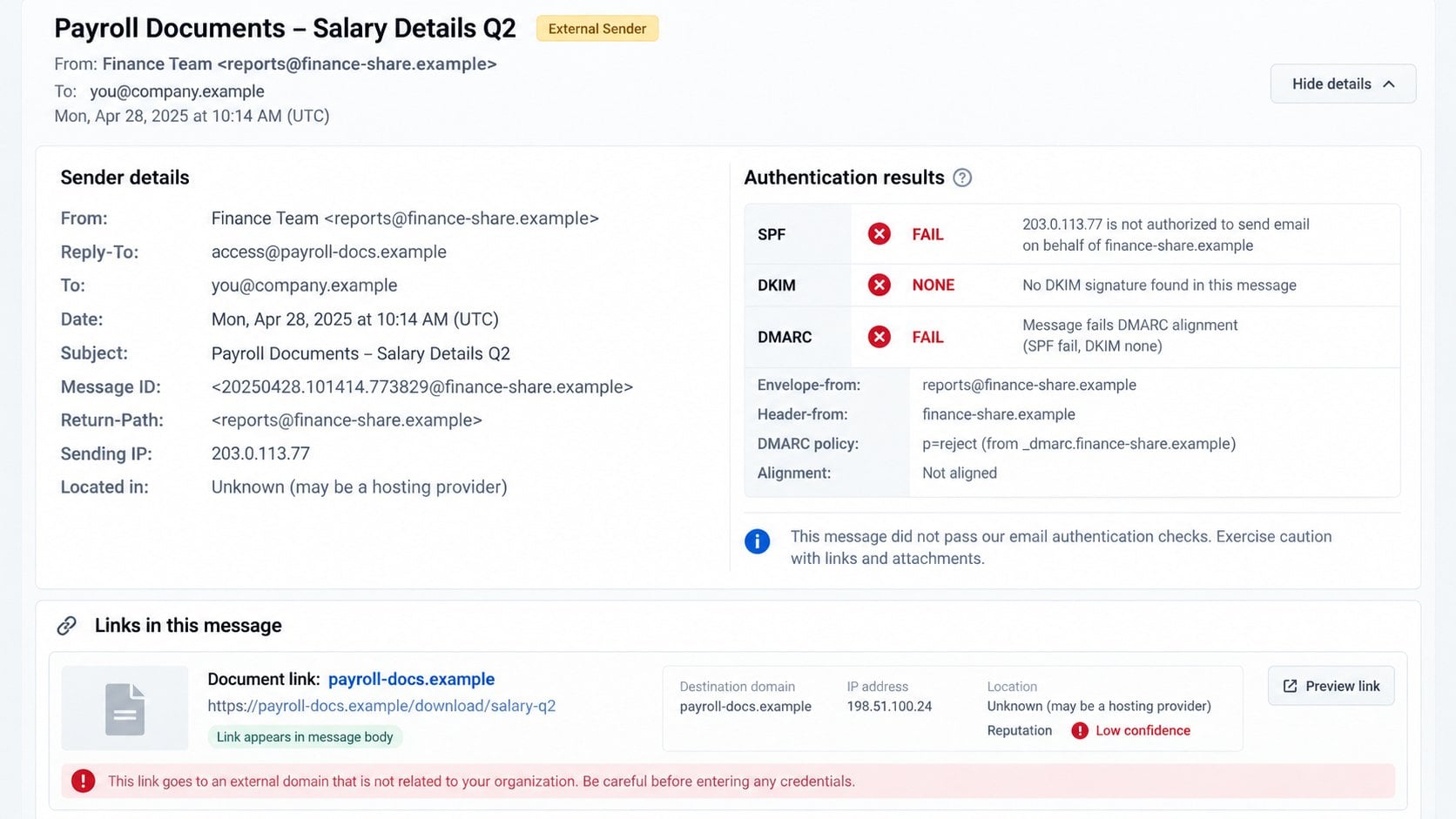
External-sender banners and failed authentication results are important clues, but recipients must open message details to see them.
Step 3: A Cloud-Sharing Template Reduces Suspicion
The footer may resemble a familiar online document notification. Phrases about granted access and shared files reinforce that visual story.
Criminals can copy public layouts and wording. A recognizable template does not establish that a file exists inside the genuine platform.
The message often avoids attaching a file. Link-based delivery changes the destination after sending and can bypass some attachment controls.
The button becomes the only route to the supposed payroll report. That design prevents employees from checking document properties before leaving the inbox.
Step 4: The Link Uses Trusted Hosting or a Lookalike Domain
The destination may sit on cloud storage, a compromised website, or a newly registered address with document-related words.
A known hosting provider offers infrastructure to many customers. Its name cannot authenticate the unknown person who uploaded the page.
Lookalike addresses may add “payroll,” “finance,” or “secure” to appear relevant. The employer still does not control them.
Previewing the button exposes this change of ownership before the browser loads the counterfeit form.
Step 5: The Page Collects Work Credentials
The landing page asks the employee to sign in with a work account. The document title remains visible to preserve continuity from the email.
Real single sign-on should lead to the organization’s recognized identity provider. An external page cannot safely receive the corporate password.
Some forms request only the password because the address arrived in the link. Prefilled information can make the page seem connected to the employer.
Submitting the form sends the secret to the operator. A fake loading animation can buy time while the stolen account is tested.
Step 6: The Compromised Account Becomes an Internal Weapon
An intruder can read organizational conversations and identify managers, finance staff, customers, and employees with payment authority.
The attacker may send a new payroll lure from the genuine account. Coworkers are more likely to trust an address they already know.
Other possibilities include invoice redirection, gift-card requests, false direct-deposit changes, and theft of files shared with the mailbox.
Rules and delegated access can preserve visibility. Security alerts may be deleted automatically before the legitimate owner sees them.
How to Verify a Payroll Document Share
Check the Approved HR or Payroll Portal
Open the company’s payroll system from an existing bookmark or intranet page. Do not rely on the link in the new message.
Look for announcements, documents, compensation statements, or assigned tasks. A genuine report should exist inside the normal process.
If the employer never distributes salary data through shared documents, the unusual delivery method deserves immediate reporting.
Confirm With Finance or Human Resources
Use the internal directory, company chat, or established help desk. Ask whether the named report was distributed and who approved it.
Do not reply to the suspicious sender. A reply reaches whichever mailbox or address the attacker controls.
Managers should avoid confirming individual salary details in an insecure channel. The immediate question is whether the notification itself is authentic.
Inspect the External Indicators
Expand the sender details and check the full address, Reply-To destination, authentication results, and external-sender label.
Hover over the document control and compare its domain with the organization’s approved cloud and identity services.
A familiar cloud host can still contain unauthorized content. Verify the tenant, path, and sign-in destination rather than trusting the host alone.
Compare the Request With Company Policy
Review how salary changes are normally communicated. Sensitive compensation records often appear in a dedicated HR system, not a general email login.
Policies should state whether Finance, Human Resources, or a payroll vendor owns each communication. Unexpected departmental changes require confirmation.
A scam often succeeds when employees know the technology but not the process. Clear internal routines remove that ambiguity.
What to Do If You Fell Victim to the Staff Salary Payroll Scam
Report the incident promptly without embarrassment. These messages exploit normal workplace curiosity, and early disclosure helps protect everyone else.
- Stop using the false document page.
Close it and preserve the original message, headers, domain, and interaction time. Note exactly which information was entered.
Use the organization’s incident channel, not a reply to the sender. Security staff may need to remove matching messages quickly.
- Change the work password through the company’s real system.
Use a trusted device and approved identity portal. Select a unique password unrelated to personal accounts.
Tell the administrator if the password was reused elsewhere. Those services may require coordinated resets and monitoring.
- Revoke active sessions and application access.
Sign out other sessions, remove unfamiliar devices, and review connected applications. Revoke suspicious OAuth grants and application passwords.
Administrators should inspect identity logs for unusual locations, impossible travel, legacy authentication, and new device registrations.
- Review the mailbox for persistence and impersonation.
Examine forwarding, inbox rules, delegates, aliases, and recovery information. Search sent and deleted folders for activity by the intruder.
Check whether payroll, finance, or vendor conversations were accessed. Warn participants through a verified internal channel.
- Enable stronger account protection.
Register a passkey or hardware security key when supported. Authenticator-based multifactor authentication is preferable to password-only access.
Replace backup codes and remove unknown factors. Confirm that no unfamiliar telephone number became a recovery method.
- Scan the endpoint after downloads or suspicious behavior.
The known lure captures passwords, yet document campaigns may deliver files too. Run a full Malwarebytes scan after any unexpected download.
AdGuard can reduce future exposure to deceptive sites and advertising. Keep all filters, browsers, and endpoint protections updated.
- Notify affected people and monitor business activity.
Security staff should warn coworkers who received messages from the compromised account. Avoid sharing the live phishing address in broad notices.
Finance should review payment, payroll, and banking changes. Contact banks or vendors immediately if an unauthorized instruction was accepted.
Is Your Device Infected? Run a Free Malware Scan
Slow performance, constant pop-ups, or strange behavior? These are classic signs of a malware infection. The fastest way to find out is to scan your device with Malwarebytes Free — one of the most trusted malware removal tools available.
The free version detects and removes the most common threats, including:
- Adware — the cause of those annoying pop-ups
- Browser hijackers — unwanted redirects and changed homepages
- Trojans and spyware — hidden programs stealing your data
- Potentially unwanted programs (PUPs) — software you never asked for
👉 Select your device below — Windows, Mac, or Android — then follow the simple steps to download Malwarebytes, scan your system, and remove any threats it finds. The scan usually takes 5 to 20 minutes.
Run a Malware Scan with Malwarebytes for Windows
Malwarebytes is one of the most popular and trusted anti-malware tools for Windows — and it’s completely free for removing infections. It catches threats that many antivirus programs miss, including adware, browser hijackers, and trojans. Follow the steps below to scan and clean your PC in just a few minutes.
Download Malwarebytes
Click the button below to download the latest version of Malwarebytes for Windows from the official source. The free version is all you need — it will scan your computer and remove adware, browser hijackers, and other malicious software at no cost.
Download MalwarebytesOfficial installer for Windows 11 and 10. Your download starts right away.Want real-time protection? See Malwarebytes Premium Malwarebytes Free for WindowsScans and removes malware at no cost
-
Install Malwarebytes
When the download finishes, open your Downloads folder and double-click the MBSetup file. If Windows shows a User Account Control pop-up, click “Yes” to allow the installation.

Follow the On-Screen Prompts to Install Malwarebytes
The setup wizard will walk you through a few quick screens:
-
Choose where you’re installing the program — “Personal Computer” or “Work Computer” — then click Next.

-
Malwarebytes will now install on your device. This usually takes under a minute.

-
When installation is complete, the “Welcome to Malwarebytes” screen will open automatically.

-
On the final screen, click Open Malwarebytes to launch the program.

-
Enable “Scan for Rootkits”
Before scanning, turn on rootkit detection so Malwarebytes can find even the most hidden threats. Click the Settings gear icon on the left side of the screen.

In the settings menu, find “Scan for rootkits” and click the toggle so it turns blue.

Done? Click “Dashboard” in the left pane to return to the main screen.
Start the Scan
Click the blue Scan button. Malwarebytes will automatically update its virus database and start checking your computer for malware.

-
Wait for the Scan to Finish
The scan checks your entire system for browser hijackers and other malicious programs, so it can take 5 to 20 minutes depending on your computer. Feel free to do something else — just check back occasionally to see the progress.

-
Quarantine the Detected Threats
When the scan is done, you’ll see a list of everything Malwarebytes found — malware, adware, and potentially unwanted programs. Click the “Quarantine” button to remove all of them at once.

Malwarebytes will now remove the malicious files and registry entries and move them safely into quarantine.

-
Restart Your Computer
Some threats can only be fully removed after a reboot. If Malwarebytes asks you to restart, click Yes. Once you’re logged back in, Malwarebytes has finished removing the threats it found.

That’s it — your Windows PC is now clean of trojans, adware, and other malware, and should be back to running smoothly.
If you are still having problems with your computer after completing these instructions, then please follow one of the steps:
- Run a computer scan with ESET Online Scanner
- Ask for help in our Windows Malware Removal Help & Support forum.
Run a Malware Scan with Malwarebytes for Mac
Malwarebytes for Mac is a free on-demand scanner that removes the malware other security software tends to miss — adware, browser hijackers, and unwanted programs included. Cleaning an infected Mac with Malwarebytes has always been completely free, and it’s our go-to recommendation. Follow the steps below to scan and clean your Mac in just a few minutes.
-
Download Malwarebytes for Mac
Click the button below to download the latest version of Malwarebytes for Mac.
Download MalwarebytesOfficial installer for macOS. Your download starts right away.Want real-time protection? See Malwarebytes PremiumMalwarebytes Free for MacScans and removes malware at no cost -
Open the Malwarebytes setup file
When the download finishes, open your Downloads folder and double-click the setup file to begin the installation.

-
Follow the On-Screen Prompts to Install Malwarebytes
The Malwarebytes for Mac Installer will guide you through a few quick screens. Click “Continue” and keep following the prompts until the installation completes.



When the installation is complete, Malwarebytes opens to the Welcome to Malwarebytes screen. Click “Get started“.
-
Select “Personal Computer” or “Work Computer”
Malwarebytes will ask what type of computer you’re installing it on. Click either Personal Computer or Work Computer, whichever applies.

-
Start the Scan
Click the “Scan” button. Malwarebytes will automatically update its detection database and begin checking your Mac for malware.

-
Wait for the Scan to Finish
Malwarebytes will scan your Mac for adware, browser hijackers, and other malicious programs. This can take a few minutes, so feel free to do something else — just check back occasionally to see the progress.

-
Quarantine the Detected Threats
When the scan is done, you’ll see a list of everything Malwarebytes found. Click the “Quarantine” button to remove all the threats at once.

-
Restart Your Mac
Malwarebytes will now remove all the malicious files it found. Some threats can only be fully removed after a reboot — if Malwarebytes asks you to restart, allow it. Once you’re logged back in, your Mac is clean.

That’s it — your Mac is now free of adware, rogue browser extensions, and other potentially harmful software.
If you are still experiencing problems while trying to remove a malicious program from your computer, please ask for help in our Mac Malware Removal Help & Support forum.
Run a Malware Scan with Malwarebytes for Android
Malwarebytes for Android automatically detects and removes dangerous threats like malware and ransomware so you don’t have to worry about your most-used device being compromised. Aggressive detection of adware and potentially unwanted programs keeps your Android phone or tablet running smooth.
-
Download Malwarebytes for Android.
You can download Malwarebytes for Android by clicking the link below.
Get Malwarebytes for AndroidOpens Google Play in a new tab.Want real-time protection? See Malwarebytes Premium for AndroidMalwarebytes for AndroidScans your phone and removes malware at no cost -
Install Malwarebytes for Android on your phone.
In the Google Play Store, tap “Install” to install Malwarebytes for Android on your device.

When the installation process has finished, tap “Open” to begin using Malwarebytes for Android. You can also open Malwarebytes by tapping on its icon in your phone menu or home screen.

-
Follow the on-screen prompts to complete the setup process
When Malwarebytes will open, you will see the Malwarebytes Setup Wizard which will guide you through a series of permissions and other setup options.
This is the first of two screens that explain the difference between the Premium and Free versions. Swipe this screen to continue.
Tap on “Got it” to proceed to the next step.
Malwarebytes for Android will now ask for a set of permissions that are required to scan your device and protect it from malware. Tap on “Give permission” to continue.
Tap on “Allow” to permit Malwarebytes to access the files on your phone.
-
Update database and run a scan with Malwarebytes for Android
You will now be prompted to update the Malwarebytes database and run a full system scan.

Click on “Update database” to update the Malwarebytes for Android definitions to the latest version, then click on “Run full scan” to perform a system scan.

-
Wait for the Malwarebytes scan to complete.
Malwarebytes will now start scanning your phone for adware and other malicious apps. This process can take a few minutes, so we suggest you do something else and periodically check on the status of the scan to see when it is finished.

-
Click on “Remove Selected”.
When the scan has been completed, you will be presented with a screen showing the malware infections that Malwarebytes for Android has detected. To remove the malicious apps that Malwarebytes has found, tap on the “Remove Selected” button.

-
Restart your phone.
Malwarebytes for Android will now remove all the malicious apps that it has found. To complete the malware removal process, Malwarebytes may ask you to restart your device.
That’s it — your Android phone is now clean — no more malicious apps, adware, or browser redirects.
If you are still having problems with your phone after completing these instructions, then please follow one of the steps:
- Restore your phone to factory settings by going to Settings > General management > Reset > Factory data reset.
- Ask for help in our Mobile Malware Removal Help & Support forum.
Stay Protected: Block Ads and Malicious Sites
Now that your device is clean, keep it that way. Most infections start with a malicious ad or a fake download button — so blocking them at the source is your best defense.
We recommend AdGuard, which blocks malicious ads, phishing pages, and dangerous redirects before they can reach you.
👉 Download AdGuard and browse safely
Why Salary-Themed Phishing Spreads Inside Companies
Compensation is universally relevant but individually private. Employees often investigate quietly instead of asking a coworker what the message means.
Salary discussions can also create emotional urgency. Hope, anxiety, fairness concerns, and fear of missing information all reduce careful scrutiny.
Finance and Human Resources hold natural authority. Most employees follow their instructions without routinely verifying every internal-looking message.
Cloud sharing is already normal at work. A button that opens another sign-in page may not seem unusual during a busy day.
Remote and hybrid teams provide fewer opportunities for casual confirmation. Employees may not know which people normally send payroll notices.
Attackers can time campaigns around annual reviews, bonus periods, or known pay dates. Even generic wording gains credibility from the calendar.
Once one mailbox is compromised, the operation becomes more convincing. Future emails can arrive from an authentic domain with real signatures.
A healthy reporting culture is essential. Employees should receive credit for quick disclosure rather than criticism for being targeted.
How Employers Can Reduce Payroll Phishing Risk
Use one documented channel for compensation documents. Employees should know exactly where salary statements and change notices appear.
Mark external messages clearly and prevent outsiders from using internal department names without additional warnings.
Configure domain protections and monitor authentication failures. DMARC enforcement can reduce direct spoofing, although compromised accounts remain possible.
Require phishing-resistant multifactor authentication for corporate mail. Protect Finance, Human Resources, executives, and administrators first.
Alert on new forwarding rules, OAuth grants, delegates, and recovery changes. These events frequently follow credential theft.
Disable legacy authentication protocols that bypass modern protections. Old mail clients can create an avoidable path around stronger sign-in controls.
Separate payroll approval from email. Direct-deposit and banking changes should require authenticated portal access and independent confirmation.
Provide a one-click reporting tool and acknowledge reports quickly. Visible feedback teaches employees that pausing was the correct decision.
Run simulations that reflect real company processes. Generic awareness exercises do not prepare staff for convincing payroll and document lures.
After compromise, investigate business impact as well as account recovery. Determine which files, conversations, and counterparties the attacker could access.
Limit broad payroll-file permissions. An ordinary mailbox compromise should not expose every employee’s compensation and tax information.
Apply data-loss controls to large exports and external shares. Alerts can reveal unusual copying even when the attacker uses a valid account.
Finance and Human Resources should rehearse compromise response together. The security team needs clear owners for employee communication and payroll corrections.
Vendor access deserves equal scrutiny. A payroll provider’s legitimate account can become the trusted sender used to reach many customers.
Preserve mail and identity logs long enough for investigation. Quiet intruders may study conversations for days before attempting visible fraud.
Review compensation communications after organizational changes. New staff, acquisitions, and outsourcing create uncertainty that attackers can exploit.
Frequently Asked Questions
Did my employer really share a salary increase report?
Do not assume so from the email. Check the approved payroll portal and ask Finance or Human Resources through an internal channel.
Why does the message look like a cloud document notification?
Scammers copy familiar sharing templates because employees already understand them. The real test is the sender and final sign-in domain.
Can a legitimate payroll document require authentication?
Yes, but authentication should occur through the employer’s recognized identity system, never through an unrelated page selected by an unexpected email.
What if I submitted only my email address?
Report it and expect targeted follow-up attempts. Change the password if it was also entered or if the page requested additional secrets.
Could coworkers receive scams from my real account?
Yes. Attackers often use compromised mailboxes to exploit existing trust. Review sent mail and warn recipients as soon as possible.
Should Finance review recent payment changes?
Yes. A stolen mailbox can support invoice and payroll diversion. Independently confirm changes made during the suspected compromise window.
The Bottom Line
The Staff Salary Payroll scam turns compensation curiosity into an external corporate-login trap, then uses any captured account to reach deeper into the organization.
Open payroll records only through approved systems, verify unusual shares with Finance or Human Resources, and report mistakes quickly so coworkers remain protected.

Join the discussion
0 commentsShare your experience or ask a question about this article.
Discussion
Start the conversation
Have a question or something useful to share? Add the first comment.