


You might clear an email about staff schedules between meetings. Add “pending approval,” and suddenly it sounds like somebody is waiting for you.
But not every notice headed Human Resources came from your employer. Where you normally check your leave is a more useful clue than the subject line.
Overview
What the supposed HR notice asks you to check
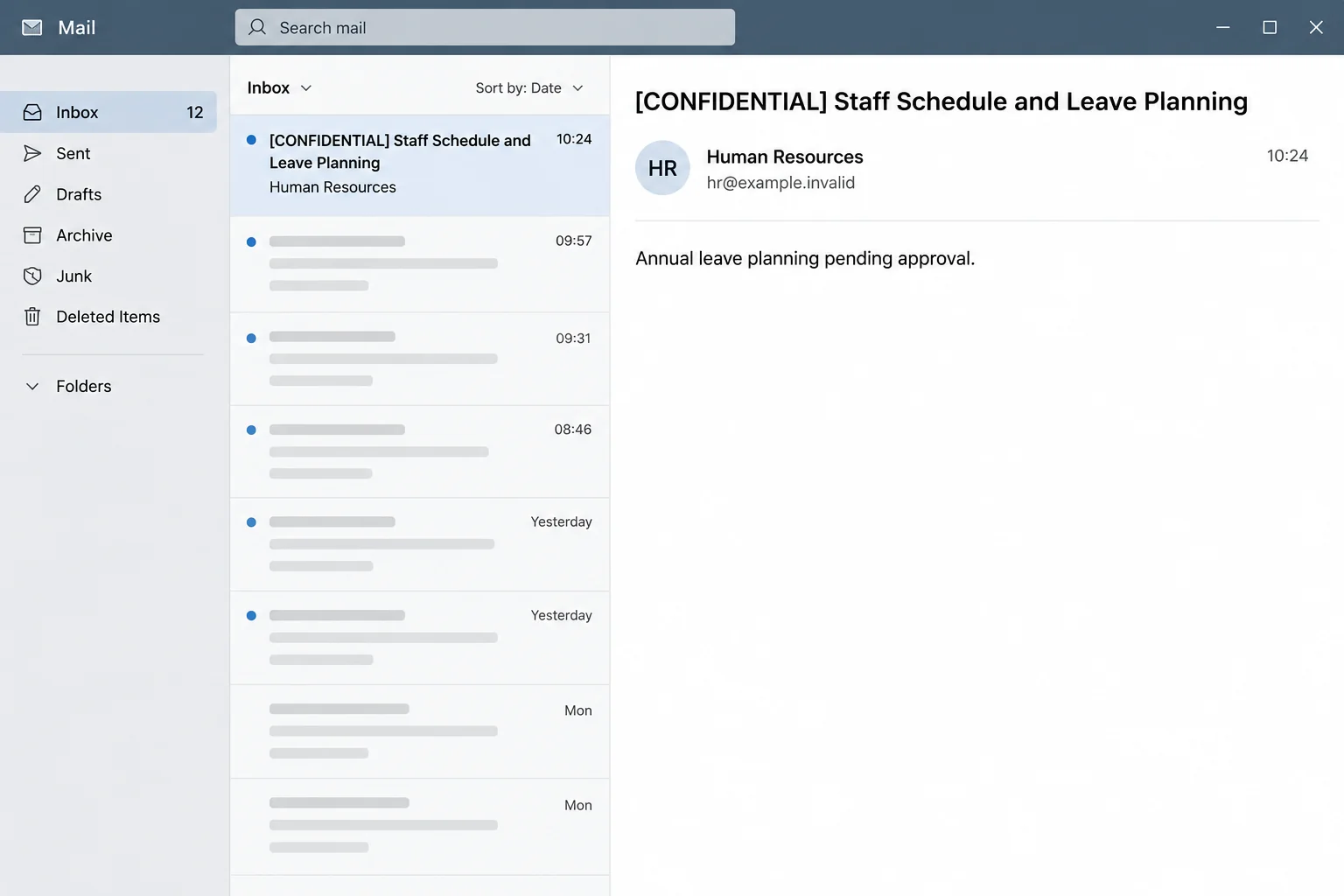
The Staff Schedule and Leave Planning email scam poses as an encrypted message from Human Resources. It asks the employee to look at a schedule and review annual leave planning.
The sample mentioned 2026 and used a “View Status” action. Leave appeared to be pending approval, making the request look like one ordinary step in an internal process.
The fake notice doesn’t establish that anyone in Human Resources sent it. It also doesn’t prove that your team’s schedule, holiday allowance or existing request has changed.
The lead image is a reconstruction of the message, not a captured HR email. Read the identifying wording as an example of the lure, not as an authentic company communication.
Why “encrypted” makes an odd sign-in seem less odd
Employee information is often handled privately. A label about encryption or confidentiality can make a reader expect an extra check before seeing a schedule.
In this case, the label also gives the email an excuse for not showing much detail.
It suggests that anything useful is behind the button, where the reader must sign in.
A real company may use secure messages or an external HR platform. That doesn’t mean a familiar brand, or a claim of encryption, authorizes a link you weren’t expecting.
The natural question is who manages leave where you actually work. A staff portal, team scheduling app or manager can confirm an outstanding action without using the link.
What the Zoho lookalike reveals
The reported link led to a page imitating Zoho. It described a sensitive operation and presented a prompt for the password.
That observed request points to credential phishing. It doesn’t show a genuine Zoho service problem, an encrypted attachment or a real leave planner that needed unblocking.
Use these clues to check the situation rather than judging the page by its design:
- Your actual team schedule and leave records are available through the process your employer already uses.
- A message from a real manager can be checked using your trusted staff directory or established chat.
- A surprise account password prompt deserves a separate check, even if Zoho is a service your organization normally uses.
- A notice claiming to be confidential doesn’t make it unsafe to report privately to the right security team.
How the Staff Schedule and Leave Planning Scam Works
Step 1: The subject looks like something that belongs on a workday
Leave planning rarely feels unusual in a busy inbox. It is a normal source of calendar reminders, staffing questions and messages around the end of the year.
The scam borrows that rhythm. It gives the reader a recognizable routine to complete, without first having to establish which team, manager or request is involved.
A person who submitted leave yesterday may believe the message is a reply. Someone who has not applied might assume it is an instruction for everybody.
The notice doesn’t prove either explanation. Check whether your own employee record or shared scheduling tool actually shows a task under your name.
Step 2: The sender presents privacy as the reason you can’t see the details
The encrypted-message framing suggests that the schedule is intentionally hidden. It makes a sparse email look more like a privacy measure than an incomplete story.
It can also discourage people from asking colleagues. You don’t want to forward a message about staff leave, so you might open it yourself instead.
Respecting privacy does not mean you have to handle the message alone. Ask HR or IT through a verified channel in a way that does not expose someone else’s schedule.
If your employer recently changed vendors, use its official announcement or internal directory as the starting point. Don’t assume a new-looking login is part of the rollout.
Step 3: Pending approval gives you a small reason to act now
An approval notice may not need a dramatic countdown. Employees don’t want a manager waiting, and they may worry about losing the dates they requested.
The scam asks for a status check, not a large payment or a new download. That modest request is part of what makes it blend in.
A real leave status can normally be checked where the request was originally made. If you booked it through a line manager, ask them through your normal work channel.
If you don’t remember making a request, don’t use the message to find out whether you did. Look at your own records first.
Step 4: The next screen asks for an account password
Rather than displaying a team schedule, the recorded page mimics a Zoho identity check. It treats the next action as sensitive and asks for a password.
The design leans on a common experience: work tools sometimes ask you to sign in again before showing private information.
That familiarity is not proof the prompt belongs to your employer.
If you normally use company single sign-on and the page asks for something different, check with IT. Even if the prompt looks exactly as expected, confirm the route independently.
Do not submit a test password or reopen the page for a closer look. Work security staff may have a safe way to analyze the original message without doing that.
Step 5: A stolen work password can matter beyond one leave request
The reported page asks for a password. It doesn’t show that a specific mailbox was accessed or that a particular employee’s messages were read.
If unauthorized access does occur, the concern can extend to contacts, internal mail and password resets that pass through the same account. The scope depends on permissions and employer controls.
In a shared environment, an unfamiliar message can also look credible to colleagues because it appears to come from someone inside the business.
That is why the employee’s report is useful even when the account still works. IT can correlate the timing with sign-in attempts and check whether others saw the same lure.
How to Check an HR Email Without Opening Its Link
Look where the leave request actually lives
Start with the portal, payroll system or calendar you already use. Look for the request, dates, approver and status using the bookmark or app your employer provided.
A real record might say pending for a perfectly ordinary reason. Ask the named approver if it seems overdue rather than letting a new email create another task.
If the message went to an address that is not connected to work, ask how your employer would have obtained it before assuming the message belongs there.
Some employers do contact people through personal addresses. Verify that possibility with the actual HR department using established contact information.
If you’re between jobs and recognize neither the employer nor the portal, don’t search for an employer using details taken from the message.
Report through the procedure your organization trusts
Use a built-in phishing report button, ticket system or address provided by your employer. If you can’t find it quickly, call the help desk from the staff directory.
Explain which account the site appeared to ask for. Don’t send the password, recovery codes, confidential employee records or a working link in an informal chat.
If another employee says they received it too, tell security that the message may not be isolated. Let the team decide how to warn others without spreading the link.
If your organization uses Zoho, its account security guidance is a useful reference. An administered workplace account may need IT involvement before you make changes.
If you supervise the team, check the notice before sending a reminder
A manager who sees this in a shared inbox may be tempted to remind everyone to complete the supposed task. Check with HR before passing the instruction along.
If the warning coincides with a real leave deadline, continue communicating that deadline through your established channel. You don’t have to leave staff guessing which task is real.
Point employees to the correct portal by name or through the normal internal directory. Tell them who can confirm an outstanding approval if the portal isn’t accessible.
Avoid naming employees who reported clicking. A simple request to use the official process is often enough to stop the confusion while the security team investigates.
What to Do If You Fell Victim
-
Report the message without reopening the prompt.
Give security the subject, approximate time and whether you opened the link. Use the internal reporting function if your organization has one.
If you stopped before entering anything, say that. It helps the team distinguish a suspicious message from a possible account incident.
To preserve the original, follow your help desk’s instructions. Don’t post it in a channel where someone could open the link while trying to help.
-
Tell IT right away if you typed a work password.
Say which account you thought you were using and whether you pressed a button afterward. Treat a password entered on the page as potentially exposed.
Use the employer’s legitimate password reset or managed sign-in process. Choose a unique password and replace it elsewhere if you reused it.
If you approved a sign-in prompt, entered a code or gave access to an app, describe that separately. Don’t approve another prompt while waiting to speak with IT.
-
Check active sessions, recovery settings and access with the account owner.
If the account is managed, ask IT to end suspicious sessions and review access records. Changing a password should not be the last check.
If you’re responsible for your own Zoho account, use official account controls to review active sessions and unfamiliar recovery changes. Remove access you do not recognize.
Check whether any unfamiliar device, app permission or app-specific password remains. Ask for help if you cannot tell what is legitimate.
-
Look for signs that the mailbox was used.
Ask IT to inspect unexpected forwarding rules, unusual sent messages and account delegation if the evidence suggests a mailbox compromise.
Changes can be easy to miss in a large inbox. Preserve anything suspicious rather than removing it before the team has what it needs to investigate.
If messages went out to coworkers or customers, coordinate the warning with your employer. Don’t use an account under investigation to circulate a clickable version of the lure.
-
Escalate a separate file or software incident if there was one.
The documented message used a link to a password page. It did not show a schedule file being sent or establish that a device was infected.
If your version also asked you to open a downloaded file or install something, tell your help desk what happened. Let it handle the device under your organization’s procedure.
Use a different trusted device for urgent recovery if IT recommends it. Don’t run cleanup tools supplied by the suspicious page or an unsolicited contact.
-
Follow up on the genuine leave question.
Once the account is safe or if you never entered anything, check your real pending requests. Confirm any deadline with the manager or employee service that handles them.
If the organization confirms that a wider campaign is circulating, follow its reporting instructions. A colleague may see a similar subject with a different year or wording.
Save the incident reference separately from any leave approval. The two issues have different owners even though the email tried to tie them together.
Frequently Asked Questions
Is the Staff Schedule and Leave Planning email really from HR?
The documented version used an HR pretext and led to a fake Zoho password screen. Check your actual leave system or speak with your employer independently.
Does “encrypted message” mean it is safe to open?
No. Anyone can put those words in a subject or body. They do not prove that your employer sent the message or encrypted a real document.
Why did the page look like Zoho?
A familiar sign-in design makes a second password prompt plausible. The lookalike is evidence of impersonation, not evidence that Zoho or its real services ran the scam.
Should I change my password if I only read the email?
Reading the message doesn’t reveal the password by itself. Report it and follow your workplace policy. If you typed a credential or approved access, tell IT immediately.
What if I was actually waiting for a leave decision?
Check the request in your regular portal or contact the known approver. A real pending decision doesn’t make an unrelated email trustworthy.
Can this affect coworkers?
The message itself doesn’t establish a spread. If a work account was accessed, contacts may receive further mail appearing to come from that account. Let IT investigate and coordinate warnings.
The Bottom Line
An ordinary scheduling notice can get surprisingly far when it looks like something you were expecting. This one used an HR request to lead readers to a counterfeit password prompt.
Go to the place where you normally manage leave. If you typed a work password, give IT the timeline and secure the account before returning to your leave plans.

Join the discussion
0 commentsShare your experience or ask a question about this article.
Discussion
Start the conversation
Have a question or something useful to share? Add the first comment.