

“System Doctor 2014” is a computer virus, which pretends to be a legitimate antivirus program and claims that malware has been detected on your computer, then it will state that you need to pay money to register the software to remove these non-existent threats.
![[Image: System Doctor 2014 malware]](https://malwaretips.com/blogs/wp-content/uploads/mwt-media/97/9725524c8f5685f46560d1ce7cdd0a498739e5738757d32ea07843d3fec18eb0/47019ab25b6e590b33e36724b5b097ab05eb445f1c504e4f38aa87924c997a13-802.webp "System Doctor 2014")
“System Doctor 2014” is distributed through hacked or infected websites, which will prompt you with a fake pop-up window indicate that your computer is infected or your computer requires a software update. Alternatively, your computer may be infected with “System Doctor 2014” from an infected email attachment or drive-by-downloads which will exploit a vulnerability in older versions of Java or Adobe software.
Once installed, “System Doctor 2014” will be drop a random file name in a random folder under C:\Documents and Settings\All Users\Application Data\, in XP, or C:\ProgramData, in Windows Vista, Windows 7, and Windows 8. System Doctor 2014 will then be configured to start automatically when you login to your computer.
“System Doctor 2014” will display fake security alerts that are designed to think that your data is at risk or that your computer is severely infected.These messages include:
Spyware.IEMonster activity detected. This is spyware that attempts to steal passwords from Internet Explorer, Mozilla Firefox, Outlook and other programs.
Click here to remove it immediately with System Doctor 2014.System Doctor 2014 Firewall Alert
System Doctor 2014 Firewall has blocked a program from accessing the Internet.
Internet Explorer Internet Browser is infected with worm SVCHOST.Stealth.Keyloger. This worm is trying to send your credit card details using Internet Explorer Internet Browser to connect to remote host.System Doctor 2014 Warning
Some critical system files of your computer were modified by malicious program. It may cause system instability and data loss.
Click here to block unauthorised modification by removing threats (Recommended)System Doctor 2014 Warning
Your PC is still infected with dangerous viruses. Activate antivirus protection to prevent data loss and avoid theft of your credit card details.System Doctor 2014 Warning
Intercepting programs that may compromise your privacy and harm your system have been detected on your PC.
Click here to remove them immediately with System Doctor 2014.
To protect itself from being removed, System Doctor 2014 has will terminate almost all programs that you attempt to run on your computer. It does this so that you are unable to launch security programs or utilities that can aid you in removing this infection. The message that you will see when the infection terminates a program is:
Warning! Infected file detected.
Location: File System
File name: iexplore.exe
Level of Threat: 4
Behavior description: Destroys and infects system files.To keep this computer safe, the threat must be blocked.
Recommendation: You are using a limited version of System Doctor 2014. Please activate System Doctor 2014 to resist all virus threats efficiently.
If your computer is infected with the System Doctor 2014 virus, then you are seeing the following screens:
![[Image: System Doctor 2014 virus]](https://malwaretips.com/blogs/wp-content/uploads/mwt-media/77/7772ab0597578f749562768229d5b4c0c16a86bbcfc2acf0338fd8794c3d74d5/4d538ab0b180d99ed26e439a76a7ce90994ab20b09d0499fdbbcd9e6b511ec74-802.webp "System Doctor 2014 virus")
![[Image: System Doctor 2014 Warning]](https://malwaretips.com/blogs/wp-content/uploads/mwt-media/f0/f014f15c39b372668b0e34b0898032a9f7bd4e613b2488dc5a67ae3a733a31a5/2ce5f87bee02eda0acc430189bf6b2cfbed249540cc6f8c59efa6d7cbbd2e930-805.webp "System Doctor 2014 Warning]")
![[Image: System Doctor 2014 Alert]](https://malwaretips.com/blogs/wp-content/uploads/mwt-media/69/69f3a50b6b7f425ee31d30b03c52f7b2991fcb42a91486e218cd2f12be929589/a9849fa6bd19ccbcbfcb90e4b226f353f7ed063c1e4d54a81204bc50b674e69d-452.webp "System Doctor 2014 Alert")
System Doctor 2014 is a scam, and you should ignore any alerts that this malicious software might generate.
Under no circumstance should you buy System Doctor 2014 as this could lead to identity theft, and if you have, you should contact your bank and dispute the charge stating that the program is a scam and a computer virus.
Registration codes for System Doctor 2014
As an optional step,you can use any of the following license keys to register System Doctor 2014 and stop the fake alerts.
System Doctor 2014 activation code: AA39754E-715219CE
![[Image: System Doctor 2014 Activation Key]](https://malwaretips.com/blogs/wp-content/uploads/mwt-media/d5/d5da3b3123eaf1f195ec4eed9951d2028b4b415ebcb020eed8c4c9623c7913fa/2a6894588cb3fe4e45f39293077527a4a29515d5b6f0653b346b90df05abdeae-452.webp "System Doctor 2014 Activation Key")
Please keep in mind that entering the above registration code will NOT remove System Doctor 2014 from your computer , instead it will just stop the fake alerts so that you’ll be able to complete our removal guide more easily.
System Doctor 2014 – Virus Removal Guide
This page is a comprehensive guide, which will remove the System Doctor 2014 infection from your your computer. Please perform all the steps in the correct order. If you have any questions or doubt at any point, STOP and ask for our assistance.
STEP 1: Start your computer in Safe Mode with Networking
STEP 2: Run RKill to terminate System Doctor 2014 malicious processes
STEP 3: Remove System Doctor 2014 virus with Malwarebytes Anti-Malware Free
STEP 4: Remove System Doctor 2014 rootkit with RogueKiller
STEP 5: Remove System Doctor 2014 infection with HitmanPro
STEP 1 : Start your computer in Safe Mode with Networking
- Remove all floppy disks, CDs, and DVDs from your computer, and then restart your computer.
- When the computer starts you will see your computer’s hardware being listed. When you see this information start to gently tap the F8 key repeatedly until you are presented with the Windows XP, Vista or 7 Advanced Boot Options.
![[Image: F8 key]](https://malwaretips.com/blogs/wp-content/uploads/mwt-media/7b/7bfe81c611d48e45998c85234b21a111c419d163368a8828a4042c2c1d3cb431/7ca9c0c8c1c47c23e9c1581974ebb6a803ce5e47d7a875a2822fb33bd1da0e34-410.webp "Windows F8 key")
If you are using Windows 8, press the Windows key + C, and then click Settings. Click Power, hold down Shift on your keyboard and click Restart, then click on Troubleshoot and select Advanced options. In the Advanced Options screen, select Startup Settings, then click on Restart. - If you are using Windows XP, Vista or 7 in the Advanced Boot Options screen, use the arrow keys to highlight Safe Mode with Networking , and then press ENTER.
![[Image: Safemode.jpg]](//malwaretips.com/images/removalguide/safemode.jpg "Safe Mode with Networking screen") \
\
If you are using Windows 8, press 5 on your keyboard to Enable Safe Mode with Networking.
Windows will start in Safe Mode with Networking.
![[Image: Safemode.jpg]](http://malwaretips.com/images/removalguide/safemode.jpg "Safe Mode with Networking screen") \
\STEP 2: Run RKill to terminate the malicious processes associated with System Doctor 2014
RKill is a program that will attempt to terminate all malicious processes associated with System Doctor 2014, so that we will be able to perform the next step without being interrupted by this malicious software.
Because this utility will only stop System Doctor 2014 running process, and does not delete any files, after running it you should not reboot your computer as any malware processes that are configured to start automatically will just be started again.
- While your computer is in Safe Mode with Networking ,please download the latest official version of RKill.Please note that we will use a renamed version of RKILL so that System Doctor 2014 won’t block this utility from running.
Download RKillOpens the download page in a new tab. - Double click on iExplore.exe to start RKill and stop any processes associated with System Doctor 2014.
![[Image: RKILL Program]](https://malwaretips.com/blogs/wp-content/uploads/mwt-media/9b/9bd1fbac76989b7f148eb40e991e002b0e4887b26e25c458d390ab4705d3dc8b/39d41c22e798310d31436d68661c8f617309a8cb3c05d88f181e3f751d1c2fbc-260.webp "Rkill renamed to iExplore.exe")
- RKill will now start working in the background, please be patient while the program looks for System Doctor 2014 malicious process and tries to end them.
![[Image: RKILL stoping malware]](https://malwaretips.com/blogs/wp-content/uploads/mwt-media/ca/ca979c74dbe6bff4faf33e0c5053349a5d4975896374c2d0c17c530336b9ea7f/0eabeb4c9ce2a6868b13b70aad28caf43ef2ca647622ccd001ea17152f36d7fc-406.webp "RKill while killing System Doctor 2014 malicious process")
If you get a message from System Doctor 2014 stating that RKill is an infection, and then closes this utility, leave the warning on the screen and then run RKill again.
By not closing the warning, this typically will allow you to bypass the malware trying to protect itself so that RKill can terminate System Doctor 2014. - When the Rkill utility has completed its task, it will generate a log. Do not reboot your computer after running RKill as the malware programs will start again.
![[Image: RKill Report]](https://malwaretips.com/blogs/wp-content/uploads/mwt-media/80/80e68df66d7ad779151bb33dd0e1c8fb998dbe6c5f00c0fc9cb6af739548ec11/623ae30acb0f9aec36353929a96de806d7837397885fe8de2814711833c65269-414.webp "RKill Log")
STEP 3: Remove System Doctor 2014 virus with Malwarebytes Anti-Malware FREE
Malwarebytes Anti-Malware Free is a powerful on-demand scanner which will remove System Doctor 2014 malicious files from your computer.
- You can download Malwarebytes Anti-Malware Free from the below link, then double-click on the icon named mbam-setup.exe to install this program.
Download MalwarebytesFree official installer. Your download starts right away. - When the installation begins, keep following the prompts in order to continue with the setup process, then at the last screen click on the Finish button.
![[Image: Malwarebytes Anti-Malware final installation screen]](https://malwaretips.com/blogs/wp-content/uploads/mwt-media/47/471448d4dd5aa1d55ea545effccf0ac9c8ccb5a29622da4e38ac677b5d8c37b5/9f473303c15a00262451cc5a56b904de929157b59e19e3cfb2c03ec88f643390-402.webp "Malwarebytes Anti-Malware installation screen")
- On the Scanner tab, select Perform quick scan, and then click on the Scan button to start searching for the System Doctor 2014 malicious files.
![[Image: Malwarebytes Anti-Malware Quick Scan]](https://malwaretips.com/blogs/wp-content/uploads/mwt-media/1e/1eb209597ca2f06e596fd060345ac7e3100355f1ec8fc8ea2d9dec7abbb05ea0/3afba9b0b97b56945ffc33817ac48f7433c799241a22e422966180b76473a906-521.webp "Run a Quick Scan with Malwarebytes Anti-Malware")
- Malwarebytes’ Anti-Malware will now start scanning your computer for System Doctor 2014 virus as shown below.
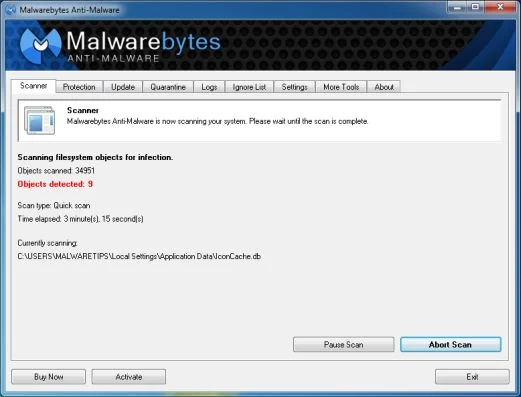
- When the Malwarebytes Anti-Malware scan has finished, click on the Show Results button.
![[Image: Malwarebytes Anti-Malware scan results]](https://malwaretips.com/blogs/wp-content/uploads/mwt-media/84/84c62dd46289424dbc686abc53672cb0810111920c8c0bbd69e973844d0a9ab0/a4c04aa700e641f47afec9965f79ff346740668e5952955ccbe5b4c3658b5897-521.webp "Malwarebytes when the system scan has completed")
- You will now be presented with a screen showing you the computer infections that Malwarebytes Anti-Malware has detected. Make sure that everything is Checked (ticked), then click on the Remove Selected button.
![[Image: Malwarebytes Anti-Malwar removing System Doctor 2014 virus]](https://malwaretips.com/blogs/wp-content/uploads/mwt-media/d8/d86b6a8bac0e4ece9fd2d259a83db71487943f6b04b567edb0e9adcc3200f492/4eb94651b0e34cc99689c56dc71cd0a49444498ed05c5803ea55fda1cfee1b1f-521.webp "Malwarebytes Anti-Malwar removing System Doctor 2014 virus")
- Once your computer will restart in Windows regular mode, open Malwarebytes Anti-Malware and perform a Full System scan to verify that there are no remaining threats.
STEP 4: Remove System Doctor 2014 rootkit with RogueKiller
RogueKiller is a utility that will scan for the System Doctor 2014 rootkit, registry keys and any other malicious files on your computer.
- You can download the latest official version of RogueKiller from the below link.
Download RogueKillerOpens the download page in a new tab. - Double click on RogueKiller.exe to start this utility and then wait for the Prescan to complete.This should take only a few seconds, then click on the Scan button to perform a system scan.
![[Image: RogueKiller scaning for System Doctor 2014 virus]](https://malwaretips.com/blogs/wp-content/uploads/mwt-media/69/69de1b02b1c29079c5f595c43ff489e90b26b2021baa2b0d1704b93ddd414395/e5bb79ff72ced202bac24c8b349e54b71c007e432c6cdd5b25b9315274047978-520.webp "Click on the Start button to perform a system scan")
- After the scan has completed, press the Delete button to remove System Doctor 2014 malicious registry keys or files.
![[Image: RogueKiller Detele button]](https://malwaretips.com/blogs/wp-content/uploads/mwt-media/d0/d04ee432a91f8fcebf27c33388f7cbe82e8cd52c8bb9358affcda3179330c5f0/1902ad30fc60dfe4b2093826d636e475e58aa31f41a53715fd38f49578e69bb4-520.webp "Press Delete to remove System Doctor 2014")
STEP 5: Remove System Doctor 2014 infection with HitmanPro
HitmanPro is a cloud on-demand scanner, which will scan your computer with 5 antivirus engines (Emsisoft, Bitdefender, Dr. Web, G-Data and Ikarus) for the System Doctor 2014 infection.
- You can download HitmanPro from the below link:
Download HitmanProOfficial Sophos download. Free scan, free 30-day trial to remove threats. - Double-click on the file named HitmanPro.exe (for 32-bit versions of Windows) or HitmanPro_x64.exe (for 64-bit versions of Windows). When the program starts you will be presented with the start screen as shown below.
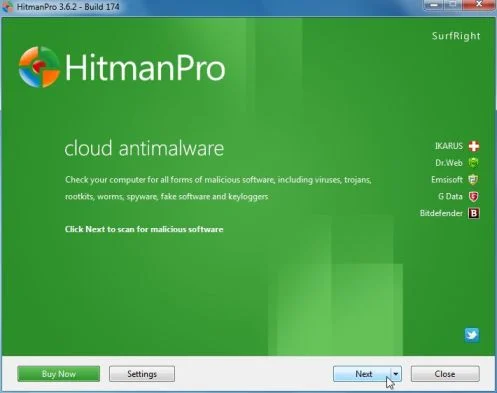
Click on the Next button, to install HitmanPro on your computer.
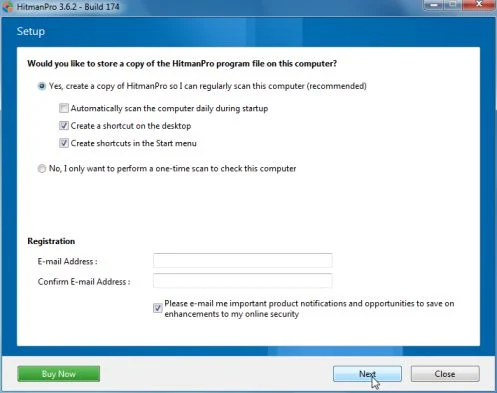
- HitmanPro will now begin to scan your computer for System Doctor 2014 trojan.
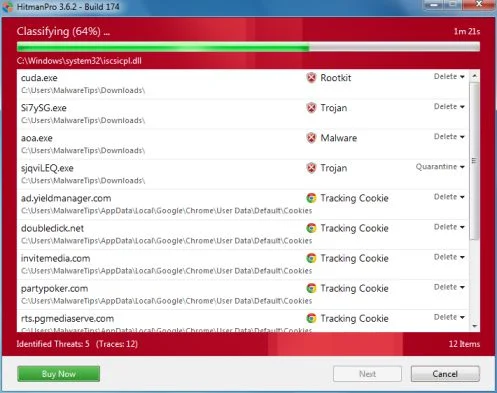
- When it has finished it will display a list of all the malware that the program found as shown in the image below. Click on the Next button, to remove System Doctor 2014 virus.
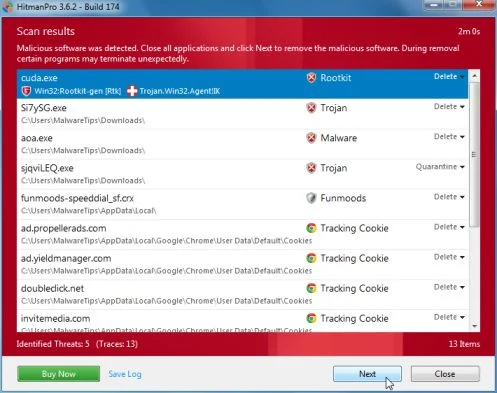
- Click on the Activate free license button to begin the free 30 days trial, and remove all the malicious files from your computer.
![[Image: HitmanPro 30 days activation button]](https://malwaretips.com/blogs/wp-content/uploads/mwt-media/7f/7f063c87fa029d8cd40df3f7faf43765ba1bb9e82c8d5a64c8a49de788018196/2a8400863f3c81fd7d6411e20166dfacdf0bc73e14522edea93a637003240dc1-497.webp "HitmanPro free 30 days trial")
Your computer should now be free of the System Doctor 2014 infection. If your current anti-virus solution let this infection through, you may want to consider purchasing the PRO version of Malwarebytes Anti-Malware to protect against these types of threats in the future, and perform regular computer scans with HitmanPro.
If you are still experiencing problems while trying to remove System Doctor 2014 from your machine, please start a new thread in our Malware Removal Assistance forum.

Join the discussion
10 commentsShare your experience or ask a question about this article.
Discussion
So far so good! Thanks for the help!!
I finally had success removing System Doctor 2014. Norton, & two others removed viruses and malware, but NOT System Doctor 2014. I had to go through all the steps listed above, and I seem to have gotten rid of all my problems. Thanks for ending my four days of hell!
thanks for yr help …. what u upload here is very helpful to me in removing such virus …. again thanks and GB
Hello Maia,
This is the removal guide which you can try, without needing to go into Safe Mode with Networking: http://malwaretips.com/blogs/system-doctor-2014-virus/
As an optional step, you can use the below action key, to register System Doctor 2014, and basically stop all the fake alerts.
AA39754E-715219CE
Please keep in mind that entering the above registration code will NOT remove System Doctor 2014 from your computer , instead it will just stop the fake alerts so that you’ll be able to complete our removal guide more easily.
superb bro
You should set up donations via PayPal. That is the only app I use to transfer currency.
Thank you very much, you saved my day :-)!
Thank you! YOu saved my computer! (again!)
Thank you!
In reply to George
Stay safe George! :)