

Internet Security Pro 2013 is a computer virus, which pretends to be a legitimate security program and claims that malware has been detected on your computer. If you try to remove these infections, Internet Security Pro 2013 will state that you need to buy its full version before being able to do so.
![[Image: Internet Security Pro 2013 virus]](https://malwaretips.com/blogs/wp-content/uploads/mwt-media/02/02fb652226be0b94942e6ff7aa59c13e665d6d7b9fcad8e2f636c1a500fbfe63/17a5f8b5bcc53df2feb8cb5de5a9f7fcb5fb3c38519f59b84165ac4517e3e4ed-737.webp "Internet Security Pro 2013 virus")
Internet Security Pro 2013 trojan targets users browsing Internet websites, and rely on social engineering to deliver its payload.
On infected or hacked websites users are prompted by a pop-up window that has been carefully crafted to resemble a legitimate security warning. These pop-up windows typically alert a user of a computer infection, and then prompt the user to download and install Internet Security Pro 2013 to resolve the apparent issue.
Some of the infections may have come from users downloading an infected codec file when they were trying to watch a video online, or users who receive a spam email and open an infected email attachment.
Once installed, Internet Security Pro 2013 will display fake security alerts that are designed to think that your data is at risk or that your computer is severely infected.These messages include:
Security Warning
Malicious program has been detected. Click here to protect your computer.Firewall Warning
Hidden file transfers to remote host has been detected.
has detected a leak of your files through the Internet. We strongly recommend that you block the attack immediately.
In reality, none of the reported issues are real, and are only used to scare you into buying Internet Security Pro 2013 and stealing your personal financial information.
As part of its self-defense mechanism, Internet Security Pro 2013 virus has disabled the Windows system utilities, including the Windows Task Manager and Registry Editor, and will block you from running certain programs that could lead to its removal.
This rogue antivirus has also modified your Windows files associations, and now whenever you are trying to open a program, Internet Security Pro 2013 virus will block this operation and display a bogus notification in which will report that the file is infected.
iexplore.exe can not start
File iexplore.exe is infected by W32/Blaster.worm. Please activate Internet Security Pro 2013 to protect your computer.
If your computer is infected with Internet Security Pro 2013 virus, then you are seeing the following screens:
![[Image: Internet Security Pro 2013]](https://malwaretips.com/blogs/wp-content/uploads/mwt-media/61/614751b677fb2b04b9c5daf3b16eca1a7a0d5bda9116ce15f40c27a4ca570cf5/ae8cb760c175fc48b809253b3d811e438b39178ffff9000120608053690990e6-737.webp "Remove \"Internet Security Pro 2013\" virus (Removal Guide) 1")
![[Image: Internet Security Pro 2013 warning]](https://malwaretips.com/blogs/wp-content/uploads/mwt-media/bc/bce87c8413a74afdc249a3bf7ae5ceaa68c92b47052e9eaad2156a7821e0e42b/207a045ffeb94578f13b7ff31a864c7b9015491514c606af5d8629ab05f61604-738.webp "Internet Security Pro 2013 Warning")
![[Image: Internet Security Pro 2013 Firewall Warning]](https://malwaretips.com/blogs/wp-content/uploads/mwt-media/64/647d93de1a4e1dd2d075167af2367f9785dfd9597ba6ed2aac2c76a3f27421f2/fd1bae79c92bdc376f0d6e9ef37568261346baf84c8962da9810ff663bf1bdf8-377.webp "Internet Security Pro 2013 Firewall Warning")
Internet Security Pro 2013 is a scam, and you should ignore any alerts that this malicious software might generate.
Under no circumstance should you buy Internet Security Pro 2013 as this could lead to identity theft, and if you have, you should contact your bank and dispute the charge stating that the program is a scam and a computer virus.
Registration key for Internet Security Pro 2013 “designed to protect”
As an optional step,you can use any of the following license keys to register Internet Security “designed to protect” and stop the fake alerts.
Internet Security Pro 2013 “designed to protect” Activation Key: Y68REW-T76FD1-U3VCF5A
![[Image: Internet Security Pro 2013 Activation Code]](https://malwaretips.com/blogs/wp-content/uploads/mwt-media/c5/c53687b9504cfb71c0e7a9521868442377f81d4875474b9e13477dc9e1ddfa2d/faf26b7cede08685b1c0d1940779a6b5235bded3613a577880f7203fd0004fa0-427.webp "Internet Security Pro 2013 Activation Key")
Please keep in mind that entering the above registration code will NOT remove Internet Security Pro 2013 “designed to protect” from your computer, instead this activation code will just stop the fake alerts so that you’ll be able to complete our removal guide more easily.
Internet Security Pro 2013 – Virus Removal Guide
STEP 1 : Start your computer in Safe Mode with Networking
- Remove all floppy disks, CDs, and DVDs from your computer, and then restart your computer.
- Press and hold the F8 key as your computer restarts.Please keep in mind that you need to press the F8 key before the Windows start-up logo appears.
Note: With some computers, if you press and hold a key as the computer is booting you will get a stuck key message. If this occurs, instead of pressing and holding the “F8 key”, tap the “F8 key” continuously until you get the Advanced Boot Options screen. - On the Advanced Boot Options screen, use the arrow keys to highlight Safe Mode with Networking , and then press ENTER.
![[Image: Safemode.jpg]](//malwaretips.com/images/removalguide/safemode.jpg "Safe Mode with Networking screen")
![[Image: Safemode.jpg]](http://malwaretips.com/images/removalguide/safemode.jpg "Safe Mode with Networking screen")
STEP 2: Remove Internet Security Pro 2013 malicious files with Malwarebytes Anti-Malware
Malwarebytes Chameleon technologies will allow us to install and run a Malwarebytes Anti-Malware scan without being blocked by Internet Security Pro 2013.
- Right click on your browser icon, and select Run As or Run as Administrator. This should allow your browser to open so that we can then download Malwarebytes Chameleon.
![[Image: Starting web browse on infected computer]](https://malwaretips.com/blogs/wp-content/uploads/mwt-media/3f/3fcf153009c8e2a684d7a682fde59438d0b02a4a7623b0da69a0f29ffea07346/b2f96171a191577dc2def9529d146d37baf5a55f022fa1ea3ad5ee05d9f1d02f-264.webp "Right click on your Web Browser icon and click on Run As Administrator")
If you’ll see a “Warning! The site you are trying visit may harm your computer!” message in your web browser window, you can safely click on the Ignore warnings and visit that site in the current state (not recommended) link, because this a bogus alert from Internet Security Pro 2013. - Download Malwarebytes Chameleon from the below link, and extract it to a folder in a convenient location.
Download Malwarebytes ChameleonOpens the download page in a new tab.
![[Image: Extract Malwarebytes Chameleon utility]](https://malwaretips.com/blogs/wp-content/uploads/mwt-media/b2/b265e12a96e5ac88c372b34158e04f937bacfee747f63c719f50a4771b7048e8/9809c2be34df15eae377a9982d27eae3d60d2cc1b556e7f1f9fa6be62f380051-374.webp "Extract Malwarebytes Chameleon utility")
- Make certain that your infected computer is connected to the internet and then open the Malwarebytes Chameleon folder, and double-click on the svchost.exe file.
![[Image: Double click on svchost.exe]](https://malwaretips.com/blogs/wp-content/uploads/mwt-media/d6/d67768b1c785b16a82c92c81bcce063bb5b8ad9c8f1e7edb48a80040f7e803a3/b05e0bf111c8d18f1c641cfb91f746b45de4454ba605ef516ccfa0ed7cdc5c99-662.webp "Double click on svchost.exe")
IF Malwarebytes Anti-Malware will not start, double-click on the other renamed files until you find one will work, which will be indicated by a black DOS/command prompt window. - Follow the onscreen instructions to press a key to continue and Chameleon will proceed to download and install Malwarebytes Anti-Malware for you.
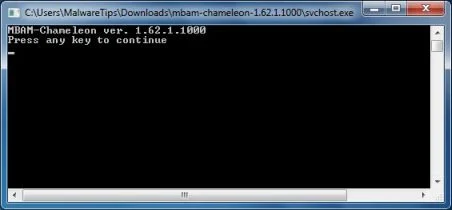
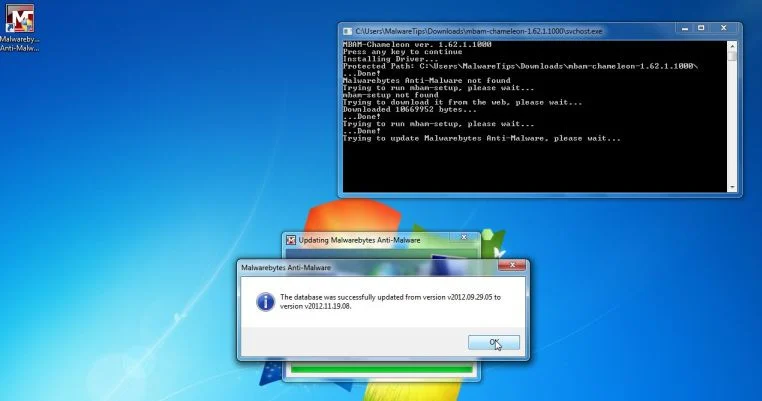
- Once it has done this, it will update Malwarebytes Anti-Malware, and you’ll need to click OK when it says that the database was updated successfully.
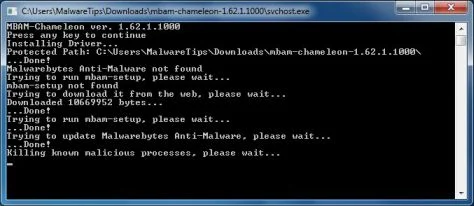
- Malwarebytes Anti-Malware will now attempt to kill all the malicious process associated with Internet Security Pro 2013.Please keep in mind that this process can take up to 10 minutes, so please be patient.
- Next, Malwarebytes Anti-Malware will automatically open and perform a Quick scan for Internet Security Pro 2013 malicious files as shown below.
![[Image: Malwarebytes Anti-Malware scanning for Internet Security Pro 2013]](https://malwaretips.com/blogs/wp-content/uploads/mwt-media/f6/f6ecfba43df64204df40586070483f260cb91fa07d5cc90cb4c3a588d159ff30/5b6b2687853201a40d29fe27e142cc66b0852745bbad3900a21030a10399cb4c-521.webp "Malwarebytes Anti-Malware scanning for Internet Security Pro 2013")
- Upon completion of the scan, click on Show Result
![[Image: Malwarebytes Anti-Malware scan results]](https://malwaretips.com/blogs/wp-content/uploads/mwt-media/84/84c62dd46289424dbc686abc53672cb0810111920c8c0bbd69e973844d0a9ab0/a4c04aa700e641f47afec9965f79ff346740668e5952955ccbe5b4c3658b5897-521.webp "Malwarebytes when the system scan has completed")
- You will now be presented with a screen showing you the malware infections that Malwarebytes Anti-Malware has detected.
Make sure that everything is Checked (ticked),then click on the Remove Selected button.
![[Image:Malwarebytes removing virus]](https://malwaretips.com/blogs/wp-content/uploads/mwt-media/d8/d86b6a8bac0e4ece9fd2d259a83db71487943f6b04b567edb0e9adcc3200f492/4eb94651b0e34cc99689c56dc71cd0a49444498ed05c5803ea55fda1cfee1b1f-521.webp "Click on Remove Selected to get rid of Internet Security Pro 2013")
- After your computer restarts, open Malwarebytes Anti-Malware and perform a Full System scan to verify that there are no remaining threats
STEP 3: Remove Internet Security Pro 2013 malicious registry keys with RogueKiller
- You can download the latest official version of RogueKiller from the below link.
Download RogueKillerOpens the download page in a new tab. - Double click on RogueKiller.exe to start this utility and then wait for the Prescan to complete.This should take only a few seconds, then click on the Scan button to perform a system scan.
![[Image: RogueKiller scaning for Internet Security Pro 2013 virus]](https://malwaretips.com/blogs/wp-content/uploads/mwt-media/69/69de1b02b1c29079c5f595c43ff489e90b26b2021baa2b0d1704b93ddd414395/e5bb79ff72ced202bac24c8b349e54b71c007e432c6cdd5b25b9315274047978-520.webp "Click on the Start button to perform a system scan")
- After the scan has completed, press the Delete button to remove Internet Security Pro 2013 malicious registry keys or files.
![[Image: RogueKiller Detele button]](https://malwaretips.com/blogs/wp-content/uploads/mwt-media/d0/d04ee432a91f8fcebf27c33388f7cbe82e8cd52c8bb9358affcda3179330c5f0/1902ad30fc60dfe4b2093826d636e475e58aa31f41a53715fd38f49578e69bb4-520.webp "Press Delete to remove Ib.Adnxs malicious registry keys")
STEP 4: Remove Internet Security Pro 2013 rootkit with HitmanPro
In some cases, Internet Security Pro 2013 will also install a rootkit on victims computer.To remove this rootkit we will use HitmanPro.
- You can download HitmanPro from the below link, then double click on it to start this program.
Download HitmanProOfficial Sophos download. Free scan, free 30-day trial to remove threats.
IF you are experiencing problems while trying to start HitmanPro, you can use the Force Breach mode.To start HitmanPro in Force Breach mode, hold down the left CTRL-key when you start HitmanPro and all non-essential processes are terminated, including the malware process. (How to start HitmanPro in Force Breach mode – Video) - HitmanPro will start and you’ll need to follow the prompts (by clicking on the Next button) to start a system scan with this program.
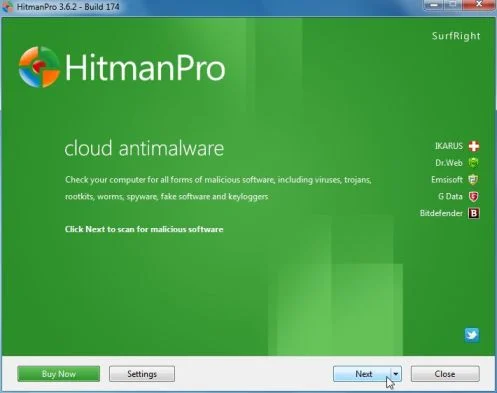
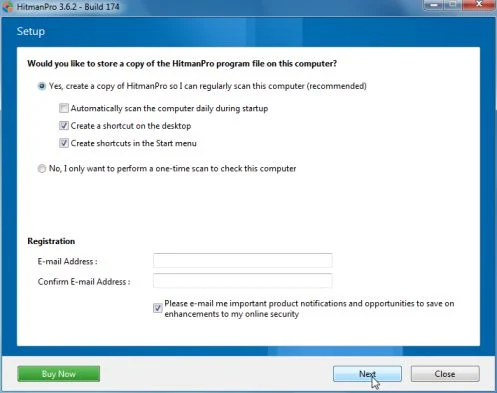
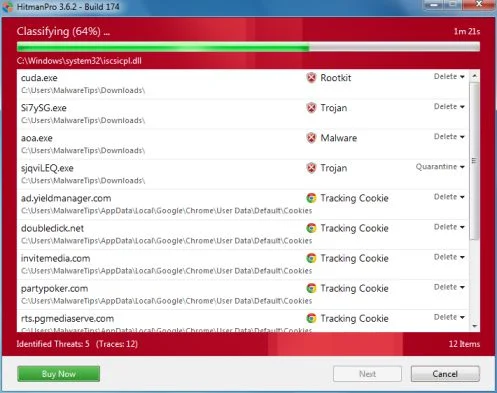
- HitmanPro will start scanning your computer for Internet Security Pro 2013 malicious files as seen in the image below.
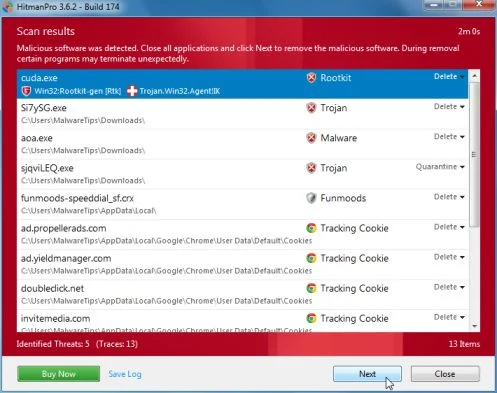
- Once the scan is complete,you’ll see a screen which will display all the infected files that this utility has detected, and you’ll need to click on Next to remove this malicious files.
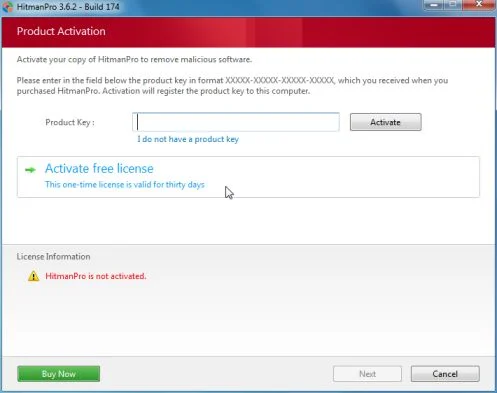
- Click Activate free license to start the free 30 days trial and remove all the malicious files from your computer.

Join the discussion
49 commentsShare your experience or ask a question about this article.
Discussion
Hi Stelian,
I am in apparent malware nightmare….
I have run via your directions above all but RogueKiller which is supposedly running now, but does not seem to be advancing. As they say below, it seems stuck on “Searching for Policy Hijacks -> (HJINPROC)”. I am hoping this advances but it isn’t appearing that it will.
Ran Malware and found PUP.Optional.IBryte and followed your instructions on another blog to remove it. Ran Malware again, all clean, ran HitMan (per instructions for pup) and whatever else was directed… But when I run RogueKiller it seems to hang.
I tried, prior to finding pup instructions, to run Combo-Fix.exe and it just won’t run. Ran ESET as you say in posts below, all fine.
The system is NOT behaving properly, and I know this isn’t over, with RogueKiller choking at about 2/3, and having FOUND items, I am at a loss here. Also the box on the top left is red, not green, as your screen pics show and as someone mentions they saw in another post.
HELP!
KC
In reply to KC
Hello KC,
Can you please run a scan with Combofix and post the logs here so that I can get an idea on what’s going on:
You can download ComboFix from here: http://download.bleepingcomputer.com/sUBs/ComboFix.exe
VERY IMPORTANT !!! Save as Combo-Fix.exe during the download.ComboFix must be renamed before you download to your Desktop
Close any open browsers.
Very Important!!!> Temporarily disable your anti-virus, script blocking and any anti-malware real-time protection before performing a scan. They can interfere with ComboFix or remove some of its embedded files which may cause “unpredictable results”.
WARNING: Combofix will disconnect your machine from the Internet as soon as it starts
Please do not attempt to re-connect your machine back to the Internet until Combofix has completely finished.
If there is no internet connection after running Combofix, then restart your computer to restore back your connection.
1. Double click on ComboFix.exe & follow the prompts.
2. Accept the disclaimer and allow to update if it asks
3. When finished, it shall produce a log for you.
Notes:
Do not mouse-click Combofix’s window while it is running. That may cause it to stall.
Do not “re-run” Combofix. If you have a problem, reply back for further instructions.
If after the reboot you get errors about programs being marked for deletion then reboot, that will cure it.
Please post the Combofix, so that I can get an idea on what’s going on.
Next, please run a scan with HitmanPro and Malwarebytes, then let me know how is your computer running.
Hello viflyer,
Lets upload this file to virustotal so that we may be sure that is just a false positive:
1. Go to https://www.virustotal.com/en/ , and click on the Choose File button.
2. Browse to C:WINDOWSehome and upload this file to be scanner for malware.
And just to be on the safe side, lets run a scan with these tools:
STEP 1: Run a scan with ESET Online Scanner
1.Download ESET Online Scanner utility.
ESET Online Scanner Download Link : http://download.eset.com/special/eos/esetsmartinstaller_enu.exe
2. Double click on the Eset installer program (esetsmartinstaller_enu.exe).
3.Check Yes, I accept the Terms of Use, then click the Start button.
4.Check Scan archives and push the Start button.
5. ESET will then download updates for itself, install itself, and begin scanning your computer. Please be patient as this can take some time.
6. When the scan completes, click on the Finish button.
STEP 2: Run a scan with Kaspersky Virus Removal Tool:
1. You can download from Kaspersky Virus Removal Tool from here : http://www.kaspersky.com/antivirus-removal-tool?form=1
2. Double click the setup file to run it, then follow the onscreen prompts until it is installed
Click the Options button (the ‘Gear’ icon), then make sure only the following are ticked:
System Memory
Hidden startup objects
Disk boot sectors
Local Disk (C:)
Also any other drives (Removable that you may have)
3. Then click on Actions on the left hand side
4. Click Select Action, then make sure both Disinfect and Delete if disinfection fails are ticked
5. Click on Automatic Scan, then click the Start Scanning button, to run the scan.
Stay safe!
Hi! My system gets stuck on RougeKiller on “searching for policy Hijacks”. I downloaded the ESET 64-bit system but that one, too, gets stuck on “Phase 7/10 completed”….please help!
In reply to Paula
Hello Paula,
Can you please run a scan with Combofix and post the logs here so that I can get an idea on what’s going on:
You can download ComboFix from here: http://download.bleepingcomputer.com/sUBs/ComboFix.exe
VERY IMPORTANT !!! Save as Combo-Fix.exe during the download.ComboFix must be renamed before you download to your Desktop
Close any open browsers.
Very Important!!!> Temporarily disable your anti-virus, script blocking and any anti-malware real-time protection before performing a scan. They can interfere with ComboFix or remove some of its embedded files which may cause “unpredictable results”.
WARNING: Combofix will disconnect your machine from the Internet as soon as it starts
Please do not attempt to re-connect your machine back to the Internet until Combofix has completely finished.
If there is no internet connection after running Combofix, then restart your computer to restore back your connection.
1. Double click on ComboFix.exe & follow the prompts.
2. Accept the disclaimer and allow to update if it asks
3. When finished, it shall produce a log for you.
Notes:
Do not mouse-click Combofix’s window while it is running. That may cause it to stall.
Do not “re-run” Combofix. If you have a problem, reply back for further instructions.
If after the reboot you get errors about programs being marked for deletion then reboot, that will cure it.
Please post the Combofix, so that I can get an idea on what’s going on.
Next, please run a scan with HitmanPro and Malwarebytes, then let me know how is your computer running.
Hello,
Avast Free Antivirus and COMODO Internet Security Free are both great free options, which will provide a high level of security for your computer.
I do recommend that you read this guide >> http://malwaretips.com/blogs/how-to-easily-avoid-pc-infections/ < < so that you'll learn how to avoid future infections!
Anyway ,you should really start a thread in our Security Configuration forum as you need to build a layered security config: http://malwaretips.com/Forum-Security-Configuration-Wizard
Stay safe!
Hello Ava,
To be on the safe side, I highly recommend that you run a computer scan with Malwarebytes Anti-Malware and HitmanPro.
Stay safe!
Hello,
Lets run these scans:
STEP 1: Run a scan with ESET Rogue Application Remover
1. Download the ESET Rogue Application Remover by clicking the appropriate link for your system version below
For 32-bit (x86) – http://download.eset.com/special/ERARemover_x86.exe
For 64-bit (x64) – http://download.eset.com/special/ERARemover_x64.exe
2.Save the file to your Desktop. When the download completes, navigate to the file, right-click it and select Run as administrator.
3.Click Accept to accept the End-User License Agreement (EULA).
4. Please be patience while this utility scans for malware, then press any key on your keyboard to exit the tool.
Next please run scan with Malwarebytes Anti-Malware, HitmanPro and RogueKiller. Waiting your reply to see how everything is going.
Also if you have Java installed make sure its up-to-date or uninstall it from your computer.
Stay safe!
Hello KC,
Lets run these scans:
STEP 1: Run a scan with ESET Rogue Application Remover
1. Download the ESET Rogue Application Remover by clicking the appropriate link for your system version below
For 32-bit (x86) – http://download.eset.com/special/ERARemover_x86.exe
For 64-bit (x64) – http://download.eset.com/special/ERARemover_x64.exe
2.Save the file to your Desktop. When the download completes, navigate to the file, right-click it and select Run as administrator.
3.Click Accept to accept the End-User License Agreement (EULA).
4. Please be patience while this utility scans for malware, then press any key on your keyboard to exit the tool.
Next please run scan with Malwarebytes Anti-Malware, HitmanPro and RogueKiller. Waiting your reply to see how everything is going.
Stay safe!
Hello,
It all depends in which country you live in, and the bank rules. Did you explain to them that this was a scam, and not a legit transaction?
Hello Joshua,
You’ve got a pretty nasty infection on this machine. It’s a ZeroAccess rootkit which has corrupted your Windows Defender settings.
To remove this infection, please follow the instructions from this guide: http://malwaretips.com/blogs/file-contained-a-virus-and-was-deleted-removal/
Stay safe!
Thank you! Very helpful!!!
Hello Grampy,
You can try to perform these scans in Windows regular mode, they usually work.
Additionally you can activate Internet Security 2013 to stop its malicious behavior. To do this you can click on the Activate Now window, or choose to remove threats and manually activate the rogue antivirus program. Enter one of the following codes:
Y68REW-T76FD1-U3VCF5A
Y86REW-T75FD5-U9VBF4A
Y76REW-T65FD5-U7VBF5A
Y86REW-T75FD5-9VB4A
SL55J-T54YHJ61-YHG88
(and fake email) to “activate” this infection.
Then, please run a scan with the tools from this guides.
Now, usually if you want to boot in Safe mode
You’ll want to click in the VM window at POST and hold the fn key (lower left corner) then type F8 a few times. This is unless you’ve changed your OS X System Preferences in Keyboard “Use all F1, F2, etc. keys as standard function keys”, then you would just type F8. The default setting requires VM focus and typing fn-F8.
Additional help: http://kb.vmware.com/selfservice/microsites/search.do?language=en_US&cmd=displayKC&externalId=1004011
Hello,
Lets run these scans:
STEP 1: Run a scan with ESET Rogue Application Remover
1. Download the ESET Rogue Application Remover by clicking the appropriate link for your system version below
For 32-bit (x86) – http://download.eset.com/special/ERARemover_x86.exe
For 64-bit (x64) – http://download.eset.com/special/ERARemover_x64.exe
2.Save the file to your Desktop. When the download completes, navigate to the file, right-click it and select Run as administrator.
3.Click Accept to accept the End-User License Agreement (EULA).
4. Please be patience while this utility scans for malware, then press any key on your keyboard to exit the tool.
STEP 2: Run a scan with Kaspersky Virus Removal Tool:
1. You can download from Kaspersky Virus Removal Tool from here : http://www.kaspersky.com/antivirus-removal-tool?form=1
2. Double click the setup file to run it, then follow the onscreen prompts until it is installed
Click the Options button (the ‘Gear’ icon), then make sure only the following are ticked:
System Memory
Hidden startup objects
Disk boot sectors
Local Disk (C:)
Also any other drives (Removable that you may have)
3. Then click on Actions on the left hand side
4. Click Select Action, then make sure both Disinfect and Delete if disinfection fails are ticked
5. Click on Automatic Scan, then click the Start Scanning button, to run the scan.
STEP 3: Run a scan with ESET Online Scanner
1.Download ESET Online Scanner utility.
ESET Online Scanner Download Link : http://download.eset.com/special/eos/esetsmartinstaller_enu.exe
2. Double click on the Eset installer program (esetsmartinstaller_enu.exe).
3.Check Yes, I accept the Terms of Use, then click the Start button.
4.Check Scan archives and push the Start button.
5. ESET will then download updates for itself, install itself, and begin scanning your computer. Please be patient as this can take some time.
6. When the scan completes, click on the Finish button.
Next please run scan with Malwarebytes Anti-Malware, HitmanPro and RogueKiller. Waiting your reply to see how everything is going.
Stay safe!
Hell Tracy,
Lets run these scans:
STEP 1: Run a scan with ESET Rogue Application Remover
1. Download the ESET Rogue Application Remover by clicking the appropriate link for your system version below
For 32-bit (x86) – http://download.eset.com/special/ERARemover_x86.exe
For 64-bit (x64) – http://download.eset.com/special/ERARemover_x64.exe
2.Save the file to your Desktop. When the download completes, navigate to the file, right-click it and select Run as administrator.
3.Click Accept to accept the End-User License Agreement (EULA).
4. Please be patience while this utility scans for malware, then press any key on your keyboard to exit the tool.
STEP 2: Run a scan with Kaspersky Virus Removal Tool:
1. You can download from Kaspersky Virus Removal Tool from here : http://www.kaspersky.com/antivirus-removal-tool?form=1
2. Double click the setup file to run it, then follow the onscreen prompts until it is installed
Click the Options button (the ‘Gear’ icon), then make sure only the following are ticked:
System Memory
Hidden startup objects
Disk boot sectors
Local Disk (C:)
Also any other drives (Removable that you may have)
3. Then click on Actions on the left hand side
4. Click Select Action, then make sure both Disinfect and Delete if disinfection fails are ticked
5. Click on Automatic Scan, then click the Start Scanning button, to run the scan.
STEP 3: Run a scan with ESET Online Scanner
1.Download ESET Online Scanner utility.
ESET Online Scanner Download Link : http://download.eset.com/special/eos/esetsmartinstaller_enu.exe
2. Double click on the Eset installer program (esetsmartinstaller_enu.exe).
3.Check Yes, I accept the Terms of Use, then click the Start button.
4.Check Scan archives and push the Start button.
5. ESET will then download updates for itself, install itself, and begin scanning your computer. Please be patient as this can take some time.
6. When the scan completes, click on the Finish button.
Next please run scan with Malwarebytes Anti-Malware, HitmanPro and RogueKiller. Waiting your reply to see how everything is going.
Stay safe!
Hello Sparkle,
Lets try to manually kill this infection:
1.Right click on the “Internet Security Pro 2013” icon (which should be on your desktop), click Properties in the drop-down menu, then click the Shortcut tab
2. In the Target box there is a path to the malicious file.
3. The path to the malicious files should be in the Application Data folder:
File location, Windows XP:
C:Documents and SettingsAll UsersApplication Dataamsecure.exe (or a different name file)
File location, Windows Vista/7 and 8:
C:ProgramDataamsecure.exe (or a different name file)
NOTE: by default, Application Data folder is hidden. Malware files are hidden as well. To see hidden files and folders, please read : http://windows.microsoft.com/en-us/windows-vista/show-hidden-files
4. Rename the amsecure.exe (or indefender.exe) malicious file to malwaretips or whatever you like.
5. Restart your computer. The malware should be inactive after the restart.
6. Scan with Malwarebytes and HitmanPro.
Thanks for this
helped me so much :D
You saved me a lot of aggravation and money — PayPal donation on its way. THANK YOU!
Hello Enrique,
You can scan your hard drive with Kaspersky Virus Removal Tool:
1. You can download from Kaspersky Virus Removal Tool from here : http://www.kaspersky.com/antivirus-removal-tool?form=1
2. Double click the setup file to run it, then follow the onscreen prompts until it is installed
Click the Options button (the ‘Gear’ icon), then make sure only the following are ticked:
System Memory
Hidden startup objects
Disk boot sectors
Local Disk (C:)
Also any other drives (Removable that you may have)
3. Then click on Actions on the left hand side
4. Click Select Action, then make sure both Disinfect and Delete if disinfection fails are ticked
5. Click on Automatic Scan, then click the Start Scanning button, to run the scan.
Hello,
At this point, you should have a clean computer. However for your peace of mind, you can run a scan with the following tools:
STEP 1: Run a scan with ESET Online Scanner
1.Download ESET Online Scanner utility.
ESET Online Scanner Download Link : http://download.eset.com/special/eos/esetsmartinstaller_enu.exe
2. Double click on the Eset installer program (esetsmartinstaller_enu.exe).
3.Check Yes, I accept the Terms of Use, then click the Start button.
4.Check Scan archives and push the Start button.
5. ESET will then download updates for itself, install itself, and begin scanning your computer. Please be patient as this can take some time.
6. When the scan completes, click on the Finish button.
STEP 2: Run a scan with Kaspersky Virus Removal Tool:
1. You can download from Kaspersky Virus Removal Tool from here : http://www.kaspersky.com/antivirus-removal-tool?form=1
2. Double click the setup file to run it, then follow the onscreen prompts until it is installed
Click the Options button (the ‘Gear’ icon), then make sure only the following are ticked:
System Memory
Hidden startup objects
Disk boot sectors
Local Disk (C:)
Also any other drives (Removable that you may have)
3. Then click on Actions on the left hand side
4. Click Select Action, then make sure both Disinfect and Delete if disinfection fails are ticked
5. Click on Automatic Scan, then click the Start Scanning button, to run the scan.
Then run again a scan with HitmanPro, and if it will detect any traces of malware, save the log and post it back here so that I can take a look.
Then, we will manually remove any left over file.
Good luck!
Hello,
If you know what you are doing, yes. But you should be real careful as is very dangerous to work with the Windows Registry.
Even after removing the malicious registry key, you would still need to run Malwarebytes and HitmanPro to remove this infection.
Stay safe!
Worked perfectly. Thank you for supplying such a great service to the internet community.