

Internet Security Pro 2013 is a computer virus, which pretends to be a legitimate security program and claims that malware has been detected on your computer. If you try to remove these infections, Internet Security Pro 2013 will state that you need to buy its full version before being able to do so.
![[Image: Internet Security Pro 2013 virus]](http://malwaretips.com/blogs/wp-content/uploads/2013/06/Internet-Security-PRO-2013-virus.jpg "Internet Security Pro 2013 virus")
Internet Security Pro 2013 trojan targets users browsing Internet websites, and rely on social engineering to deliver its payload.
On infected or hacked websites users are prompted by a pop-up window that has been carefully crafted to resemble a legitimate security warning. These pop-up windows typically alert a user of a computer infection, and then prompt the user to download and install Internet Security Pro 2013 to resolve the apparent issue.
Some of the infections may have come from users downloading an infected codec file when they were trying to watch a video online, or users who receive a spam email and open an infected email attachment.
Once installed, Internet Security Pro 2013 will display fake security alerts that are designed to think that your data is at risk or that your computer is severely infected.These messages include:
Security Warning
Malicious program has been detected. Click here to protect your computer.Firewall Warning
Hidden file transfers to remote host has been detected.
has detected a leak of your files through the Internet. We strongly recommend that you block the attack immediately.
In reality, none of the reported issues are real, and are only used to scare you into buying Internet Security Pro 2013 and stealing your personal financial information.
As part of its self-defense mechanism, Internet Security Pro 2013 virus has disabled the Windows system utilities, including the Windows Task Manager and Registry Editor, and will block you from running certain programs that could lead to its removal.
This rogue antivirus has also modified your Windows files associations, and now whenever you are trying to open a program, Internet Security Pro 2013 virus will block this operation and display a bogus notification in which will report that the file is infected.
iexplore.exe can not start
File iexplore.exe is infected by W32/Blaster.worm. Please activate Internet Security Pro 2013 to protect your computer.
If your computer is infected with Internet Security Pro 2013 virus, then you are seeing the following screens:
![[Image: Internet Security Pro 2013]](http://malwaretips.com/blogs/wp-content/uploads/2013/06/Internet-Security-PRO-2013.jpg "Remove \"Internet Security Pro 2013\" virus (Removal Guide) 1")
![[Image: Internet Security Pro 2013 warning]](http://malwaretips.com/blogs/wp-content/uploads/2013/06/Internet-Security-PRO-2013-warning.jpg "Internet Security Pro 2013 Warning")
![[Image: Internet Security Pro 2013 Firewall Warning]](http://malwaretips.com/blogs/wp-content/uploads/2013/06/Internet-Security-PRO-2013-Firewall-Warning.jpg "Internet Security Pro 2013 Firewall Warning")
Internet Security Pro 2013 is a scam, and you should ignore any alerts that this malicious software might generate.
Under no circumstance should you buy Internet Security Pro 2013 as this could lead to identity theft, and if you have, you should contact your bank and dispute the charge stating that the program is a scam and a computer virus.
Registration key for Internet Security Pro 2013 “designed to protect”
As an optional step,you can use any of the following license keys to register Internet Security “designed to protect” and stop the fake alerts.
Internet Security Pro 2013 “designed to protect” Activation Key: Y68REW-T76FD1-U3VCF5A
![[Image: Internet Security Pro 2013 Activation Code]](http://malwaretips.com/blogs/wp-content/uploads/2013/06/Internet-Security-PRO-2013-activation-code.jpg "Internet Security Pro 2013 Activation Key")
Please keep in mind that entering the above registration code will NOT remove Internet Security Pro 2013 “designed to protect” from your computer, instead this activation code will just stop the fake alerts so that you’ll be able to complete our removal guide more easily.
Internet Security Pro 2013 – Virus Removal Guide
STEP 1 : Start your computer in Safe Mode with Networking
- Remove all floppy disks, CDs, and DVDs from your computer, and then restart your computer.
- Press and hold the F8 key as your computer restarts.Please keep in mind that you need to press the F8 key before the Windows start-up logo appears.
Note: With some computers, if you press and hold a key as the computer is booting you will get a stuck key message. If this occurs, instead of pressing and holding the “F8 key”, tap the “F8 key” continuously until you get the Advanced Boot Options screen. - On the Advanced Boot Options screen, use the arrow keys to highlight Safe Mode with Networking , and then press ENTER.
![[Image: Safemode.jpg]](data:image/gif;base64,R0lGODlhAQABAAAAACH5BAEKAAEALAAAAAABAAEAAAICTAEAOw== "Safe Mode with Networking screen")
![[Image: Safemode.jpg]](http://malwaretips.com/images/removalguide/safemode.jpg "Safe Mode with Networking screen")
STEP 2: Remove Internet Security Pro 2013 malicious files with Malwarebytes Anti-Malware
Malwarebytes Chameleon technologies will allow us to install and run a Malwarebytes Anti-Malware scan without being blocked by Internet Security Pro 2013.
- Right click on your browser icon, and select Run As or Run as Administrator. This should allow your browser to open so that we can then download Malwarebytes Chameleon.
If you’ll see a “Warning! The site you are trying visit may harm your computer!” message in your web browser window, you can safely click on the Ignore warnings and visit that site in the current state (not recommended) link, because this a bogus alert from Internet Security Pro 2013. - Download Malwarebytes Chameleon from the below link, and extract it to a folder in a convenient location.
MALWAREBYTES CHAMELEON DOWNLOAD LINK (This link will open a new web page from where you can download Malwarebytes Chameleon)
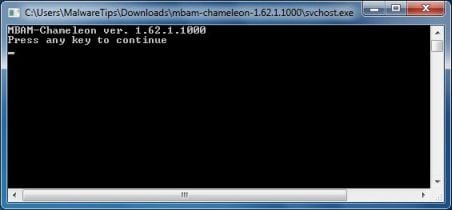
- Make certain that your infected computer is connected to the internet and then open the Malwarebytes Chameleon folder, and double-click on the svchost.exe file.
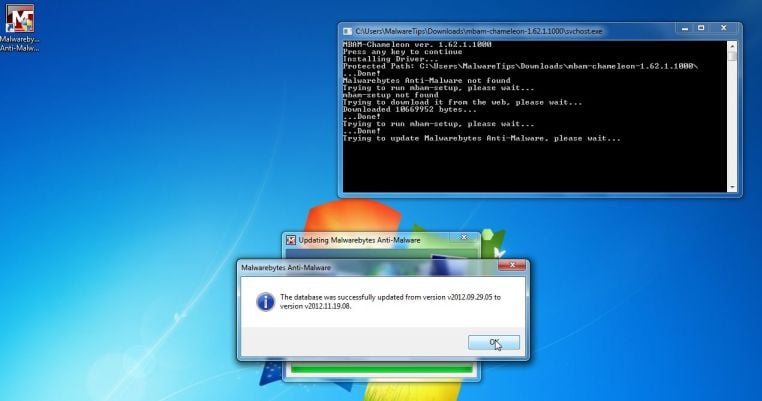
IF Malwarebytes Anti-Malware will not start, double-click on the other renamed files until you find one will work, which will be indicated by a black DOS/command prompt window. - Follow the onscreen instructions to press a key to continue and Chameleon will proceed to download and install Malwarebytes Anti-Malware for you.
- Once it has done this, it will update Malwarebytes Anti-Malware, and you’ll need to click OK when it says that the database was updated successfully.
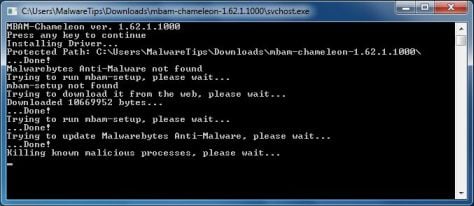
- Malwarebytes Anti-Malware will now attempt to kill all the malicious process associated with Internet Security Pro 2013.Please keep in mind that this process can take up to 10 minutes, so please be patient.
- Next, Malwarebytes Anti-Malware will automatically open and perform a Quick scan for Internet Security Pro 2013 malicious files as shown below.
- Upon completion of the scan, click on Show Result
- You will now be presented with a screen showing you the malware infections that Malwarebytes Anti-Malware has detected.
Make sure that everything is Checked (ticked),then click on the Remove Selected button.
- After your computer restarts, open Malwarebytes Anti-Malware and perform a Full System scan to verify that there are no remaining threats
![[Image: Starting web browse on infected computer]](http://malwaretips.com/blogs/wp-content/uploads/2013/03/open-web-browser.jpg "Right click on your Web Browser icon and click on Run As Administrator")
![[Image: Extract Malwarebytes Chameleon utility]](http://malwaretips.com/blogs/wp-content/uploads/2013/02/malwarebytes-chameleon-zip.jpg "Extract Malwarebytes Chameleon utility")
![[Image: Double click on svchost.exe]](http://malwaretips.com/blogs/wp-content/uploads/2013/02/malwarebytes-chameleon-svchost.jpg "Double click on svchost.exe")
![[Image: Malwarebytes Anti-Malware scanning for Internet Security Pro 2013]](http://malwaretips.com/blogs/wp-content/uploads/2013/01/malwarebytes-scan.jpg "Malwarebytes Anti-Malware scanning for Internet Security Pro 2013")
![[Image: Malwarebytes Anti-Malware scan results]](http://malwaretips.com/blogs/wp-content/uploads/2013/01/malwarebytes-scan-results.jpg "Malwarebytes when the system scan has completed")
![[Image:Malwarebytes removing virus]](http://malwaretips.com/blogs/wp-content/uploads/2013/01/malwarebytes-virus-removal.jpg "Click on Remove Selected to get rid of Internet Security Pro 2013")
STEP 3: Remove Internet Security Pro 2013 malicious registry keys with RogueKiller
- You can download the latest official version of RogueKiller from the below link.
ROGUEKILLER DOWNLOAD LINK (This link will automatically download RogueKiller on your computer) - Double click on RogueKiller.exe to start this utility and then wait for the Prescan to complete.This should take only a few seconds, then click on the Scan button to perform a system scan.
- After the scan has completed, press the Delete button to remove Internet Security Pro 2013 malicious registry keys or files.
![[Image: RogueKiller scaning for Internet Security Pro 2013 virus]](http://malwaretips.com/blogs/wp-content/uploads/2013/02/roguekiller-scan.jpg "Click on the Start button to perform a system scan")
![[Image: RogueKiller Detele button]](http://malwaretips.com/blogs/wp-content/uploads/2013/02/roguekiller-delete.jpg "Press Delete to remove Ib.Adnxs malicious registry keys")
STEP 4: Remove Internet Security Pro 2013 rootkit with HitmanPro
In some cases, Internet Security Pro 2013 will also install a rootkit on victims computer.To remove this rootkit we will use HitmanPro.
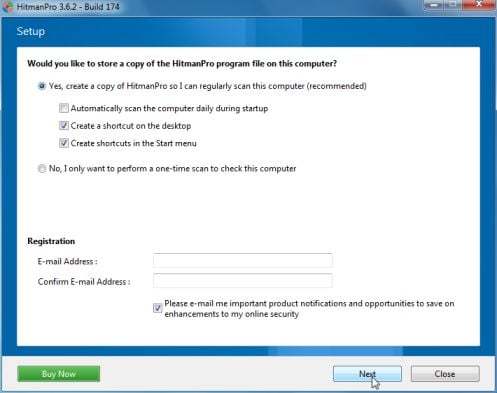
- You can download HitmanPro from the below link, then double click on it to start this program.
HITMANPRO DOWNLOAD LINK (This link will open a new web page from where you can download HitmanPro)
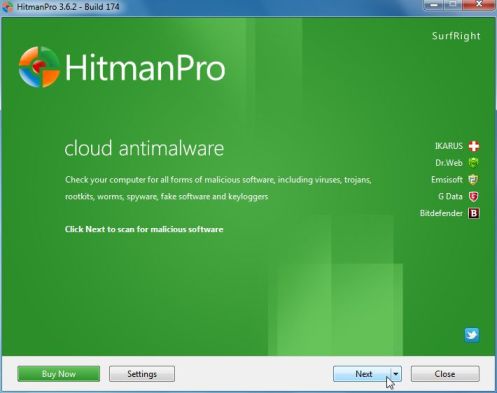
IF you are experiencing problems while trying to start HitmanPro, you can use the Force Breach mode.To start HitmanPro in Force Breach mode, hold down the left CTRL-key when you start HitmanPro and all non-essential processes are terminated, including the malware process. (How to start HitmanPro in Force Breach mode – Video) - HitmanPro will start and you’ll need to follow the prompts (by clicking on the Next button) to start a system scan with this program.
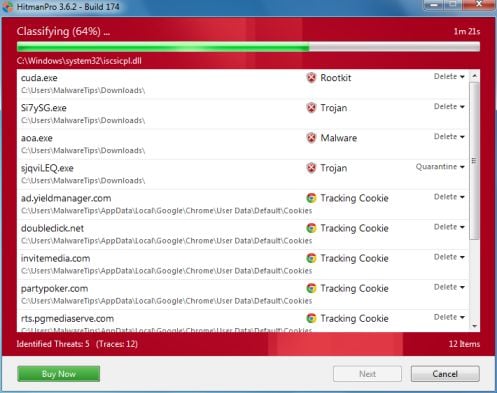
- HitmanPro will start scanning your computer for Internet Security Pro 2013 malicious files as seen in the image below.
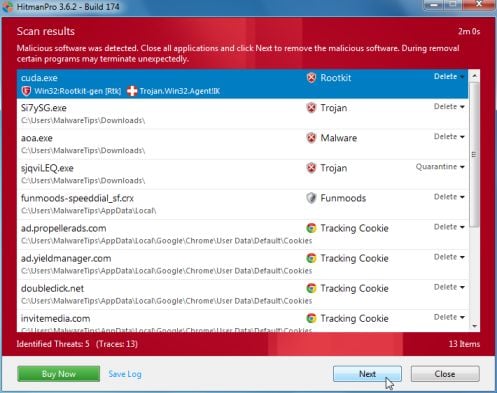
- Once the scan is complete,you’ll see a screen which will display all the infected files that this utility has detected, and you’ll need to click on Next to remove this malicious files.
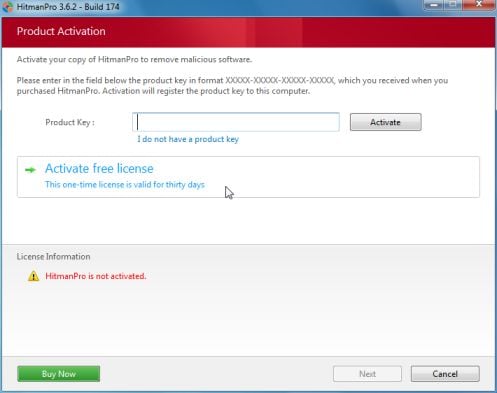
- Click Activate free license to start the free 30 days trial and remove all the malicious files from your computer.









Hello Amanda,
While your computer is in Normal Mode, can you please run a scan with Malwarebytes Anti-Malware.
1.Download Malwarebytes Chameleon from http://www.malwarebytes.org/products/chameleon/ , and extract it to a folder in a convenient location.
NOTE: If you cannot open your browser, you can either use the activation code from this guide or you can right-click on your browser icon and select “Run as Administrator”
2.Make certain that your PC is connected to the internet and then open the folder where you extracted Chameleon,next right click on the Chameleon help file and select “Run As Administrator.Then follow the onscreen instructions to use it.
3.If the Chameleon help file itself will not open, then double-click each file one by one until you find one that works, which will be indicated by a black DOS/command prompt window.
4.Follow the onscreen instructions to press a key to continue and Chameleon will proceed to download and install Malwarebytes Anti-Malware for you
5.Once it has done this, it will attempt to update Malwarebytes Anti-Malware, click OK when it says that the database was updated successful
6.Next, Malwarebytes Anti-Malware will automatically open and perform a Quick scan
7.Upon completion of the scan, if anything has been detected, click on Show Result
8.Have Malwarebytes Anti-Malware remove any threats that are detected and click Yes if prompted to reboot your computer to allow the removal process to complete
9.After your computer restarts, open Malwarebytes Anti-Malware and perform a Full System scan to verify that there are no remaining threats
Next, please perform a scan with HitmanPro and RogueKiller.
Good luck!
Hello,
Can you please run a scan with Combofix and post the logs here so that I can get an idea on what’s going on:
You can download ComboFix from here: http://download.bleepingcomputer.com/sUBs/ComboFix.exe
VERY IMPORTANT !!! Save as Combo-Fix.exe during the download.ComboFix must be renamed before you download to your Desktop
Close any open browsers.
Very Important!!!> Temporarily disable your anti-virus, script blocking and any anti-malware real-time protection before performing a scan. They can interfere with ComboFix or remove some of its embedded files which may cause “unpredictable results”.
WARNING: Combofix will disconnect your machine from the Internet as soon as it starts
Please do not attempt to re-connect your machine back to the Internet until Combofix has completely finished.
If there is no internet connection after running Combofix, then restart your computer to restore back your connection.
1. Double click on ComboFix.exe & follow the prompts.
2. Accept the disclaimer and allow to update if it asks
3. When finished, it shall produce a log for you.
Notes:
Do not mouse-click Combofix’s window while it is running. That may cause it to stall.
Do not “re-run” Combofix. If you have a problem, reply back for further instructions.
If after the reboot you get errors about programs being marked for deletion then reboot, that will cure it.
Please post the Combofix, so that I can get an idea on what’s going on.
Next, please run a scan with HitmanPro and Malwarebytes, then let me know how is your computer running.
Thank you.all done
Thank you very much for this information and help. The steps as outlined worked and saved me in two instances – one on a home PC and another on a work laptop (about 6 months apart.) Thank you and keep up the good work.
Thanks, Everything went well for me except for the rogue killer program automatically rebooted my computer but I did have a folder labeled rk_quarantine on my desktop upon startup. Does that work? Is there anything else that I need to do? Hitman pro worked fine.
Hello,
Lets try to run these two scans:
STEP 1: Run a scan with ESET Online Scanner
1.Download ESET Online Scanner utility.
ESET Online Scanner Download Link : http://download.eset.com/special/eos/esetsmartinstaller_enu.exe
2. Double click on the Eset installer program (esetsmartinstaller_enu.exe).
3.Check Yes, I accept the Terms of Use, then click the Start button.
4.Check Scan archives and push the Start button.
5. ESET will then download updates for itself, install itself, and begin scanning your computer. Please be patient as this can take some time.
6. When the scan completes, click on the Finish button.
STEP 2: Run a scan with Kaspersky Virus Removal Tool:
1. You can download from Kaspersky Virus Removal Tool from here : http://www.kaspersky.com/antivirus-removal-tool?form=1
2. Double click the setup file to run it, then follow the onscreen prompts until it is installed
Click the Options button (the ‘Gear’ icon), then make sure only the following are ticked:
System Memory
Hidden startup objects
Disk boot sectors
Local Disk (C:)
Also any other drives (Removable that you may have)
3. Then click on Actions on the left hand side
4. Click Select Action, then make sure both Disinfect and Delete if disinfection fails are ticked
5. Click on Automatic Scan, then click the Start Scanning button, to run the scan
Hello,
Try first to run the scan in Windows normal mode, if you then experience problems, you can run the scan in Safe Mode with Networking.
Stay safe~
Hello,
The “driver” icon (green/red square) turns to green once the driver is loaded. The driver cannot be loaded on 64 bits operating systems.
Did you perform the HitmanPro scan? How is your machine running ?
needed to leave a post giving my thanks for this tutorial. just finished the steps and so far everything is working normally. gotta thanks you a thousand times for this. this was the fourth tutorial i tried and it worked like a charm. u have my thanks again for saving my computer and saving me 150 bucks it would have cost my to take it to a tech.
so thanks again,
very satisfied man
Stay safe Brian, and never pay for malware removal…. We’ll do it for free!:D
When I log on to my computer using safe mode with networking it restarts my computer
Hello Jake,
While your computer is in Normal Mode, can you please run a scan with Malwarebytes Anti-Malware.
1.Download Malwarebytes Chameleon from http://www.malwarebytes.org/products/chameleon/ , and extract it to a folder in a convenient location.
NOTE: If you cannot open your browser, you can either use the activation code from this guide or you can right-click on your browser icon and select “Run as Administrator”
2.Make certain that your PC is connected to the internet and then open the folder where you extracted Chameleon,next right click on the Chameleon help file and select “Run As Administrator.Then follow the onscreen instructions to use it.
3.If the Chameleon help file itself will not open, then double-click each file one by one until you find one that works, which will be indicated by a black DOS/command prompt window.
4.Follow the onscreen instructions to press a key to continue and Chameleon will proceed to download and install Malwarebytes Anti-Malware for you
5.Once it has done this, it will attempt to update Malwarebytes Anti-Malware, click OK when it says that the database was updated successful
6.Next, Malwarebytes Anti-Malware will automatically open and perform a Quick scan
7.Upon completion of the scan, if anything has been detected, click on Show Result
8.Have Malwarebytes Anti-Malware remove any threats that are detected and click Yes if prompted to reboot your computer to allow the removal process to complete
9.After your computer restarts, open Malwarebytes Anti-Malware and perform a Full System scan to verify that there are no remaining threats
Next, please perform a scan with HitmanPro and RogueKiller.
Good luck!
My computer tells me that rouge kill should not be trusted, should I click ok anyways?
Hello,
Yes, I would not recommend any tool that might infect your computer. However if you do not wish to run this utility, you can skip to the HitmanPro scan, and afterwards perform a scan with ESET Online Scanner:
Run a scan with ESET Online Scanner
1.Download ESET Online Scanner utility.
ESET Online Scanner Download Link : http://download.eset.com/speci…
2. Double click on the Eset installer program (esetsmartinstaller_enu.exe).
3.Check Yes, I accept the Terms of Use, then click the Start button.
4.Check Scan archives and push the Start button.
5. ESET will then download updates for itself, install itself, and begin scanning your computer. Please be patient as this can take some time.
6. When the scan completes, click on the Finish button.
Hello,
Can you please run a scan with Combofix and post the logs here so that I can get an idea on what’s going on:
You can download ComboFix from here: http://download.bleepingcomputer.com/sUBs/ComboFix.exe
VERY IMPORTANT !!! Save as Combo-Fix.exe during the download.ComboFix must be renamed before you download to your Desktop
Close any open browsers.
Very Important!!!> Temporarily disable your anti-virus, script blocking and any anti-malware real-time protection before performing a scan. They can interfere with ComboFix or remove some of its embedded files which may cause “unpredictable results”.
WARNING: Combofix will disconnect your machine from the Internet as soon as it starts
Please do not attempt to re-connect your machine back to the Internet until Combofix has completely finished.
If there is no internet connection after running Combofix, then restart your computer to restore back your connection.
1. Double click on ComboFix.exe & follow the prompts.
2. Accept the disclaimer and allow to update if it asks
3. When finished, it shall produce a log for you.
Notes:
Do not mouse-click Combofix’s window while it is running. That may cause it to stall.
Do not “re-run” Combofix. If you have a problem, reply back for further instructions.
If after the reboot you get errors about programs being marked for deletion then reboot, that will cure it.
Please post the Combofix log here, so that I can get an idea on what’s going on. Also let me know how is your computer running.
thank you for your help i got it working after a couple rescans and setting changes and roguekiller ended up fixing it you really did save me big time thank you so much
Seems to have worked for me, thanks. I’m now performing a full scan. The only thing that caused a problem was an older version of MB – following the instructions above it seemed to open the new (Chameleon) version but then it crashed. I removed the old version before restarting and reinstalling the new version.
Also wonder why Microsoft Security Essentials let this thing in so easily.
I cannot download any software. When I follow your steps, the download process begins and then when it is completing I get an error message stating that the file had a virus and was deleted. I have “internet security pro” virus on my computer and cannot get it off. I’ve even renamed the exe file twice and that does not work. Please help.
Hello Tracy,
It looks like you have a ZeroAccess rootkit on this machine. Can you please try to download these tools using another browser (eg: Google Chrome, Opera or Firefox). Alternatively, you can use a USB stick to transfer the 3 tools from this guide onto the infected machine.
In addition, to make the malware removal process easier, you can use this Internet Security Activation code: Y68REW-T76FD1-U3VCF5A .
Waiting for your reply. Stay safe!
Omg! Thank you so much for this. Something told me to check online to see what I should do after I went out and bought some anti-virus. I was on the verge of purchasing this scam product. These steps worked wonders! Thanks again.
Hello,
Malwarebytes is a very powerful scanner, and can remove this infection by itself.
However, for your peace of mind, I would advise you to run the other scans. The HitmanPro and RogueKiller scan will not take more than 10 minutes each to complete.
Stay safe!
Followed these instructions step-by-step and they worked a treat – thanks a lot for your help!
This was a big help, and the problem was solved quickly. As soon as I recognized the virus had hit (I was using it), I had the machine go dark. So I went to another machine and downloaded the three programs to a jump drive like sparkle did.
I renamed the file (was ihdefender.exe in my case), went into safe mode, started Malwarebytes and let the machine back on the net to update. From this point it was just follow the steps.
Spooky thing here is Java was up to date, Microsoft Security Essentials was up to date (as of that morning), and running, and this thing still crashed the party, from a fairly legit site. A deep scan with MSE found it, but couldn’t remove it.
Nice straight forward job Stelian.
BTW, this did work, so make sure you extract the folder contents onto the thumb drive first, and I have had not other issues going through all of the other steps. Looks like it got everything.
THANKS SOOOOOOOO MUCH!!!!!
Thank you very much, I followed your method to remove it.
Hello Sparkle,
Lets try to manually kill this infection:
1.Right click on the “Internet Security Pro 2013” icon (which should be on your client desktop), click Properties in the drop-down menu, then click the Shortcut tab
2. In the Target box there is a path to the malicious file.
3. The path to the malicious files should be in the Application Data folder:
File location, Windows XP:
C:Documents and SettingsAll UsersApplication Dataamsecure.exe (or a different name file)
File location, Windows Vista/7 and 8:
C:ProgramDataamsecure.exe (or a different name file)
NOTE: by default, Application Data folder is hidden. Malware files are hidden as well. To see hidden files and folders, please read : http://windows.microsoft.com/en-us/windows-vista/show-hidden-files
4. Rename the amsecure.exe (or indefender.exe) malicious file to malwaretips or whatever you like.
5. Restart your computer. The malware should be inactive after the restart.
6. Scan with Malwarebytes and HitmanPro.
My wife and I use one pc for our internet purchases and some personal stuff. As she uses it more for purchases, reading email and selected favorite sites that particular pc got hit with this dang mess. I followed your instructions and it they have seemed to work like a charm. Thank you so much for the great help. Btw, following the mbam scan I got a “Your computer is locked” and a “your are in trouble for mp3 etc, downloads”. The message covered 80% of the screen. Mouse and keyboard were inop. I hit the reset button, the pc rebooted with no problems in Normal Mode and I completed the balance of your instructions with no problems.