

System Progressive Protection is a computer virus from the WinWebSec family of rogue anti-spyware programs.
Cyber criminals,spread System Progressive Protection via infected websites,malicious email attachments or Java exploits.Once installed on your computer System Progressive Protection will start a bogus security scan which will report that several trojans,rootkits and viruses were found on your machine.
As you have probably realized by now,this alerts are nothing just scam and are meant to scare you into buy System Progressive Protection.
Apart from this fake alerts,System Progressive Protection will also prevent you from starting certain programs that could lead to its removal and redirect your browser to websites from which the cyber criminals will get affiliate revenue.
If your computer is infected with System Progressive Protection,then you are seeing this screens:
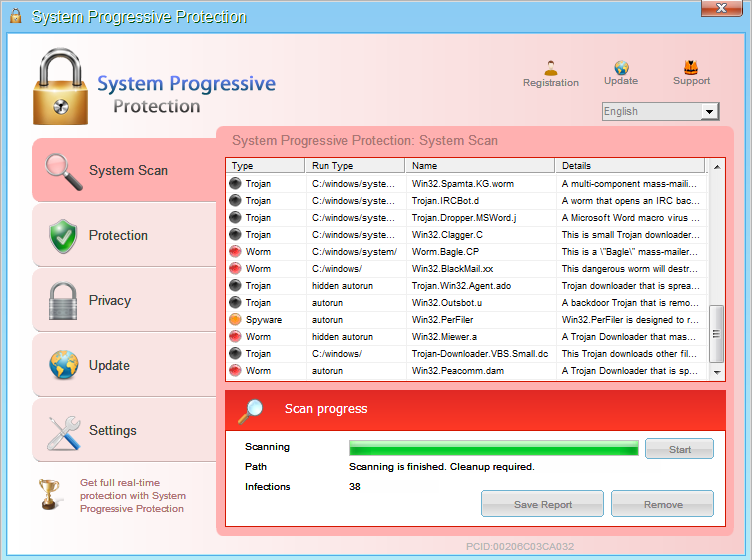
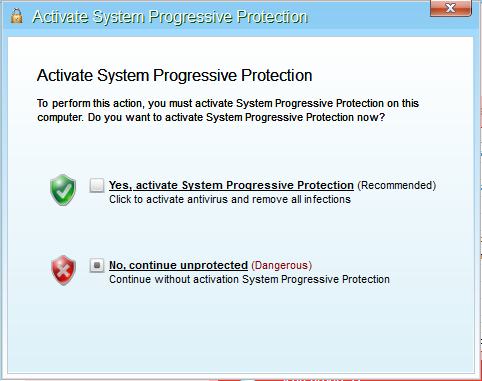
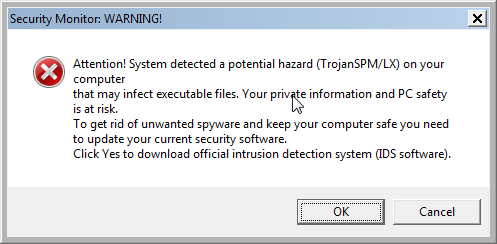
We strongly advise you to ignore any alerts that System Progressive Protection might generate and proceed with this removal guide as soon as possible.
Under no circumstance should you buy System Progressive Protection as this could lead to identity theft,and if you have, you should contact your credit card company and dispute the charge stating that the program is a scam and a computer virus.
Registration codes for System Progressive Protection
As an optional step,you can use the following license key to register System Progressive Protection and stop the fake alerts.
System Progressive Protection license key: AA39754E-715219CE
Please keep in mind that entering the above registration code will NOT remove System Progressive Protection from your computer , instead it will just stop the fake alerts so that you’ll be able to complete our removal guide more easily.
System Progressive Protection Removal Guide
STEP 1 : Start your computer in Safe Mode with Networking
- Remove all floppy disks, CDs, and DVDs from your computer, and then restart your computer.
- Press and hold the F8 key as your computer restarts.Please keep in mind that you need to press the F8 key before the Windows start-up logo appears.
Note: With some computers, if you press and hold a key as the computer is booting you will get a stuck key message. If this occurs, instead of pressing and holding the “F8 key”, tap the “F8 key” continuously until you get the Advanced Boot Options screen. - On the Advanced Boot Options screen, use the arrow keys to highlight Safe Mode with Networking , and then press ENTER.
![[Image: Safe Mode with Networking]](data:image/gif;base64,R0lGODlhAQABAAAAACH5BAEKAAEALAAAAAABAAEAAAICTAEAOw== "Start your computer in Safe Mode with Networking")
![[Image: Safe Mode with Networking]](http://malwaretips.com/blogs/wp-content/uploads/2013/01/safemode.jpg "Start your computer in Safe Mode with Networking")
STEP 2: Run RKill to terminate known malware processes associated with System Progressive Protection.
RKill is a program that will attempt to terminate all malicious processes associated with System Progressive Protection,so that we will be able to perform the next step without being interrupted by this malicious software.
Because this utility will only stop System Progressive Protection running process, and does not delete any files, after running it you should not reboot your computer as any malware processes that are configured to start automatically will just be started again.
- While your computer is in Safe Mode with Networking ,please download the latest official version of RKill.Please note that we will use a renamed version of RKILL so that System Progressive Protection won’t block this utility from running.
RKILL DOWNLOAD LINK (This link will automatically download RKILL renamed as iExplore.exe) - Double click on iExplore.exe to start RKill and stop any processes associated with System Progressive Protection.
- RKill will now start working in the background, please be patient while the program looks for various malware programs and tries to terminate them.
IF you are having problems starting or running RKill, you can download any other renamed versions of RKill from here. - When Rkill has completed its task, it will generate a log. You can then proceed with the rest of the guide.
![[Image: RKILL Program]](http://malwaretips.com/blogs/wp-content/uploads/2013/01/rkill-run-as-admin.jpg "Double Click on iExplore.exe")
![[Image: RKILL stoping malware]](http://malwaretips.com/blogs/wp-content/uploads/2013/01/rkill-program.jpg "RKill while killing System Progressive Protection malicious process")
![[Image: RKill Report]](http://malwaretips.com/blogs/wp-content/uploads/2013/01/rkill-report.jpg "RKill Log")
WARNING: Do not reboot your computer after running RKill as the malware process will start again , preventing you from properly performing the next step.
STEP 3: Remove System Progressive Protection malicious files with Malwarebytes Anti-Malware FREE
Malwarebytes Anti-Malware is a powerfull on-demand scanner which will remove System Progressive Protection malicious files from your computer.
- You can download Malwarebytes Anti-Malware Free from the below link,then double click on it to install this program.
MALWAREBYTES ANTI-MALWARE DOWNLOAD LINK(This link will open a download page in a new window from where you can download Malwarebytes Anti-Malware Free) - When the installation begins, keep following the prompts in order to continue with the setup process.
DO NOT make any changes to default settings and when the program has finished installing, make sure you leave both the Update Malwarebytes’ Anti-Malware and Launch Malwarebytes’ Anti-Malware checked,then click on the Finish button.
- On the Scanner tab,select Perform quick scan and then click on the Scan button to start scanning your computer.
- Malwarebytes’ Anti-Malware will now start scanning your computer for System Progressive Protection malicious files as shown below.
- When the Malwarebytes scan will be completed,click on Show Result.
- You will now be presented with a screen showing you the malware infections that Malwarebytes’ Anti-Malware has detected.Please note that the infections found may be different than what is shown in the image.Make sure that everything is Checked (ticked) and click on the Remove Selected button.
- After your computer will restart in Normal mode, open Malwarebytes Anti-Malware and perform a Full System scan to verify that there are no remaining threats
![[Image: Malwarebytes Anti-Malware final installation screen]](http://malwaretips.com/blogs/wp-content/uploads/2013/01/malwarebytes-installation.jpg "Malwarebytes Anti-Malware final installation screen")
![[Image: Malwarebytes Anti-Malware Quick Scan]](http://malwaretips.com/blogs/wp-content/uploads/2013/01/malwarebytes-quick-scan.jpg "Run a Quick Scan with Malwarebytes Anti-Malware")
![[Image: Malwarebytes Anti-Malware scanning for System Progressive Protection]](http://malwaretips.com/blogs/wp-content/uploads/2013/01/malwarebytes-scan.jpg "Malwarebytes Anti-Malware scanning for System Progressive Protection")
![[Image: Malwarebytes Anti-Malware scan results]](http://malwaretips.com/blogs/wp-content/uploads/2013/01/malwarebytes-scan-results.jpg "Malwarebytes when the system scan has completed")
![[Image:Malwarebytes removing virus]](http://malwaretips.com/blogs/wp-content/uploads/2013/01/malwarebytes-virus-removal.jpg "Click on Remove Selected to get rid of System Progressive Protection")
STEP 4: Remove System Progressive Protection rootkit with HitmanPro
In some cases,System Progressive Protection will also install a rootkit on victims computer.To remove this rootkit we will use HitmanPro.
- Download HitmanPro from the below link,then double click on it to start this program.
HITMANPRO DOWNLOAD LINK (This link will open a new web page from where you can download HitmanPro)
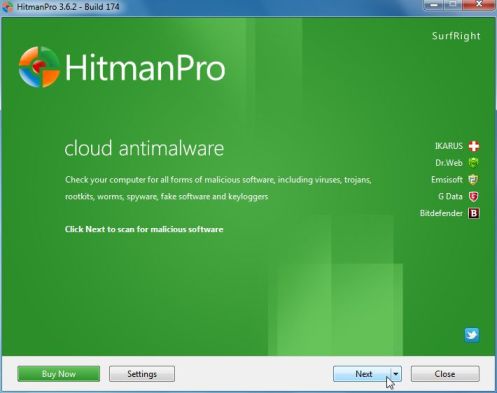
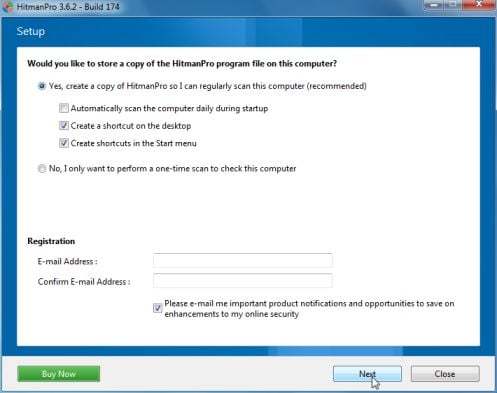
IF you are experiencing problems while trying to start HitmanPro, you can use the Force Breach mode.To start HitmanPro in Force Breach mode, hold down the left CTRL-key when you start HitmanPro and all non-essential processes are terminated, including the malware process. (How to start HitmanPro in Force Breach mode – Video) - HitmanPro will start and you’ll need to follow the prompts (by clicking on the Next button) to start a system scan with this program.
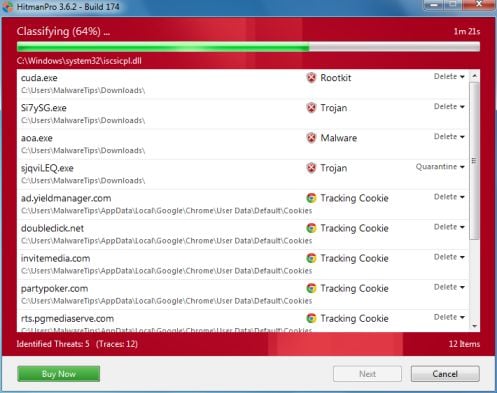
- HitmanPro will start scanning your computer for System Progressive Protection malicious files as seen in the image below.
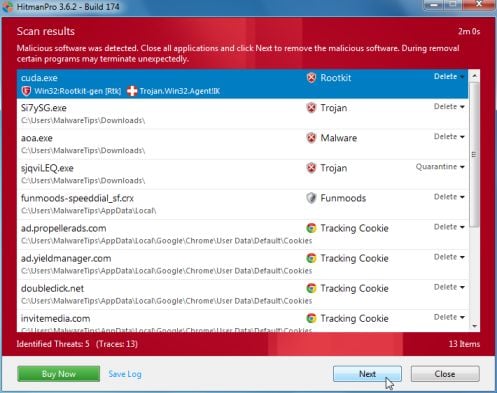
- Once the scan is complete,you’ll see a screen which will display all the infected files that this utility has detected, and you’ll need to click on Next to remove this malicious files.
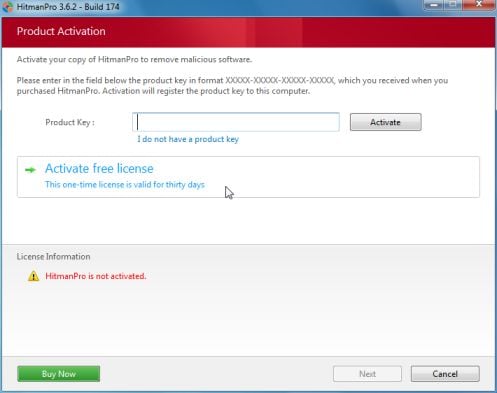
- Click Activate free license to start the free 30 days trial and remove all the malicious files from your computer.
That’s it, System Progressive Protection should be completely removed from your computer!
We strongly recommend that you build up your malware defenses by starting a new thread in Security Configuration Wizard forum and keep installed on your machine all the on-demand scanners that we’ve used in this article to perform regular scans with them.









Wow, Dear i dont know how to say thank to you. I was really serious problem for me but thank GOD, u saved me man, thnx again. !!!
Thank you!
Thanks a lot for the help, the article was very straight forward and concise and allowed me to remove the malware without much hassle.
Tank You!!!
Verk clear instruktions, and it solved My problem,,
I just want to tell you that I am newbie when it comes to pc and I’ve manage to remove this nasty virus without any problemes! Great site!Thank you!
Thank you so much for this blog! I just did this and from what I can tell, it definitely worked! I couldn’t even really use my computer a few hours ago and now its working properly! I might go ahead and wipe the entire computer clean, but at least now I can save my files before doing so. Thanks for taking the time to do this!
:)
Great and worked like a charm thank you so much. Nice clear instructions that really did lead me by the hand.
Hi Stelian – thanks for taking the time to help people out with this newest flavor of the smitfraud-type virus . . . it’s pretty obvious by the response that there’s lots of people who are getting it.
I’m an IT guy too, and I just cleaned it off a guys machine tonite. Malwarebytes was already installed on this machine, and nearly up to date – but the bug had disabled it !! I’ve seen this before with the smitfraud-type mechanism.
I booted to normal safe mode without networking, because I downloaded the registryfix.reg and rkill.exe onto another computer and copied it onto a thumb drive. Once in safe mode I dropped them on the desktop, ran them both per your directions – and Malwarebytes was instantly functional once again !! It had near-current definitions already, so I just ran a quick scan and BAM – bye bye fake whatever you were.
Before rebooting to full Windows mode, I also ran a small but very useful Kaspersky rootkit tool called TDSSKiller – available for free download. It’s only a bit over 2 Mb in size and scans very quickly but effectively. I have used this program to discover and eliminate rootkits on problem machines where all the other software found nothing. However, I found no rootkit associated with this infection – but I will keep that in mind.
Malwarebytes, TDSSKiller, Kaspersky Virus Tool, Combofix, ESET online scanner . . . yes, all good software that I use and recommend. I’m not real big on HitmanPro and especially RogueKiller because they often seem to identify files not related to the virus, and this confuses users because then they hafta pick and choose what to do with which files. PreVX also has a very good online scanner similar to ESET, and you can also install a free version of their active online scanner, which will run along side other active software without interference and detect (but not remove) infections.
Just my 2 cents . . . thanks again for your efforts – you’ve helped alot of people !!
Thanks for taking the time dude. This worked great. For every 1,000,000 idiots out there creating this cr@p, there is 1 of you helping people. Thank you.
Thanks for your straightforward instructions – seems to have worked a treat :)
your the best!!!
Thanks so much! This fixed me right up!
Hi
Tq very much.
This malware came to my pc through an e-mail from IRS.gov with the subject – “jConnect fax from “885-443-4836” “, which I accidentally opened.
tq again
syed
Thanks! really just follow the steps one by one, will not face any problem with very good written and helpful.
thank you for share your knowledge!
Thank you so much – I had no clue what to do. Fortunately, I had another system to be able to locate your site for help. You are the best!
Thanks! Very well written and helpful. Seemed to work well as I no longer get the notifications and pop ups.
However, I still have what appears to be some remnants of the program. When I run %ProgramData%, they show up as a 3K file and 5K icon in a folder named 64DDA88426FE5ED3000064DDAB6353.EXE. When i try to customize my taskbar, it lists SPP version 3.7.17 and has something called vxesmqoa.exe as options.
Should I be concerned about those?
Should I be concerned about these when MBAM, Hitman, and Emisoft all turn up nothing?
Hello Eric,
Like you’ve said this are most likely just some left over files from this infected.Try to delete them and if you can’t,then open MBAM and go to More Tools tab,from there select Run Tool,and browse to the file or folder that you want to remove….After you’ll reset your computer,FileAssasin should get rid of it!
And for your peace of mind,you can perform a scan with the following tools:
1.Run a scan with Kaspersky Virus Removal Tool
Click here to download the Kaspersky Virus Removal Tool.
2.Run a scan with Eset Online Scanner.
ESET Online Scanner Download Link (This link will automatically download ESET Online Scanner on your computer.)
Stay safe!
I am an IT professional.. From one to another very well put together article. It helped me to clean a clients machine. Thanks Good Job!
Thanks Dude….It really works.
Thank you, thank you, thank you! I almost died when I saw the virus and I had no idea what to do. Your article was brilliant and worked a treat. Chameleon worked first time for me and I didn’t have the rootkit but I followed all three steps anyway and it’s all dandy now. I see some people have complained about the length of it but I didn’t care at all, it worked and got rid of the nasty thing so I’m a happy girl. Thanks again. :)
I owe you big time ! I’m not a computer wiz and english is not my first language, but I was easily able to remove that virus from my computer with your clear and effective guide. Thanks !