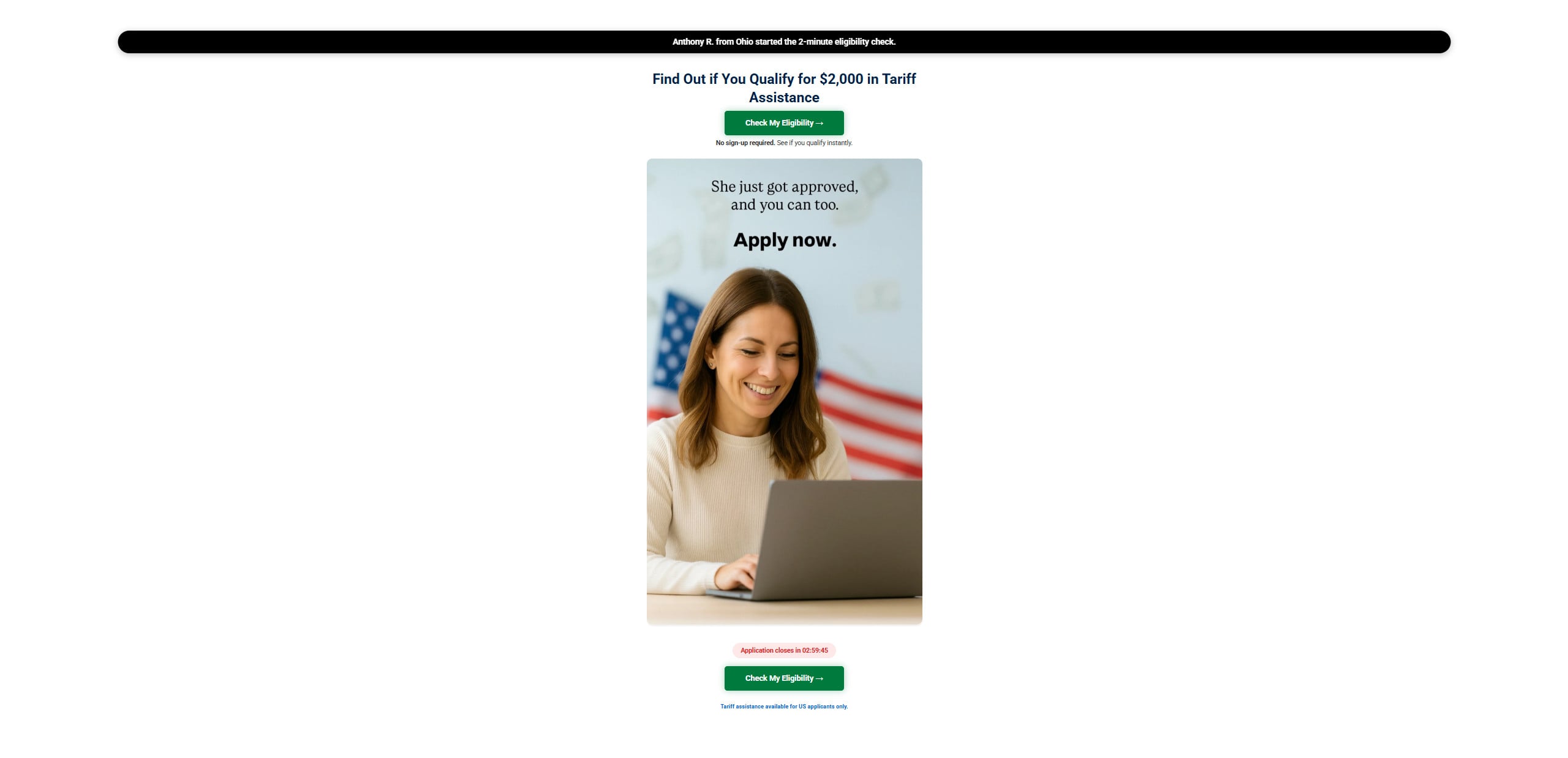
You see a clean page, a bold promise, and a friendly green button that says “Check My Eligibility.” It looks simple. It feels official. It even looks like other government-style benefit pages you have seen before.
TariffReliefPortal.com leans into that exact feeling.
It claims you can “find out if you qualify for $2,000 in tariff assistance” in just a couple of minutes. It flashes social proof like “Anthony R. from Ohio started the 2-minute eligibility check,” and it pushes urgency with a countdown timer that suggests your window is closing.
But here is the problem. Websites like TariffReliefPortal.com are not built to help you get money. They are built to get something from you.
Sometimes it is your email and phone number. Sometimes it is your personal details. Sometimes it is your clicks. Often, it is all of the above.
This guide breaks down what TariffReliefPortal.com is really doing, how the scam typically works step by step, what red flags to watch for, and exactly what to do if you already interacted with it. You will finish this article knowing how to spot these “benefit portal” scams in seconds, even when the design looks convincing.
Scam Overview
TariffReliefPortal.com is part of a growing wave of websites that present themselves as a fast path to government-style payments, rebates, relief funds, or new benefit programs. The theme changes depending on what people are searching for. One month it is “unclaimed money.” Another month it is “stimulus eligibility.” Then it becomes “tariff assistance,” “tariff dividend,” or “tariff relief.”
The strategy stays the same.
The site positions itself as a simple eligibility checker for a $2,000 benefit. The promise is emotionally powerful, because it taps into two things that are always true:
People want financial breathing room, and people are tired of complicated processes.
So the website offers the dream version of a government benefit:
A quick check. No hassle. Instant approval. A short form. A button that feels like progress.
If you look closely at how TariffReliefPortal.com presents itself, you will notice several classic manipulation triggers that scam and lead-generation sites rely on:
Short time to results
A large dollar amount, in this case $2,000
A “2-minute” claim
A countdown timer
A stream of “someone just applied” activity
A friendly “Apply now” message
Minimal details about who runs the site
No clear government agency branding or contact information
Those elements are not random. They are conversion tools.
The goal is to push you forward before you stop and ask the most important question:
“Who is behind this website, and why should I trust it with my information?”
The most important truth about tariff relief scams
There is a big difference between “a policy idea people are talking about” and “a government program that exists right now.”
Scam sites blur that line on purpose.
When a topic is trending, scammers know people will search fast, click fast, and share fast. They count on confusion, especially when the news cycle is noisy and social media is full of half-explained claims.
So the scam is not always that the website makes a direct lie like “the IRS is paying $2,000 today.” Sometimes the scam is more subtle:
It implies a program exists.
It implies you can apply right now.
It implies your approval is only one step away.
And then it funnels you into something else entirely.
What TariffReliefPortal.com likely is, and why it exists
Most sites like TariffReliefPortal.com fall into one of these categories:
A lead-generation funnel that collects user data and sells it to marketers, call centers, and brokers
An affiliate marketing funnel that gets paid when you click, submit, or sign up for third-party offers
A hybrid operation that does both, collecting your info and monetizing your clicks
A phishing-style trap that pushes you toward more sensitive data requests later in the flow
The page design you see is built to do three things quickly:
Get your attention
Get your click
Get your information
Even if the site does not ask for your Social Security number on the first screen, that does not mean it is safe. Many scams start small. They collect basic details first, then escalate:
First your ZIP code
Then your email
Then your phone number
Then “verification” details
Then “confirm your identity” fields
Then a redirect to a form that looks more official
The danger is not only what you type into the website. It is what happens after your data enters a network you do not control.
Why the “activity bar” and “countdown timer” matter
TariffReliefPortal.com uses a familiar tactic: a live-looking status bar that suggests real people are applying right now.
You might see something like:
“Anthony R. from Ohio started the 2-minute eligibility check.”
This is a form of social proof. It makes the site feel active and popular. It creates a sense of safety, because the human brain thinks:
“If other people are doing this, it must be okay.”
In reality, these “live updates” are usually automated scripts that rotate names and locations. They are not proof of a real program, and they are not proof that anyone received money.
The countdown timer is another pressure tactic. It creates urgency and forces fast decisions. You may see a timer like “Application closes in 02:59:45.” That is designed to trigger panic clicking.
Real government programs do not use random countdown timers on third-party websites to force applications. Legitimate programs have clear public timelines, official pages, and formal instructions.
The “Apply now” image is a psychological nudge
The page shows an image of a smiling person on a laptop with text like:
“She just got approved, and you can too. Apply now.”
This is crafted marketing.
It plants an idea: approval is common, easy, and expected. It removes friction, which makes you more likely to give information you would normally protect.
If you are dealing with a real government program, the language is different. It does not promise approval. It explains eligibility rules, documentation requirements, and how decisions are made.
Scam sites do not want you thinking about rules. They want you thinking about rewards.
The biggest red flags of TariffReliefPortal.com
If you remember nothing else, remember these.
A real benefits program will not hide who runs it.
A real benefits program will not rely on anonymous marketing tactics.
A real benefits program will not send you through random redirects and third-party signups.
A real benefits program will not promise instant eligibility without verification.
Here are the red flags you should treat as warning signs:
No clear government domain, it is not a .gov site
No clear agency name tied to a real federal department
No real customer support details that you can verify
A strong emphasis on urgency and speed
Fake-looking activity notifications
Overly confident promises of quick eligibility results
A generic “Check My Eligibility” funnel with minimal transparency
A benefit amount that sounds clean and memorable, like $2,000
A page that looks like marketing, not public service
This is exactly the pattern scammers use when they are trying to turn public curiosity into profit.
The hidden cost of “just trying it”
Many victims assume it is harmless to test the form.
“I will just see what it says.”
That is what these sites are built for.
Even a small amount of information can be valuable when combined with other data. For example, an email and phone number can lead to:
Robocalls
SMS phishing messages
Fake “verification” calls
Fraudulent offers
Account takeover attempts
Targeted scams tailored to your location
Once your details are in circulation, you might spend weeks cleaning up spam, blocking calls, and worrying about what was shared.
That is why it matters to treat sites like TariffReliefPortal.com as a real risk, even if they look polished.
How The Scam Works
The easiest way to understand TariffReliefPortal.com is to imagine it as a funnel.
At the top of the funnel, the website attracts curious users with a simple promise. As you move deeper, the site either collects more data, pushes you into monetized offers, or both.
Below is a step-by-step breakdown of how these tariff relief scam sites typically operate, with clear subheadings so you can recognize each stage.
Step 1: The hook, “Find out if you qualify for $2,000”
This is the bait headline.
It is short, direct, and designed for maximum click-through.
It usually includes:
A dollar amount that feels meaningful
A benefit keyword like “relief,” “assistance,” or “dividend”
A promise of quick results
The number $2,000 is not random. It is large enough to feel exciting, but still believable enough that people do not instantly dismiss it.
Step 2: The trust layer, “2-minute eligibility check”
The site reduces hesitation by promising speed.
When people see “2-minute check,” they assume it is low effort and low risk. They think:
“It is just two minutes.”
Scammers love this framing because it lowers your defenses. You are not mentally preparing to share sensitive details. You are mentally preparing to answer a quick question and get a result.
Step 3: The pressure layer, the countdown timer
Urgency pushes action.
A countdown timer makes people feel they are late. It creates anxiety that the opportunity is disappearing.
In many cases, the timer is not real. It resets, or it is tied to your session, not a real application deadline.
The purpose is not to inform you. The purpose is to rush you.
Step 4: The social proof layer, “Someone just started the check”
The live activity bar exists to make the site feel busy and trusted.
It encourages a herd mentality response:
“Other people are doing it, so it must be okay.”
These notifications are often scripted. They can be generated from a list of names and places. They are not evidence of real approvals, and they are not proof of real payments.
Step 5: The action button, “Check My Eligibility”
This is the conversion point.
Everything on the page leads to one action. Click the button.
Once you click, you typically enter the data capture stage.
Step 6: The “light” questions, ZIP code and basic details
Most of these funnels start with questions that feel harmless:
ZIP code
Age range
Employment status
Household size
Income bracket
These questions do two things:
They make the process feel official, because they resemble real eligibility checks. They begin building a profile that is valuable to marketers.
Even if you stop here, tracking scripts may still collect information like device type, browser fingerprinting signals, and IP location.
Step 7: The guaranteed result, “You are eligible”
A major hallmark of scam eligibility sites is that almost everyone “qualifies.”
Why?
Because the point is not eligibility. The point is continuation.
If they tell you “Not eligible,” the funnel ends. They lose the chance to monetize your click or collect your contact information.
So the result is often engineered to keep you moving.
Step 8: The real ask, your email and phone number
This is where the scam becomes more expensive.
The moment you enter your phone number or email, you can be added to:
Lead lists
Marketing databases
SMS campaigns
Robocall pipelines
Some sites claim they need your information to “send your results” or “confirm eligibility.”
That sounds reasonable until you realize there is no real program to confirm.
Step 9: The redirect, surveys, offers, and third-party pages
After you submit contact info, many scam portals redirect you.
You may land on:
Survey pages
Credit score offers
Insurance quote forms
Subscription trials
Finance lead forms
“Rewards” signups
These redirects are where the money is made.
The site earns money through affiliate payouts when users:
Click through
Submit a form
Start a free trial
Provide contact details again
Agree to marketing terms
Even if you do not buy anything, your participation can still generate revenue for the site.
Step 10: The aftermath, spam, calls, and follow-up scams
This is the part most people do not see coming.
After interacting with a scam portal, you may experience:
A sharp increase in spam emails
More robocalls
Text messages claiming you have been approved
Fake agents offering “help”
Requests for more personal details
Links to “verify your identity”
Some follow-up scams are more dangerous than the original.
They might pretend to be a government worker, or a claims processor, or a “relief specialist.” They often sound confident and urgent, and they use the information you previously provided to sound believable.
If they know your ZIP code and that you were searching for tariff relief, they can tailor the pitch to you.
Why this scam model keeps spreading
TariffReliefPortal.com is not unique. It is part of a repeatable template.
Scammers can clone these sites quickly, swap out the headline, and launch a new domain. The moment one domain is reported or loses traction, another appears.
As long as people are searching for financial relief, this scam model remains profitable.
What To Do If You Have Fallen Victim to This Scam
If you clicked around TariffReliefPortal.com, entered information, or got redirected to other pages, take a breath. Most people who fall for these sites are not careless. They are simply targeted at the right moment, with the right message, in a stressful economy.
Here is what to do next, step by step, in a calm and practical way.
Stop interacting with the website and any redirects Close the tab. Do not go back “to see what happened.” If you bookmarked it, delete the bookmark. If you took the link from an ad, avoid clicking it again.
Write down what you entered Make a quick note of what information you submitted. For example, ZIP code, phone number, email, address, or anything more sensitive. This helps you decide how serious your next steps need to be.
Change passwords for accounts linked to the email you used If you entered an email address, secure that email account first. Then secure any important accounts that use that email, like banking, payment apps, and shopping accounts. Use a new, strong password that you have not used elsewhere.
Turn on 2-factor authentication Enable 2-factor authentication on your email, bank, and major accounts. This adds a second layer of protection even if someone tries to log in.
Watch for phishing emails and texts Expect messages that look official. Do not click links. Do not open attachments. If a message claims you have been “approved” for $2,000, treat it as suspicious until proven otherwise.
Block and report suspicious calls If calls begin, do not engage. Ask no questions, confirm nothing, and do not provide details. Block the number. If your phone has call screening, use it.
Check your browser and device for unwanted permissions If you allowed notifications, turn them off. Some scam sites trick users into enabling push notifications. Those can flood you with fake alerts.
Consider placing a credit freeze if you shared sensitive information If you entered full name, address, birthdate, or anything that could be used for identity verification, a credit freeze is a strong protective step. It prevents new credit accounts from being opened in your name.
Monitor your financial accounts Even if you did not submit banking details, stay alert. Check your bank and card activity regularly for a few weeks. Set up transaction alerts if your bank offers them.
Report the scam Reporting helps reduce future victims. File reports through official consumer fraud reporting channels and your state consumer protection office. You can also report the site to your browser’s phishing and unsafe site tools.
Warn others in your circle These scams spread fast because they look believable. A simple warning to friends and family can prevent more damage than you might expect.
Is Your Device Infected? Scan for Malware
If your computer or phone is slow, showing unwanted pop-ups, or acting strangely, malware could be the cause. Running a scan with Malwarebytes Anti-Malware Free is one of the most reliable ways to detect and remove harmful software. The free version can identify and clean common infections such as adware, browser hijackers, trojans, and other unwanted programs.
Malwarebytes works on Windows, Mac, and Android devices. Choose your operating system below and follow the steps to scan your device and remove any malware that might be slowing it down.
Malwarebytes for WindowsMalwarebytes for MacMalwarebytes for Android
Run a Malware Scan with Malwarebytes for Windows
Malwarebytes stands out as one of the leading and widely-used anti-malware solutions for Windows, and for good reason. It effectively eradicates various types of malware that other programs often overlook, all at no cost to you. When it comes to disinfecting an infected device, Malwarebytes has consistently been a free and indispensable tool in the battle against malware. We highly recommend it for maintaining a clean and secure system.
Download Malwarebytes
Download the latest version of Malwarebytes for Windows using the official link below. Malwarebytes will scan your computer and remove adware, browser hijackers, and other malicious software for free.
(The above link will open a new page from where you can download Malwarebytes)
Install Malwarebytes
After the download is complete, locate the MBSetup file, typically found in your Downloads folder. Double-click on the MBSetup file to begin the installation of Malwarebytes on your computer. If a User Account Control pop-up appears, click “Yes” to continue the Malwarebytes installation.
Follow the On-Screen Prompts to Install Malwarebytes
When the Malwarebytes installation begins, the setup wizard will guide you through the process.
You’ll first be prompted to choose the type of computer you’re installing the program on—select either “Personal Computer” or “Work Computer” as appropriate, then click on Next.
Malwarebytes will now begin the installation process on your device.
When the Malwarebytes installation is complete, the program will automatically open to the “Welcome to Malwarebytes” screen.
On the final screen, simply click on the Open Malwarebytes option to start the program.
Enable “Rootkit scanning”.
Malwarebytes Anti-Malware will now start, and you will see the main screen as shown below. To maximize Malwarebytes’ ability to detect malware and unwanted programs, we need to enable rootkit scanning. Click on the “Settings” gear icon located on the left of the screen to access the general settings section.
In the settings menu, enable the “Scan for rootkits” option by clicking the toggle switch until it turns blue.
Now that you have enabled rootkit scanning, click on the “Dashboard” button in the left pane to get back to the main screen.
Perform a Scan with Malwarebytes.
To start a scan, click the Scan button. Malwarebytes will automatically update its antivirus database and begin scanning your computer for malicious programs.
Wait for the Malwarebytes scan to complete.
Malwarebytes will now scan your computer for browser hijackers and other malicious programs. This process can take a few minutes, so we suggest you do something else and periodically check the status of the scan to see when it is finished.
Quarantine detected malware
Once the Malwarebytes scan is complete, it will display a list of detected malware, adware, and potentially unwanted programs. To effectively remove these threats, click the “Quarantine” button.
Malwarebytes will now delete all of the files and registry keys and add them to the program’s quarantine.
Restart your computer.
When removing files, Malwarebytes may require a reboot to fully eliminate some threats. If you see a message indicating that a reboot is needed, please allow it. Once your computer has restarted and you are logged back in, you can continue with the remaining steps.
Once the scan completes, remove all detected threats. Your Windows computer should now be clean and running smoothly again, free of trojans, adware, and other malware.
If your current antivirus allowed this malicious program on your computer, you may want to consider purchasing Malwarebytes Premium to protect against these types of threats in the future. If you are still having problems with your computer after completing these instructions, then please follow one of the steps:
Malwarebytes for Mac is an on-demand scanner that can destroy many types of malware that other software tends to miss without costing you absolutely anything. When it comes to cleaning up an infected device, Malwarebytes has always been free, and we recommend it as an essential tool in the fight against malware.
Download Malwarebytes for Mac.
You can download Malwarebytes for Mac by clicking the link below.
When Malwarebytes has finished downloading, double-click on the setup file to install Malwarebytes on your computer. In most cases, downloaded files are saved to the Downloads folder.
Follow the on-screen prompts to install Malwarebytes.
When the Malwarebytes installation begins, you will see the Malwarebytes for Mac Installer which will guide you through the installation process. Click “Continue“, then keep following the prompts to continue with the installation process.
When your Malwarebytes installation completes, the program opens to the Welcome to Malwarebytes screen. Click the “Get started” button.
Select “Personal Computer” or “Work Computer”.
The Malwarebytes Welcome screen will first ask you what type of computer are you installing this program, click either Personal Computer or Work Computer.
Click on “Scan”.
To scan your computer with Malwarebytes, click on the “Scan” button. Malwarebytes for Mac will automatically update the antivirus database and start scanning your computer for malware.
Wait for the Malwarebytes scan to complete.
Malwarebytes will scan your computer for adware, browser hijackers, and other malicious programs. This process can take a few minutes, so we suggest you do something else and periodically check on the status of the scan to see when it is finished.
Click on “Quarantine”.
When the scan has been completed, you will be presented with a screen showing the malware infections that Malwarebytes has detected. To remove the malware that Malwarebytes has found, click on the “Quarantine” button.
Restart computer.
Malwarebytes will now remove all the malicious files that it has found. To complete the malware removal process, Malwarebytes may ask you to restart your computer.
After scanning, delete any detected threats. Your Mac should now be free from adware, unwanted extensions, and other potentially harmful software.
If your current antivirus allowed a malicious program on your computer, you might want to consider purchasing the full-featured version of Malwarebytes Anti-Malware to protect against these types of threats in the future. If you are still experiencing problems while trying to remove a malicious program from your computer, please ask for help in our Mac Malware Removal Help & Support forum.
Run a Malware Scan with Malwarebytes for Android
Malwarebytes for Android automatically detects and removes dangerous threats like malware and ransomware so you don’t have to worry about your most-used device being compromised. Aggressive detection of adware and potentially unwanted programs keeps your Android phone or tablet running smooth.
Download Malwarebytes for Android.
You can download Malwarebytes for Android by clicking the link below.
In the Google Play Store, tap “Install” to install Malwarebytes for Android on your device.
When the installation process has finished, tap “Open” to begin using Malwarebytes for Android. You can also open Malwarebytes by tapping on its icon in your phone menu or home screen.
Follow the on-screen prompts to complete the setup process
When Malwarebytes will open, you will see the Malwarebytes Setup Wizard which will guide you through a series of permissions and other setup options. This is the first of two screens that explain the difference between the Premium and Free versions. Swipe this screen to continue. Tap on “Got it” to proceed to the next step. Malwarebytes for Android will now ask for a set of permissions that are required to scan your device and protect it from malware. Tap on “Give permission” to continue. Tap on “Allow” to permit Malwarebytes to access the files on your phone.
Update database and run a scan with Malwarebytes for Android
You will now be prompted to update the Malwarebytes database and run a full system scan.
Click on “Update database” to update the Malwarebytes for Android definitions to the latest version, then click on “Run full scan” to perform a system scan.
Wait for the Malwarebytes scan to complete.
Malwarebytes will now start scanning your phone for adware and other malicious apps. This process can take a few minutes, so we suggest you do something else and periodically check on the status of the scan to see when it is finished.
Click on “Remove Selected”.
When the scan has been completed, you will be presented with a screen showing the malware infections that Malwarebytes for Android has detected. To remove the malicious apps that Malwarebytes has found, tap on the “Remove Selected” button.
Restart your phone.
Malwarebytes for Android will now remove all the malicious apps that it has found. To complete the malware removal process, Malwarebytes may ask you to restart your device.
When the scan is finished, remove all detected threats. Your Android phone should now be free of malicious apps, adware, and unwanted browser redirects.
If your current antivirus allowed a malicious app on your phone, you may want to consider purchasing the full-featured version of Malwarebytes to protect against these types of threats in the future. If you are still having problems with your phone after completing these instructions, then please follow one of the steps:
Restore your phone to factory settings by going to Settings > General management > Reset > Factory data reset.
After cleaning your device, it’s important to protect it from future infections and annoying pop-ups. We recommend installing an ad blocker such as AdGuard. AdGuard blocks malicious ads, prevents phishing attempts, and stops dangerous redirects, helping you stay safe while browsing online.
The Bottom Line
TariffReliefPortal.com is not a trusted government portal, and it is not a safe place to enter personal information. It uses a familiar scam formula: promise $2,000 in “tariff assistance,” push urgency with countdown timers, create fake social proof, then funnel users into data collection and third-party redirects.
If you are looking for legitimate financial relief information, stick to official government domains and verified sources. If a website cannot clearly explain who runs it, how it is authorized, and why it needs your information, that is your sign to close the page.
Scams like this thrive on speed and pressure. Your best defense is slowing down for 30 seconds, checking the URL, and asking one question that scammers never want you to ask:
“Who are you, and why should I trust you?”
FAQ
Is TariffReliefPortal.com legit?
No. It is not an official government website, and it is not a verified portal for any real tariff relief payment.
Can I really get $2,000 in tariff assistance from this site?
No. The site uses the $2,000 promise to get clicks and collect information. It does not issue payments.
Why does it show a countdown timer and “people applying” messages?
Those are pressure tactics. They are designed to make you act fast and trust the site without verifying it.
What happens after I click “Check My Eligibility”?
Most users are pushed into forms that collect personal details, then redirected to unrelated offers, surveys, or third-party pages.
What should I do if I entered my email or phone number?
Change passwords tied to that email, enable 2-factor authentication, and expect more spam calls or texts. Block and report anything suspicious.
How can I spot similar scams fast?
If it is not a .gov website and it pushes urgency, vague promises, and eligibility buttons without clear agency info, treat it as a scam.
Thomas is an expert at uncovering scams and providing in-depth reporting on cyber threats and online fraud. As an editor, he is dedicated to keeping readers informed on the latest developments in cybersecurity and tech.