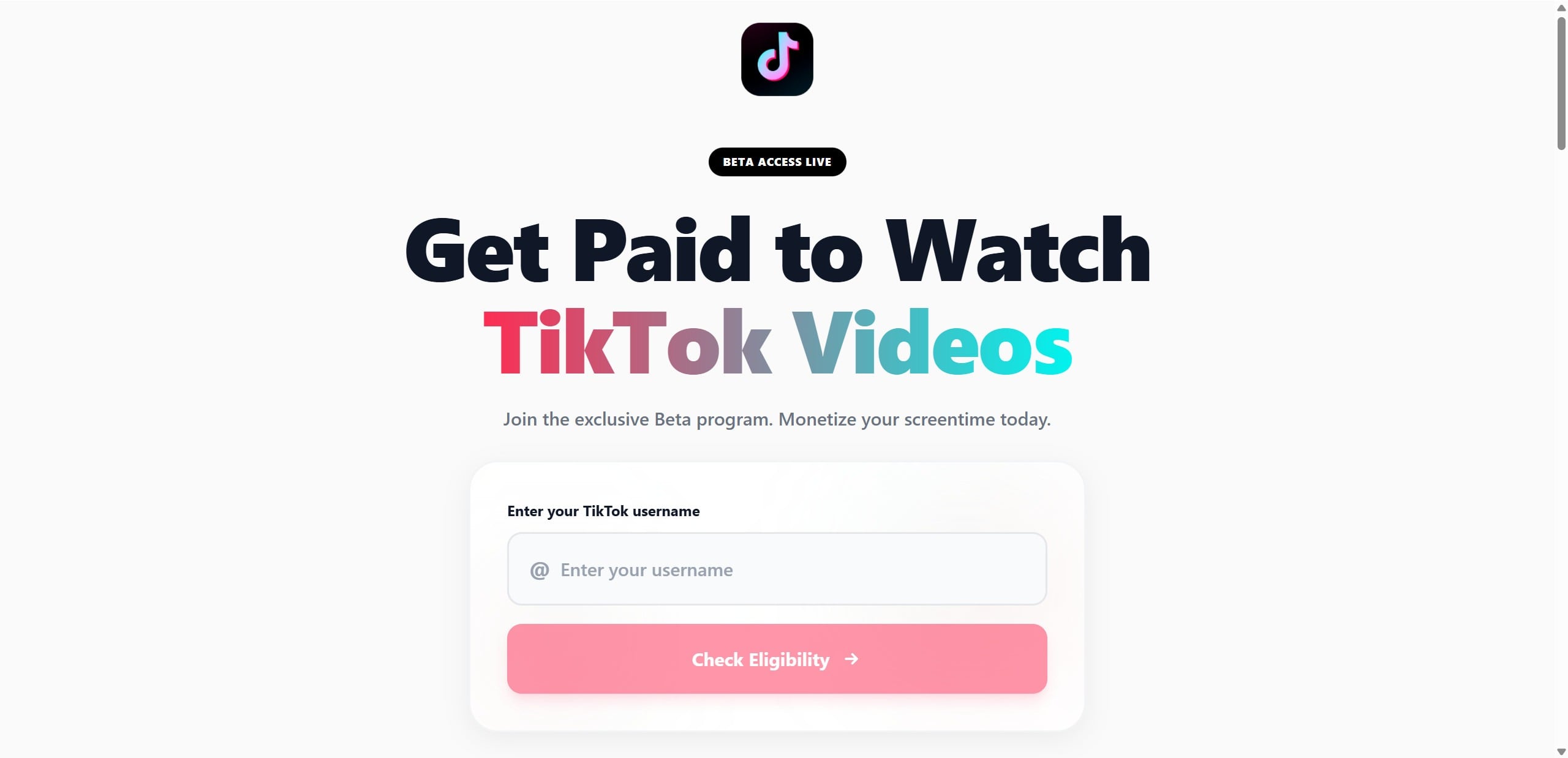
A clean page. A TikTok logo. A promise that feels almost believable: get paid just for watching videos.
TokOption.com asks for your username, flashes a confident “eligibility” result, and throws out a weekly number that makes you pause for a second. Maybe this is new. Maybe you just found a shortcut everyone else missed.
Then you click the next button.
And that is where the story changes, because the site is not really building a payout for you. It is building a path. And every step on that path is designed to lead somewhere you did not expect.
Scam Overview
TokOption.com follows a familiar and highly profitable scam formula: use a popular brand and a simple promise to drive traffic, then monetize that traffic through affiliate offers and subscription traps.
The branding is the hook.
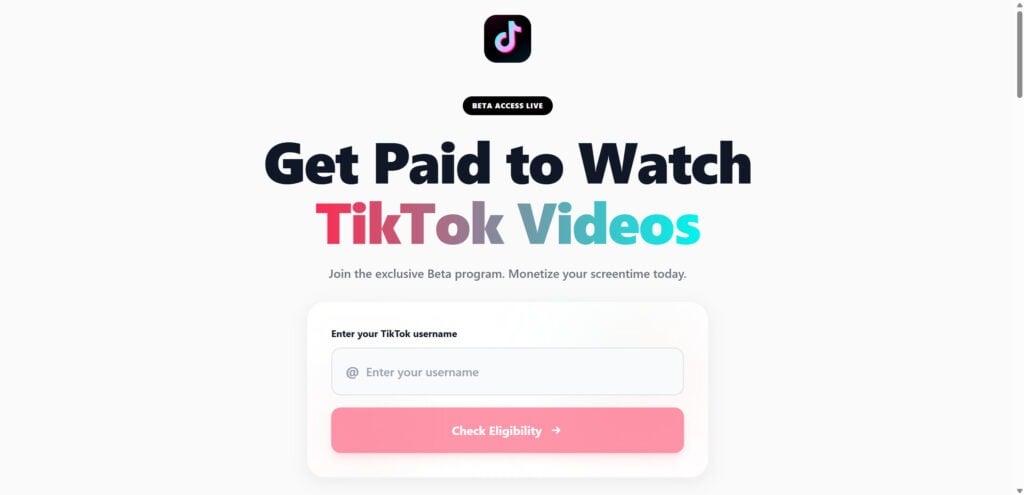
On the page, you may see a TikTok-style look and language that implies you are about to activate a monetization feature. The site leans on phrases like “beta access” and “earnings” and frames the process like a real eligibility check. It may ask you to enter your TikTok username, then invite you to “check eligibility.”
This step is designed to create a sense that the site is connected to TikTok’s systems, or at least capable of verifying your account.
In reality, a username field on a random website does not prove any partnership, and it does not activate official monetization. It is simply a frictionless way to get you to take the first action, feel invested, and continue.
Then comes the “result.”
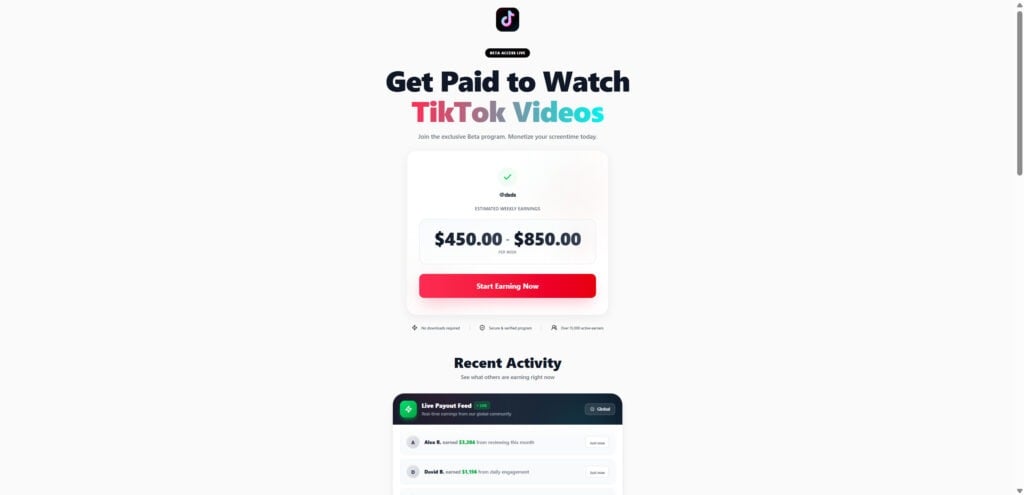
Instead of a genuine eligibility decision, the site often displays a success indicator and an estimated weekly earning range. The numbers look intentionally exciting: an estimated $450.00 to $850.00 per week.
That number is not there because it is accurate. It is there because it is emotionally effective.
It is large enough to feel life-changing for many people, but still “plausible enough” that some visitors will think, “Maybe this is a new program I haven’t heard about yet.”
To reinforce the illusion, the page may show social proof elements like:
“Recent Activity” feeds showing other users supposedly earning money right now
A “live payout” style widget with names and amounts
Badges like “secure” or “verified”
Claims like “over 15,000 active earners” or “$2.4M paid out”
These are common persuasion tactics on scam landing pages. They are easy to fabricate and extremely effective at reducing skepticism.
The next button is the real goal.
When you click something like “Start Earning Now,” you are typically not starting a job or joining an official program. You are being moved into an affiliate funnel.
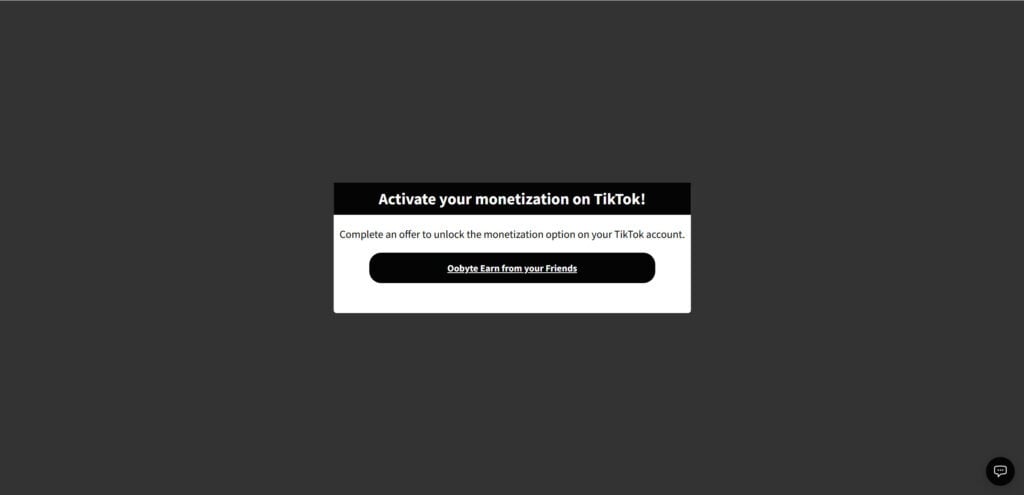
The funnel becomes explicit: you see a prompt like “Activate your monetization on TikTok!” followed by instructions to “Complete an offer to unlock the monetization option.”
That is the pivot point where the scam reveals its true business model.
What TokOption.com is likely doing behind the scenes
Sites like TokOption.com commonly operate as part of a broader network of similar domains. The domains change often because:
ad platforms and browsers blacklist them
hosting providers remove them
complaint volume increases
payment processors and affiliate networks tighten rules
the scam “brand” burns out, so they rotate to a fresh one
The content stays largely the same, just re-skinned.
The core monetization method is usually one or more of the following:
CPA affiliate offers (Cost Per Action) The scammer gets paid when you complete an action, such as:
signing up for a free trial
installing an app
creating an account
completing a “survey”
entering email and personal info
submitting payment details for “verification”
Subscription traps You are told you must complete a step to unlock earnings. That step leads to:
a “trial” that converts into recurring billing
a low-cost charge that becomes a larger recurring charge
a bundle of subscriptions hidden in fine print
multiple third-party services billed separately
Data harvesting and profiling Even if you do not pay, your data can be valuable. These funnels often collect:
email addresses and phone numbers for spam and phishing
basic identity data used for targeted scams
behavioral data about what you click and complete
device and browser fingerprints for ad fraud
Redirect chains for attribution Victims often notice they are bounced through multiple pages. That is not accidental. It is how scammers:
track which ad or influencer sent you
ensure the affiliate network credits them for your signup
test different offer pages to see which converts best
avoid detection by hiding the final destination until the last moment
This is why many victims say they started on one website and ended on another, sometimes several times. The redirect chain is the product.
Why “Get paid to watch TikTok videos” is such a powerful bait
This particular pitch works because it hits multiple psychological triggers at once:
TikTok is familiar and trusted by default for many users
the action required feels easy and low risk
the promise is immediate: weekly earnings, quick start
it is framed like a limited beta, which creates urgency
it uses a simple identity token (your username), which feels “official”
it implies you are eligible before you have done anything
Scams do not need to fool everyone. They only need to fool a small percentage of visitors to be profitable.
If a campaign sends 100,000 visits and even 1% complete a trial signup, that is 1,000 conversions. With affiliate payouts ranging widely depending on the offer, the revenue can be substantial.
Common red flags visible in the TokOption.com flow
The typical structure of these schemes, here are the biggest warning signs:
Vague “beta” branding without verifiable program details Real monetization programs have clear eligibility rules, public documentation, and official dashboards.
A username field that “checks eligibility” instantly That is not how official platforms verify monetization access.
A large earnings estimate shown immediately Legit platforms do not promise weekly income ranges before you have created content or met requirements.
Fake social proof like “recent activity” payout feeds These widgets are easy to script and are commonly used on deceptive landing pages.
The requirement to “complete an offer” to unlock monetization This is the heart of the scam. It is not a monetization requirement. It is an affiliate conversion requirement.
Redirects to unrelated pages If you are sent to surveys, app installs, or random subscription pages, you are not in a real TikTok program.
Small-print disclaimers that contradict the main claim Many of these pages quietly admit they are not affiliated with TikTok, even while the entire design implies the opposite.
The real risk: recurring charges and account compromise
The most common harm reported by victims of these funnels is not losing thousands in one hit.
It is death by a thousand cuts.
Someone completes an “offer,” enters card details for a “trial,” and then notices charges days or weeks later, such as:
a recurring weekly or monthly subscription
multiple subscriptions from different merchant names
a “membership” they never intended to join
difficulty canceling because the vendor is obscure or unresponsive
In other cases, the harm is indirect:
your email gets flooded with spam and scam attempts
your phone number gets targeted with smishing texts
your identity data is reused in other fraud campaigns
TokOption.com fits into that broader ecosystem: a front-end that looks like a simple earning opportunity, and a back-end that is optimized to extract value from you through subscriptions, data collection, and endless redirects.
How The Scam Works
Below is the step-by-step flow most victims experience on TokOption.com or similar “watch and earn” pages, with clear subheadings so you can map it to what you saw.
Step 1: You are lured in by an ad, post, or message
Most people do not type TokOption.com directly.
They arrive from:
social media ads promising easy income
short-link redirects (often used to hide the destination)
influencer-style posts that look like a “tip”
comment spam like “I made $600 this week doing this”
direct messages pretending to share a private method
fake news-style pages that funnel you to “check eligibility”
The goal is to get you in a curious, hopeful mindset before you even see the page.
Step 2: The landing page creates instant legitimacy
When you land on TokOption.com, the design tries to reduce doubt fast.
Common trust cues include:
a clean layout, large headline, and minimal clutter
a TikTok-like theme and icon placement
“beta access live” style labels
a simple form that feels official, like a username check
confident, short copy: “Monetize your screen time today”
This is not accidental. Simple pages convert better, and scammers care about conversion rates.
Step 3: The site asks for a TikTok username
This is a clever psychological trick.
A username is:
easy to provide
feels safer than an email or password
makes the process feel personalized
creates a sense that the site is “checking” something real
After you type a username, you are more likely to continue because you already invested effort and attention.
Step 4: The “eligibility check” returns a favorable result
Instead of a real verification, you typically get:
a green check mark
a “success” message
an earnings estimate
a big CTA button like “Start Earning Now”
The estimate shown is $450.00 to $850.00 per week.
This is a classic scam move: show a reward before any real work happens.
It makes the next request feel justified.
Step 5: Social proof is used to push you over the edge
After the earnings estimate, the page often adds reinforcement:
“Recent Activity” feeds
“live payout” notifications
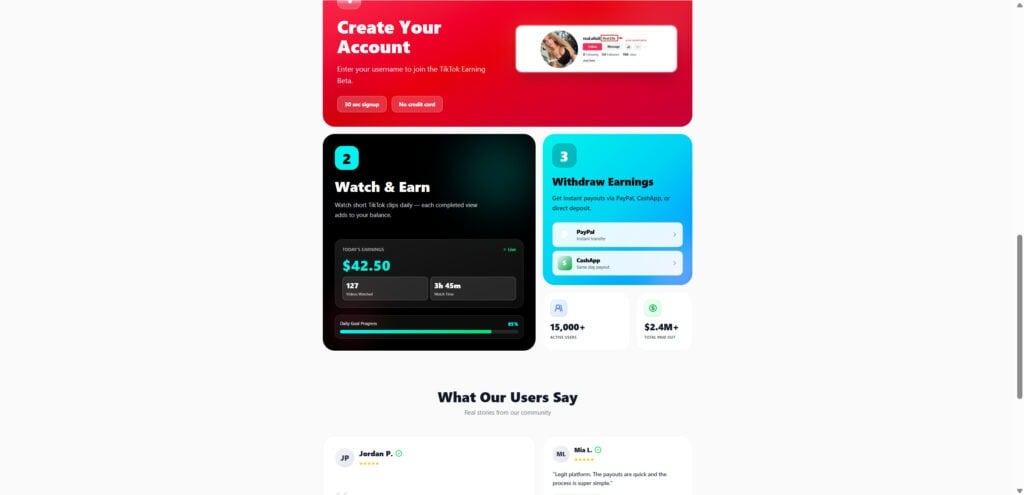
user testimonials with star ratings
big stats like “15,000+ active users”
claims about total payouts
These elements do one thing: make you feel like you are late to something that is already working for others.
Even if you are skeptical, you might think, “Let me just see what the next step is.”
Step 6: The “quick start guide” reframes the funnel as a real process
Three-step structure:
Create your account
Watch and earn
Withdraw earnings
This is important because it makes the opportunity look organized and legitimate, like a real platform with onboarding.
Then it sneaks in the real conversion requirement: to unlock monetization, you must complete an “offer.”
Step 7: You are sent into an affiliate redirect chain
When you click “Start Earning Now” (or similar), you may notice:
the URL changes multiple times
pages load briefly then redirect
the destination is not TokOption.com anymore
you land on survey pages, app install prompts, or trial offers
This chain usually serves tracking and attribution.
It ensures the scammer gets credit for your action.
Step 8: The “offer” is designed to extract either money, data, or both
Offers vary, but they commonly include:
“free trial” subscriptions that require a card
cheap one-time charges that quietly become recurring
mobile subscription signups tied to your phone bill
app installs that ask for extensive permissions
surveys that collect personal details
“identity verification” style pages asking for sensitive data
This is where victims often say, “I never agreed to that,” because the billing terms may be buried, vague, or intentionally confusing.
Step 9: The payout never arrives, or a new barrier appears
If you complete the offer, one of two things usually happens:
Nothing meaningful happens You do not get real access to TikTok monetization. You just completed an affiliate conversion.
You are asked to do more The site may imply you must:
complete additional offers
invite friends
reach a minimum withdrawal threshold
“verify” with another step
pay a small “processing fee”
Each new step is engineered to squeeze more value from you.
Step 10: Victims discover charges or ongoing subscriptions later
The most common moment of realization is not on the day you click.
It is later, when:
a bank alert shows a recurring charge
a card statement shows a strange merchant name
an email receipt arrives from a service you do not recognize
a “trial ending” message appears after you forgot the signup
And because these offers are often run through third parties, canceling can be messy.
You may be dealing with multiple vendors, each with their own cancellation process, support emails, and billing descriptors.
Step 11: Your contact info is recycled into more scams
Once your email or phone number is in these systems, you may see:
a spike in spam and scam emails
more “earn money” offers
fake support messages pretending to help you withdraw
phishing attempts using TikTok, PayPal, Cash App, or bank themes
The funnel does not always end after one site. It can become a pipeline of ongoing targeting.
What To Do If You Have Fallen Victim to This Scam
If you entered a username and left, your risk is lower.
If you clicked through offers, entered personal data, or provided payment information, take the steps below in order. Stay calm and be methodical. You can fix this.
Stop interacting with the site and close all related tabs Do not click more buttons to “cancel” or “verify.” Scammers use those clicks to push more redirects.
Take screenshots of what you saw Capture:
the TokOption.com page
the “earnings estimate” screen
any “activate monetization” or “complete an offer” page
any confirmation pages
any emails you received afterward
This helps with disputes and reports.
Check your bank and card statements for new charges Look for:
small “test” charges
charges you do not recognize
recurring billing patterns weekly or monthly
multiple merchants that appeared after the click
If you see anything suspicious, document it.
Cancel any unwanted subscriptions immediately If you received an email receipt, it may contain:
the service name
a subscription portal link
a cancellation link
a support email
Cancel first, then request written confirmation.
If you cannot find cancellation details, search your inbox for keywords like:
“subscription”
“trial”
“welcome”
“receipt”
“billing”
“member”
Do not rely on the TokOption.com page to manage cancellations. The billing is usually handled by third parties.
Contact your bank or card issuer to block future charges Explain that you were led into unwanted subscriptions through a deceptive link.
Ask about:
stopping recurring payments
disputing charges you did not authorize
replacing the card if necessary
If you entered card details on any offer page, a replacement card is often the cleanest solution.
Review your email and SMS for confirmations you did not expect Scammers and affiliate offers often trigger immediate messages.
If you see accounts created in your name, change passwords and disable the accounts if possible.
Change passwords if you reused any credentials TokOption.com itself may not ask for passwords, but the offer pages sometimes do.
If you used the same password anywhere else:
change it on your email first
then change it on banking, shopping, and social accounts
enable 2FA wherever available
Your email account is the crown jewel. Protect it first.
Run a security scan on your device If you installed anything, do a full scan.
Also check:
recently installed browser extensions
newly installed apps on your phone
notification permissions you did not intend to grant
VPN or “security” apps you do not recognize
Remove anything suspicious.
Watch for follow-up scams pretending to help you withdraw money A very common second-stage trick is: “You have $850 pending. Pay $29 to activate payout.”
Do not pay fees to withdraw money from a platform you do not fully trust and cannot verify as official.
Report the scam where you found it If it came from:
a social media ad, report the ad
a post, report the account
a message, report and block the sender
an affiliate link, report the landing page
Every report helps reduce the reach of these campaigns.
Consider a credit freeze if you shared sensitive identity details If you entered your address, date of birth, or other identity data on an offer page, consider protective steps like:
fraud alerts
credit monitoring
a credit freeze, depending on your country and situation
Keep an eye on statements for the next 30 to 60 days Subscription traps can be delayed. Some charges show up weeks later.
Set calendar reminders to check:
card statements
PayPal or digital wallet activity
phone bill charges (some subscriptions bill through carriers)
Is Your Device Infected? Scan for Malware
If your computer or phone is slow, showing unwanted pop-ups, or acting strangely, malware could be the cause. Running a scan with Malwarebytes Anti-Malware Free is one of the most reliable ways to detect and remove harmful software. The free version can identify and clean common infections such as adware, browser hijackers, trojans, and other unwanted programs.
Malwarebytes works on Windows, Mac, and Android devices. Choose your operating system below and follow the steps to scan your device and remove any malware that might be slowing it down.
Malwarebytes for WindowsMalwarebytes for MacMalwarebytes for Android
Run a Malware Scan with Malwarebytes for Windows
Malwarebytes stands out as one of the leading and widely-used anti-malware solutions for Windows, and for good reason. It effectively eradicates various types of malware that other programs often overlook, all at no cost to you. When it comes to disinfecting an infected device, Malwarebytes has consistently been a free and indispensable tool in the battle against malware. We highly recommend it for maintaining a clean and secure system.
Download Malwarebytes
Download the latest version of Malwarebytes for Windows using the official link below. Malwarebytes will scan your computer and remove adware, browser hijackers, and other malicious software for free.
(The above link will open a new page from where you can download Malwarebytes)
Install Malwarebytes
After the download is complete, locate the MBSetup file, typically found in your Downloads folder. Double-click on the MBSetup file to begin the installation of Malwarebytes on your computer. If a User Account Control pop-up appears, click “Yes” to continue the Malwarebytes installation.
Follow the On-Screen Prompts to Install Malwarebytes
When the Malwarebytes installation begins, the setup wizard will guide you through the process.
You’ll first be prompted to choose the type of computer you’re installing the program on—select either “Personal Computer” or “Work Computer” as appropriate, then click on Next.
Malwarebytes will now begin the installation process on your device.
When the Malwarebytes installation is complete, the program will automatically open to the “Welcome to Malwarebytes” screen.
On the final screen, simply click on the Open Malwarebytes option to start the program.
Enable “Rootkit scanning”.
Malwarebytes Anti-Malware will now start, and you will see the main screen as shown below. To maximize Malwarebytes’ ability to detect malware and unwanted programs, we need to enable rootkit scanning. Click on the “Settings” gear icon located on the left of the screen to access the general settings section.
In the settings menu, enable the “Scan for rootkits” option by clicking the toggle switch until it turns blue.
Now that you have enabled rootkit scanning, click on the “Dashboard” button in the left pane to get back to the main screen.
Perform a Scan with Malwarebytes.
To start a scan, click the Scan button. Malwarebytes will automatically update its antivirus database and begin scanning your computer for malicious programs.
Wait for the Malwarebytes scan to complete.
Malwarebytes will now scan your computer for browser hijackers and other malicious programs. This process can take a few minutes, so we suggest you do something else and periodically check the status of the scan to see when it is finished.
Quarantine detected malware
Once the Malwarebytes scan is complete, it will display a list of detected malware, adware, and potentially unwanted programs. To effectively remove these threats, click the “Quarantine” button.
Malwarebytes will now delete all of the files and registry keys and add them to the program’s quarantine.
Restart your computer.
When removing files, Malwarebytes may require a reboot to fully eliminate some threats. If you see a message indicating that a reboot is needed, please allow it. Once your computer has restarted and you are logged back in, you can continue with the remaining steps.
Once the scan completes, remove all detected threats. Your Windows computer should now be clean and running smoothly again, free of trojans, adware, and other malware.
If your current antivirus allowed this malicious program on your computer, you may want to consider purchasing Malwarebytes Premium to protect against these types of threats in the future. If you are still having problems with your computer after completing these instructions, then please follow one of the steps:
Malwarebytes for Mac is an on-demand scanner that can destroy many types of malware that other software tends to miss without costing you absolutely anything. When it comes to cleaning up an infected device, Malwarebytes has always been free, and we recommend it as an essential tool in the fight against malware.
Download Malwarebytes for Mac.
You can download Malwarebytes for Mac by clicking the link below.
When Malwarebytes has finished downloading, double-click on the setup file to install Malwarebytes on your computer. In most cases, downloaded files are saved to the Downloads folder.
Follow the on-screen prompts to install Malwarebytes.
When the Malwarebytes installation begins, you will see the Malwarebytes for Mac Installer which will guide you through the installation process. Click “Continue“, then keep following the prompts to continue with the installation process.
When your Malwarebytes installation completes, the program opens to the Welcome to Malwarebytes screen. Click the “Get started” button.
Select “Personal Computer” or “Work Computer”.
The Malwarebytes Welcome screen will first ask you what type of computer are you installing this program, click either Personal Computer or Work Computer.
Click on “Scan”.
To scan your computer with Malwarebytes, click on the “Scan” button. Malwarebytes for Mac will automatically update the antivirus database and start scanning your computer for malware.
Wait for the Malwarebytes scan to complete.
Malwarebytes will scan your computer for adware, browser hijackers, and other malicious programs. This process can take a few minutes, so we suggest you do something else and periodically check on the status of the scan to see when it is finished.
Click on “Quarantine”.
When the scan has been completed, you will be presented with a screen showing the malware infections that Malwarebytes has detected. To remove the malware that Malwarebytes has found, click on the “Quarantine” button.
Restart computer.
Malwarebytes will now remove all the malicious files that it has found. To complete the malware removal process, Malwarebytes may ask you to restart your computer.
After scanning, delete any detected threats. Your Mac should now be free from adware, unwanted extensions, and other potentially harmful software.
If your current antivirus allowed a malicious program on your computer, you might want to consider purchasing the full-featured version of Malwarebytes Anti-Malware to protect against these types of threats in the future. If you are still experiencing problems while trying to remove a malicious program from your computer, please ask for help in our Mac Malware Removal Help & Support forum.
Run a Malware Scan with Malwarebytes for Android
Malwarebytes for Android automatically detects and removes dangerous threats like malware and ransomware so you don’t have to worry about your most-used device being compromised. Aggressive detection of adware and potentially unwanted programs keeps your Android phone or tablet running smooth.
Download Malwarebytes for Android.
You can download Malwarebytes for Android by clicking the link below.
In the Google Play Store, tap “Install” to install Malwarebytes for Android on your device.
When the installation process has finished, tap “Open” to begin using Malwarebytes for Android. You can also open Malwarebytes by tapping on its icon in your phone menu or home screen.
Follow the on-screen prompts to complete the setup process
When Malwarebytes will open, you will see the Malwarebytes Setup Wizard which will guide you through a series of permissions and other setup options. This is the first of two screens that explain the difference between the Premium and Free versions. Swipe this screen to continue. Tap on “Got it” to proceed to the next step. Malwarebytes for Android will now ask for a set of permissions that are required to scan your device and protect it from malware. Tap on “Give permission” to continue. Tap on “Allow” to permit Malwarebytes to access the files on your phone.
Update database and run a scan with Malwarebytes for Android
You will now be prompted to update the Malwarebytes database and run a full system scan.
Click on “Update database” to update the Malwarebytes for Android definitions to the latest version, then click on “Run full scan” to perform a system scan.
Wait for the Malwarebytes scan to complete.
Malwarebytes will now start scanning your phone for adware and other malicious apps. This process can take a few minutes, so we suggest you do something else and periodically check on the status of the scan to see when it is finished.
Click on “Remove Selected”.
When the scan has been completed, you will be presented with a screen showing the malware infections that Malwarebytes for Android has detected. To remove the malicious apps that Malwarebytes has found, tap on the “Remove Selected” button.
Restart your phone.
Malwarebytes for Android will now remove all the malicious apps that it has found. To complete the malware removal process, Malwarebytes may ask you to restart your device.
When the scan is finished, remove all detected threats. Your Android phone should now be free of malicious apps, adware, and unwanted browser redirects.
If your current antivirus allowed a malicious app on your phone, you may want to consider purchasing the full-featured version of Malwarebytes to protect against these types of threats in the future. If you are still having problems with your phone after completing these instructions, then please follow one of the steps:
Restore your phone to factory settings by going to Settings > General management > Reset > Factory data reset.
After cleaning your device, it’s important to protect it from future infections and annoying pop-ups. We recommend installing an ad blocker such as AdGuard. AdGuard blocks malicious ads, prevents phishing attempts, and stops dangerous redirects, helping you stay safe while browsing online.
The Bottom Line
TokOption.com is not a legitimate way to monetize TikTok, and it is not a real “get paid to watch TikTok videos” program.
It is built like a funnel: a polished front page that promises easy weekly earnings, then a push into “offers” and redirects that commonly end in unwanted subscriptions, recurring charges, and aggressive data collection.
If you only visited the page, you are probably fine.
If you clicked through and entered payment details or completed offers, take action now: cancel subscriptions, contact your bank, and lock down your accounts. The faster you respond, the easier it is to stop ongoing charges and prevent follow-up targeting.
FAQ
Is TokOption.com a real TikTok monetization program?
No. TokOption.com is not an official TikTok website or a verified TikTok monetization program. Pages like this typically use TikTok branding and “beta” language to look legitimate, then send visitors into affiliate offer funnels where the real goal is signups, installs, and subscriptions.
Can you actually get paid to watch TikTok videos through TokOption.com?
In practice, no. The site is designed to route you to “offers” that generate revenue for the people running the funnel. Even when it shows an earnings estimate, that number is not proof of real payouts.
Why does it ask for my TikTok username?
It is a psychological trust step. A username feels harmless, makes the page feel “connected” to TikTok, and increases the chance you keep going. It does not prove eligibility or activate anything on TikTok.
What does “Check Eligibility” actually do?
Usually nothing meaningful. It is typically a scripted result that almost always says you are eligible, then shows a large weekly earnings range to push you toward the next button.
Why does it show an estimated $450.00 to $850.00 per week?
Because it converts. Big ranges create excitement and urgency. Real platforms do not promise income like that before you do any work or meet real requirements.
What is the “Complete an offer to unlock monetization” step?
That is the scam’s core. “Offers” are usually third-party affiliate promotions like trials, subscriptions, surveys, or app installs. Completing them can lead to unwanted charges, recurring billing, or your info being sold to other marketers.
Why am I being redirected to other websites?
Redirect chains are common in affiliate funnels. They track your click so the scammer gets credited for whatever you sign up for. It also makes it harder to pinpoint who is responsible.
What kinds of unwanted charges can happen?
Common outcomes include:
“Free trials” that convert into monthly subscriptions
Multiple subscriptions from different companies at once
Charges with confusing merchant names
Weekly billing instead of monthly billing
Small test charges followed by larger recurring charges
I never saw a clear price. How can they still charge me?
Many offer pages hide billing terms in fine print, pre-checked boxes, or unclear consent flows. If you entered card details anywhere in the funnel, assume a subscription could have been created.
What should I do first if I entered my card details?
Do these immediately:
Check your banking app for new charges and pending transactions
Search your email for receipts or “welcome” messages from services you do not recognize
Cancel any subscriptions you find
Contact your card issuer to block recurring payments or replace the card if needed
How do I find which subscription I signed up for?
Start with your email inbox and search for:
“receipt”
“subscription”
“trial”
“welcome”
“membership”
“billing” Then match those emails to merchant names on your statement. If you only have a merchant descriptor and no email, your bank can sometimes provide more details.
I clicked around but did not enter payment info. Am I safe?
Risk is much lower, but you may still get spam if you entered an email or phone number on any offer page. Watch for suspicious messages, and do not click follow-up links promising withdrawals.
Can TokOption.com steal my TikTok account?
TokOption.com typically does not ask for TikTok passwords, so direct account takeover is less likely from the landing page alone. The bigger risk is what happens after you click through, especially if any page asks for credentials or you reuse passwords.
remove anything that looks suspicious or unrelated
run a security scan
check for unknown browser extensions if you used a computer
Why do I keep seeing “withdraw via PayPal or Cash App” on these pages?
It is another trust cue. Mentioning well-known payout methods makes the offer feel real. It does not prove the platform is legitimate or that payouts exist.
Is there any legit way to monetize TikTok?
Yes, but it happens through TikTok’s official features and creator tools inside the app or through official TikTok pages. If a random site says you must complete offers, surveys, or trials to unlock monetization, treat it as a red flag.
What should I do if I am already getting charged?
Take these steps:
Cancel subscriptions immediately using the vendor’s official cancellation path
Save confirmation emails or screenshots
Dispute unauthorized charges with your bank
Request a new card number to stop future billing if charges continue
How can I report TokOption.com?
You can report:
the ad or post that sent you there (social platform reporting tools)
the domain to your browser’s phishing report page
your local consumer protection agency if money was lost
your bank if charges occurred, so they can flag the merchant
How can I avoid scams like this in the future?
Use a quick checklist:
Avoid “get paid to watch videos” promises that require no real work
Be suspicious of “beta access” with no official documentation
Do not enter card details to “unlock” earnings
Treat payout feeds and testimonials as untrusted
If it is not inside TikTok’s official tools, assume it is not TikTok monetization
If you paste the merchant name(s) that appeared on your statement or the final redirect URL you landed on after clicking “Start Earning Now,” I can help you identify what you likely subscribed to and the fastest way to cancel it.
Thomas is an expert at uncovering scams and providing in-depth reporting on cyber threats and online fraud. As an editor, he is dedicated to keeping readers informed on the latest developments in cybersecurity and tech.