Every few months, a new platform promises to revolutionize online earning. Lately, TokPaid.com has been showing up in social media ads, TikTok videos, and influencer-style clips claiming you can make money automatically just by “scrolling your feed like normal.” For anyone hoping to earn extra income online without complicated tasks, the pitch sounds almost irresistible. But once you look closer, the promises start to unravel.
This review takes you inside TokPaid.com, explains how the platform actually works, breaks down the red flags, and helps you understand whether the site is legitimate or part of a widespread scam model targeting unsuspecting users. If you’ve come across TokPaid ads or are considering signing up, this guide will help you make an informed decision before sharing any personal information.
Scam Overview
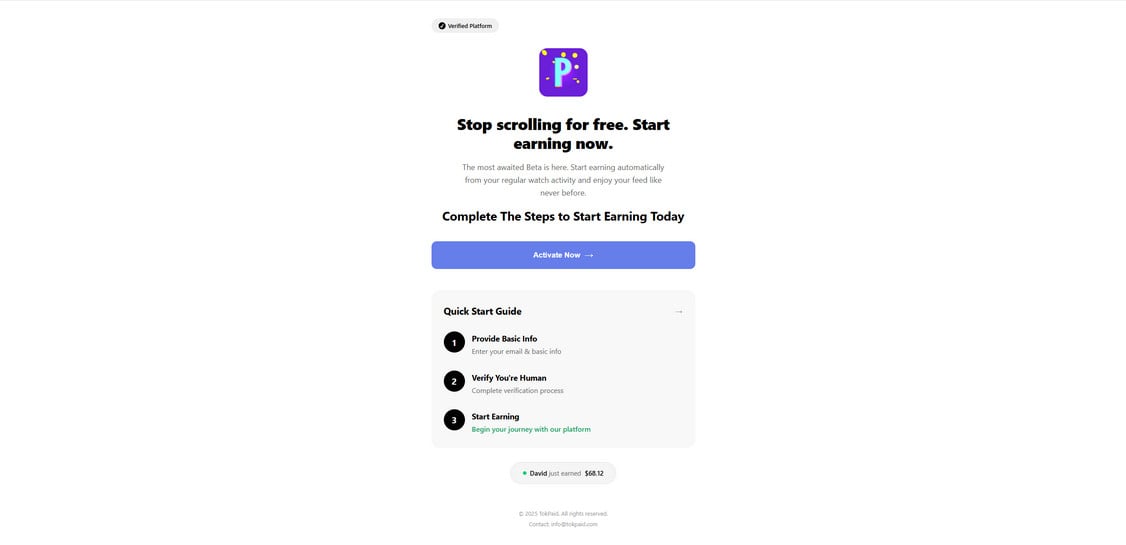
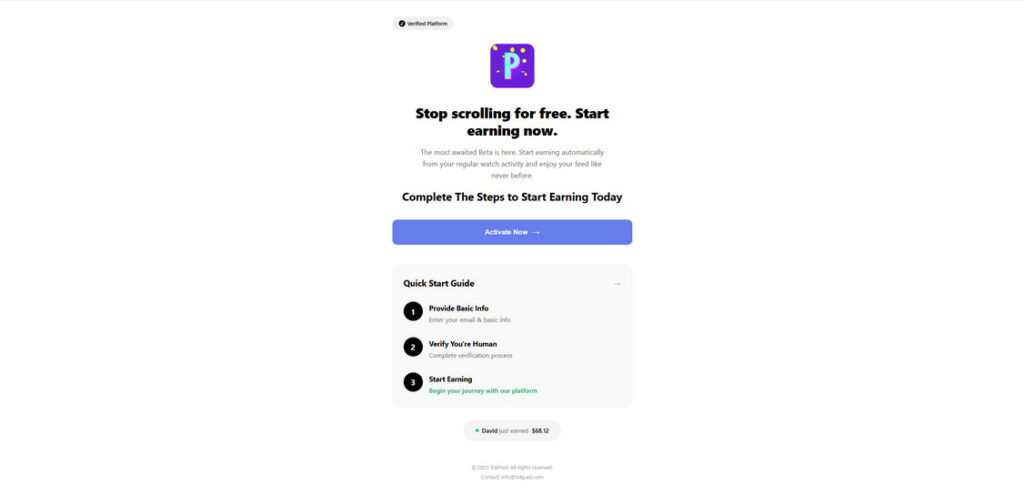
TokPaid.com presents itself as a “beta” platform that pays users automatically for everyday social media activity. The landing page is clean, minimalistic, and intentionally vague, using phrases like “Stop scrolling for free. Start earning now” and “The most awaited Beta is here.” The design aims to create the sense that you’re seeing an exclusive early-access opportunity available only to a small invited group.
At first glance, it feels like a modern startup page: soft gradients, a simple activation button, and a short “Quick Start Guide” listing steps such as providing basic info, verifying your identity, and beginning your earning journey. The simplicity is intended to lower your guard. The site looks modern, but not overly professional, which helps it appear like a real beta still under development. This is a deliberate stylistic choice used by many scam operations to make the platform feel new and exciting rather than polished and corporate.
The claims, however, do not hold up to scrutiny. TokPaid suggests users will earn money “automatically from your regular watch activity,” which implies it can track your scrolling behavior across platforms in real time. No legitimate app can legally or technically do this without installing intrusive spyware-level permissions—none of which TokPaid explains. The website never outlines the tech behind the earnings, the payout structure, or the company responsible for the service.
TokPaid lacks transparency in several major areas that a real earning platform would openly disclose:
No company information There is no company name, no physical address, no registration details, and no legal identity. Legitimate earning platforms always disclose a business entity.
No terms of service or privacy policy visible before signup Any real platform dealing with personal data must present legal documentation openly. TokPaid hides or omits these entirely.
No explanation of how earnings are generated The phrase “earn automatically” is intentionally ambiguous. Real earning websites describe the type of activity users must complete and how rewards are funded.
No user dashboard preview or payout proof The only “proof” shown on the page is a single tiny notification that “David just earned $68.12,” which is fabricated. It is a script commonly used across reward-scam templates.
No connection to TikTok despite the name “TokPaid” The website subtly implies a connection to TikTok or TikTok content. In reality, there is no affiliation. Misleading branding is a strong red flag.
These omissions are typical of survey-wall, offer-wall, and reward scam networks. Their goal is not to pay users but to collect personal data, push people into completing paid offers, and earn commissions from affiliate networks.
The TokPaid model matches other suspicious platforms that have appeared recently:
TokAdd
TokEarn
TokReview
TokPaid
TokNow
All of these share similar designs, promises, verification steps, and “quick start guides.” Many are operated by the same scam networks that spin up new domain names every few months after the previous versions get flagged or taken down.
Another red flag is the “verified platform” badge at the top. It is not clickable, not linked to any legitimate service, and appears purely decorative. Such badges are widely used in affiliate-scam templates to build fake trust.
TokPaid’s primary focus seems to be data collection. During sign-up attempts, users report being redirected to pages that ask for:
Full name
Email
Phone number
Location
Additional verification steps that involve entering more personal information
This leads into the verification funnel, which is a common tactic used by content-locker scams. Users are pushed into completing “partner offers” for identity verification, which include signing up for trials, downloading apps, submitting contact information, completing surveys, entering credit card details, or installing software.
In every known case of this type of scam, users never receive payments. Instead, scammers profit from each person who completes an offer. The victims end up giving away personal details, receiving endless spam, or unknowingly subscribing to paid services.
TokPaid.com also uses urgency tactics to push people into signing up quickly. Phrases like “Activate Now” or suggestions that the beta is limited are crafted to bypass critical thinking. Scam networks rely on fast emotional decisions, not informed ones.
When reviewing digital footprints, TokPaid has almost no credible online presence. There are no real user reviews, no official social media accounts, and no trace of a legitimate beta program. The domain is anonymously registered, which is a major red flag for any platform claiming to handle user earnings.
In short, TokPaid.com raises every major scam indicator:
Anonymous domain owner
No company identity
No legal disclosures
Fake earning claims
Fake user notifications
Ambiguous promises
Redirects to unrelated verification networks
Data harvesting behavior
These combined factors strongly indicate that TokPaid.com operates as a deceptive earning scam rather than a genuine income platform.
TokPaid follows a playbook used by many fraudulent sites: create hype, promise effortless money, collect data, earn affiliate commissions from users completing required offers, then disappear before complaints become widespread.
And unfortunately, it’s working on many unsuspecting users.
How The Scam Works
Scams like TokPaid.com succeed because they mimic the look and feel of real modern apps while hiding the actual monetization method behind vague language. TokPaid’s funnel process is designed to move users quickly from curiosity to compliance without offering any real transparency.
Below is a clear step-by-step breakdown of how the TokPaid scam typically works and what actually happens behind the scenes.
Step 1: The Hook Through Social Media Promotion
Most victims encounter TokPaid.com through TikTok videos, Instagram reels, or short clips showing exaggerated earning results. The content often features:
Screenshots of supposed earnings
Fake dashboards
Influencer-style narration
Claims like “I just made $68 today doing nothing”
Encouragement to “join before it gets patched”
These short videos rely on the TikTok-style “side hustle” trend. They use the psychology of relatability and the illusion of easy money to lower resistance.
Many scam networks pay micro-influencers or use bot accounts to boost the visibility of these promotions. The goal is volume: the more people who click, the more data they can collect.
Step 2: The Landing Page Creates Artificial Legitimacy
Once you click, you’re taken to the TokPaid.com homepage, which is intentionally minimalist. It avoids specifics while signaling modern legitimacy.
The site uses psychological triggers:
White space
Clean fonts
A single bright button
Subtle animations
Claims of a beta program
A simple three-step guide
These design choices make the site appear trustworthy. They mimic tech startups and productivity apps, making users believe they’re early adopters of something innovative.
The language is crafted carefully. It appeals to frustration with time wasted on social media and promises financial upside without extra effort.
Step 3: The Activation Button Leads to Data Collection
The big “Activate Now” button is designed to feel like the beginning of an exciting onboarding process. Instead, it starts the extraction phase.
Users are asked to provide:
Email
Name
Phone number
Scammers want this information for multiple reasons:
To sell your data to marketing networks
To send follow-up scam messages
To target you with additional offers
To build detailed consumer profiles
Once you enter your information, you’re a “lead,” and scammers have already profited.
Step 4: Verification Redirects to Partner Offers
After inputting basic info, the site pushes users into a so-called verification process. This step has no legitimate purpose. It is disguised as “account confirmation,” but in reality, it is where the scam monetizes your participation.
The verification steps typically include:
Completing surveys
Installing apps
Signing up for trials
Submitting phone verification codes
Entering credit card details for $1 trial subscriptions
Installing unfamiliar browser extensions
Subscribing to promotional content
These are part of content lockers and affiliate networks that pay scammers for each successful completion. The scammers earn a commission when you complete any of these “verification tasks,” often between $1 and $25 per task.
Meanwhile, you earn nothing.
Step 5: Tasks Get Harder, More Repetitive, and More Intrusive
Scam funnels are designed to stretch user patience while squeezing out as much affiliate revenue as possible. After completing the first offers, TokPaid often demands more.
You might see messages such as:
“One more step to verify.”
“Your badge is almost ready.”
“Complete 2–3 more offers to unlock earnings.”
Each “step” generates more profit for the scam operators.
Some users report:
Getting stuck in an endless loop of offers
Being asked for additional data
Being told their previous offer didn’t register
Receiving instructions to “try again” with a different task
Being redirected to new scam partner websites
At this point, the scam has maximized profit by exhausting your willingness to continue.
Step 6: The Promise of Earnings Never Arrives
Once you complete enough offers to satisfy the system, you’re typically told that your account is under final review, or your earnings will update soon. But they never do.
TokPaid never provides:
A real dashboard
Actual payouts
Payment history
A working withdrawal system
Evidence of a payout account
Some users report being redirected to an “error” page that suggests they failed verification, requiring them to start the process again. Others simply lose access to the site and cannot log in.
Step 7: After the Scam, the Damage Continues
Even though the site never pays, the consequences linger.
Victims experience:
Endless promotional spam
Telemarketing calls
Subscription charges from trial offers
Unauthorized credit card fees
Additional scam attempts
Attempts to steal more data
Phishing messages
Because TokPaid’s business model is rooted in data exploitation, your information may be sold multiple times across various marketing and scam networks.
And since many scam networks use similar templates, users often fall into chains of related fake opportunities after giving their details to one.
TokPaid’s structure clearly indicates that the goal is not to operate a real earning platform but to monetize every user who attempts to join.
What To Do If You Have Fallen Victim to This Scam
If you interacted with TokPaid.com, provided personal information, or completed any verification steps, take these actions immediately to protect yourself.
1. Stop engaging with the website immediately
Do not complete more offers or enter additional information. Close all related tabs and stop interacting with emails or messages that appear to be from TokPaid or its partners.
2. Change any passwords you may have reused
If you used the same password you use elsewhere, update your passwords right away. Scammers may attempt credential stuffing attacks.
3. Check bank accounts for unauthorized charges
If you entered credit card details for trials, review your bank statements. Look for:
Small unexpected charges
Recurring subscriptions
Unknown merchant names
If found, contact your bank to dispute the charges.
4. Cancel all trial subscriptions you signed up for
Many of these trials auto-renew at high prices after the promotional period. Cancel them promptly to prevent future deductions.
5. Consider freezing your credit
If you provided extensive personal details, such as full name, phone number, email, and address, freezing your credit file adds a layer of protection against identity misuse.
6. Monitor for phishing messages
Scammers often follow up with:
Fake job offers
Fake reward emails
Fake bank alerts
Fake social media warnings
More “earning opportunities”
Never click links from unknown senders.
7. Mark scam emails as spam
This helps your email provider filter future attempts more effectively.
8. Run a malware scan
If you installed apps or extensions during verification, remove them and scan your devices.
9. Report the scam
You can report TokPaid to:
FTC (in the US)
Your country’s cybercrime division
Local authorities
Fraud reporting websites
This helps warn others and builds cases that may prevent future victims.
10. Educate others
Scams spread partly because people don’t talk about them. Sharing your experience—without embarrassment—can protect others from falling into the same trap.
Is Your Device Infected? Scan for Malware
If your computer or phone is slow, showing unwanted pop-ups, or acting strangely, malware could be the cause. Running a scan with Malwarebytes Anti-Malware Free is one of the most reliable ways to detect and remove harmful software. The free version can identify and clean common infections such as adware, browser hijackers, trojans, and other unwanted programs.
Malwarebytes works on Windows, Mac, and Android devices. Choose your operating system below and follow the steps to scan your device and remove any malware that might be slowing it down.
Malwarebytes for WindowsMalwarebytes for MacMalwarebytes for Android
Run a Malware Scan with Malwarebytes for Windows
Malwarebytes stands out as one of the leading and widely-used anti-malware solutions for Windows, and for good reason. It effectively eradicates various types of malware that other programs often overlook, all at no cost to you. When it comes to disinfecting an infected device, Malwarebytes has consistently been a free and indispensable tool in the battle against malware. We highly recommend it for maintaining a clean and secure system.
Download Malwarebytes
Download the latest version of Malwarebytes for Windows using the official link below. Malwarebytes will scan your computer and remove adware, browser hijackers, and other malicious software for free.
(The above link will open a new page from where you can download Malwarebytes)
Install Malwarebytes
After the download is complete, locate the MBSetup file, typically found in your Downloads folder. Double-click on the MBSetup file to begin the installation of Malwarebytes on your computer. If a User Account Control pop-up appears, click “Yes” to continue the Malwarebytes installation.
Follow the On-Screen Prompts to Install Malwarebytes
When the Malwarebytes installation begins, the setup wizard will guide you through the process.
You’ll first be prompted to choose the type of computer you’re installing the program on—select either “Personal Computer” or “Work Computer” as appropriate, then click on Next.
Malwarebytes will now begin the installation process on your device.
When the Malwarebytes installation is complete, the program will automatically open to the “Welcome to Malwarebytes” screen.
On the final screen, simply click on the Open Malwarebytes option to start the program.
Enable “Rootkit scanning”.
Malwarebytes Anti-Malware will now start, and you will see the main screen as shown below. To maximize Malwarebytes’ ability to detect malware and unwanted programs, we need to enable rootkit scanning. Click on the “Settings” gear icon located on the left of the screen to access the general settings section.
In the settings menu, enable the “Scan for rootkits” option by clicking the toggle switch until it turns blue.
Now that you have enabled rootkit scanning, click on the “Dashboard” button in the left pane to get back to the main screen.
Perform a Scan with Malwarebytes.
To start a scan, click the Scan button. Malwarebytes will automatically update its antivirus database and begin scanning your computer for malicious programs.
Wait for the Malwarebytes scan to complete.
Malwarebytes will now scan your computer for browser hijackers and other malicious programs. This process can take a few minutes, so we suggest you do something else and periodically check the status of the scan to see when it is finished.
Quarantine detected malware
Once the Malwarebytes scan is complete, it will display a list of detected malware, adware, and potentially unwanted programs. To effectively remove these threats, click the “Quarantine” button.
Malwarebytes will now delete all of the files and registry keys and add them to the program’s quarantine.
Restart your computer.
When removing files, Malwarebytes may require a reboot to fully eliminate some threats. If you see a message indicating that a reboot is needed, please allow it. Once your computer has restarted and you are logged back in, you can continue with the remaining steps.
Once the scan completes, remove all detected threats. Your Windows computer should now be clean and running smoothly again, free of trojans, adware, and other malware.
If your current antivirus allowed this malicious program on your computer, you may want to consider purchasing Malwarebytes Premium to protect against these types of threats in the future. If you are still having problems with your computer after completing these instructions, then please follow one of the steps:
Malwarebytes for Mac is an on-demand scanner that can destroy many types of malware that other software tends to miss without costing you absolutely anything. When it comes to cleaning up an infected device, Malwarebytes has always been free, and we recommend it as an essential tool in the fight against malware.
Download Malwarebytes for Mac.
You can download Malwarebytes for Mac by clicking the link below.
When Malwarebytes has finished downloading, double-click on the setup file to install Malwarebytes on your computer. In most cases, downloaded files are saved to the Downloads folder.
Follow the on-screen prompts to install Malwarebytes.
When the Malwarebytes installation begins, you will see the Malwarebytes for Mac Installer which will guide you through the installation process. Click “Continue“, then keep following the prompts to continue with the installation process.
When your Malwarebytes installation completes, the program opens to the Welcome to Malwarebytes screen. Click the “Get started” button.
Select “Personal Computer” or “Work Computer”.
The Malwarebytes Welcome screen will first ask you what type of computer are you installing this program, click either Personal Computer or Work Computer.
Click on “Scan”.
To scan your computer with Malwarebytes, click on the “Scan” button. Malwarebytes for Mac will automatically update the antivirus database and start scanning your computer for malware.
Wait for the Malwarebytes scan to complete.
Malwarebytes will scan your computer for adware, browser hijackers, and other malicious programs. This process can take a few minutes, so we suggest you do something else and periodically check on the status of the scan to see when it is finished.
Click on “Quarantine”.
When the scan has been completed, you will be presented with a screen showing the malware infections that Malwarebytes has detected. To remove the malware that Malwarebytes has found, click on the “Quarantine” button.
Restart computer.
Malwarebytes will now remove all the malicious files that it has found. To complete the malware removal process, Malwarebytes may ask you to restart your computer.
After scanning, delete any detected threats. Your Mac should now be free from adware, unwanted extensions, and other potentially harmful software.
If your current antivirus allowed a malicious program on your computer, you might want to consider purchasing the full-featured version of Malwarebytes Anti-Malware to protect against these types of threats in the future. If you are still experiencing problems while trying to remove a malicious program from your computer, please ask for help in our Mac Malware Removal Help & Support forum.
Run a Malware Scan with Malwarebytes for Android
Malwarebytes for Android automatically detects and removes dangerous threats like malware and ransomware so you don’t have to worry about your most-used device being compromised. Aggressive detection of adware and potentially unwanted programs keeps your Android phone or tablet running smooth.
Download Malwarebytes for Android.
You can download Malwarebytes for Android by clicking the link below.
In the Google Play Store, tap “Install” to install Malwarebytes for Android on your device.
When the installation process has finished, tap “Open” to begin using Malwarebytes for Android. You can also open Malwarebytes by tapping on its icon in your phone menu or home screen.
Follow the on-screen prompts to complete the setup process
When Malwarebytes will open, you will see the Malwarebytes Setup Wizard which will guide you through a series of permissions and other setup options. This is the first of two screens that explain the difference between the Premium and Free versions. Swipe this screen to continue. Tap on “Got it” to proceed to the next step. Malwarebytes for Android will now ask for a set of permissions that are required to scan your device and protect it from malware. Tap on “Give permission” to continue. Tap on “Allow” to permit Malwarebytes to access the files on your phone.
Update database and run a scan with Malwarebytes for Android
You will now be prompted to update the Malwarebytes database and run a full system scan.
Click on “Update database” to update the Malwarebytes for Android definitions to the latest version, then click on “Run full scan” to perform a system scan.
Wait for the Malwarebytes scan to complete.
Malwarebytes will now start scanning your phone for adware and other malicious apps. This process can take a few minutes, so we suggest you do something else and periodically check on the status of the scan to see when it is finished.
Click on “Remove Selected”.
When the scan has been completed, you will be presented with a screen showing the malware infections that Malwarebytes for Android has detected. To remove the malicious apps that Malwarebytes has found, tap on the “Remove Selected” button.
Restart your phone.
Malwarebytes for Android will now remove all the malicious apps that it has found. To complete the malware removal process, Malwarebytes may ask you to restart your device.
When the scan is finished, remove all detected threats. Your Android phone should now be free of malicious apps, adware, and unwanted browser redirects.
If your current antivirus allowed a malicious app on your phone, you may want to consider purchasing the full-featured version of Malwarebytes to protect against these types of threats in the future. If you are still having problems with your phone after completing these instructions, then please follow one of the steps:
Restore your phone to factory settings by going to Settings > General management > Reset > Factory data reset.
After cleaning your device, it’s important to protect it from future infections and annoying pop-ups. We recommend installing an ad blocker such as AdGuard. AdGuard blocks malicious ads, prevents phishing attempts, and stops dangerous redirects, helping you stay safe while browsing online.
The Bottom Line
TokPaid.com appears polished and modern at first glance, but its structure, behavior, and business model reveal a classic earning scam designed to harvest personal data and exploit users through affiliate offers. It does not pay users, has no real earning system, and relies heavily on misleading marketing tactics.
If you’re looking for real online income streams, TokPaid is not the answer. Understanding how these scams operate helps you navigate the internet safely, avoid deceptive platforms, and protect your information.
If you encountered TokPaid and felt tempted, you’re not alone. These scams are crafted to prey on curiosity and financial stress. But with a bit of awareness, you can sidestep the traps and focus on genuine opportunities that reward your time fairly.
Thomas is an expert at uncovering scams and providing in-depth reporting on cyber threats and online fraud. As an editor, he is dedicated to keeping readers informed on the latest developments in cybersecurity and tech.