

Ticketmaster is one of the most recognized and widely used ticketing platforms in the world. Millions of fans rely on it for everything from concerts and festivals to theater shows and sporting events. But while Ticketmaster itself is secure and legitimate, the growing demand for tickets has also created a massive black market for scams.
Fraudsters exploit fans’ excitement, urgency, and sometimes desperation to sell fake tickets, phish for login credentials, or trick people into sending money outside the platform.
This guide will walk you through everything you need to know about Ticketmaster scams — including how they work, the 10 most common types, and what to do if you become a victim.
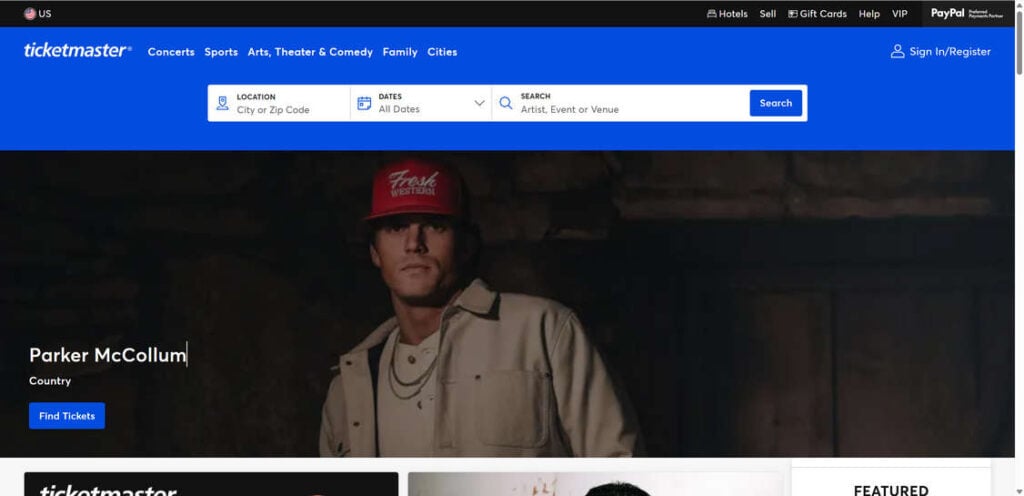
Can You Trust Ticketmaster?
Yes. Ticketmaster is a legitimate and trustworthy platform for buying and reselling tickets. It’s not a scam — in fact, Ticketmaster’s technology makes it one of the safest ticketing platforms available today.
Why Ticketmaster is safe
- Dynamic QR codes: Ticketmaster tickets use QR codes that refresh several times per minute, making it virtually impossible to duplicate or resell screenshots.
- Secure account access: Tickets are tied to the buyer’s account, ensuring only the original purchaser can access and use them.
- Verified Resale: Official Ticketmaster resale tickets are checked for authenticity, reducing the risk of counterfeits.
But there’s a catch
While the platform itself is secure, scams frequently occur outside of Ticketmaster — on social media, fake websites, and third-party resale platforms. Scammers take advantage of fans who can’t find tickets through official channels or want cheaper or faster access.
In other words, Ticketmaster is trustworthy — but scammers impersonating Ticketmaster are not.
How Ticketmaster Works
Ticketmaster acts as a bridge between event organizers and fans, distributing tickets for concerts, festivals, sports events, theater shows, and more. Understanding how the platform operates helps you spot scams that deviate from these legitimate processes.
Ticket Sales and Pricing
- Primary sales: Event organizers partner with Ticketmaster to sell official tickets directly to fans.
- Dynamic pricing: For high-demand events, prices may increase or decrease depending on demand, similar to airline ticket pricing.
- Static pricing: Some artists or promoters choose fixed prices to keep things fair and predictable.
Ticket Delivery and Access
Once you purchase a ticket:
- It appears directly in your Ticketmaster account.
- You can view the ticket, add it to your digital wallet, or transfer it to a friend.
- Each ticket is linked to one account and can’t be duplicated.
Ticketmaster Queue
For high-demand events, Ticketmaster uses a virtual waiting room. Here’s how it works:
- Fans join a waiting room before tickets go on sale.
- When sales open, users are randomly assigned a spot in the virtual queue.
- Fans enter the purchase page when it’s their turn.
This system helps prevent scalpers and bots from scooping up all the tickets immediately, though it can still be competitive.
Resale and Transfer Features
- Verified Resale allows ticket holders to resell their tickets securely on Ticketmaster. The original QR code is canceled and reissued to the new buyer.
- Ticket Transfer lets users send tickets to friends safely — no printing, no screenshots, and no risk of duplicates.
Why Off-Platform Resales Are Risky
When buyers or sellers step outside of Ticketmaster — for example, using Craigslist, Facebook Marketplace, Venmo, or Cash App — they lose all the protections offered by the platform. This is where most scams occur.
Top 5 Most Common Ticketmaster Scams
While the Ticketmaster app itself is secure, many fans still fall victim to scams when they step outside of the official platform. Criminals use phishing emails, spoofed websites, and clever social engineering tactics to trick desperate buyers and sellers into losing money or handing over personal information.
Even savvy buyers can get caught off guard — especially when tickets are in high demand and emotions run high. Below are the Top 5 most common Ticketmaster scams, explained in detail with real-world examples so you can learn to recognize the red flags before it’s too late.
1. Off-Platform Payment Scams
This is the most common Ticketmaster-related scam. Scammers pose as sellers and offer resale tickets outside of Ticketmaster — typically on Facebook Marketplace, Instagram, Craigslist, or even through direct messages. They insist on payment through peer-to-peer payment apps like PayPal (Friends & Family), Venmo, Cash App, Revolut, or Zelle.
Once the victim pays, the scammer promises to “transfer the ticket” via Ticketmaster’s Transfer Tickets feature. But the transfer never happens, and the seller disappears — often blocking the victim immediately afterward.
Real Example:
A fan looking for Taylor Swift Eras Tour tickets was contacted by a “seller” on Facebook Marketplace offering front-section seats at a price slightly below market value. The seller requested $500 through Venmo. Once the payment was sent, the seller blocked the buyer, and no ticket transfer ever occurred.
Why It Works:
- Scammers create a sense of urgency (“I have other buyers waiting”).
- Payment apps offer limited buyer protection.
- Victims assume Ticketmaster transfers are safe — but the transfer never happens.
How to Protect Yourself:
- Never pay off-platform. Legitimate Ticketmaster resale occurs within the app or website.
- If meeting in person, ensure the transfer happens before any payment is made.
- Always verify the ticket in your Ticketmaster account before finalizing the transaction.
2. Counterfeit and Speculative Tickets
Counterfeit tickets are fake duplicates or forged PDF/Paper tickets, often sold through third-party marketplaces or individuals on social media. Because Ticketmaster uses dynamic QR codes, PDFs and printed tickets are no longer valid for most major events.
Speculative ticket scams involve sellers listing seats they don’t actually own. Scammers hope to buy the tickets later and transfer them to you — or never deliver anything at all.
Real Example:
A Reddit user reported paying $400 for two “great seats” to a Beyoncé concert from someone on Craigslist. The seller sent PDF tickets, which looked official. But at the gate, the QR codes were already scanned — because they’d been sent to multiple buyers. The victim was denied entry and couldn’t recover the money.
Why It Works:
- Fake tickets can look almost identical to real ones.
- Many buyers assume PDF tickets are still valid.
- Speculative listings exploit sold-out event panic.
How to Protect Yourself:
- Avoid PDF or paper tickets altogether.
- Only accept Ticketmaster in-app transfers.
- Stick to Verified Resale on Ticketmaster or trusted, guaranteed platforms.
3. Phishing Scams (Emails, Texts & DMs)
Phishing scams are rampant because they look like official Ticketmaster communication. Scammers send fake messages to trick you into clicking malicious links, revealing account credentials, or making payments to a fraudulent account.
Common phishing messages include:
- “Your Ticketmaster account has been locked — verify now.”
- “Your payment for [Event Name] failed. Click here to fix it.”
- “Confirm your order by clicking the link below.”
- “Password reset request for your account.”
Clicking the link typically leads to a spoofed login page, where the attacker steals your credentials. With account access, they can resell your legitimate tickets or change your login information to lock you out.
Real Example:
A fan received an email that looked identical to a Ticketmaster notification, warning of a “payment error.” After entering their login details on a fake site, the scammer gained control of their account and transferred the tickets to another account within minutes.
Why It Works:
- Phishing emails are visually identical to legitimate Ticketmaster messages.
- Scammers create a sense of urgency to bypass rational thinking.
- Many victims reuse passwords, giving scammers access to more accounts.
How to Protect Yourself:
- Always type ticketmaster.com manually into your browser.
- Check the sender’s email domain carefully (e.g.,
support@ticket-master.helpis fake). - Enable two-factor authentication (2FA) on your Ticketmaster account.
4. Fake Websites Mimicking Ticketmaster
Fake or “spoofed” websites are often used alongside phishing emails or social media ads. These sites look nearly identical to the real Ticketmaster site — complete with logos, event listings, and fake checkout pages.
The main goal is to harvest your payment information or login credentials. Some sites also offer “discounted tickets,” then redirect you to payment pages that never issue real tickets.
Real Example:
A user searching “Ticketmaster Taylor Swift tickets” on Google clicked a sponsored ad for what appeared to be Ticketmaster. The domain was ticketmaster-secure-tickets.com. The site collected their credit card number and charged $650 for tickets that never existed.
Why It Works:
- Fake domains look legitimate to the untrained eye.
- Search ads sometimes outrank official Ticketmaster listings.
- The entire site is cloned, making it difficult to spot the difference.
How to Protect Yourself:
- Always check for “https://www.ticketmaster.com” in the address bar.
- Avoid clicking ads — type the URL directly.
- Look out for typos or extra words in the URL (e.g., “ticket-master” instead of “ticketmaster”).
5. Fake Customer Support Accounts
Scammers also impersonate Ticketmaster support on social media, replying to fans who post questions or complaints online. These accounts often:
- Have names like “Ticketmaster Help” or “Ticket Support.”
- Use the Ticketmaster logo and similar handles.
- Respond quickly, offering “assistance.”
They’ll then direct victims to a phishing link or request personal/payment information under the guise of resolving the issue.
Real Example:
A user posted on X (Twitter) complaining that their ticket transfer wasn’t working. A fake “Ticketmaster Support” account replied instantly with a link to “verify the account.” After entering their credentials, their real tickets were transferred out of their account.
Why It Works:
- Victims assume verified-looking support accounts are real.
- People are more vulnerable when they’re already frustrated.
- The scam feels legitimate because it appears contextual and timely.
How to Protect Yourself:
- Never trust unsolicited support messages.
- Check for the verified checkmark and the official handle (@Ticketmaster).
- Official support will never ask for your password or payment info via DM.
Bottom Line
The majority of Ticketmaster scams happen off-platform — not inside the official Ticketmaster app or website. Scammers thrive on urgency, emotion, and the desire to grab hard-to-find tickets quickly.
By understanding these Top 5 scams — Off-Platform Payments, Counterfeit Tickets, Phishing, Fake Websites, and Fake Support Accounts — you can recognize the red flags early and protect your money and personal information.
Key Takeaways:
- Only trust official Ticketmaster transfers or Verified Resale.
- Never pay for tickets off-platform through unprotected methods.
- Double-check URLs, email senders, and support accounts.
- Act quickly if you suspect you’ve been targeted: change your password, contact your bank, and report the scam.
Ticketmaster is legitimate and secure — but staying safe depends on staying within its ecosystem. Don’t give scammers the chance to cash in on your excitement.
How the Ticketmaster Scams Work
Although the scams vary, most follow a predictable pattern. Understanding this scam anatomy can help you identify and avoid them before they cause damage.
Step 1: Targeting the Victim
Scammers look for:
- Fans posting on social media about wanting tickets
- Popular concerts or events with limited availability
- People who missed official sales and are desperate for resales
They approach victims via email, social media DMs, or fake listings.
Step 2: Building Trust
To make their offer convincing, scammers may:
- Use fake screenshots of tickets in their account
- Mimic Ticketmaster’s branding in emails or websites
- Claim to be selling “because plans changed”
- Offer the ticket at a slightly discounted price
The goal is to disarm suspicion.
Step 3: Creating Urgency
Scammers pressure the victim into acting fast:
- “Other buyers are interested.”
- “I can only hold the ticket for 10 minutes.”
- “The queue is about to close.”
This emotional manipulation reduces rational thinking and pushes the victim to pay quickly.
Step 4: Moving Off-Platform
They ask the victim to:
- Pay via PayPal, Venmo, Cash App, or crypto
- Click a phishing link instead of using Ticketmaster’s website
- Provide login credentials or personal data
Once the victim leaves the secure Ticketmaster ecosystem, they lose all buyer protections.
Step 5: Collecting the Money or Data
Depending on the scam:
- The scammer takes the money and disappears.
- They steal login credentials to resell your tickets.
- They harvest credit card details through fake payment portals.
Step 6: Disappearing
Once the transaction is complete, the scammer:
- Blocks the victim on social media
- Deletes fake listings or accounts
- Moves on to their next target
What to Do If You’ve Fallen Victim to a Ticketmaster Scam
If you’ve already been scammed, acting fast can minimize the damage. Here are the steps to follow:
1. Change Your Ticketmaster Password Immediately
If you entered your login credentials on a fake site:
- Change your password
- Enable two-factor authentication (2FA)
- Log out of all devices
2. Contact Your Bank or Payment Provider
If you made a payment to a scammer:
- Report the transaction as fraudulent immediately
- Request a chargeback or payment reversal
- Cancel your card if necessary
Acting quickly improves the chances of recovering funds.
3. Report the Scam to Ticketmaster
Ticketmaster has a dedicated fraud reporting process. Provide:
- Screenshots of messages or emails
- Transaction details
- Any phishing URLs
This helps prevent others from falling for the same scam.
4. Report to Authorities
In the U.S., you can report ticket scams to:
- FTC: reportfraud.ftc.gov
- IC3 (FBI Internet Crime Complaint Center): ic3.gov
If you’re outside the U.S., contact your national cybercrime reporting center.
5. Check Your Devices for Malware
If you clicked a suspicious link or scanned a malicious QR code:
- Run a full antivirus scan
- Remove suspicious apps or browser extensions
- Reset passwords for other accounts
6. Warn Others
Scammers often recycle their tactics. Sharing your experience:
- Helps others avoid the same trap
- Gives Ticketmaster more information to shut down fake accounts
Is Your Device Infected? Run a Free Malware Scan
Slow performance, constant pop-ups, or strange behavior? These are classic signs of a malware infection. The fastest way to find out is to scan your device with Malwarebytes Free — one of the most trusted malware removal tools available.
The free version detects and removes the most common threats, including:
- Adware — the cause of those annoying pop-ups
- Browser hijackers — unwanted redirects and changed homepages
- Trojans and spyware — hidden programs stealing your data
- Potentially unwanted programs (PUPs) — software you never asked for
👉 Select your device below — Windows, Mac, or Android — then follow the simple steps to download Malwarebytes, scan your system, and remove any threats it finds. The scan usually takes 5 to 20 minutes.
Run a Malware Scan with Malwarebytes for Windows
Malwarebytes is one of the most popular and trusted anti-malware tools for Windows — and it’s completely free for removing infections. It catches threats that many antivirus programs miss, including adware, browser hijackers, and trojans. Follow the steps below to scan and clean your PC in just a few minutes.
Download Malwarebytes
Click the button below to download the latest version of Malwarebytes for Windows from the official source. The free version is all you need — it will scan your computer and remove adware, browser hijackers, and other malicious software at no cost.
Download MalwarebytesOfficial installer for Windows 11 and 10. Your download starts right away.Want real-time protection? See Malwarebytes Premium Malwarebytes Free for WindowsScans and removes malware at no cost
-
Install Malwarebytes
When the download finishes, open your Downloads folder and double-click the MBSetup file. If Windows shows a User Account Control pop-up, click “Yes” to allow the installation.

Follow the On-Screen Prompts to Install Malwarebytes
The setup wizard will walk you through a few quick screens:
-
Choose where you’re installing the program — “Personal Computer” or “Work Computer” — then click Next.

-
Malwarebytes will now install on your device. This usually takes under a minute.

-
When installation is complete, the “Welcome to Malwarebytes” screen will open automatically.

-
On the final screen, click Open Malwarebytes to launch the program.

-
Enable “Scan for Rootkits”
Before scanning, turn on rootkit detection so Malwarebytes can find even the most hidden threats. Click the Settings gear icon on the left side of the screen.

In the settings menu, find “Scan for rootkits” and click the toggle so it turns blue.

Done? Click “Dashboard” in the left pane to return to the main screen.
Start the Scan
Click the blue Scan button. Malwarebytes will automatically update its virus database and start checking your computer for malware.

-
Wait for the Scan to Finish
The scan checks your entire system for browser hijackers and other malicious programs, so it can take 5 to 20 minutes depending on your computer. Feel free to do something else — just check back occasionally to see the progress.

-
Quarantine the Detected Threats
When the scan is done, you’ll see a list of everything Malwarebytes found — malware, adware, and potentially unwanted programs. Click the “Quarantine” button to remove all of them at once.

Malwarebytes will now remove the malicious files and registry entries and move them safely into quarantine.

-
Restart Your Computer
Some threats can only be fully removed after a reboot. If Malwarebytes asks you to restart, click Yes. Once you’re logged back in, Malwarebytes has finished removing the threats it found.

That’s it — your Windows PC is now clean of trojans, adware, and other malware, and should be back to running smoothly.
If you are still having problems with your computer after completing these instructions, then please follow one of the steps:
- Run a computer scan with ESET Online Scanner
- Ask for help in our Windows Malware Removal Help & Support forum.
Run a Malware Scan with Malwarebytes for Mac
Malwarebytes for Mac is a free on-demand scanner that removes the malware other security software tends to miss — adware, browser hijackers, and unwanted programs included. Cleaning an infected Mac with Malwarebytes has always been completely free, and it’s our go-to recommendation. Follow the steps below to scan and clean your Mac in just a few minutes.
-
Download Malwarebytes for Mac
Click the button below to download the latest version of Malwarebytes for Mac.
Download MalwarebytesOfficial installer for macOS. Your download starts right away.Want real-time protection? See Malwarebytes PremiumMalwarebytes Free for MacScans and removes malware at no cost -
Open the Malwarebytes setup file
When the download finishes, open your Downloads folder and double-click the setup file to begin the installation.

-
Follow the On-Screen Prompts to Install Malwarebytes
The Malwarebytes for Mac Installer will guide you through a few quick screens. Click “Continue” and keep following the prompts until the installation completes.



When the installation is complete, Malwarebytes opens to the Welcome to Malwarebytes screen. Click “Get started“.
-
Select “Personal Computer” or “Work Computer”
Malwarebytes will ask what type of computer you’re installing it on. Click either Personal Computer or Work Computer, whichever applies.

-
Start the Scan
Click the “Scan” button. Malwarebytes will automatically update its detection database and begin checking your Mac for malware.

-
Wait for the Scan to Finish
Malwarebytes will scan your Mac for adware, browser hijackers, and other malicious programs. This can take a few minutes, so feel free to do something else — just check back occasionally to see the progress.

-
Quarantine the Detected Threats
When the scan is done, you’ll see a list of everything Malwarebytes found. Click the “Quarantine” button to remove all the threats at once.

-
Restart Your Mac
Malwarebytes will now remove all the malicious files it found. Some threats can only be fully removed after a reboot — if Malwarebytes asks you to restart, allow it. Once you’re logged back in, your Mac is clean.

That’s it — your Mac is now free of adware, rogue browser extensions, and other potentially harmful software.
If you are still experiencing problems while trying to remove a malicious program from your computer, please ask for help in our Mac Malware Removal Help & Support forum.
Run a Malware Scan with Malwarebytes for Android
Malwarebytes for Android automatically detects and removes dangerous threats like malware and ransomware so you don’t have to worry about your most-used device being compromised. Aggressive detection of adware and potentially unwanted programs keeps your Android phone or tablet running smooth.
-
Download Malwarebytes for Android.
You can download Malwarebytes for Android by clicking the link below.
Get Malwarebytes for AndroidOpens Google Play in a new tab.Want real-time protection? See Malwarebytes Premium for AndroidMalwarebytes for AndroidScans your phone and removes malware at no cost -
Install Malwarebytes for Android on your phone.
In the Google Play Store, tap “Install” to install Malwarebytes for Android on your device.

When the installation process has finished, tap “Open” to begin using Malwarebytes for Android. You can also open Malwarebytes by tapping on its icon in your phone menu or home screen.

-
Follow the on-screen prompts to complete the setup process
When Malwarebytes will open, you will see the Malwarebytes Setup Wizard which will guide you through a series of permissions and other setup options.
This is the first of two screens that explain the difference between the Premium and Free versions. Swipe this screen to continue.
Tap on “Got it” to proceed to the next step.
Malwarebytes for Android will now ask for a set of permissions that are required to scan your device and protect it from malware. Tap on “Give permission” to continue.
Tap on “Allow” to permit Malwarebytes to access the files on your phone.
-
Update database and run a scan with Malwarebytes for Android
You will now be prompted to update the Malwarebytes database and run a full system scan.

Click on “Update database” to update the Malwarebytes for Android definitions to the latest version, then click on “Run full scan” to perform a system scan.

-
Wait for the Malwarebytes scan to complete.
Malwarebytes will now start scanning your phone for adware and other malicious apps. This process can take a few minutes, so we suggest you do something else and periodically check on the status of the scan to see when it is finished.

-
Click on “Remove Selected”.
When the scan has been completed, you will be presented with a screen showing the malware infections that Malwarebytes for Android has detected. To remove the malicious apps that Malwarebytes has found, tap on the “Remove Selected” button.

-
Restart your phone.
Malwarebytes for Android will now remove all the malicious apps that it has found. To complete the malware removal process, Malwarebytes may ask you to restart your device.
That’s it — your Android phone is now clean — no more malicious apps, adware, or browser redirects.
If you are still having problems with your phone after completing these instructions, then please follow one of the steps:
- Restore your phone to factory settings by going to Settings > General management > Reset > Factory data reset.
- Ask for help in our Mobile Malware Removal Help & Support forum.
Stay Protected: Block Ads and Malicious Sites
Now that your device is clean, keep it that way. Most infections start with a malicious ad or a fake download button — so blocking them at the source is your best defense.
We recommend AdGuard, which blocks malicious ads, phishing pages, and dangerous redirects before they can reach you.
👉 Download AdGuard and browse safely
How to Avoid Ticketmaster Scams in 2025
- Buy only through official Ticketmaster channels.
- Avoid third-party sellers, especially on social media or marketplace platforms.
- Never pay off-platform — no Venmo, PayPal Friends & Family, or Cash App.
- Double-check URLs before logging in.
- Don’t trust screenshots — always insist on official transfers.
- Enable 2FA on your Ticketmaster account.
- Be skeptical of urgency — real sellers won’t pressure you to pay instantly.
- Bookmark the official Ticketmaster site to avoid phishing links.
The Bottom Line
Ticketmaster itself is a secure and legitimate ticketing platform, but scams thrive on the secondary market and outside channels.
The Top 5 most common Ticketmaster scams — from phishing emails to counterfeit tickets and fake resale listings — all rely on urgency, impersonation, and emotional manipulation to trick victims.
By staying informed, using official Ticketmaster tools, and recognizing red flags, you can protect your money, your account, and your event experience.
If you’ve been scammed, act fast: change your passwords, contact your bank, report the fraud, and secure your accounts. Awareness and quick action can stop a bad situation from getting worse.
FAQ: Ticketmaster Scams
1. Is Ticketmaster a scam?
No. Ticketmaster is a legitimate and trusted ticketing platform used by millions of people worldwide for concerts, sports events, festivals, and theater. The Ticketmaster app and website are secure, using dynamic QR codes that cannot be duplicated. However, many scammers impersonate Ticketmaster or exploit fans off-platform. The scams occur outside of the official system — on social media, third-party marketplaces, or through fake websites and phishing messages.
2. What is the most common Ticketmaster scam?
The most common Ticketmaster scam is the off-platform payment scam, where fake sellers ask buyers to send money through apps like PayPal, Venmo, or Cash App and promise to transfer tickets after payment. The tickets are never transferred, and the scammer disappears. Other common scams include phishing emails, counterfeit PDF tickets, fake websites, and fake customer support accounts on social media.
3. How can I tell if a Ticketmaster email is fake?
Look closely at the sender’s email address. Official Ticketmaster emails come from @ticketmaster.com. Scammers often use similar but fake domains like @ticket-master.help or @tm-support.net. Watch for poor grammar, urgent language, or suspicious links. If an email contains a “Verify,” “Reset,” or “Pay Now” button, hover over it without clicking. If the URL doesn’t lead to the real Ticketmaster domain, it’s a scam.
4. What does a fake Ticketmaster website look like?
Fake websites closely mimic the real Ticketmaster site, using similar branding and design. The most common giveaways are slight URL variations — such as extra hyphens, added words, or missing letters (for example, ticket-master.com instead of ticketmaster.com). These sites often appear through sponsored ads on Google or phishing links in emails. If you’re ever unsure, type www.ticketmaster.com directly into your browser.
5. Can someone fake a Ticketmaster ticket?
Scammers can forge PDF or printed tickets, but they cannot replicate Ticketmaster’s dynamic QR codes. These QR codes refresh every few seconds, making screenshots or printouts useless at the venue. That’s why legitimate tickets are transferred only through the app or website. If someone tries to sell you a PDF ticket, it’s a red flag.
6. Are social media resales safe?
Buying tickets through Facebook Marketplace, Instagram, or other social platforms carries a high risk of scams. While some resellers may be genuine, there is no guarantee of authenticity. Scammers often create urgency, offer “last-minute deals,” and demand quick payment. The safest option is to use Ticketmaster’s Verified Resale or meet the seller in person and verify the ticket in your account before paying.
7. How can I avoid Ticketmaster phishing scams?
Never click on links from unsolicited emails, texts, or social media messages. Always log in to your Ticketmaster account by typing the URL directly in your browser. Enable two-factor authentication to secure your account. Be skeptical of messages that claim your account will be locked or that require urgent payment. Phishing relies on panic, so taking an extra minute to verify the source can protect you.
8. What should I do if I paid a scammer?
Act fast. If you used a credit or debit card, contact your bank or payment provider immediately to request a chargeback or dispute. If you paid through a peer-to-peer app, report the transaction as fraudulent, although recovery may be limited. Change your Ticketmaster password if you shared credentials and monitor your accounts closely for suspicious activity.
9. How do fake customer support scams work?
Scammers create fake “Ticketmaster Support” accounts on platforms like Twitter, Facebook, or Instagram. When users post about ticket issues, these fake accounts reply, offering to help. They then send phishing links to steal credentials or payment information. Real Ticketmaster support will never ask for your password, payment details, or send unsolicited DMs. Always verify official support handles before engaging.
10. How can I verify that my Ticketmaster ticket is real?
The only reliable way to verify a ticket is to receive it through the Ticketmaster app or buy it directly from Ticketmaster’s Verified Resale. Once the ticket is in your account, the dynamic QR code ensures it’s authentic and unique to you. If a seller refuses to transfer through Ticketmaster, it’s likely a scam.

Join the discussion
0 commentsShare your experience or ask a question about this article.
Community experiences
Did this happen to you?
Your experience could help someone recognize the same scam. Submit a private report for our team to review.
I experienced this tooReports are reviewed before publication. Sharing publicly is always your choice.
Discussion
Start the conversation
Have a question or something useful to share? Add the first comment.