The Polisen Enheten for databrott alert is a malicious software (Trojan Ransomware) that is locking your computer, and posing as an official notice from a law enforcement agency, claims that the your PC has been determined to have visited illegal websites.In reality, none of what the Polisen Enheten for databrott screen is reporting is real, and the alert is only used to scare you into paying for a non-existing fine and stealing your personal financial information.
If you’ve got a Polisen Enheten for databrott infection , you’ll be seeing this screens :
![[Image: Polisen Enheten for databrott Ransomware.jpg]](http://malwaretips.com/blogs/wp-content/uploads/2012/04/Polisen-Enheten-for-databrott.jpg "Polisen Enheten for databrott Ransomware")
Regeringskansliet
Polisen
Polisen Enheten for databrott
OBS!
Detta operativsystem är blockerad på grund av brott mot svensk lag. Fastställt följande brott:
Din IP-adress (removed). Med denna IP-adress var besökta webbplatser som innehåller pornografi, barnpornografi, tidelag, och våld mot barn. Videofiler som innehåller pornografi, våld och inslag av barnpornografi har installerats på dator! Dessutom skickades e-postmeddelanden i form av spam, som innehåller terrorist motiv från din epost adress.
Datorn har blockerats för att stoppa din olaglig verksamhet.
För att låsa upp datorn, du måste betala böter på 100 euro.
Du kan betala en straffavgift på två sätt:
1) Betalning via ett system Ukash:
För att göra detta måste du ange i betalningsform 19-siffrig kod och trycka OK (Om du har flera koder, bör de införas en efter en, och klicka sedan på OK).
Om det uppstar ett fel i betalningsprocessen, bor koderna skickas till insattning@cybercrime.gov.
2) Betalning via ett system Paysafecard:
För att göra detta måste du ange i betalningsform 16-siffrig kod (Om nödvändigt, skriv in ett lösenord) och tryck OK (Om du har flera koder, bör de införas en efter en, och klicka sedan på OK).
Om det uppstar ett fel i betalningsprocessen, bor koderna skickas till insattning@cybercrime.gov.
We strongly advise you to follow our Polisen Enheten for databrott removal guide and ignore any alerts that this malicious software might generate.Under no circumstance should you send any any money to this cyber criminals as this could lead to identity theft.
Polisen Enheten for databrott Ukash Ransomware – Virus Removal Guide
STEP 1: Remove Polisen Enheten for databrot lock screen from your computer
The Polisen Enheten for databrot Ukash Ransom has modified your Windows registry, so whenever you’re trying to boot your computer it will launch instead its bogus notification.To remove this malicious registry change,we can use any of the below methods :
Method 1: Restore Windows to a previous state using System Restore
We can remove the malicious registry key from your computer, by booting into Safe mode with Command prompt and restore the computer to an previous System Restore point.
- Restart your computer, and then press and hold F8 during the initial startup to start your computer in safe mode with a Command prompt.
Note: With some computers, if you press and hold a key as the computer is booting you will get a stuck key message. If this occurs, instead of pressing and holding the “F8 key”, tap the “F8 key” continuously until you get the Advanced Boot Options screen. - Use the arrow keys to select the Safe mode with a Command prompt option.
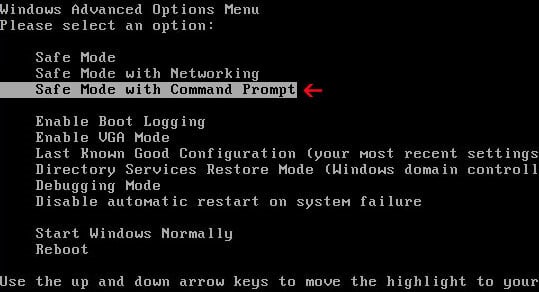
- At the command prompt, type cd restore, and then press ENTER.
Next,we will type rstrui.exe , and then press ENTER

- The System Restore window will start and you’ll need to select a restore point previous to this infection.
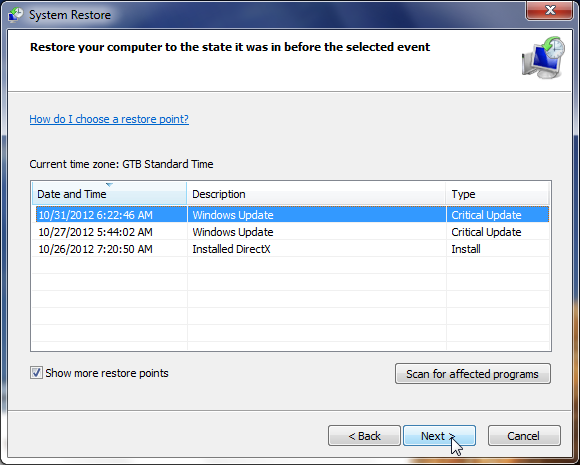
- After System Restore has completed its task,you should be able to boot in Windows normal mode,from there you’ll need to perform a system scan (as seen on STEP 2) with Malwarebytes Anti-Malware and HitmanPro to remove the malicious files from your machine.
Method 2: Remove Polisen Enheten for databrot virus with HitmanPro Kickstart
IF you couldn’t boot into Safe Mode with Command Prompt or didn’t have a System Restore point on your machine, we can use HitmanPro kickstart to bypass this infection and access your computer to scan it for malware.
- We will need to create a HitmanPro Kickstart USB flash drive,so while you are using a “clean” (non-infected) computer, download HitmanPro from the below link.
Download HitmanProOfficial Sophos download. Free scan, free 30-day trial to remove threats. - Insert your USB flash drive into your computer and follow the instructions from the below video:
- After you have create the HitmanPro Kickstart USB flash drive, you can insert this USB drive into the infected machine and start your computer.
- Once the computer starts, repeatedly tap the F11 key (on some machines its F10 or F2),which should bring up the Boot Menu, from there you can select to boot from your USB.
Next,you’ll need to perform a system scan with HitmanPro as see in the below video:
- After HitmanPro Kickstart has completed its task,you should be able to boot in Windows normal mode,from there you’ll need to perform a system scan (as seen on STEP 2) with Malwarebytes Anti-Malware and HitmanPro to remove the malicious files from your machine.
STEP 2: Remove Polisen Enheten for databrot malicious files from your computer
After we have remove the Polisen Enheten for databrot lock screen, we need to remove the malicious files from your computer.
Run a computer scan with Malwarebytes Anti-Malware Free
- You can download Malwarebytes Anti-Malware Free from the below link,then double click on it to install this program.
Download MalwarebytesFree official installer. Your download starts right away. - When the installation begins, keep following the prompts in order to continue with the setup process.
DO NOT make any changes to default settings and when the program has finished installing, make sure you leave both the Update Malwarebytes’ Anti-Malware and Launch Malwarebytes’ Anti-Malware checked,then click on the Finish button.
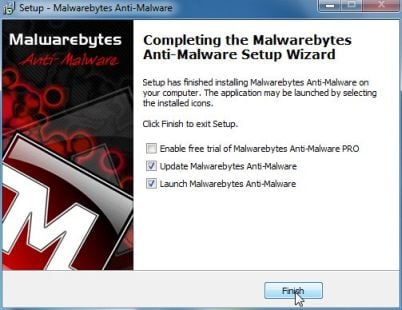
- On the Scanner tab,select Perform quick scan and then click on the Scan button to start scanning your computer.
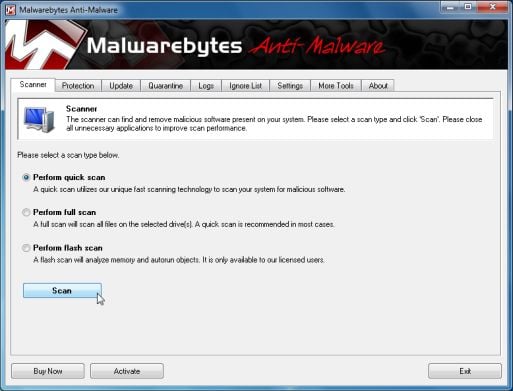
- Malwarebytes’ Anti-Malware will now start scanning your computer for Polisen Enheten for databrot malicious files as shown below.
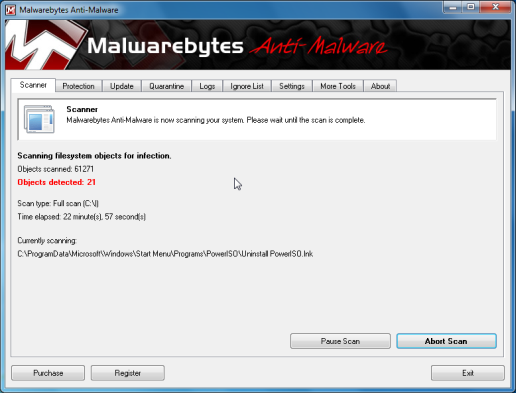
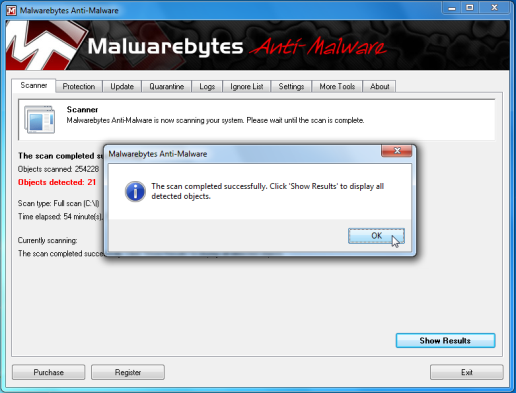
- When the Malwarebytes scan will be completed,click on Show Result.
- You will now be presented with a screen showing you the malware infections that Malwarebytes’ Anti-Malware has detected.Please note that the infections found may be different than what is shown in the image.Make sure that everything is Checked (ticked) and click on the Remove Selected button.
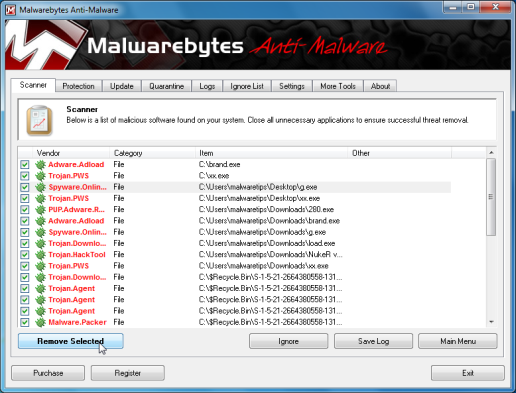
- After your computer will restart, open Malwarebytes Anti-Malware and perform a Full System scan to verify that there are no remaining threats
Run a computer scan with HitmanPro
- Download HitmanPro from the below link,then double click on it to start this program.
Download HitmanProOfficial Sophos download. Free scan, free 30-day trial to remove threats.
IF you are experiencing problems while trying to start HitmanPro, you can use the Force Breach mode.To start HitmanPro in Force Breach mode, hold down the left CTRL-key when you start HitmanPro and all non-essential processes are terminated, including the malware process. (How to start HitmanPro in Force Breach mode – Video) - HitmanPro will start and you’ll need to follow the prompts (by clicking on the Next button) to start a system scan with this program.
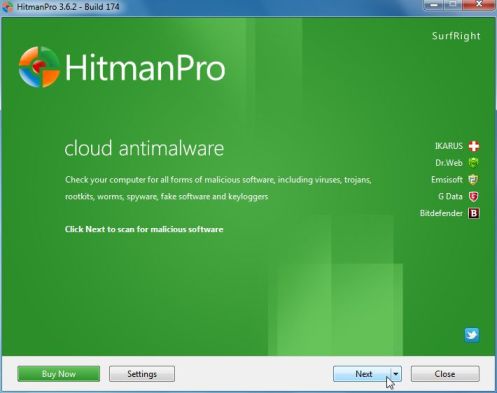
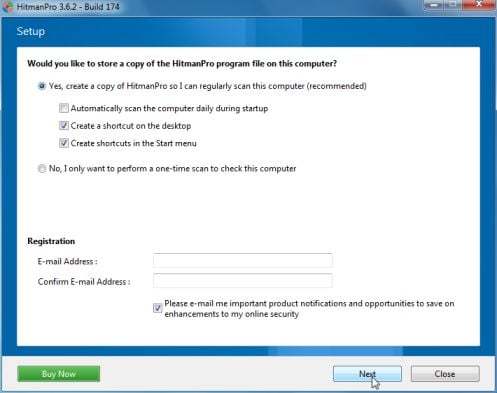
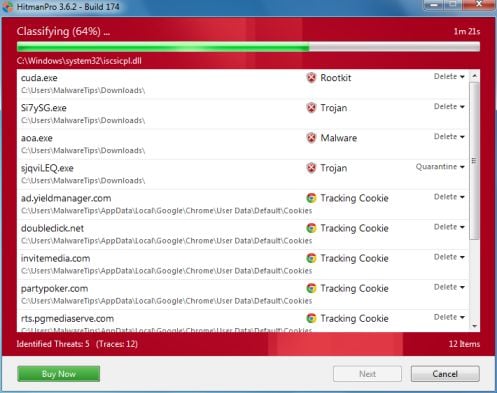
- HitmanPro will start scanning your computer for Polisen Enheten for databrot malicious files as seen in the image below.
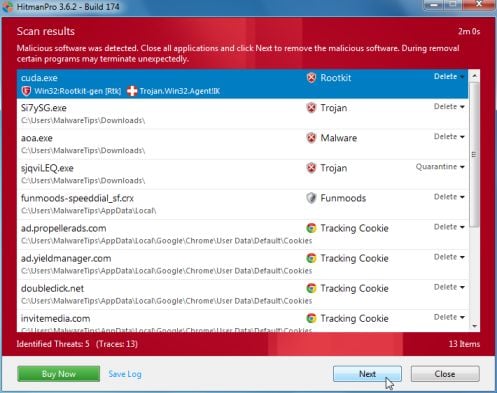
- Once the scan is complete,you’ll see a screen which will display all the infected files that this utility has detected, and you’ll need to click on Next to remove this malicious files.
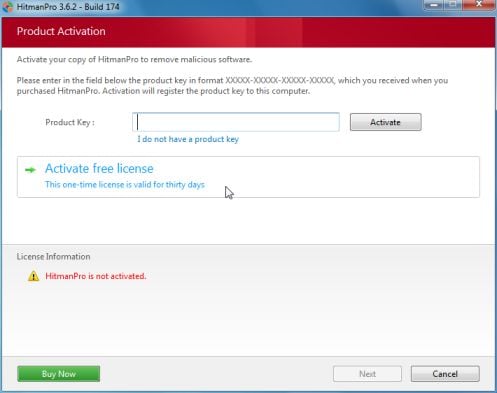
- Click Activate free license to start the free 30 days trial and remove all the malicious files from your computer.