

The internet has made our lives infinitely more convenient. We can now shop for almost anything online and have it delivered straight to our doorstep. But this convenience has also given rise to a new type of scam – fake delivery notifications.
Scammers are sending out text messages, emails and robocalls claiming to be from delivery companies like USPS, FedEx and UPS. The messages typically say that your package delivery has been delayed or unable to be delivered. You just need to click on a link or call a number to resolve the issue. Don’t fall for it! These are all scams aimed at stealing your money and personal information.
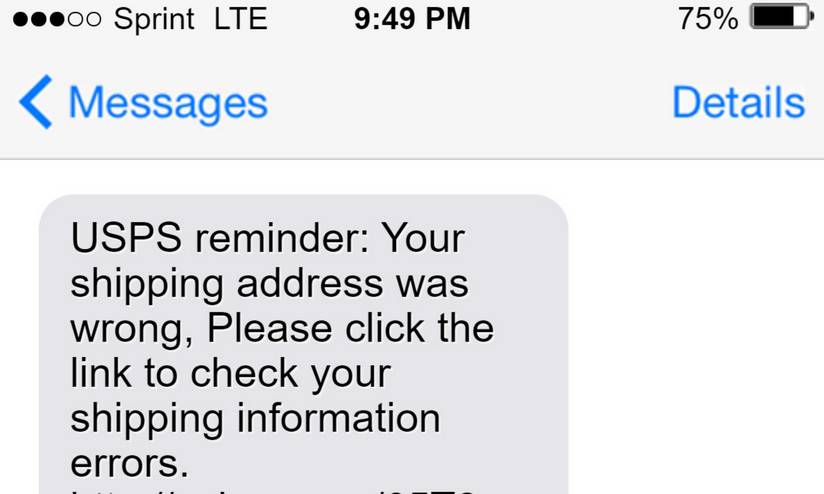
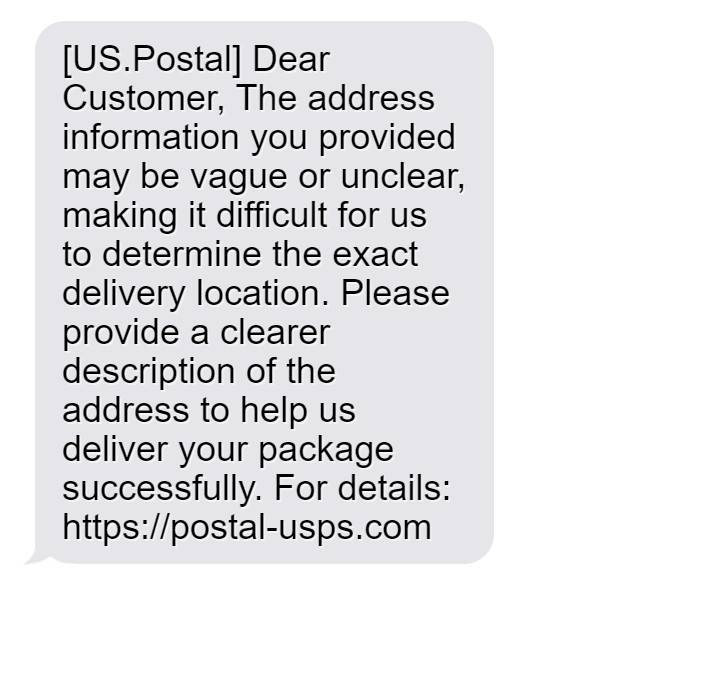
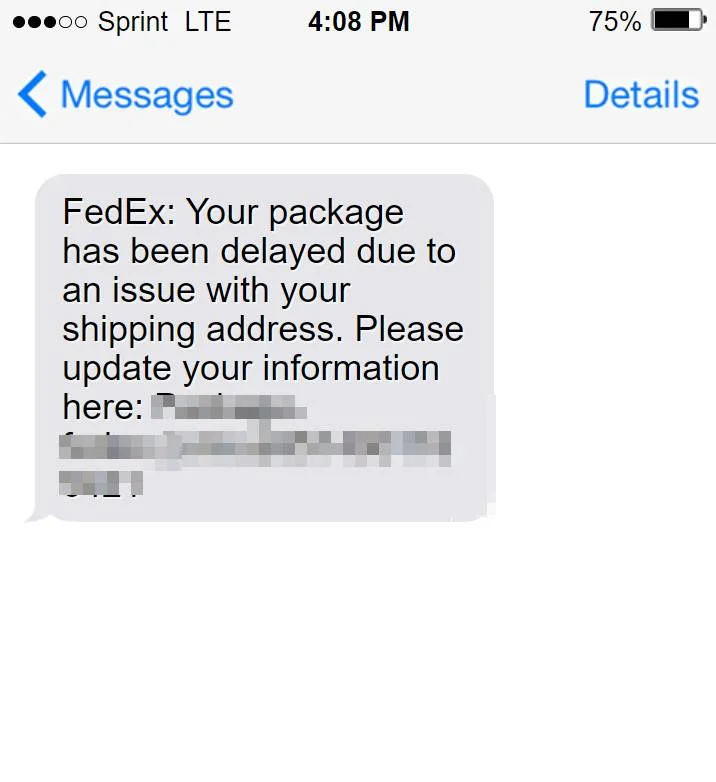
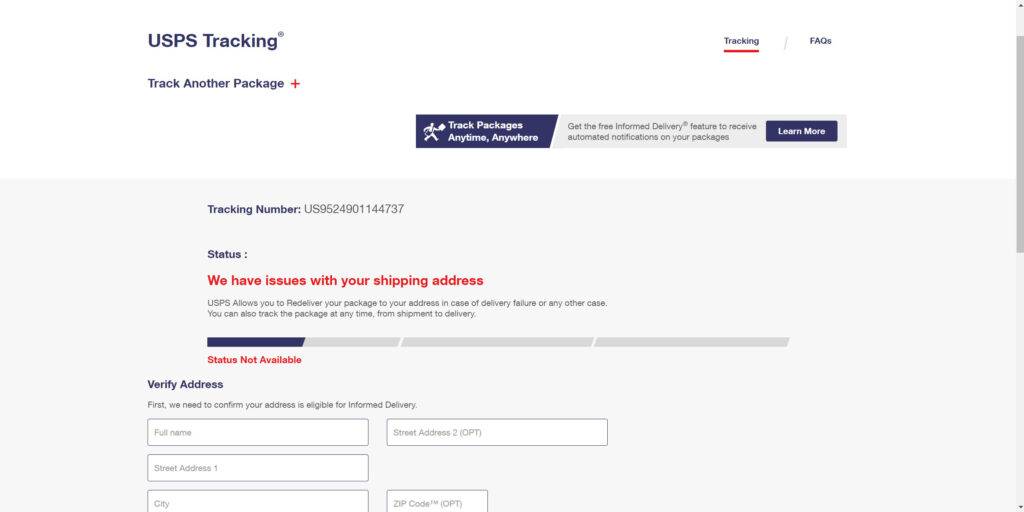
Overview of USPS, FedEx and UPS Delivery Scams
Delivery scams have become increasingly common in the past few years. According to the FTC, Americans lost more than $420 million to fake delivery scams in 2021 alone. This was a drastic increase from $57 million in 2020.
Scammers exploit the fact that more people are shopping online and expecting more packages to be delivered to their homes. The scams often start with an unexpected text, email, or robocall about an incoming or missed delivery.
The messages are made to look like they are from legitimate delivery companies like USPS, FedEx or UPS. They may use official logos and branding. The scammers will make up reasons why your package delivery has been delayed – incorrect address, unpaid shipping fees, you weren’t home to receive it, etc.
You’ll be asked to click on a link or call a number to correct the delivery problem. But the link leads to a phishing website designed to steal your personal information. And the phone number routes you to a scam call center.
If you comply with the scammer’s requests, you risk having your online accounts compromised. You may also have money stolen through payment scams or fake return shipping fees.
These types of scams skyrocketed during the pandemic when more people were stuck at home and relying on package deliveries. But they show no signs of slowing down. Everyone needs to be aware of how these delivery scams work so you can avoid being ripped off.
How the USPS, FedEx and UPS Delivery Scams Work
The scammers use clever psychological tricks and urgent calls to action to convince victims that their package delivery is at risk. Here are the typical steps of how these delivery scams unfold:
Step 1 – Initial Contact
The first contact comes via text, email, or robocall. The scammers make it seem like an official alert from USPS, FedEx or UPS by using:
- Realistic company branding and logos
- Working tracking numbers
- Spoofed sender addresses
The messages often have a sense of urgency to them:
- Your package delivery has been delayed
- There are unpaid shipping fees
- Your delivery address is incorrect
- You weren’t home to receive the package
You’re told to act quickly to avoid the delivery being sent back or the fees being charged to your account.
Step 2 – Directing You to a Website
If the initial contact was through email or text, the next step will be getting you to a fake website.
The messages will have a link for you to click on to supposedly resolve the delivery problem. The link may even use a real branded URL to seem even more convincing.
But the URL directs you to a phishing site that simply impersonates the real shipping company’s website. These sites are designed to steal your personal information and login credentials.
Step 3 – Gathering Your Information
Once you click the link, you’ll be taken to a website asking you to verify and update your delivery information. The scammers want to trick you into handing over details like:
- Full name
- Home address
- Phone number
- Email address
You may even be asked to create an account or log in with your shipping company credentials.
If you try to login with your real UPS MyChoice or FedEx account, the scammers will steal your username and password.
Step 4 – Payment Scam
In addition to stealing your personal information, the scammers also want to get your money.
The phishing site may claim you need to pay outstanding shipping fees or customs charges to get your package delivered. You’ll be directed to a payment page asking for your credit card number.
If you enter your real card information, the scammers can make fraudulent charges or steal your identity.
Step 5 – Spreading Malware
Some phishing sites are specifically designed to infect your device with malware. This can happen when you click on buttons or try downloading tracking information.
Rather than getting package tracking updates, the scammers try installing:
- Keylogger malware to record your keystrokes
- Ransomware to lock your files until you pay a ransom
- Info-stealing trojans to grab your sensitive data
- Botnet malware to enslave your device for cybercrime
The downloaded files appear to be tracking updates or delivery forms. But they contain malware payloads that infect as soon as you open them.
Step 6 – Fake Call Centers
If the initial contact was through a robocall, the scammers will try transferring you to a call center. You’ll speak to a real person who tries keeping you on the phone.
They’ll ask you to “verify” a lot of personal information so they can supposedly fix the delivery problem. The scammers pose as UPS, FedEx or USPS agents.
You may even be asked to pay customs fees or redelivery charges over the phone. The scammers will request payment through wire transfers, gift cards, PayPal, Venmo, etc.
If you comply, the “agents” simply pocket your money or steal your identity.
Step 7 – Account Lockouts
Once the scammers have your real shipping company username and password, they’ll try logging into your account. If it’s a UPS MyChoice account, they can change the delivery address on any incoming packages you have.
The scammers can then use stolen payment information to place fraudulent orders that get shipped to addresses under their control.
They may also constantly try guessing your username and password on the real FedEx or UPS site. If you haven’t changed your credentials, this could lead to your account being locked for security reasons.
This account lockout is an extra headache that prevents you from tracking your real packages or making delivery changes.
Examples of Delivery Scam Messages
Fake USPS Texts
“USPS: Your package XG44ZR9 with 1-day shipping has a shortage of funds and we were unable to deliver. Please pay $2.99 here to complete delivery: http://uspsdelivers.com/pay”
This text contains a fake tracking number and urgent request to pay additional funds through a phishing link. Real USPS would never text unsolicited payment links.
Fraudulent FedEx Emails
“FedEx Delivery Notification: We missed you at the time of delivering your package TX39201956. To reschedule delivery please click here right away: http://fedexhomedelivery.net/reschedule.php”
No legitimate FedEx emails would have you click links to external sites. Go directly to FedEx.com instead.
Suspicious UPS Voicemails
“This is Mike from UPS calling about your package scheduled for delivery today. We need you to call us immediately at 209-823-1949 to verify your shipping address or your package will be returned to the sender.”
UPS would never leave voicemails with urgent callbacks to unverified numbers. The threat of returning the package is a high-pressure tactic.
Bogus USPS Caller ID
An incoming call from 1-800-ASK-USPS displays on your caller ID. But answering it leads to an agent claiming you need to pay customs fees on a package.
Government agencies don’t make outgoing calls from their main customer service numbers like this. Hang up immediately.
These types of fake communications pressure urgency to trick users. But legitimate delivery services will only send tracking updates directly through your official account.
How to Spot Fake Delivery Scams
Scammers are constantly coming up with new tactics to make their USPS, FedEx and UPS scams look authentic. But there are ways to identify the red flags:
Inspect Email Sender Addresses
Email scams will try to spoof legitimate email addresses from delivery companies. The name may look real, but the actual address is fraudulent:
✖ support@uspsdelivery.co
✔ support@usps.com
Check that the domain name matches the real company website. Watch for extra words/characters being added to the domain.
Verify URLs in Links
Phishing links can hide fraudulent sites beneath seemingly real URLs. Hover over rather than click on links to inspect the actual destination:
Fake text: https://uspsdelivery.com/track/123456789
Real URL: https://scammerwebsite.co/malware.exe
A real USPS link would go to usps.com only.
Look For Missing Logos
Most scammer texts and emails lack the official company logos in the signature. But they rely on using the name to sound legit.
Real messages from UPS and FedEx will contain their recognizable branding. Know the logos so this missing detail raises suspicion.
Check for Odd File Formats
Attachments that claim to be delivery forms or tracking info may end in unusual formats like .exe, .js, or .tmp rather than .pdf.
Those are red flags for malware. Legitimate tracking forms/receipts would never be sent as anything but standard document file types.
Search For Your Tracking Number
Rather than clicking any provided tracking links, go directly to the delivery company’s website.
Enter the tracking number yourself to pull up the official details. Scammers often make up fake numbers that won’t work on real carrier sites.
Look Up Suspicious Numbers
Google any customer service numbers provided to you. Scammers use VOIP “burner” numbers that change constantly and leave no reviews.
The real USPS, UPS and FedEx have publicly listed customer service numbers online that route to their legitimate call centers.
Analyze Grammatical Errors
Scam messages often contain typos, awkward phrasing, or grammatical errors. The scammers usually don’t have a strong grasp of English.
Real corporations carefully proofread all customer-facing emails and texts. Mistakes like misspellings and syntax issues are glaring red flags.
Stay vigilant against any communications urging quick action to resolve a delivery problem. Verify the details through your real shipping account instead of trusting what scammers tell you. With practice, you can quickly identify the signs of a fake USPS, FedEx or UPS notification.
What to Do If You’re Targeted in a Delivery Scam
If you receive a suspicious text, email or call about an incoming USPS, FedEx or UPS delivery, here are important steps to take:
Don’t Click On Any Links
The links in the messages all go to fake, scam websites. Visiting these sites risks infecting your device and compromising your personal information.
Delete the message immediately without clicking on anything. Even just visiting the scam site can enable the scammers to plant trackers and malware on your device.
Don’t Call Back Any Phone Numbers
The robocall messages often provide a phone number for you to call back regarding the “delivery problem.” These numbers route through scam call centers.
If you call these numbers, the scammers on the other end will phish for your personal details and try charging you bogus fees.
Ignore the phone number and reported delivery issue. Hang up immediately if you answered a robocall.
Log Into Your Real Account
Go directly to the official USPS, FedEx or UPS website and log into your account. Don’t click any links in the suspicious messages.
Type the real website address directly into your browser – usps.com, fedex.com, ups.com.
See if there are any notifications about delivery delays or other issues with your packages. The scammers often make up fake problems that don’t actually exist.
Change Your Account Password
If the scammers now have your real shipping account login info, the first thing you should do is change your password.
Enable two-factor authentication if it’s available. This adds an extra security step to the login process.
Changing credentials will block the scammers from accessing your account and tracking your packages.
Review Your Bank Accounts
Check your latest bank and credit card statements for any fraudulent charges. The scammers may have tricked you into paying fake delivery or customs fees.
Look for small charges from unfamiliar companies. Contact your bank immediately to report any unauthorized transactions.
Cancel affected cards and request replacements. This will prevent future fraudulent charges.
Run Antivirus Software
If you clicked any links or downloaded suspicious files, scan your device with Malwarebytes. This will detect and remove any potential malware the scammers tried installing.
Antivirus scans can uncover keyloggers, trojans and other nasty infections designed to steal your data. Remove anything flagged to secure your device.
Contact Delivery Company
Notify the real USPS, FedEx or UPS about the scam messages you received. They may want to track down the scammer’s phone numbers, domains and email addresses.
This helps them block fraudulent sites and contacts misusing their branding.
You can also have any affected accounts monitored for suspicious login activity. Enable login approvals and alerts about profile changes.
Report Scam to Authorities
File a scam report with the FTC at ReportFraud.ftc.gov and submit a complaint to the FCC about illegal robocalls.
Provide details like the phone numbers, email addresses and screenshots of any scam messages. Reporting these delivery scams helps authorities pursue legal action against perpetrators.
Warn Contacts About Scam
Let your friends, family and colleagues know about the delivery scam going around. Message them not to click on sketchy texts/emails about USPS, FedEx or UPS problems.
Tell them to hang up on any related robocalls. This helps stop the scammers from spreading the scam further through your contacts.
Avoiding Delivery Scams in the Future
Fake USPS, FedEx and UPS alerts can be hard to identify, especially when scammers spoof legitimate phone numbers and branding. Use these precautions to protect yourself from future delivery scams:
- Never click on unsolicited links – Manually type real website URLs instead
- Don’t answer calls from unknown numbers
- Setup login approvals and account alerts
- Watch for unusual charges on financial statements
- Keep antivirus software updated on all devices
- Don’t overshare personal info on unverified websites
- Never pay unexpected fees over the phone
- Confirm delivery delays through official account notices
- Report any suspected scams to the delivery company
- Let your contacts know about ongoing delivery scams
Stay vigilant about checking text messages, emails and caller IDs for anything suspicious related to packages. If something seems off, play it safe by avoiding clicks, calls, payments or downloads. Notify the delivery company directly to verify if your shipments are actually impacted.
Is Your Device Infected? Run a Free Malware Scan
Slow performance, constant pop-ups, or strange behavior? These are classic signs of a malware infection. The fastest way to find out is to scan your device with Malwarebytes Free — one of the most trusted malware removal tools available.
The free version detects and removes the most common threats, including:
- Adware — the cause of those annoying pop-ups
- Browser hijackers — unwanted redirects and changed homepages
- Trojans and spyware — hidden programs stealing your data
- Potentially unwanted programs (PUPs) — software you never asked for
👉 Select your device below — Windows, Mac, or Android — then follow the simple steps to download Malwarebytes, scan your system, and remove any threats it finds. The scan usually takes 5 to 20 minutes.
Run a Malware Scan with Malwarebytes for Windows
Malwarebytes is one of the most popular and trusted anti-malware tools for Windows — and it’s completely free for removing infections. It catches threats that many antivirus programs miss, including adware, browser hijackers, and trojans. Follow the steps below to scan and clean your PC in just a few minutes.
Download Malwarebytes
Click the button below to download the latest version of Malwarebytes for Windows from the official source. The free version is all you need — it will scan your computer and remove adware, browser hijackers, and other malicious software at no cost.
Download MalwarebytesOfficial installer for Windows 11 and 10. Your download starts right away.Want real-time protection? See Malwarebytes Premium Malwarebytes Free for WindowsScans and removes malware at no cost
-
Install Malwarebytes
When the download finishes, open your Downloads folder and double-click the MBSetup file. If Windows shows a User Account Control pop-up, click “Yes” to allow the installation.

Follow the On-Screen Prompts to Install Malwarebytes
The setup wizard will walk you through a few quick screens:
-
Choose where you’re installing the program — “Personal Computer” or “Work Computer” — then click Next.

-
Malwarebytes will now install on your device. This usually takes under a minute.

-
When installation is complete, the “Welcome to Malwarebytes” screen will open automatically.

-
On the final screen, click Open Malwarebytes to launch the program.

-
Enable “Scan for Rootkits”
Before scanning, turn on rootkit detection so Malwarebytes can find even the most hidden threats. Click the Settings gear icon on the left side of the screen.

In the settings menu, find “Scan for rootkits” and click the toggle so it turns blue.

Done? Click “Dashboard” in the left pane to return to the main screen.
Start the Scan
Click the blue Scan button. Malwarebytes will automatically update its virus database and start checking your computer for malware.

-
Wait for the Scan to Finish
The scan checks your entire system for browser hijackers and other malicious programs, so it can take 5 to 20 minutes depending on your computer. Feel free to do something else — just check back occasionally to see the progress.

-
Quarantine the Detected Threats
When the scan is done, you’ll see a list of everything Malwarebytes found — malware, adware, and potentially unwanted programs. Click the “Quarantine” button to remove all of them at once.

Malwarebytes will now remove the malicious files and registry entries and move them safely into quarantine.

-
Restart Your Computer
Some threats can only be fully removed after a reboot. If Malwarebytes asks you to restart, click Yes. Once you’re logged back in, Malwarebytes has finished removing the threats it found.

That’s it — your Windows PC is now clean of trojans, adware, and other malware, and should be back to running smoothly.
If you are still having problems with your computer after completing these instructions, then please follow one of the steps:
- Run a computer scan with ESET Online Scanner
- Ask for help in our Windows Malware Removal Help & Support forum.
Run a Malware Scan with Malwarebytes for Mac
Malwarebytes for Mac is a free on-demand scanner that removes the malware other security software tends to miss — adware, browser hijackers, and unwanted programs included. Cleaning an infected Mac with Malwarebytes has always been completely free, and it’s our go-to recommendation. Follow the steps below to scan and clean your Mac in just a few minutes.
-
Download Malwarebytes for Mac
Click the button below to download the latest version of Malwarebytes for Mac.
Download MalwarebytesOfficial installer for macOS. Your download starts right away.Want real-time protection? See Malwarebytes PremiumMalwarebytes Free for MacScans and removes malware at no cost -
Open the Malwarebytes setup file
When the download finishes, open your Downloads folder and double-click the setup file to begin the installation.

-
Follow the On-Screen Prompts to Install Malwarebytes
The Malwarebytes for Mac Installer will guide you through a few quick screens. Click “Continue” and keep following the prompts until the installation completes.



When the installation is complete, Malwarebytes opens to the Welcome to Malwarebytes screen. Click “Get started“.
-
Select “Personal Computer” or “Work Computer”
Malwarebytes will ask what type of computer you’re installing it on. Click either Personal Computer or Work Computer, whichever applies.

-
Start the Scan
Click the “Scan” button. Malwarebytes will automatically update its detection database and begin checking your Mac for malware.

-
Wait for the Scan to Finish
Malwarebytes will scan your Mac for adware, browser hijackers, and other malicious programs. This can take a few minutes, so feel free to do something else — just check back occasionally to see the progress.

-
Quarantine the Detected Threats
When the scan is done, you’ll see a list of everything Malwarebytes found. Click the “Quarantine” button to remove all the threats at once.

-
Restart Your Mac
Malwarebytes will now remove all the malicious files it found. Some threats can only be fully removed after a reboot — if Malwarebytes asks you to restart, allow it. Once you’re logged back in, your Mac is clean.

That’s it — your Mac is now free of adware, rogue browser extensions, and other potentially harmful software.
If you are still experiencing problems while trying to remove a malicious program from your computer, please ask for help in our Mac Malware Removal Help & Support forum.
Run a Malware Scan with Malwarebytes for Android
Malwarebytes for Android automatically detects and removes dangerous threats like malware and ransomware so you don’t have to worry about your most-used device being compromised. Aggressive detection of adware and potentially unwanted programs keeps your Android phone or tablet running smooth.
-
Download Malwarebytes for Android.
You can download Malwarebytes for Android by clicking the link below.
Get Malwarebytes for AndroidOpens Google Play in a new tab.Want real-time protection? See Malwarebytes Premium for AndroidMalwarebytes for AndroidScans your phone and removes malware at no cost -
Install Malwarebytes for Android on your phone.
In the Google Play Store, tap “Install” to install Malwarebytes for Android on your device.

When the installation process has finished, tap “Open” to begin using Malwarebytes for Android. You can also open Malwarebytes by tapping on its icon in your phone menu or home screen.

-
Follow the on-screen prompts to complete the setup process
When Malwarebytes will open, you will see the Malwarebytes Setup Wizard which will guide you through a series of permissions and other setup options.
This is the first of two screens that explain the difference between the Premium and Free versions. Swipe this screen to continue.
Tap on “Got it” to proceed to the next step.
Malwarebytes for Android will now ask for a set of permissions that are required to scan your device and protect it from malware. Tap on “Give permission” to continue.
Tap on “Allow” to permit Malwarebytes to access the files on your phone.
-
Update database and run a scan with Malwarebytes for Android
You will now be prompted to update the Malwarebytes database and run a full system scan.

Click on “Update database” to update the Malwarebytes for Android definitions to the latest version, then click on “Run full scan” to perform a system scan.

-
Wait for the Malwarebytes scan to complete.
Malwarebytes will now start scanning your phone for adware and other malicious apps. This process can take a few minutes, so we suggest you do something else and periodically check on the status of the scan to see when it is finished.

-
Click on “Remove Selected”.
When the scan has been completed, you will be presented with a screen showing the malware infections that Malwarebytes for Android has detected. To remove the malicious apps that Malwarebytes has found, tap on the “Remove Selected” button.

-
Restart your phone.
Malwarebytes for Android will now remove all the malicious apps that it has found. To complete the malware removal process, Malwarebytes may ask you to restart your device.
That’s it — your Android phone is now clean — no more malicious apps, adware, or browser redirects.
If you are still having problems with your phone after completing these instructions, then please follow one of the steps:
- Restore your phone to factory settings by going to Settings > General management > Reset > Factory data reset.
- Ask for help in our Mobile Malware Removal Help & Support forum.
Stay Protected: Block Ads and Malicious Sites
Now that your device is clean, keep it that way. Most infections start with a malicious ad or a fake download button — so blocking them at the source is your best defense.
We recommend AdGuard, which blocks malicious ads, phishing pages, and dangerous redirects before they can reach you.
👉 Download AdGuard and browse safely
Frequently Asked Questions About Delivery Scams
What are some common signs of a delivery scam?
Watch out for unsolicited texts, emails, and calls claiming to be from USPS, FedEx, or UPS. They may report delivery problems and insist you click a link or call a number. Requests for personal info, account logins, or payments are red flags.
How do scammers send authentic-looking messages?
Scammers use a variety of tricks like spoofing real company phone numbers and logos. They buy lists of names/numbers and make messages seem personalized. Some even copy full email formatting to appear official.
What happens if I click on a link or call the number?
You’ll be directed to a phishing site or fraudulent call center to steal personal info and passwords. They may try installing malware or coercing payments for fake fees. Provide nothing to these scammers.
Can I tell if an email link is fake?
Hover over a link to see the underlying URL, which may route somewhere suspicious even if the link text looks legit. Also check the sender address for spoofing. Manually navigate to any company site.
How do I know if a charge is from scammers?
Check bank and credit card statements closely for small unauthorized charges, especially to unfamiliar companies. These can indicate a scammer made a transaction through a payment scam.
What if I gave the scammer my account password?
Immediately go to the real website and change your password. Enable two-factor authentication if possible for added security on your account going forward.
How can I tell if my device is infected with malware?
Run a scan with updated antivirus software to detect any malware like trojans, keyloggers or botnets. These types of infections are common if you downloaded any attachments from scammers.
What should I do if my delivery account is locked?
Contact UPS, FedEx or USPS directly through their official customer service lines about any account lockouts. Avoid numbers the scammers gave you. Reset your credentials through proper channels.
Who can I report delivery scams to?
File reports with the FTC, FCC and the real delivery companies involved. Provide any details that can help identify the scammers like phone numbers used. Warn contacts about current scams.
How can I protect myself from delivery scams?
Don’t click on random links or call unknown numbers. Update account passwords frequently. Check statements for odd charges. Keep antivirus software active. Verify any delivery issues through your official account.
Conclusion
Package delivery scams are on the rise as more consumers depend on services like USPS, FedEx and UPS. Scammers are sending fake texts, emails and making robocalls about delayed or undeliverable packages.
These messages instruct victims to click suspicious links or call fraudulent numbers to resolve made-up delivery snags. But the goal is stealing your money and personal data.
Avoid clicking on links or downloading attachments in any unexpected delivery alerts you receive. legit companies will never contact you this way to correct address issues or request payments.
Change your delivery account passwords if any are compromised by scammers. Scan your devices for malware and watch for unauthorized charges to your accounts. Report any scams you encounter to help cut down on these parasites exploiting our reliance on package shipments.
Stay skeptical of urgent calls to action regarding your deliveries, especially from out-of-the-blue contacts. By being vigilant against delivery scams, you can make sure your packages and information stay safe. Don’t let the convenience of online shopping put you at risk of becoming the next scam victim.

Join the discussion
0 commentsShare your experience or ask a question about this article.
Discussion
Start the conversation
Have a question or something useful to share? Add the first comment.