

A troubling new phishing scam has emerged that targets unsuspecting victims with USPS alerts about “incomplete address information” that prevents package delivery. This expansive guide will uncover everything you need to know about how this scam works, common tricks to watch for, and how to keep yourself protected.
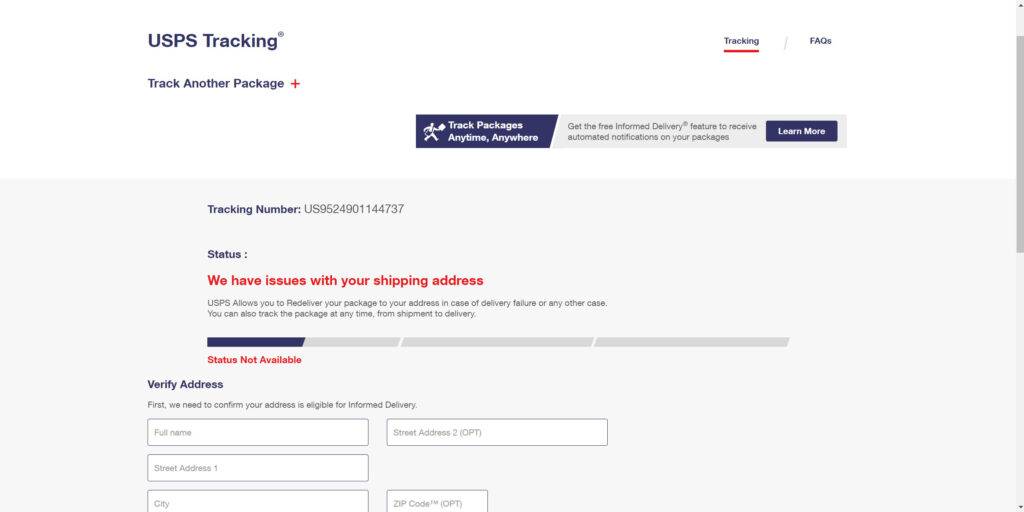
Overview of the Scam
This scam begins when a target receives an email, text message, or phone call pretending to originate from the United States Postal Service. The message claims that a package addressed to you has arrived at a warehouse, but cannot be delivered due to missing or incorrect address information.
You are urged to click on a link or call the provided number immediately to confirm your personal details so USPS can update their records and deliver your awaiting package. However, the link and number actually connect to a sophisticated fake USPS website and call center operated by scammers to steal your entered information.
Once scammers have your name, address, date of birth, social security number or other data, they use it to commit financial fraud in your name, steal your identity, or sell the information on the black market. This scam has already resulted in many reported cases of funds being stolen, accounts compromised, and severe identity theft issues.
How the Scam Works
This scam strategically manipulates victims through highly deceptive tactics. Here is an outline of how scammers carry out each stage of this scam:
Crafting Fraudulent Messages
The first step scammers take is creating fake USPS alerts informing recipients about an “incomplete address” issue preventing delivery. These messages closely impersonate real USPS communications related to seized items, unverified addresses, missing unit numbers, and other address problems.
The messages feature USPS branding and language. Email subjects state things like “Update Your Address,” “Incomplete Shipping Address,” or “Important Delivery Error.” Calls play a prerecorded voice citing the same address issue.
Including Fake Tracking Numbers
Some fraudulent messages include a fake but realistic-looking USPS tracking number that victims can enter on the USPS website, where it will appear as a real package in transit.
Seeing the tracking number generate results falsely convinces victims the alert is legitimate and they can trust clicking the provided link for resolution. However, the tracking numbers do not represent actual shipments.
Providing Urgent Call-to-Action
All fake notifications inform recipients they must click on a link or call a provided number urgently to confirm their personal details so their stuck package can be released for delivery.
The messages emphasize acting immediately, as delays could result in returned shipments, fines, or legal consequences. This pressures victims to comply without contemplating the validity.
Directing Victims to Fake USPS Sites and Numbers
The fraudulent messages provide clickable links and phone numbers that at first glance appear to route to the real USPS. However, the link goes to a fake copycat USPS website and the phone number connects to a scam USPS call center.
Both the fraudulent site and call center closely imitate the look, language, and experience of legitimate USPS interactions. But they are controlled by scammers to harvest personal information instead.
Collecting and Stealing Personal Details
Once directed to the phony USPS site or call center, victims are prompted to enter various personal details to “confirm their address.” Information collected includes full name, home address, date of birth, social security number, driver’s license details, phone number, and more.
Providing any of this data gives scammers the ability to steal identities, open illicit credit lines, access existing accounts, file false tax returns, and sell the details on the black market.
Spreading Malware and Spyware
In addition to harvesting directly entered data, some fake USPS sites also contain embedded malware that gets installed on a victim’s device if clicked.
This allows scammers to monitor activities on the device, record keystrokes to steal passwords, access files and cameras, take screenshots, and infect additional connected devices on the network.
Exploiting Stolen Identities
With the sensitive details acquired, scammers then engage in identity theft and financial fraud in victims’ names:
- Opening fraudulent credit cards and bank accounts
- Filing phony tax returns to collect refunds
- Accruing charges on existing accounts
- Taking out payday loans and maxing out credit lines
- Stealing retirement account funds
Victims can face devastated credit scores, drained bank balances, and a painful mess to prove their innocence as scammers wreck their identity.
Pursuing Secondary Scams and Fraud
Once scammed once, victims get added to “sucker lists” used by scammers to target individuals likely to fall for additional scams. Some examples include:
- Calls pretending to be USPS security asking for money or details to help stop ongoing identity theft that doesn’t actually exist.
- Scammers impersonate bank or credit card fraud investigation agents asking victims to verify transactions or move funds to safe accounts, allowing them to steal it.
- Offers to fully restore victims’ stolen identities or reimburse stolen funds for an advanced fee they pocket without rendering services.
These secondary scams lead to even more stolen money and traumatic stress for victims already dealing with the aftermath of initial fraud.
What to Do If You’re a Victim
If you entered any personal information, contact numbers, or account details into a deceptive USPS site or call center, take these steps immediately:
- Contact banks and card issuers to halt charges on accounts while monitoring for any suspicious transactions.
- Place 90-day fraud alerts on all credit files to make opening new fraudulent lines of credit harder.
- Change account passwords, and security questions, and enable two-factor authentication everywhere possible.
- File reports about the scam with the real USPS through their postal inspector website and with the FTC to aid investigations.
- Ignore any supposed offers of help recovering lost money or fixing your credit in exchange for payment – this always indicates more scams. Only work directly with real institutions on identity and credit restoration.
- If you suspect your device is infected with malware, you should run a scan with Malwarebytes Anti-Malware.
How to Spot This Scam
Though this scam can appear quite convincing on the surface, you can detect it through these warning signs:
- Urgent pleas regarding potential legal action or fines if you do not act quickly. Real USPS rarely resorts to these scare tactics.
- Requests to re-enter or “confirm” personal information USPS would never contact you for.
- Fake USPS sites that upon close inspection have subtle differences from the real USPS site, like incorrect logos, different formatting, misspelled words, etc.
- Scam sites lacking HTTPS protocol and without padlock security icons in the URL field.
- Emails/calls linking to mismatched domains outside of the official usps.com addresses.
- Follow-up contacts from supposed USPS agents requesting additional payments or details to help you.
How to Avoid This Scam
You can protect yourself from the “USPS Incomplete Address” scam using these key precautions:
- Never provide sensitive personal or financial data over unverified calls, emails, text messages, or websites.
- Independently confirm with USPS via official contact channels if any packages actually await you prior to taking action.
- Analyze all links closely before clicking by hovering over them first to preview destinations.
- Ensure sites have “HTTPS” protocol, valid security certificates, and request login before asking for info.
- Update antivirus software and firewalls to detect and block fraudulent sites trying to spread malware.
- Sign up for USPS scam email alerts to stay on top of the latest phishing techniques targeting customers.
- Never pay any money or fees to someone claiming they can recover stolen funds or restore your credit or identity.
Is Your Device Infected? Run a Free Malware Scan
Slow performance, constant pop-ups, or strange behavior? These are classic signs of a malware infection. The fastest way to find out is to scan your device with Malwarebytes Free — one of the most trusted malware removal tools available.
The free version detects and removes the most common threats, including:
- Adware — the cause of those annoying pop-ups
- Browser hijackers — unwanted redirects and changed homepages
- Trojans and spyware — hidden programs stealing your data
- Potentially unwanted programs (PUPs) — software you never asked for
👉 Select your device below — Windows, Mac, or Android — then follow the simple steps to download Malwarebytes, scan your system, and remove any threats it finds. The scan usually takes 5 to 20 minutes.
Run a Malware Scan with Malwarebytes for Windows
Malwarebytes is one of the most popular and trusted anti-malware tools for Windows — and it’s completely free for removing infections. It catches threats that many antivirus programs miss, including adware, browser hijackers, and trojans. Follow the steps below to scan and clean your PC in just a few minutes.
Download Malwarebytes
Click the button below to download the latest version of Malwarebytes for Windows from the official source. The free version is all you need — it will scan your computer and remove adware, browser hijackers, and other malicious software at no cost.
Download MalwarebytesOfficial installer for Windows 11 and 10. Your download starts right away.Want real-time protection? See Malwarebytes Premium Malwarebytes Free for WindowsScans and removes malware at no cost
-
Install Malwarebytes
When the download finishes, open your Downloads folder and double-click the MBSetup file. If Windows shows a User Account Control pop-up, click “Yes” to allow the installation.

Follow the On-Screen Prompts to Install Malwarebytes
The setup wizard will walk you through a few quick screens:
-
Choose where you’re installing the program — “Personal Computer” or “Work Computer” — then click Next.

-
Malwarebytes will now install on your device. This usually takes under a minute.

-
When installation is complete, the “Welcome to Malwarebytes” screen will open automatically.

-
On the final screen, click Open Malwarebytes to launch the program.

-
Enable “Scan for Rootkits”
Before scanning, turn on rootkit detection so Malwarebytes can find even the most hidden threats. Click the Settings gear icon on the left side of the screen.

In the settings menu, find “Scan for rootkits” and click the toggle so it turns blue.

Done? Click “Dashboard” in the left pane to return to the main screen.
Start the Scan
Click the blue Scan button. Malwarebytes will automatically update its virus database and start checking your computer for malware.

-
Wait for the Scan to Finish
The scan checks your entire system for browser hijackers and other malicious programs, so it can take 5 to 20 minutes depending on your computer. Feel free to do something else — just check back occasionally to see the progress.

-
Quarantine the Detected Threats
When the scan is done, you’ll see a list of everything Malwarebytes found — malware, adware, and potentially unwanted programs. Click the “Quarantine” button to remove all of them at once.

Malwarebytes will now remove the malicious files and registry entries and move them safely into quarantine.

-
Restart Your Computer
Some threats can only be fully removed after a reboot. If Malwarebytes asks you to restart, click Yes. Once you’re logged back in, Malwarebytes has finished removing the threats it found.

That’s it — your Windows PC is now clean of trojans, adware, and other malware, and should be back to running smoothly.
If you are still having problems with your computer after completing these instructions, then please follow one of the steps:
- Run a computer scan with ESET Online Scanner
- Ask for help in our Windows Malware Removal Help & Support forum.
Run a Malware Scan with Malwarebytes for Mac
Malwarebytes for Mac is a free on-demand scanner that removes the malware other security software tends to miss — adware, browser hijackers, and unwanted programs included. Cleaning an infected Mac with Malwarebytes has always been completely free, and it’s our go-to recommendation. Follow the steps below to scan and clean your Mac in just a few minutes.
-
Download Malwarebytes for Mac
Click the button below to download the latest version of Malwarebytes for Mac.
Download MalwarebytesOfficial installer for macOS. Your download starts right away.Want real-time protection? See Malwarebytes PremiumMalwarebytes Free for MacScans and removes malware at no cost -
Open the Malwarebytes setup file
When the download finishes, open your Downloads folder and double-click the setup file to begin the installation.

-
Follow the On-Screen Prompts to Install Malwarebytes
The Malwarebytes for Mac Installer will guide you through a few quick screens. Click “Continue” and keep following the prompts until the installation completes.



When the installation is complete, Malwarebytes opens to the Welcome to Malwarebytes screen. Click “Get started“.
-
Select “Personal Computer” or “Work Computer”
Malwarebytes will ask what type of computer you’re installing it on. Click either Personal Computer or Work Computer, whichever applies.

-
Start the Scan
Click the “Scan” button. Malwarebytes will automatically update its detection database and begin checking your Mac for malware.

-
Wait for the Scan to Finish
Malwarebytes will scan your Mac for adware, browser hijackers, and other malicious programs. This can take a few minutes, so feel free to do something else — just check back occasionally to see the progress.

-
Quarantine the Detected Threats
When the scan is done, you’ll see a list of everything Malwarebytes found. Click the “Quarantine” button to remove all the threats at once.

-
Restart Your Mac
Malwarebytes will now remove all the malicious files it found. Some threats can only be fully removed after a reboot — if Malwarebytes asks you to restart, allow it. Once you’re logged back in, your Mac is clean.

That’s it — your Mac is now free of adware, rogue browser extensions, and other potentially harmful software.
If you are still experiencing problems while trying to remove a malicious program from your computer, please ask for help in our Mac Malware Removal Help & Support forum.
Run a Malware Scan with Malwarebytes for Android
Malwarebytes for Android automatically detects and removes dangerous threats like malware and ransomware so you don’t have to worry about your most-used device being compromised. Aggressive detection of adware and potentially unwanted programs keeps your Android phone or tablet running smooth.
-
Download Malwarebytes for Android.
You can download Malwarebytes for Android by clicking the link below.
Get Malwarebytes for AndroidOpens Google Play in a new tab.Want real-time protection? See Malwarebytes Premium for AndroidMalwarebytes for AndroidScans your phone and removes malware at no cost -
Install Malwarebytes for Android on your phone.
In the Google Play Store, tap “Install” to install Malwarebytes for Android on your device.

When the installation process has finished, tap “Open” to begin using Malwarebytes for Android. You can also open Malwarebytes by tapping on its icon in your phone menu or home screen.

-
Follow the on-screen prompts to complete the setup process
When Malwarebytes will open, you will see the Malwarebytes Setup Wizard which will guide you through a series of permissions and other setup options.
This is the first of two screens that explain the difference between the Premium and Free versions. Swipe this screen to continue.
Tap on “Got it” to proceed to the next step.
Malwarebytes for Android will now ask for a set of permissions that are required to scan your device and protect it from malware. Tap on “Give permission” to continue.
Tap on “Allow” to permit Malwarebytes to access the files on your phone.
-
Update database and run a scan with Malwarebytes for Android
You will now be prompted to update the Malwarebytes database and run a full system scan.

Click on “Update database” to update the Malwarebytes for Android definitions to the latest version, then click on “Run full scan” to perform a system scan.

-
Wait for the Malwarebytes scan to complete.
Malwarebytes will now start scanning your phone for adware and other malicious apps. This process can take a few minutes, so we suggest you do something else and periodically check on the status of the scan to see when it is finished.

-
Click on “Remove Selected”.
When the scan has been completed, you will be presented with a screen showing the malware infections that Malwarebytes for Android has detected. To remove the malicious apps that Malwarebytes has found, tap on the “Remove Selected” button.

-
Restart your phone.
Malwarebytes for Android will now remove all the malicious apps that it has found. To complete the malware removal process, Malwarebytes may ask you to restart your device.
That’s it — your Android phone is now clean — no more malicious apps, adware, or browser redirects.
If you are still having problems with your phone after completing these instructions, then please follow one of the steps:
- Restore your phone to factory settings by going to Settings > General management > Reset > Factory data reset.
- Ask for help in our Mobile Malware Removal Help & Support forum.
Stay Protected: Block Ads and Malicious Sites
Now that your device is clean, keep it that way. Most infections start with a malicious ad or a fake download button — so blocking them at the source is your best defense.
We recommend AdGuard, which blocks malicious ads, phishing pages, and dangerous redirects before they can reach you.
👉 Download AdGuard and browse safely
Frequently Asked Questions
For additional information regarding the fake USPS “Incomplete Address” scam, read through these FAQs:
How are scammers able to spoof USPS phone numbers on caller IDs?
Scammers leverage technical tricks to manipulate caller IDs to display numbers that appear to match legitimate USPS customer service lines, even when they do not actually originate from those locations. Always find official numbers yourself rather than calling back missed calls alone.
What techniques do scammers use in phone calls?
Calls will feature prerecorded voices or messages urgently citing the need to confirm your address. Scammers leverage authority and intimidation over the phone to try to coerce you into complying. Repeated calls from separate numbers may happen if you do not initially engage.
What is a telltale sign of a scam website?
Fake sites almost always request personal details upfront before allowing account access. On real sites, you can login to your private account first before entering any info. Phishing sites skip this crucial identity verification step.
Can malware infect Macs or mobile devices too?
Yes, malicious scripts can infect any device or operating system if directed to fraudulent sites harboring malware, not just Windows PCs. Always be vigilant when clicking URLs and keep all your software patched and antivirus programs updated.
If my data was stolen, how long until it is used for fraud?
Stolen information can be sold on black markets immediately but may also be kept for months or even years before use. Scammers let time pass for victims to lower their guard before deploying the details. You need to monitor closely across all accounts consistently once scammed.
Are these scammers typically located overseas?
Yes, most of these sorts of phishing operations and scam call centers originate overseas, often from regions in Africa, Asia, and Eastern Europe. They can use proxy tools to mask their real locations and identities. This makes the scammers harder to trace and prosecute.
In Conclusion
This USPS scam leverages familiarity with legitimate package tracking and address verification processes to lower defenses and trick customers into providing valuable personal data. However, being informed on the common tricks and tactics these scammers use makes it much simpler to detect fraudulent USPS communications. Scrutinize notifications thoroughly, and never provide information without verifying legitimacy first through independent contact. Practicing caution protects you from having your identity and finances stolen through this scam.








