The United States Postal Service (USPS) has become a commonly impersonated government agency by scammers carrying out phishing attacks through email, text messages, and phone calls. These fraudulent messages often claim there is an issue with a package delivery or the victim’s USPS account in order to trick recipients into providing sensitive information or payments.
This article will break down how the fake USPS scams work, what techniques are used, how to identify fraudulent messages, and what steps to take if you fall victim to one of these prevalent schemes. After reading, you’ll have the knowledge needed to avoid having your personal data or money stolen by USPS impersonation scams.
How Fake USPS Scams Work
The majority of fake USPS communications follow similar patterns in their attempts to dupe recipients:
Email Scams
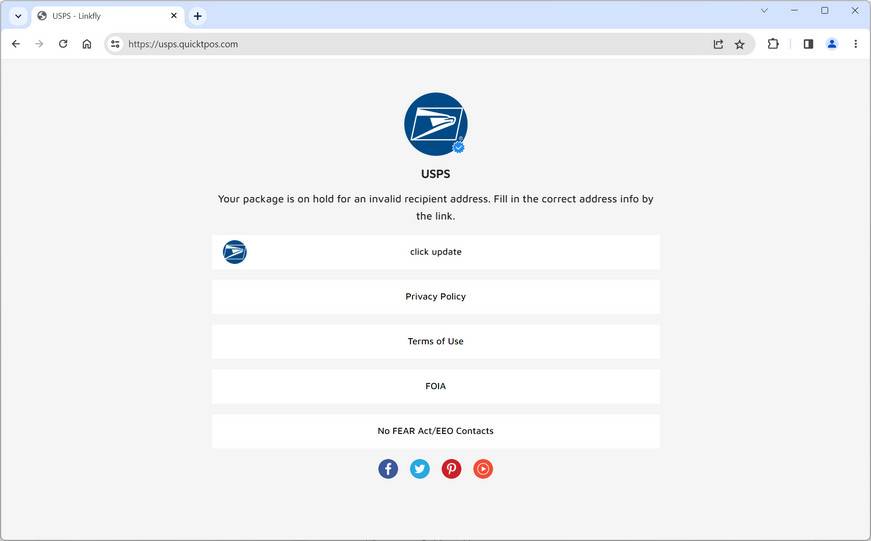
Claims of undelivered packages that require the victim to click a link or open an attachment to resolve the issue. The link leads to a phishing site requesting personal info, while the attachment contains malware.
Messages stating the USPS account will be suspended unless the victim updates or verifies their account details through the provided link. The site is fake with the purpose of stealing information.
Emails with a fake USPS receipt for a purchased product, shipping label, or postal money order attached. The file contains malware that infects devices once downloaded.
Text Message Scams
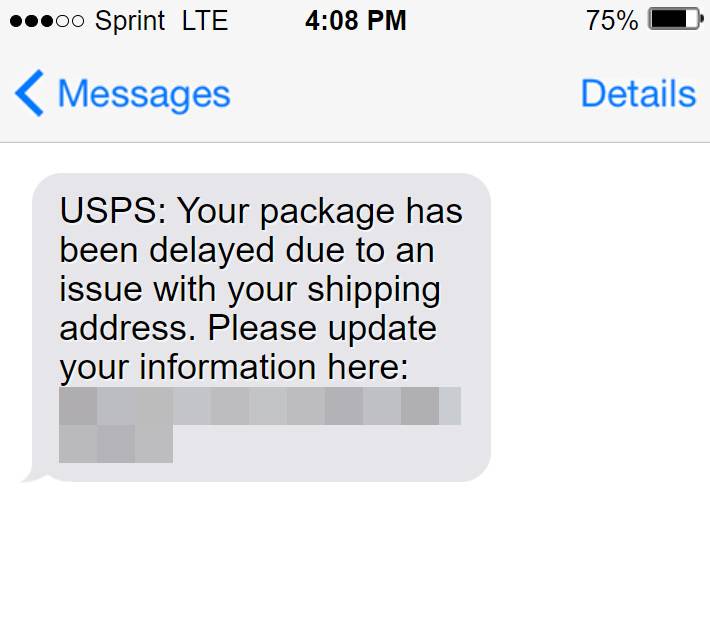
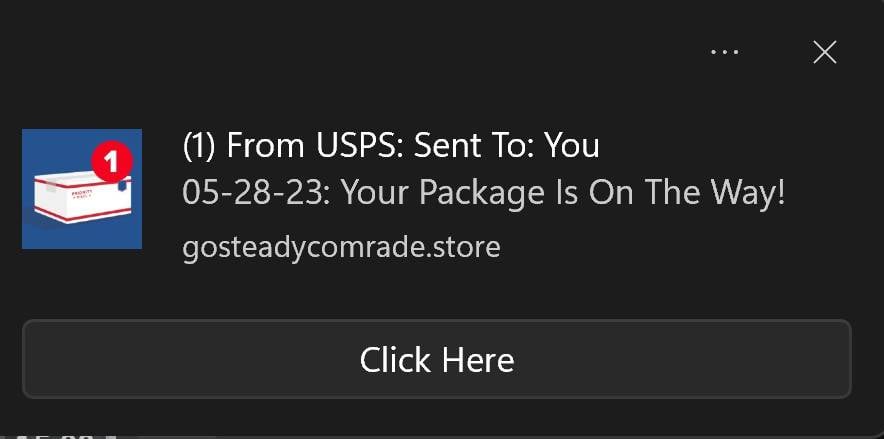
Texts alerting the victim of a missed, undeliverable, or inaccurate delivery. It provides a phony case number and USPS link to update delivery preferences or shipping addresses. The site steals data entered.
Messages requesting the recipient pay a small “redelivery fee” to have a missed package sent again. This is done by clicking a link to a fake payments page that steals financial information.
Texts stating tracking information has been updated and encourages the victim to click a link to view the latest details. The link goes to a phishing site designed to compromise account logins and passwords.
Phone Call Scams
Calls from scammers impersonating USPS agents claiming you have fraudulent packages being shipped in your name. They request personal information to rectify the situation.
Automated calls urging you to “Press 1” regarding issues with deliveries or tracking numbers. This routes you to a scammer requesting you pay a fee or hand over account details to fix the problem.
No matter whether the scam comes through email, text message, phone call, or other communication medium, the end goal of each fraudulent USPS-themed phishing attempt is to steal personal data, account login credentials, financial information, or money from victims who are tricked into believing the messages originate from the real United States Postal Service.
The scammers utilize social engineering tactics and technical deception techniques to manipulate innocent recipients into either directly providing their sensitive personal or financial information, unwittingly downloading malware onto their devices, or transferring funds to the criminals under false pretenses.
By presenting the scam messages as urgent notices from a trusted government agency that most Americans regularly interact with, the scammers increase their chances of deceiving victims into handing over the keys to their identities, online accounts, or bank accounts – allowing the fraudsters to potentially make off with the person’s good name, hard-earned money, or reputation.
How to Identify Fake USPS Messages
While scam emails, text messages, and calls often look convincing, there are telltale signs that can help you determine their fraudulent nature:
Grammatical/spelling errors – Legitimate agencies carefully proofread communication. Errors signal an amateur scammer.
Threats of account suspension – The USPS will not suspend accounts without prior official notices. Threats out of the blue are manipulation tactics.
Requests for sensitive info – The USPS does not request personal details like social security numbers or banking information to resolve delivery issues.
Links to non-USPS sites – Hover over and examine any links closely. Scammers often use lookalike URLs.
Spoofed phone numbers/email addresses – Caller IDs and sender addresses can be faked. Verify the contact info is from official USPS domains.
Requests for payment – No government agency demands direct payment via pop-ups, links, prepaid cards, etc. This is a sign of fraud.
Strange attachments – The USPS does not send postal receipts or labels via email attachments. Opening them could infect your device.
Poor grammar/formatting – Low-quality writing and email/text formatting errors demonstrate a scam.
Questions personal info – USPS may verify identities, but will not cold call/email requesting in-depth personal or financial details.
Threatening urgency – Scammers often rush and scare recipients into immediate action. Remain calm and cautious of demands, threats, or pressure.
Paying close attention to these red flags when reviewing any supposed USPS communication can help reveal whether it is legitimate or a scam attempt. If in doubt, reach out directly to the USPS for verification.
What to Do if You Receive a Fake USPS Message
If you get a suspicious email, text, call, or other communication claiming to be from the USPS, take the following steps:
Do not click links or attachments – This could lead to malware or phishing sites designed to steal information.
Do not provide information – Whether over the phone, email, text, or otherwise, do not hand over any sensitive personal, financial, or account details.
Do not pay any requested fees – USPS will never request payments out of the blue to redeliver packages or unlock accounts.
Forward phishing emails – Forward scam USPS emails to spam@uspis.gov and reportphishing@antiphishing.org to help combat them.
Mark text scams “Spam” – On your phone, mark fraudulent texts as “Spam” to block future texts from the sender.
Hang up on callers – It’s safest to hang up immediately on any questionable calls stating they are from the USPS.
Contact USPS – Reach out to the official USPS customer service at 1-800-ASK-USPS (1-800-275-8777) to report the scam attempt and verify any actual issues.
Update account passwords – If the scam involves your USPS account in any way, change your password as a precaution.
Alerting the proper authorities can help curb these scams and prevent others from falling victim.
What to Do If You Already Shared Information
If you provided sensitive information, clicked links/attachments, or paid money to a scam USPS message, take the following steps right away:
Contact banks/credit card companies – Alert your financial institutions to closely monitor your accounts for any fraudulent charges or activity. Consider requesting new cards.
Run anti-malware scans – If you clicked an attachment or link, scan all your devices with updated antivirus/malware software to check for infections.
Change all passwords – Update passwords on your USPS account, email accounts, and any other accounts for which information was compromised. Enable two-factor authentication when possible.
Place fraud alerts – Contact one of the three credit bureaus to request free 90-day fraud alerts on your credit files to help prevent identity theft risks.
Monitor credit reports – Keep an eye on your credit reports for any suspicious accounts or activities that could indicate identity theft. Dispute anything fraudulent.
File an FTC complaint – Formally report the scam by filing a complaint with the Federal Trade Commission at https://reportfraud.ftc.gov.
Local authorities – You can also file a report with your local police department to create a paper trail regarding theft of personal information or money.
USPS Inspector General – Report the fraud attempt to the USPS Inspector General at https://www.uspsoig.gov/form/file-online-complaint to aid investigations.
The faster you act, the better chance you have of limiting damages from any stolen personal data, financial fraud, or device infections that may have occurred. Don’t let embarrassment or fear about falling for a scam prevent you from taking action to protect yourself!
Is Your Device Infected? Scan for Malware
If your computer or phone is slow, showing unwanted pop-ups, or acting strangely, malware could be the cause. Running a scan with Malwarebytes Anti-Malware Free is one of the most reliable ways to detect and remove harmful software. The free version can identify and clean common infections such as adware, browser hijackers, trojans, and other unwanted programs.
Malwarebytes works on Windows, Mac, and Android devices. Choose your operating system below and follow the steps to scan your device and remove any malware that might be slowing it down.
Malwarebytes for WindowsMalwarebytes for MacMalwarebytes for Android
Run a Malware Scan with Malwarebytes for Windows
Malwarebytes stands out as one of the leading and widely-used anti-malware solutions for Windows, and for good reason. It effectively eradicates various types of malware that other programs often overlook, all at no cost to you. When it comes to disinfecting an infected device, Malwarebytes has consistently been a free and indispensable tool in the battle against malware. We highly recommend it for maintaining a clean and secure system.
Download Malwarebytes
Download the latest version of Malwarebytes for Windows using the official link below. Malwarebytes will scan your computer and remove adware, browser hijackers, and other malicious software for free.
(The above link will open a new page from where you can download Malwarebytes)
Install Malwarebytes
After the download is complete, locate the MBSetup file, typically found in your Downloads folder. Double-click on the MBSetup file to begin the installation of Malwarebytes on your computer. If a User Account Control pop-up appears, click “Yes” to continue the Malwarebytes installation.
Follow the On-Screen Prompts to Install Malwarebytes
When the Malwarebytes installation begins, the setup wizard will guide you through the process.
You’ll first be prompted to choose the type of computer you’re installing the program on—select either “Personal Computer” or “Work Computer” as appropriate, then click on Next.
Malwarebytes will now begin the installation process on your device.
When the Malwarebytes installation is complete, the program will automatically open to the “Welcome to Malwarebytes” screen.
On the final screen, simply click on the Open Malwarebytes option to start the program.
Enable “Rootkit scanning”.
Malwarebytes Anti-Malware will now start, and you will see the main screen as shown below. To maximize Malwarebytes’ ability to detect malware and unwanted programs, we need to enable rootkit scanning. Click on the “Settings” gear icon located on the left of the screen to access the general settings section.
In the settings menu, enable the “Scan for rootkits” option by clicking the toggle switch until it turns blue.
Now that you have enabled rootkit scanning, click on the “Dashboard” button in the left pane to get back to the main screen.
Perform a Scan with Malwarebytes.
To start a scan, click the Scan button. Malwarebytes will automatically update its antivirus database and begin scanning your computer for malicious programs.
Wait for the Malwarebytes scan to complete.
Malwarebytes will now scan your computer for browser hijackers and other malicious programs. This process can take a few minutes, so we suggest you do something else and periodically check the status of the scan to see when it is finished.
Quarantine detected malware
Once the Malwarebytes scan is complete, it will display a list of detected malware, adware, and potentially unwanted programs. To effectively remove these threats, click the “Quarantine” button.
Malwarebytes will now delete all of the files and registry keys and add them to the program’s quarantine.
Restart your computer.
When removing files, Malwarebytes may require a reboot to fully eliminate some threats. If you see a message indicating that a reboot is needed, please allow it. Once your computer has restarted and you are logged back in, you can continue with the remaining steps.
Once the scan completes, remove all detected threats. Your Windows computer should now be clean and running smoothly again, free of trojans, adware, and other malware.
If your current antivirus allowed this malicious program on your computer, you may want to consider purchasing Malwarebytes Premium to protect against these types of threats in the future. If you are still having problems with your computer after completing these instructions, then please follow one of the steps:
Malwarebytes for Mac is an on-demand scanner that can destroy many types of malware that other software tends to miss without costing you absolutely anything. When it comes to cleaning up an infected device, Malwarebytes has always been free, and we recommend it as an essential tool in the fight against malware.
Download Malwarebytes for Mac.
You can download Malwarebytes for Mac by clicking the link below.
When Malwarebytes has finished downloading, double-click on the setup file to install Malwarebytes on your computer. In most cases, downloaded files are saved to the Downloads folder.
Follow the on-screen prompts to install Malwarebytes.
When the Malwarebytes installation begins, you will see the Malwarebytes for Mac Installer which will guide you through the installation process. Click “Continue“, then keep following the prompts to continue with the installation process.
When your Malwarebytes installation completes, the program opens to the Welcome to Malwarebytes screen. Click the “Get started” button.
Select “Personal Computer” or “Work Computer”.
The Malwarebytes Welcome screen will first ask you what type of computer are you installing this program, click either Personal Computer or Work Computer.
Click on “Scan”.
To scan your computer with Malwarebytes, click on the “Scan” button. Malwarebytes for Mac will automatically update the antivirus database and start scanning your computer for malware.
Wait for the Malwarebytes scan to complete.
Malwarebytes will scan your computer for adware, browser hijackers, and other malicious programs. This process can take a few minutes, so we suggest you do something else and periodically check on the status of the scan to see when it is finished.
Click on “Quarantine”.
When the scan has been completed, you will be presented with a screen showing the malware infections that Malwarebytes has detected. To remove the malware that Malwarebytes has found, click on the “Quarantine” button.
Restart computer.
Malwarebytes will now remove all the malicious files that it has found. To complete the malware removal process, Malwarebytes may ask you to restart your computer.
After scanning, delete any detected threats. Your Mac should now be free from adware, unwanted extensions, and other potentially harmful software.
If your current antivirus allowed a malicious program on your computer, you might want to consider purchasing the full-featured version of Malwarebytes Anti-Malware to protect against these types of threats in the future. If you are still experiencing problems while trying to remove a malicious program from your computer, please ask for help in our Mac Malware Removal Help & Support forum.
Run a Malware Scan with Malwarebytes for Android
Malwarebytes for Android automatically detects and removes dangerous threats like malware and ransomware so you don’t have to worry about your most-used device being compromised. Aggressive detection of adware and potentially unwanted programs keeps your Android phone or tablet running smooth.
Download Malwarebytes for Android.
You can download Malwarebytes for Android by clicking the link below.
In the Google Play Store, tap “Install” to install Malwarebytes for Android on your device.
When the installation process has finished, tap “Open” to begin using Malwarebytes for Android. You can also open Malwarebytes by tapping on its icon in your phone menu or home screen.
Follow the on-screen prompts to complete the setup process
When Malwarebytes will open, you will see the Malwarebytes Setup Wizard which will guide you through a series of permissions and other setup options. This is the first of two screens that explain the difference between the Premium and Free versions. Swipe this screen to continue. Tap on “Got it” to proceed to the next step. Malwarebytes for Android will now ask for a set of permissions that are required to scan your device and protect it from malware. Tap on “Give permission” to continue. Tap on “Allow” to permit Malwarebytes to access the files on your phone.
Update database and run a scan with Malwarebytes for Android
You will now be prompted to update the Malwarebytes database and run a full system scan.
Click on “Update database” to update the Malwarebytes for Android definitions to the latest version, then click on “Run full scan” to perform a system scan.
Wait for the Malwarebytes scan to complete.
Malwarebytes will now start scanning your phone for adware and other malicious apps. This process can take a few minutes, so we suggest you do something else and periodically check on the status of the scan to see when it is finished.
Click on “Remove Selected”.
When the scan has been completed, you will be presented with a screen showing the malware infections that Malwarebytes for Android has detected. To remove the malicious apps that Malwarebytes has found, tap on the “Remove Selected” button.
Restart your phone.
Malwarebytes for Android will now remove all the malicious apps that it has found. To complete the malware removal process, Malwarebytes may ask you to restart your device.
When the scan is finished, remove all detected threats. Your Android phone should now be free of malicious apps, adware, and unwanted browser redirects.
If your current antivirus allowed a malicious app on your phone, you may want to consider purchasing the full-featured version of Malwarebytes to protect against these types of threats in the future. If you are still having problems with your phone after completing these instructions, then please follow one of the steps:
Restore your phone to factory settings by going to Settings > General management > Reset > Factory data reset.
After cleaning your device, it’s important to protect it from future infections and annoying pop-ups. We recommend installing an ad blocker such as AdGuard. AdGuard blocks malicious ads, prevents phishing attempts, and stops dangerous redirects, helping you stay safe while browsing online.
Why USPS Scams Are So Deceptive
There are several key reasons why scammers have success deceiving victims with USPS impersonation scams:
People expect packages – With frequent online shopping and mail order prescriptions, people anticipate deliveries, making scams about shipping issues more plausible.
USPS is familiar – The USPS is a well-known government agency most Americans interact with, so they trust communication seemingly from them.
Scares recipients – The threats of account suspension, missed deliveries, or identity theft incite fear that spurs victims into providing information.
LOOKS official – Email headers, phone numbers, and message formats are spoofed to appear nearly identical to legitimate USPS communication.
Rewards curiosity – Clickbait subject lines and fake tracking details pique people’s curiosity to open messages and click links they normally wouldn’t.
Preys on concern – Scammers know people want to quickly resolve delivery problems, so they pretend to offer help.
Understanding these psychological tactics can help you recognize when communication aims to manipulate rather than assist. Remember, any legitimate delivery issues can be resolved by directly contacting USPS customer service – not through unsolicited messages.
Tips to Identify and Avoid Government Agency Scams
While USPS scams are rampant, fraudsters also impersonate other government groups like FBI, IRS, SSA, and more. Here are tips to avoid scams posing as government organizations:
Verify strange requests – Agencies won’t threaten, rush, or pressure you. Double check any unusual requests by contacting the organization directly.
Know how agencies communicate – Familiarize yourself with how different groups contact the public to recognize when something is off.
Do not click links – Government emails with links or asking you to visit sites should be ignored. Manually type known URLs instead.
Check for spoofing – Caller IDs, email addresses, and websites can be faked. Carefully examine and verify the contact info provided.
Avoid revealing personal details – Do not hand over sensitive info like Social Security numbers or bank details to any unsolicited caller or email.
Be wary of threats – Scammers use threatening urgency to blindside victims. No government agency will threaten you outright or make demands immediately.
Equipping yourself with knowledge of how legitimate government groups operate makes it far easier to discern scam attempts aiming to deceive you.
Conclusion
Fake emails, text messages, calls, and other communications impersonating the USPS remain highly prevalent. But understanding common scam techniques, urgent demands for personal details or payments, and threats of account suspension makes it possible to recognize and report fraudulent activity. Contacting USPS to confirm legitimacy before taking action on anything suspicious can help avoid falling victim.
While scammers become increasingly sophisticated in spoofing identities, awareness of the key signs of phishing attempts can keep your information safe. Never hesitate to reach out to official customer support numbers found on government websites if you have any doubts. Taking a few extra precautions could protect you from the damages caused by having your personal data, money, or identity stolen by scammers masquerading as trusted public services.
Stelian leverages over a decade of cybersecurity expertise to lead malware analysis and removal, uncover scams, and educate people. His experience provides insightful analysis and valuable perspective.