


Overview
A real token, a recognizable AI platform, and a promise based on past on-chain activity create a powerful story. It sounds like a reward that could reasonably have been overlooked.
The Venice $VVV Airdrop Scam uses that believable foundation to direct people into a wallet trap. The fake allocation can cost far more than the promised tokens are supposedly worth.
The observed askvenicerai[.]com page imitated Venice AI. It promoted a $VVV season with allocations supposedly based on blockchain activity.
A Claim Now button sat above impressive allocation totals and a countdown. The page also suggested that more than 530 wallets had already participated, creating artificial confidence.
Venice and its VVV token are real, but this claim domain is not the recognized venice.ai service. The wallet request can lead to a harmful contract approval or signature.
The scam borrows credibility from a genuine VVV launch
Venice introduced VVV in January 2025 with a genesis distribution for eligible users and AI community members. That history makes later claims plausible.
Fraudsters do not need to invent a token when a real one already has an interested audience. They only need to invent a new season, deadline, or eligibility category.
- The copied page uses the Venice name, visual style, and token ticker.
- On-chain activity is presented as the reason a visitor may qualify.
- Large allocation totals make the campaign appear established.
- A countdown implies that waiting could forfeit valuable tokens.
The domain contains extra words and does not match the official Venice site
The lookalike claim host places the brand inside a longer registered address controlled separately from the official service. That difference remains visible despite copied logos and polished design.
Attackers favor names that resemble support bots, AI assistants, claim portals, or campaign microsites. Plausible wording does not transfer ownership from one domain to another.
- The genuine platform uses a short official address.
- The fake domain adds ask and rai around the recognizable name.
- The page provides no independently confirmed claim contract.
- A lock icon would encrypt traffic but would not verify Venice ownership.
The Claim Now flow can expose wallet permissions
The first connection may reveal a public address so the page can inspect balances and select a tailored request. The dangerous stage appears when confirmation is requested.
An approval can grant a contract authority over tokens, while a signature may authorize a permit or order. Neither should be accepted merely to discover an allocation.
- Eligibility can be checked from a public address without unlimited spending access.
- A wallet warning about unreadable data should end the interaction.
- A contract address must match a publication reached from official Venice channels.
- Participant counters shown by the claim page are not blockchain proof.
Why the Fake Venice Airdrop Story Is Persuasive
VVV is an existing token rather than a made-up asset
People who remember the official launch may assume another distribution is possible. The scam benefits from genuine articles, market listings, and community discussions surrounding VVV.
A real token does not authenticate every page that offers it. Impersonation becomes easier when victims can independently confirm only the asset’s existence, not the new campaign.
On-chain activity sounds like a fair eligibility rule
Airdrops often evaluate wallet actions, points, balances, or historical participation. The phrase on-chain activity therefore seems technical and objective without explaining a single criterion.
The ambiguity helps target almost anyone. Every wallet owner can wonder whether a past interaction produced an unseen allocation.
Displayed statistics substitute for outside evidence
The page shows totals, participation, and claimed supply as if a large distribution is underway. Those numbers can be generated inside the browser and need no corresponding blockchain event.
Real evidence would include a published contract, official announcement, and explorer activity that agree with one another. The scam keeps verification inside its own interface.
The Difference Between a Wallet Connection and an Approval
A connection shares public account information
When a user connects, the site can usually see the selected public address, network, and balances available through standard queries. That information is not a private key.
Even so, connection tells the operator which assets may be valuable and enables follow-up prompts. It is the beginning of a trust decision, not a safety certificate.
An approval grants contract authority
Token standards allow owners to authorize a spender to transfer a defined amount. Deceptive pages often request the largest possible allowance for convenience.
The allowance persists on-chain until used, reduced, or revoked. Disconnecting from a browser does not remove it from the token contract.
A signature can authorize more than a login
Signatures are used for authentication, orders, permits, and delegated actions. The result depends on the exact message and contract logic, not the button label.
A request that the wallet cannot decode is unsafe. Do not rely on the claim page’s description when the wallet shows a broader or unclear action.
How the Venice $VVV Airdrop Scam Works
Step 1: The operator clones Venice branding on a lookalike domain
A dark red interface, Venice logo, AI imagery, navigation, and token language reproduce the atmosphere of the genuine service. The fraudulent domain remains independently registered.
The page creator can copy public artwork without accessing Venice systems. Visual resemblance shows design effort, not a partnership or authorized distribution.
Step 2: Promotions claim a new VVV airdrop season
Links can spread through ads, direct messages, token-discussion replies, compromised accounts, or searches. They promise an eligibility check rather than a guaranteed amount.
That phrasing captures both hopeful holders and cautious skeptics. A visitor may connect simply to see whether the page recognizes the wallet.
- An impersonator may copy the biography of an official Venice account.
- A hijacked profile can lend the fraudulent link temporary credibility.
- Comments claiming successful rewards may come from coordinated fake accounts.
Step 3: The site displays impressive campaign metrics
Allocation totals, claimed shares, eligible wallets, and remaining time create the appearance of a transparent public distribution. These figures are supplied by the same untrusted page.
The claim that 530 or more wallets participated acts as social proof. It does not identify any transaction or independently verifiable contract.
Step 4: Claim Now initiates a wallet connection
Selecting the button asks the visitor to choose a wallet provider and network. The request feels normal because legitimate decentralized applications use a similar first step.
The wallet should reveal the lookalike claim host as the requesting origin. That mismatch with the official Venice site is sufficient reason to reject and close the tab.
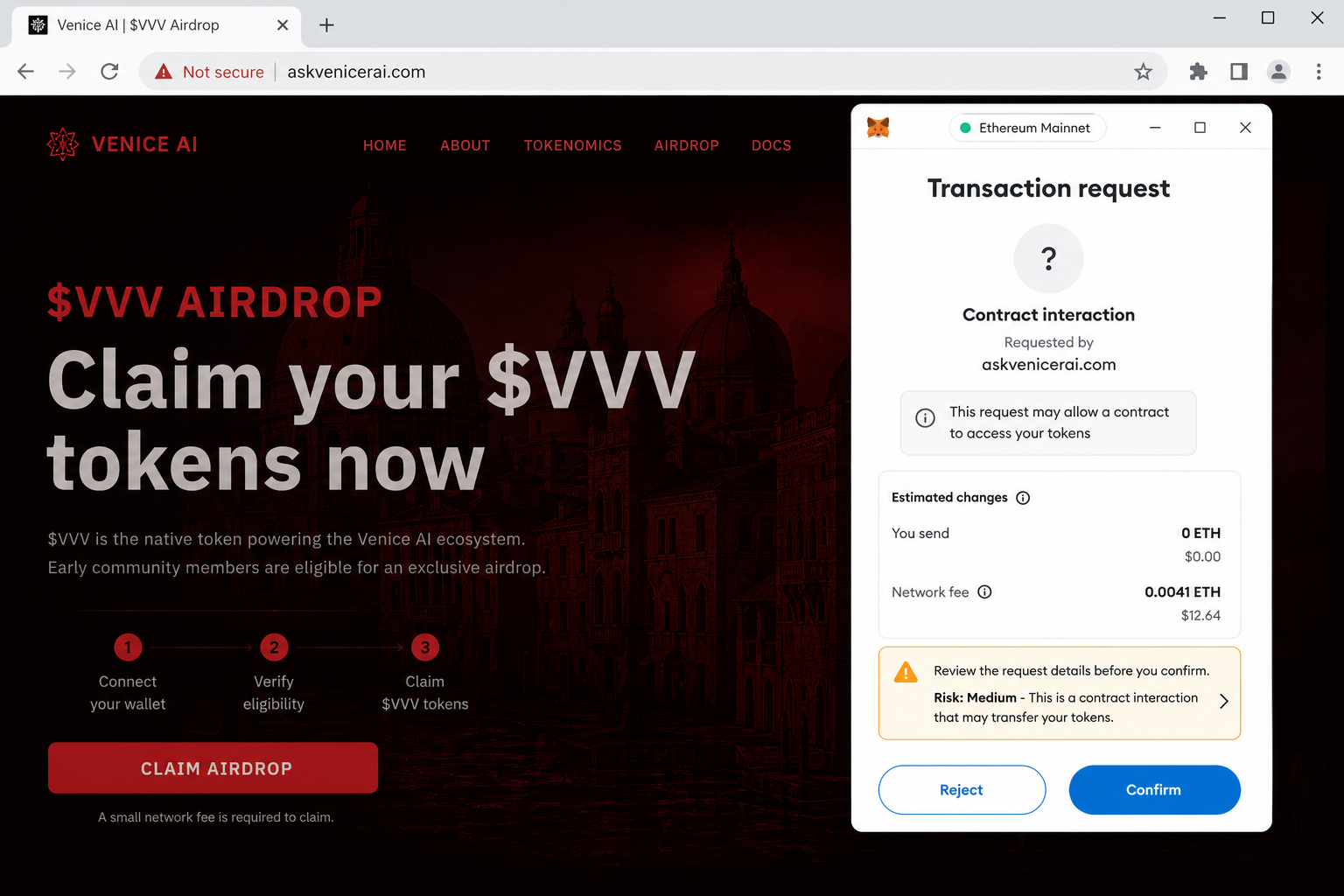
Step 5: A contract interaction or signature follows
The fake application can tailor its second prompt to the connected wallet. It may request a token allowance, NFT operator approval, message signature, or transaction call.
The on-page explanation describes a claim, but the blockchain request may authorize spending. The wallet’s decoded preview and verified contract data must take priority.
- Never enable blind signing solely because a claim page asks for it.
- Reject approvals covering all tokens or NFTs when no transfer is expected.
- Do not assume a small network fee limits the value at risk.
Step 6: Automated drainer code targets available assets
After receiving usable authority, scripts can rank balances and submit transfers to attacker-controlled addresses. High-value assets may be moved first.
The theft might occur in one batch or several calls. Speed is common because the operator expects victims to recognize the problem and revoke access.
Step 7: The fake campaign disappears or rebrands
Reports can cause browsers and hosting providers to restrict the site, but its files are portable. Another lookalike address may promote the same VVV story.
A closed website cannot undo a signed blockchain authorization. Victims must examine permissions and assets on the relevant networks themselves.
Company, Address, and Fulfillment Checks
Venice AI is a legitimate platform
Venice provides AI-related services from its official site and publishes information through that domain. Scammers are exploiting its name rather than demonstrating access to the company.
Use the recognized site and official application to reach account notices. Do not treat a domain containing venice as an authorized extension automatically.
VVV had a real genesis distribution
Venice announced VVV on January 27, 2025 and described an initial airdrop for qualifying groups. Its FAQ connects historical Venice points with original allocations.
Those facts explain why the imitation sounds credible. They do not verify the later Airdrop Season presented on the observed scam host.
The observed host is a scam lookalike
The address adds words around a recognizable brand and uses a different registered ending. It should not be confused with the genuine Venice domain.
A domain can obtain HTTPS automatically, use professional hosting, and copy official assets. None of those features proves corporate control.
Official announcements should agree across channels
A genuine distribution should have consistent timing, eligibility rules, network details, and a contract referenced from Venice’s own site or application.
Check more than one official route reached independently. A copied social profile can point to a copied website, creating false confirmation within the same scam network.
Warning Signs on the Fake Venice Claim Page
The registered domain is wrong
The browser connects to the lookalike claim host rather than the official Venice site. Extra brand-related words are not an official subdomain and should not be overlooked.
Read the final registered domain carefully. Attackers expect users to recognize the brand fragment and stop examining the rest.
- The campaign is discovered through an unsolicited post, ad, or message.
- Eligibility rules remain vague while the claim button is prominent.
- All participation evidence is displayed by the page itself.
- The wallet requests permissions unrelated to a transparent token transfer.
The new season lacks independent documentation
A real previous airdrop cannot validate a different future campaign. Each distribution needs its own official dates, eligibility snapshot, network, and contract.
If those details appear only on the claim page or accounts linking to it, the verification loop is controlled by the operator.
How to Verify a VVV Airdrop Claim
Begin at the official Venice site
Type the official address or open a trusted bookmark, then review current announcements and account notices. Do not allow the promotional link to choose your starting point.
Compare dates and eligibility requirements with the historical information Venice has published. A new claim should not contradict established distribution records without explanation.
Verify the contract through separate references
Obtain the claim contract from an official article and confirm it on the correct blockchain explorer. Check creation time, verified code, token address, and recent calls.
Never copy the contract only from the suspicious site. A malicious page can naturally supply a matching malicious address.
Read the wallet simulation as a balance sheet
A safe preview should show the expected incoming tokens and any necessary network cost. Unexpected outgoing assets or broad permissions contradict the reward story.
Cancel if the wallet cannot simulate the call or identifies a new operator. Missing clarity is itself a material risk.
How to Reduce Airdrop Risk in the Future
Separate valuable holdings from experimental activity
Use a dedicated wallet with limited funds when exploring new decentralized applications. Keep long-term holdings and important NFTs away from routine claim experiments.
Separation cannot make a fraudulent contract legitimate, but it can prevent a single approval from exposing an entire portfolio.
Review allowances on a schedule
Old approvals accumulate as wallets interact with exchanges, games, and marketplaces. Periodic review reduces the number of contracts that retain unnecessary spending authority.
Revocation costs a network fee and should be performed through a reputable tool. Do not follow unsolicited revoke links sent after a scam report.
What to Do if You Have Fallen Victim to This Scam
- Close the lookalike claim tab and remove its connection from the wallet interface. Do not believe a follow-up popup claiming another signature is required to disconnect safely.
- Review token allowances, NFT operators, permits, signatures, and recent transactions across every network used. Revoke unknown authority with a trusted explorer or allowance manager opened independently.
- Transfer remaining assets to a newly generated wallet if the seed phrase or private key was exposed. Prepare the replacement on a clean device and abandon the compromised secret permanently.
- Record the scam URL, screenshots, wallet prompts, transaction hashes, spender contract, destination addresses, and promotion source. Preserve evidence before social posts and pages are removed.
- Contact wallet, exchange, and marketplace support through their recognized websites. Provide public transaction details only, and never send a recovery phrase to anyone claiming to investigate.
- Report the domain, advertising account, malicious contract, and destination wallets to hosting services, social networks, blockchain explorers, and the appropriate cybercrime authority.
- Use Malwarebytes to scan any device where the campaign installed a wallet update, browser extension, or downloaded application. Remove unfamiliar software before creating replacement keys.
- Configure AdGuard or another respected blocker to reduce malicious ads and known phishing redirects. Continue checking domains and contract previews because filters cannot prevent every signature mistake.
Is Your Device Infected? Run a Free Malware Scan
Slow performance, constant pop-ups, or strange behavior? These are classic signs of a malware infection. The fastest way to find out is to scan your device with Malwarebytes Free — one of the most trusted malware removal tools available.
The free version detects and removes the most common threats, including:
- Adware — the cause of those annoying pop-ups
- Browser hijackers — unwanted redirects and changed homepages
- Trojans and spyware — hidden programs stealing your data
- Potentially unwanted programs (PUPs) — software you never asked for
👉 Select your device below — Windows, Mac, or Android — then follow the simple steps to download Malwarebytes, scan your system, and remove any threats it finds. The scan usually takes 5 to 20 minutes.
Run a Malware Scan with Malwarebytes for Windows
Malwarebytes is one of the most popular and trusted anti-malware tools for Windows — and it’s completely free for removing infections. It catches threats that many antivirus programs miss, including adware, browser hijackers, and trojans. Follow the steps below to scan and clean your PC in just a few minutes.
Download Malwarebytes
Click the button below to download the latest version of Malwarebytes for Windows from the official source. The free version is all you need — it will scan your computer and remove adware, browser hijackers, and other malicious software at no cost.
Download MalwarebytesOfficial installer for Windows 11 and 10. Your download starts right away.Want real-time protection? See Malwarebytes Premium Malwarebytes Free for WindowsScans and removes malware at no cost
-
Install Malwarebytes
When the download finishes, open your Downloads folder and double-click the MBSetup file. If Windows shows a User Account Control pop-up, click “Yes” to allow the installation.

Follow the On-Screen Prompts to Install Malwarebytes
The setup wizard will walk you through a few quick screens:
-
Choose where you’re installing the program — “Personal Computer” or “Work Computer” — then click Next.

-
Malwarebytes will now install on your device. This usually takes under a minute.

-
When installation is complete, the “Welcome to Malwarebytes” screen will open automatically.

-
On the final screen, click Open Malwarebytes to launch the program.

-
Enable “Scan for Rootkits”
Before scanning, turn on rootkit detection so Malwarebytes can find even the most hidden threats. Click the Settings gear icon on the left side of the screen.

In the settings menu, find “Scan for rootkits” and click the toggle so it turns blue.

Done? Click “Dashboard” in the left pane to return to the main screen.
Start the Scan
Click the blue Scan button. Malwarebytes will automatically update its virus database and start checking your computer for malware.

-
Wait for the Scan to Finish
The scan checks your entire system for browser hijackers and other malicious programs, so it can take 5 to 20 minutes depending on your computer. Feel free to do something else — just check back occasionally to see the progress.

-
Quarantine the Detected Threats
When the scan is done, you’ll see a list of everything Malwarebytes found — malware, adware, and potentially unwanted programs. Click the “Quarantine” button to remove all of them at once.

Malwarebytes will now remove the malicious files and registry entries and move them safely into quarantine.

-
Restart Your Computer
Some threats can only be fully removed after a reboot. If Malwarebytes asks you to restart, click Yes. Once you’re logged back in, Malwarebytes has finished removing the threats it found.

That’s it — your Windows PC is now clean of trojans, adware, and other malware, and should be back to running smoothly.
If you are still having problems with your computer after completing these instructions, then please follow one of the steps:
- Run a computer scan with ESET Online Scanner
- Ask for help in our Windows Malware Removal Help & Support forum.
Run a Malware Scan with Malwarebytes for Mac
Malwarebytes for Mac is a free on-demand scanner that removes the malware other security software tends to miss — adware, browser hijackers, and unwanted programs included. Cleaning an infected Mac with Malwarebytes has always been completely free, and it’s our go-to recommendation. Follow the steps below to scan and clean your Mac in just a few minutes.
-
Download Malwarebytes for Mac
Click the button below to download the latest version of Malwarebytes for Mac.
Download MalwarebytesOfficial installer for macOS. Your download starts right away.Want real-time protection? See Malwarebytes PremiumMalwarebytes Free for MacScans and removes malware at no cost -
Open the Malwarebytes setup file
When the download finishes, open your Downloads folder and double-click the setup file to begin the installation.

-
Follow the On-Screen Prompts to Install Malwarebytes
The Malwarebytes for Mac Installer will guide you through a few quick screens. Click “Continue” and keep following the prompts until the installation completes.



When the installation is complete, Malwarebytes opens to the Welcome to Malwarebytes screen. Click “Get started“.
-
Select “Personal Computer” or “Work Computer”
Malwarebytes will ask what type of computer you’re installing it on. Click either Personal Computer or Work Computer, whichever applies.

-
Start the Scan
Click the “Scan” button. Malwarebytes will automatically update its detection database and begin checking your Mac for malware.

-
Wait for the Scan to Finish
Malwarebytes will scan your Mac for adware, browser hijackers, and other malicious programs. This can take a few minutes, so feel free to do something else — just check back occasionally to see the progress.

-
Quarantine the Detected Threats
When the scan is done, you’ll see a list of everything Malwarebytes found. Click the “Quarantine” button to remove all the threats at once.

-
Restart Your Mac
Malwarebytes will now remove all the malicious files it found. Some threats can only be fully removed after a reboot — if Malwarebytes asks you to restart, allow it. Once you’re logged back in, your Mac is clean.

That’s it — your Mac is now free of adware, rogue browser extensions, and other potentially harmful software.
If you are still experiencing problems while trying to remove a malicious program from your computer, please ask for help in our Mac Malware Removal Help & Support forum.
Run a Malware Scan with Malwarebytes for Android
Malwarebytes for Android automatically detects and removes dangerous threats like malware and ransomware so you don’t have to worry about your most-used device being compromised. Aggressive detection of adware and potentially unwanted programs keeps your Android phone or tablet running smooth.
-
Download Malwarebytes for Android.
You can download Malwarebytes for Android by clicking the link below.
Get Malwarebytes for AndroidOpens Google Play in a new tab.Want real-time protection? See Malwarebytes Premium for AndroidMalwarebytes for AndroidScans your phone and removes malware at no cost -
Install Malwarebytes for Android on your phone.
In the Google Play Store, tap “Install” to install Malwarebytes for Android on your device.

When the installation process has finished, tap “Open” to begin using Malwarebytes for Android. You can also open Malwarebytes by tapping on its icon in your phone menu or home screen.

-
Follow the on-screen prompts to complete the setup process
When Malwarebytes will open, you will see the Malwarebytes Setup Wizard which will guide you through a series of permissions and other setup options.
This is the first of two screens that explain the difference between the Premium and Free versions. Swipe this screen to continue.
Tap on “Got it” to proceed to the next step.
Malwarebytes for Android will now ask for a set of permissions that are required to scan your device and protect it from malware. Tap on “Give permission” to continue.
Tap on “Allow” to permit Malwarebytes to access the files on your phone.
-
Update database and run a scan with Malwarebytes for Android
You will now be prompted to update the Malwarebytes database and run a full system scan.

Click on “Update database” to update the Malwarebytes for Android definitions to the latest version, then click on “Run full scan” to perform a system scan.

-
Wait for the Malwarebytes scan to complete.
Malwarebytes will now start scanning your phone for adware and other malicious apps. This process can take a few minutes, so we suggest you do something else and periodically check on the status of the scan to see when it is finished.

-
Click on “Remove Selected”.
When the scan has been completed, you will be presented with a screen showing the malware infections that Malwarebytes for Android has detected. To remove the malicious apps that Malwarebytes has found, tap on the “Remove Selected” button.

-
Restart your phone.
Malwarebytes for Android will now remove all the malicious apps that it has found. To complete the malware removal process, Malwarebytes may ask you to restart your device.
That’s it — your Android phone is now clean — no more malicious apps, adware, or browser redirects.
If you are still having problems with your phone after completing these instructions, then please follow one of the steps:
- Restore your phone to factory settings by going to Settings > General management > Reset > Factory data reset.
- Ask for help in our Mobile Malware Removal Help & Support forum.
Stay Protected: Block Ads and Malicious Sites
Now that your device is clean, keep it that way. Most infections start with a malicious ad or a fake download button — so blocking them at the source is your best defense.
We recommend AdGuard, which blocks malicious ads, phishing pages, and dangerous redirects before they can reach you.
👉 Download AdGuard and browse safely
Frequently Asked Questions
Is the Venice VVV token itself fake?
No. VVV is a real token introduced by Venice. The scam is the unauthorized airdrop page and its dangerous wallet interaction.
Is the observed claim host an official Venice website?
No evidence establishes that connection, and the observed address is separate from Venice’s recognized domain.
Did Venice previously distribute VVV tokens?
Yes. Venice described a genesis distribution in 2025, which is why a fake later season may sound believable. Each new claim still requires fresh verification.
Can I lose assets if no seed phrase was entered?
Yes. A malicious allowance, permit, operator approval, or signed contract action can authorize transfers without revealing the recovery phrase.
What if I only connected my wallet?
Disconnect it and inspect activity. If every later signature and transaction was rejected, theft risk is substantially lower, though targeted follow-up scams may occur.
How can I check a real VVV allocation safely?
Start at the official Venice site, locate the announcement inside official channels, verify the published contract separately, and read every wallet request before confirming.
The Bottom Line
The Venice $VVV Airdrop Scam wraps a wallet-draining request in the history of a real token. Its convincing statistics and branding cannot overcome the wrong domain.
Avoid the lookalike claim host, verify campaigns through official Venice channels, and reject unexplained approvals. If you interacted, revoke authority and secure remaining assets.

Join the discussion
0 commentsShare your experience or ask a question about this article.
Discussion
Start the conversation
Have a question or something useful to share? Add the first comment.