

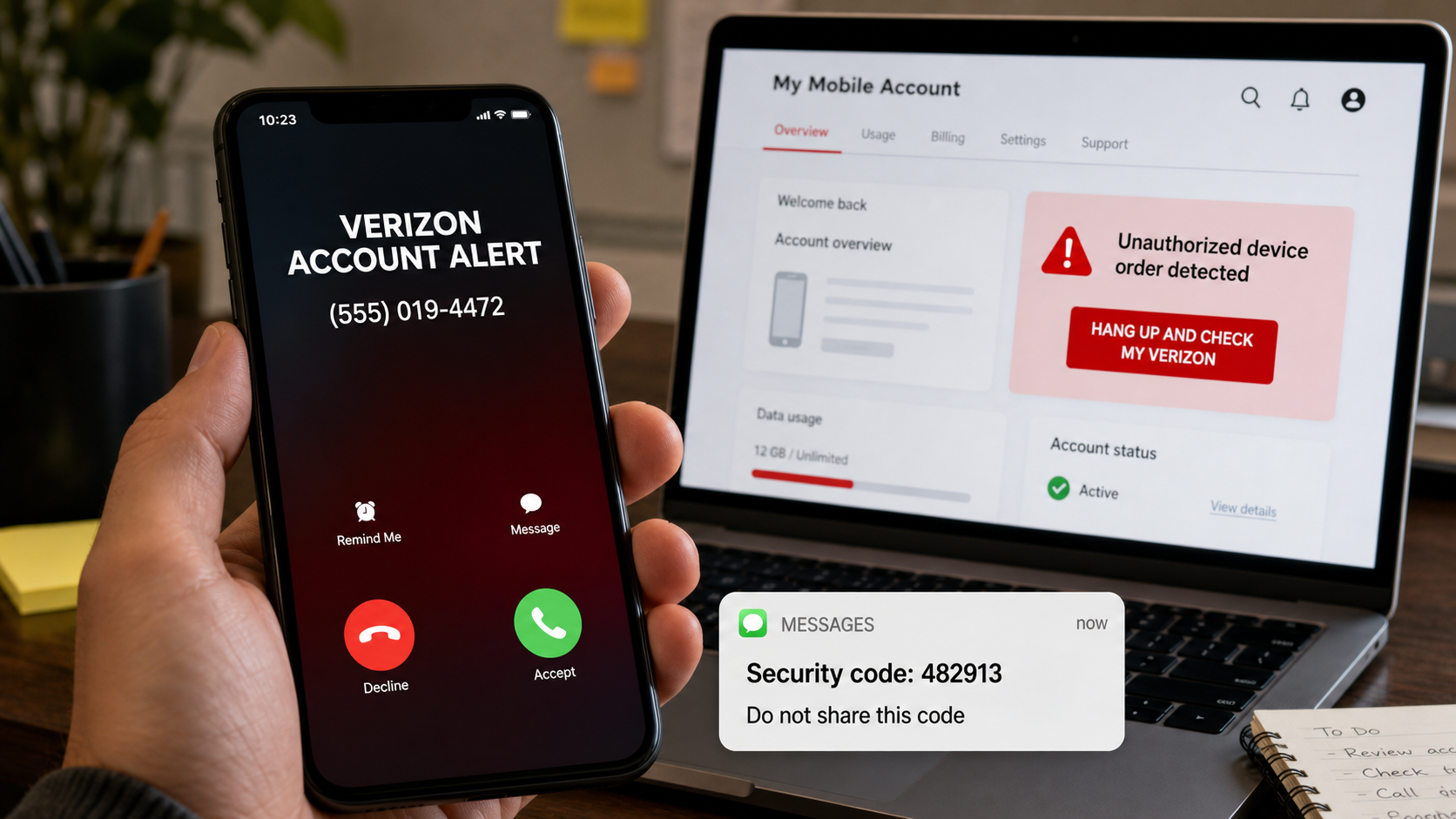
A caller who knows your name, says a new phone was ordered, and appears on caller ID as Verizon can sound convincing. The call becomes even more believable when a genuine security code arrives during the conversation.
That code is often the key to the entire operation. The caller may not be protecting your account at all. They may be trying to take it over while persuading you to approve each step.
Overview
Verizon scam calls are impersonation schemes in which criminals pretend to represent Verizon sales, billing, security, technical support, or the fraud department.
The call may claim that an expensive phone was ordered, a line is being disconnected, a payment failed, or a promotional discount is available. The story changes, but the goal is usually to obtain account access, payment details, identity information, or a direct payment.
Caller ID is not proof. Criminals can spoof a number or name so that the phone displays Verizon, a familiar local number, or a number that resembles customer support.
Verizon’s spoofing guidance explains that caller IDs can be altered. A verified-caller indicator can help establish that a number was not spoofed, but it does not guarantee that the caller’s intent is honest.
Verizon may legitimately send billing notices, one-time passwords, app notifications, and fraud alerts. The danger comes when an unexpected caller asks the customer to reveal confidential information or take action through a channel the caller controls.
A real one-time code does not prove the person on the phone is real. A scammer can trigger that code by attempting a password reset, signing in, contacting support, or starting an account change at the same moment.
The code arrives from a genuine Verizon system because the criminal initiated a genuine security process. Reading it aloud may authorize the very action the caller claims to be stopping.
What the fake call may sound like
Caller: Hello, this is the Verizon fraud-prevention department. We blocked an order for a new smartphone worth $1,199 on your account.
To cancel the order, I am sending a six-digit verification code to the primary line. Please read that number back so I can confirm you are the account owner.
If we cannot verify you now, the device may ship and the charge will remain on your next bill.
The pressure is intentional. The victim is focused on avoiding a large loss, so the request for a code feels like normal identity verification.
Common variations of the call
- “Someone ordered a $999 or $1,199 smartphone on your account”
- “Your number is being transferred to another carrier”
- “Your SIM card was changed from a store in another state”
- “Your account will be disconnected for an overdue balance”
- “You qualify for a 50% loyalty discount”
- “We are sending a free 5G extender or tablet”
- “A new line was added and must be canceled today”
- “Your payment failed and must be repeated by phone”
- “Your account PIN expired after a security update”
- “A technician needs remote access to fix your service”
The phone number, dollar amount, device, and department name can change. A safe article or warning should never reduce the scheme to one telephone number because criminals rotate numbers constantly.
The expensive-device order version
The caller says a premium device has been purchased using the victim’s account. They may know the customer’s name, phone model, billing address, or partial account information from a data breach or leaked marketing record.
The caller offers to cancel the order and may send a security code. In reality, the criminal could be resetting the password, adding an authorized user, changing the shipping address, or approving an order.
If the victim provides the code, the criminal gains a stronger position. The account can be used to finance devices, add lines, access bills containing personal data, or start a SIM-swap or port-out attempt.
The discount or free-device version
A friendlier caller offers a monthly discount, free tablet, upgraded router, network extender, or loyalty credit. The victim is asked to “confirm” the account PIN, Social Security number, payment card, or one-time code.
The promised item may never arrive. In other cases, a real device or line is added to the account under financing terms the customer did not understand.
The disconnection and payment version
The caller claims service will be shut off because the last payment failed. The customer is told to pay immediately by card, bank transfer, payment app, cryptocurrency, gift card, or a link sent by text.
Urgent alternative payment methods are a major warning sign. A customer who is worried about a balance should hang up and check the official My Verizon app or type Verizon’s web address independently.
Caller ID, verified calls and copied support numbers
Spoofing can make an inbound call resemble a trusted number. The name displayed on a screen is only data associated with the call, not a personal guarantee from the company.
Even a verified caller label has limits. It can indicate that the displayed number was authenticated through participating networks, but it does not establish that every person using the number is honest or that the conversation is appropriate.
The simplest safe rule is to end an unexpected security or billing call and initiate a new contact through the My Verizon app, a bookmarked page, or a number you independently verified.
The account-takeover damage can spread beyond Verizon
A mobile number is often used to recover email, banking, social media, shopping, and cryptocurrency accounts. If a criminal successfully transfers the number or changes the SIM, security texts intended for the victim may reach the criminal.
The attacker can then attempt password resets elsewhere. This is why a suspected port-out or SIM change requires more than checking the wireless bill.
Prioritize the email account connected to financial services, then banks and payment apps. Replace SMS authentication with an authenticator app or security key where practical after the phone account is secure.
Warn close contacts if the attacker sent messages from your number. A compromised line can be used to request money or codes from family members who recognize the caller ID.
How The Operation Works
1. Criminals obtain a lead list
The operation may start with phone numbers and names from data breaches, marketing databases, phishing campaigns, public records, compromised accounts, or information purchased from other criminals.
A caller does not need complete records to sound informed. A mobile number’s carrier, an old address, or a leaked bill can provide enough detail to create confidence.
2. Caller ID is disguised
The criminal manipulates the displayed number or uses internet calling services and rotating numbers. The victim sees Verizon, a local area code, or a number similar to a legitimate contact.
Some calls begin with a recording that asks the recipient to press a number. This identifies responsive targets and routes them to a live operator.
3. A believable account emergency is introduced
An unauthorized phone order works well because it combines a recognizable product with a large price. A port-out warning works because losing a phone number could affect many other accounts.
The caller speaks calmly at first, then introduces a deadline. Shipping will occur, service will be disconnected, or a transfer will complete unless the customer acts during the call.
4. The scammer triggers a real account event
While talking, the criminal may enter the victim’s phone number or username into a real Verizon recovery or customer-service process. This can generate a genuine security message.
The code is described as a cancellation code, fraud case number, refund code, or identity-verification number. Its actual purpose may be sign-in, password reset, or transaction approval.
5. Account controls are changed
With credentials, an account PIN, or a one-time code, the criminal may change the email address, password, billing address, authorized users, shipping destination, or line settings.
A takeover can support device financing, resale fraud, interception of calls and texts, or access to documents containing additional identity information.
6. The victim is kept on the phone
The caller may tell the victim not to open the app because doing so will “interrupt the case.” They may transfer the call to a supposed supervisor or another department to make the operation feel legitimate.
Keeping the victim occupied also delays contact with real support and gives the criminal time to complete orders or account changes.
7. A second payment or recovery scam may follow
After an account compromise, another caller may claim to be a fraud investigator who can restore the account for a fee. The victim may be told to move money to a “safe” account or pay a refundable deposit.
Legitimate support does not require gift cards or cryptocurrency to investigate an account. Moving money at an inbound caller’s direction is not a protective measure.
How to check a Verizon call safely
- End the call. You do not need the caller’s permission to verify independently.
- Open My Verizon yourself. Check orders, lines, billing, notifications, addresses, and account activity.
- Use a verified contact route. Start support through the official app or Verizon website, or call a number printed on your bill.
- Read the complete security-code message. It normally says what the code is for and warns against sharing it.
- Never approve an app prompt you did not initiate. Tap deny and then secure the account.
- Enable stronger protections. Use two-factor authentication, Number Lock, SIM Protection where available, and a unique account PIN.
- Use Call Filter. Verizon offers tools to label or filter suspected spam and fraud calls.
Verizon’s account-security guidance states that it does not send messages asking for payment-card information, passwords, account PINs, Social Security numbers, or other sensitive data. Suspicious messages should not be answered.
What To Do If You Answered or Shared Information
- Hang up and contact Verizon independently. Use the official app or website. Tell the fraud team exactly what the caller requested and what you disclosed.
- Review pending and completed orders. Check devices, lines, financing, shipping addresses, upgrades, transfers, and authorized users. Ask support to stop anything you did not approve.
- Change the account password and PIN. Use a trusted device. Make the password unique and remove unfamiliar recovery emails, phone numbers, and trusted devices.
- Strengthen number protection. Enable two-factor authentication, Number Lock, and available SIM-protection controls. Ask whether any SIM or port changes are pending.
- Secure the associated email account. Change its password if reused or exposed, review forwarding rules and recovery options, and sign out unknown sessions.
- Contact your bank or card issuer if payment data was shared. Request a replacement card when appropriate and dispute unauthorized transactions.
- Protect other accounts if the phone number was transferred. Contact banks, email providers, cryptocurrency services, and other high-value accounts that use SMS recovery.
- Preserve evidence. Save call logs, voicemails, texts, code messages, order notices, and case numbers. Do not call the suspicious number again.
- Report the contact. Verizon says suspicious text messages can be forwarded to 7726. Fraud and spoofing may also be reported to the FTC and FCC.
- Monitor bills and credit. Device financing or identity misuse may appear after the call. Review credit reports and consider a freeze if substantial personal information was exposed.
If you only answered and did not share information, click a link, or approve a prompt, the immediate risk is lower. Block the number, report it, and remain alert for follow-up calls using the details you discussed.
Is Your Device Infected? Run a Free Malware Scan
Slow performance, constant pop-ups, or strange behavior? These are classic signs of a malware infection. The fastest way to find out is to scan your device with Malwarebytes Free — one of the most trusted malware removal tools available.
The free version detects and removes the most common threats, including:
- Adware — the cause of those annoying pop-ups
- Browser hijackers — unwanted redirects and changed homepages
- Trojans and spyware — hidden programs stealing your data
- Potentially unwanted programs (PUPs) — software you never asked for
👉 Select your device below — Windows, Mac, or Android — then follow the simple steps to download Malwarebytes, scan your system, and remove any threats it finds. The scan usually takes 5 to 20 minutes.
Run a Malware Scan with Malwarebytes for Windows
Malwarebytes is one of the most popular and trusted anti-malware tools for Windows — and it’s completely free for removing infections. It catches threats that many antivirus programs miss, including adware, browser hijackers, and trojans. Follow the steps below to scan and clean your PC in just a few minutes.
Download Malwarebytes
Click the button below to download the latest version of Malwarebytes for Windows from the official source. The free version is all you need — it will scan your computer and remove adware, browser hijackers, and other malicious software at no cost.
Download MalwarebytesOfficial installer for Windows 11 and 10. Your download starts right away.Want real-time protection? See Malwarebytes Premium Malwarebytes Free for WindowsScans and removes malware at no cost
-
Install Malwarebytes
When the download finishes, open your Downloads folder and double-click the MBSetup file. If Windows shows a User Account Control pop-up, click “Yes” to allow the installation.

Follow the On-Screen Prompts to Install Malwarebytes
The setup wizard will walk you through a few quick screens:
-
Choose where you’re installing the program — “Personal Computer” or “Work Computer” — then click Next.

-
Malwarebytes will now install on your device. This usually takes under a minute.

-
When installation is complete, the “Welcome to Malwarebytes” screen will open automatically.

-
On the final screen, click Open Malwarebytes to launch the program.

-
Enable “Scan for Rootkits”
Before scanning, turn on rootkit detection so Malwarebytes can find even the most hidden threats. Click the Settings gear icon on the left side of the screen.

In the settings menu, find “Scan for rootkits” and click the toggle so it turns blue.

Done? Click “Dashboard” in the left pane to return to the main screen.
Start the Scan
Click the blue Scan button. Malwarebytes will automatically update its virus database and start checking your computer for malware.

-
Wait for the Scan to Finish
The scan checks your entire system for browser hijackers and other malicious programs, so it can take 5 to 20 minutes depending on your computer. Feel free to do something else — just check back occasionally to see the progress.

-
Quarantine the Detected Threats
When the scan is done, you’ll see a list of everything Malwarebytes found — malware, adware, and potentially unwanted programs. Click the “Quarantine” button to remove all of them at once.

Malwarebytes will now remove the malicious files and registry entries and move them safely into quarantine.

-
Restart Your Computer
Some threats can only be fully removed after a reboot. If Malwarebytes asks you to restart, click Yes. Once you’re logged back in, Malwarebytes has finished removing the threats it found.

That’s it — your Windows PC is now clean of trojans, adware, and other malware, and should be back to running smoothly.
If you are still having problems with your computer after completing these instructions, then please follow one of the steps:
- Run a computer scan with ESET Online Scanner
- Ask for help in our Windows Malware Removal Help & Support forum.
Run a Malware Scan with Malwarebytes for Mac
Malwarebytes for Mac is a free on-demand scanner that removes the malware other security software tends to miss — adware, browser hijackers, and unwanted programs included. Cleaning an infected Mac with Malwarebytes has always been completely free, and it’s our go-to recommendation. Follow the steps below to scan and clean your Mac in just a few minutes.
-
Download Malwarebytes for Mac
Click the button below to download the latest version of Malwarebytes for Mac.
Download MalwarebytesOfficial installer for macOS. Your download starts right away.Want real-time protection? See Malwarebytes PremiumMalwarebytes Free for MacScans and removes malware at no cost -
Open the Malwarebytes setup file
When the download finishes, open your Downloads folder and double-click the setup file to begin the installation.

-
Follow the On-Screen Prompts to Install Malwarebytes
The Malwarebytes for Mac Installer will guide you through a few quick screens. Click “Continue” and keep following the prompts until the installation completes.



When the installation is complete, Malwarebytes opens to the Welcome to Malwarebytes screen. Click “Get started“.
-
Select “Personal Computer” or “Work Computer”
Malwarebytes will ask what type of computer you’re installing it on. Click either Personal Computer or Work Computer, whichever applies.

-
Start the Scan
Click the “Scan” button. Malwarebytes will automatically update its detection database and begin checking your Mac for malware.

-
Wait for the Scan to Finish
Malwarebytes will scan your Mac for adware, browser hijackers, and other malicious programs. This can take a few minutes, so feel free to do something else — just check back occasionally to see the progress.

-
Quarantine the Detected Threats
When the scan is done, you’ll see a list of everything Malwarebytes found. Click the “Quarantine” button to remove all the threats at once.

-
Restart Your Mac
Malwarebytes will now remove all the malicious files it found. Some threats can only be fully removed after a reboot — if Malwarebytes asks you to restart, allow it. Once you’re logged back in, your Mac is clean.

That’s it — your Mac is now free of adware, rogue browser extensions, and other potentially harmful software.
If you are still experiencing problems while trying to remove a malicious program from your computer, please ask for help in our Mac Malware Removal Help & Support forum.
Run a Malware Scan with Malwarebytes for Android
Malwarebytes for Android automatically detects and removes dangerous threats like malware and ransomware so you don’t have to worry about your most-used device being compromised. Aggressive detection of adware and potentially unwanted programs keeps your Android phone or tablet running smooth.
-
Download Malwarebytes for Android.
You can download Malwarebytes for Android by clicking the link below.
Get Malwarebytes for AndroidOpens Google Play in a new tab.Want real-time protection? See Malwarebytes Premium for AndroidMalwarebytes for AndroidScans your phone and removes malware at no cost -
Install Malwarebytes for Android on your phone.
In the Google Play Store, tap “Install” to install Malwarebytes for Android on your device.

When the installation process has finished, tap “Open” to begin using Malwarebytes for Android. You can also open Malwarebytes by tapping on its icon in your phone menu or home screen.

-
Follow the on-screen prompts to complete the setup process
When Malwarebytes will open, you will see the Malwarebytes Setup Wizard which will guide you through a series of permissions and other setup options.
This is the first of two screens that explain the difference between the Premium and Free versions. Swipe this screen to continue.
Tap on “Got it” to proceed to the next step.
Malwarebytes for Android will now ask for a set of permissions that are required to scan your device and protect it from malware. Tap on “Give permission” to continue.
Tap on “Allow” to permit Malwarebytes to access the files on your phone.
-
Update database and run a scan with Malwarebytes for Android
You will now be prompted to update the Malwarebytes database and run a full system scan.

Click on “Update database” to update the Malwarebytes for Android definitions to the latest version, then click on “Run full scan” to perform a system scan.

-
Wait for the Malwarebytes scan to complete.
Malwarebytes will now start scanning your phone for adware and other malicious apps. This process can take a few minutes, so we suggest you do something else and periodically check on the status of the scan to see when it is finished.

-
Click on “Remove Selected”.
When the scan has been completed, you will be presented with a screen showing the malware infections that Malwarebytes for Android has detected. To remove the malicious apps that Malwarebytes has found, tap on the “Remove Selected” button.

-
Restart your phone.
Malwarebytes for Android will now remove all the malicious apps that it has found. To complete the malware removal process, Malwarebytes may ask you to restart your device.
That’s it — your Android phone is now clean — no more malicious apps, adware, or browser redirects.
If you are still having problems with your phone after completing these instructions, then please follow one of the steps:
- Restore your phone to factory settings by going to Settings > General management > Reset > Factory data reset.
- Ask for help in our Mobile Malware Removal Help & Support forum.
Stay Protected: Block Ads and Malicious Sites
Now that your device is clean, keep it that way. Most infections start with a malicious ad or a fake download button — so blocking them at the source is your best defense.
We recommend AdGuard, which blocks malicious ads, phishing pages, and dangerous redirects before they can reach you.
👉 Download AdGuard and browse safely
The Bottom Line
Verizon scam calls work because they combine a familiar brand, spoofed caller ID, a believable account emergency, and sometimes a genuine one-time code.
Never read a security code to an unexpected caller. Hang up, open My Verizon yourself, and verify orders, billing, and account changes through a channel you initiated.
A real company name on caller ID does not make the conversation safe. The moment a caller pressures you to reveal a password, PIN, payment method, or code is the moment to end the call.

Join the discussion
0 commentsShare your experience or ask a question about this article.
Discussion
Start the conversation
Have a question or something useful to share? Add the first comment.