

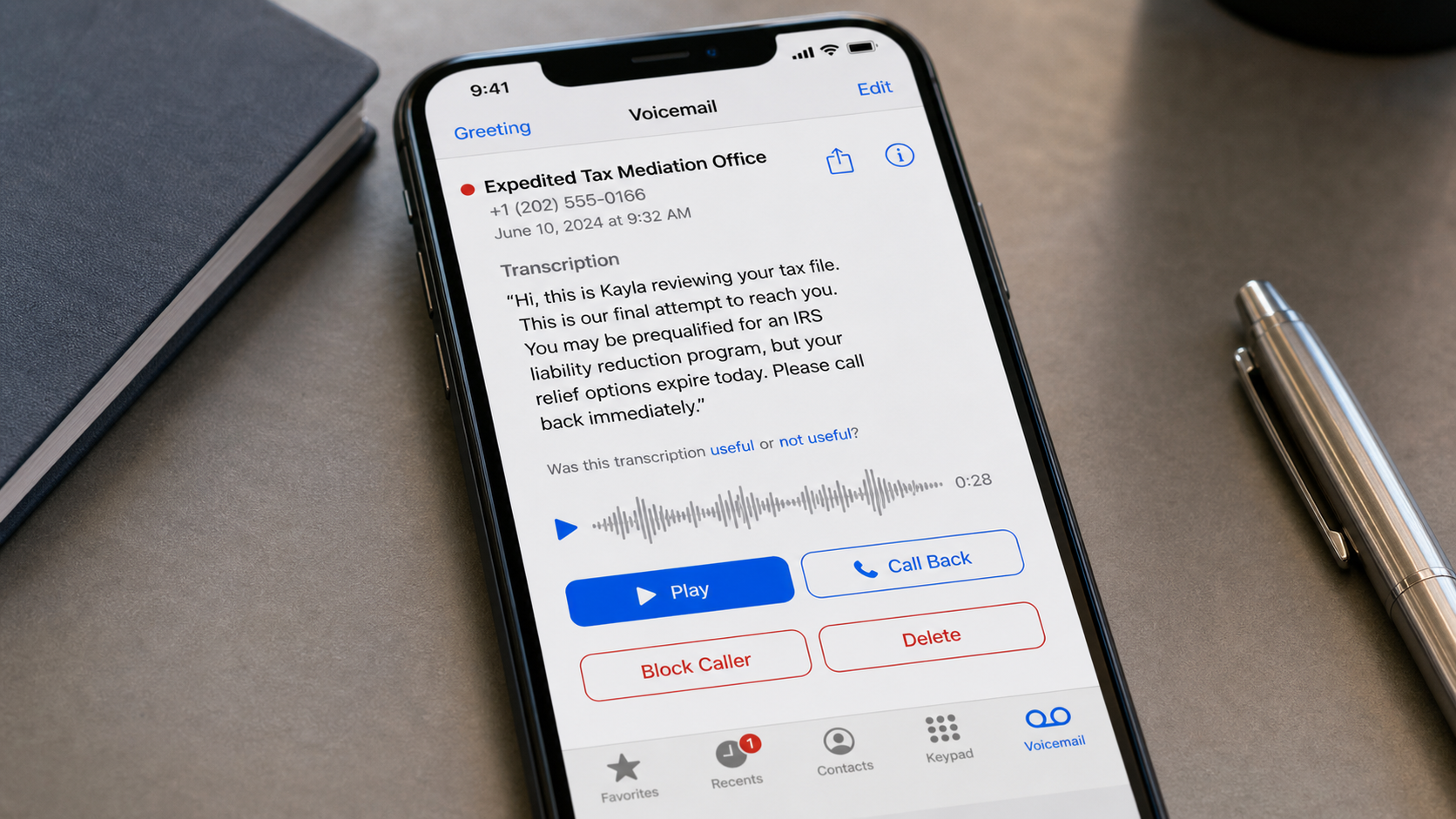
A voicemail from the “Expedited Tax Mediation Office” may begin with a friendly voice saying, “Hi, this is Kayla reviewing your tax file.” It then claims this is the final attempt to discuss an IRS liability reduction program before relief options expire.
The caller has not demonstrated that a tax file exists or that the recipient qualifies for anything. The agency-like name, friendly first name, and deadline are components of a tax-relief robocall designed to produce a callback.
Overview
The Expedited Tax Mediation Office is one of several names used in unsolicited tax-debt calls. Variants include Agency for Mediation and Tax Relief, Tax Mediation and Resolution Agency, Tax Resolution Oversight Department, and American Tax Assistance Office.
“Mediation” sounds neutral and official. “Expedited” suggests special access. Neither word proves the caller is an IRS office, court, government mediator, or authorized representative.
The message usually claims an active file, possible back taxes, or prequalification for a reduction program. It does not state the recipient’s full name, verified balance, tax year, notice number, or the legal identity of the company.
The IRS does have legitimate settlement, appeal, installment, and mediation procedures. A real program’s existence does not validate a cold call. Taxpayers apply through defined channels and eligibility depends on documented facts.
The IRS says it generally contacts taxpayers by mail first. It does not leave urgent prerecorded threats, guarantee a reduction, or require immediate gift-card, cryptocurrency, or wire payment.
Example of the voicemail
Hi, this is Kayla reviewing your tax file. This is our final attempt to reach you. You may be prequalified for an IRS liability reduction program, but your relief options expire today. Please call back immediately.
The speaker’s name and wording can change while the structure remains stable: personal-sounding introduction, vague file reference, implied qualification, and an expiring opportunity.
Common variations of the voicemail
- “This is Kayla reviewing your tax file”
- “This is our final attempt to reach you”
- “Your IRS liability reduction eligibility expires today”
- “You are prequalified for tax mediation”
- “We can place your enforcement action on hold”
- “Your back-tax case was assigned to our office”
- “A hardship settlement may reduce what you owe”
- “Press 1 to speak with a mediation officer”
- “Your file remains unresolved and penalties are increasing”
- “The government has opened a limited forgiveness window”
Some recordings use a relaxed conversational voice to sound like an individual follow-up. Others use formal legal language or an AI voice. The important clue is not the speaker’s style but the unsupported claim.
How this differs from legitimate IRS mediation
The IRS offers processes such as Fast Track Settlement and other appeal or collection options in appropriate disputes. These are structured procedures involving an existing tax matter, taxpayer consent, documentation, and identifiable IRS personnel.
An unknown call center cannot enroll a random telephone number in official mediation by leaving a voicemail. A real case can be verified in IRS records and correspondence without relying on the callback number.
Warning signs
- The caller claims to have reviewed a file but provides no specifics. The script is broad enough for anyone.
- Eligibility is declared before financial review. Tax relief depends on income, expenses, assets, filing compliance, and other facts.
- The opportunity expires immediately. Artificial scarcity is a sales and fraud tactic.
- The office name cannot be independently verified. A government-sounding label is not an agency credential.
- The call arrives before any known mail. The IRS generally begins with written notice.
- The caller asks for sensitive data to find the case. The victim supplies the information that the caller claimed to possess.
- A guaranteed reduction is offered. No representative can promise an outcome before review and agency approval.
How The Operation Works
1. The robocall campaign targets uncertainty
Phone lists are dialed at scale. Some numbers come from lead brokers or prior financial inquiries, while others are reached randomly. The campaign does not require access to IRS records.
Because tax rules are complex, even compliant taxpayers can briefly wonder whether the call concerns a missed notice or administrative error.
2. A conversational opener simulates prior contact
“Hi, this is Kayla” sounds like a person already assigned to the recipient. Saying “final attempt” implies earlier outreach even when no previous call occurred.
The recording avoids a clear company introduction. That ambiguity lets the recipient fill in the authority themselves.
3. The callback confirms a responsive lead
Calling back proves that the number reaches someone concerned about tax issues. The operator can then ask qualifying questions and record valuable financial information.
The agent may request a Social Security number before providing the company’s legal name, location, privacy policy, or written service terms.
4. The agent discovers or invents the tax problem
If the caller admits owing tax, the script focuses on penalties, liens, levies, or garnishment. If the caller denies debt, the agent may claim the system found a discrepancy or unfiled period.
The story adapts to the victim’s answers. This flexibility reveals that the voicemail’s “review” did not contain real case facts.
5. Real program names are used as sales language
Terms such as offer in compromise, currently not collectible, penalty abatement, fresh start, and mediation may be mentioned. These legitimate concepts give the pitch technical credibility.
Eligibility for one program cannot be assumed from the size of a debt alone. A competent professional reviews compliance, financial statements, assets, collection deadlines, and alternatives.
6. The victim pays an enrollment or retainer fee
Outright scammers demand payment for a nonexistent case or threaten immediate enforcement. High-pressure lead sellers may charge a large retainer, transfer the victim between companies, or deliver only basic forms.
A fee is not automatically fraudulent, but it should be supported by a written engagement, verifiable business identity, credentialed professional, specific services, and realistic limitations.
7. Identity and financial data are collected
The supposed application can request Social Security numbers, dates of birth, employer details, bank statements, tax returns, account numbers, and copies of identification.
Sending this material to an unknown call center creates identity-theft risk even if no money is paid.
8. Remote access can deepen the compromise
An agent may offer to retrieve transcripts or complete paperwork by remotely controlling the computer. During that session, the operator can view tax records, email, saved credentials, and bank accounts.
Official forms do not require handing unrestricted control to an unsolicited caller. Use secure portals provided by independently verified professionals.
9. Repeated calls exploit the confirmed interest
The number can be sold as a tax-debt lead. Calls then arrive under new office names with slightly different promises. Caller ID spoofing makes blocking every visible number ineffective.
A person who paid can later receive a recovery call claiming regulators recovered the money. An upfront recovery fee is another advance-fee warning sign.
Why “mediation” is a powerful but misleading word
Mediation usually suggests an impartial person helping two sides resolve an existing dispute. The robocall borrows that meaning without identifying a dispute, mediator, case number, or party that requested the process.
The operator may imply that its office sits between the taxpayer and IRS. In reality, the call can be a sales funnel with no government appointment, no neutral role, and no access to a taxpayer’s official records.
A real mediation or appeal process has written notices, defined issues, taxpayer consent, and verifiable contacts. It does not begin with a generic recording declaring that eligibility expires today.
The importance of the missing file details
“Your tax file” is a placeholder that encourages the recipient to supply the facts. A genuine representative handling an authorized matter should be able to identify their firm, role, engagement, and secure way to confirm the case without demanding a Social Security number first.
Do not challenge the caller by revealing a balance or tax year. Saying “I only owe for 2024” gives the operator exactly the detail needed to make the next statement sound informed.
Questions a legitimate provider should answer
- What is the exact legal name and physical address of the business?
- Which credentialed professional will represent the taxpayer?
- How was the alleged debt or eligibility obtained and verified?
- Which specific service is included in the quoted fee?
- What result is not guaranteed, and what alternatives were considered?
- How are documents stored and transmitted securely?
- What are the cancellation and refund rules?
A caller who responds with more urgency, refuses written information, or says questions will forfeit the program is not offering transparent professional help.
How high-pressure tax-relief sales can harm consumers
Not every call ends with gift cards. Some consumers sign expensive contracts after being told their debt can be reduced dramatically. They later discover that the fee covered only transcript retrieval or an application they could not qualify for.
Others stop responding to real IRS notices because a salesperson says the matter is “on hold.” Interest and penalties may continue while the promised work is delayed.
Before signing, obtain an independent assessment. The IRS publishes eligibility information, and qualified professionals can review the situation without claiming a same-day secret program.
How to manage repeated robocalls
Block the displayed number, but expect other numbers because caller ID can be spoofed. Use carrier spam filtering, silence unknown callers when practical, and do not press a key to opt out from an illegal recording.
Keep one example with the date, time, transcript, and claimed company for reporting. Do not return repeated calls to demand removal, since engagement can mark the number as responsive.
What To Do If You Answered or Called Back
- Stop the conversation. Do not let a deadline force a decision. Ask for no further calls and hang up.
- Verify any tax issue independently. Open an official IRS Online Account or use contact details from
irs.govand genuine mailed notices. - Do not provide more identity information. The caller does not need a Social Security number to explain its legal identity and written offer.
- Contact financial institutions if you paid. Request a recall, dispute, card replacement, or account monitoring as appropriate.
- Protect exposed identity data. Consider credit monitoring, a fraud alert, or a credit freeze if Social Security or document details were shared.
- Remove remote access. Disconnect the device, uninstall the tool, revoke unattended permissions, and change passwords from a trusted device.
- Review written agreements promptly. If a real business enrolled you, examine cancellation, refund, arbitration, and service terms and obtain independent advice.
- Save the voicemail and records. Keep the transcript, caller number, company names, payment instructions, contracts, receipts, and emails.
- Report the call. Report IRS impersonation through official IRS or TIGTA channels and deceptive telemarketing to the FTC.
- Use verified help if tax debt is real. Check credentials for an enrolled agent, CPA, or tax attorney, and explore IRS and Low Income Taxpayer Clinic resources.
If you provided a Social Security number but no money, the incident still deserves action. Monitor credit reports, consider a fraud alert or freeze, secure tax and financial accounts, and watch for unemployment, loan, or tax-return activity you did not initiate.
If you paid a real company after a deceptive call, document exactly what its salesperson promised. Save the recording or voicemail, contract, invoices, and work product. Specific differences between the promise and delivered service are important in a card dispute or consumer complaint.
Do not let the caller’s urgency cause you to miss a genuine deadline. Confirm the actual IRS status separately, then choose help based on verified facts rather than the robocall’s fictional expiration.
Keep official notices together and compare every later claim with the exact agency, tax year, balance, and response date shown in those records.
Is Your Device Infected? Run a Free Malware Scan
Slow performance, constant pop-ups, or strange behavior? These are classic signs of a malware infection. The fastest way to find out is to scan your device with Malwarebytes Free — one of the most trusted malware removal tools available.
The free version detects and removes the most common threats, including:
- Adware — the cause of those annoying pop-ups
- Browser hijackers — unwanted redirects and changed homepages
- Trojans and spyware — hidden programs stealing your data
- Potentially unwanted programs (PUPs) — software you never asked for
👉 Select your device below — Windows, Mac, or Android — then follow the simple steps to download Malwarebytes, scan your system, and remove any threats it finds. The scan usually takes 5 to 20 minutes.
Run a Malware Scan with Malwarebytes for Windows
Malwarebytes is one of the most popular and trusted anti-malware tools for Windows — and it’s completely free for removing infections. It catches threats that many antivirus programs miss, including adware, browser hijackers, and trojans. Follow the steps below to scan and clean your PC in just a few minutes.
Download Malwarebytes
Click the button below to download the latest version of Malwarebytes for Windows from the official source. The free version is all you need — it will scan your computer and remove adware, browser hijackers, and other malicious software at no cost.
Download MalwarebytesOfficial installer for Windows 11 and 10. Your download starts right away.Want real-time protection? See Malwarebytes Premium Malwarebytes Free for WindowsScans and removes malware at no cost
-
Install Malwarebytes
When the download finishes, open your Downloads folder and double-click the MBSetup file. If Windows shows a User Account Control pop-up, click “Yes” to allow the installation.

Follow the On-Screen Prompts to Install Malwarebytes
The setup wizard will walk you through a few quick screens:
-
Choose where you’re installing the program — “Personal Computer” or “Work Computer” — then click Next.

-
Malwarebytes will now install on your device. This usually takes under a minute.

-
When installation is complete, the “Welcome to Malwarebytes” screen will open automatically.

-
On the final screen, click Open Malwarebytes to launch the program.

-
Enable “Scan for Rootkits”
Before scanning, turn on rootkit detection so Malwarebytes can find even the most hidden threats. Click the Settings gear icon on the left side of the screen.

In the settings menu, find “Scan for rootkits” and click the toggle so it turns blue.

Done? Click “Dashboard” in the left pane to return to the main screen.
Start the Scan
Click the blue Scan button. Malwarebytes will automatically update its virus database and start checking your computer for malware.

-
Wait for the Scan to Finish
The scan checks your entire system for browser hijackers and other malicious programs, so it can take 5 to 20 minutes depending on your computer. Feel free to do something else — just check back occasionally to see the progress.

-
Quarantine the Detected Threats
When the scan is done, you’ll see a list of everything Malwarebytes found — malware, adware, and potentially unwanted programs. Click the “Quarantine” button to remove all of them at once.

Malwarebytes will now remove the malicious files and registry entries and move them safely into quarantine.

-
Restart Your Computer
Some threats can only be fully removed after a reboot. If Malwarebytes asks you to restart, click Yes. Once you’re logged back in, Malwarebytes has finished removing the threats it found.

That’s it — your Windows PC is now clean of trojans, adware, and other malware, and should be back to running smoothly.
If you are still having problems with your computer after completing these instructions, then please follow one of the steps:
- Run a computer scan with ESET Online Scanner
- Ask for help in our Windows Malware Removal Help & Support forum.
Run a Malware Scan with Malwarebytes for Mac
Malwarebytes for Mac is a free on-demand scanner that removes the malware other security software tends to miss — adware, browser hijackers, and unwanted programs included. Cleaning an infected Mac with Malwarebytes has always been completely free, and it’s our go-to recommendation. Follow the steps below to scan and clean your Mac in just a few minutes.
-
Download Malwarebytes for Mac
Click the button below to download the latest version of Malwarebytes for Mac.
Download MalwarebytesOfficial installer for macOS. Your download starts right away.Want real-time protection? See Malwarebytes PremiumMalwarebytes Free for MacScans and removes malware at no cost -
Open the Malwarebytes setup file
When the download finishes, open your Downloads folder and double-click the setup file to begin the installation.

-
Follow the On-Screen Prompts to Install Malwarebytes
The Malwarebytes for Mac Installer will guide you through a few quick screens. Click “Continue” and keep following the prompts until the installation completes.



When the installation is complete, Malwarebytes opens to the Welcome to Malwarebytes screen. Click “Get started“.
-
Select “Personal Computer” or “Work Computer”
Malwarebytes will ask what type of computer you’re installing it on. Click either Personal Computer or Work Computer, whichever applies.

-
Start the Scan
Click the “Scan” button. Malwarebytes will automatically update its detection database and begin checking your Mac for malware.

-
Wait for the Scan to Finish
Malwarebytes will scan your Mac for adware, browser hijackers, and other malicious programs. This can take a few minutes, so feel free to do something else — just check back occasionally to see the progress.

-
Quarantine the Detected Threats
When the scan is done, you’ll see a list of everything Malwarebytes found. Click the “Quarantine” button to remove all the threats at once.

-
Restart Your Mac
Malwarebytes will now remove all the malicious files it found. Some threats can only be fully removed after a reboot — if Malwarebytes asks you to restart, allow it. Once you’re logged back in, your Mac is clean.

That’s it — your Mac is now free of adware, rogue browser extensions, and other potentially harmful software.
If you are still experiencing problems while trying to remove a malicious program from your computer, please ask for help in our Mac Malware Removal Help & Support forum.
Run a Malware Scan with Malwarebytes for Android
Malwarebytes for Android automatically detects and removes dangerous threats like malware and ransomware so you don’t have to worry about your most-used device being compromised. Aggressive detection of adware and potentially unwanted programs keeps your Android phone or tablet running smooth.
-
Download Malwarebytes for Android.
You can download Malwarebytes for Android by clicking the link below.
Get Malwarebytes for AndroidOpens Google Play in a new tab.Want real-time protection? See Malwarebytes Premium for AndroidMalwarebytes for AndroidScans your phone and removes malware at no cost -
Install Malwarebytes for Android on your phone.
In the Google Play Store, tap “Install” to install Malwarebytes for Android on your device.

When the installation process has finished, tap “Open” to begin using Malwarebytes for Android. You can also open Malwarebytes by tapping on its icon in your phone menu or home screen.

-
Follow the on-screen prompts to complete the setup process
When Malwarebytes will open, you will see the Malwarebytes Setup Wizard which will guide you through a series of permissions and other setup options.
This is the first of two screens that explain the difference between the Premium and Free versions. Swipe this screen to continue.
Tap on “Got it” to proceed to the next step.
Malwarebytes for Android will now ask for a set of permissions that are required to scan your device and protect it from malware. Tap on “Give permission” to continue.
Tap on “Allow” to permit Malwarebytes to access the files on your phone.
-
Update database and run a scan with Malwarebytes for Android
You will now be prompted to update the Malwarebytes database and run a full system scan.

Click on “Update database” to update the Malwarebytes for Android definitions to the latest version, then click on “Run full scan” to perform a system scan.

-
Wait for the Malwarebytes scan to complete.
Malwarebytes will now start scanning your phone for adware and other malicious apps. This process can take a few minutes, so we suggest you do something else and periodically check on the status of the scan to see when it is finished.

-
Click on “Remove Selected”.
When the scan has been completed, you will be presented with a screen showing the malware infections that Malwarebytes for Android has detected. To remove the malicious apps that Malwarebytes has found, tap on the “Remove Selected” button.

-
Restart your phone.
Malwarebytes for Android will now remove all the malicious apps that it has found. To complete the malware removal process, Malwarebytes may ask you to restart your device.
That’s it — your Android phone is now clean — no more malicious apps, adware, or browser redirects.
If you are still having problems with your phone after completing these instructions, then please follow one of the steps:
- Restore your phone to factory settings by going to Settings > General management > Reset > Factory data reset.
- Ask for help in our Mobile Malware Removal Help & Support forum.
Stay Protected: Block Ads and Malicious Sites
Now that your device is clean, keep it that way. Most infections start with a malicious ad or a fake download button — so blocking them at the source is your best defense.
We recommend AdGuard, which blocks malicious ads, phishing pages, and dangerous redirects before they can reach you.
👉 Download AdGuard and browse safely
The Bottom Line
The Expedited Tax Mediation Office voicemail is designed to sound like a personal, official follow-up. In reality, the caller demonstrates no file, no verified eligibility, and no authority to create an expiring IRS relief opportunity.
Do not call back from the recording or provide identity information. Verify taxes through official IRS records and choose professional help only after checking the provider’s identity, credentials, contract, and claims.

Join the discussion
0 commentsShare your experience or ask a question about this article.
Discussion
Start the conversation
Have a question or something useful to share? Add the first comment.