

A normal web page suddenly fills with a security warning. The mouse vanishes, the browser seems unresponsive, and a support number demands attention.
It is an unsettling moment, especially when the page arrived through an ordinary advertisement. The next choice matters more than the warning’s dramatic appearance.
Overview
A tech-support scam delivered through ads
Netskope Threat Labs documented a browser-based fake security locker that reached people after they clicked paid Google ads on legitimate publisher sites.
The ads appeared across ordinary destinations such as maps, weather, sports, real estate, and document pages. Those publishers were not necessarily compromised.
After the click, a loading screen gave way to a shopping page branded “ShopEase.” The storefront was a decoy, not the service visitors expected.
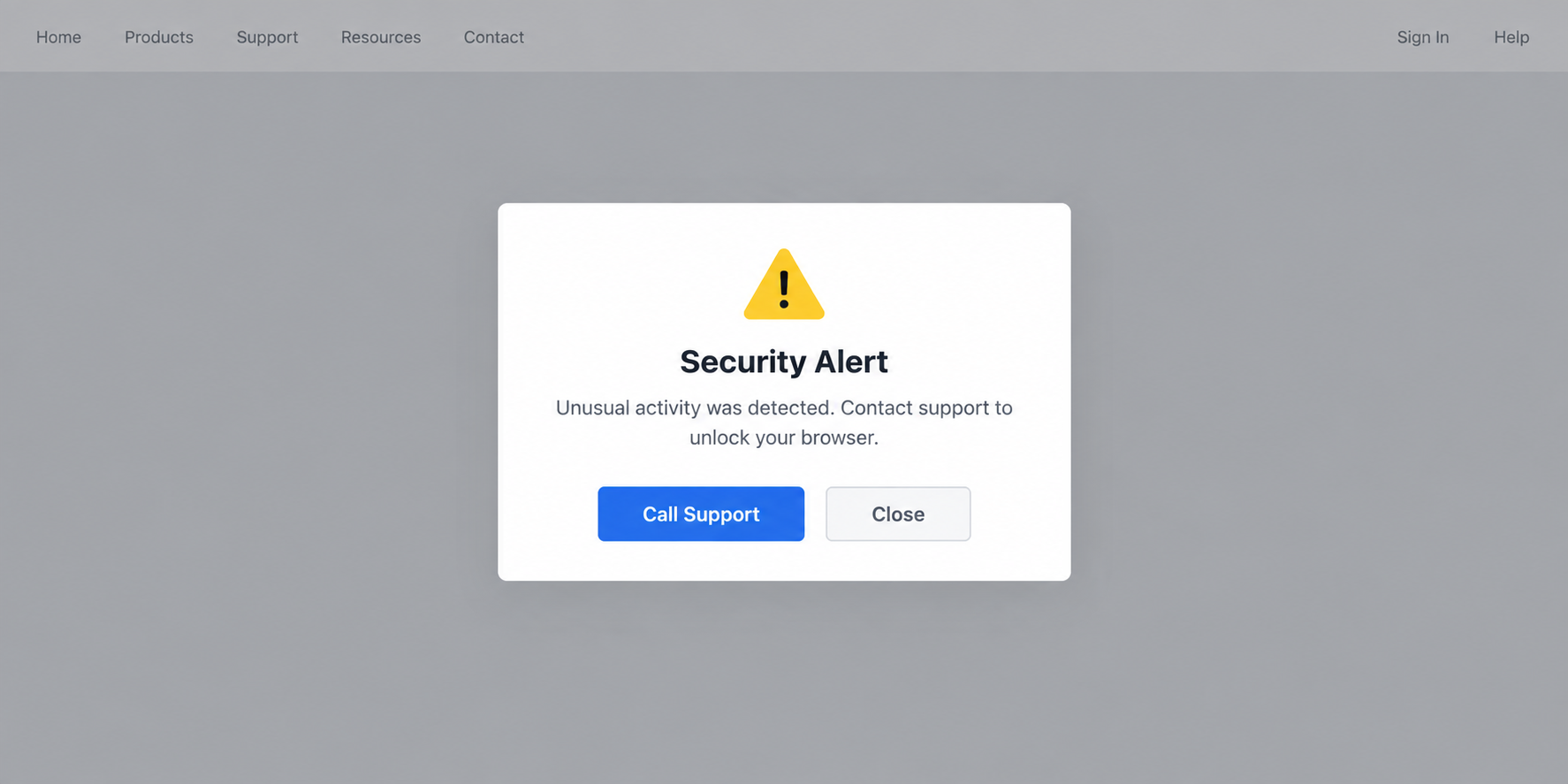
The first image is a nonfunctional reconstruction of the warning style. It is not a screenshot of a specific campaign page or an actual support number.
- A legitimate website can display a malicious third-party advertisement.
- The destination may first look like a harmless online store.
- The page waits for human interaction before displaying the scare screen.
- The resulting alert imitates Windows or macOS security messaging.
- The call button or number leads toward a supposed support agent, not genuine device support.
The “lock” is a browser illusion
The scam page tries to enter full-screen mode, hide the pointer, interfere with escape shortcuts, play sounds, and make the browser feel slow.
Those tricks can make someone believe the computer has been seized. Netskope’s analysis says the operating system itself is not actually locked.
The warning claims danger and pushes a phone call. That is social engineering, not a legitimate Windows Defender or Apple recovery process.
If you have not called, granted remote access, or entered information, the likely issue is the malicious page, not necessarily a compromised computer.
What the campaign data actually shows
From August 31 to September 14, 2026, Netskope observed activity involving at least 619 customer organizations and more than 250 Google Ads campaign IDs.
The activity crossed at least 284 legitimate publisher sites. These are reach and delivery observations, not a count of people who paid a scammer.
Netskope blocked the content for its own protected users. Its telemetry does not prove that all other viewers saw the complete warning or made a call.
That distinction keeps the story accurate. A large ad campaign is serious, but exposure, infection, and financial loss are different measurements.
Why the Warning Is So Convincing
The journey starts somewhere familiar. A reader does not visit an obviously suspicious support domain; they click an ad embedded in an everyday page.
Ads are separately supplied content. A reputable publisher can host an ad whose destination changes or behaves differently from the publisher’s own website.
The first destination is not a crude panic screen. A spinner and generic store create a pause, making the later alert feel like a sudden system event.
Netskope found that the page waited for mouse movement. That simple gate helped distinguish a human visitor from automated tools that might otherwise inspect it.
After that interaction, hidden content was assembled inside the browser. A Windows visitor could see a false Defender-style warning; a Mac visitor saw a different skin.
Neither design made the message genuine. A web page can copy interface colors and language without having authority over the operating system.
The emotional pressure is deliberate. Sound, repeated alerts, a hidden cursor, and apparent frozen controls make a calm verification step feel impossible.
The scammer wants that feeling to win. A person who calls may be told to pay for unnecessary support, install remote-control software, or disclose personal details.
Those are the possible outcomes of the support call. The specific demands can vary, so do not assume every version asks for the same amount.
How the Fake Security Locker Scam Works
Step 1: An ad creates the entry point
A visitor sees an advertisement on a legitimate site and clicks it. The ad may be served through a normal advertising network.
Netskope traced many visits through Google Ads click parameters and redirects. That establishes paid-ad delivery without accusing the host publishers of running the scam.
Do not treat a known ad platform as a safety guarantee. Advertisers and destinations still need independent scrutiny.
Step 2: A harmless-looking page buys time
The click opens a page with a loading spinner, then an ordinary storefront. It can seem like a shopping ad that simply landed badly.
The decoy keeps the visitor on the page long enough to interact. In the investigated kit, mouse movement mattered because it triggered the next stage.
Automated scanners that load a page without moving a cursor may see only the storefront. A real person can receive a different experience.
This is why a screenshot taken by one observer may not match what another person later saw at the same address.
Step 3: The page assembles a tailored alert
The code retrieved and decrypted a warning tailored to the visitor’s operating system. Netskope documented versions imitating Windows and macOS security screens.
That technical packaging helps hide the scare screen from simpler inspection. It does not mean the site gained system-level control.
The alert is still browser content. It can look like a device warning while remaining a webpage with no legitimate diagnostic result.
Do not click a button because it says a scan found infections. The page has not become your operating system’s security center.
Step 4: Full-screen tricks manufacture urgency
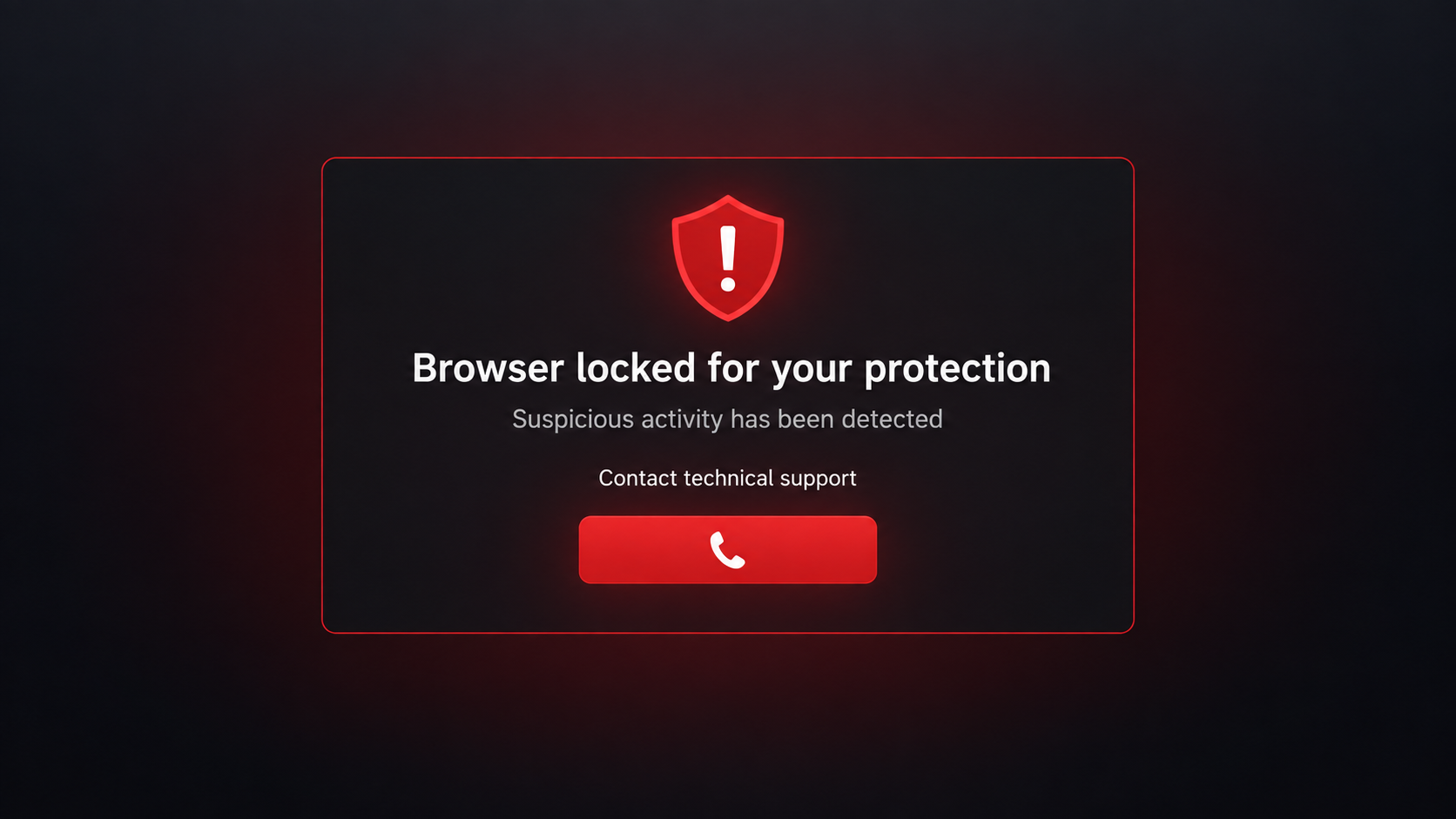
The page can fill the display, hide the pointer, swallow familiar exit keys, and introduce deliberate lag. That creates the impression of a frozen machine.
Our second image illustrates this stage, without copying a live malicious phone number. It is not evidence that a particular victim saw exactly that layout.
Netskope says the computer itself is not locked. The browser is being manipulated to make a support call feel like the only available exit.
If one key press fails, do not conclude that the alert has system privileges. Use the operating system’s task controls to end the browser process.
Step 5: The call moves the fraud off the page
The displayed number leads to a supposed support worker. The screen creates fear; the conversation is where money or access can be taken.
An operator may claim a paid repair is required or ask to control the computer remotely. Others may seek a card number or personal information.
Do not grant access, install a tool, or pay because a webpage says your machine is infected. Genuine security vendors do not demand calls through pop-up warnings.
Ending the call is enough. You do not owe the person an explanation, even if they insist the problem is urgent.
Step 6: The scam may continue after closing the tab
Closing the page stops its browser tricks, but a completed support call can create a separate problem. Remote software may remain installed.
Payments may also recur, and information shared on the call may be reused for follow-up scams. That is why the response depends on what actually happened.
If you only saw the warning, focus on closing it and checking the browser. If you gave access or paid, treat the situation as a broader account-security issue.
How to Get Out Without Calling
First, do not dial the number on the screen. Any diagnosis it presents is generated by the webpage, not by a trusted security scan.
Try holding Escape briefly to leave full-screen mode. A quick tap may fail when the page intercepts keys, but the browser may still release full screen.
If that does not work, use the operating system to close the browser. On Windows, Task Manager can end it; on macOS, Force Quit can do the same.
Reopen the browser without restoring the previous session. Restoring every tab can reload the same malicious page and recreate the scare screen.
Then inspect the browser’s recent extensions and notifications. A single scare page does not prove an extension was installed, but unexpected changes are worth checking.
Run a reputable security scan if you downloaded something or gave access. A browser alert alone is not evidence of a specific infection.
Use the known vendor’s website or your device’s built-in settings to obtain help. Never rely on the phone number inside the warning.
If the browser immediately reopens the page, check its session-restore setting. Choose a fresh window rather than recovering the last group of tabs.
Do not let a scam agent guide you through “repair” while you try to exit. Their instructions may create the very access the webpage did not have.
If you use a work computer, tell your IT team which site and ad led to the page. They may want to block the destination for colleagues.
A screenshot helps identify the campaign, but never include a full card number, private document, or account password when reporting it.
Once the browser is closed, take a moment to separate what you saw from what you did. That distinction guides the right response without panic.
Company, Ad, and Support Checks
The ad publisher is not the scam operator
A weather or sports site may display an ad provided by a network. Its presence does not make the publisher the seller or the support center.
Report the advertisement with its landing address to the ad platform. This helps distinguish the malicious creative from the website around it.
Netskope observed hundreds of publisher sites in the delivery path. It did not say all those publishers were compromised.
A hosted page is not a support office
The scam can run from rotating cloud-hosted URLs. A hosting provider’s address does not identify the people operating the phone line.
A real device-support company should have a verifiable legal identity and a support path listed on its own official website.
Do not mail a device, payment, or identity document to an address supplied by a full-screen warning.
The phone number is the handoff
The fraudulent line is the conversion point. It moves the interaction away from a page that can be closed and into a pressured conversation.
Numbers can rotate, so an old blacklist is not enough. The warning’s request to call is itself the red flag.
If you already called, document the number, time, name used by the agent, and any requested software or payment. Then contact a trusted provider independently.
There is no product to trace
The supposed security scan is not a real diagnostic product. The page is designed to display an alarming story and sell a false remedy.
If an operator installed remote-support software, identify that exact program and who controls it. A legitimate tool becomes unsafe when placed under a stranger’s account.
Keep receipts and file names for remediation. Do not assume paying for “cleanup” made the computer safe.
What to Do if You Fell for the Fake Alert
- If you only saw the page, close it safely. Leave full screen or end the browser process. Reopen without restoring the previous tabs and do not call the displayed number.
- If you called, end the conversation. Do not follow further instructions, even if the person claims your device or account will be disabled.
- If you granted remote access, disconnect the device. Contact trusted IT support or a reputable technician from another device. Have the remote tool identified and removed correctly.
- Protect accounts from a clean device. Change passwords for accounts used during the session, review recent sign-ins, and enable multifactor authentication where possible.
- Call your card issuer if you paid. Explain the tech-support scam, ask about a dispute, and watch for later charges. Do not assume the original payment was the last one.
- Scan and block future lures. Malwarebytes can check for unwanted software after a download or remote session. AdGuard can help reduce malicious ad exposure.
- Preserve useful evidence. Save the URL, screenshots, call log, payment record, and names of any installed programs. Do not publish personal details in a public complaint.
- Report the ad and beware recovery offers. Report it to the advertising platform and consumer authorities. A caller promising to recover your money for an upfront fee may be another scammer.
Frequently Asked Questions
Can a webpage really lock my entire computer?
The documented kit manipulated the browser to look locked. Netskope said it did not actually lock the operating system.
Why did the alert appear after a Google ad?
The ad carried the visitor to the scam’s destination. The legitimate site displaying the ad was not necessarily compromised.
Is the Windows Defender or Apple warning genuine?
No. The investigated page imitated those interfaces. Genuine operating-system warnings do not require a call to a number supplied by a webpage.
Does seeing the alert mean malware was installed?
Not by itself. The page can cause the visual trap. Downloading a file or granting remote access would create a separate, more serious risk.
Were 619 organizations defrauded?
No such count was established. Netskope observed activity involving at least 619 organizations in its protected telemetry, not 619 confirmed payments.
What if Escape does not work?
Try holding it briefly, then use Task Manager or Force Quit if needed. Reopen the browser without restoring the malicious tab.
The Bottom Line
The fake security locker is a webpage engineered to feel like a device emergency. Its power comes from panic, not a real system lock.
Do not call the number. Close the browser, and escalate only if you paid, installed software, shared information, or granted access.

Join the discussion
0 commentsShare your experience or ask a question about this article.
Discussion
Start the conversation
Have a question or something useful to share? Add the first comment.