


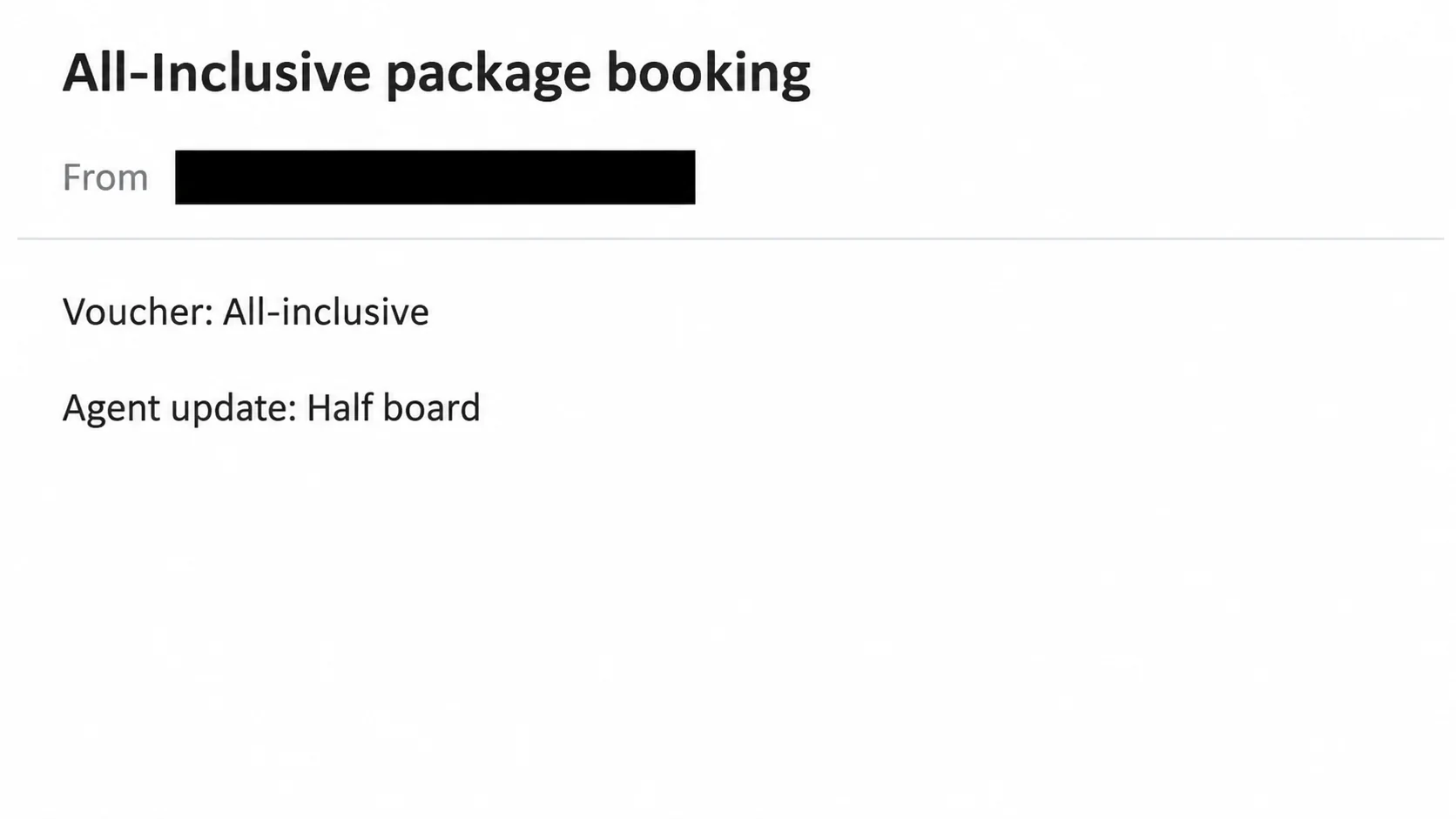
A booking arrives with two versions of the same stay. The guest’s voucher says all-inclusive, while the latest update says half board. Someone needs to clear it up.
That’s the setup in a message signed Voyage Travel & Tours. If you work with reservations, the request looks like the kind of small mistake you fix before check-in.
Overview
A reservation discrepancy that sounds like normal work
The subject in the documented email was All-Inclusive package booking. It greeted the recipient as a partner and asked them to confirm which meal plan applied to the reservation.
The signature presented the sender as a travel contact. That name is part of the specimen, not a finding about any genuine travel business with a similar name.
In the captured message, the display name and the domain shown in the sender address don’t match each other. We don’t have the original mail headers to establish its origin.
There’s also a tiny booking-looking preview in the body. A picture can make the email feel specific, but it is not a record your team can query or confirm.
The lead image recreates the meal-plan mismatch without reproducing the sender details or the active link. The exact wording you see in your inbox may not match it.
The link led to a script instead of a booking
The reservation-details link in the reported case delivered a JavaScript file, identified by its .js extension. That is different from a web reservation or a guest voucher.
The reported file was flagged as malicious. Its ultimate payload and what happened on any individual recipient’s machine were not established. Don’t assume this message installed a named ransomware family.
Browser download and local execution are separate events. Identify which occurred before deciding how urgently a device needs to be isolated.
The useful response depends on where you stopped
Keep these three paths in mind before opening anything else:
- If the message is still unread or was only read, report it without opening the link. Check any genuine reservation through the system you already use.
- If a file downloaded, don’t double-click it to identify it. Check the name in the downloads list and tell IT or remove it on your own device.
- If you opened or ran the downloaded script, treat the computer as potentially compromised. Do not continue working in a reservation portal while deciding what happened.
In hospitality, the worst outcome may not stop with the initial recipient. Shared reservations, work mail and stored sign-ins can make incident reporting important even when the computer seems normal.
How the Fake Voyage Travels Reservation Scam Works
Step 1: The sender invents a small administrative conflict
All-inclusive and half board are different booking terms, so the discrepancy sounds like something that would need checking. The email doesn’t have to sound like a crisis.
It offers a plausible reason for two people to have different records. One apparently has a voucher, while the other has a newer update from an agent.
Look for a reference you can validate independently. An unverified sender’s account of a reservation isn’t a substitute for your own confirmation number, travel portal or agency contact.
Step 2: The recipient is sent outside their normal reservation workflow
The email tells the reader to use View reservation details. The phrase makes the link look like a shortcut to an ordinary record rather than a change of system.
A hotel clerk may already have the booking console open. Search there using details from the existing reservation, without signing in through the message.
An independent check can prevent a guest from getting the wrong meal plan. Leave the reservation unchanged until your agency or property confirms it through its usual channel.
Step 3: The promised document arrives as an unexpected file
The click in the reported sample led to a .js download. A file that ends that way can contain instructions for software to run, not a vacation voucher to print.
That distinction is easy to overlook on Windows when file extensions are hidden. If the name is visible in Downloads, check the ending without opening the file.
A legitimate booking doesn’t have to come as a PDF. The warning here is a script in place of a reservation you could check in a trusted system.
Step 4: Opening the downloaded file changes the incident
If the computer invokes a local script handler, something that looked like a voucher can execute instead of displaying travel details. Behavior depends on the device and settings.
A blank window or error doesn’t tell you what happened behind it. When you report the incident, tell IT what you opened and when.
If someone later calls about fixing the reservation, don’t treat that caller as support. Go back to your agency directory or known property contact and verify independently.
Check the Booking Without Using the Email
At a property, start in the reservation system you already use. Search by the confirmation number from an existing record, then compare the booked dates, guest and meal-plan details.
If there’s no matching record, ask a colleague to verify through the agency account or established support channel. Don’t send guest names or vouchers back to the unsolicited sender.
If you’re the traveler, check the original reservation in your booking account or confirmation from when you paid. A known booking record is more useful than a forwarded copy.
When a real change turns up, ask the legitimate property or booking provider to confirm it in that channel. Don’t ask an unknown sender to resend the same link.
For a shared mailbox, tell the team the exact subject and the approximate arrival time. Your security team can look for related copies without asking staff to open them.
What to pass on at the next shift change
Leave a note for colleagues in the reservation system or another approved private channel. Record whether the real reservation was found and whether the guest record was changed.
If nobody has verified a match, write that explicitly. That keeps the next person from assuming the booking was checked and following the same link to close the task.
If IT is investigating, record the affected mailbox and device so staff know where to direct questions. Don’t ask a colleague to repeat the click to reproduce the download.
When the original booking is real, keep customer communication in the existing conversation or official portal. Don’t tell the guest to respond to a message they may never have received.
What to Do if You Have Fallen Victim to This Scam
-
Match your response to what you did. If you only read the email, report it and verify the booking independently. Don’t click the link again to collect details.
If you downloaded a file but never opened it, note the name and time in the browser’s download list. Do not open the file from that list.
-
Disconnect a computer that may have executed the script. Turn off Wi-Fi and unplug Ethernet. Stop using that device for mail, payments or the booking system.
Contact IT or a security responder using a phone or another computer. If this is a work PC, leave it isolated and avoid restarting unless they instruct you to.
-
Give support evidence without spreading the file. Record the sender display name, subject, time and action taken. Use your organization’s phishing report button if one is available.
Tell the reviewer if you downloaded the file, tried to open it or saw a separate login form. Don’t attach the risky download in a reply or team chat.
-
Secure booking and email accounts if you used them afterward. Sign in on a trusted machine using the known service URL. Change an exposed password and review recent sessions.
Ask a work administrator to revoke affected sessions and check for unexpected forwarding rules, changes to bookings or messages sent to guests. A password reset alone may not cover everything.
-
Keep the guest’s payment and booking record separate. Don’t cancel or refund an existing stay based on this message. Wait for confirmation through the reservation platform.
If an unrelated follow-up convinced you to submit payment details, contact the card issuer from a known number. Explain what you disclosed and keep the case reference.
How to Check Windows After Running the Reservation Script
Step 1: Work out whether self-service cleanup is appropriate
Report a work device before changing it, especially if it could access guest records or a shared mailbox. Even an apparently normal session can be useful evidence to responders.
On a personal PC, use this guide when the file may have run. If you only located an unopened download, keep it unopened and remove it unless evidence is needed.
If the machine is still doing unexpected things or there may be ongoing remote access, don’t reconnect to obtain a scanner. Seek help from a different device.
Step 2: Get the scanner through a trusted route
Use the established Malwarebytes installer for Windows, not an installer link in the reservation message. Get it on a separate PC if the affected machine needs to stay offline.
Open the verified MBSetup file from its saved location. On an unmanaged PC, confirm the publisher in the Windows prompt before allowing installation.

Choose the personal computer setup option where offered, then proceed through the installer. Decline optional offers you don’t need and open Malwarebytes once setup is complete.
If installation requires an unsafe reconnection, stop. Use a scanner already installed on the PC or ask for help with offline cleanup.
Step 3: Scan for additional files and programs
On the Malwarebytes dashboard, choose Scan on the Scanner card to run a threat check. Leave the suspect script closed while the scan runs.
If you need to inspect an identified download folder after that, use a supported custom scan rather than running anything that happens to be in the folder.
On the Scanner card, open its options menu, choose Advanced Scan, then Custom Scan if your version offers it. Select the relevant location and start the scan.

When the results appear, review what the app found. Select confirmed threats and choose Quarantine, then save the results or record the detection names for whoever is helping.
The optional Windows Premium plan may earn MalwareTips a commission. The on-demand Malwarebytes scan is available without a subscription.
Step 4: Verify the result and check the remaining exposure
If the app requests a restart, complete it only when evidence doesn’t need to be preserved. Reopen Malwarebytes, check Detection History and run another scan if needed.
Repeated findings, unknown logins or unexpected changes in the booking system need further review. Contact your IT team or the MalwareTips Windows help forum without posting guest data.
For a personal computer that can’t run the installer, open Windows Security, select Virus & threat protection, then Scan options. Choose Full scan, then Scan now.
Open Protection history afterward to review the actions Windows took. A scan cannot determine whether someone previously used an exposed booking account, so check that separately.
Step 5: Return to the reservation system with the right safeguards
Use a device your support team has cleared or a separate trusted one. Review any change the account made around the incident time before taking further action on the booking.
Look for unfamiliar edits to payment instructions, contact details or guest messages. If a change isn’t recognized, preserve the relevant record and have an administrator check the audit history.
Keep the fraudulent message and legitimate booking in distinct records. That makes it easier to warn affected coworkers without spreading a guest’s personal information or reattaching the suspect download.
Frequently Asked Questions
Is Voyage Travel & Tours itself responsible for the message?
The name appeared in the signature of the reported email. That alone doesn’t identify the sender or implicate a real business with similar branding.
What does half board mean in this email?
It’s the proposed alternative to an all-inclusive rate. It gives the recipient a reason to check the booking, but the terms in the email don’t verify an actual reservation.
Is the download supposed to be a PDF?
The sample delivered a JavaScript file, not a voucher. If the real reservation system asks you to download something different, access it independently and verify what is expected.
Does downloading a JavaScript file automatically run it?
A file appearing in Downloads is not the same as the device executing it. If you clicked Open afterward or are unsure, report those actions and don’t try them again.
Should I reply or call the number in the message?
Don’t use the contact details supplied by the suspicious email. Use the contact from the agency account, original booking or internal directory you verified beforehand.
Does a clean scan settle everything after opening the download?
It is useful but can’t rule out prior activity or an exposed sign-in. Report the incident and have the affected accounts checked if you used them on the same computer.
The Bottom Line
Don’t settle an all-inclusive versus half-board dispute through this email’s link. Check the actual booking in your own portal or contact the agency using details you already trust.
Don’t open a script already in Downloads. If you ran it, disconnect the computer, report the incident and protect booking or email access from a separate device.

Join the discussion
0 commentsShare your experience or ask a question about this article.
Community experiences
Did this happen to you?
Your experience could help someone recognize the same scam. Submit a private report for our team to review.
I experienced this tooReports are reviewed before publication. Sharing publicly is always your choice.
Discussion
Start the conversation
Have a question or something useful to share? Add the first comment.