


The file names are familiar until you look at their endings. A photo or spreadsheet that opened yesterday now carries an extra suffix, and the usual app won’t recognize it.
Then you see a file named RECOVER_DATA. Before you follow anything it says, there are a few decisions that will matter more to your recovery.
Overview
What the extra .raptum46 extension means
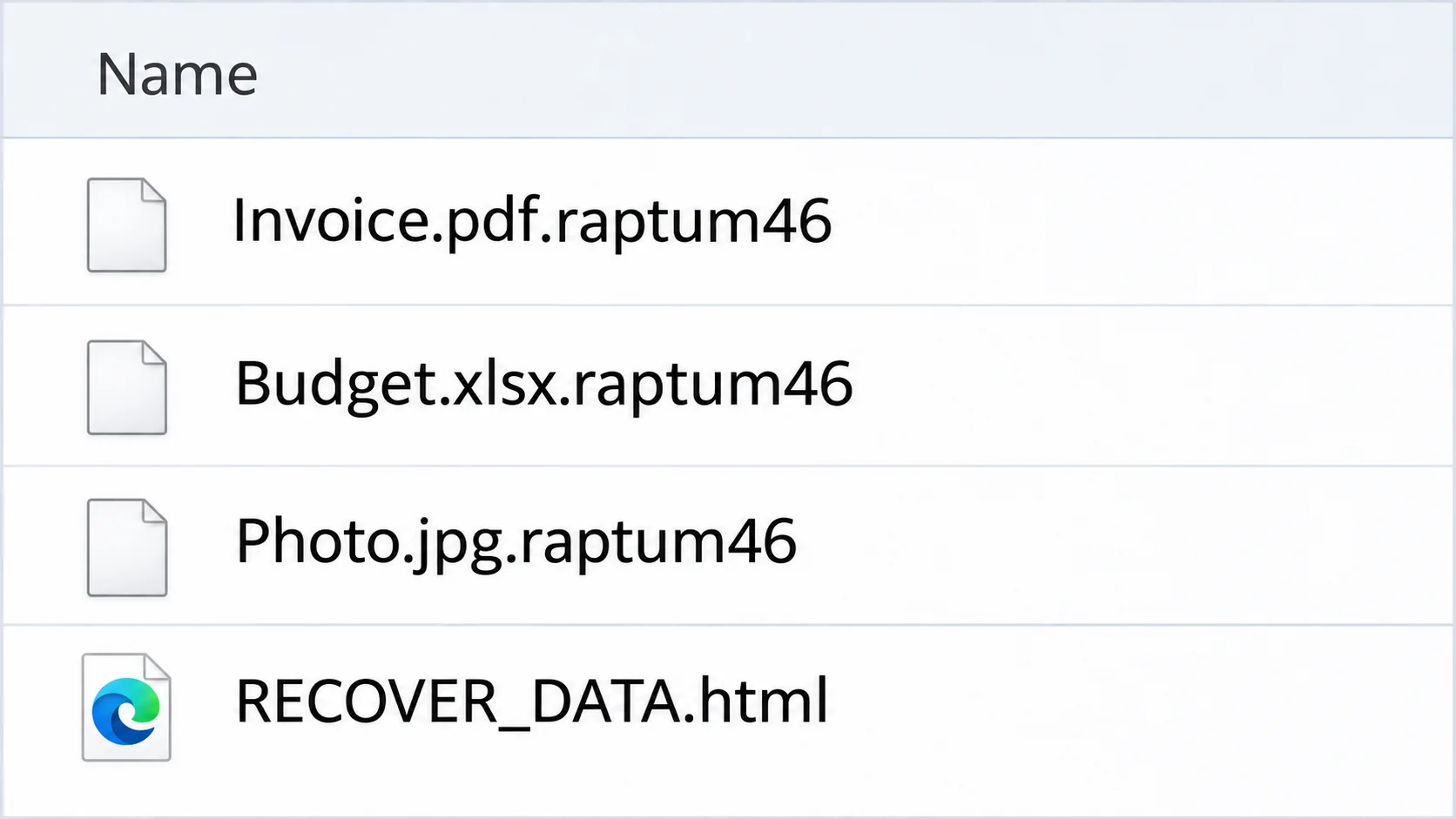
Raptum is a Windows ransomware variant associated with the MedusaLocker family. In the documented sample, an encrypted photo could keep its original name but acquire the extra .raptum46 ending.
The number is not a reliable way to tell which key was used. Other samples can use different suffix numbers, and changing a filename won’t reverse changes to the contents.
The file list above recreates the pattern with invented filenames. The useful clues are the matching endings on unrelated files and the accompanying RECOVER_DATA.html note.
What the ransom note says, and what it doesn’t prove
The note threatens a higher demand if the victim doesn’t make contact within 72 hours. It also claims files were taken and threatens to publish them.
Treat the threat seriously if customer or employee records were accessible. The note itself does not tell you whether any particular file was actually taken.
The joint MedusaLocker advisory describes that broader family. It does not establish how this particular sample entered your machine. MedusaLocker and the similarly named Medusa ransomware should not be confused.
Three separate jobs after the files stop opening
A good response keeps these tasks apart:
- Contain the incident before plugging in a backup drive or opening a network share from the affected PC.
- Remove the active malware or rebuild the device before trusting it with new files, passwords or restored data.
- Recover from verified backups or older versions where possible. Preserve encrypted originals when a compatible decryptor is not available.
Paying doesn’t guarantee workable decryption or deletion of data that might have been copied. Neither does an antivirus purchase provide the key to the encrypted documents.
How a Raptum Incident Unfolds
The change is to the file, not just the name
If a Windows file association breaks, an app may no longer open a document with a double-click. With ransomware, the underlying data may have been changed.
One broken spreadsheet tells you little. Many unrelated files gaining the same suffix while a ransom note appears is a stronger reason to stop using the machine.
Don’t test the change by renaming your only copy. Hang on to at least one untouched encrypted original for incident review or a future compatible recovery tool.
The note uses the loss of access to press for a decision
A note named RECOVER_DATA.html can look like a repair file. It instead gives directions controlled by the people demanding money. You don’t need to open it to start containment.
The note can be preserved as evidence without following its links, contacting the sender or sharing files for a demonstration. Save its name and location first.
For a business, deciding what to disclose and whom to notify belongs with incident response, legal and privacy staff. Don’t take the attacker’s description as the only account of events.
Network and sync can spread the consequences
Another computer may not have run the malware, yet a shared folder can contain files that were modified by an affected device with access to it.
Cloud sync can also copy damaged versions upstream. Open the provider’s website on a clean machine to check version history rather than resuming sync on the affected PC.
Avoid claiming a particular entry point based on the extension. Ask responders to inspect sign-ins, remote access, timeline and shared storage before deciding which systems need more work.
What to Do if Your Files Have Been Encrypted
-
Isolate the machine before testing any recovery. Unplug Ethernet, turn off Wi-Fi, and stop active access to shared folders. Do not connect another backup drive to make a quick copy.
Use a phone or unaffected computer to report the incident. On a managed device, wait for instructions about restarting or powering it off so important evidence isn’t lost.
-
Document when the changes first appeared. Note the suffix, note name and the time you noticed them. Record affected folders and drives without opening the note.
Tell responders if a removable drive or sync client was connected. That can help them decide which backups may still be safe and which shares to inspect first.
-
Keep known backups away from the affected PC. Ask your administrator to pause affected sync and backup jobs, or manage them from a clean device if authorized.
Don’t delete cloud versions to tidy up the folder. Older versions and timestamps can help identify which recovery point came before the encryption.
-
Seek help through a known channel. Contact your organization’s response team for work data. For personal cases with financial or identity exposure, consider reporting to local authorities.
In the United States, the FBI’s Internet Crime Complaint Center accepts reports. Keep case numbers, dates and known impact without posting private files publicly.
-
Secure affected accounts once you can do it safely. On a separate device, review recent access and ask your administrator how to revoke exposed sessions or change credentials.
If you already paid someone promising a key, preserve the transaction record. An offer of guaranteed recovery for a second payment is not a reliable remedy.
How to Remove Raptum From a Windows PC
Step 1: Decide whether to preserve the system or clean a personal PC
For a server, managed computer or ongoing incident, stop before running consumer tools. Follow your response team’s instructions on evidence capture, isolation and rebuilding.
On a personal PC, if encryption is still happening or a second device shows the same signs, seek specialist help. Don’t reconnect merely to update a scanner.
If you’re proceeding with a personal PC and don’t need forensic preservation, keep the encrypted originals and a record of the incident before taking additional action.
Step 2: Obtain the real scanner without opening the ransom note
If you need a Windows scanner, use the Malwarebytes Windows installer from the existing MalwareTips route. Use a trusted computer to obtain it if the affected PC cannot safely connect.
Open the verified MBSetup file from the folder where you saved it. Check that the Windows publisher prompt matches the installer before selecting Yes.

Continue through Install and the setup choices for your personal computer. Skip offers you do not want, then finish setup and open Malwarebytes from Start.
The optional Malwarebytes Premium link may earn MalwareTips a commission. You don’t need to buy a subscription for the manual scan and quarantine procedure.
If the installer cannot finish without going online and reconnecting would be unsafe, don’t make an exception to run it. Ask for help with an isolated cleanup or a rebuild.
Step 3: Scan, quarantine and keep a record
On the Malwarebytes dashboard, look for Scanner and choose Scan. The screenshot shows the control in the Windows interface, not a scan result from this incident.

When the scanner reports its findings, select confirmed threats and click Quarantine. Keep the results, and restart only if prompted and evidence preservation is no longer needed.
After restarting, open Detection History and review the quarantined items. Run another scan and note whether anything returns. Recurrent findings need a specialist, not an exception in the scanner.
If you cannot install another tool on an otherwise usable personal PC, consider Microsoft Defender Offline if Windows Security is available.
Open Windows Security, then Virus & threat protection, Scan options, and Microsoft Defender Antivirus (offline scan). Choose Scan now only if a restart is safe for your case.
When Windows returns, inspect Protection history for findings and unresolved actions. A completed scan does not establish how an attacker got in or whether other machines are affected.
Step 4: Know when rebuilding is safer than another scan
Escalate if you see unauthorized administrator accounts, repeated detections, ongoing changes to files or systems that were reachable from the infected PC.
A specialist may recommend reinstalling from trusted Windows media rather than trying to repair the affected installation. Confirm backups, licenses and recovery keys before any destructive work.
Install security updates first on the rebuilt system, then restore only vetted data. Don’t carry old installers or an unreviewed system image onto the fresh installation.
How to Recover Files After Raptum
Start with an offline backup that predates the changes
Connect the backup to a clean computer, not the affected PC. Find a recovery point before the first signs of encryption and check that the dates and filenames make sense.
Restore a few files to a separate test folder. Open them from that folder to confirm their contents, not just their icons. Keep the backup and encrypted copies unchanged.
If the test works, restore the rest to clean storage under a new folder name. For business systems, bring shared data and critical services back in the order IT specifies.
Check version history or snapshots if the main backup is missing
In OneDrive on a clean device, right-click the affected file and choose Version history. Find a revision from before the changes and inspect its date.
Keep an independent copy of the current file if it matters for evidence. In the version list, open the menu next to the intended revision and choose Restore.
Restoring a version makes it current. Start with one noncritical file and check it before changing a large folder. Avoid re-enabling sync on the affected computer while you test.
For local copies, open the original folder’s Properties in File Explorer and check Previous Versions. If you find a usable snapshot, open it without overwriting the current folder.
Copy the needed files to a separate drive or test location. If Windows offers Restore to, choose a different destination rather than replacing the affected files in place.
Without any listed versions, this route may not be available. If a specialist needs to examine the drive, don’t install tools or write new files there.
If the backup software offers multiple dated sets, compare a known document across them. A backup labeled complete can still contain encrypted versions if its job ran after the attack.
Bring restored files back in a controlled order
On a home PC, start with documents you can open and inspect without running anything. Scan recovered content before trusting an older installer, executable or document with active content.
If a restored document looks right but later gets renamed again, disconnect the system. Preserve the newly affected copy and ask which machine or sync account can still modify it.
On a network, confirm that old and new credentials aren’t in use at the same time. Your administrator should bring shares back only when affected devices and accounts are cleared.
Keep notes on the backup date, where the replacement files went and which folders still need work. That gives you a short recovery checklist instead of another pile of copies.
Screen decryptors by the exact variant, not the closest name
Check the No More Ransom tool catalog for a match supported by the tool’s own documentation. We did not find a verified public decryptor for the documented .raptum46 sample.
A tool for a similarly named Medusa threat is not automatically compatible with MedusaLocker or Raptum. If a verified tool becomes available, start with copies and keep the originals.
If no verified option fits, retain encrypted files and incident details in separate storage. Avoid sending confidential samples to an unknown service merely to see whether it responds.
Frequently Asked Questions
Is the file corrupted if Windows refuses to open it?
The new suffix and note together suggest encryption, not just a damaged association. A backup or a verified compatible decryptor addresses the contents rather than the extension.
Do I have to read RECOVER_DATA.html?
You can begin containment and call for help without opening it. Preserve a copy for your responder if asked, but don’t follow links or send files to its contacts.
Is Medusa ransomware the same family?
The two names can easily be confused. The reported Raptum sample was associated with MedusaLocker; tools for Medusa do not establish compatibility with Raptum files.
Can Malwarebytes open files after removing ransomware?
Quarantine can stop detected malicious components from running. It won’t reverse encryption that already happened. Switch to verified backups, earlier versions or a variant-specific recovery option for those files.
What if my external drive was plugged in?
Disconnect the potentially affected drive and tell your responder it was attached. Check it in an approved clean environment before relying on its contents for recovery.
Does an extortion note prove my files were stolen?
The threat is a reason to investigate, not a confirmed count of stolen files. If sensitive records were present, report that fact so responders can examine the possible exposure.
The Bottom Line
If your files acquired .raptum46 and a ransom note appeared, disconnect the affected PC and preserve the evidence. Don’t pay or rename your only copies in a rush.
Clean or rebuild the device before restoring data. Start with verified older copies, test them away from the infected PC, and keep what you cannot recover today.

Join the discussion
0 commentsShare your experience or ask a question about this article.
Your progress
Did these steps help?
Let us know how the guide worked for you.
Describe what you see and the step you reached. Keep passwords and other private information out.
Discussion
Start the conversation
Have a question or something useful to share? Add the first comment.