


An Android update is usually a task you do without thinking. You recognize the app, see an update notice, and expect the phone to handle the rest.
BeatBanker takes advantage of that habit. The detail worth noticing isn’t how polished the screen looks, but where you have to go to finish the update.
Overview
Two familiar names, neither of them the real download
Kaspersky’s researchers documented Android malware disguised as a Brazilian benefits refund app or as Starlink. Neither download belonged to the service it claimed to represent.
The refund disguise was called INSS Reembolso. It looks more plausible if you already know that Brazil’s INSS operates a real process to reimburse certain improper benefit deductions.
The agency says to verify through official INSS channels. The program does not require you to install an app from a link someone sent you.
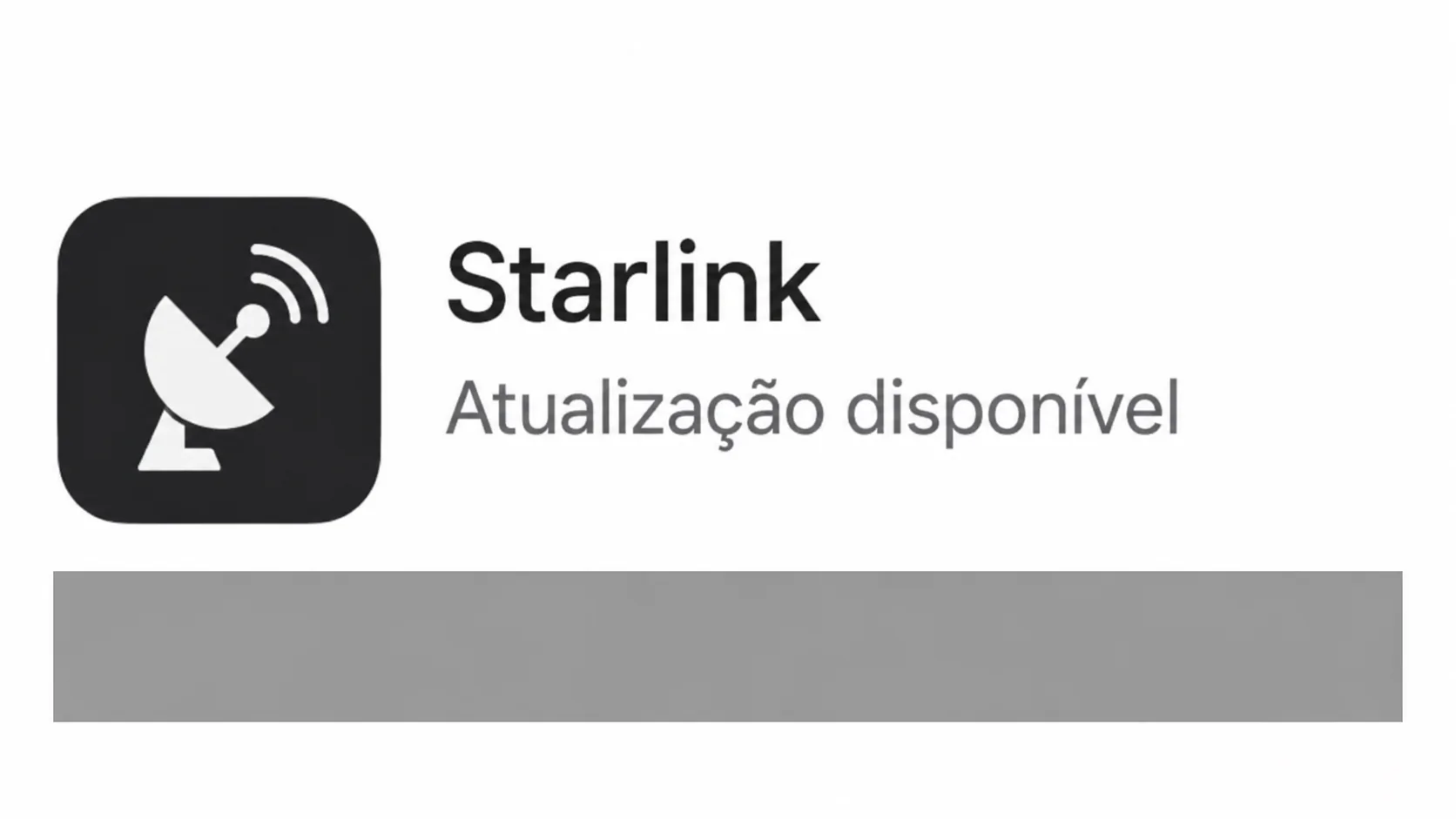
The Starlink disguise is a different lure for the same malware family. The redacted lead image recreates the update hook without showing a working download or a live page.
The update screen can belong to an app, not the store
An imitation Google Play page appeared during the attack. A web lookalike or an update screen inside an app is not the Google Play Store application.
The warning sign is especially clear when you’re asked to grant permission for other installations. Opening the genuine Play Store from your own home screen is a separate action.
An Android permission dialog can be real even when the request behind it is not. Read the requesting app’s name and what access it wants before doing anything.
Why banking, remote access and mining are separate concerns
BeatBanker describes a family of related Android threats. What the phone may have been exposed to depends on the variant and which components actually installed:
- The INSS-themed version could install a banking component as well as a miner. Its documented crypto targets included Binance and Trust Wallet.
- The Starlink-themed version installed BTMOB, a remote-access Trojan, instead of that banking component. Researchers also found a miner in this version.
- Neither battery drain nor a warm case identifies BeatBanker. An unexpected installation or unauthorized activity is more useful when deciding what to investigate.
You don’t have to know which variant ran before isolating the phone. The distinction matters when documenting the incident, not when deciding whether to keep banking on that handset.
How the BeatBanker Android Scam Works
Step 1: The download borrows a reason you already care about
Someone looking into an INSS refund has a reason to pay attention to a refund name. Someone setting up satellite internet already expects to find a Starlink app.
The fraud borrows the task, not just the logo. That makes it easy to read the next screen as part of what you came to do.
For an INSS refund, go to the official channel yourself. For Starlink, start from the provider’s website or open the Google Play Store independently of the message.
Step 2: An update asks for access outside the store
The initial package can look like the app you expected. The later update screen then makes an additional request look ordinary, even though it isn’t coming through Google Play.
The attack depends on the reader trusting that handoff. It is worth stopping whenever the same app that introduced the update also asks for permission to install additional software.
Already downloaded a file but never installed it? Don’t tap it to check what it is. Remove it from Downloads after preserving anything your security team needs.
Step 3: Additional components make the initial package only part of the problem
The research documented hidden components that the first app could bring onto the phone. Removing a familiar-looking shortcut does not tell you whether those components are still installed.
One component put the phone’s processing power to work mining cryptocurrency for the operators. That can affect performance, but a normal-looking battery reading doesn’t clear the device.
Do not try to diagnose an infection by waiting for the phone to heat up. Check the app list, permission history and security results instead.
Step 4: Money or accounts become the main concern
In the banker version, the researchers saw a fake screen associated with a crypto transfer. The address a person intended to pay could differ from the actual destination.
The Starlink variant’s remote-access component posed a wider device risk. It could expose sensitive activity even if the owner never opened a crypto wallet.
If money has moved, get the record from the bank, exchange or wallet on a different device. A screenshot from the affected handset cannot establish where a transfer settled.
What to Do if You Have Fallen Victim to This Scam
-
Take the phone offline if you installed the app. Turn on airplane mode, confirm Wi-Fi is off, and stop using the phone for payments or sign-ins.
If a work account or managed phone is involved, call IT from another device before deleting anything. Give them the time and the name shown during the installation.
-
Contact the bank or exchange from a clean device. Use the number on your card or the provider’s own app. Report what happened, including whether you entered a PIN.
Ask the provider to lock affected access and check for unfamiliar transfers. Save the case number, amounts, times and transaction references without forwarding the suspicious installer.
For an unauthorized Pix transfer, ask the bank about Brazil’s MED process. It is specific to Pix and does not guarantee a refund or reverse a blockchain transfer.
-
Verify destinations before sending any more crypto. Compare the intended recipient with the transaction on a trusted device.
Save the transaction hash with the exact amount and network. Those details help the exchange distinguish an incorrect destination from a transfer that is still pending.
If you entered recovery words on the affected device, seek verified wallet support about using a new wallet on clean hardware. Changing the app password does not replace those words.
-
Reset access in the right order. Protect the primary email account first, then banking, wallet and service accounts as applicable. Sign out unknown sessions rather than changing passwords alone.
Ask your bank how to re-enroll the mobile banking app if you plan to rebuild the phone. Do not approve a login or transfer that you didn’t initiate.
-
Distinguish a download from a completed installation. Leave the file unopened in Downloads, then delete it from a personal phone unless you need it as evidence.
If you’re unsure, look in Android’s installed app list without launching the suspect app. A missing icon on the home screen alone does not settle the question.
How to Remove BeatBanker From Android
Step 1: Find the recently installed app without opening it
On your own phone, open Settings, then Apps and the full installed app list. On Pixel, tap See all apps if only the most recent apps appear.
Look for the name shown in the suspicious download and for unexpected apps installed around the same time. Open App info in Settings instead of tapping the home-screen shortcut.
If you already use the legitimate provider app, compare the download source and installation timing before removing anything. The two names can look almost identical.
Step 2: Remove only permissions that belong to the suspect app
Search Android Settings for Accessibility and find installed or downloaded services. Open the entry for the identified suspect app, then turn off its access if enabled.
In Settings, search Install unknown apps. Select the browser or file manager you used for the suspicious download and turn off Allow from this source for that app.
If you granted overlay access, search for Display over other apps, called Appear on top on some phones. Revoke the access for the identified suspect app only.
Don’t switch off an accessibility service you rely on or a work profile’s management controls. If you cannot identify an entry, have the owner or administrator review it first.
Step 3: Uninstall and check that the app is gone
Return to the suspect app’s App info page. Tap Uninstall, confirm, then return to the full app list and verify that the entry no longer appears.
If the button is unavailable, use Settings search for Device admin apps. On a personal phone, deactivate that privilege only for the confirmed unwanted app, then retry uninstalling it.
If an overlay keeps you from opening Settings, try Safe Mode on a Pixel. Open the power menu, hold Power off, and confirm restarting in safe mode.
The key combination that opens the power menu varies by model. The Safe mode label tells you the restart worked. Retry the uninstall, then restart normally.
Step 4: Open the real store and install the legitimate scanner
Open the actual Play Store only after removing the suspect app. If you cannot remove it or see signs of remote control, stay offline and get help first.
Use the verified Malwarebytes Google Play listing. Confirm the listing says Malwarebytes for the developer, choose Install, then tap Open when it finishes.
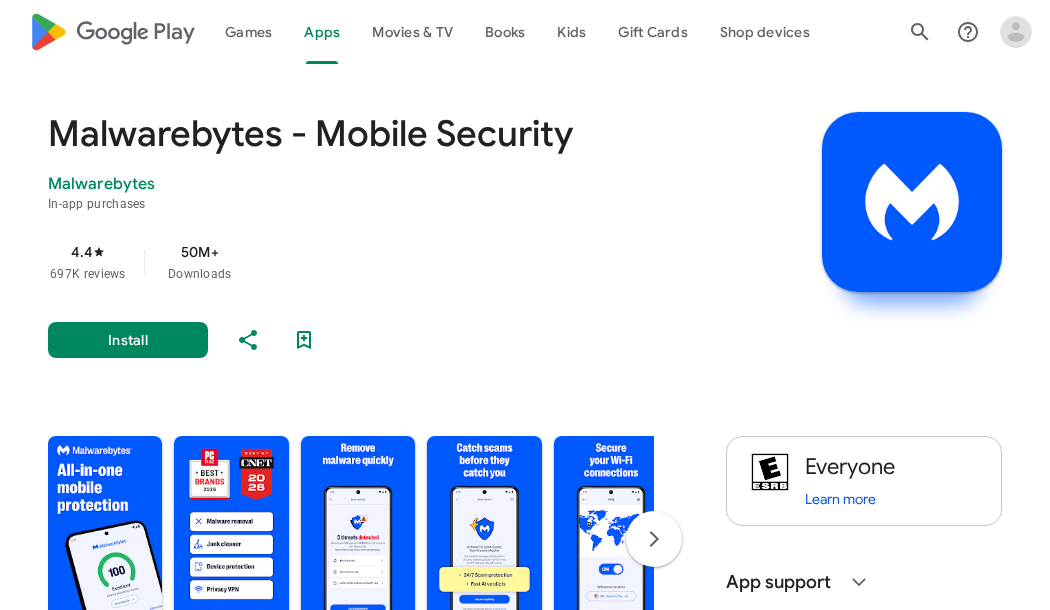
You can run the built-in check first. In Google Play Store, open your profile icon, choose Play Protect, and tap Scan if the option appears.
Leave Play Protect enabled after the scan. If it flags an app, follow the removal prompt inside the genuine Play Store rather than a linked update page.
On the Malwarebytes dashboard, look under Device and tap Scan now. If the official app requests file access for scanning, review that request in the context of this install.
Step 5: Finish the scan and handle what it finds
Wait for the scan to complete before deciding what remains. The vendor’s scanner display shows the progress stage; a partially completed scan is not a final result.
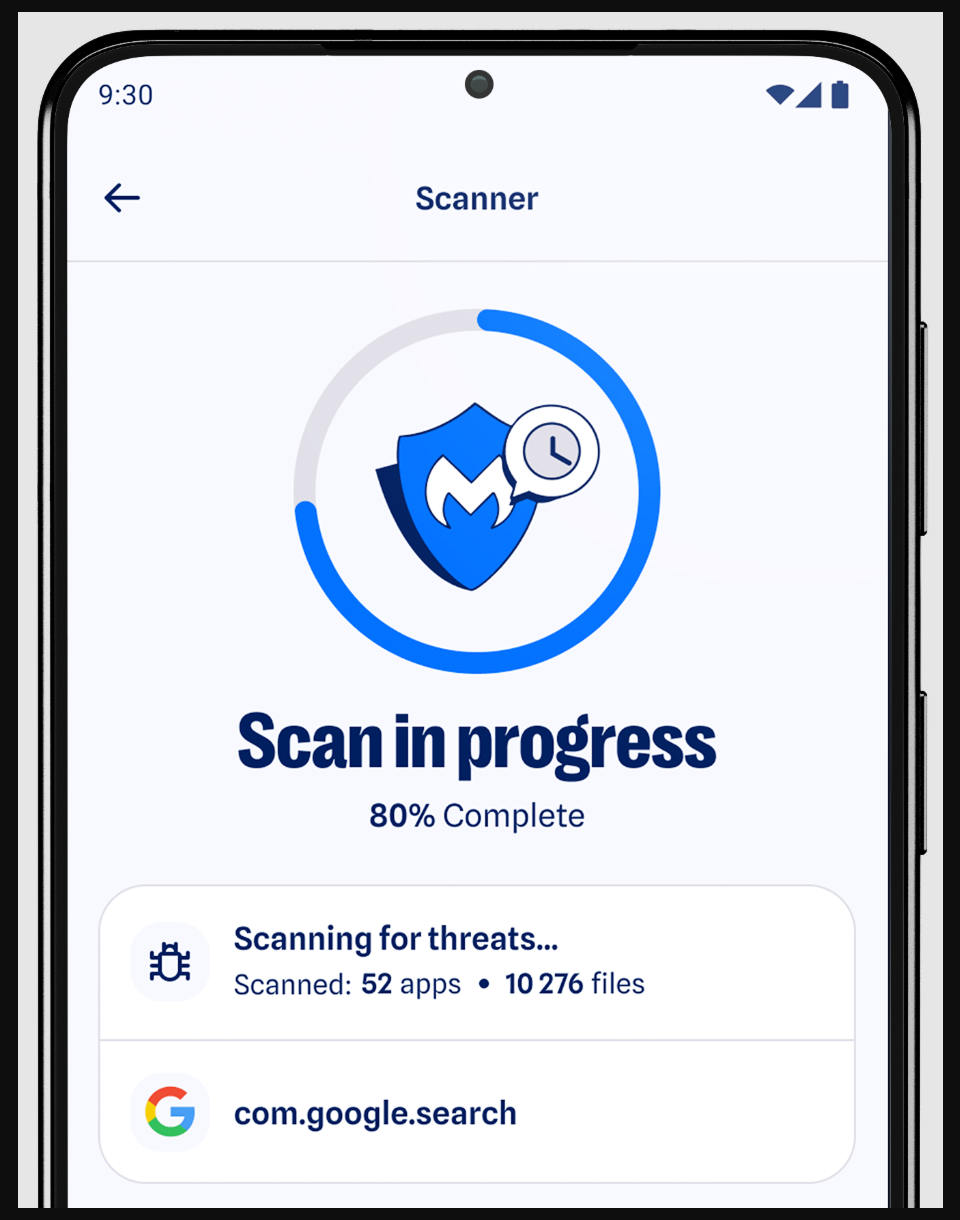
If an item is detected, tap the menu beside it. Choose App info if you need to identify it, then Uninstall app for the confirmed threat and accept Android’s prompt.
Never add a suspected BeatBanker component to the allow list to make a notification go away. If Malwarebytes cannot remove it, keep the phone offline and seek assistance.
Restart normally if prompted, reopen Malwarebytes and repeat the scan. Review any items that come back. The vendor’s scan instructions distinguish a completed scan from unresolved findings.
The paid Malwarebytes Android plan is optional, and MalwareTips may earn a commission. A subscription is not required for Play Protect or the manual removal steps.
Step 6: Rebuild only when necessary, and know what you’ll lose
Ask for help if the app returns, a permission cannot be removed or there are signs of remote control. Use the MalwareTips mobile help forum from another device.
If a specialist recommends a reset, it will erase local apps and data. Verify access to your Google account, recovery codes and clean backups before going ahead.
On Pixel, open Settings, then System, Reset options, and Erase all data (factory reset). Review the warning and proceed only once you’ve confirmed the backups and account access.
On Galaxy, choose Settings, General management, Reset, then Factory data reset. After verifying backups and Samsung account access, tap Reset, then Delete all, and confirm.
After startup, apply security updates and reinstall only trusted apps from the store. Do not automatically restore the unknown installer or an unreviewed bundle of old apps.
If your provider required a separate banking enrollment, add it only after the phone is ready. Review the devices registered to your bank and remove entries you no longer recognize.
Frequently Asked Questions
Is the official Starlink app BeatBanker?
The published research describes an impostor, not the genuine Starlink app. Find the official listing independently instead of updating through the prompt that started this incident.
Is INSS Reembolso an official refund app?
Don’t use the package offered by the suspect page. Brazil’s INSS identifies its verified routes, including the genuine Meu INSS service, separately from unsolicited app downloads.
Does clicking a fake update mean my phone is infected?
The click matters less than what happened next. If a package downloaded without being installed, leave it unopened. If installation completed, isolate the phone and check for additional apps.
Can a scan tell me whether my crypto transfer was changed?
It cannot reconstruct the recipient of a past payment. Check transaction history and the recorded destination on a trusted device. Ask the exchange for help if the destination is unexpected.
Is it enough to remove the app from my home screen?
Removing a shortcut may leave the app installed. Confirm the uninstall in Android’s Apps list, then verify that the suspicious permissions and related detections are gone.
Can I keep using the phone if the second scan finds nothing?
A clean result is useful, but it doesn’t rule out past interception or unauthorized transactions. If you saw clear signs of remote control, ask for specialist review before resuming banking.
The Bottom Line
Do not install or update Starlink or an INSS app from the lookalike screen. Go to the genuine service yourself and leave the offered installer unopened.
If you already installed it, disconnect the phone and protect accounts and payments from a clean device. Removing BeatBanker and responding to an exposed transfer are different jobs.

Join the discussion
0 commentsShare your experience or ask a question about this article.
Community experiences
Did this happen to you?
Your experience could help someone recognize the same scam. Submit a private report for our team to review.
I experienced this tooReports are reviewed before publication. Sharing publicly is always your choice.
Discussion
Start the conversation
Have a question or something useful to share? Add the first comment.