

Imagine opening your inbox to find an email that claims your system has been hacked. The sender alleges to have recorded you through your webcam, stolen your data, and threatens to share it with your contacts unless you pay a ransom in Bitcoin. It’s terrifying, personal, and sounds all too real.
This is not just a nightmare scenario. It’s a very real and dangerous form of cyber extortion known as the “We Hacked Your System” email scam. In this comprehensive guide, you’ll learn exactly what this scam is, how it works, how to protect yourself, and what steps to take if you’ve been targeted.
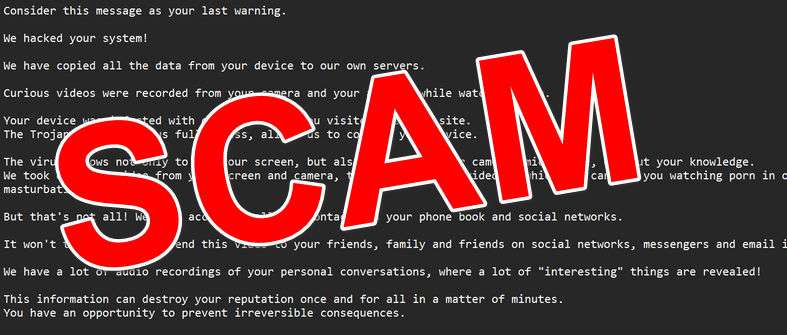
Scam Overview
The “We Hacked Your System” email scam is a widespread sextortion scam that leverages fear and shame to manipulate victims into paying a ransom. It plays on deeply personal emotions, threatening to expose fabricated, embarrassing footage to your family, friends, and colleagues.
Let’s break down the full anatomy of this scam.
What Is the “We Hacked Your System” Scam?
At its core, this scam is a social engineering attack. Cybercriminals send out mass emails with terrifying claims:
- They claim to have installed a Trojan virus on your device.
- They allege they’ve taken over your webcam and recorded compromising videos.
- They say they’ve stolen your contacts, private conversations, and browsing history.
- They demand a ransom (usually in Bitcoin) to prevent them from sending the alleged video to your contacts.
The scam preys on fear and embarrassment, particularly targeting those who may have visited adult sites. It doesn’t rely on actual hacking or access to your device. Instead, it uses psychological manipulation to coerce payment.
Language and Tone of the Email
The scam email uses threatening language, fake urgency, and scare tactics. Phrases like “Consider this message your last warning” and “You have 50 hours” are designed to create panic. The tone is cold, robotic, and authoritative to further intimidate the victim.
Common Elements of the Scam Email
- Claim of system compromise: The email starts with a bold claim of system hacking.
- Fake technical jargon: Phrases like “Trojan virus” and “full access to your device” sound technical, but are generally used inaccurately.
- Fabricated surveillance: They claim to have turned on your camera and recorded you during private moments.
- Threat of exposure: The scammers assert that they will share this content with your contacts unless payment is made.
- Bitcoin demand: A specific ransom amount is requested, usually in Bitcoin to remain untraceable.
- Countdown timer: You’re given a short window (like 50 hours) to comply or face consequences.
- Claims of irreversibility: They insist that complaining or contacting authorities will make things worse.
Here is how this email scam might look:
Consider this message as your last warning.
We hacked your system!
We have copied all the data from your device to our own servers.
Curious videos were recorded from your camera and your actions while watching porn.
Your device was infected with our virus when you visited the porn site.
The Trojan virus gives us full access, allows us to control your device.The virus allows not only to see your screen, but also to turn on your camera, microphone, without your knowledge.
We took over the video from your screen and camera, then we mounted a video in which you can see you watching porn in one part of the screen and masturbating in the other.But that’s not all! We have access to all the contacts in your phone book and social networks.
It won’t take us long to send this video to your friends, family and friends on social networks, messengers and email in minutes.
We have a lot of audio recordings of your personal conversations, where a lot of “interesting” things are revealed!
This information can destroy your reputation once and for all in a matter of minutes.
You have an opportunity to prevent irreversible consequences.To do this:
Transfer 1300 $ USD (US dollars) to our bitcoin wallet.
Don’t know how to make a transfer? Enter the query “Buy bitcoins” into the search field.Our bitcoin wallet
After making the payment, your video and audio recordings will be completely destroyed and you can be 100% sure that we won’t bother you again.You have time to think about it and make the transfer – 50 hours!
After you read this letter, we will get an automatic notification. From that moment on, the timer will start.It is useless to complain, because bitcoin-wallets cannot be tracked, as well as the mail from which the letter arrived to you.
We also do not advise you to send this letter to anybody.
In this case the system will automatically send a request to the server, and all data will be published in social networks and messengers.You will not be able to solve the problem by changing passwords in social networks, as all the information is already downloaded to the cluster of our servers.
Think about what your reputation means to you and how much the consequences will be.
You have 50 hours.
Is the Threat Real?
No. In the vast majority of cases, these emails are entirely fake. The attackers usually do not have access to your device, camera, or contacts. They are counting on panic and the psychological pressure to extort money from victims who fear the embarrassment of potential exposure.
However, these scams can feel extremely real because they are well-crafted and often target users who may be more vulnerable due to certain browsing habits.
Why These Scams Work
This type of scam works because it creates a sense of immediate threat and shame. The fear of personal videos being leaked is a powerful motivator, especially for people who value their privacy.
It also taps into general anxieties about cybersecurity, and uses enough tech lingo to sound convincing, even though most of the claims are baseless.
Real-World Impact
- Psychological distress: Victims report feelings of anxiety, paranoia, and shame.
- Financial loss: Those who pay the ransom not only lose money but also risk being targeted again.
- Privacy concerns: Even though the threat is fake, victims feel exposed and vulnerable.
The scale of this scam is massive. Millions of these emails are sent out regularly, and even a small percentage of victims paying the ransom makes it profitable for scammers.
How the Scam Works
Understanding the process can help you identify the red flags and respond appropriately. Here’s how this scam typically unfolds:
Step 1: Mass Email Campaign
Scammers send out thousands or even millions of emails using a botnet or stolen email list. These messages are often:
- Not personalized
- Contain general threats
- Use poor grammar or non-native phrasing
Despite being generic, the message is crafted to seem highly personal and alarming.
Step 2: Psychological Manipulation
Once the victim reads the email, the scam leverages fear to manipulate behavior. Common tactics include:
- Guilt/shame language: Suggesting that the user was engaged in embarrassing activity.
- Fear of exposure: Threatening to release videos to friends and family.
- Urgency: Giving a tight deadline (e.g., 50 hours) to force a decision.
This combination of emotional triggers can overwhelm the victim’s logical thinking.
Step 3: Demands for Bitcoin Payment
The email will usually contain instructions for paying a ransom, often around $1000–$1500 in Bitcoin. It may include a line like:
“Don’t know how to make a transfer? Search ‘Buy Bitcoin’ online.”
This provides just enough information to enable a less tech-savvy victim to follow through.
Step 4: Fake Timer Activation
The email might claim that opening it starts a countdown. This is completely fake and meant only to build pressure.
- There is no embedded timer.
- The email does not notify the sender when opened.
Step 5: Waiting Game
If the victim pays, the scammers often do nothing further. There are no videos. No leaks. No follow-up emails.
However, if a victim pays once, their email is often marked as a successful target. They may receive additional scam emails demanding more money.
What To Do If You’ve Fallen Victim to the Scam
If you’ve already received or acted on one of these scam emails, don’t panic. Here’s what to do:
1. Don’t Pay the Ransom
Do not send any money. It won’t stop the emails, and it confirms that you’re a viable target. Scammers often keep lists of people who pay and may target them again.
2. Do Not Respond to the Email
Avoid any interaction. Responding shows that your account is active and may lead to more harassment.
3. Change Your Passwords Immediately
Even if the threat is fake, it’s a good idea to:
- Update passwords for all important accounts
- Use strong, unique passwords
- Enable two-factor authentication wherever possible
4. Run a Full Virus and Malware Scan
Use a reputable antivirus or anti-malware tool to ensure your system is clean. While this scam is typically a bluff, it’s wise to rule out any potential threats.
5. Check for Data Breaches
Use a service like Have I Been Pwned to see if your email has appeared in any known data breaches.
6. Report the Scam
Let authorities know. It helps others avoid falling into the same trap.
- U.S. Citizens: Report to the FBI’s Internet Crime Complaint Center (IC3)
- UK Citizens: Report to Action Fraud (www.actionfraud.police.uk)
- Other countries: Contact your local cybercrime authority
7. Mark as Spam or Phishing
In your email client, mark the message as spam or phishing. This helps your provider improve filters and protect others.
Is Your Device Infected? Run a Free Malware Scan
Slow performance, constant pop-ups, or strange behavior? These are classic signs of a malware infection. The fastest way to find out is to scan your device with Malwarebytes Free — one of the most trusted malware removal tools available.
The free version detects and removes the most common threats, including:
- Adware — the cause of those annoying pop-ups
- Browser hijackers — unwanted redirects and changed homepages
- Trojans and spyware — hidden programs stealing your data
- Potentially unwanted programs (PUPs) — software you never asked for
👉 Select your device below — Windows, Mac, or Android — then follow the simple steps to download Malwarebytes, scan your system, and remove any threats it finds. The scan usually takes 5 to 20 minutes.
Run a Malware Scan with Malwarebytes for Windows
Malwarebytes is one of the most popular and trusted anti-malware tools for Windows — and it’s completely free for removing infections. It catches threats that many antivirus programs miss, including adware, browser hijackers, and trojans. Follow the steps below to scan and clean your PC in just a few minutes.
Download Malwarebytes
Click the button below to download the latest version of Malwarebytes for Windows from the official source. The free version is all you need — it will scan your computer and remove adware, browser hijackers, and other malicious software at no cost.
Download MalwarebytesOfficial installer for Windows 11 and 10. Your download starts right away.Want real-time protection? See Malwarebytes Premium Malwarebytes Free for WindowsScans and removes malware at no cost
-
Install Malwarebytes
When the download finishes, open your Downloads folder and double-click the MBSetup file. If Windows shows a User Account Control pop-up, click “Yes” to allow the installation.

Follow the On-Screen Prompts to Install Malwarebytes
The setup wizard will walk you through a few quick screens:
-
Choose where you’re installing the program — “Personal Computer” or “Work Computer” — then click Next.

-
Malwarebytes will now install on your device. This usually takes under a minute.

-
When installation is complete, the “Welcome to Malwarebytes” screen will open automatically.

-
On the final screen, click Open Malwarebytes to launch the program.

-
Enable “Scan for Rootkits”
Before scanning, turn on rootkit detection so Malwarebytes can find even the most hidden threats. Click the Settings gear icon on the left side of the screen.

In the settings menu, find “Scan for rootkits” and click the toggle so it turns blue.

Done? Click “Dashboard” in the left pane to return to the main screen.
Start the Scan
Click the blue Scan button. Malwarebytes will automatically update its virus database and start checking your computer for malware.

-
Wait for the Scan to Finish
The scan checks your entire system for browser hijackers and other malicious programs, so it can take 5 to 20 minutes depending on your computer. Feel free to do something else — just check back occasionally to see the progress.

-
Quarantine the Detected Threats
When the scan is done, you’ll see a list of everything Malwarebytes found — malware, adware, and potentially unwanted programs. Click the “Quarantine” button to remove all of them at once.

Malwarebytes will now remove the malicious files and registry entries and move them safely into quarantine.

-
Restart Your Computer
Some threats can only be fully removed after a reboot. If Malwarebytes asks you to restart, click Yes. Once you’re logged back in, Malwarebytes has finished removing the threats it found.

That’s it — your Windows PC is now clean of trojans, adware, and other malware, and should be back to running smoothly.
If you are still having problems with your computer after completing these instructions, then please follow one of the steps:
- Run a computer scan with ESET Online Scanner
- Ask for help in our Windows Malware Removal Help & Support forum.
Run a Malware Scan with Malwarebytes for Mac
Malwarebytes for Mac is a free on-demand scanner that removes the malware other security software tends to miss — adware, browser hijackers, and unwanted programs included. Cleaning an infected Mac with Malwarebytes has always been completely free, and it’s our go-to recommendation. Follow the steps below to scan and clean your Mac in just a few minutes.
-
Download Malwarebytes for Mac
Click the button below to download the latest version of Malwarebytes for Mac.
Download MalwarebytesOfficial installer for macOS. Your download starts right away.Want real-time protection? See Malwarebytes PremiumMalwarebytes Free for MacScans and removes malware at no cost -
Open the Malwarebytes setup file
When the download finishes, open your Downloads folder and double-click the setup file to begin the installation.

-
Follow the On-Screen Prompts to Install Malwarebytes
The Malwarebytes for Mac Installer will guide you through a few quick screens. Click “Continue” and keep following the prompts until the installation completes.



When the installation is complete, Malwarebytes opens to the Welcome to Malwarebytes screen. Click “Get started“.
-
Select “Personal Computer” or “Work Computer”
Malwarebytes will ask what type of computer you’re installing it on. Click either Personal Computer or Work Computer, whichever applies.

-
Start the Scan
Click the “Scan” button. Malwarebytes will automatically update its detection database and begin checking your Mac for malware.

-
Wait for the Scan to Finish
Malwarebytes will scan your Mac for adware, browser hijackers, and other malicious programs. This can take a few minutes, so feel free to do something else — just check back occasionally to see the progress.

-
Quarantine the Detected Threats
When the scan is done, you’ll see a list of everything Malwarebytes found. Click the “Quarantine” button to remove all the threats at once.

-
Restart Your Mac
Malwarebytes will now remove all the malicious files it found. Some threats can only be fully removed after a reboot — if Malwarebytes asks you to restart, allow it. Once you’re logged back in, your Mac is clean.

That’s it — your Mac is now free of adware, rogue browser extensions, and other potentially harmful software.
If you are still experiencing problems while trying to remove a malicious program from your computer, please ask for help in our Mac Malware Removal Help & Support forum.
Run a Malware Scan with Malwarebytes for Android
Malwarebytes for Android automatically detects and removes dangerous threats like malware and ransomware so you don’t have to worry about your most-used device being compromised. Aggressive detection of adware and potentially unwanted programs keeps your Android phone or tablet running smooth.
-
Download Malwarebytes for Android.
You can download Malwarebytes for Android by clicking the link below.
Get Malwarebytes for AndroidOpens Google Play in a new tab.Want real-time protection? See Malwarebytes Premium for AndroidMalwarebytes for AndroidScans your phone and removes malware at no cost -
Install Malwarebytes for Android on your phone.
In the Google Play Store, tap “Install” to install Malwarebytes for Android on your device.

When the installation process has finished, tap “Open” to begin using Malwarebytes for Android. You can also open Malwarebytes by tapping on its icon in your phone menu or home screen.

-
Follow the on-screen prompts to complete the setup process
When Malwarebytes will open, you will see the Malwarebytes Setup Wizard which will guide you through a series of permissions and other setup options.
This is the first of two screens that explain the difference between the Premium and Free versions. Swipe this screen to continue.
Tap on “Got it” to proceed to the next step.
Malwarebytes for Android will now ask for a set of permissions that are required to scan your device and protect it from malware. Tap on “Give permission” to continue.
Tap on “Allow” to permit Malwarebytes to access the files on your phone.
-
Update database and run a scan with Malwarebytes for Android
You will now be prompted to update the Malwarebytes database and run a full system scan.

Click on “Update database” to update the Malwarebytes for Android definitions to the latest version, then click on “Run full scan” to perform a system scan.

-
Wait for the Malwarebytes scan to complete.
Malwarebytes will now start scanning your phone for adware and other malicious apps. This process can take a few minutes, so we suggest you do something else and periodically check on the status of the scan to see when it is finished.

-
Click on “Remove Selected”.
When the scan has been completed, you will be presented with a screen showing the malware infections that Malwarebytes for Android has detected. To remove the malicious apps that Malwarebytes has found, tap on the “Remove Selected” button.

-
Restart your phone.
Malwarebytes for Android will now remove all the malicious apps that it has found. To complete the malware removal process, Malwarebytes may ask you to restart your device.
That’s it — your Android phone is now clean — no more malicious apps, adware, or browser redirects.
If you are still having problems with your phone after completing these instructions, then please follow one of the steps:
- Restore your phone to factory settings by going to Settings > General management > Reset > Factory data reset.
- Ask for help in our Mobile Malware Removal Help & Support forum.
Stay Protected: Block Ads and Malicious Sites
Now that your device is clean, keep it that way. Most infections start with a malicious ad or a fake download button — so blocking them at the source is your best defense.
We recommend AdGuard, which blocks malicious ads, phishing pages, and dangerous redirects before they can reach you.
👉 Download AdGuard and browse safely
Frequently Asked Questions (FAQ)
Is the “We Hacked Your System” email real?
No, the email is a scam. The vast majority of these messages are mass-produced and sent out in bulk. Scammers have not actually hacked your system or accessed your camera. The claims are designed to create fear and force you into paying a ransom.
What should I do if I receive this email?
You should delete the email and mark it as spam or phishing in your inbox. Do not respond or send any money. It’s also a good idea to update your passwords and run a virus scan on your device for peace of mind.
How did they get my email address?
Scammers often use email addresses found in data breaches. If you’ve ever signed up for a website or service that was later compromised, your email could be circulating on the dark web or hacker forums. Tools like “Have I Been Pwned” can help you check if your information was exposed.
What if the email includes a password I’ve used before?
In some cases, scammers include an old password to make their claims more convincing. This means your password was likely exposed in a past data breach. Change it immediately, especially if you’re still using it for any accounts.
Can they really access my camera or microphone?
In this scam, no. The emails are lying. They do not have access to your camera or microphone unless your device has actually been infected with malware—which is rare and would require more than just opening an email. Running a trusted antivirus scan can confirm your system’s safety.
Will they actually send anything to my contacts?
No. These scammers do not have access to your contacts or your content. The threats are empty, and no videos or messages will be sent. They rely on fear to pressure you into acting before you think.
Should I report this scam to authorities?
Yes, reporting helps track these activities and prevents others from falling victim. You can report to national cybercrime units like the FBI’s Internet Crime Complaint Center (IC3) in the U.S. or Action Fraud in the UK. Most countries have their own reporting portals.
What happens if I already paid them?
Unfortunately, paying the ransom does not guarantee anything. Scammers rarely follow through on their “promises,” and your payment might make you a target for future scams. If you’ve paid, you should still report the incident to authorities.
Can scammers track if I opened the email?
In most cases, no. The email doesn’t contain advanced tracking software. Claims that they receive automatic notifications when you read the email are false. However, avoid clicking on links or downloading attachments in any suspicious emails.
How can I avoid similar scams in the future?
- Use strong, unique passwords for each account.
- Enable two-factor authentication (2FA).
- Keep your system and antivirus software up to date.
- Don’t reuse passwords across different platforms.
- Be cautious about which websites you visit and what you download.
- Regularly check if your data has been exposed using services like Have I Been Pwned.
If you stay informed and skeptical of high-pressure tactics, you can avoid falling victim to these scams.
The Bottom Line
The “We Hacked Your System” email scam is a cold, calculated manipulation designed to exploit fear. Despite its frightening claims, it almost never involves any real hacking or video footage.
Stay calm. Don’t pay. Protect your accounts. And always stay informed.
These scams rely on panic and secrecy to thrive. Knowledge, awareness, and communication are your best defenses.
If this article helped you, consider sharing it to help someone else avoid falling for the same trick.
Stay safe online.

Join the discussion
0 commentsShare your experience or ask a question about this article.
Discussion
Start the conversation
Have a question or something useful to share? Add the first comment.