


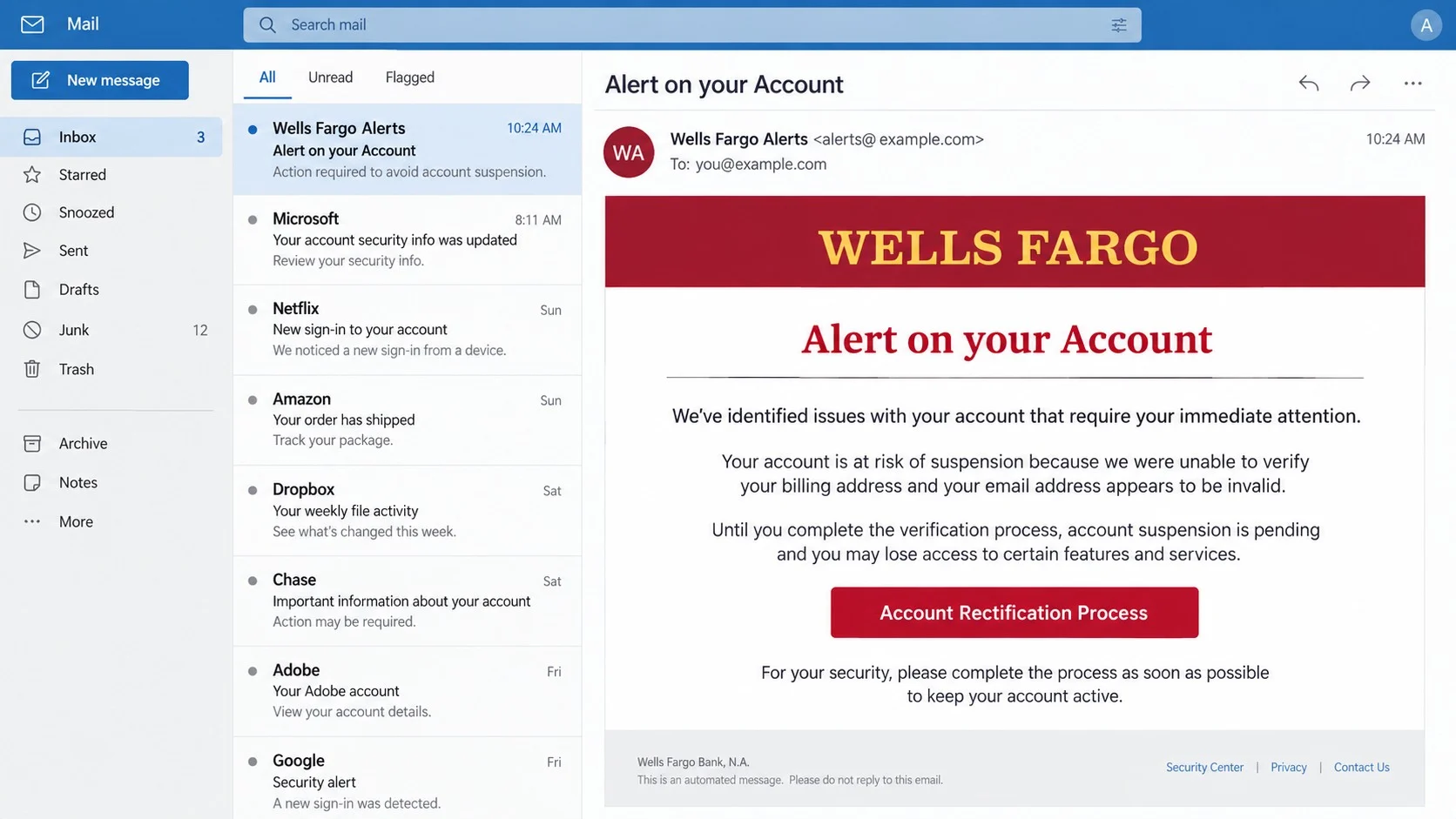
An email warns that your Wells Fargo account is heading toward suspension because its billing address and email could not be verified. The notice demands attention.
A careful look at the route behind its “rectification” link tells a much more important story.
Overview
The pending suspension warning
The message uses a subject such as “Alert on your Account” and says normal functionality has been limited.
It claims the bank could not verify the customer’s billing address and found an invalid email. Those administrative problems make the restriction sound procedural.
A link labeled “Account Rectification Process” promises to resolve the issue. The formal wording pushes the recipient toward the provided route.
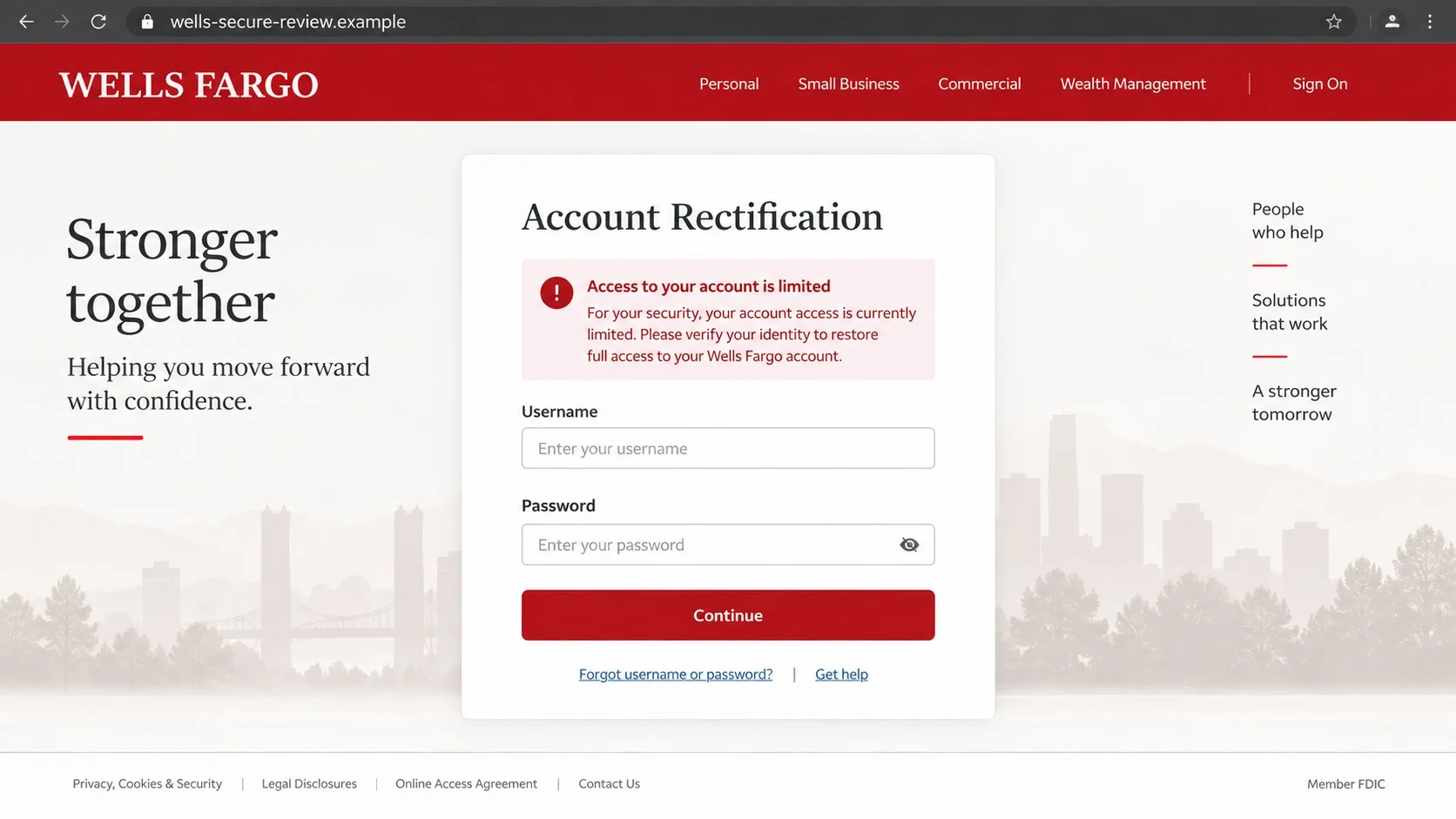
The counterfeit sign-on page
The link does not open a Wells Fargo service. It leads to an unrelated domain displaying a copied banking sign-on screen.
The page asks for a username and password. Submitted information goes to the phishing operation rather than the bank’s authentication system.
Wells Fargo did not send or authorize this campaign. Its name, design, and account language are used without permission.
The risk after credentials are submitted
Stolen credentials can support unauthorized sign-ins, payment attempts, personal data theft, and targeted calls requesting additional security codes.
Criminals may also test reused passwords elsewhere. Banking credentials should always be unique, but victims cannot assume the damage stops at one account.
The essential warning signs are:
- The email invents verification failures and a pending suspension.
- The rectification link uses a domain unrelated to Wells Fargo.
- The landing page copies the bank’s sign-on design.
- The form captures login credentials instead of resolving account records.
- Follow-up callers may request codes or transfers using the same story.
How the Wells Fargo Pending Account Suspension Scam Works
Step 1: The recipient receives an account alert
The campaign begins with an email designed to resemble automated bank communication. Its plain warning can blend with genuine security and account-maintenance notices.
The subject avoids explaining everything, encouraging the recipient to open the message. Inside, the suspension claim becomes the central source of pressure.
Attackers do not need to know whether each recipient banks with Wells Fargo. Large-volume delivery ensures that some messages reach actual customers.
For those customers, brand recognition does the rest. Concern about direct deposits, card access, or scheduled bills can shorten the normal verification process.
Step 2: Two alleged account problems create credibility
The email names an unverified billing address and an invalid email. Pairing two issues makes the warning sound like a completed system review.
The contradiction is revealing. The message reached the same email address it labels invalid, yet it still asks that address to repair the account.
No meaningful account reference explains which product is affected. Vague wording allows one template to target checking, savings, credit, and noncustomers alike.
The recipient is told that functionality is limited or suspension is pending. This turns an unverifiable claim into a deadline without stating a precise timeline.
Step 3: The rectification link leaves the bank
The “Account Rectification Process” link hides the next destination behind official-sounding text. A click sends the browser to infrastructure outside Wells Fargo.
The observed campaign used arjuna38.com, a name with no credible connection to the bank. That domain mismatch settles the authenticity question.
Attackers can obtain encryption certificates for fraudulent domains, so the page may display a padlock. Encryption does not transfer ownership to the impersonated company.
Mobile screens can make address inspection harder. The copied logo and page title remain visible while the most revealing domain portion receives less attention.
Step 4: The false sign-on collects banking credentials
The landing page recreates familiar fields and styling. Familiarity encourages automatic behavior, particularly when the email has already established urgency.
Entering a username and password does not authenticate with Wells Fargo. The form delivers those values to the phishing operators.
Some pages request further information after the first screen. Card numbers, Social Security details, addresses, security answers, and codes may appear in variants.
An error message after submission can be deliberate. It may encourage the victim to type the password again and remove any uncertainty about spelling.
Step 5: The attacker attempts account takeover
Working credentials may be tried against the real bank quickly. The criminal wants to act before the victim recognizes the deception or changes the password.
When multifactor authentication blocks entry, a phone call can follow. The caller may pose as fraud staff investigating the same alleged suspension.
The caller could ask the victim to read a one-time code or approve a prompt. Those actions may authorize the criminal’s real login.
No legitimate bank representative needs a customer to disclose an authentication code. The code exists specifically to prevent someone with a stolen password from entering.
Step 6: The fraud expands beyond one login
Account access can reveal personal information, transfer history, linked accounts, and contact details. That knowledge makes later impersonation unusually convincing.
Criminals may add payees, attempt transfers, change alerts, or obtain statements. They can also exploit saved payment methods and connected financial services.
If the password was reused, other accounts face immediate risk. Email compromise is especially serious because it can hide bank alerts and enable password resets.
Victims may later receive “recovery” calls from people promising to restore funds. These second-stage scams frequently demand remote access or movement to a safe account.
How to Verify a Wells Fargo Suspension Warning
Check the account through the normal app
Close the email and open the Wells Fargo app you already use. Alternatively, enter the known website address yourself or use a trusted bookmark.
Look for secure messages, restrictions, profile warnings, and recent activity. A real limitation should be visible after independent authentication.
Do not assume the email becomes safe when no alert appears. Treat that mismatch as strong evidence that the message was fabricated.
Contact the bank independently
Use the number on the back of your card, a statement, or the authenticated app. Do not call a number supplied inside the suspicious notice.
Ask whether any billing-address or email verification request exists. The representative can also check unusual logins and place protective controls when appropriate.
If you already clicked, explain that detail clearly. The response may differ depending on whether you only opened the site or submitted information.
Read the real destination carefully
The important domain is the registered site name immediately before its extension. Brand words in a path, subdomain, or page title can be decorative.
An address such as arjuna38.com cannot become Wells Fargo merely by displaying the bank’s logo. Close it without testing any password.
Shortened links and redirectors deserve the same caution. The sender should not need to conceal where a sensitive banking action occurs.
Evaluate the logic of the message
The notice says an email is invalid while successfully using that address to demand repair. That internal inconsistency weakens the entire claim.
Legitimate banks may request updated contact information, but customers can complete it inside the authenticated profile. An unsolicited sign-on link is unnecessary.
Strong urgency combined with vague account details is a classic phishing pattern. Verification should become slower, not faster, when the requested information is sensitive.
What a Legitimate Bank Security Process Looks Like
Real account protection relies on channels the customer can reach independently. Alerts may notify you, but they should not be the only route to resolution.
An authenticated session shows recognizable account context without asking you to trust a random domain. Support can document a case and explain any restriction.
Transaction approval screens should identify the amount and recipient. Never approve a vague prompt merely because a caller says it will cancel fraud.
Banks do not instruct customers to move money into a “safe” account controlled by another person. That instruction is itself a theft attempt.
They also do not need remote desktop access to your device. Anyone requesting installation of remote-control software should be treated as an impostor.
How Follow-Up Calls Continue the Deception
Submitting details tells criminals that the recipient is engaged. A call arriving soon afterward can appear to confirm the email’s story.
The impostor may know the victim’s name, bank, address, or partial account information. Those facts can come from the phishing form or earlier breaches.
Common instructions include reading a code, accepting a mobile notification, installing software, or sending a test transfer. Each action benefits the caller.
End the conversation and contact Wells Fargo independently. A real fraud team will understand why a cautious customer wants to reconnect through a trusted route.
Do not use redial because caller identification can be spoofed. Dial the verified number yourself and describe the earlier contact.
What to Do If You Fell Victim to This Scam
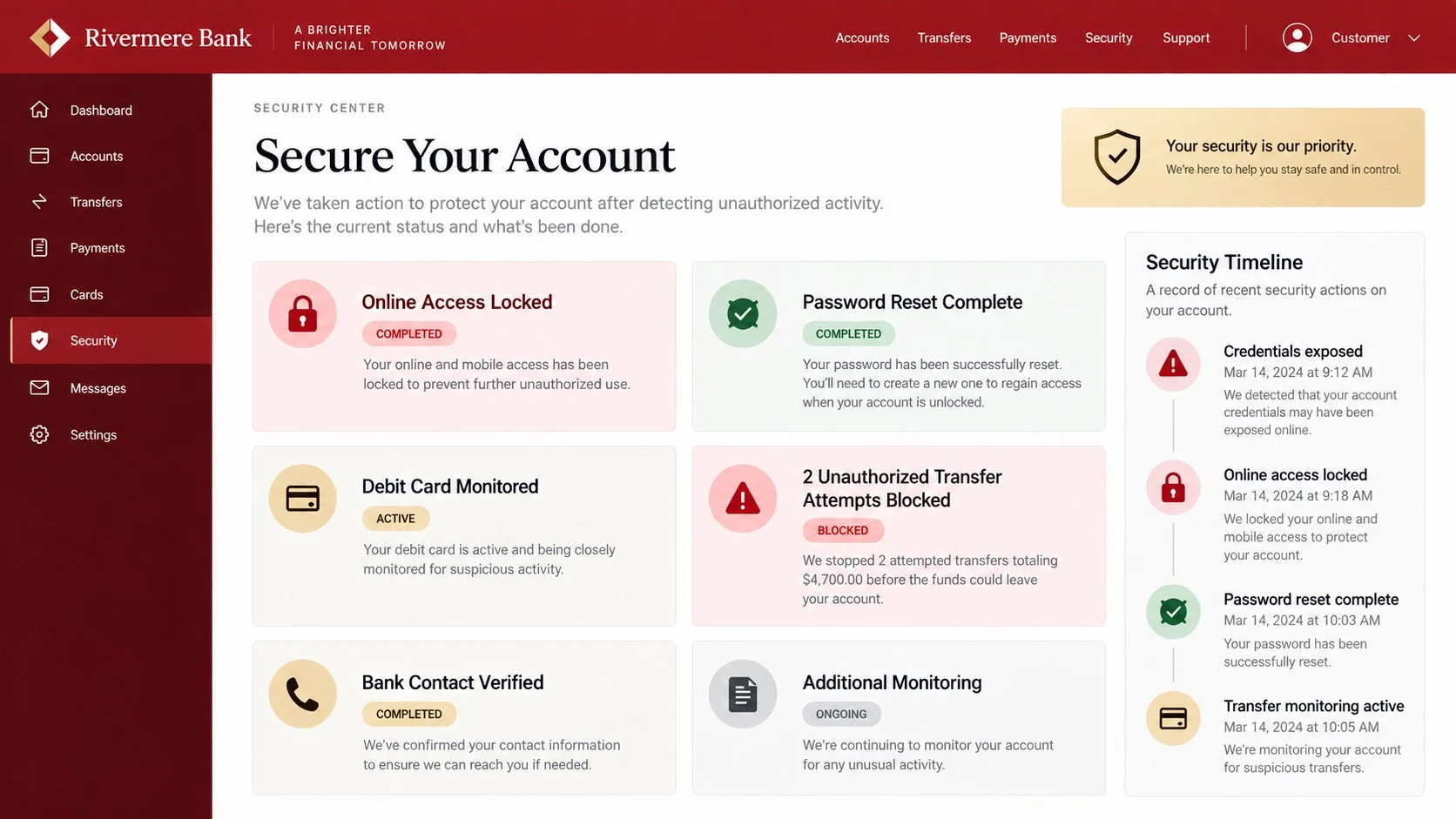
Banking phishing requires immediate, organized action. Start with the financial institution, then secure the communication channels criminals could use to maintain access.
- Contact Wells Fargo immediately. Call through the card, statement, or official app. Ask for the fraud department and describe every submitted detail.
- Replace online banking credentials. Use a clean device and the genuine service. Ask whether usernames, security questions, or access methods also require changes.
- Review transactions and payees. Identify unauthorized transfers, card charges, beneficiaries, profile changes, or linked accounts and dispute them promptly.
- Revoke exposed cards or identification. Follow the bank’s instructions when card numbers, Social Security information, or identity documents were entered.
- Protect the email account. Change its password, enable multifactor authentication, end unknown sessions, and remove suspicious rules or recovery options.
- Replace reused passwords. Prioritize financial, email, mobile, cloud, and shopping accounts, using a different strong password for each.
- Scan with Malwarebytes. Check the device for unwanted downloads, browser threats, or malware that may have accompanied the phishing page.
- Enable AdGuard. It may block many malicious sites and deceptive redirects, but it cannot cancel credentials already given away.
- Preserve and report evidence. Keep the original email, headers, destination, timestamps, and bank records for the institution and authorities.
- Reject recovery impostors. Never share codes, permit remote access, or transfer funds because an incoming caller claims to protect the account.
Is Your Device Infected? Run a Free Malware Scan
Slow performance, constant pop-ups, or strange behavior? These are classic signs of a malware infection. A quick way to check is to scan your device with Malwarebytes Free, one of the most trusted malware removal tools available. If you only visited a scam page and didn’t download or install anything, this scan is optional.
The free version detects and removes the most common threats, including:
- Adware — the cause of those annoying pop-ups
- Browser hijackers — unwanted redirects and changed homepages
- Trojans and spyware — hidden programs stealing your data
- Potentially unwanted programs (PUPs) — software you never asked for
👉 Select your device below — Windows, Mac, or Android — then follow the simple steps to download Malwarebytes, scan your system, and remove any threats it finds. The scan usually takes 5 to 20 minutes.
Run a Malware Scan with Malwarebytes for Windows
Malwarebytes is one of the most popular and trusted anti-malware tools for Windows — and it’s completely free for removing infections. It catches threats that many antivirus programs miss, including adware, browser hijackers, and trojans. Follow the steps below to scan your PC and remove what Malwarebytes finds.
Download Malwarebytes
Click the button below to download the latest version of Malwarebytes for Windows from the official source. The free version is all you need — it will scan your computer and remove adware, browser hijackers, and other malicious software at no cost.
Download MalwarebytesOfficial installer for Windows 11 and 10. Your download starts right away.Want real-time protection? See Malwarebytes Premium Malwarebytes Free for WindowsScans and removes malware at no cost
-
Install Malwarebytes
When the download finishes, open your Downloads folder and double-click the MBSetup file. If Windows shows a User Account Control pop-up, click “Yes” to allow the installation.

Follow the On-Screen Prompts to Install Malwarebytes
The setup wizard will walk you through a few quick screens:
-
Choose where you’re installing the program — “Personal Computer” or “Work Computer” — then click Next.

-
Malwarebytes will now install on your device. This usually takes under a minute.

-
When installation is complete, the “Welcome to Malwarebytes” screen will open automatically.

-
On the final screen, click Open Malwarebytes to launch the program.

-
Optional: Check for rootkits with a Custom Scan
You don’t need to change any settings for a normal scan. The standard Threat Scan in the next step is enough for most problems, so you can go straight to it.
If you also want to check for rootkits, use a Custom Scan. In current versions of Malwarebytes, rootkit scanning is only available there:
- On the Scanner tile, click the three-dot menu and select Advanced Scan.
- Choose Custom Scan. In its options, check Scan for rootkits.
- Select your system drive (usually C:\) as the location to scan, then start the scan. It takes longer than a Threat Scan.
- When it finishes, review and quarantine the results as described in the steps below.
Rootkit scanning isn’t available on Windows devices with ARM processors.
Start the Scan
Click the blue Scan button. Malwarebytes will automatically update its virus database and start checking your computer for malware.

-
Wait for the Scan to Finish
The scan checks your entire system for browser hijackers and other malicious programs, so it can take 5 to 20 minutes depending on your computer. Feel free to do something else — just check back occasionally to see the progress.

-
Quarantine the Detected Threats
When the scan is done, you’ll see a list of everything Malwarebytes found — malware, adware, and potentially unwanted programs. Click the “Quarantine” button to remove all of them at once.

Malwarebytes will now remove the malicious files and registry entries and move them safely into quarantine.

-
Restart Your Computer
Some threats can only be fully removed after a reboot. If Malwarebytes asks you to restart, click Yes. Once you’re logged back in, Malwarebytes has finished removing the threats it found.

When the scan is done, check whether the problems you noticed have stopped. If they continue, see the options below.
If you are still having problems with your computer after completing these instructions, then please follow one of the steps:
- Run a computer scan with ESET Online Scanner
- Ask for help in our Windows Malware Removal Help & Support forum.
Run a Malware Scan with Malwarebytes for Mac
Malwarebytes for Mac is a free on-demand scanner that removes the malware other security software tends to miss — adware, browser hijackers, and unwanted programs included. Cleaning an infected Mac with Malwarebytes has always been completely free, and it’s our go-to recommendation. Follow the steps below to scan your Mac and remove what Malwarebytes finds.
-
Download Malwarebytes for Mac
Click the button below to download the latest version of Malwarebytes for Mac.
Download MalwarebytesOfficial installer for macOS. Your download starts right away.Want real-time protection? See Malwarebytes PremiumMalwarebytes Free for MacScans and removes malware at no cost -
Open the Malwarebytes setup file
When the download finishes, open your Downloads folder and double-click the setup file to begin the installation.

-
Follow the On-Screen Prompts to Install Malwarebytes
The Malwarebytes for Mac Installer will guide you through a few quick screens. Click “Continue” and keep following the prompts until the installation completes.



When the installation is complete, Malwarebytes opens to the Welcome to Malwarebytes screen. Click “Get started“.
Malwarebytes needs Full Disk Access to check your whole Mac. When it asks, open System Settings > Privacy & Security > Full Disk Access, turn on Malwarebytes (it may be listed as Malwarebytes Protection), and confirm with your password or Touch ID. Then return to Malwarebytes. On macOS Monterey and earlier, this setting is in System Preferences > Security & Privacy > Privacy.
-
Select “Personal Computer” or “Work Computer”
Malwarebytes will ask what type of computer you’re installing it on. Click either Personal Computer or Work Computer, whichever applies.

-
Start the Scan
Click the “Scan” button. Malwarebytes will automatically update its detection database and begin checking your Mac for malware.

-
Wait for the Scan to Finish
Malwarebytes will scan your Mac for adware, browser hijackers, and other malicious programs. This can take a few minutes, so feel free to do something else — just check back occasionally to see the progress.

-
Quarantine the Detected Threats
When the scan is done, you’ll see a list of everything Malwarebytes found. Click the “Quarantine” button to remove all the threats at once.

-
Restart Your Mac
Malwarebytes will now remove all the malicious files it found. Some threats can only be fully removed after a reboot — if Malwarebytes asks you to restart, allow it. Once you’re logged back in, check whether the problems you noticed have stopped. If they come back, save the scan report and ask for help in our forum.

If the problems you noticed continue after the scan, see the options below.
If you are still experiencing problems while trying to remove a malicious program from your computer, please ask for help in our Mac Malware Removal Help & Support forum.
Run a Malware Scan with Malwarebytes for Android
Malwarebytes for Android scans your phone or tablet for malware, adware, and potentially unwanted apps. The free version scans only when you start a scan. Real-time protection, which checks apps automatically, is part of the paid Premium version.
-
Download Malwarebytes for Android.
You can download Malwarebytes for Android by clicking the link below.
Get Malwarebytes for AndroidOpens Google Play in a new tab.Want real-time protection? See Malwarebytes Premium for AndroidMalwarebytes for AndroidScans your phone and removes malware at no cost -
Install Malwarebytes for Android on your phone.
In the Google Play Store, tap “Install” to install Malwarebytes for Android on your device.

When the installation process has finished, tap “Open” to begin using Malwarebytes for Android. You can also open Malwarebytes by tapping on its icon in your phone menu or home screen.

-
Follow the on-screen prompts to complete the setup process
When Malwarebytes opens, it walks you through a short setup. Tap Get started and follow the prompts. If you see an offer for a trial or a paid plan, read it before you accept. You can skip it and keep using the free scanner.
Malwarebytes will ask for permission to access the files on your phone so it can scan them. Tap Allow, or turn on the permission in the Android screen that opens, then return to Malwarebytes.
-
Run a scan with Malwarebytes for Android
On the main screen, tap Scan now. In some versions, you open the menu, tap Scanner, and then tap Run a scan.
-
Wait for the Malwarebytes scan to complete.
Malwarebytes will now start scanning your phone for adware and other malicious apps. This process can take a few minutes, so we suggest you do something else and periodically check on the status of the scan to see when it is finished.

-
Remove the detected apps.
When the scan has been completed, you will see a list of the threats that Malwarebytes for Android has detected. Next to each detected item, tap the menu icon (three dots), then choose to uninstall the app or delete the file. Android then asks you to confirm. Tap OK or Uninstall to remove the app.
-
Restart your phone.
When the detected apps are removed, restart your phone if Malwarebytes asks you to. Then check whether the problems you noticed have stopped.
If the problems you noticed continue after the scan, see the options below.
If you are still having problems with your phone after completing these instructions, then please follow one of the steps:
- Ask for help in our Mobile Malware Removal Help & Support forum.
- Only as a last resort, reset your phone to factory settings. Read the warning below first.
- Back up your photos, videos, files, and messages, for example to your Google account or a computer.
- Make sure you know your Google account email and password. The phone asks for them after the reset. If you changed the password recently, Google recommends waiting 24 hours before you reset.
- On a Samsung phone, also make sure you know your Samsung account password.
- If you use an authenticator app for two-step verification, move your accounts to another device or save your backup codes first.
Stay Protected: Block Ads and Malicious Sites
No scan can prove a device is completely clean, so it helps to block threats before they reach you. Most infections start with a malicious ad or a fake download button — so blocking them at the source is your best defense.
We recommend AdGuard, which blocks malicious ads, phishing pages, and dangerous redirects before they can reach you.
👉 Download AdGuard and browse safely
Longer-Term Monitoring After Banking Phishing
Watch statements and security notifications beyond the first few days. Stolen information may be stored and reused after the immediate attention fades.
Check credit reports when sensitive identity information was disclosed. Consider a fraud alert or credit freeze according to local procedures and exposure.
Document every contact with the bank, including case numbers and promised actions. Organized records simplify disputes if another transaction appears later.
Tell household members about the incident. Criminals sometimes approach relatives with an emergency story built from information found in the account.
Update your notification preferences so important transfers and profile changes trigger prompt alerts. Faster awareness improves the chance of limiting loss.
Protecting the Mobile Number Connected to Your Bank
A criminal holding banking credentials may target the victim’s telephone account next. Controlling the number can help intercept calls or authentication messages.
Add a strong account PIN with the mobile carrier and ask about transfer locks. Avoid using easily guessed dates or repeated digits.
Watch for sudden loss of cellular service, unexpected carrier emails, or notices about a new SIM. Contact the carrier through a verified channel immediately.
Remove obsolete telephone numbers from financial profiles. Recovery methods forgotten by the customer can remain valuable to someone attempting account takeover.
Where available, use an authenticator or hardware key instead of text messages. These methods reduce exposure to SIM-swap attacks.
Never read a code to an incoming caller. The message may describe the exact login or transfer the criminal is trying to authorize.
If the number was transferred without permission, secure the carrier first, then inform the bank that authentication messages may have been intercepted.
Review other services tied to that number. Email, cloud storage, and payment accounts may all require new secure recovery settings.
Frequently Asked Questions
Is the Wells Fargo pending suspension email genuine?
No. The investigated message directs recipients to an unrelated domain with a counterfeit sign-on page. Wells Fargo is being impersonated.
Would Wells Fargo suspend an account over an invalid email?
Account policies vary, but any real concern can be checked in the official app or with independently contacted support. Do not trust this email link.
What information does the fake sign-on steal?
The observed form targets usernames and passwords. Related versions may request card details, personal data, security answers, or one-time authentication codes.
What if my banking password was unique?
That limits reuse elsewhere, but the bank account itself still needs immediate protection. Contact Wells Fargo and invalidate the stolen credential.
Can caller identification prove a follow-up call is from the bank?
No. Caller identification can be spoofed. Hang up and call a verified number from your card, statement, or authenticated application.
Should I approve a code to cancel a suspicious transfer?
No. Codes and approval prompts usually authorize an action. Deny the request and contact the bank independently to investigate.
The Bottom Line
The Wells Fargo pending account suspension email invents profile problems, then sends recipients to an unrelated counterfeit banking login.
Access your account independently, reject requests for codes or remote access, and contact the bank at once if credentials or personal information were entered.

Join the discussion
0 commentsShare your experience or ask a question about this article.
Discussion
Start the conversation
Have a question or something useful to share? Add the first comment.