


Your WhatsApp chats open normally on the phone in your hand. Then the replacement asks for a backup password you don’t remember setting.
Before you reset the old phone, check your WhatsApp encrypted backup. Opening chats on the old phone doesn’t tell you what unlocks the backup.
Overview
Message encryption and backup encryption aren’t the same setting
Personal chats are encrypted in transit. A backup is a separate copy that WhatsApp can use to restore chats and media after a move or loss.
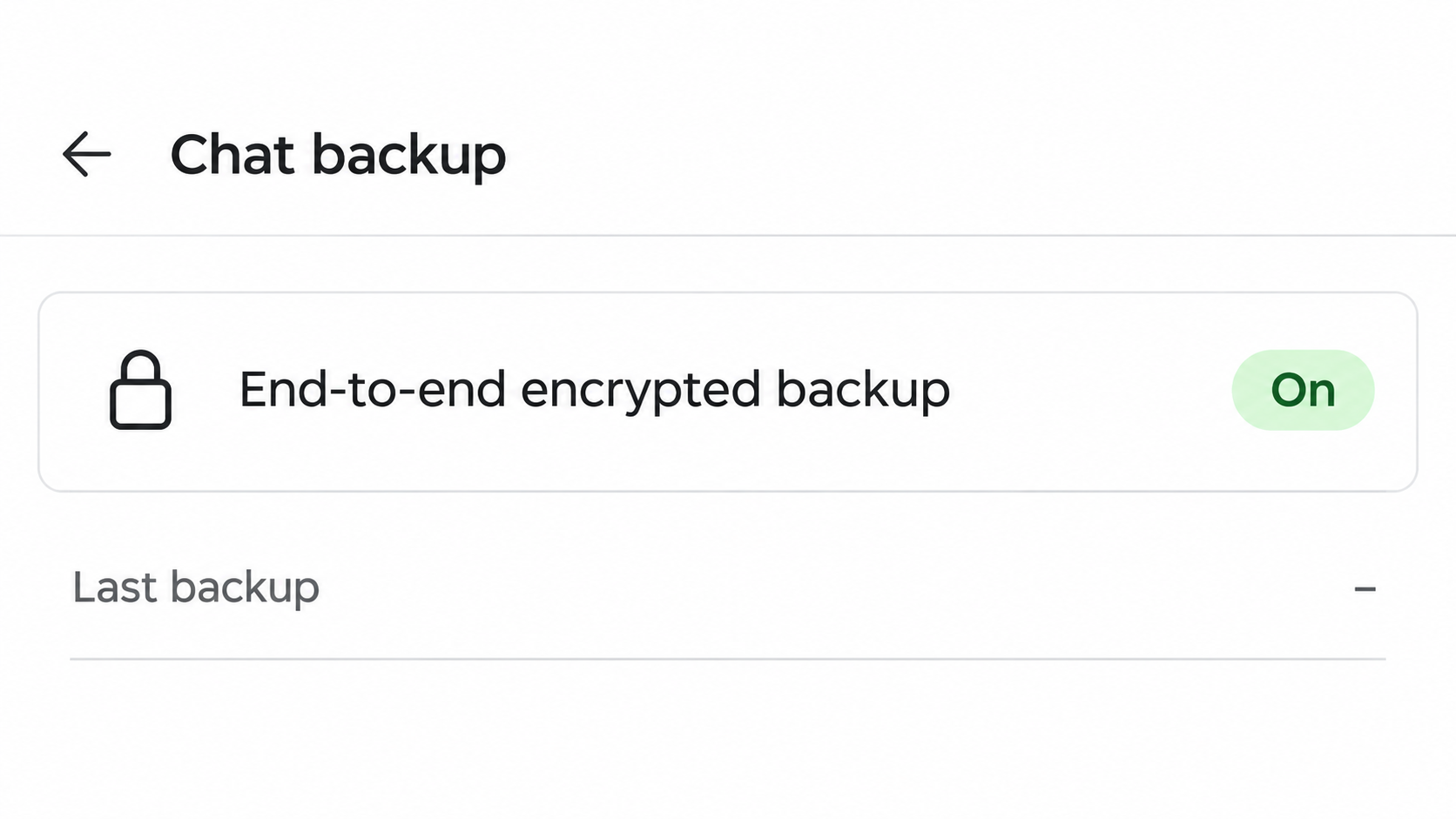
WhatsApp offers end-to-end encryption for those backups. Open the backup settings to see how yours is protected instead of inferring it from the lock notice in a chat.
Don’t describe every cloud backup without this feature as plaintext. The point is whether the copy has the separate end-to-end protection described in WhatsApp’s settings.
A password, key, or passkey protects the backup
WhatsApp’s encrypted backup help describes several methods: a password, a 64-digit encryption key, or a passkey where supported.
A backup password isn’t a registration code sent by text. It’s also not the PIN you may have set for two-step verification on the WhatsApp account.
A passkey uses a supported device and its authentication prompt.
Meta’s passkey announcement describes approving it with a fingerprint, face recognition, or the screen lock instead of entering the long encryption key.
A working old phone gives you options you can lose
If you can still open WhatsApp on the original phone, check the backup while the chats are present.
WhatsApp describes a password change option in some circumstances when you still have access.
If the only remaining copy is encrypted and you cannot unlock it, WhatsApp says it cannot send you a copy or reset the secret for you.
- Identify a successful backup before losing the old phone.
- Check which account or storage option holds the copy.
- Know which credential the backup actually expects.
- Avoid replacing or deleting your only remaining copy.
What to Do Before You Replace a Phone With WhatsApp
- Keep the old phone available and open WhatsApp. Check that the chats and media you want are actually there, rather than assuming everything has already transferred.
- In Settings, open Chats, then Chat backup. Check the last successful backup, storage destination, and End-to-end encrypted backup status.
- Identify how you’ll unlock the backup, whether that’s a password, encryption key, or supported passkey. Verify access to the account that holds it before migrating.
- Follow the official process for your move. Cloud restore needs the right account and number. Keep the original device until you verify the result.
- Open important conversations and check media on the replacement. Only consider resetting or trading in the first device once you have confirmed what you meant to keep.
Read the backup date and storage account together
A recent date shows when the backup was created, not that it includes messages you received afterward. Compare the backup time with the last parts of conversations you need.
Check the account shown in the backup screen. On a phone with multiple Google Accounts, being signed into one of them doesn’t mean it’s the one holding the expected copy.
On iPhone, WhatsApp’s restore guidance says to use the same number and iCloud account used to make the backup. A successful sign-in elsewhere doesn’t locate that copy.
If you’re changing your mobile number as well as the phone, read WhatsApp’s official migration guidance for that combination first. Don’t guess the order with your only device.
For an Android restore, WhatsApp’s Android troubleshooting page distinguishes available storage routes. Follow the method shown for your own backup rather than assuming every Android account uses the same one.
Keep the unlocking method separate from the account
Being able to receive a WhatsApp registration code proves you can complete that verification. It doesn’t prove you still have the credential that opens your encrypted backup.
A password manager entry labeled WhatsApp might contain something else. Check where you saved the backup password or key without pasting it into another service to test it.
If you rely on a passkey, check which credential service and account hold it.
A familiar screen unlock on the new phone doesn’t establish that the saved passkey is available there.
Follow only the authentication prompt inside the app or its official process. Nobody offering to fix a migration in a direct message needs your full encryption key.
If your work or school controls the device or the credential account, ask your administrator before removing the account. The device’s management rules can affect what you can carry over.
Don’t change methods in the middle of a failing restore
Choose the backup protection method while the original copy is still accessible. If a passkey option isn’t present, check the current WhatsApp instructions for availability and requirements.
The help explains that changing from a password or key to the passkey method can require turning backup encryption off and back on. Plan that change before the handover.
Don’t turn encryption off just to hurry through setup on a blank phone. That phone doesn’t contain the messages that need to be preserved.
Once a change is complete, check the backup’s final status and date. A setting marked on isn’t evidence that a new backup successfully finished.
If WhatsApp Won’t Restore Your Chats
Pause before creating any new backup
If the new phone is blank, resist the obvious suggestion to make a new backup. WhatsApp’s Android guide says a new backup can replace the old one for that number.
Don’t delete the cloud backup or reset either device while you still need the old copy. First determine where the missing data exists and whether a restore is underway.
If the older phone still has the chats, preserve that working state. You have a better chance of correcting settings while you can open the original account.
If the old phone has been wiped and a backup is all you have, identify the copy before making changes. A replacement backup with no chats won’t reconstruct missing messages.
A disappearing progress indicator doesn’t prove that the older backup is disposable. Record the error and read the restore guidance before acting on a forum suggestion.
Messages can appear before media finishes restoring
WhatsApp describes a restore stage for messages followed by a background stage for media. An empty thumbnail beside a restored chat may not mean the photo is gone.
If the app is still restoring, follow its instructions about keeping the device powered and connected. Don’t create another backup while the restore remains incomplete.
Check whether the original backup included the media you’re looking for. A restored message thread isn’t evidence that every photo and video was part of the backup.
When the restore stops with a specific error, record which part failed. A missing backup, incorrect credential and pending download don’t have the same solution.
If you forgot the password, establish where you still have access
If you’re still signed in on a phone with the chats, use WhatsApp’s official help for changing an encrypted backup password.
Follow the prompts there rather than asking for a reset from a stranger.
If you can’t open WhatsApp on the original device, don’t pay for a guaranteed decryption service.
WhatsApp says it can’t provide your forgotten secret or restore that inaccessible copy for you.
Check for a copy you intentionally exported or a relevant photo saved in another place. Those copies may help you recover an individual item without reconstructing an entire conversation.
A chat export is not automatically a restorable WhatsApp backup. Verify what a file contains before counting it as a recovery route.
Keep Your Only Copy Safe During a Transfer
Use the right method when switching operating systems
A backup associated with one cloud account shouldn’t be treated as a cross-platform transfer file. WhatsApp documents separate migration routes between iPhone and Android.
Plan that move using the official setup instructions for the incoming device. Preserve the old phone when the new-device process asks for access to it.
Verify which number remains active until the move is complete. Changing numbers, devices and storage accounts simultaneously makes it harder to know what caused a missing backup.
When the new phone opens WhatsApp, compare several important chat dates and at least one media attachment. Don’t evaluate the migration solely by seeing your profile picture.
Protect the backup without making it impossible to recover
For a password or key, store it in a private place you can reach if the phone is lost.
Don’t save the only usable copy inside the messages it is supposed to protect.
With a passkey, make sure you know how your credential provider handles recovery and supported devices. The passkey isn’t a number WhatsApp can send you again.
Some families share a storage plan without sharing one account. Ask which account actually owns the backup before assuming another member can restore it for you.
If the phone is managed or borrowed, check whether removing an account will also remove the credentials you still need.
Keep the original and replacement accessible until that question is resolved.
If You’re Changing Your Number and Your Phone
Changing your number is more than swapping the SIM. The cloud backup is associated with the number used when WhatsApp created it, even if you keep the same storage account.
WhatsApp’s number change guide says backups tied to the old number can’t restore your data after the change. Plan for that before you give up the old number or handset.
If the old phone still shows the complete history, follow the in-app number change process there before moving the account. Read the on-screen identity and verification prompts before you commit.
WhatsApp recommends making a fresh backup after the number change. Do that only when you’ve verified the history under the new number is complete, not from a new, empty installation.
A working SIM isn’t a substitute for the backup secret. A texted verification code establishes access to the number, while the encryption prompt checks access to the copy itself.
If you can’t receive codes for the required number, don’t assume that paying for help will restore access. Look for WhatsApp’s published account recovery options before giving access to anybody.
Check Your Archive Before Calling the Transfer Finished
Open an older chat you recognize, a recent message you expected to keep, and a media item you can identify without contacting anyone. Check each before resetting the old phone.
A conversation title doesn’t establish the history is complete. If recent messages are missing, compare their dates with the backup timestamp before doing anything to the app.
Make the final check under the number you intend to keep using. If the archive is incomplete and the original device still works, preserve that device while you investigate.
Frequently Asked Questions
Does my WhatsApp PIN unlock my encrypted backup?
The two-step verification PIN is an account protection. The encrypted backup uses the password, key or passkey chosen for the backup, which is a separate credential.
Check the wording on the screen to identify what it’s requesting. Don’t keep guessing the account PIN at a backup password prompt.
Can I change the backup password before moving?
WhatsApp says users who still have access to WhatsApp can change a forgotten backup password in the supported flow. Check from the device where the chats are available.
Verify the successful backup and settings afterward. Don’t reset that phone or delete your backup just because you changed a credential.
Do I need the original phone to restore a cloud copy?
Not in every case, but you need a recoverable backup and the required account, number and backup credential. The official restore route varies by storage and migration type.
If the old phone is still available, keep it until you can see the chats and relevant media on the replacement.
Can a passkey replace the 64-digit encryption key?
WhatsApp supports passkey-protected backups on eligible devices. Read its instructions for switching from password or key protection rather than assuming it converts automatically.
Before changing anything, identify your current copy and understand what will let you use the passkey on the new phone.
Why did my messages return but some media is still missing?
The media restore can run after messages become visible. Check the progress and whether the backup actually included the missing files before assuming the whole restore failed.
Don’t overwrite the available backup while recovery is in progress. Use the official support process if it reports an error.
Can WhatsApp support send me the forgotten key?
WhatsApp says it can’t provide the secret or unlock an encrypted backup you can no longer access. Don’t send money or backup credentials to someone claiming they can.
Look for a working device or independent copies of particular items. Those options aren’t the same as breaking the backup encryption.
The Bottom Line
Check the backup date, destination and unlocking method before replacing your phone. Keep the first device and its chats until you can verify the restoration.
If the chats are already missing, preserve the existing backup rather than making a new one. Find out what’s recoverable before taking any action that could overwrite the only copy.

Join the discussion
0 commentsShare your experience or ask a question about this article.
Community experiences
Did this happen to you?
Your experience could help someone recognize the same scam. Submit a private report for our team to review.
I experienced this tooReports are reviewed before publication. Sharing publicly is always your choice.
Discussion
Start the conversation
Have a question or something useful to share? Add the first comment.