


You turn off model training in Copilot, then notice the assistant still remembers what you told it. That doesn’t necessarily mean the training switch failed.
Microsoft Copilot privacy settings separate training from saved memories, chat history, and advertising. Choose the control that matches what you want to change.
Overview
The training opt-out applies to future eligible conversations
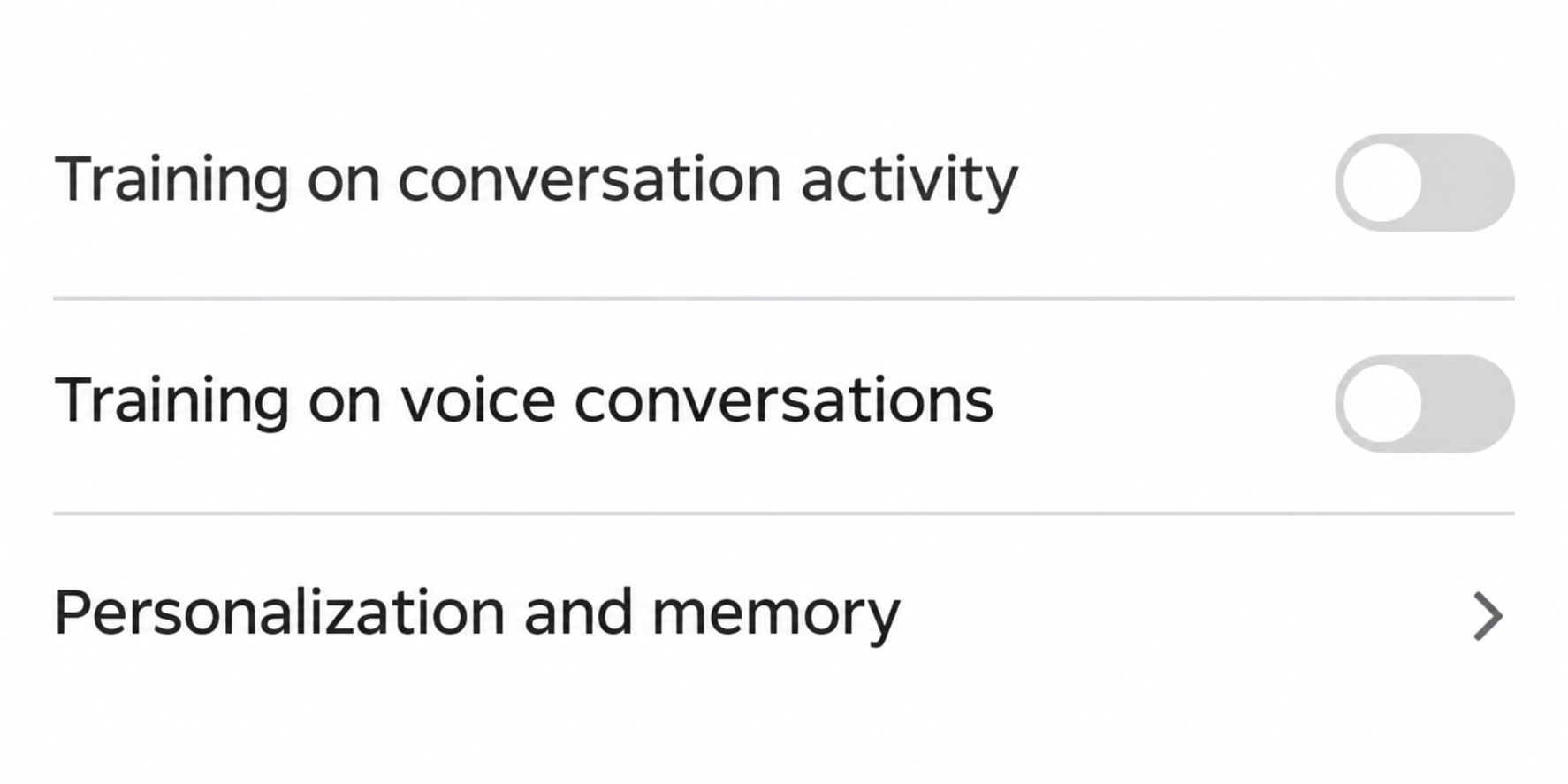
Microsoft’s consumer Copilot controls document separate settings for conversation activity and voice conversations. Review both if you use the keyboard and microphone.
Microsoft says opting out keeps future conversation activity from being used for the training described there. It doesn’t describe a way to remove a past conversation from a trained model.
Opting out also doesn’t exclude all other uses. The documentation explicitly distinguishes activities such as service improvements, safety, security, compliance, and advertising.
Memory and visible history can remain after training is off
You can stop future training while leaving personalization enabled. Copilot can still use remembered details to tailor responses to you, according to Microsoft’s privacy FAQ.
Memory is not the same as the list of chats you can reopen. Microsoft documents deleting memories without deleting your conversation history.
If an old conversation still appears in the sidebar, the training toggle hasn’t promised to clear it. Deleting past chats is a separate action.
Personalized advertising has its own setting
Microsoft distinguishes personalization of the assistant from whether you receive personalized ads. Turning off the first can affect how history informs ads, but does not itself turn personalized ads off.
Review the personalized advertising control on its own. The fact that an ad appears after you change the setting does not tell you it was selected using your past chats.
- Change training controls to limit future training use as documented.
- Review memory when the assistant remembers details you want it to forget.
- Delete individual conversations or the history when you want them removed.
- Check the advertising choice separately if you don’t want personalized ads.
What to Do to Change Your Consumer Copilot Privacy Settings
- Confirm you’re in the consumer version and check the signed-in identity. If the account is managed by work or school, consult your administrator’s applicable guidance instead.
- In consumer Copilot, open the account’s Privacy settings. Review Training on conversation activity and Training on voice conversations, and turn off the uses you don’t want.
- Open Memory if you want to review remembered details or stop personalization. Don’t treat it as a command to delete every conversation.
- Check the chat history for conversations you no longer want stored there. Delete the intended items after saving anything you still need and are authorized to keep.
- Open Microsoft’s separate ad settings if you want to change personalized ads. Revisit the controls from the correct account after you make the changes.
Open the settings from the account that produced the chat
On copilot.com, Microsoft’s instructions say to select your profile icon and profile name, then open Privacy. The Windows and Mac instructions use Settings, then Privacy.
In the consumer mobile app, Microsoft describes opening the menu and selecting your profile, then Account and Privacy. Labels can change as clients are updated.
If you have several Microsoft accounts, check which one you used for the chat or voice session.
A change on your personal account won’t tell you how another account is configured.
Microsoft’s consumer privacy FAQ distinguishes organizational accounts and certain Microsoft 365 experiences. Don’t use a consumer screenshot to decide what a managed work account is allowed to process.
Training availability can vary by account and region. If the switch isn’t shown, read the scope in the current policy before concluding that a training setting is stuck on.
A work-branded app can have different experiences depending on how you signed in. The account displayed on the actual session is more useful than the icon on your desktop.
Check voice without assuming it follows the other choice
If you sometimes dictate into Copilot, look at the voice training preference separately. Do not infer its value from the conversation activity switch.
Microsoft’s settings describe these choices by name rather than offering a single global promise for every Microsoft product. Review the settings that match how you use the assistant.
You can choose to use Copilot without uploading sensitive files, recordings, or personal details. That decision reduces what you share before a retention or training setting even matters.
A setting that applies to training isn’t a restriction on processes necessary to answer the current prompt. Don’t treat the option as permission to paste confidential data.
If you used a file in a conversation, review that conversation as well.
Microsoft says conversation files and related chats can be subject to the choices described in its consumer FAQ.
Memory, Chat History, and Ads Do Three Different Jobs
If Copilot remembers a detail you no longer want used
Start by reviewing what it remembers, rather than trying to infer stored memory from a particular response. Microsoft’s instructions describe asking Copilot what it knows about you.
If a specific memory is the issue, ask it to forget that detail. Then check again without supplying new private information just to test whether it remembered.
The documentation also provides a Delete all Memory option in the Memory settings. It states that this action does not delete your conversation history.
Turning personalization off is another choice if you don’t want it building memories going forward. Review the published behavior before re-enabling it later.
If the same detail exists in an old conversation, the original words may still be visible in the history. Decide whether you need to remove the conversation itself too.
If there is a chat you want removed
Microsoft provides a way to delete individual conversations and a separate way to delete the history. Decide on the smallest action that addresses the information you want removed.
Before broad deletion, check whether a conversation contains notes, draft copy or decisions you still need. Save only what you are authorized to keep somewhere appropriate.
Microsoft’s consumer FAQ describes 18 months as the default for stored conversation activity. Don’t use that as a countdown for a specific chat when you can review its status directly.
Once you delete an item, return to the history to see whether it is still visible. That confirms the interface outcome, not the content of backups or a trained model.
If a chat is missing, check the account and product that originally created it. Absence from one sidebar doesn’t establish that it was deleted from an unrelated account.
If you don’t want past conversations shaping ads
Microsoft’s ad and privacy choices guide separates generic advertising from personalized advertising. Generic ads can still be selected using the current conversation’s recent content.
Use the personalized ad control if your goal is to stop personalized ads in the covered experience. Don’t expect the model training switch to perform that task.
If you choose to keep personalized ads, check whether Copilot’s personalization is contributing conversation history to ad selection. Microsoft explains how those settings can work together.
Seeing an ad about the current topic isn’t proof that a specific prior chat trained a model or became part of an ad profile.
Check the actual settings before inferring the path.
What if You Already Shared Something Confidential?
Handle the information itself, not just the setting
If you pasted a live password, token, or shared access link, changing Copilot settings doesn’t revoke it. Disable or replace that credential through the service it belongs to.
For a work document, follow your organization’s incident reporting process and describe which account and product you used.
An administrator may need to understand the exposure rather than just clear a sidebar.
If the concern is personal, locate the specific chat and consider deleting it. Don’t paste the same private content into a second conversation to explain what happened.
Review how to reach appropriate support through Microsoft’s verified channels. A person offering to erase a conversation or reverse training for a fee isn’t a substitute for those controls.
Don’t mistake the next answer for a policy test
A tailored reply can come from the words in the current conversation. It isn’t enough to tell whether a separate memory exists or whether training took place.
If you are checking memory, use the memory controls. If you are checking training, inspect the conversation and voice preferences in the account that produced those chats.
Write down which choice you made if you use several accounts or products. That helps distinguish a changed preference from a conversation opened under the wrong identity.
Export or Delete Copilot Activity Without Confusing Products
Microsoft’s privacy dashboard instructions give personal accounts a way to export all Copilot app activity or clear that app’s activity. Start with the account you actually used.
The dashboard separates Copilot apps from Copilot in Microsoft 365 apps. Check which heading you’re under before hitting a bulk delete option, especially if you use both tools.
You don’t need an export to delete a chat. If you do need the exact wording for your records, download it from the official dashboard and store it privately.
The dashboard export can contain prompts and responses. Deleting an online copy later doesn’t remove an exported CSV from your Downloads folder, an email attachment, or a shared drive.
If your concern is one copied document, start with the conversation that contains it. Bulk deletion may remove useful work while leaving behind a file you downloaded or shared elsewhere.
If you do want a full cleanup, review chat history and Memory independently. A dashboard confirmation doesn’t give you a way to establish what a model previously learned.
Use a Simple Check for a Shared Computer
On a household computer, the same browser can show sessions from multiple accounts. Open the profile menu in Copilot and read the current account before you inspect or change privacy.
If the chat unexpectedly belongs to another person, close it without reading more. Manage your own account in a separate browser profile and leave the other person’s history untouched.
Sign out when you finish using a shared computer. Remove private exports from that device once you’ve kept what you need in a safe location.
Use your own profile to verify the settings. If another device shows a different screen, check the app version and account before assuming a preference changed itself.
A useful verification is seeing the intended values for both inputs on your own account. Don’t speak or upload sensitive material to see if the assistant can repeat it later.
If you share a computer for work, don’t send a private export to a shared printer or common folder. The account setting can’t retract a copy left outside Copilot.
Frequently Asked Questions
Does Copilot still remember things when training is off?
It can, if personalization and memory remain available and enabled. Microsoft treats that processing as different from using future conversations to train its generative models.
Use the memory controls to review what it remembers. The training setting isn’t evidence that those saved details are gone.
Does deleting a memory remove the chat?
No, Microsoft’s documented bulk memory action leaves the conversation history intact. If the old chat itself is the concern, find it in history and delete it separately.
Before clearing the whole history, decide if removing a single chat is enough. A memory can be a smaller target than all of your saved work.
Do I need to check both kinds of training?
The documented consumer controls distinguish regular conversation activity and voice conversations. Check both where they are available, especially if you have used more than one input method.
If a control isn’t visible, check the active account and relevant policies. Don’t assume the app uses another product’s default.
Does opting out keep my previous chats out of a trained model?
Microsoft describes the choice as applying to future conversations. The documentation doesn’t offer a way to verify whether a specific older chat was used or to undo that training.
Deleting the chat is a different action. Review those options separately instead of treating one as a retroactive training removal.
Will turning off personalized ads remove all ads?
No, a switch for personalized advertising is not an ad blocker. Microsoft’s materials distinguish ads tailored over time from generic ads based on context.
Confirm the control affects the account you’re using. The presence of an ad alone doesn’t show whether personalization was involved.
Do these same steps apply to an employer’s Copilot?
Check what kind of account you use. Microsoft distinguishes the consumer experience from eligible organizational accounts and managed products, whose policies and administrators can determine what is available.
If an employer issued the account, check its approved use and retention guidance. A consumer setting shouldn’t be treated as clearance to share company data.
The Bottom Line
Turn off the consumer training choices for text and voice if that’s where you want to limit future use. Then decide separately what history, memories, and ad preferences to change.
If you shared information that still grants access to an account or document, secure it at the source. No setting in Copilot takes that action for you.

Join the discussion
0 commentsShare your experience or ask a question about this article.
Community experiences
Did this happen to you?
Your experience could help someone recognize the same scam. Submit a private report for our team to review.
I experienced this tooReports are reviewed before publication. Sharing publicly is always your choice.
Discussion
Start the conversation
Have a question or something useful to share? Add the first comment.