


You turned on Snapchat Ghost Mode, but someone says they can still see where you are. Before changing every setting, ask what they’re actually seeing.
A live share, an older position, and a public Snap are different kinds of exposure. The controls for them aren’t all in the same place.
Overview
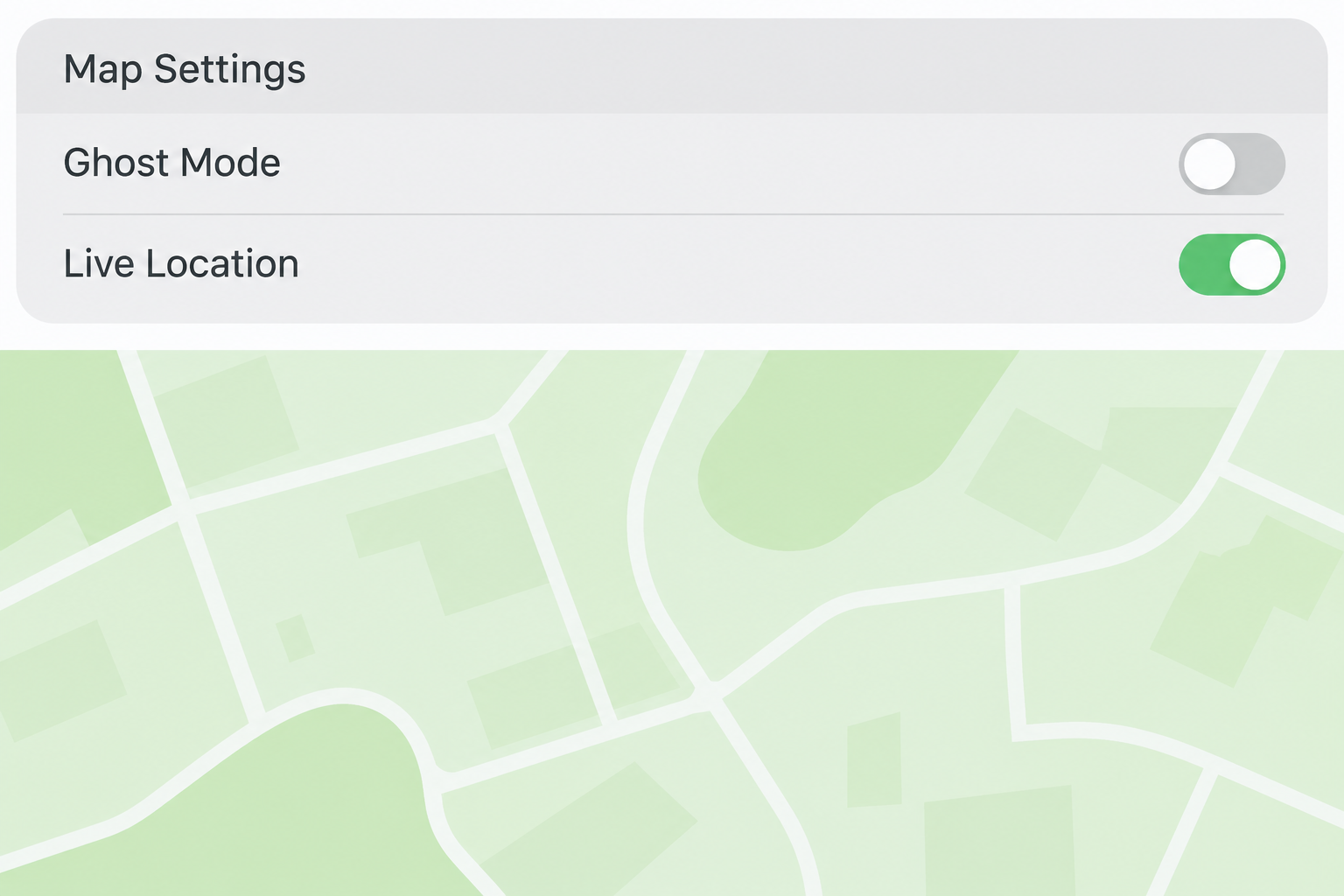
Ghost Mode controls your usual map visibility
Snapchat’s Ghost Mode instructions say it hides your usual map position from others. Snapchat can still receive a location if the phone allows it.
Some versions offer a time limit. If you meant to stay hidden, read the timer selection instead of assuming the switch will stay on after it expires.
The setting is not a substitute for reviewing who has access to ongoing live sharing. Snapchat’s instructions specifically call out that different state.
A live share can keep updating after you close the app
Snapchat’s Snap Map safety guidance distinguishes location available while using Snapchat from background updates shared with selected friends.
With only-while-using access, closing the app stops new updates through that access, according to Snapchat. It doesn’t mean the previously displayed location disappears the moment you leave.
If you enabled background sharing, a friend can receive updates even when the app isn’t open. Review both your choices in Snapchat and the permission on the phone.
A Snap submitted to the map is public content
A video sent to Snap Map isn’t your own live location marker. Snapchat says map submissions can remain visible regardless of which location-sharing setting you choose.
If you’re worried about a clip showing your building or workplace, check the actual public submission. Turning on Ghost Mode doesn’t remove a video you previously posted there.
- Check the map audience and the Ghost Mode timer.
- Stop any direct live share you don’t want active.
- Change device permission if you want to limit new location access.
- Review or delete any public Snap showing the place itself.
What to Do if Snapchat Still Shows Your Location
- Identify what’s visible: your position on the map, a selected friend’s live view, or a posted Snap. Don’t send a new map screenshot to demonstrate the problem.
- Open Snap Map and its gear menu. Enable Ghost Mode if you want to hide your usual map position, and choose the persistent option if your version offers it.
- Review people you share live location with. End shares you no longer want through the map or friendship controls, rather than relying on the standard audience alone.
- Review Snapchat’s location permission on the phone. Limit background access or deny location entirely, depending on what you want the app to be able to collect.
- If the exposure is a public Snap, remove the original submission through Spotlight & Snap Map. If somebody is threatening you, save what you need privately and seek help.
Start by reading the map audience
When you open Map Settings, check whether Ghost Mode is on and whether it has an expiration. A three-hour setting solves a different problem from leaving it on indefinitely.
If you do want a limited audience, check exactly which friends are selected. Don’t infer the list from a conversation or from who can see a Story.
A friend can be allowed to see a Story without being allowed to see your map location. The reverse can be true too if you made different sharing decisions.
When Snapchat prompts you to share a location for a particular purpose, read which option it’s offering.
You may not want to turn on a broader audience to reassure one person.
If someone says the map is still updating, ask whether they are seeing a new position or the same older one. Don’t move somewhere sensitive to test it.
Check any live sharing you chose for a person
Think about recent trips, pickups or visits where you deliberately shared a position with someone. A live share can have a narrower audience than your normal map posts.
Start with the sharing list Snapchat shows and the relevant friend’s profile if applicable. Use the stop option for any active share you want to end.
Read the confirmation and verify that the share no longer appears active. A saved message about sharing your location can remain after the actual sharing ends.
If you can’t identify where the live share was enabled and need a quicker limit, review the phone’s location permission.
That controls whether the app can obtain fresh location through that permission.
Don’t promise anyone that changing a setting will be invisible to the other person. They may notice that a location is no longer updating or reachable.
How Phone Permissions Fit In
Limit new access on iPhone or Android
On iPhone, Apple’s location permissions guidance starts in Privacy & Security then Location Services. Select Snapchat and review which location access option is currently selected.
On Android, Google’s app location guidance describes reviewing a given app’s permission and changing whether it can access location in the background or only while in use.
An only-while-using permission can fit someone who needs a map feature occasionally but doesn’t want background updates. If you want no location through that permission, choose the no-access option.
Reducing precise location to approximate location, where offered, isn’t the same as denying access. Check which difference you actually need for the situation.
These settings apply to Snapchat’s access on that device. A phone permission is not a command to erase old copies of photos or a location already seen by someone.
Don’t assume another device uses the same permission
If you’re signed in on another device you control, check its Snapchat app permission too. Settings at the operating-system level belong to that device.
If an unknown device appears in your account and you think somebody else has access, use Snapchat’s official security and recovery process. Changing your map visibility isn’t a sign-out.
On a managed or shared device, be clear about whose account is open before touching settings.
Changes to somebody else’s access won’t necessarily affect the Snapchat account you’re trying to protect.
Keep separate notes if you are protecting a second account or changed phones recently. Compare account names privately rather than turning sharing back on to trace the difference.
How a Public Snap Can Keep Revealing a Place
Check the post rather than the map marker
A clip showing an apartment entrance or school sign can reveal a location without depending on a live position. Removing a marker does not remove what’s visible in the clip.
Snapchat’s deletion instructions direct users to Spotlight & Snap Map to review and delete their own submissions. Select the specific Snap and use its delete option.
Check whether the content was also posted to a different audience or account. A duplicate upload can remain even after the map submission is taken down.
The service notes that public content may still appear off Snapchat if someone shared it there.
Address a copy where it is hosted rather than looking for another Ghost Mode switch.
If you didn’t post the Snap, you may not have a delete action for it. Use Snapchat’s relevant reporting route and don’t repost the clip to prove what it contains.
If checking the settings is part of a safety concern
If a person is demanding that you leave a live share on, changing one setting might not solve the wider problem. Consider getting help from somebody you trust.
Preserve threatening messages and dates privately. Use a safe device or other appropriate support if you believe someone has access to your account or current device.
Avoid sharing a map reconstruction or your current position as evidence in a public post. You can explain the type of threat without circulating details about where you are.
For an immediate threat, seek appropriate local emergency assistance. The app’s sharing menu isn’t a way to assess what somebody already knows or to stop a person approaching you.
Tell a Stale Position From a New Update
Someone saw your marker at a coffee shop yesterday, and you haven’t opened Snapchat since. They could be looking at a previously displayed position, not a fresh update.
Snapchat’s map retention guidance says the map position expires after 24 hours with only-while-using permission. It gives a different rule for Always access.
If you are worried about access now, don’t wait for expiry. Limit new location access on your device and inspect active sharing directly.
If it’s safe, ask a trusted person in your current audience what they saw. You don’t need to add anyone or send a new pin.
A screenshot made yesterday can be sent today. The time you received a message and the time a map image was captured aren’t necessarily evidence of the same event.
An anonymous screenshot doesn’t prove the sender can see your account now. Keep it private and review account security if you have other signs of unauthorized access.
Review Your Audience After Holidays, Events, or a Move
Temporary sharing can help coordinate a ride or a meetup. When the event ends, review the share instead of assuming the original reason still applies.
Snapchat’s audience help describes sharing with friends, excluding some friends, or choosing a narrower group. Review the actual option selected if you want to share at all.
Excluding one person is different from adding only the friends you selected. An explicit list is easier to review when you add contacts often.
If an old public video names the location or shows a recognizable storefront, consider the caption and visuals separately. Removing one clue may leave the other visible elsewhere.
Muting somebody, changing your Story audience, and ending a live share are separate actions. Verify the result in the location setting, not the messaging menu.
If sharing is useful for a trusted contact, set a calendar reminder to review it when the trip ends. There’s no need to leave background access on for every friend.
If you replace or lend a device, check the operating system permissions there too. The error to avoid is checking only the account screen and overlooking an old signed-in device.
If you share your whereabouts through another app, review that service independently. A change in Snapchat won’t cancel a location link created elsewhere or delete a screenshot someone saved.
To organize a pickup, send a public meeting point privately rather than sharing your moving location. End any active share when it isn’t needed.
When a photo reveals a sensitive location, look for road signs, venue names, and repeated views as well as the map pin. Removing a pin cannot edit the video itself.
If you posted the same clip in more than one place, make a list before removing copies. Check each posting destination rather than hoping everything follows the first removal.
Your own map view doesn’t establish what others can see. Check who appears in the audience controls before making any further changes.
Frequently Asked Questions
Does Ghost Mode stop Snapchat from receiving my location?
Ghost Mode hides your position from other users in the usual map view. It doesn’t change the app’s permission to obtain the device’s location.
Review the phone’s app permission for that second purpose. Choose the level of access you want the device to grant.
Can my location update after I close Snapchat?
It can if you have enabled background location sharing and the device allows it. Snapchat says only-while-using sharing doesn’t keep updating after you close the app.
A last known position and a new background update aren’t the same evidence. Review your live shares and permissions before drawing a conclusion.
Should I choose a timer or leave Ghost Mode on until I turn it off?
Choose a temporary setting only if you intend it to expire. Where available, use the persistent option if you don’t want normal map sharing to return after a countdown.
Read the choice shown on your app instead of relying on a remembered default. That also helps when reopening the settings on a different device.
Does removing location permission delete a Snap I posted to the map?
No, changing the permission and removing public content are separate. A published Snap may remain visible even when the app can’t obtain a new location.
Use the controls for the actual submission if you want it removed. A separate copy may require separate action.
Does nobody seeing my marker mean a live share is also gone?
An absent marker doesn’t prove live sharing is off. Check the specific person or share you meant to stop, then inspect the app’s background location permission.
Review background permission if you don’t want a new live update. An old location somebody saw earlier can’t be taken back through that menu.
Can I turn off Snap Map itself?
Snapchat says you can’t disable the whole map once it’s set up. Normal visibility, live sharing, and device permissions still let you reduce what it shows about you.
If a public post reveals the concern, address that submission instead of trying to remove the entire map feature.
The Bottom Line
Use Ghost Mode for your regular map position, then check any separate live sharing and the device’s location permission. Verify the outcome without posting your position again.
If a Snap already reveals the place, handle that post directly. If you are being threatened, prioritize your safety and evidence over proving which setting produced an update.

Join the discussion
0 commentsShare your experience or ask a question about this article.
Community experiences
Did this happen to you?
Your experience could help someone recognize the same scam. Submit a private report for our team to review.
I experienced this tooReports are reviewed before publication. Sharing publicly is always your choice.
Discussion
Start the conversation
Have a question or something useful to share? Add the first comment.