


You cleared Google search history, but Maps still shows last Tuesday’s route. You delete the Timeline backup, then find the same trip on an older phone you still use.
Google Maps Timeline keeps records on devices and in optional backups. Clearing one copy won’t clear the others, and stopping collection won’t erase old trips.
Overview
The history in Maps now lives on each device
Timeline, formerly called Location History, builds a record of visits and routes on eligible devices when you turn it on.
Google’s current setup keeps the Timeline data on the device itself.
A blank view on a laptop doesn’t mean your phone lacks years of travel records. Open Maps on the device that may hold the trip.
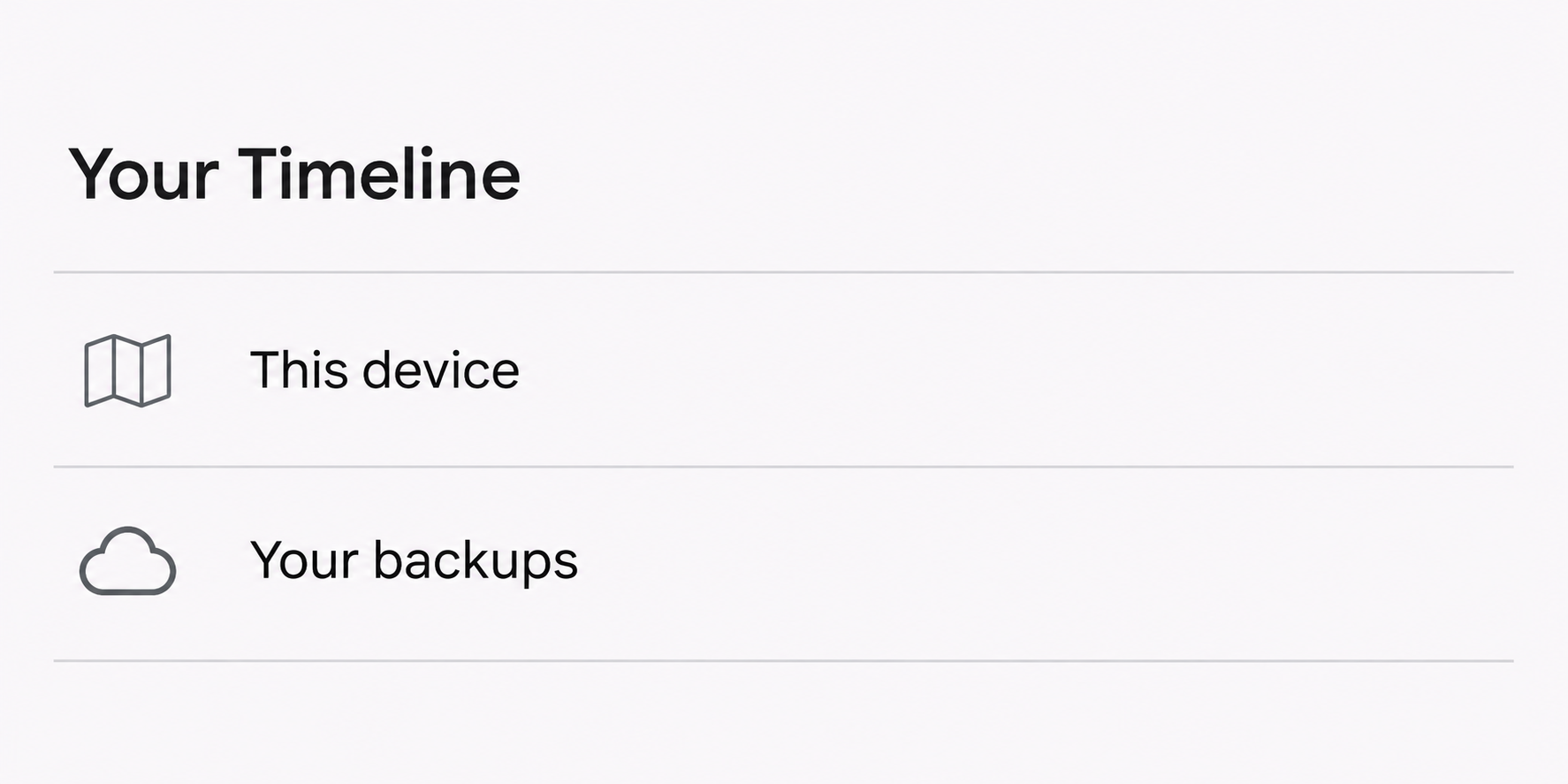
Open the Google Maps app on a device you own, tap your account picture, and select Your Timeline.
First check that the selected account is the one you meant to inspect.
A familiar email address in another Google app isn’t enough. Maps can be signed into a different account, especially when you use one for work and another for personal trips.
Your optional cloud backup is another copy
Google offers an encrypted Timeline backup on its servers. It’s optional and lets you import Timeline data onto another device if you replace a phone or need to change devices.
Your backup list identifies copies by device. Check for the old phone’s backup even if its device name no longer looks familiar.
Google says it can take several days for Timeline changes to reach a backup. That delay matters if you just added a visit or removed one before changing phones.
Deleting that backup only removes the backup copy. It does not wipe Timeline from the phone that made it, and it isn’t a remote erase for another device.
Three decisions to make before deleting anything
- Decide whether to stop new Timeline entries, remove old entries, or do both. Each has a separate effect, even if the settings put those choices next to one another.
- Check which devices and accounts hold the history. Deleting a route on an Android phone won’t automatically erase another copy on an iPhone using the same Google account.
- Decide whether you need to keep any trip records. Save only what you need somewhere private before choosing an irreversible delete option or trading in a phone.
Check Which Google Setting Is Responsible
Timeline isn’t the same as your list of searches, your saved places, or the location information attached to a photo. These records can exist even after your travel history disappears.
A restaurant in a list of saved places is usually a different clue from a restaurant shown with an arrival time inside Your Timeline.
Look where the entry appears before deleting anything.
A destination suggestion when you start typing isn’t, by itself, a recovered trip. It might refer to a recent search or a saved place instead of an entry in Timeline.
Google also distinguishes Timeline from Web & App Activity and Search Services History.
Depending on your account and settings, other records can retain information about an area even when Timeline is off.
Use Google’s explanation of location information in other activity if you want to manage those records as well. Don’t delete your search history merely to test whether Timeline is working.
If your actual concern is that another person can see where you are right now, check Google Maps Location Sharing separately. Your past routes and live sharing solve different problems.
A closed Timeline setting isn’t evidence that active Location Sharing stopped. Review the list of people you share with, and confirm changes in the control that manages that sharing.
Stop New Entries Without Wiping Old Trips
Google says Timeline is off by default. When it’s enabled on eligible devices, those devices can save precise locations regularly, including when Google apps aren’t open.
The setting isn’t necessary for looking up a route or opening a map. Turning it off addresses Timeline collection; it does not turn GPS off everywhere on the phone.
Find Timeline in the Google account’s data and privacy settings, or use the route to the account setting shown inside Maps. Read which record the option affects before confirming.
If your goal is to stop adding trips but keep the archive, choose the plain turn-off option. A choice that also deletes activity is for a different goal.
See Google’s current instructions for Android Timeline or iPhone Timeline. Use the guide that matches the device you’re checking.
Check the selected account again after opening the setting. If two personal accounts are on one phone, a change under the wrong profile won’t solve the issue you saw.
After changing the setting, go back and check that it shows the state you wanted.
Don’t walk somewhere sensitive or reveal a live route to another person just to test it.
Delete a Visit, a Day, or a Range on Android and iPhone
To remove one visit, open Your Timeline on the device that shows it, find the relevant day, and open the menu by that visit.
Review the date and place before deleting.
If the place name is wrong but you still want the trip, edit the entry instead of wiping the day. A wrong label can just be a location estimate.
For a whole day, open that day in Timeline and look for the day-level delete action. If there were three stops that day, removing only one won’t remove the rest.
For a range or all history on that device, look in Timeline’s settings and privacy options, then choose the corresponding delete control. Google’s Android and iPhone help maps both routes.
Google warns that deleted Timeline data can’t be recovered through the delete action. Even an available old backup might not contain the dates or changes you expect.
For one sensitive stop, confirm you selected the visit. After a range deletion, look at the neighboring dates to catch any accidental overreach.
These settings don’t revoke a route or screenshot you already sent to somebody. If a separate copy was shared, treat it as a different record outside your local Timeline.
Don’t stop after correcting one phone if you previously used another phone with Timeline. Open that device and check the same day there instead of assuming the deletion carried over.
Turn Off and Delete the Backup You Actually Mean
In the Maps app, open Your Timeline and look for the cloud icon. Under Your backups, identify the device by its name rather than deleting every entry at once.
Google documents selecting the menu beside a device backup, choosing Delete, then confirming Turn off & delete. Check the label before confirming so you know which backup is affected.
If you intend to remove all Timeline backups, Google’s instructions point to the Timeline page in My Google Activity and its backup control. This still doesn’t delete device copies.
A phone can retain trips even after you’ve confirmed deletion of its backup.
Return to the map on that device and inspect the relevant dates if clearing local history was also your goal.
Removing local history doesn’t give you a guarantee that another separately backed-up device no longer contains a similar record, especially if you’ve switched between phones.
Google currently says auto-delete must be off to turn on Timeline backup. This trade-off doesn’t mean you should disable auto-delete just because a backup option is unavailable.
If you care more about retaining less history than preserving your archive, review the available automatic deletion choices first. If you need the archive, decide how you’ll keep it private.
What to Do Before You Replace a Phone or Clear Its Timeline
- Write down which account and device holds the trips you care about. Start with the oldest phone you can still open, not just the one you’re using today.
- Open a date you recognize and decide whether you need that record. If it matters for expenses or personal records, save the minimum necessary before changing any retention setting.
- Decide whether to stop future collection, delete past device records, remove cloud backups, or combine those steps. Check each result separately rather than treating the actions as substitutes.
- If keeping your history matters, verify the dates on the new device before losing access to the old one. A backup entry doesn’t prove the transfer worked.
- Return to each accessible old device and the backup list to confirm the intended outcome. If an old device isn’t available, don’t count its local copy as checked.
When replacing a phone, avoid mixing a migration and a privacy cleanup in one step. It’s easier to tell whether the move worked if you confirm import before removing copies.
If you’re clearing a device you plan to give away, handle that device’s normal ownership transfer separately. Deleting Timeline only addresses Timeline data, not everything stored on the phone.
Don’t share a full map export with strangers who claim they can check whether a deletion worked. An archive can contain patterns about where you live, work, or spend time.
For the same reason, if you keep a record for yourself, choose a private destination and label it clearly. An export doesn’t disappear when the copy inside Maps is cleared.
Why the Timeline Can Still Look Wrong After a Change
If your newest trip is missing from a backup, compare the phone’s local day view first. A recent change may not have reached the copy on Google’s servers yet.
If a removed trip still shows on a different phone, check whether you’re looking at that phone’s own history.
A second device showing the old entry doesn’t mean the first deletion failed.
If an old date appears blank on a new phone, confirm that you imported the intended device backup under the same account.
An empty view doesn’t identify what happened to every other copy.
If a place still appears only in a search field after your cleanup, don’t repeat the Timeline deletion. Investigate that separate record and decide whether you want to keep it.
If a location pin shows a different street from the one you remember, Timeline may have estimated the wrong place.
Don’t treat an approximate route as evidence of who used an account.
A missing day, a missing backup entry, and a disabled setting show three different outcomes. Check for the one you intended.
Frequently Asked Questions
Does turning off Timeline delete everything Google Maps saved?
The plain turn-off choice stops future Timeline recording without clearing old entries by itself. Review the separate delete choices if you also want to remove past device records and backups.
Your search activity and saved places are separate. Seeing one of those afterward doesn’t establish that the Timeline setting turned itself back on or that old routes were restored.
Can I still delete my travel history from Google Maps on a computer?
Google’s current Timeline is device-based, so use the Maps app on the phone or tablet that holds the records. The web account still provides some settings, including backup management.
If a friend tells you to check the old desktop Timeline website, don’t assume their steps fit your account. Look at Google’s Android or iPhone instructions for the current setup.
What happens if I delete only the backup?
That removes the selected backup, not the trips stored on the originating device. It also removes the option of using that particular backup later if you switch or lose phones.
Only remove it after deciding whether you need it. If the goal is to clear local history, you must still check the device that holds the original records.
Can I remove one wrong stop without deleting the route for that day?
Use the visit’s own edit or remove action in Timeline. Before committing, confirm that you’ve selected the individual stop and not the menu for deleting the entire day.
If you simply need an accurate record, try editing the place first.
Deletion makes sense when you don’t want that stop recorded at all, regardless of whether the label is correct.
Does deleting Timeline stop live location sharing with my family?
No, those are separate settings in Google Maps. To stop an active share, review and change the people listed in Location Sharing rather than relying on a history deletion.
Where personal safety is a concern, use a device and account you can access safely. Don’t assume that changing one Maps setting removes location access through another app or device.
Why do old trips still appear after I switched phones?
The old and new phones may carry separate histories, or the new one may have imported a backup from a previous device. Compare the dates and account on both devices.
If a trip appears only in a backup or only on the old phone, decide whether to keep that copy before deleting it.
The newest phone isn’t necessarily the complete record.
The Bottom Line
Start clearing Google Maps Timeline on the device showing the trip, then check other devices and backups. Stop future recording through the separate account setting.
Save any important record before deletion, then verify the result where you made the change. No single screen confirms everything is gone.

Join the discussion
0 commentsShare your experience or ask a question about this article.
Community experiences
Did this happen to you?
Your experience could help someone recognize the same scam. Submit a private report for our team to review.
I experienced this tooReports are reviewed before publication. Sharing publicly is always your choice.
Discussion
Start the conversation
Have a question or something useful to share? Add the first comment.