

Win 7 Defender 2013 is a computer virus which will display fake security alerts,reporting that malware has been detected on your computer.This alerts are professional looking pop-ups and when you click on them, you are advised to buy Win 7 Defender 2013 in order to remove the detected threats.
In reality, none of the reported issues are real, and are only used to scare you into buying Win 7 Defender 2013 and stealing your personal financial information.
Apart from the bogus alerts,as part of its self-defense mechanism,Win 7 Defender 2013 has disabled the Windows system utilities, including the Windows Task Manager and Registry Editor,and will block you from running certain programs that could lead to its removal.Further more,this rogue antivirus has modified your Windows files associations and now,whenever you are trying to any programs that have a .exe extension ,Win 7 Defender 2013 it will display a bogus notification in which will report that the file is infected,in an attempt to scare you.
If your computer is infected with Win 7 Defender 2013,then you are seeing this screens:
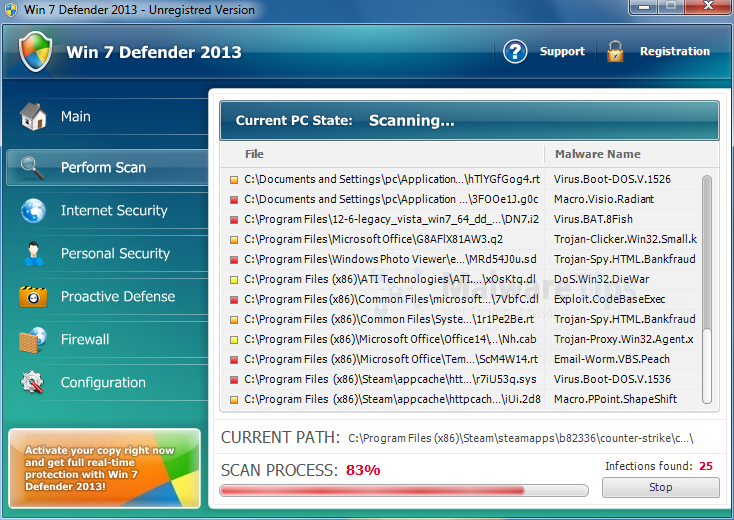
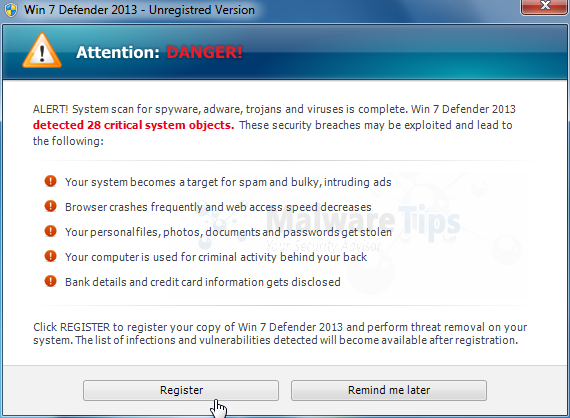
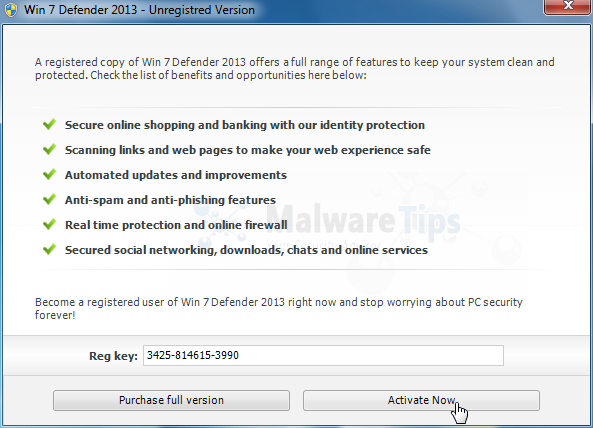
We strongly advise you to follow our Win 7 Defender 2013 removal guide and ignore any alerts that this malicious software might generate.
Under no circumstance should you buy this rogue security software as this could lead to identity theft,and if you have, you should contact your credit card company and dispute the charge stating that the program is a scam and a computer virus.
Registration codes for Win 7 Defender 2013
As an optional step,you can use the following license key to register Win 7 Defender 2013 and stop the fake alerts.
Win 7 Defender 2013 License Key: 3425-814615-3990
Please keep in mind that entering the above registration code will NOT remove Win 7 Defender 2013 from your computer , instead it will just stop the fake alerts so that you’ll be able to complete our removal guide more easily.
Win 7 Defender 2013 Removal Guide
STEP 1: Remove Win 7 Defender 2013 malicious files with Malwarebytes Anti-Malware
Malwarebytes Chameleon technologies will allow us to install and run a Malwarebytes Anti-Malware scan without being blocked by Win 7 Defender 2013.
- Download Malwarebytes Chameleon from the below link, and extract it to a folder in a convenient location.
Download Malwarebytes ChameleonOpens the download page in a new tab.
![[Image: Extract Malwarebytes Chameleon utility]](https://malwaretips.com/blogs/wp-content/uploads/mwt-media/b2/b265e12a96e5ac88c372b34158e04f937bacfee747f63c719f50a4771b7048e8/9809c2be34df15eae377a9982d27eae3d60d2cc1b556e7f1f9fa6be62f380051-374.webp "Extract Malwarebytes Chameleon utility")
- Make certain that your infected computer is connected to the internet and then open the Malwarebytes Chameleon folder, and double-click on the svchost.exe file.
![[Image: Double click on svchost.exe]](https://malwaretips.com/blogs/wp-content/uploads/mwt-media/d6/d67768b1c785b16a82c92c81bcce063bb5b8ad9c8f1e7edb48a80040f7e803a3/b05e0bf111c8d18f1c641cfb91f746b45de4454ba605ef516ccfa0ed7cdc5c99-662.webp "Double click on svchost.exe")
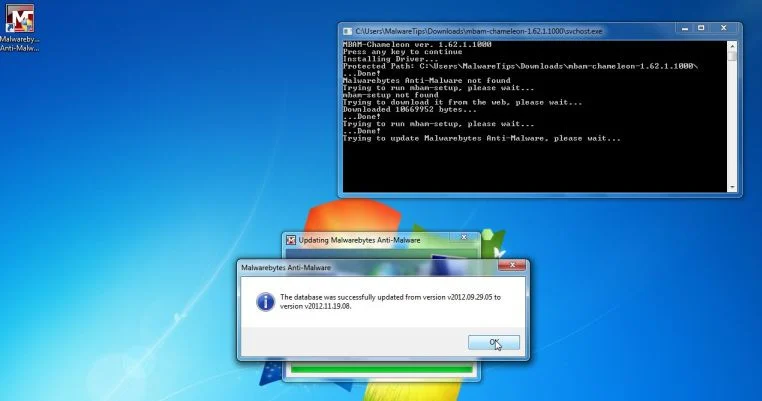
IF Malwarebytes Anti-Malware will not start, double-click on the other renamed files until you find one will work, which will be indicated by a black DOS/command prompt window. - Follow the onscreen instructions to press a key to continue and Chameleon will proceed to download and install Malwarebytes Anti-Malware for you.
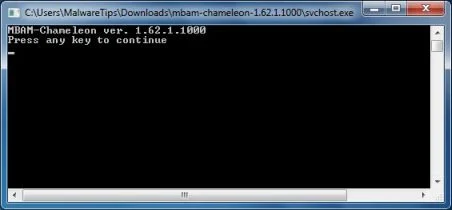
- Once it has done this, it will update Malwarebytes Anti-Malware, and you’ll need to click OK when it says that the database was updated successfully.
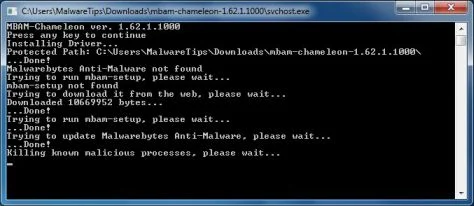
- Malwarebytes Anti-Malware will now attempt to kill all the malicious process associated with Win 7 Defender 2013.Please keep in mind that this process can take up to 10 minutes, so please be patient.
- Next, Malwarebytes Anti-Malware will automatically open and perform a Quick scan for Win 7 Defender 2013 malicious files as shown below.
![[Image: Malwarebytes Anti-Malware scanning for Win 7 Defender 2013]](https://malwaretips.com/blogs/wp-content/uploads/mwt-media/f6/f6ecfba43df64204df40586070483f260cb91fa07d5cc90cb4c3a588d159ff30/5b6b2687853201a40d29fe27e142cc66b0852745bbad3900a21030a10399cb4c-521.webp "Malwarebytes Anti-Malware scanning for Win 7 Defender 2013")
- Upon completion of the scan, click on Show Result
![[Image: Malwarebytes Anti-Malware scan results]](https://malwaretips.com/blogs/wp-content/uploads/mwt-media/84/84c62dd46289424dbc686abc53672cb0810111920c8c0bbd69e973844d0a9ab0/a4c04aa700e641f47afec9965f79ff346740668e5952955ccbe5b4c3658b5897-521.webp "Malwarebytes when the system scan has completed")
- You will now be presented with a screen showing you the malware infections that Malwarebytes Anti-Malware has detected.
Make sure that everything is Checked (ticked),then click on the Remove Selected button.
![[Image:Malwarebytes removing virus]](https://malwaretips.com/blogs/wp-content/uploads/mwt-media/d8/d86b6a8bac0e4ece9fd2d259a83db71487943f6b04b567edb0e9adcc3200f492/4eb94651b0e34cc99689c56dc71cd0a49444498ed05c5803ea55fda1cfee1b1f-521.webp "Click on Remove Selected to get rid of Win 7 Defender 2013")
- After your computer restarts, open Malwarebytes Anti-Malware and perform a Full System scan to verify that there are no remaining threats
STEP 2: Remove Win 7 Defender 2013 rootkit with HitmanPro
In some cases,Win 7 Defender 2013 will also install a rootkit on victims computer.To remove this rootkit we will use HitmanPro.
- Download HitmanPro from the below link,then double-click on it to start this program.
Download HitmanProOfficial Sophos download. Free scan, free 30-day trial to remove threats.
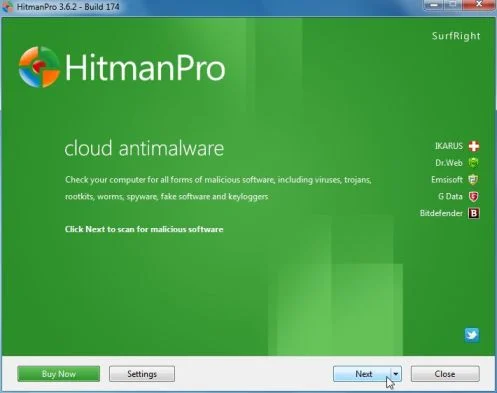
IF you are experiencing problems while trying to start HitmanPro, you can use the Force Breach mode.To start HitmanPro in Force Breach mode, hold down the left CTRL key when you start HitmanPro and all non-essential processes are terminated, including the malware process. (How to start HitmanPro in Force Breach mode – Video) - HitmanPro will start and you’ll need to follow the prompts (by clicking on the Next button) to start a system scan with this program.
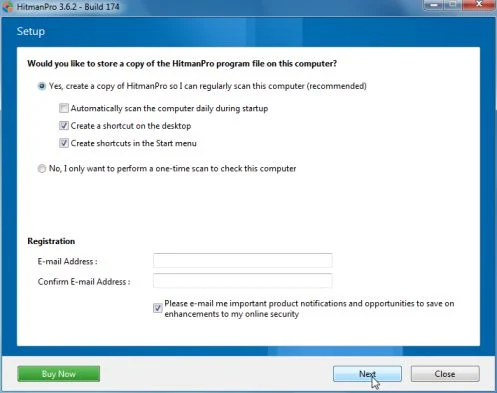
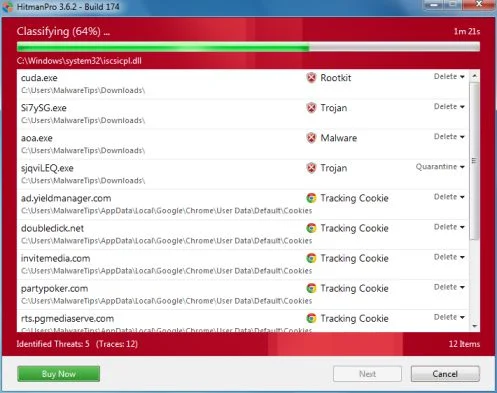
- HitmanPro will start scanning your computer for Win 7 Defender 2013 malicious files as seen in the image below.
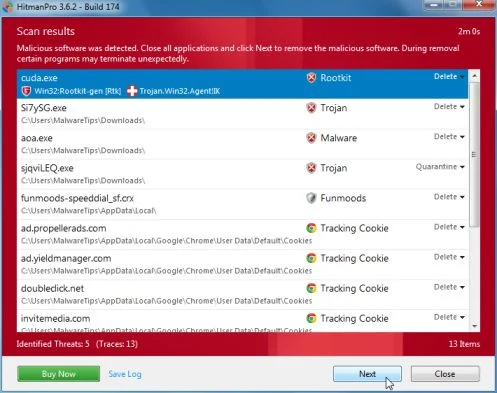
- Once the scan is complete,you’ll see a screen which will display all the infected files that this utility has detected, and you’ll need to click on Next to remove this malicious files.
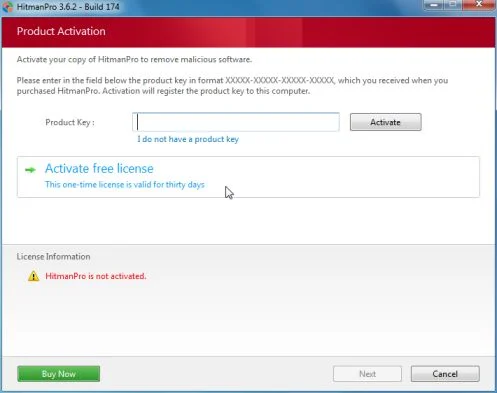
- Click Activate free license to start the free 30 days trial and remove all the malicious files from your computer.
STEP 3: Double check for any left over infections with Emsisoft Emergency Kit
- You can download Emsisoft Emergency Kit from the below link,then extract it to a folder in a convenient location.
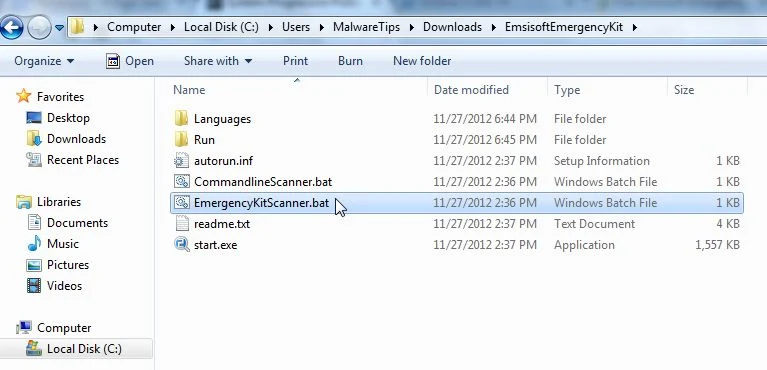
Download Emsisoft Emergency KitOpens the download page in a new tab. - Open the Emsisoft Emergency Kit folder and double click EmergencyKitScanner.bat, then allow this program to update itself.
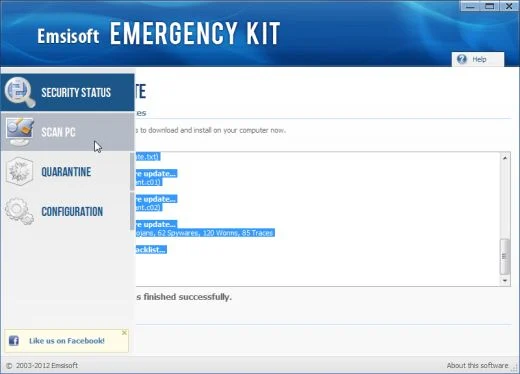
- After the Emsisoft Emergency Kit has update has completed,click on the Menu tab,then select Scan PC.
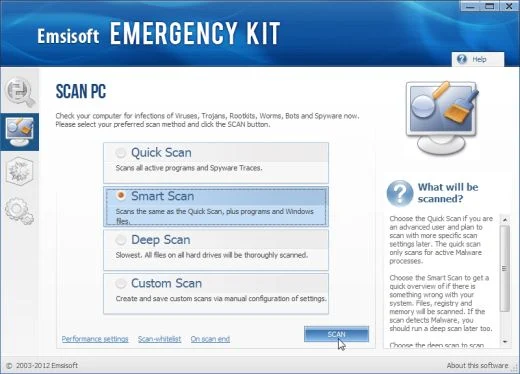
- Select Smart scan and click on the SCAN button to search for Win 7 Defender 2013 malicious files.
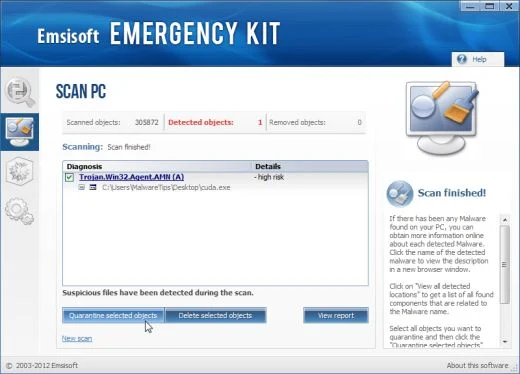
- When the scan will be completed,you will be presented with a screen reporting which malicious files has Emsisoft detected on your computer, and you’ll need to click on Quarantine selected objects to remove them.

Join the discussion
37 commentsShare your experience or ask a question about this article.
Discussion
i am stressing.. my mom is seriously infected with this crap, and i found you and im not totally computer savvy, but i am usually confident when asked to help fix something on her computers, but everytime i restart in safe mode, my mouse completely stops working. so? im trying to navigate with the tab bar, but the only programs i can open wont show anything with the registryfix.reg download..cant find the rkill i cant navigate correctly without the mouse working. not sure why it stops when its in safe mode, but its making me crazy bc im not used to not being able to do it on my own! can you help me?!!?? please!
In reply to casey m.
Hello,
Lets try to fix your computer,please run the below tools while in Normal Mode;
STEP 1: Run a scan with Malwarebytes Anti-Malware in Chameleon Mode in Norman mode:
STEP 2: Run a scan with RogueKiller
RogueKiller Download Link (This link will automatically download RogueKiller on your computer)
STEP 3 Please perform a scan with HitmanPro as seen on the guide.
If you are having problems starting this program please use the ForceBreach mode as described in the guide.
STEP 4: Run a scan with ESET Online Scanner:
ESET Online Scanner Download Link (This link will automatically download ESET Online Scanner on your computer.)
Waiting for your reply to tell me how everything is running!
Good luck…
In reply to Stelian Pilici
Hello, one of my computers is infected with this virus. I followed your instructions and got to step 2, but after I downloaded the Registryfix.reg, the win defender 2013 is blocking me from opening it. I then tried downloading pctools and it blocked me from opening it as well. What can I do now?
In reply to Toby
Hello Toby,
Can you please perform a scan with RogueKiller,then try to do again a scan with MBAM:
1.Please download the latest official version of RogueKiller.
RogueKiller Download Link (This link will automatically download RogueKiller on your computer)
2.Double click on RogueKiller.exe to start this utility and then wait for the Prescan to complete.This should take only a few seconds and then you can click the Scan button to perform a system scan.
3.After the scan has completed, press the Delete button to remove any malicious registry keys.
In reply to Stelian Pilici
Stelian, how can I download the latest official version of Roguekiller when Win 7 Defender won’t let me open up any of my browsers?
I tried activating Win 7 Defender with the Reg Key listed above, but I got an “Invalid key” message.
In reply to BBunsen
Hello BBunsen,
Did boot your computer in Safe Mode with Networking and run a scan with Malwarebytes??
Please follow all the steps as they should work without any problems… :)
Stay safe!