

Imagine stumbling upon a website that promises free $100 gift cards for platforms like Roblox, Fortnite, Google Play, and more—no catch, just a few quick tasks. That’s the allure of X4y. live, a site that seems to offer generous rewards with minimal effort. But as many users have learned the hard way, this isn’t a digital jackpot—it’s a cleverly disguised trap.
Below, we break down exactly how this scam works, why it’s dangerous, and what to do if you’ve already fallen for it.

Scam Overview: Inside the Illusion of Free Rewards
X4y. live promotes itself as a platform offering free gift card codes for popular games and services, from Robux and V-Bucks to Google Play, Cash App, Valorant, and more. The front page features cheerful graphics, a cartoon mascot, and slick visuals—elements designed to create a sense of trust and legitimacy. But once you scratch beneath the surface, the site’s real purpose becomes clear.
The Bait: Popular Brands and Digital Rewards
Scammers behind X4y. live know their audience. By dangling the names of trusted brands like Fortnite, Roblox, Dragon Ball Legends, and Steam, they hook users—especially kids, teens, and gamers—into believing they’re just one click away from easy rewards.
Users are shown what appear to be legitimate gift cards with values as high as $750, urging them to “Get Code” immediately. The website creates urgency and excitement, mimicking the look and feel of a legitimate promotional campaign.
The Hook: Empty Promises and Endless Loops
Once a user clicks on a gift card offer, the real game begins. They are asked to complete “simple” tasks, such as:
- Answering surveys
- Downloading mobile apps
- Submitting an email address or phone number
- Watching video ads
- Signing up for free trials
However, these tasks never lead to an actual reward. Instead, they serve the sole purpose of generating affiliate income for the scam operators. Every click, download, or form submission lines the pockets of X4y. live—while users receive nothing in return.
The Red Flags You Can’t Ignore
- No Company Information: No address, team bios, or support contact.
- Newly Registered Domain: X4y. live was created in August 2024, a common trait of “burner” scam sites that vanish after harvesting enough data or profit.
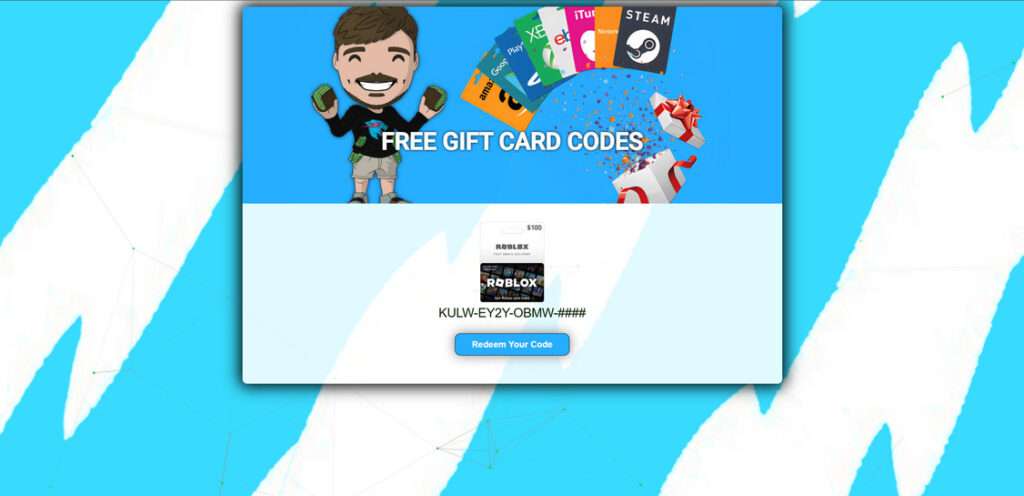
- Fake Gift Card Codes: The format looks authentic, but the codes shown are incomplete (e.g., KULW-EY2Y-OBMW-####), forcing users to complete more tasks to “unlock” the rest—tasks that never actually reveal anything.
- Endless Redirects: Clicking around often leads users to shady third-party websites that may contain malware, phishing pages, or more scams.
- Privacy Nightmare: Users unknowingly share personal data, which can be sold or misused for spam, fraud, or identity theft.
User Experience: Frustration and Deception
Many victims report spending hours completing requirements with zero results. Worse, some unknowingly install unwanted software, expose themselves to identity theft, or get stuck in subscriptions they never intended to sign up for.
This isn’t just a waste of time—it’s a manipulative scheme designed to exploit curiosity and trust.
How the X4y. live Scam Works
Let’s take a closer look at exactly how the scam unfolds once you enter the site:
Step 1: The Landing Page
You arrive at a slick-looking site with a blue background, cartoon character, and a big headline: “FREE GIFT CARD CODES.” Various cards from platforms like Amazon, iTunes, Steam, and Xbox float around, enticing you to pick your reward.
At this point, it looks harmless—even fun. But it’s all a façade.
Step 2: Choosing Your Gift Card
You’re asked to select a gift card from a tempting array: Roblox ($100), Fortnite V-Bucks (13,500), Google Play ($200), Cash App ($750), and more. Each option includes a “Get Code” button.
Clicking it initiates the scam.
Step 3: Fake Code Preview
Once selected, the site shows you a partial code. For example:
KULW-EY2Y-OBMW-####
You’re told the rest will be revealed after completing a few tasks. These tasks are the core of the scam.
Step 4: Task Wall / Offers Page
You’re now redirected to a series of offers. Tasks vary but usually include:
- Downloading 2-3 apps and using them for 30 seconds
- Filling out multiple surveys with personal info
- Subscribing to “free” trials that require a credit card
- Joining mailing lists that lead to spam
Each task is hosted by a third-party site, often an affiliate marketing network. The scammer earns a commission for every action you complete.
Step 5: The Loop Trap
Once you’ve done the tasks, you return to X4y. live expecting your full code—but you’re either:
- Asked to complete more tasks
- Told the system didn’t register your action properly
- Given a new set of tasks instead of a code
This loop never ends.
Step 6: The Redirect Spiral
Sometimes, the site randomly redirects you to other scam websites, malware download pages, or survey traps. These redirects are designed to maximize ad impressions, data harvesting, and monetization without delivering anything to the user.
Step 7: Data Collection and Potential Harm
Every step is carefully crafted to gather user data—email addresses, phone numbers, age, location, and sometimes even billing info. This data may be:
- Sold to spammers
- Used for phishing
- Exploited for fraud
By the end, users have given away time, personal data, and sometimes money, all for a fake promise.
What to Do If You’ve Fallen Victim to the X4y. live Scam
If you’ve interacted with X4y. live and completed any tasks, here are the steps you should take immediately:
1. Stop Interacting With the Site
Close the browser, clear your cache, and delete any downloaded apps or extensions you may have installed during the process.
2. Scan Your Device for Malware
Use a reputable antivirus or anti-malware tool to scan your device. Some recommended options:
- Malwarebytes (Windows/Mac)
- ESET
- Norton 360
- Avast or AVG
3. Change Your Passwords
If you entered any login information during surveys or downloads, immediately change those passwords. Use unique, strong passwords for every account.
4. Check for Unauthorized Subscriptions
If you entered credit card details, check your bank or PayPal for any unfamiliar charges or subscriptions. Cancel any you don’t recognize and contact your financial institution to report fraud.
5. Report the Scam
Reporting helps protect others and potentially shut down these operations. Here’s where you can report:
- FTC (U.S.): ReportFraud.ftc.gov
- Internet Crime Complaint Center (IC3): ic3.gov
- Google Safe Browsing: safebrowsing.google.com
- Scamwatch (Australia): scamwatch.gov.au
6. Enable Two-Factor Authentication (2FA)
For all important accounts, activate 2FA to add a layer of protection in case your info was compromised.
7. Spread the Word
Tell friends, family, or online communities about the scam. The more people know, the harder it becomes for scammers to succeed.
Is Your Device Infected? Run a Free Malware Scan
Slow performance, constant pop-ups, or strange behavior? These are classic signs of a malware infection. The fastest way to find out is to scan your device with Malwarebytes Free — one of the most trusted malware removal tools available.
The free version detects and removes the most common threats, including:
- Adware — the cause of those annoying pop-ups
- Browser hijackers — unwanted redirects and changed homepages
- Trojans and spyware — hidden programs stealing your data
- Potentially unwanted programs (PUPs) — software you never asked for
👉 Select your device below — Windows, Mac, or Android — then follow the simple steps to download Malwarebytes, scan your system, and remove any threats it finds. The scan usually takes 5 to 20 minutes.
Run a Malware Scan with Malwarebytes for Windows
Malwarebytes is one of the most popular and trusted anti-malware tools for Windows — and it’s completely free for removing infections. It catches threats that many antivirus programs miss, including adware, browser hijackers, and trojans. Follow the steps below to scan and clean your PC in just a few minutes.
Download Malwarebytes
Click the button below to download the latest version of Malwarebytes for Windows from the official source. The free version is all you need — it will scan your computer and remove adware, browser hijackers, and other malicious software at no cost.
Download MalwarebytesOfficial installer for Windows 11 and 10. Your download starts right away.Want real-time protection? See Malwarebytes Premium Malwarebytes Free for WindowsScans and removes malware at no cost
-
Install Malwarebytes
When the download finishes, open your Downloads folder and double-click the MBSetup file. If Windows shows a User Account Control pop-up, click “Yes” to allow the installation.

Follow the On-Screen Prompts to Install Malwarebytes
The setup wizard will walk you through a few quick screens:
-
Choose where you’re installing the program — “Personal Computer” or “Work Computer” — then click Next.

-
Malwarebytes will now install on your device. This usually takes under a minute.

-
When installation is complete, the “Welcome to Malwarebytes” screen will open automatically.

-
On the final screen, click Open Malwarebytes to launch the program.

-
Enable “Scan for Rootkits”
Before scanning, turn on rootkit detection so Malwarebytes can find even the most hidden threats. Click the Settings gear icon on the left side of the screen.

In the settings menu, find “Scan for rootkits” and click the toggle so it turns blue.

Done? Click “Dashboard” in the left pane to return to the main screen.
Start the Scan
Click the blue Scan button. Malwarebytes will automatically update its virus database and start checking your computer for malware.

-
Wait for the Scan to Finish
The scan checks your entire system for browser hijackers and other malicious programs, so it can take 5 to 20 minutes depending on your computer. Feel free to do something else — just check back occasionally to see the progress.

-
Quarantine the Detected Threats
When the scan is done, you’ll see a list of everything Malwarebytes found — malware, adware, and potentially unwanted programs. Click the “Quarantine” button to remove all of them at once.

Malwarebytes will now remove the malicious files and registry entries and move them safely into quarantine.

-
Restart Your Computer
Some threats can only be fully removed after a reboot. If Malwarebytes asks you to restart, click Yes. Once you’re logged back in, Malwarebytes has finished removing the threats it found.

That’s it — your Windows PC is now clean of trojans, adware, and other malware, and should be back to running smoothly.
If you are still having problems with your computer after completing these instructions, then please follow one of the steps:
- Run a computer scan with ESET Online Scanner
- Ask for help in our Windows Malware Removal Help & Support forum.
Run a Malware Scan with Malwarebytes for Mac
Malwarebytes for Mac is a free on-demand scanner that removes the malware other security software tends to miss — adware, browser hijackers, and unwanted programs included. Cleaning an infected Mac with Malwarebytes has always been completely free, and it’s our go-to recommendation. Follow the steps below to scan and clean your Mac in just a few minutes.
-
Download Malwarebytes for Mac
Click the button below to download the latest version of Malwarebytes for Mac.
Download MalwarebytesOfficial installer for macOS. Your download starts right away.Want real-time protection? See Malwarebytes PremiumMalwarebytes Free for MacScans and removes malware at no cost -
Open the Malwarebytes setup file
When the download finishes, open your Downloads folder and double-click the setup file to begin the installation.

-
Follow the On-Screen Prompts to Install Malwarebytes
The Malwarebytes for Mac Installer will guide you through a few quick screens. Click “Continue” and keep following the prompts until the installation completes.



When the installation is complete, Malwarebytes opens to the Welcome to Malwarebytes screen. Click “Get started“.
-
Select “Personal Computer” or “Work Computer”
Malwarebytes will ask what type of computer you’re installing it on. Click either Personal Computer or Work Computer, whichever applies.

-
Start the Scan
Click the “Scan” button. Malwarebytes will automatically update its detection database and begin checking your Mac for malware.

-
Wait for the Scan to Finish
Malwarebytes will scan your Mac for adware, browser hijackers, and other malicious programs. This can take a few minutes, so feel free to do something else — just check back occasionally to see the progress.

-
Quarantine the Detected Threats
When the scan is done, you’ll see a list of everything Malwarebytes found. Click the “Quarantine” button to remove all the threats at once.

-
Restart Your Mac
Malwarebytes will now remove all the malicious files it found. Some threats can only be fully removed after a reboot — if Malwarebytes asks you to restart, allow it. Once you’re logged back in, your Mac is clean.

That’s it — your Mac is now free of adware, rogue browser extensions, and other potentially harmful software.
If you are still experiencing problems while trying to remove a malicious program from your computer, please ask for help in our Mac Malware Removal Help & Support forum.
Run a Malware Scan with Malwarebytes for Android
Malwarebytes for Android automatically detects and removes dangerous threats like malware and ransomware so you don’t have to worry about your most-used device being compromised. Aggressive detection of adware and potentially unwanted programs keeps your Android phone or tablet running smooth.
-
Download Malwarebytes for Android.
You can download Malwarebytes for Android by clicking the link below.
Get Malwarebytes for AndroidOpens Google Play in a new tab.Want real-time protection? See Malwarebytes Premium for AndroidMalwarebytes for AndroidScans your phone and removes malware at no cost -
Install Malwarebytes for Android on your phone.
In the Google Play Store, tap “Install” to install Malwarebytes for Android on your device.

When the installation process has finished, tap “Open” to begin using Malwarebytes for Android. You can also open Malwarebytes by tapping on its icon in your phone menu or home screen.

-
Follow the on-screen prompts to complete the setup process
When Malwarebytes will open, you will see the Malwarebytes Setup Wizard which will guide you through a series of permissions and other setup options.
This is the first of two screens that explain the difference between the Premium and Free versions. Swipe this screen to continue.
Tap on “Got it” to proceed to the next step.
Malwarebytes for Android will now ask for a set of permissions that are required to scan your device and protect it from malware. Tap on “Give permission” to continue.
Tap on “Allow” to permit Malwarebytes to access the files on your phone.
-
Update database and run a scan with Malwarebytes for Android
You will now be prompted to update the Malwarebytes database and run a full system scan.

Click on “Update database” to update the Malwarebytes for Android definitions to the latest version, then click on “Run full scan” to perform a system scan.

-
Wait for the Malwarebytes scan to complete.
Malwarebytes will now start scanning your phone for adware and other malicious apps. This process can take a few minutes, so we suggest you do something else and periodically check on the status of the scan to see when it is finished.

-
Click on “Remove Selected”.
When the scan has been completed, you will be presented with a screen showing the malware infections that Malwarebytes for Android has detected. To remove the malicious apps that Malwarebytes has found, tap on the “Remove Selected” button.

-
Restart your phone.
Malwarebytes for Android will now remove all the malicious apps that it has found. To complete the malware removal process, Malwarebytes may ask you to restart your device.
That’s it — your Android phone is now clean — no more malicious apps, adware, or browser redirects.
If you are still having problems with your phone after completing these instructions, then please follow one of the steps:
- Restore your phone to factory settings by going to Settings > General management > Reset > Factory data reset.
- Ask for help in our Mobile Malware Removal Help & Support forum.
Stay Protected: Block Ads and Malicious Sites
Now that your device is clean, keep it that way. Most infections start with a malicious ad or a fake download button — so blocking them at the source is your best defense.
We recommend AdGuard, which blocks malicious ads, phishing pages, and dangerous redirects before they can reach you.
👉 Download AdGuard and browse safely
Frequently Asked Questions (FAQ) about the X4y. live Gift Card Scam
Is X4y. live a legitimate website?
No, X4y. live is not a legitimate website. It falsely promises free gift card codes in exchange for completing surveys or downloading apps but never actually delivers the promised rewards. The site is designed to make money off user actions, not provide value.
What happens when I try to claim a gift card from X4y. live?
Once you select a gift card and click “Get Code,” you are shown a partial code and asked to complete tasks like surveys, app downloads, or email sign-ups. After completing these tasks, the site either asks you to do more or never releases the full code. Users report being stuck in an endless loop with no reward.
Why would X4y. live run this kind of scam?
Sites like X4y. live earn affiliate revenue from third-party networks when users complete tasks such as surveys or downloads. The operators profit from your actions without having to deliver anything in return. In some cases, they may also collect personal data to sell to advertisers or malicious actors.
Can I really get a free $100 Roblox or Fortnite code from this site?
No. Although X4y. live advertises $100 gift cards for popular platforms like Roblox and Fortnite, these offers are fake. The site uses these names and logos without authorization to gain trust and lure users into engaging with their scam.
Is it dangerous to use X4y. live?
Yes, it can be. In addition to wasting your time, you may expose yourself to malware, phishing websites, or identity theft. If you enter personal details or download anything from linked pages, your data could be compromised.
I completed the tasks. Why didn’t I receive my gift card?
Because the site never intended to provide a real gift card. The “tasks” are just bait to keep you engaged while X4y. live earns money from your actions. There is no actual backend system to deliver legitimate codes.
What should I do if I shared personal info on X4y. live?
If you provided an email or phone number, be on the lookout for spam or scam messages. If you entered more sensitive information, like a credit card or home address, contact your bank and consider placing fraud alerts with credit bureaus. Also, monitor your accounts for suspicious activity.
Is it illegal to use a site like X4y. live?
While simply visiting the site may not be illegal, submitting fake data to get rewards or engaging with platforms designed to mislead can put you at legal and personal risk. Additionally, promoting or sharing scam sites knowingly could violate terms of service on social media or online platforms.
How can I report X4y. live?
You can report the site to the following organizations:
- FTC: reportfraud.ftc.gov
- Internet Crime Complaint Center (IC3): ic3.gov
- Google Safe Browsing: safebrowsing.google.com
- Scamwatch (Australia): scamwatch.gov.au
How can I protect myself from similar scams in the future?
- Always research websites before entering personal information.
- Be skeptical of any offer that seems too good to be true.
- Avoid clicking on unfamiliar links or downloading unknown apps.
- Use ad blockers and security tools to prevent malicious redirects.
- Educate yourself and others about common scam tactics.
The Bottom Line
X4y. live is not a legitimate rewards platform. It’s a well-crafted scam site designed to trick users into completing tasks that generate profit for the scammers—without giving anything back. With empty promises, fake codes, shady redirects, and hidden data collection, it’s clear that this site has one goal: exploitation.
If something seems too good to be true—especially in the world of free gift cards—it probably is.

Join the discussion
0 commentsShare your experience or ask a question about this article.
Discussion
Start the conversation
Have a question or something useful to share? Add the first comment.