

An email says your cloud is disabled, and suddenly you are thinking about photos, documents, and the last backup you never checked.
The message offers a quick way forward. Before following it, take a moment to see whether its warning matches your real account.
Overview
The warning combines a full account with an inactive subscription
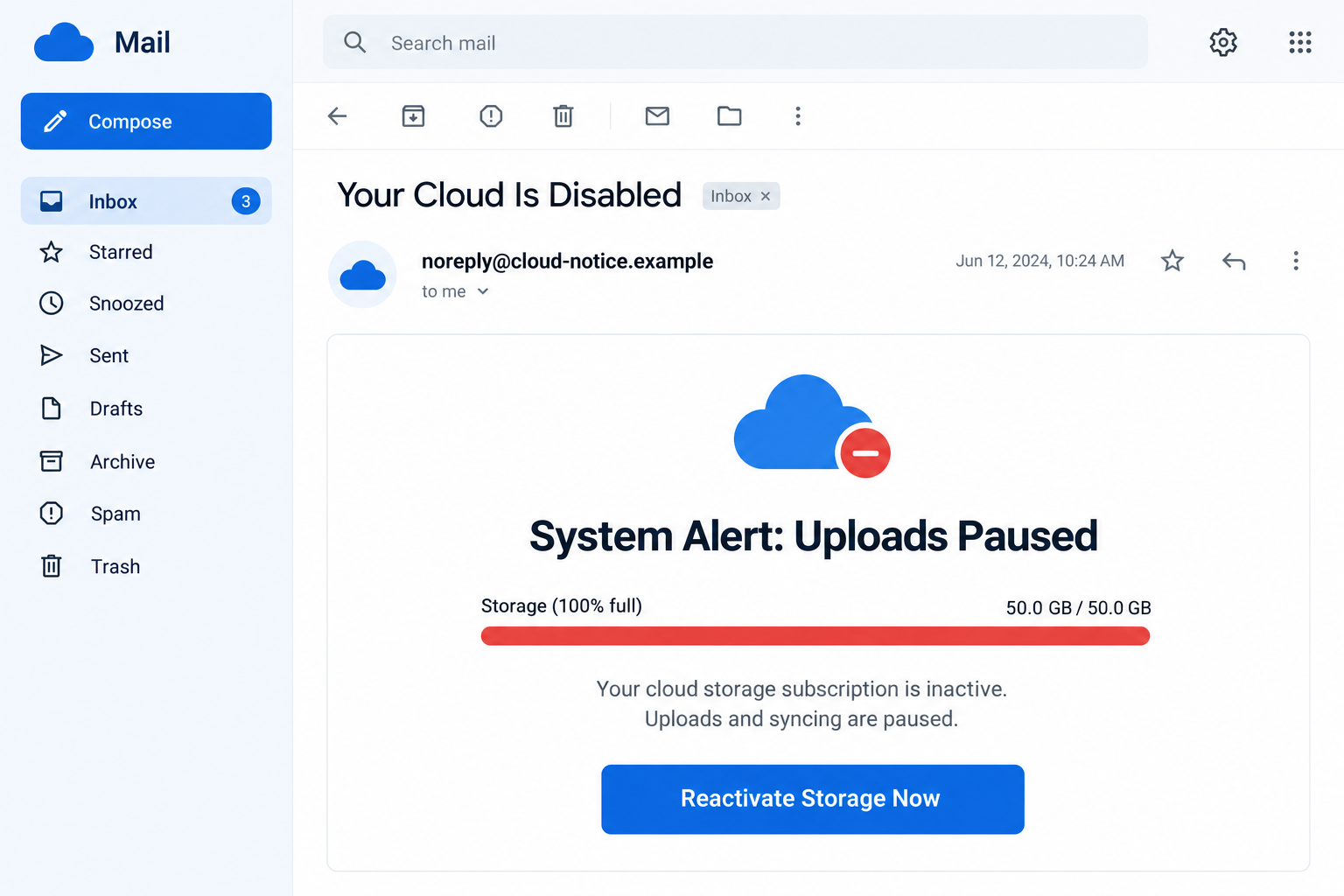
The reported email claims that uploads have stopped because cloud storage is full and the subscription is inactive. A reactivation button supplies its proposed solution.
Its displayed storage meter reads 50.0 GB out of 50.0 GB. That exact-looking measurement gives a generic message the appearance of account-specific knowledge.
A figure inside an email is not a live reading of your storage. Check the service directly before accepting the message’s diagnosis.
The route can lead to a purchase rather than a password form
This case was reported as a deceptive referral funnel. Its warning pages pushed visitors toward offers through affiliate tracking, potentially earning commission from a purchase.
That differs from a straightforward fake-login page. You should not assume that every version steals a password or installs malware merely because the email is deceptive.
The main warning signs belong together:
- An unexpected notice declares cloud access disabled.
- A precise-looking capacity meter raises concern about files.
- A button offers to restore service through the message’s route.
- The journey can turn into an unrelated security-product purchase.
A real product does not make the original warning true
Reported destinations included promotions involving McAfee or XShield. A recognizable product or functioning checkout does not validate the cloud alarm that brought you there.
It also does not establish that the named vendor wrote the deceptive email. Separate the sender, referral operator, actual seller, and product.
The lead image is illustrative and uses fictional sender details. It is not a genuine reading from a cloud account or a recreated purchase receipt.
How the Cloud Disabled Email Scam Works
Step 1: A broad warning feels personal because your files matter
The message does not need to know which photos you value. The possibility of losing access is enough to make a storage warning feel immediately relevant.
Many people use more than one cloud service and cannot recall every plan’s capacity. That uncertainty gives a generic notice room to seem plausible.
You may begin mentally listing accounts instead of questioning the sender. The email benefits when your own worries fill in details it has not actually established.
Start with the service you really use. An authentic account view is more informative than trying to infer an account from a vague cloud symbol.
Step 2: Account-style details make the alarm look measured
The reported version combines an uploads-paused message with a capacity limit and a suspension-style subject. These details make the warning resemble a system-generated notice.
A meter at 100% suggests that someone has checked your usage. In an email, however, the graphic can be as static as any other picture.
Likewise, a reference number may simply be text chosen by the sender. It does not prove the message came from your provider’s billing system.
Ask whether the notice actually names the account and service you use. Even correct personal details should be compared with the account, not treated as final authentication.
Do not reply with information to help the sender identify your plan. The account lookup should happen with the provider through a route you choose.
Step 3: The reactivation button becomes the easiest-looking escape
The button offers relief from the problem the email just created. When the concern is missing backups, a single action can feel safer than doing nothing.
But clicking does not independently verify that syncing stopped. It hands the next part of the story to the operator controlling that link.
The reported journey could display further warning pages before reaching an offer. Multiple screens can make the experience feel diagnostic even when no account has been authenticated.
A page that claims to inspect your storage needs a legitimate basis for that access. A generic warning animation is not a substitute for an authenticated account.
If the destination suddenly discusses computer threats or a security subscription, notice the change. You came to address storage, not authorize a new diagnosis.
Step 4: The supposed storage problem turns into a referral sale
The reported scheme used affiliate tracking in its redirect chain. That can attribute a later purchase to the party who supplied the referral.
Affiliate marketing itself is not proof of fraud. A legitimate recommendation can earn commission when it accurately describes the product and does not invent an emergency.
Here, the deceptive part is the fabricated cloud warning used to create demand. A real checkout at the end does not erase that misleading beginning.
Buying unrelated security software will not necessarily add cloud capacity, reactivate a storage plan, or restart the particular service you use.
Before paying, ask what the product actually changes. Its functions should match your real problem, not the alarm that a referral page put on screen.
Do not assume a discount means you must decide now. Compare the actual seller, subscription period, total charge, and renewal terms independently.
Step 5: The purchase can leave the real storage question unresolved
A buyer may complete an order yet still not know whether their files were syncing. The purchase confirmation answers a sales question, not an account-status question.
If storage genuinely is full, it still needs attention in the original service. If it was not full, the purchase may have solved a problem you never had.
Neither situation requires assuming the payment card was stolen. Determine who took the payment and what was purchased before choosing a dispute or cancellation route.
Keep the deceptive email as evidence of how the sale began. A real receipt can be useful alongside it, rather than proof that the warning was accurate.
Expect the possibility of more promotions. An initial reaction can make further messages about expired protection or missing files feel like part of the same account issue.
Check Your Real Storage Without Putting Files at Risk
Find the account’s own usage and billing screens
Open the installed cloud application or use a known account bookmark. Check the signed-in identity, storage usage, subscription status, and any service notice there.
If several family members or coworkers share a plan, confirm who manages billing. A message to one person may not describe the shared account accurately.
For iCloud users, Apple explains what full storage affects. Other services have their own limits and recovery options.
A genuine capacity issue can affect backups or syncing without meaning that all existing files have vanished. Read the provider’s specific warning before taking drastic action.
Do not delete files to satisfy an unverified email
Deleting items in a synchronized service may remove them from other connected places too. A rushed cleanup can create a real loss after a fake warning.
Make a separate copy of important files before removing anything. Check the provider’s recovery and synchronization behavior so you understand which copy you are changing.
Do not install a supposed cloud repair utility from the email. Storage management should begin with the provider’s supported tools, not an unexplained download.
If work documents are involved, consult the account administrator. They may control retention, billing, and backup arrangements that are not visible from your individual account.
Evaluate any purchase as a separate decision
A security product might be legitimate and still be unrelated to your storage problem. Evaluate its purpose without the pressure of the email’s alarm.
Review the amount due now, the renewal amount if disclosed, the subscription duration, and the seller named on the order. Save those terms before changing anything.
Do not label every charge unauthorized if you knowingly completed a purchase. Explain accurately whether the issue is deception, an unwanted renewal, or a payment you never approved.
Clear descriptions help the merchant and payment provider apply the right process. They also prevent a genuine cancellation request from becoming tangled in an inaccurate fraud report.
What to Do If You Followed the Cloud Warning
Leave the email’s route and check the original service. Confirm your account status in the normal app or website before purchasing anything else.
If the service works and no matching warning appears, report the email as phishing or spam. Avoid using its unsubscribe link.
If there is a real storage issue, handle it within that service. Keep it separate from offers introduced by the suspicious message.
Record where the journey ended. Save the receipt, seller name, product, amount, and subscription details if you bought something.
Keep screenshots or existing browser-history details showing the misleading warning. Do not reopen risky pages merely to reconstruct every redirect.
A legitimate seller may need the order number to locate a purchase. Provide relevant order information, never your account password or full card number.
Cancel an unwanted purchase or renewal through the actual seller. Find support from the confirmed order or independently reached vendor site.
Ask for cancellation and any available refund in writing. Explain that the purchase followed a false cloud-service warning, and keep the response.
Cancellation terms vary. Do not assume deleting an application cancels its subscription or that a refund request automatically stops future billing.
Contact the payment provider when appropriate. Report unauthorized charges promptly, or explain the misleading sales route if you authorized a purchase under false pretenses.
Ask about the relevant dispute process and deadlines. If card details went to an unknown form, ask whether protective measures or replacement are needed.
A real vendor receipt and a counterfeit payment form are different situations. Give the provider the actual facts rather than guessing which one occurred.
Secure credentials only if they were exposed or suspicious access appears. Change the affected password through the real provider and review account access.
Check recovery details and available multifactor protection. If the same password was reused elsewhere, replace it on those accounts too.
An affiliate redirect alone does not establish password theft. Match the response to the form you used and the information you supplied.
Remove unwanted browser permissions and investigate unexpected software. Revoke notifications from unfamiliar sites through browser settings if you allowed them during the journey.
If you installed an unknown tool or extension, Malwarebytes can help check the device. Obtain security software independently, not from the alarming page.
AdGuard can reduce some deceptive-ad and redirect exposure. Neither tool purchases storage, restores a cloud subscription, or processes a refund.
Report the misleading promotion and keep watching the right account. Notify the impersonated provider and the actual seller if its product was promoted deceptively.
Include the original message and relevant order details. A commission trail may help a vendor examine abuse without proving that vendor authored the email.
Watch your real subscription and payment statements afterward. Ignore unsolicited helpers demanding another fee to secure files or recover the first purchase.
Is Your Device Infected? Run a Free Malware Scan
Slow performance, constant pop-ups, or strange behavior? These are classic signs of a malware infection. The fastest way to find out is to scan your device with Malwarebytes Free — one of the most trusted malware removal tools available.
The free version detects and removes the most common threats, including:
- Adware — the cause of those annoying pop-ups
- Browser hijackers — unwanted redirects and changed homepages
- Trojans and spyware — hidden programs stealing your data
- Potentially unwanted programs (PUPs) — software you never asked for
👉 Select your device below — Windows, Mac, or Android — then follow the simple steps to download Malwarebytes, scan your system, and remove any threats it finds. The scan usually takes 5 to 20 minutes.
Run a Malware Scan with Malwarebytes for Windows
Malwarebytes is one of the most popular and trusted anti-malware tools for Windows — and it’s completely free for removing infections. It catches threats that many antivirus programs miss, including adware, browser hijackers, and trojans. Follow the steps below to scan and clean your PC in just a few minutes.
Download Malwarebytes
Click the button below to download the latest version of Malwarebytes for Windows from the official source. The free version is all you need — it will scan your computer and remove adware, browser hijackers, and other malicious software at no cost.
Download MalwarebytesOfficial installer for Windows 11 and 10. Your download starts right away.Want real-time protection? See Malwarebytes Premium Malwarebytes Free for WindowsScans and removes malware at no cost
-
Install Malwarebytes
When the download finishes, open your Downloads folder and double-click the MBSetup file. If Windows shows a User Account Control pop-up, click “Yes” to allow the installation.

Follow the On-Screen Prompts to Install Malwarebytes
The setup wizard will walk you through a few quick screens:
-
Choose where you’re installing the program — “Personal Computer” or “Work Computer” — then click Next.

-
Malwarebytes will now install on your device. This usually takes under a minute.

-
When installation is complete, the “Welcome to Malwarebytes” screen will open automatically.

-
On the final screen, click Open Malwarebytes to launch the program.

-
Enable “Scan for Rootkits”
Before scanning, turn on rootkit detection so Malwarebytes can find even the most hidden threats. Click the Settings gear icon on the left side of the screen.

In the settings menu, find “Scan for rootkits” and click the toggle so it turns blue.

Done? Click “Dashboard” in the left pane to return to the main screen.
Start the Scan
Click the blue Scan button. Malwarebytes will automatically update its virus database and start checking your computer for malware.

-
Wait for the Scan to Finish
The scan checks your entire system for browser hijackers and other malicious programs, so it can take 5 to 20 minutes depending on your computer. Feel free to do something else — just check back occasionally to see the progress.

-
Quarantine the Detected Threats
When the scan is done, you’ll see a list of everything Malwarebytes found — malware, adware, and potentially unwanted programs. Click the “Quarantine” button to remove all of them at once.

Malwarebytes will now remove the malicious files and registry entries and move them safely into quarantine.

-
Restart Your Computer
Some threats can only be fully removed after a reboot. If Malwarebytes asks you to restart, click Yes. Once you’re logged back in, Malwarebytes has finished removing the threats it found.

That’s it — your Windows PC is now clean of trojans, adware, and other malware, and should be back to running smoothly.
If you are still having problems with your computer after completing these instructions, then please follow one of the steps:
- Run a computer scan with ESET Online Scanner
- Ask for help in our Windows Malware Removal Help & Support forum.
Run a Malware Scan with Malwarebytes for Mac
Malwarebytes for Mac is a free on-demand scanner that removes the malware other security software tends to miss — adware, browser hijackers, and unwanted programs included. Cleaning an infected Mac with Malwarebytes has always been completely free, and it’s our go-to recommendation. Follow the steps below to scan and clean your Mac in just a few minutes.
-
Download Malwarebytes for Mac
Click the button below to download the latest version of Malwarebytes for Mac.
Download MalwarebytesOfficial installer for macOS. Your download starts right away.Want real-time protection? See Malwarebytes PremiumMalwarebytes Free for MacScans and removes malware at no cost -
Open the Malwarebytes setup file
When the download finishes, open your Downloads folder and double-click the setup file to begin the installation.

-
Follow the On-Screen Prompts to Install Malwarebytes
The Malwarebytes for Mac Installer will guide you through a few quick screens. Click “Continue” and keep following the prompts until the installation completes.



When the installation is complete, Malwarebytes opens to the Welcome to Malwarebytes screen. Click “Get started“.
-
Select “Personal Computer” or “Work Computer”
Malwarebytes will ask what type of computer you’re installing it on. Click either Personal Computer or Work Computer, whichever applies.

-
Start the Scan
Click the “Scan” button. Malwarebytes will automatically update its detection database and begin checking your Mac for malware.

-
Wait for the Scan to Finish
Malwarebytes will scan your Mac for adware, browser hijackers, and other malicious programs. This can take a few minutes, so feel free to do something else — just check back occasionally to see the progress.

-
Quarantine the Detected Threats
When the scan is done, you’ll see a list of everything Malwarebytes found. Click the “Quarantine” button to remove all the threats at once.

-
Restart Your Mac
Malwarebytes will now remove all the malicious files it found. Some threats can only be fully removed after a reboot — if Malwarebytes asks you to restart, allow it. Once you’re logged back in, your Mac is clean.

That’s it — your Mac is now free of adware, rogue browser extensions, and other potentially harmful software.
If you are still experiencing problems while trying to remove a malicious program from your computer, please ask for help in our Mac Malware Removal Help & Support forum.
Run a Malware Scan with Malwarebytes for Android
Malwarebytes for Android automatically detects and removes dangerous threats like malware and ransomware so you don’t have to worry about your most-used device being compromised. Aggressive detection of adware and potentially unwanted programs keeps your Android phone or tablet running smooth.
-
Download Malwarebytes for Android.
You can download Malwarebytes for Android by clicking the link below.
Get Malwarebytes for AndroidOpens Google Play in a new tab.Want real-time protection? See Malwarebytes Premium for AndroidMalwarebytes for AndroidScans your phone and removes malware at no cost -
Install Malwarebytes for Android on your phone.
In the Google Play Store, tap “Install” to install Malwarebytes for Android on your device.

When the installation process has finished, tap “Open” to begin using Malwarebytes for Android. You can also open Malwarebytes by tapping on its icon in your phone menu or home screen.

-
Follow the on-screen prompts to complete the setup process
When Malwarebytes will open, you will see the Malwarebytes Setup Wizard which will guide you through a series of permissions and other setup options.
This is the first of two screens that explain the difference between the Premium and Free versions. Swipe this screen to continue.
Tap on “Got it” to proceed to the next step.
Malwarebytes for Android will now ask for a set of permissions that are required to scan your device and protect it from malware. Tap on “Give permission” to continue.
Tap on “Allow” to permit Malwarebytes to access the files on your phone.
-
Update database and run a scan with Malwarebytes for Android
You will now be prompted to update the Malwarebytes database and run a full system scan.

Click on “Update database” to update the Malwarebytes for Android definitions to the latest version, then click on “Run full scan” to perform a system scan.

-
Wait for the Malwarebytes scan to complete.
Malwarebytes will now start scanning your phone for adware and other malicious apps. This process can take a few minutes, so we suggest you do something else and periodically check on the status of the scan to see when it is finished.

-
Click on “Remove Selected”.
When the scan has been completed, you will be presented with a screen showing the malware infections that Malwarebytes for Android has detected. To remove the malicious apps that Malwarebytes has found, tap on the “Remove Selected” button.

-
Restart your phone.
Malwarebytes for Android will now remove all the malicious apps that it has found. To complete the malware removal process, Malwarebytes may ask you to restart your device.
That’s it — your Android phone is now clean — no more malicious apps, adware, or browser redirects.
If you are still having problems with your phone after completing these instructions, then please follow one of the steps:
- Restore your phone to factory settings by going to Settings > General management > Reset > Factory data reset.
- Ask for help in our Mobile Malware Removal Help & Support forum.
Stay Protected: Block Ads and Malicious Sites
Now that your device is clean, keep it that way. Most infections start with a malicious ad or a fake download button — so blocking them at the source is your best defense.
We recommend AdGuard, which blocks malicious ads, phishing pages, and dangerous redirects before they can reach you.
👉 Download AdGuard and browse safely
Why This Is More Than an Annoying Advertisement
A normal advertisement lets you consider a product on its merits. A fabricated service failure first makes you afraid of a consequence involving something you already own.
That can distort a purchase even when the final product exists. You are no longer comparing features calmly, you are trying to make an apparent emergency stop.
The distinction also explains why a working checkout is not a complete safety test. Payment security cannot establish that the sales story was true.
For family members who worry about photos, show them how to check storage in the actual app. A familiar verification routine reduces the pull of future alerts.
Keep important files backed up through a method you understand. An independent copy is useful protection, while buying software from a frightening email is not a backup strategy.
Most importantly, do not let a new warning undo your recovery. Once you have checked the real account, another email graphic should not override that verified status.
Frequently Asked Questions
Does this email prove my cloud storage is full?
No. Its capacity meter is a claim inside a message. Check usage in the genuine service before changing plans, deleting files, or entering payment information.
Why might the button lead to real security software?
The reported funnel used referral links that could earn commission. A genuine product at the end does not make the initial cloud warning accurate.
Are McAfee or XShield confirmed to have sent the email?
No. Their appearance in a promotion does not identify the sender or establish that a vendor approved the deceptive warning.
Will buying antivirus reactivate my cloud account?
Not merely because the email says so. Confirm what your cloud provider requires, and do not substitute an unrelated software purchase for resolving its actual account issue.
Should I delete photos immediately to make space?
Do not delete files because of this message. Check real usage first and understand synchronization before removing anything, especially if other devices share the account.
What if I already placed an order?
Identify the real merchant, preserve the sales trail, and request cancellation or a refund where available. Contact the payment provider for unauthorized or disputed charges.
The Bottom Line
Do not use the Your Cloud Is Disabled email to reactivate storage or buy protection. Its warning can serve a referral sale rather than your account’s needs.
Check the genuine cloud service directly. If you purchased through the warning, deal with the actual seller and payment provider while preserving how the sale began.

Join the discussion
0 commentsShare your experience or ask a question about this article.
Discussion
Start the conversation
Have a question or something useful to share? Add the first comment.