

Imagine opening your inbox to find an alarming email claiming that your cloud storage is full, threatening the loss of your precious photos, documents, and personal data. The message urges immediate action, offering a seemingly generous deal to upgrade your storage at a minimal cost. While this might sound like a routine notification, it’s often a cleverly disguised scam designed to exploit your trust and urgency.
In this article, we’ll delve deep into the “Your Cloud Storage Is Full” email scam, uncovering its intricacies, understanding its operation, and equipping you with the knowledge to protect yourself.
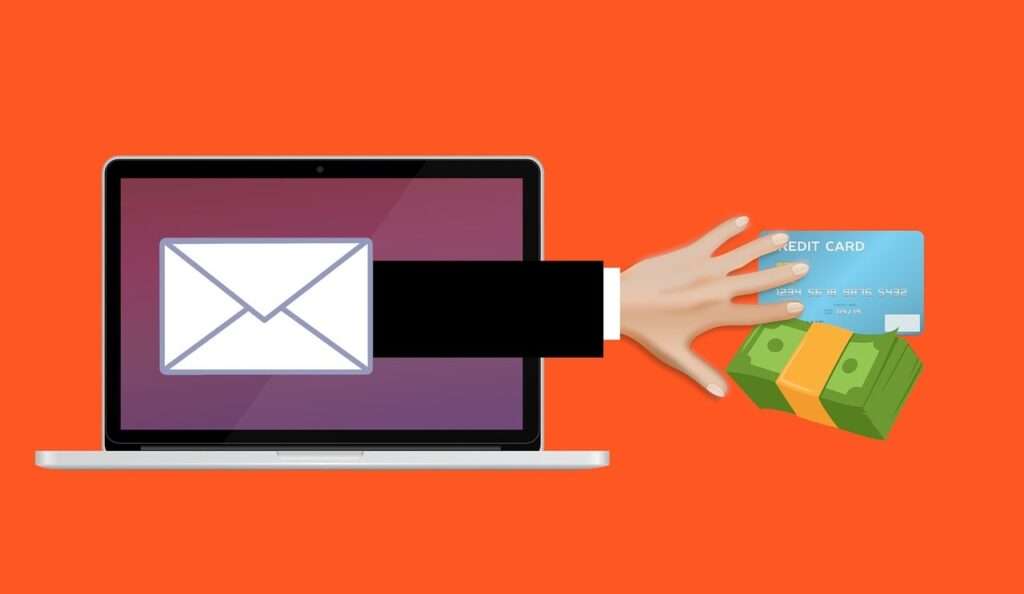
Scam Overview
The “Your Cloud Storage Is Full” email scam is a deceptive tactic employed by cybercriminals to manipulate individuals into divulging sensitive information or making unauthorized payments. These emails are meticulously crafted to resemble legitimate notifications from reputable cloud service providers, such as Apple’s iCloud, Google Drive, or Dropbox. The primary objective is to create a sense of urgency and fear, compelling recipients to act hastily without adequate verification.
Characteristics of the Scam Email
- Subject Line and Sender Information: The email often bears a subject line like “Your iCloud account may be at risk” or “Action Required: Cloud Storage Full.” The sender’s address may mimic official domains but often contains subtle anomalies or misspellings. For instance, an email purportedly from Apple might originate from an address like “support@applesecurity.com” instead of the legitimate “support@apple.com.”
- Content and Messaging: The body of the email typically includes alarming statements indicating that your cloud storage has reached its limit and that failure to act will result in data loss. It may mention specific consequences, such as the deletion of photos, videos, contacts, and documents. To entice immediate action, the email might offer an exclusive, time-sensitive deal, like an additional 50GB of storage for a nominal fee of $1.95.
- Visual Elements: Scammers often incorporate official logos, color schemes, and formatting styles to enhance the email’s authenticity. However, upon closer inspection, these elements may appear pixelated, misaligned, or otherwise inconsistent with genuine communications from the purported service provider.
- Call to Action: The email invariably includes a prominent link or button labeled something like “Upgrade Storage Now” or “Claim Your Additional Storage.” This link directs recipients to a fraudulent website designed to harvest personal information or install malicious software.
Real-World Examples
- Apple iCloud Impersonation: In some instances, users have reported receiving emails claiming to be from Apple, stating that their iCloud storage is full and offering an upgrade. These emails often include the Apple logo and a link to a counterfeit website that closely resembles Apple’s official site. Users who enter their Apple ID credentials on this site inadvertently provide scammers with access to their accounts.
- Google Drive Deception: Similar scams target Google Drive users, with emails alerting them that their storage is nearly full. The provided link redirects to a fake Google login page, capturing users’ credentials and potentially granting scammers access to emails, documents, and other personal data.
Variations and Evolution
Scammers continually adapt their tactics to increase effectiveness and bypass security measures. Variations of the “Your Cloud Storage Is Full” scam include:
- Different Service Providers: While iCloud and Google Drive are common targets, scammers also impersonate other cloud services like Dropbox, OneDrive, and pCloud.
- Alternative Communication Channels: Beyond email, some scammers utilize text messages or phone calls to convey similar fraudulent messages, exploiting the immediacy of these channels to pressure victims into quick action.
- Localized Content: To enhance credibility, some scam emails are tailored to reflect the recipient’s language, region, or even specific usage patterns, making them more convincing and harder to detect.
Understanding these characteristics and variations is crucial in recognizing and avoiding such scams. In the following section, we’ll explore the step-by-step mechanics of how this scam operates, providing deeper insights into its execution.
How the Scam Works
The “Your Cloud Storage Is Full” email scam operates through a series of calculated steps designed to deceive recipients and achieve the scammers’ objectives. Understanding this process is vital to recognize and thwart such fraudulent attempts. Here’s a detailed breakdown of how the scam typically unfolds:
Step 1: Crafting the Deceptive Email
Objective: Create an email that closely resembles official communications from a legitimate cloud service provider.
- Sender Spoofing: Scammers manipulate the email’s “From” field to display a sender name that appears authentic, such as “Apple Support” or “Google Drive Team.” However, the underlying email address often reveals inconsistencies or originates from an unrelated domain.
- Subject Line Engineering: The subject line is crafted to grab attention and induce urgency, with phrases like “Immediate Action Required: Cloud Storage Full” or “Your Account Data Is At Risk.”
- Content Fabrication: The email body includes alarming messages about the recipient’s cloud storage being full, potential data loss, and a limited-time offer to upgrade storage at a discounted rate. Visual elements like logos and branding are incorporated to enhance credibility.
Step 2: Embedding Malicious Links or Attachments
Objective: Direct recipients to a fraudulent website or deliver malware.
- Phishing Links: The email contains hyperlinks labeled as “Upgrade Now” or “Manage Storage.” Hovering over these links may reveal URLs that do not correspond to the official domain of the purported service provider.
- Malicious Attachments: Some emails include attachments purportedly containing invoices or account details. Opening these attachments can result in malware installation, compromising the recipient’s device.
Step 3: Redirecting to Phishing Websites
Objective: Harvest sensitive information by mimicking legitimate websites.
- Clone Websites: Clicking on the provided link redirects the recipient to a counterfeit website designed to mirror the official login page of the cloud service. These sites are meticulously crafted to appear authentic, complete with logos, fonts, and layouts similar to the legitimate site.
- Data Capture Forms: The fake website prompts the user to enter login credentials, payment information, or other personal data. Unwittingly, the user submits this information directly to the scammers.
Step 4: Exploiting the Stolen Information
Objective: Utilize the obtained data for financial gain or further malicious activities.
- Account Takeover: With access to the victim’s cloud account, scammers can steal personal files, photos, and sensitive documents, potentially leading to identity theft.
- Financial Fraud: If payment information is provided, scammers may make unauthorized transactions or sell the details on the dark web.
- Propagation of Malware: Access to the victim’s contacts allows scammers to send further phishing emails, expanding their network of potential victims.
Step 5: Covering Tracks and Expanding Operations
Objective: Avoid detection and continue fraudulent activities.
- Email Deletion: Scammers may delete sent emails from compromised accounts to erase evidence.
- Account Manipulation: Changes to account recovery options and passwords can lock the legitimate user out, prolonging unauthorized access.
- Utilizing Compromised Accounts: Once an account is compromised, scammers often use it as a launchpad to perpetrate further scams. For example, they may email the victim’s contacts with similar phishing messages, increasing the perceived legitimacy of the scam and widening the pool of potential victims.
- Affiliate Marketing Abuse: In some versions of the scam, victims are redirected to affiliate scam sites that look like promotional pages offering cloud storage upgrades. These scammers earn commissions each time a victim clicks through and takes an action, such as signing up or entering personal information—making it a revenue-generating scheme even without direct theft.
- Geo-targeted Redirects: One particularly sophisticated element of this scam is the use of geolocation. Depending on your IP address and location, clicking on the email link may take you to different websites. In the U.S., you might see a fake Apple or Google upgrade page. In Europe, it might mimic Dropbox or OneDrive. This tactic tailors the scam to the victim’s region, making it more believable and effective.
This multi-layered approach to deception is what makes the “Your Cloud Storage Is Full” scam particularly dangerous. It plays on urgency, mimics trust signals, and exploits behavioral instincts—especially fear of losing data.
What to Do If You’ve Fallen Victim to This Scam
If you’ve clicked on a link in a scam email or submitted your information, don’t panic—but act quickly. Taking immediate steps can significantly reduce potential damage. Here’s a detailed action plan:
1. Disconnect Your Device From the Internet
If you’ve downloaded an attachment or suspect malware has been installed, disconnect from Wi-Fi or unplug your Ethernet cable to prevent further data transmission to the scammer’s servers.
2. Change Your Cloud Service Password Immediately
Do this from a different, clean device. Use a strong, unique password that includes letters, numbers, and symbols. If you reused the same password on other accounts (a common mistake), change those as well.
- Enable Two-Factor Authentication (2FA): For services like iCloud, Google, Dropbox, and others, enable 2FA immediately to add an extra layer of protection.
3. Check for Unauthorized Activity
- Cloud Account: Look for any unfamiliar devices, files, or changes in your account. Revoke access for any suspicious devices.
- Bank or Credit Card Accounts: If you entered any financial information, contact your bank or card provider immediately to report the issue and request a freeze or new card number.
4. Scan Your Device for Malware
Run a full antivirus and anti-malware scan using trusted software such as:
- Malwarebytes
- Norton
- Bitdefender
- Windows Defender (for basic scanning)
This is crucial if you clicked on attachments or suspect that software was downloaded without your consent.
5. Report the Scam
- To Your Cloud Provider:
- Apple: reportphishing@apple.com
- Google: report phishing via the Gmail “Report Phishing” option
- Dropbox: abuse@dropbox.com
- To Authorities:
- U.S. users: Report to the FTC at reportfraud.ftc.gov
- U.K. users: Report to Action Fraud at actionfraud.police.uk
- Other countries: Contact your national cybercrime reporting agency
- To Your Email Provider: Mark the email as phishing so the system learns to filter similar threats in the future.
6. Notify Your Contacts
If your email or cloud account was compromised, inform your friends, family, or coworkers that they may receive scam messages from you. Ask them not to click on any suspicious links.
7. Secure Your Other Online Accounts
If your email account was used to sign into other services (like Facebook, Netflix, Amazon), review and update those credentials. Scammers often try to exploit this interconnectedness to gain access to more information.
8. Freeze Your Credit (If Financial Info Was Leaked)
In the U.S., you can freeze your credit for free with the three major bureaus:
- Equifax
- Experian
- TransUnion
This helps prevent identity theft by stopping new credit accounts from being opened in your name.
9. Monitor for Identity Theft
- Use a free or paid identity monitoring service.
- Regularly check your credit reports.
- Look for suspicious emails, calls, or account activity.
Being vigilant for a few months post-incident can help catch and mitigate any ongoing threats.
Is Your Device Infected? Run a Free Malware Scan
Slow performance, constant pop-ups, or strange behavior? These are classic signs of a malware infection. The fastest way to find out is to scan your device with Malwarebytes Free — one of the most trusted malware removal tools available.
The free version detects and removes the most common threats, including:
- Adware — the cause of those annoying pop-ups
- Browser hijackers — unwanted redirects and changed homepages
- Trojans and spyware — hidden programs stealing your data
- Potentially unwanted programs (PUPs) — software you never asked for
👉 Select your device below — Windows, Mac, or Android — then follow the simple steps to download Malwarebytes, scan your system, and remove any threats it finds. The scan usually takes 5 to 20 minutes.
Run a Malware Scan with Malwarebytes for Windows
Malwarebytes is one of the most popular and trusted anti-malware tools for Windows — and it’s completely free for removing infections. It catches threats that many antivirus programs miss, including adware, browser hijackers, and trojans. Follow the steps below to scan and clean your PC in just a few minutes.
Download Malwarebytes
Click the button below to download the latest version of Malwarebytes for Windows from the official source. The free version is all you need — it will scan your computer and remove adware, browser hijackers, and other malicious software at no cost.
Download MalwarebytesOfficial installer for Windows 11 and 10. Your download starts right away.Want real-time protection? See Malwarebytes Premium Malwarebytes Free for WindowsScans and removes malware at no cost
-
Install Malwarebytes
When the download finishes, open your Downloads folder and double-click the MBSetup file. If Windows shows a User Account Control pop-up, click “Yes” to allow the installation.

Follow the On-Screen Prompts to Install Malwarebytes
The setup wizard will walk you through a few quick screens:
-
Choose where you’re installing the program — “Personal Computer” or “Work Computer” — then click Next.

-
Malwarebytes will now install on your device. This usually takes under a minute.

-
When installation is complete, the “Welcome to Malwarebytes” screen will open automatically.

-
On the final screen, click Open Malwarebytes to launch the program.

-
Enable “Scan for Rootkits”
Before scanning, turn on rootkit detection so Malwarebytes can find even the most hidden threats. Click the Settings gear icon on the left side of the screen.

In the settings menu, find “Scan for rootkits” and click the toggle so it turns blue.

Done? Click “Dashboard” in the left pane to return to the main screen.
Start the Scan
Click the blue Scan button. Malwarebytes will automatically update its virus database and start checking your computer for malware.

-
Wait for the Scan to Finish
The scan checks your entire system for browser hijackers and other malicious programs, so it can take 5 to 20 minutes depending on your computer. Feel free to do something else — just check back occasionally to see the progress.

-
Quarantine the Detected Threats
When the scan is done, you’ll see a list of everything Malwarebytes found — malware, adware, and potentially unwanted programs. Click the “Quarantine” button to remove all of them at once.

Malwarebytes will now remove the malicious files and registry entries and move them safely into quarantine.

-
Restart Your Computer
Some threats can only be fully removed after a reboot. If Malwarebytes asks you to restart, click Yes. Once you’re logged back in, Malwarebytes has finished removing the threats it found.

That’s it — your Windows PC is now clean of trojans, adware, and other malware, and should be back to running smoothly.
If you are still having problems with your computer after completing these instructions, then please follow one of the steps:
- Run a computer scan with ESET Online Scanner
- Ask for help in our Windows Malware Removal Help & Support forum.
Run a Malware Scan with Malwarebytes for Mac
Malwarebytes for Mac is a free on-demand scanner that removes the malware other security software tends to miss — adware, browser hijackers, and unwanted programs included. Cleaning an infected Mac with Malwarebytes has always been completely free, and it’s our go-to recommendation. Follow the steps below to scan and clean your Mac in just a few minutes.
-
Download Malwarebytes for Mac
Click the button below to download the latest version of Malwarebytes for Mac.
Download MalwarebytesOfficial installer for macOS. Your download starts right away.Want real-time protection? See Malwarebytes PremiumMalwarebytes Free for MacScans and removes malware at no cost -
Open the Malwarebytes setup file
When the download finishes, open your Downloads folder and double-click the setup file to begin the installation.

-
Follow the On-Screen Prompts to Install Malwarebytes
The Malwarebytes for Mac Installer will guide you through a few quick screens. Click “Continue” and keep following the prompts until the installation completes.



When the installation is complete, Malwarebytes opens to the Welcome to Malwarebytes screen. Click “Get started“.
-
Select “Personal Computer” or “Work Computer”
Malwarebytes will ask what type of computer you’re installing it on. Click either Personal Computer or Work Computer, whichever applies.

-
Start the Scan
Click the “Scan” button. Malwarebytes will automatically update its detection database and begin checking your Mac for malware.

-
Wait for the Scan to Finish
Malwarebytes will scan your Mac for adware, browser hijackers, and other malicious programs. This can take a few minutes, so feel free to do something else — just check back occasionally to see the progress.

-
Quarantine the Detected Threats
When the scan is done, you’ll see a list of everything Malwarebytes found. Click the “Quarantine” button to remove all the threats at once.

-
Restart Your Mac
Malwarebytes will now remove all the malicious files it found. Some threats can only be fully removed after a reboot — if Malwarebytes asks you to restart, allow it. Once you’re logged back in, your Mac is clean.

That’s it — your Mac is now free of adware, rogue browser extensions, and other potentially harmful software.
If you are still experiencing problems while trying to remove a malicious program from your computer, please ask for help in our Mac Malware Removal Help & Support forum.
Run a Malware Scan with Malwarebytes for Android
Malwarebytes for Android automatically detects and removes dangerous threats like malware and ransomware so you don’t have to worry about your most-used device being compromised. Aggressive detection of adware and potentially unwanted programs keeps your Android phone or tablet running smooth.
-
Download Malwarebytes for Android.
You can download Malwarebytes for Android by clicking the link below.
Get Malwarebytes for AndroidOpens Google Play in a new tab.Want real-time protection? See Malwarebytes Premium for AndroidMalwarebytes for AndroidScans your phone and removes malware at no cost -
Install Malwarebytes for Android on your phone.
In the Google Play Store, tap “Install” to install Malwarebytes for Android on your device.

When the installation process has finished, tap “Open” to begin using Malwarebytes for Android. You can also open Malwarebytes by tapping on its icon in your phone menu or home screen.

-
Follow the on-screen prompts to complete the setup process
When Malwarebytes will open, you will see the Malwarebytes Setup Wizard which will guide you through a series of permissions and other setup options.
This is the first of two screens that explain the difference between the Premium and Free versions. Swipe this screen to continue.
Tap on “Got it” to proceed to the next step.
Malwarebytes for Android will now ask for a set of permissions that are required to scan your device and protect it from malware. Tap on “Give permission” to continue.
Tap on “Allow” to permit Malwarebytes to access the files on your phone.
-
Update database and run a scan with Malwarebytes for Android
You will now be prompted to update the Malwarebytes database and run a full system scan.

Click on “Update database” to update the Malwarebytes for Android definitions to the latest version, then click on “Run full scan” to perform a system scan.

-
Wait for the Malwarebytes scan to complete.
Malwarebytes will now start scanning your phone for adware and other malicious apps. This process can take a few minutes, so we suggest you do something else and periodically check on the status of the scan to see when it is finished.

-
Click on “Remove Selected”.
When the scan has been completed, you will be presented with a screen showing the malware infections that Malwarebytes for Android has detected. To remove the malicious apps that Malwarebytes has found, tap on the “Remove Selected” button.

-
Restart your phone.
Malwarebytes for Android will now remove all the malicious apps that it has found. To complete the malware removal process, Malwarebytes may ask you to restart your device.
That’s it — your Android phone is now clean — no more malicious apps, adware, or browser redirects.
If you are still having problems with your phone after completing these instructions, then please follow one of the steps:
- Restore your phone to factory settings by going to Settings > General management > Reset > Factory data reset.
- Ask for help in our Mobile Malware Removal Help & Support forum.
Stay Protected: Block Ads and Malicious Sites
Now that your device is clean, keep it that way. Most infections start with a malicious ad or a fake download button — so blocking them at the source is your best defense.
We recommend AdGuard, which blocks malicious ads, phishing pages, and dangerous redirects before they can reach you.
👉 Download AdGuard and browse safely
Frequently Asked Questions (FAQ)
What is the “Your Cloud Storage Is Full” email scam?
It’s a phishing scam designed to trick users into believing their cloud storage is full. The email impersonates popular services like iCloud or Google Drive and urges recipients to upgrade their storage urgently, often for a small payment. The goal is to steal login credentials, payment information, or install malware.
How can I tell if the email is fake?
Look for red flags such as:
- Unusual sender email addresses
- Grammatical errors or odd phrasing
- Mismatched branding (e.g., iCloud email with Google logos)
- Urgent, threatening language
- Links that don’t lead to official websites
What happens if I click the link in the scam email?
Clicking the link may direct you to a fake login page that steals your credentials. In some cases, it could download malware to your device. You might also be redirected to unrelated or scammy third-party promotional websites.
Is this scam only targeting Apple iCloud users?
No. While many versions target iCloud users, similar scams target users of Google Drive, Dropbox, OneDrive, and other cloud services. The scam adapts its branding based on the intended victim.
Why does the email mention Apple but include a Google logo?
This is a common tactic used to confuse and disarm users. The inconsistency may be intentional to evade spam filters or to cast a wider net across users of different platforms.
What should I do if I entered my login information?
Immediately change your password from a secure device. If you use the same password elsewhere, change it on those accounts too. Enable two-factor authentication (2FA) and check your account for unauthorized activity.
Can I get my money back if I paid the scammers?
Contact your bank or credit card company as soon as possible. They may be able to cancel the transaction or issue a chargeback. The sooner you act, the better your chances of recovering your funds.
Will my data actually be deleted if I don’t upgrade?
No. These warnings are false. Legitimate cloud service providers will never threaten to delete your data via unsolicited emails, especially in such a dramatic or time-limited fashion.
How can I prevent future scam emails?
- Use spam filters and report phishing emails
- Never click suspicious links or download attachments from unknown senders
- Keep your software and antivirus programs updated
- Use 2FA on all important accounts
Who should I report this scam to?
You can report the scam to:
- Apple: reportphishing@apple.com
- Google: use the “Report phishing” option in Gmail
- FTC (USA): reportfraud.ftc.gov
- Action Fraud (UK): actionfraud.police.uk Also notify your email provider so they can improve their detection systems.
The Bottom Line
The “Your Cloud Storage Is Full” email scam is a sophisticated form of phishing designed to exploit fear and urgency. By mimicking real cloud service alerts and dangling tempting one-time offers, it tricks users into giving up sensitive information or installing malware.
Recognizing the signs of this scam—such as strange email addresses, mismatched branding, and urgent calls to action—can help you avoid falling prey. But even if you do, knowing the right steps to take immediately can significantly limit the damage.
Stay informed, stay skeptical, and always double-check before clicking or entering your credentials

Join the discussion
0 commentsShare your experience or ask a question about this article.
Discussion
Start the conversation
Have a question or something useful to share? Add the first comment.