

The “Your private information has been stolen because of suspicious events” email is a scam that claims that hackers have gained access to your computer and other personal information, and threatens to release embarrassing or compromising material unless a ransom is paid.
This type of scam preys on victims’ fears that their personal information and privacy has been compromised. While it can seem intimidating, it’s important to understand how this scam works so you can protect yourself. This article will provide an in-depth overview of how the “Your Private Information Has Been Stolen” email scam operates, what you should do if you receive this type of email, and how to avoid becoming a victim.
Overview of the Scam
The “Your private information has been stolen because of suspicious events” scam email has a number of common elements that should raise red flags:
Claims of Hacking and Surveillance
The email claims that hackers have infected your computer with malware and gained complete access to your operating system, accounts, camera, microphone and more. It states that they have been spying on your activity for months without your knowledge. These claims are designed to scare recipients into believing their privacy has already been severely compromised.
Demands for Payment in Bitcoin
The email demands payment of hundreds or thousands of dollars’ worth of Bitcoin within a short timeframe, usually 24-48 hours. It provides a Bitcoin wallet address and threatens to release compromising material, like videos or sensitive information, if payment isn’t received in time.
Intimidating Threats
The scam email uses threatening language, noting that there’s no way to track them and promising swift retribution if demands aren’t met or the email is shared with others. This amplifies the fear tactics, pressuring victims to pay up.
Information That Appears Legitimate
Often these emails will include partial pieces of real information, like passwords, to make the hacking claims more believable. The senders obtain such information from large-scale data breaches.
Spoofed Identities
While the scam emails are not actually from hackers, the sender identity is masked to make it appear that way. The “From” address and names will seem legitimate.
By combining intimidation with seemingly legitimate information, the scam aims to convince recipients to pay up or risk having their privacy violated. However, the claims of hacking are false and can be ignored.
How the Scam Works
The “Your private information has been stolen because of suspicious events” scam relies on well-crafted social engineering techniques and extortion to defraud victims. Here is how the scam typically operates:
1. Recipients Receive Scam Email
The scam email is sent out en masse to thousands of potential victims. The sender information is spoofed to appear it was sent by a hacker. The subject line is designed to incite fear and urgency to open the email, such as “Your private information has been stolen because of suspicious events”
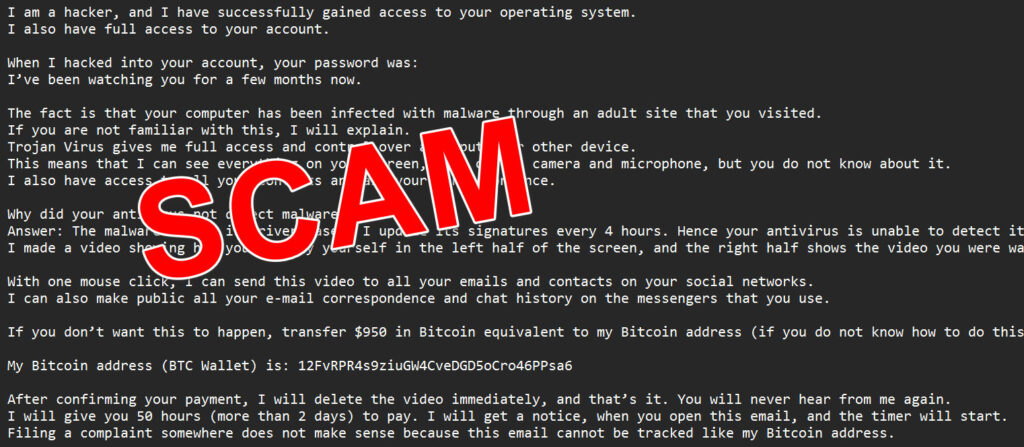
Here is how the email might look:
Subject: Your private information has been stolen because of suspicious events
Hi,I am a hacker, and I have successfully gained access to your operating system.
I also have full access to your account.When I hacked into your account, your password was:
I’ve been watching you for a few months now.The fact is that your computer has been infected with malware through an adult site that you visited.
If you are not familiar with this, I will explain.
Trojan Virus gives me full access and control over a computer or other device.
This means that I can see everything on your screen, turn on the camera and microphone, but you do not know about it.
I also have access to all your contacts and all your correspondence.Why did your antivirus not detect malware?
Answer: The malware I used is driver-based, I update its signatures every 4 hours. Hence your antivirus is unable to detect its presence.
I made a video showing how you satisfy yourself in the left half of the screen, and the right half shows the video you were watching at the time.With one mouse click, I can send this video to all your emails and contacts on your social networks.
I can also make public all your e-mail correspondence and chat history on the messengers that you use.If you don’t want this to happen, transfer $950 in Bitcoin equivalent to my Bitcoin address (if you do not know how to do this, just search “buy bitcoin” on Google).
My Bitcoin address (BTC Wallet) is: 12FvRPR4s9ziuGW4CveDGD5oCro46PPsa6
After confirming your payment, I will delete the video immediately, and that’s it. You will never hear from me again.
I will give you 50 hours (more than 2 days) to pay. I will get a notice, when you open this email, and the timer will start.
Filing a complaint somewhere does not make sense because this email cannot be tracked like my Bitcoin address.I never make any mistakes.
If I find that you have shared this message with someone else, the video will be immediately distributed.Best regards!
2. Email Makes False Hacking Claims
The body of the email elaborates on fictitious claims that the recipient’s computer and accounts have been infiltrated by hackers. It may include real but often outdated login credentials that were likely obtained from past data breaches.
3. Demand for Payment in Bitcoin
The email specifies that payment must be made within 24-48 hours to a provided Bitcoin wallet address. The amount demanded typically ranges from 200to200 to 200to1000. Threats of leaking personal info or files will be made if payment isn’t received.
4. Countdown Timer Adds Pressure
A countdown timer is provided, ticking down the hours until the deadline for payment. This amplifies the sense of urgency to pay up before the given timeframe.
5. Recipient Panics and Pays Ransom
The scare tactics work, and the recipient pays the ransom in Bitcoin, usually out of fear their personal files and information will be released publicly if they don’t comply.
6. Scammer Vanishes After Payment
Once the Bitcoin is received, the scammer disappears with no intention of deleting any information. The threats were a bluff, but the scammer profits off the ransom payment.
This simplistic but manipulative scam takes advantage of recipients’ lack of awareness around online extortion tactics and privacy concerns. The hackers’ claims are completely fabricated, but fears of personal information being leaked lead many to pay up.
What To Do If You Get This Scam Email
If you receive an email claiming your private information has been stolen and demanding payment in Bitcoin, don’t panic. Here are the steps you should take:
- Don’t click any links or open attachments. The email may contain embedded malware that could infect your device.
- Check the sender’s email address. Does it match the name used in the email body? Often the “From” address will be completely unrelated to the alleged hacker identity.
- Look for poor spelling and grammar. Sloppy language is a giveaway that it’s not a legitimate hacker.
- Go to account websites directly. Don’t access your accounts through any links in the email. Log in directly to check for any signs of a breach.
- Scan your device for malware. Run a thorough antivirus scan to check for any infections or monitoring malware. Reboot afterwards.
- Change passwords. Update passwords for any accounts referenced in the email, or any highly sensitive accounts, as a precaution. Enable two-factor authentication if possible.
- Ignore payment demands. There is no proof any personal data has been compromised. Paying the ransom encourages more scam attempts.
- Block the sender. Prevent any future scam emails by blocking the sender’s email address.
- Report the scam. Forward the email to the Anti-Phishing Working Group (reportphishing@apwg.org) and the Federal Trade Commission spam@uce.gov to help warn others.
- Don’t communicate with the scammer. Replying to the email could confirm you’re a real target and prompt more scam attempts. Cease all communication.
The most important step is not to let fear or uncertainty sway you into paying the ransom. The hackers do not actually have your information, and no payments should be made.
Is Your Device Infected? Run a Free Malware Scan
Slow performance, constant pop-ups, or strange behavior? These are classic signs of a malware infection. The fastest way to find out is to scan your device with Malwarebytes Free — one of the most trusted malware removal tools available.
The free version detects and removes the most common threats, including:
- Adware — the cause of those annoying pop-ups
- Browser hijackers — unwanted redirects and changed homepages
- Trojans and spyware — hidden programs stealing your data
- Potentially unwanted programs (PUPs) — software you never asked for
👉 Select your device below — Windows, Mac, or Android — then follow the simple steps to download Malwarebytes, scan your system, and remove any threats it finds. The scan usually takes 5 to 20 minutes.
Run a Malware Scan with Malwarebytes for Windows
Malwarebytes is one of the most popular and trusted anti-malware tools for Windows — and it’s completely free for removing infections. It catches threats that many antivirus programs miss, including adware, browser hijackers, and trojans. Follow the steps below to scan and clean your PC in just a few minutes.
Download Malwarebytes
Click the button below to download the latest version of Malwarebytes for Windows from the official source. The free version is all you need — it will scan your computer and remove adware, browser hijackers, and other malicious software at no cost.
Download MalwarebytesOfficial installer for Windows 11 and 10. Your download starts right away.Want real-time protection? See Malwarebytes Premium Malwarebytes Free for WindowsScans and removes malware at no cost
-
Install Malwarebytes
When the download finishes, open your Downloads folder and double-click the MBSetup file. If Windows shows a User Account Control pop-up, click “Yes” to allow the installation.

Follow the On-Screen Prompts to Install Malwarebytes
The setup wizard will walk you through a few quick screens:
-
Choose where you’re installing the program — “Personal Computer” or “Work Computer” — then click Next.

-
Malwarebytes will now install on your device. This usually takes under a minute.

-
When installation is complete, the “Welcome to Malwarebytes” screen will open automatically.

-
On the final screen, click Open Malwarebytes to launch the program.

-
Enable “Scan for Rootkits”
Before scanning, turn on rootkit detection so Malwarebytes can find even the most hidden threats. Click the Settings gear icon on the left side of the screen.

In the settings menu, find “Scan for rootkits” and click the toggle so it turns blue.

Done? Click “Dashboard” in the left pane to return to the main screen.
Start the Scan
Click the blue Scan button. Malwarebytes will automatically update its virus database and start checking your computer for malware.

-
Wait for the Scan to Finish
The scan checks your entire system for browser hijackers and other malicious programs, so it can take 5 to 20 minutes depending on your computer. Feel free to do something else — just check back occasionally to see the progress.

-
Quarantine the Detected Threats
When the scan is done, you’ll see a list of everything Malwarebytes found — malware, adware, and potentially unwanted programs. Click the “Quarantine” button to remove all of them at once.

Malwarebytes will now remove the malicious files and registry entries and move them safely into quarantine.

-
Restart Your Computer
Some threats can only be fully removed after a reboot. If Malwarebytes asks you to restart, click Yes. Once you’re logged back in, Malwarebytes has finished removing the threats it found.

That’s it — your Windows PC is now clean of trojans, adware, and other malware, and should be back to running smoothly.
If you are still having problems with your computer after completing these instructions, then please follow one of the steps:
- Run a computer scan with ESET Online Scanner
- Ask for help in our Windows Malware Removal Help & Support forum.
Run a Malware Scan with Malwarebytes for Mac
Malwarebytes for Mac is a free on-demand scanner that removes the malware other security software tends to miss — adware, browser hijackers, and unwanted programs included. Cleaning an infected Mac with Malwarebytes has always been completely free, and it’s our go-to recommendation. Follow the steps below to scan and clean your Mac in just a few minutes.
-
Download Malwarebytes for Mac
Click the button below to download the latest version of Malwarebytes for Mac.
Download MalwarebytesOfficial installer for macOS. Your download starts right away.Want real-time protection? See Malwarebytes PremiumMalwarebytes Free for MacScans and removes malware at no cost -
Open the Malwarebytes setup file
When the download finishes, open your Downloads folder and double-click the setup file to begin the installation.

-
Follow the On-Screen Prompts to Install Malwarebytes
The Malwarebytes for Mac Installer will guide you through a few quick screens. Click “Continue” and keep following the prompts until the installation completes.



When the installation is complete, Malwarebytes opens to the Welcome to Malwarebytes screen. Click “Get started“.
-
Select “Personal Computer” or “Work Computer”
Malwarebytes will ask what type of computer you’re installing it on. Click either Personal Computer or Work Computer, whichever applies.

-
Start the Scan
Click the “Scan” button. Malwarebytes will automatically update its detection database and begin checking your Mac for malware.

-
Wait for the Scan to Finish
Malwarebytes will scan your Mac for adware, browser hijackers, and other malicious programs. This can take a few minutes, so feel free to do something else — just check back occasionally to see the progress.

-
Quarantine the Detected Threats
When the scan is done, you’ll see a list of everything Malwarebytes found. Click the “Quarantine” button to remove all the threats at once.

-
Restart Your Mac
Malwarebytes will now remove all the malicious files it found. Some threats can only be fully removed after a reboot — if Malwarebytes asks you to restart, allow it. Once you’re logged back in, your Mac is clean.

That’s it — your Mac is now free of adware, rogue browser extensions, and other potentially harmful software.
If you are still experiencing problems while trying to remove a malicious program from your computer, please ask for help in our Mac Malware Removal Help & Support forum.
Run a Malware Scan with Malwarebytes for Android
Malwarebytes for Android automatically detects and removes dangerous threats like malware and ransomware so you don’t have to worry about your most-used device being compromised. Aggressive detection of adware and potentially unwanted programs keeps your Android phone or tablet running smooth.
-
Download Malwarebytes for Android.
You can download Malwarebytes for Android by clicking the link below.
Get Malwarebytes for AndroidOpens Google Play in a new tab.Want real-time protection? See Malwarebytes Premium for AndroidMalwarebytes for AndroidScans your phone and removes malware at no cost -
Install Malwarebytes for Android on your phone.
In the Google Play Store, tap “Install” to install Malwarebytes for Android on your device.

When the installation process has finished, tap “Open” to begin using Malwarebytes for Android. You can also open Malwarebytes by tapping on its icon in your phone menu or home screen.

-
Follow the on-screen prompts to complete the setup process
When Malwarebytes will open, you will see the Malwarebytes Setup Wizard which will guide you through a series of permissions and other setup options.
This is the first of two screens that explain the difference between the Premium and Free versions. Swipe this screen to continue.
Tap on “Got it” to proceed to the next step.
Malwarebytes for Android will now ask for a set of permissions that are required to scan your device and protect it from malware. Tap on “Give permission” to continue.
Tap on “Allow” to permit Malwarebytes to access the files on your phone.
-
Update database and run a scan with Malwarebytes for Android
You will now be prompted to update the Malwarebytes database and run a full system scan.

Click on “Update database” to update the Malwarebytes for Android definitions to the latest version, then click on “Run full scan” to perform a system scan.

-
Wait for the Malwarebytes scan to complete.
Malwarebytes will now start scanning your phone for adware and other malicious apps. This process can take a few minutes, so we suggest you do something else and periodically check on the status of the scan to see when it is finished.

-
Click on “Remove Selected”.
When the scan has been completed, you will be presented with a screen showing the malware infections that Malwarebytes for Android has detected. To remove the malicious apps that Malwarebytes has found, tap on the “Remove Selected” button.

-
Restart your phone.
Malwarebytes for Android will now remove all the malicious apps that it has found. To complete the malware removal process, Malwarebytes may ask you to restart your device.
That’s it — your Android phone is now clean — no more malicious apps, adware, or browser redirects.
If you are still having problems with your phone after completing these instructions, then please follow one of the steps:
- Restore your phone to factory settings by going to Settings > General management > Reset > Factory data reset.
- Ask for help in our Mobile Malware Removal Help & Support forum.
Stay Protected: Block Ads and Malicious Sites
Now that your device is clean, keep it that way. Most infections start with a malicious ad or a fake download button — so blocking them at the source is your best defense.
We recommend AdGuard, which blocks malicious ads, phishing pages, and dangerous redirects before they can reach you.
👉 Download AdGuard and browse safely
Frequently Asked Questions About the “Your Private Information Has Been Stolen” Scam Email
What is the “Your Private Information Has Been Stolen” scam email?
The “Your Private Information Has Been Stolen” scam email is a fraudulent email that cybercriminals send out claiming to be from hackers who have compromised your computer and personal information. The email states that the hackers have been spying on you through your device’s camera and microphone and have stolen sensitive data like passwords. The email threatens to publicly release embarrassing or compromising photos, videos, or information about you unless you pay a ransom demand in Bitcoin within 24-48 hours.
How does the “Your Private Information Has Been Stolen” scam work?
The scam email uses social engineering manipulation and threats to trick victims into paying the ransom. The email includes fake claims that the hacker has access to your computer and accounts along with some real but often outdated login credentials stolen from data breaches. It provides a Bitcoin wallet address and threatens to leak your private files or information if the ransom isn’t paid in time. A countdown timer adds false urgency. The scammers vanish after receiving payment, without actually possessing or releasing any compromising material.
Are the claims in the “Your Private Information Has Been Stolen” email real?
No, the claims made in the scam email about hacking into your device and accounts are completely fabricated. The scammers do not actually have access to your personal information, files, webcam, or microphone. Any old usernames or passwords in the email were likely obtained from previous third-party data breaches, not from infiltrating your private data. The threats to release information are fake and designed solely to extort money.
Why do scammers ask for payment in Bitcoin?
Scammers request payment in Bitcoin because it offers a level of pseudo-anonymity and makes transactions difficult to trace or reverse. This allows scammers to easily collect ransom payments without revealing their identity or getting caught. Standard bank transfers and credit cards offer more consumer protections against fraud, which scammers aim to avoid.
What should I do if I get the “Your Private Information Has Been Stolen” email?
Do not panic or pay the ransom under any circumstances. The email is a scam designed to extort money through false threats. Check that the sender email address is not legitimate. Scan your device for malware and change passwords as a precaution. Report the scam email to authorities. Cease all communication with the scammer – do not reply.
How can I protect myself from the “Your Private Information Has Been Stolen” scam?
Use unique strong passwords, enable two-factor authentication, keep software updated, be wary of email attachments/links, and use antivirus protection. Avoid openly sharing personal information online. Never pay ransom demands to unknown parties. Learn to identify telltale signs of phishing emails and extortion scams.
What should I do if I already paid the ransom demanded in the scam email?
If you already paid the ransom, immediately contact your bank and Bitcoin exchange to see if the transactions can be halted or reversed. Report the incident to your local authorities and the FBI’s Internet Crime Complaint Center. Closely monitor all accounts that may have been compromised. Implement enhanced security protections to avoid repeat targeting.
Can the scammers actually see me through my webcam?
No, the claims that the scammers can view your webcam video feed are false. The email scam simply uses common fears about webcam hacking in order to demand ransom money. Standard cybersecurity practices like keeping software updated and using antivirus should prevent any real webcam takeovers. Do not let the empty threats in scam emails manipulate you.
Is there any way to find the real identity of the scammers behind this email scam?
It is very difficult to trace the scammers since they use spoofed email addresses and Bitcoin payments. Law enforcement has technical resources to potentially determine the geographical source of scam emails and blockchain analysis to trace ransom payments. Individual users should avoid trying to contact the scammers and instead report the emails to assist authorities in investigating.
Can I be targeted by the scam even if I don’t have a webcam on my device?
Yes, the scam email is mass-distributed without regard to whether recipients actually have an integrated webcam. The emails make blanket claims about watching victims through a webcam to stoke privacy fears. Even on devices without a camera, the demanding tone and threats in the scam email can cause panic. Remember the hackers have no actual access and the threats are fake.
The Bottom Line
The “Your Private Information Has Been Stolen” scam capitalizes on recipients’ concerns over privacy breaches and account hacking. By demanding Bitcoin ransom to prevent the release of compromising material, the scammers play on people’s fears.
However, a closer look reveals false claims, empty threats, and no actual evidence of stolen data. These emails can be ignored, as any supposed hacking is a complete fabrication. Don’t be manipulated into paying ransoms that only encourage more criminal activity.
With a few precautions, these types of extortion scams can be prevented. Using strong unique passwords, avoiding malware, enabling two-factor authentication, and being aware of social engineering tactics will help you keep your information safe. If a suspicious email arrives, it’s important not to let alarm or uncertainty push you into reckless decisions.
By spotting the warning signs of ransom scams, you can protect yourself and your sensitive data. Don’t allow cyber extortionists to capitalize on fear – being informed is the best defense. Share this information to help others facing this scam stay safe online.

Join the discussion
0 commentsShare your experience or ask a question about this article.
Discussion
Start the conversation
Have a question or something useful to share? Add the first comment.