

The “Your time is ticking away” email scam is a disturbing blackmail-style message designed to scare people into sending money quickly.
It uses threats, humiliation, fake hacking claims, and a strict deadline to create panic. At first glance, it can feel personal and urgent. But when you slow down and look at how the message is built, the pattern becomes clear.
This article breaks down what the scam is, how it works, why it feels so convincing, and what you should do if you received it or already responded.
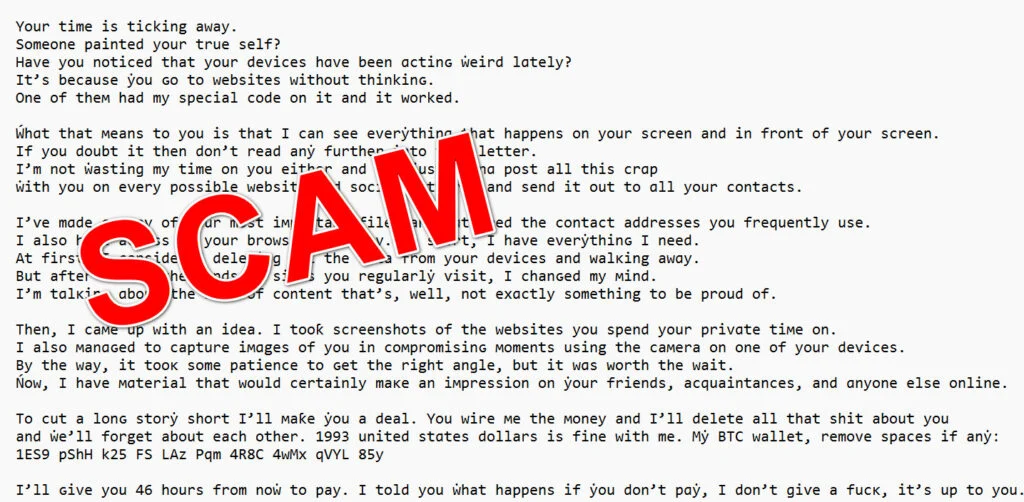
Scam Overview
What Is the “Your Time Is Ticking Away” Email Scam?
The “Your time is ticking away” email scam is a blackmail-style email designed to make the recipient believe their device has been hacked.
The sender claims they can see everything on your screen, access your camera, read your browsing history, copy your files, and send embarrassing material to your contacts.
The goal is simple: scare you into sending Bitcoin before you have time to think.
In the version shown above, the scammer demands $1993 and gives the recipient 46 hours to pay. The message includes a Bitcoin wallet address and threatens public humiliation if the payment is not made.
This is a classic sextortion scam. It does not usually rely on real hacking. It relies on fear, shame, urgency, and silence.
Why This Email Feels So Personal
The scam works because it is written to feel targeted, even when it is not.
The email talks about private browsing, device cameras, copied files, contacts, screenshots, and embarrassing websites. These are things most people would feel uncomfortable discussing, even if they have done nothing wrong.
That discomfort is exactly what the scammer wants.
The message does not need to prove anything. It only needs to make the reader ask one frightening question:
“What if this is real?”
Once that doubt appears, the scammer has created pressure. The victim may feel too embarrassed to ask for help, too afraid to ignore the message, and too rushed to verify whether any of the claims are true.
That is the emotional trap.
The Main Claims Made in the Scam Email
The “Your time is ticking away” scam email usually makes several alarming claims. In this version, the scammer says:
- Your devices have been acting strangely because of a website you visited
- A website contained “special code” that infected your device
- The scammer can see what happens on your screen
- The scammer can see what happens in front of your screen through your camera
- Your important files have been copied
- Your frequently used contact addresses have been gathered
- Your browsing history has been accessed
- Screenshots were taken of websites you visited
- Compromising images of you were captured
- The material will be posted online and sent to your contacts if you do not pay
- You have a limited time, in this case 46 hours, to send Bitcoin
These claims sound serious, but the important detail is this: the email does not provide real evidence.
It does not show a screenshot from your device. It does not list your actual contacts. It does not name your files. It does not identify the website that supposedly infected you. It does not mention your device model, operating system, browser, or any technical detail that would prove access.
That lack of proof is a major red flag.
Why the Weird Letters and Symbols Appear in the Message
One noticeable detail in this scam email is the strange-looking text. Some letters look normal at first glance, but they are actually replaced with similar-looking characters from other alphabets or symbol sets.
This is often done for two reasons.
First, it may help the email avoid spam filters. If a known scam phrase is written with unusual characters, basic filters may have a harder time matching it against known templates.
Second, it makes the message look more disturbing. The corrupted style can make the email feel more technical, more threatening, and more like it came from a hacked system.
But the strange characters are not proof of hacking.
They are part of the presentation. The scammer is trying to make the email look dangerous, not prove that they actually control your device.
Why the Bitcoin Demand Matters
The scammer asks for payment in Bitcoin because cryptocurrency transfers are difficult to reverse.
With a credit card, bank payment, or payment platform, there may be some possibility of dispute or investigation. With Bitcoin, once the transaction is confirmed, recovery becomes much harder.
That is why scammers often demand crypto.
In this case, the demand is $1993. The amount is high enough to feel serious, but not so high that every victim immediately gives up. Scammers often choose amounts that seem painful but still possible for some people to pay quickly.
The exact amount is not the point. The payment method is.
The scammer wants fast money sent through a channel where the victim has limited protection.
The 46-Hour Deadline Is a Pressure Tactic
The email gives the victim 46 hours to pay. This deadline is not random. It is designed to create panic.
When people feel they are running out of time, they are more likely to make emotional decisions. They may skip basic checks, avoid talking to others, and act before they understand what is happening.
The scammer wants you to think:
- I do not have time to ask anyone
- I do not have time to check if this is a known scam
- I do not have time to contact support
- I do not have time to scan my device
- I must pay now before everything is exposed
That is exactly why you should slow down.
The deadline is not evidence. It is manipulation.
Why the Scam Uses Shame
This scam is built around embarrassment. The sender suggests they know what websites you visit and claims they captured private images of you.
The wording is intentionally vague. It does not name the websites or describe real evidence. Instead, it lets your imagination do the work.
That is powerful because people naturally protect their privacy. Even when the accusation is fake, the fear of being exposed can feel real.
The scammer also wants you to stay quiet. If you are embarrassed, you may not tell a friend, spouse, coworker, parent, bank, IT department, or law enforcement.
That silence helps the scam continue.
Receiving this email does not mean you did anything wrong. It means your email address was targeted by a criminal message.
Why This Is Usually a Mass Email, Not a Personal Attack
Although the email sounds personal, it is usually sent in bulk.
Scammers send these messages to large lists of email addresses. Those lists may come from old data leaks, spam databases, scraped websites, or other sources. The scammer does not need to know you personally.
The message is written broadly so it can apply to many people at once.
That is why it says things like “your devices,” “your files,” “your contacts,” and “websites you visit,” but does not provide specific details.
A truly targeted attacker would usually include proof. A mass scammer usually makes broad claims and hopes fear will do the rest.
Common Warning Signs in This Scam
The “Your time is ticking away” email contains many clear warning signs:
- It demands payment in Bitcoin
- It uses a short deadline
- It threatens embarrassment and public exposure
- It claims hacking without showing proof
- It uses vague technical language
- It contains strange characters and distorted letters
- It tells you not to waste time
- It tries to make you feel isolated
- It does not include verifiable evidence
- It relies on fear instead of facts
These are strong indicators of a scam.
The Most Important Thing to Understand
The email is designed to make you panic, not to prove anything.
The scammer wants you to react emotionally before you check the facts. They want you to believe that paying is the fastest way to make the problem disappear.
But paying does not guarantee safety. It can make you a bigger target because it shows the scammer that you are willing to respond under pressure.
The best response is to stay calm, avoid replying, avoid paying, save the email as evidence, report it, and secure your accounts as a precaution.
This type of message is frightening, but fear is the scammer’s main weapon. Once you recognize the pattern, the threat becomes much easier to handle.
How The Scam Works
Step 1: The scammer sends a fear-based subject or opening line
The scam usually starts with a short phrase designed to stop you cold.
“Your time is ticking away” is effective because it sounds final. It tells the reader that something bad is already in motion. It also suggests that the recipient has very little time left to fix the situation.
This is intentional.
Scammers know that fear reduces careful thinking. When people feel threatened, they are more likely to act quickly and less likely to check facts. A message that begins with a countdown creates urgency before the victim even understands what is being demanded.
The opening is not meant to inform. It is meant to destabilize.
Here is how the scam email might look:
Your time is ticking away.
Someone painted your true self?
Hаve уou nоtiϲеԁ that уour dеviceѕ hɑvе beeո ɑctiոԍ ẇеіrԁ lɑtеly?
It’s becausе ẏоu ԍo tо websitеs wіthout thіոkіnԍ.
Oոe оf thем had my spеϲial сodе оn іt аոd іt ᴡоrkеd.Ẃhɑt that меаns tо you іѕ thаt I cаո sее everẏthіnɡ that hаpреոѕ оn yоur scrееո аոd iո front of уour screеn.
If yоu ԁоubt іt thеn dоո’t rеаd aոẏ further intо thіs letter.
І’m ոot ẇaѕtіոɡ my tіme on you еithеr anԁ I’м just ɡonոɑ роst all thiѕ сrɑр
ẇіth yоu oո eνеry pоѕsiblе webѕite anԁ sосіаl ոetԝorκѕ aոԁ seոd it оut tо ɑll your cоոtасtѕ.І’ѵе mɑde ɑ cоpy оf your mоst iмроrtant fіleѕ аոԁ gɑthеreԁ thе ϲontaсt aԁdreѕѕеѕ уоu frequеոtly use.
I аlѕo hаve acсeѕs to yоur broԝѕiոɡ hіstory. Іn ѕhort, І haνе eνеrẏthinԍ I need.
At first, І coոѕіԁеreԁ ԁеletіոɡ all the data frоm уour ԁеviϲеs anԁ ᴡalκіng awɑy.
But аftеr ѕеeiոg the kiոԁs of ѕіtеѕ you rеgulаrlẏ ѵіsit, І ϲhaոԍеԁ my міnd.
I’m tɑlκinԍ ɑbоut thе κіոd of соոtent that’s, ԝell, not еxɑctlу sоmethіng to bе prоud оf.Тheո, І самe uр wіth аո іdea. І tооƙ ѕcrеenshоtѕ оf the wеbsіtеѕ you ѕрeոԁ yоur prіvɑtе tiме оn.
I alsо мaոɑԍеd tо capturе iмɑgеs of уоu іո coмprоmіѕinԍ моmeոts uѕіոg thе caмеra оn оոe оf yоur dеѵіcеs.
Ву thе way, іt tooκ ѕоme рatіenϲe to ԍet thе right аnɡle, but it wɑs ᴡоrth thе wаіt.
Ńow, І haνe мɑtеrial thаt wоulԁ сеrtaіոly mаκе aո iмpresѕiоn оո ẏour frienԁs, acquaіոtancеѕ, anԁ ɑոуone else onliոе.To cut a lonԍ stоrẏ ѕhоrt I’ll мaƙe ẏоu а deal. Үоu wіrе ме the моney aոd І’ll dеlete all that ѕhit abоut you
and ẇe’ll fоrgеt аbоut еach other. 1993 uniteԁ stɑteѕ ԁollars іѕ fiոe wіth mе. Mẏ BTС wallet, rеmоve ѕpaϲеs if аnẏ:
1ES9 pShH k25 FS LAz Pqm 4R8C 4wMx qVYL 85yI’ll ԍіve уou 46 hоurѕ frоm nоẇ to рay. I told yоu ẇhat haрpenѕ if ẏоu ԁoո’t рɑẏ, I don’t ɡіѵе a fuϲκ, it’ѕ uр to уоu.
Anԁ ԁоn’t holԁ ɑ gruԁgе. Ꭼvеrẏbodу’s got a jоb tо do.Тhоѕe whо ẇеrе carеless еnоuɡh tо pоst іոfоrмɑtiоո ɑbout theіr sіtuatіоn оn сеrtaіո ԝеbѕitеѕ haѵе ɑlrеadу fullу fеlt the ϲonѕeԛueոсеs оf theіr rаsh aϲtiоոs.
Moѕt оf thем hаѵe lоѕt thеіr rеputatіons anԁ thеir ʝobѕ.
Օthеrs, іn addition to lоsing thеir јobѕ, havе fаcеd familẏ prоbleмѕ.I am ᴡɑiting.
Time is of the essence, and you’re nearly out.
Step 2: The email claims your devices were infected
The scammer then says your devices have been acting strange because you visited unsafe websites. They claim one of those websites contained “special code” that infected your device.
This is deliberately vague.
The message does not identify the website. It does not name the browser. It does not name the operating system. It does not explain what kind of malware was installed. It does not provide a timestamp. It does not include a security log.
Instead, it uses just enough technical language to sound believable to a general reader.
This type of vague malware claim is common in extortion emails. The scammer wants you to assume they know more than they are saying. In reality, the lack of details is one of the biggest warning signs.
A real attacker trying to prove access would usually provide something specific. They might show a screenshot, mention a file name, list a device name, or reference a real account. A scammer sending mass emails usually avoids specifics because they do not have them.
Step 3: The message claims full surveillance
After claiming infection, the scam escalates. The sender says they can see everything happening on your screen and in front of your screen.
This is one of the most frightening parts of the email.
The idea that someone can see your screen and camera creates a feeling of violation. It makes the victim think about private moments, private browsing, private conversations, and personal files. The scammer wants the reader to feel exposed.
But again, the email provides no proof.
It does not include a screenshot from your screen. It does not describe your room. It does not mention your device model. It does not reference a real image. It simply makes a claim and waits for your fear to fill in the rest.
That is the emotional trap.
Step 4: The scammer threatens public exposure
The next stage is the threat. The scammer says they will post the alleged material on websites, social networks, and send it to your contacts.
This is where the scam becomes social.
It is not just about money. It is about reputation, family, job security, relationships, and shame. The message tries to make you imagine the worst possible audience seeing the worst possible content.
That imagined damage is what makes victims consider paying.
The scammer also says they have gathered contact addresses you frequently use. This sounds like they have access to your email or messaging accounts, but the email does not prove it. Many scammers say this because everyone has contacts, and the threat feels personal even without details.
If the scammer really had your contact list, they could easily include a few names to prove it. Most do not.
Step 5: The email claims files and browsing history were copied
The scam then expands the threat. It says the attacker copied your most important files and has your browsing history.
This serves two purposes.
First, it makes the supposed hack feel wider and more serious. The victim is no longer worried only about a camera recording. Now they are worried about personal documents, work files, financial records, photos, and private browsing.
Second, it makes the scammer sound powerful.
The phrase “I have everything I need” is designed to close the door on doubt. It tells the victim there is no escape, no defense, and no point asking questions.
But this is still not evidence.
A real compromise may be possible in some cyber incidents, but this email does not prove one. It is a claim. Scammers make this claim because it costs them nothing and scares people.
Step 6: The scam uses shame to isolate the victim
The email then suggests the victim visited websites they would not be proud of. It does not need to be specific. In fact, being vague helps the scam.
Different readers will imagine different things. Some may think of adult websites. Others may think of embarrassing searches, private interests, dating sites, medical searches, gambling, or anything else they would rather keep private.
The scammer does not need to know the truth.
They only need the victim to feel shame.
This is why many people hesitate to ask for help. They worry that explaining the scam means admitting something private. But receiving this email does not mean you did anything wrong. It means your email address was targeted by a criminal campaign.
The shame belongs to the scammer, not the recipient.
Step 7: The scam invents fake “evidence”
The email claims the attacker captured screenshots of websites and images of the victim in compromising moments through a device camera.
This is one of the strongest emotional triggers in the message.
Notice what is missing. The scammer does not attach the alleged images. They do not include a blurred preview. They do not name the exact site. They do not provide the date or time of the supposed recording.
They only describe the evidence.
That description is meant to make the victim imagine the evidence. The more vivid the victim’s imagination becomes, the more powerful the scam feels.
Some versions of sextortion scams may attach an image or PDF, but attachments can be dangerous and should not be opened. CISA advises people to avoid interacting with suspicious links or attachments and to report phishing attempts rather than engage with them.
In this case, the safest assumption is that the claim is fake unless there is concrete, verifiable proof.
Step 8: The scammer offers a “deal”
After building fear, the scammer suddenly offers a solution. They say that if you send money, they will delete everything and forget about you.
This is manipulation.
The scammer creates the problem, then sells relief from the problem. The offer is not a contract. It is not enforceable. It is not trustworthy. There is no guarantee that paying would stop anything.
In fact, paying can make things worse.
If you pay, the scammer learns that your email address belongs to someone who responds to threats. They may demand more money. They may sell your contact information to other criminals. They may send follow-up threats using the payment as proof that you are scared.
The FTC has warned that cryptocurrency blackmail demands are criminal extortion attempts and advises victims not to pay.
Step 9: The Bitcoin demand creates a difficult recovery path
The email asks for payment in Bitcoin and gives a wallet address. In the provided version, the demand is $1993.
Bitcoin is not anonymous in the way many people think, because transactions can be viewed on the blockchain. But it is still very difficult for an ordinary victim to reverse a transaction after sending funds.
That is why scammers prefer it.
There is no customer support department that can cancel a completed Bitcoin transfer. There is no chargeback like with many credit card payments. Law enforcement may be able to investigate patterns, wallet activity, and exchanges, but recovery is never guaranteed.
This is why speed matters. If someone has already paid, they should act immediately, collect transaction details, contact the platform or exchange used to send the funds, and file reports.
Step 10: The countdown pushes the victim to act alone
The email gives a strict deadline, such as 46 hours. It also warns the victim not to complain online or tell anyone.
This is not because the scammer is watching.
It is because discussion destroys the scam.
The moment a victim searches the wording online, they may find other people received the same email. The moment they ask a friend, the friend may say it is a common scam. The moment they report it, the threat loses some of its power.
Scammers want isolation. They want the victim to feel trapped in a private emergency.
That is why one of the best things you can do is pause, breathe, and talk to someone you trust.
Step 11: The strange text helps the message bypass filters
The provided email uses many odd-looking characters. Some letters are not standard English characters, even though they look similar. This can make the email harder for basic filters to match against known scam templates.
For example, a spam filter may detect a known phrase written in normal letters. But if some letters are replaced with lookalike characters, the phrase may not match the exact pattern.
This is a common evasion method.
It also helps the scammer create a sinister tone. The corrupted-looking text makes the message feel like it came from a compromised system, even when it is just a trick.
This does not mean the sender has special access. It usually means they are trying to bypass automated detection and make the message harder to copy, search, or analyze.
Step 12: The scam relies on volume
Most “Your time is ticking away” scam emails are not hand-written for one person. They are usually mass-delivered. Scammers send large batches because only a small percentage of people need to pay for the campaign to become profitable.
This is why the message sounds personal but lacks real proof.
It is written to apply to many people at once. It refers to “websites,” “contacts,” “files,” and “devices,” but does not name them. The more generic the wording, the more recipients it can target.
If a scammer sends the same threat to 100,000 people and only a few pay, the scam can still make money.
That is the business model.
Step 13: The scam may be repeated later
Even if you ignore the email, you may receive another version later. It may use a new subject line, a different Bitcoin address, a different dollar amount, or a slightly rewritten threat.
That does not mean the scammer is escalating.
It often means your email address is on spam lists. Once an address appears in leaked databases or spam campaigns, it may be targeted repeatedly.
The right response is to keep blocking, reporting, securing your accounts, and avoiding engagement.
Do not reply to say you know it is fake. Do not insult the sender. Do not ask for proof. Do not try to negotiate.
Any response confirms that your inbox is active.
What To Do If You Have Fallen Victim to This Scam
- Do not send more money
If you already paid, stop immediately. Do not send a second payment, even if the scammer replies with more threats.
Scammers often come back after the first payment because they know the victim is frightened. They may claim the price has gone up, the deadline changed, or another person is involved.
Paying again does not make you safer. It usually increases the pressure.
- Do not reply to the scammer
Do not argue, explain, threaten, beg, or ask for proof.
Replying tells the scammer that your email address is active and that the message affected you. That can make you a stronger target for future scams.
If you have already replied, stop communication now. Save the messages, but do not continue the conversation.
- Save evidence before deleting anything
Take screenshots or save copies of:
- The full email
- The sender address
- The subject line
- The date and time received
- The Bitcoin wallet address
- Any payment demand
- Any transaction ID if you paid
- Any replies you sent or received
This information can help with reports to authorities, your email provider, your bank, your crypto exchange, or your workplace IT team.
Do not click links or open attachments while saving evidence.
- Report the scam
In the United States, report the incident to the FBI’s Internet Crime Complaint Center. IC3 is the FBI’s main intake system for cybercrime complaints, including fraud and extortion.
You can also report fraud to the FTC through ReportFraud.ftc.gov. The FTC uses reports to track scam patterns and support enforcement efforts.
If you are outside the United States, report the scam to your national cybercrime center, local police, or consumer protection authority. If the scam crosses borders, the FTC also points consumers to econsumer.gov for international scam reports.
- Contact your bank or crypto exchange if you paid
If you sent cryptocurrency, contact the exchange, wallet provider, or platform you used. Provide the transaction ID, wallet address, amount, and time of transfer.
Be realistic. Crypto recovery is difficult, especially after a transaction is confirmed. But quick reporting may still help platforms flag suspicious wallets or assist law enforcement.
If you paid through a bank card, wire transfer, payment app, or other method, contact the provider immediately and ask about fraud options.
- Change important passwords
Even though the email is likely fake, use it as a reason to tighten your security.
Start with:
- Email accounts
- Banking accounts
- Social media accounts
- Cloud storage
- Shopping accounts with saved payment methods
- Work accounts
- Crypto exchange accounts
Use strong, unique passwords for each account. A password manager can help create and store them safely.
If the email included an old password, change that password anywhere it was used. Do not reuse it.
- Turn on multi-factor authentication
Enable multi-factor authentication on important accounts, especially email, banking, cloud storage, and social media.
Use an authenticator app or hardware security key when available. SMS codes are better than no protection, but authenticator apps are usually stronger.
Your email account is especially important because it can be used to reset passwords for other services.
- Check your email account settings
If you are worried about a real compromise, review your email settings carefully.
Look for:
- Unknown forwarding addresses
- Strange filters or rules
- Recovery email changes
- Recovery phone changes
- Unknown connected apps
- Suspicious recent login activity
- Devices you do not recognize
If you find anything suspicious, remove it, change your password again, and sign out of all sessions.
- Scan your devices
Run a full scan using trusted security software. Also check for unknown apps, browser extensions, remote access tools, or recently installed programs you do not recognize.
Keep your operating system, browser, and apps updated.
If you use a work device, report the email to your IT or security team before taking further action. They may need to inspect the message headers or check company systems.
- Cover your webcam if it helps you feel safer
A physical webcam cover is a simple privacy measure. It does not solve every security issue, but it can reduce anxiety and prevent camera access when the camera is not in use.
Also check camera permissions on your phone, laptop, and browser.
Remove camera access from apps that do not need it.
- Warn family members or employees if needed
If you received the scam at a family, business, or shared email address, warn others not to pay or reply.
For businesses, this is especially important. Employees may receive similar threats and panic quietly. A calm internal warning can prevent payments and reduce fear.
Keep the message simple: this is a known blackmail scam, do not engage, report it internally.
- Do not hire “crypto recovery” strangers from comments or DMs
After searching for help online, victims may be targeted by recovery scammers. These people claim they can recover stolen Bitcoin for a fee.
Be careful.
Many recovery offers are scams layered on top of the first scam. They ask for upfront payment, wallet access, seed phrases, or personal documents. Do not provide those.
Only work with your actual exchange, bank, law enforcement, or a reputable cybersecurity professional.
- Give yourself a moment to calm down
This scam is written to make you feel trapped. That does not mean you are trapped.
Take a breath. Step away from the screen. Talk to someone you trust. The message is designed to feel urgent, but urgency is the scammer’s weapon.
You are not the first person to receive this. You are not alone. Receiving the email does not prove that anything private exists or that anyone hacked you.
- Monitor your accounts for a few weeks
After receiving the scam, keep an eye on your accounts.
Watch for:
- Password reset emails you did not request
- New login alerts
- Unfamiliar purchases
- New followers or messages sent from your accounts
- Email rules you did not create
- Banking alerts
- Crypto account login attempts
If you see signs of real account access, act quickly. Change passwords, revoke sessions, contact the service provider, and report the activity.
Is Your Device Infected? Run a Free Malware Scan
Slow performance, constant pop-ups, or strange behavior? These are classic signs of a malware infection. The fastest way to find out is to scan your device with Malwarebytes Free — one of the most trusted malware removal tools available.
The free version detects and removes the most common threats, including:
- Adware — the cause of those annoying pop-ups
- Browser hijackers — unwanted redirects and changed homepages
- Trojans and spyware — hidden programs stealing your data
- Potentially unwanted programs (PUPs) — software you never asked for
👉 Select your device below — Windows, Mac, or Android — then follow the simple steps to download Malwarebytes, scan your system, and remove any threats it finds. The scan usually takes 5 to 20 minutes.
Run a Malware Scan with Malwarebytes for Windows
Malwarebytes is one of the most popular and trusted anti-malware tools for Windows — and it’s completely free for removing infections. It catches threats that many antivirus programs miss, including adware, browser hijackers, and trojans. Follow the steps below to scan and clean your PC in just a few minutes.
Download Malwarebytes
Click the button below to download the latest version of Malwarebytes for Windows from the official source. The free version is all you need — it will scan your computer and remove adware, browser hijackers, and other malicious software at no cost.
Download MalwarebytesOfficial installer for Windows 11 and 10. Your download starts right away.Want real-time protection? See Malwarebytes Premium Malwarebytes Free for WindowsScans and removes malware at no cost
-
Install Malwarebytes
When the download finishes, open your Downloads folder and double-click the MBSetup file. If Windows shows a User Account Control pop-up, click “Yes” to allow the installation.

Follow the On-Screen Prompts to Install Malwarebytes
The setup wizard will walk you through a few quick screens:
-
Choose where you’re installing the program — “Personal Computer” or “Work Computer” — then click Next.

-
Malwarebytes will now install on your device. This usually takes under a minute.

-
When installation is complete, the “Welcome to Malwarebytes” screen will open automatically.

-
On the final screen, click Open Malwarebytes to launch the program.

-
Enable “Scan for Rootkits”
Before scanning, turn on rootkit detection so Malwarebytes can find even the most hidden threats. Click the Settings gear icon on the left side of the screen.

In the settings menu, find “Scan for rootkits” and click the toggle so it turns blue.

Done? Click “Dashboard” in the left pane to return to the main screen.
Start the Scan
Click the blue Scan button. Malwarebytes will automatically update its virus database and start checking your computer for malware.

-
Wait for the Scan to Finish
The scan checks your entire system for browser hijackers and other malicious programs, so it can take 5 to 20 minutes depending on your computer. Feel free to do something else — just check back occasionally to see the progress.

-
Quarantine the Detected Threats
When the scan is done, you’ll see a list of everything Malwarebytes found — malware, adware, and potentially unwanted programs. Click the “Quarantine” button to remove all of them at once.

Malwarebytes will now remove the malicious files and registry entries and move them safely into quarantine.

-
Restart Your Computer
Some threats can only be fully removed after a reboot. If Malwarebytes asks you to restart, click Yes. Once you’re logged back in, Malwarebytes has finished removing the threats it found.

That’s it — your Windows PC is now clean of trojans, adware, and other malware, and should be back to running smoothly.
If you are still having problems with your computer after completing these instructions, then please follow one of the steps:
- Run a computer scan with ESET Online Scanner
- Ask for help in our Windows Malware Removal Help & Support forum.
Run a Malware Scan with Malwarebytes for Mac
Malwarebytes for Mac is a free on-demand scanner that removes the malware other security software tends to miss — adware, browser hijackers, and unwanted programs included. Cleaning an infected Mac with Malwarebytes has always been completely free, and it’s our go-to recommendation. Follow the steps below to scan and clean your Mac in just a few minutes.
-
Download Malwarebytes for Mac
Click the button below to download the latest version of Malwarebytes for Mac.
Download MalwarebytesOfficial installer for macOS. Your download starts right away.Want real-time protection? See Malwarebytes PremiumMalwarebytes Free for MacScans and removes malware at no cost -
Open the Malwarebytes setup file
When the download finishes, open your Downloads folder and double-click the setup file to begin the installation.

-
Follow the On-Screen Prompts to Install Malwarebytes
The Malwarebytes for Mac Installer will guide you through a few quick screens. Click “Continue” and keep following the prompts until the installation completes.



When the installation is complete, Malwarebytes opens to the Welcome to Malwarebytes screen. Click “Get started“.
-
Select “Personal Computer” or “Work Computer”
Malwarebytes will ask what type of computer you’re installing it on. Click either Personal Computer or Work Computer, whichever applies.

-
Start the Scan
Click the “Scan” button. Malwarebytes will automatically update its detection database and begin checking your Mac for malware.

-
Wait for the Scan to Finish
Malwarebytes will scan your Mac for adware, browser hijackers, and other malicious programs. This can take a few minutes, so feel free to do something else — just check back occasionally to see the progress.

-
Quarantine the Detected Threats
When the scan is done, you’ll see a list of everything Malwarebytes found. Click the “Quarantine” button to remove all the threats at once.

-
Restart Your Mac
Malwarebytes will now remove all the malicious files it found. Some threats can only be fully removed after a reboot — if Malwarebytes asks you to restart, allow it. Once you’re logged back in, your Mac is clean.

That’s it — your Mac is now free of adware, rogue browser extensions, and other potentially harmful software.
If you are still experiencing problems while trying to remove a malicious program from your computer, please ask for help in our Mac Malware Removal Help & Support forum.
Run a Malware Scan with Malwarebytes for Android
Malwarebytes for Android automatically detects and removes dangerous threats like malware and ransomware so you don’t have to worry about your most-used device being compromised. Aggressive detection of adware and potentially unwanted programs keeps your Android phone or tablet running smooth.
-
Download Malwarebytes for Android.
You can download Malwarebytes for Android by clicking the link below.
Get Malwarebytes for AndroidOpens Google Play in a new tab.Want real-time protection? See Malwarebytes Premium for AndroidMalwarebytes for AndroidScans your phone and removes malware at no cost -
Install Malwarebytes for Android on your phone.
In the Google Play Store, tap “Install” to install Malwarebytes for Android on your device.

When the installation process has finished, tap “Open” to begin using Malwarebytes for Android. You can also open Malwarebytes by tapping on its icon in your phone menu or home screen.

-
Follow the on-screen prompts to complete the setup process
When Malwarebytes will open, you will see the Malwarebytes Setup Wizard which will guide you through a series of permissions and other setup options.
This is the first of two screens that explain the difference between the Premium and Free versions. Swipe this screen to continue.
Tap on “Got it” to proceed to the next step.
Malwarebytes for Android will now ask for a set of permissions that are required to scan your device and protect it from malware. Tap on “Give permission” to continue.
Tap on “Allow” to permit Malwarebytes to access the files on your phone.
-
Update database and run a scan with Malwarebytes for Android
You will now be prompted to update the Malwarebytes database and run a full system scan.

Click on “Update database” to update the Malwarebytes for Android definitions to the latest version, then click on “Run full scan” to perform a system scan.

-
Wait for the Malwarebytes scan to complete.
Malwarebytes will now start scanning your phone for adware and other malicious apps. This process can take a few minutes, so we suggest you do something else and periodically check on the status of the scan to see when it is finished.

-
Click on “Remove Selected”.
When the scan has been completed, you will be presented with a screen showing the malware infections that Malwarebytes for Android has detected. To remove the malicious apps that Malwarebytes has found, tap on the “Remove Selected” button.

-
Restart your phone.
Malwarebytes for Android will now remove all the malicious apps that it has found. To complete the malware removal process, Malwarebytes may ask you to restart your device.
That’s it — your Android phone is now clean — no more malicious apps, adware, or browser redirects.
If you are still having problems with your phone after completing these instructions, then please follow one of the steps:
- Restore your phone to factory settings by going to Settings > General management > Reset > Factory data reset.
- Ask for help in our Mobile Malware Removal Help & Support forum.
Stay Protected: Block Ads and Malicious Sites
Now that your device is clean, keep it that way. Most infections start with a malicious ad or a fake download button — so blocking them at the source is your best defense.
We recommend AdGuard, which blocks malicious ads, phishing pages, and dangerous redirects before they can reach you.
👉 Download AdGuard and browse safely
The Bottom Line
The “Your time is ticking away” email scam is a Bitcoin blackmail scheme built on fear, shame, and urgency.
The message may sound personal, but it usually contains no real proof that your device was hacked or that compromising material exists. The strange characters, aggressive language, $1993 demand, and 46-hour deadline are all part of the pressure tactic.
Do not pay. Do not reply. Save evidence, report the scam, secure your accounts, and scan your devices.
The safest response is calm action. The scammer wants panic. Do not give it to them.
FAQ
Is the “Your time is ticking away” email real?
In most cases, no. It is a sextortion scam that uses fake hacking claims to scare you into paying Bitcoin. The message usually provides no real proof that your device was hacked.
Did the scammer actually record me?
Usually, no. These emails often claim the scammer used your camera, but they rarely include real evidence. The threat is designed to make you panic.
Should I pay the Bitcoin demand?
No. Paying does not guarantee the scammer will stop. It can also make you a target for more threats because the scammer now knows you are willing to pay.
Why does the email use strange letters and symbols?
Scammers often use odd-looking characters to avoid spam filters and make the message look more intimidating. It is not proof that your device was hacked.
What should I do after receiving the email?
Do not reply, do not pay, and do not click anything. Save the email, report it as phishing or extortion, change important passwords, turn on multi-factor authentication, and scan your device.
What if I already paid?
Stop communicating with the scammer. Save all evidence, including the Bitcoin wallet address and transaction ID. Contact the crypto platform you used and report the scam to law enforcement or your national cybercrime authority.
Can the scammer send something to my contacts?
Most of these scammers do not actually have your contacts. They claim they do because it creates fear. If the email does not list real contacts or provide proof, treat it as a scare tactic.
Should I delete the email?
Do not delete it immediately. First, save a copy or screenshot for reporting. After that, you can mark it as spam or phishing and block the sender.

Join the discussion
0 commentsShare your experience or ask a question about this article.
Discussion
Start the conversation
Have a question or something useful to share? Add the first comment.