

The promise of easily accessible coupon codes for major retailers and popular services seems highly appealing. But supposed coupon code offers blasted online by scammers usually turn out to be thinly-veiled ruses for stealing personal information and cash. One current scam making the rounds dangles coupons for brands like Amazon, Starbucks, and YouTube as bait to trick victims. Using well-known logos without permission, the ZestCoupons.com website falsely claims all you have to do is click a link and complete some basic offers to receive real, working promotional codes. However, it’s just a facade for funneling victims into shady websites, subscription traps, and malware downloads.
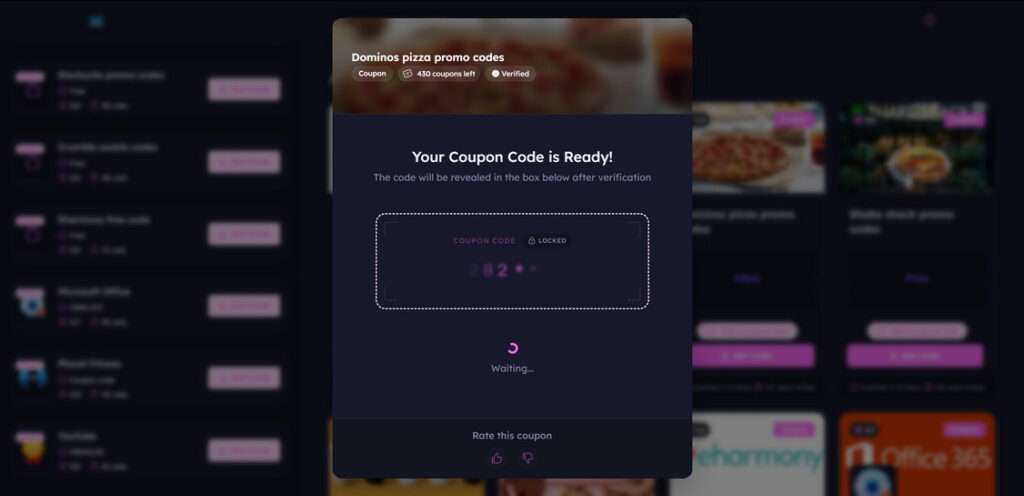
Overview of the ZestCoupons.com Scam
The ZestCoupons.com website displays the logos of many top brands prominently and tempts victims with promises of discount codes for:
- Amazon – $750 coupon code
- Starbucks – Free promo code
- YouTube Premium – 100% off coupon
- Microsoft Office – Free coupon
- Planet Fitness – $100 off code
and more. However, these companies are not actually offering exclusive coupon codes via this site. And jumping through the steps to “reveal” the codes does not generate any real, working promotional offers. The promises are completely bogus.
In reality, clicking on the coupon links and completing the required “offers” sends victims through an affiliate funnel aimed at collecting personal data and signing people up for useless paid subscriptions or dubious downloads.
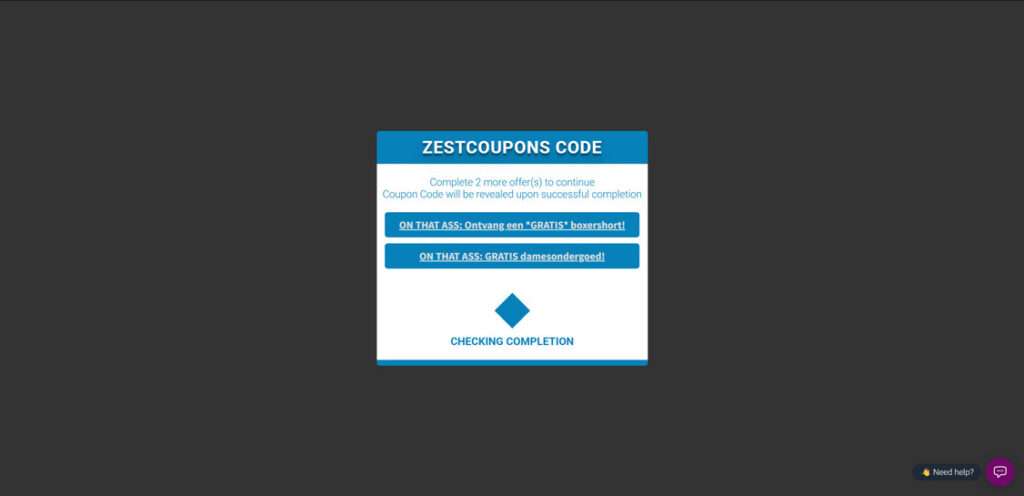
This scam takes advantage of brand recognition and the appeal of getting something for free to trick people. But the website has no actual association with the companies it claims to provide codes for.
How the ZestCoupons.com Scam Works
Here is a walkthrough of what happens when you click on ZestCoupons.com:
1. Scam Ads and Emails Drive Traffic to the Site
The scam starts with social media ads, pop-ups, text messages, or spam emails directing victims to the ZestCoupons.com website.
Subject lines like “85% Off Amazon Code” or “Starbucks Promo Codes” entice people to click, alongside the prominent use of brand logos.
2. Site Shows Codes for Major Retailers and Services
The ZestCoupons site displays the logos of many top brands prominently, alongside text like:
“Amazon promo code – Amazon 750Coupon−UnlimitedUses−750 Coupon – Unlimited Uses – 750Coupon−UnlimitedUses−750 Coupon – Expires in 3 days”
This gives the impression that ZestCoupons has exclusive coupon codes that provide huge savings for the listed companies.
3. Clicking Codes Leads Down an Affiliate Funnel
When victims click on a coupon they want, instead of receiving a code, they are redirected to an affiliate funnel.
This means victims must hand over personal information, agree to subscribe to services, or download apps/extensions they likely do not want. The purpose is to collect data and expose victims to offers carrying commissions.
4. Must Complete Offers Before Codes are “Unlocked”
To get the codes, victims must complete 2-3 “offers” – either signing up for subscriptions, downloading apps, or providing info. These offers prey on victims’ desire to get the coupons:
- Downloading shady browser extensions and mobile apps
- Signing up for “risk-free” trials that convert into paid subscriptions
- Submitting personal and contact information
- Completing useless surveys or questionnaires
Many downloads are malware. Trials become recurring charges. And personal info gets sold to shady parties.
5. No Working Codes are Provided – Just Recurring Charges
After completing the required offers, victims find out the coupon codes do not actually work or provide any discounts. The promises were completely fake.
Instead, victims are left with:
- Monthly credit card charges for any paid trials signed up for
- Spam emails flooding inboxes with more scammy offers
- Malware on devices from downloaded apps and extensions
- Personal info stolen and sold on the dark web
Meanwhile, scammers profit from affiliate commissions and any recurring subscription charges resulting from their funnel.
What to Do If You Fell for the Coupon Code Scam
If you already clicked on ZestCoupons.com coupons and completed offers, take these steps immediately:
- Review accounts closely and dispute any fraudulent credit card charges. Cancel trials ASAP.
- Uninstall anything downloaded from the site to remove malware lurking on your devices.
- Change passwords on accounts you entered info into to protect credentials. Turn on two-factor authentication as well.
- Contact credit bureaus to implement fraud alerts in case your information gets used for identity theft.
- Report the scam to the FTC, brands impersonated, social networks, ad networks, and email providers to help get the campaign shut down.
Acting quickly following exposure to coupon scams limits damages and protects more potential victims. Don’t let the lure of free codes open the door to frauds.
Is Your Device Infected? Run a Free Malware Scan
Slow performance, constant pop-ups, or strange behavior? These are classic signs of a malware infection. The fastest way to find out is to scan your device with Malwarebytes Free — one of the most trusted malware removal tools available.
The free version detects and removes the most common threats, including:
- Adware — the cause of those annoying pop-ups
- Browser hijackers — unwanted redirects and changed homepages
- Trojans and spyware — hidden programs stealing your data
- Potentially unwanted programs (PUPs) — software you never asked for
👉 Select your device below — Windows, Mac, or Android — then follow the simple steps to download Malwarebytes, scan your system, and remove any threats it finds. The scan usually takes 5 to 20 minutes.
Run a Malware Scan with Malwarebytes for Windows
Malwarebytes is one of the most popular and trusted anti-malware tools for Windows — and it’s completely free for removing infections. It catches threats that many antivirus programs miss, including adware, browser hijackers, and trojans. Follow the steps below to scan and clean your PC in just a few minutes.
Download Malwarebytes
Click the button below to download the latest version of Malwarebytes for Windows from the official source. The free version is all you need — it will scan your computer and remove adware, browser hijackers, and other malicious software at no cost.
Download MalwarebytesOfficial installer for Windows 11 and 10. Your download starts right away.Want real-time protection? See Malwarebytes Premium Malwarebytes Free for WindowsScans and removes malware at no cost
-
Install Malwarebytes
When the download finishes, open your Downloads folder and double-click the MBSetup file. If Windows shows a User Account Control pop-up, click “Yes” to allow the installation.

Follow the On-Screen Prompts to Install Malwarebytes
The setup wizard will walk you through a few quick screens:
-
Choose where you’re installing the program — “Personal Computer” or “Work Computer” — then click Next.

-
Malwarebytes will now install on your device. This usually takes under a minute.

-
When installation is complete, the “Welcome to Malwarebytes” screen will open automatically.

-
On the final screen, click Open Malwarebytes to launch the program.

-
Enable “Scan for Rootkits”
Before scanning, turn on rootkit detection so Malwarebytes can find even the most hidden threats. Click the Settings gear icon on the left side of the screen.

In the settings menu, find “Scan for rootkits” and click the toggle so it turns blue.

Done? Click “Dashboard” in the left pane to return to the main screen.
Start the Scan
Click the blue Scan button. Malwarebytes will automatically update its virus database and start checking your computer for malware.

-
Wait for the Scan to Finish
The scan checks your entire system for browser hijackers and other malicious programs, so it can take 5 to 20 minutes depending on your computer. Feel free to do something else — just check back occasionally to see the progress.

-
Quarantine the Detected Threats
When the scan is done, you’ll see a list of everything Malwarebytes found — malware, adware, and potentially unwanted programs. Click the “Quarantine” button to remove all of them at once.

Malwarebytes will now remove the malicious files and registry entries and move them safely into quarantine.

-
Restart Your Computer
Some threats can only be fully removed after a reboot. If Malwarebytes asks you to restart, click Yes. Once you’re logged back in, Malwarebytes has finished removing the threats it found.

That’s it — your Windows PC is now clean of trojans, adware, and other malware, and should be back to running smoothly.
If you are still having problems with your computer after completing these instructions, then please follow one of the steps:
- Run a computer scan with ESET Online Scanner
- Ask for help in our Windows Malware Removal Help & Support forum.
Run a Malware Scan with Malwarebytes for Mac
Malwarebytes for Mac is a free on-demand scanner that removes the malware other security software tends to miss — adware, browser hijackers, and unwanted programs included. Cleaning an infected Mac with Malwarebytes has always been completely free, and it’s our go-to recommendation. Follow the steps below to scan and clean your Mac in just a few minutes.
-
Download Malwarebytes for Mac
Click the button below to download the latest version of Malwarebytes for Mac.
Download MalwarebytesOfficial installer for macOS. Your download starts right away.Want real-time protection? See Malwarebytes PremiumMalwarebytes Free for MacScans and removes malware at no cost -
Open the Malwarebytes setup file
When the download finishes, open your Downloads folder and double-click the setup file to begin the installation.

-
Follow the On-Screen Prompts to Install Malwarebytes
The Malwarebytes for Mac Installer will guide you through a few quick screens. Click “Continue” and keep following the prompts until the installation completes.



When the installation is complete, Malwarebytes opens to the Welcome to Malwarebytes screen. Click “Get started“.
-
Select “Personal Computer” or “Work Computer”
Malwarebytes will ask what type of computer you’re installing it on. Click either Personal Computer or Work Computer, whichever applies.

-
Start the Scan
Click the “Scan” button. Malwarebytes will automatically update its detection database and begin checking your Mac for malware.

-
Wait for the Scan to Finish
Malwarebytes will scan your Mac for adware, browser hijackers, and other malicious programs. This can take a few minutes, so feel free to do something else — just check back occasionally to see the progress.

-
Quarantine the Detected Threats
When the scan is done, you’ll see a list of everything Malwarebytes found. Click the “Quarantine” button to remove all the threats at once.

-
Restart Your Mac
Malwarebytes will now remove all the malicious files it found. Some threats can only be fully removed after a reboot — if Malwarebytes asks you to restart, allow it. Once you’re logged back in, your Mac is clean.

That’s it — your Mac is now free of adware, rogue browser extensions, and other potentially harmful software.
If you are still experiencing problems while trying to remove a malicious program from your computer, please ask for help in our Mac Malware Removal Help & Support forum.
Run a Malware Scan with Malwarebytes for Android
Malwarebytes for Android automatically detects and removes dangerous threats like malware and ransomware so you don’t have to worry about your most-used device being compromised. Aggressive detection of adware and potentially unwanted programs keeps your Android phone or tablet running smooth.
-
Download Malwarebytes for Android.
You can download Malwarebytes for Android by clicking the link below.
Get Malwarebytes for AndroidOpens Google Play in a new tab.Want real-time protection? See Malwarebytes Premium for AndroidMalwarebytes for AndroidScans your phone and removes malware at no cost -
Install Malwarebytes for Android on your phone.
In the Google Play Store, tap “Install” to install Malwarebytes for Android on your device.

When the installation process has finished, tap “Open” to begin using Malwarebytes for Android. You can also open Malwarebytes by tapping on its icon in your phone menu or home screen.

-
Follow the on-screen prompts to complete the setup process
When Malwarebytes will open, you will see the Malwarebytes Setup Wizard which will guide you through a series of permissions and other setup options.
This is the first of two screens that explain the difference between the Premium and Free versions. Swipe this screen to continue.
Tap on “Got it” to proceed to the next step.
Malwarebytes for Android will now ask for a set of permissions that are required to scan your device and protect it from malware. Tap on “Give permission” to continue.
Tap on “Allow” to permit Malwarebytes to access the files on your phone.
-
Update database and run a scan with Malwarebytes for Android
You will now be prompted to update the Malwarebytes database and run a full system scan.

Click on “Update database” to update the Malwarebytes for Android definitions to the latest version, then click on “Run full scan” to perform a system scan.

-
Wait for the Malwarebytes scan to complete.
Malwarebytes will now start scanning your phone for adware and other malicious apps. This process can take a few minutes, so we suggest you do something else and periodically check on the status of the scan to see when it is finished.

-
Click on “Remove Selected”.
When the scan has been completed, you will be presented with a screen showing the malware infections that Malwarebytes for Android has detected. To remove the malicious apps that Malwarebytes has found, tap on the “Remove Selected” button.

-
Restart your phone.
Malwarebytes for Android will now remove all the malicious apps that it has found. To complete the malware removal process, Malwarebytes may ask you to restart your device.
That’s it — your Android phone is now clean — no more malicious apps, adware, or browser redirects.
If you are still having problems with your phone after completing these instructions, then please follow one of the steps:
- Restore your phone to factory settings by going to Settings > General management > Reset > Factory data reset.
- Ask for help in our Mobile Malware Removal Help & Support forum.
Stay Protected: Block Ads and Malicious Sites
Now that your device is clean, keep it that way. Most infections start with a malicious ad or a fake download button — so blocking them at the source is your best defense.
We recommend AdGuard, which blocks malicious ads, phishing pages, and dangerous redirects before they can reach you.
👉 Download AdGuard and browse safely
FAQ: The ZestCoupons.com Promo Code Scam
What exactly is the ZestCoupons.com scam?
ZestCoupons is a scam website that falsely promises exclusive coupon codes for major brands like Amazon, Starbucks, YouTube, etc. But the site is not associated with any of those companies and the codes do not work.
How does the ZestCoupons coupon scam operate?
The site displays brand logos without consent to appear valid. Clicking coupon links leads to an affiliate funnel that gets victims to provide data and sign up for paid subscriptions, allowing scammers to profit.
What happens when you click on a coupon code on ZestCoupons?
Instead of receiving a working promo code, victims are redirected to offers they must complete first, like downloading apps, signing up for trials, or submitting personal information. This exposes them to malware, recurring fees, and data harvesting.
Are the coupon codes on ZestCoupons real and working?
No, the coupon codes for brands like Amazon, Starbucks, YouTube, etc shown on ZestCoupons are completely fake. They are not real codes and provide no actual discounts or savings. The offers are a total scam.
What are the red flags that indicate ZestCoupons is a scam?
Red flags include the too-good-to-be-true discounted codes, strange requirement to complete questionable offers before accessing codes, and use of major brand logos without consent. Real brands would not provide such codes this way.
What should I do if I already clicked on ZestCoupons codes?
If you entered information or completed offers, immediately cancel any pending subscriptions, scan devices for malware, monitor accounts for fraud, change passwords, setup credit alerts, and report the scam. Act quickly to limit damages.
How can I avoid coupon code scams in the future?
Stick to getting codes directly from official brand sites and be wary of third-parties offering easy discounts. Scrutinize promo offers closely and don’t click on questionable links in emails or ads floating codes.
The Bottom Line on the ZestCoupons.com Scam
The bottom line is – ZestCoupons.com has no relationship with any of the brands it claims to offer codes for. The coupons are completely fake and non-working. The site simply uses logos without consent to trick visitors.
In reality, it’s just a facade to funnel victims into useless subscriptions, data harvesting schemes, and malware installs. You will not receive any real savings by clicking on this scam website.
To avoid this coupon code scam, remember:
- Major brands and retailers do not provide exclusive promotional codes through unfamiliar third-party websites.
- If an offer seems too easy, like deep discounts for minimal effort, it’s likely a scam. Delete suspicious messages.
- Never pay money or provide personal information in exchange for coupon codes. Real codes require no such hoops.
Carefully scrutinizing coupon offers protects you from scams. Seek codes directly from brand sites instead of clicking on questionable links promising easy free savings. Stay vigilant!

Join the discussion
0 commentsShare your experience or ask a question about this article.
Discussion
Start the conversation
Have a question or something useful to share? Add the first comment.