


The internet can be a dangerous place, and one scam that has been making the rounds targets Windows users through a deceptive email. This fraudulent email claims that the recipient has purchased or renewed a Windows Defender subscription, when in reality they have not. Victims who engage with the scammers behind this trick are at risk of having their computers infected with malware, their personal information stolen, or even being tricked into purchasing unwanted tech support services. Read on to learn all about how this Windows Defender subscription email scam operates, how to identify these fraudulent emails, and what you should do if you or someone you know has fallen victim to this con.
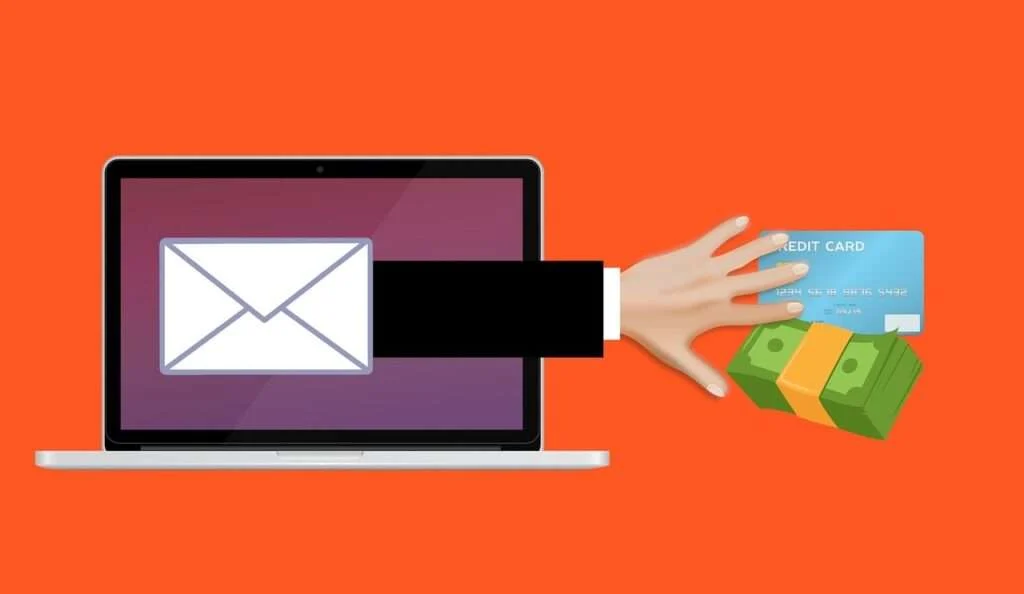
An Overview of the Windows Defender Subscription Email Scam
The Windows Defender subscription scam starts with an email informing the recipient that they have purchased or renewed an annual subscription to Windows Defender for $299.99. The email includes fake invoice details to look official, with an order number, date, and basic product information.
However, the email address it is sent from and other details are spoofed to make it appear that the email is from Microsoft or a legitimate vendor. In reality, the whole thing is a scam designed to trick users into calling the number included in the email or clicking on a link.
Once contact is made, the scammers utilize clever social engineering techniques to gain remote access to the victim’s computer. From there, they can install malware, steal personal data and banking information, encrypt files for ransom, and more.
They often pressure and intimidate victims into purchasing unnecessary “security software” or “tech support” services to fix non-existent issues. The scammers bank on taking advantage of users who don’t have enough technical knowledge to realize they are being duped.
Some key things to know about this scam:
- It is completely fraudulent, Microsoft does not send unsolicited notices about renewed Windows Defender subscriptions.
- The scammers utilize spoofing techniques to make the sender email addresses and domain names appear legitimate at first glance.
- The emails contain logos, formatting, and language designed to mimic real subscription notices from Microsoft. This adds legitimacy to the scam for unsuspecting users.
- If users call the phone number or click any links, they risk allowing remote access to their computer and exposing personal data.
- Once scammers gain access, they use malware, coercion, and deception to steal funds or sensitive information from the victim.
This scam has been around for years, but the scammers continuously evolve their techniques to fool as many people as possible. They rely on prototypical phishing techniques, with mass-spammed emails that seek to gain trust and tempt users to engage. Staying vigilant and identifying the signs of this scam is crucial.
How the Windows Defender Subscription Email Scam Actually Works
The Windows Defender subscription scam is executed in a few key stages once an email is sent out and a target interacts with it:
Stage 1: Sending Fraudulent Emails
The scammers obtain or generate lists of valid email addresses, often through hacking databases, sketchy online lists, or buying the lists from other scammers. They then utilize email spoofing services and apps to mask the sender address. The from name, email address, and reply-to address are all forged to make it seem as if Microsoft sent the email.
Subject lines commonly used include:
- Windows Defender Subscription Confirmed
- Windows Defender Payment Receipt
- Action Required: Validate Your Windows Defender Subscription
Email templates mimic legitimate subscription receipts, with Microsoft logos, formatting, and standard billing details for a fake $299.99 Windows Defender order.
Some emails claim the subscription is expiring and must be renewed, while others say it has already auto-renewed. These emails are spammed out to thousands – or even millions – of recipients. Even just a tiny response rate results in many victims.
Here is how the scam email might look:
Subject: Order Confirmation
INVOICE NUMBER
DATE OF ISSUE
02 February, 2025PRODUCTS ORDERED (1)
Windows Defender Advanced Threat
Protection Firewall & Network Protection
(One Year Subscription)Product Price
$299.99Quantity: 1
ORDER DETAILS
Subtotal $299.99
Tax $0.00
Total $299.99Dear customer,
If You didn’t make this purchase or if you believe an unauthorized person is attempting to access your Microsoft account Call to our customer care representative [phone number] (Toll Free).
Stage 2: Tricking Users to Call or Click
If recipients of the spammed email don’t identify it as a scam, many will call the phone number or click links within the email. The number often appears to be a legitimate Microsoft helpline at first glance. Users call thinking they will get Microsoft support to clear up the supposed errant order.
However, the number actually routes to a scam call center, frequently based overseas. When users click the links, they are typically sent to fake Microsoft lookalike sites controlled by the scammers.
Whether called or clicked, the goal is to get victims to engage with the scammers directly.
Stage 3: Gaining Remote Access
Once users make contact, the social engineering really kicks in. The scammers on the phone are personable, sympathetic sounding professionals. They express concern about the unauthorized order, offering to look into the matter and help cancel it.
To pull this off, they ask to connect remotely to the victim’s computer – often via an app like AnyDesk. This allows full access to the operating system.
If the links in the email were clicked instead, users are walked through downloading remote access apps with the claim it is a Microsoft-verified tool needed to diagnose the issue.
Victims are assured remote access is standard procedure and completely safe. But in reality, it opens the door for the scam.
Stage 4: Installing Malware & Stealing Data
With remote access established, the scam really takes a turn. The scammer pretends to review the system configuration and accounts, then claims they have discovered major security issues that need immediate action.
Some common claims they use include:
- Your copy of Windows Defender is expired, putting your system at risk.
- Malware or a dangerous virus has infected your computer.
- Your IP address is being misused by hackers to access the dark web.
- Your identity has been compromised, with hackers accessing your accounts.
Whatever fabricated issue they manufacture, the scammer pressures the victim that they are in huge danger unless they take action immediately.
They often install malware at this point without the user realizing it. Keyloggers, password stealers, remote access trojans, and more are installed to extract sensitive data for later abuse. The scammer may also silently dig through files and accounts looking for financial logins, tax data, and other personal information.
Victims are completely oblivious to the real scam taking place behind the scenes through remote access.
Stage 5: Pressuring Victims for More Funds
Once finished stealing data and compromising the computer, the scammer moves to profit financially from the scam.
They pressure the victim to purchase security software or expensive technical support plans, claiming it is the only way to clean the system or stop hackers from the “issues” discovered. Prices start at $200 or more for multi-year services.
Scammers often request payment in gift cards, cryptocurrency, bank transfers or other hard to reverse methods. Many frightened victims end up relenting and paying, for fear of serious consequences if they don’t act.
This all leads to massive profits for the scammers. On top of fraudulent payments, the stolen personal information taken through malware leads to identity theft and financial fraud as well.
What to Do If You Have Fallen Victim to the Windows Defender Email Scam
If you engaged with the scammers and provided remote access or paid money, don’t panic. Here are the key steps you should take to limit the damage and secure your devices.
Disconnect From the Internet
If the scammer still has remote access to your computer, disconnect it from Wi-Fi immediately. Terminate the remote connection through Task Manager or a force shut down. This cuts off the scammer’s access and prevents further actions.
Scan for Malware
It’s highly likely your system is infected with malware if remote access was given. Download legitimate scanners like Malwarebytes to perform a full system scan. Quarantine or delete anything suspicious found. Also update Windows Defender and run a scan.
Change All Passwords
With malware and remote access, assume your passwords have been compromised. Change passwords immediately for email, financial accounts, and any other sensitive logins. Enable two-factor authentication wherever possible for added security.
Contact Banks and Credit Issuers
Contact your bank and credit/debit card issuers to block potential fraudulent charges or cash transfers. Alert them your credentials may have been stolen. Monitor accounts closely for signs of misuse over the next few months.
Perform a System Restore
If your computer is still not functioning properly, you likely have lingering malware or damage. Wipe the system by performing a full system restore to factory settings. Ensure your data is backed up first.
Report the Incident
Report what happened to cybersecurity officials so they can investigate the scammers. File complaints with the FTC, FBI Internet Crime Complaint Center, and your local authorities. Include as many details as you have, like phone numbers called, email headers, and payment info.
Inform Contacts
Let your friends and contacts in your email or address book know of the scam if the crooks accessed it. This prevents it from spreading further to your network.
Staying vigilant is key. If you receive a suspicious tech support email out of the blue, don’t call or click on anything. Go directly to the site of the company it claims to represent – like Microsoft – to see if it is legitimate. Use common sense when dealing with any unsolicited contacts demanding payment or access to your devices.
Is Your Device Infected? Run a Free Malware Scan
Slow performance, constant pop-ups, or strange behavior? These are classic signs of a malware infection. A quick way to check is to scan your device with Malwarebytes Free, one of the most trusted malware removal tools available. If you only visited a scam page and didn’t download or install anything, this scan is optional.
The free version detects and removes the most common threats, including:
- Adware — the cause of those annoying pop-ups
- Browser hijackers — unwanted redirects and changed homepages
- Trojans and spyware — hidden programs stealing your data
- Potentially unwanted programs (PUPs) — software you never asked for
👉 Select your device below — Windows, Mac, or Android — then follow the simple steps to download Malwarebytes, scan your system, and remove any threats it finds. The scan usually takes 5 to 20 minutes.
Run a Malware Scan with Malwarebytes for Windows
Malwarebytes is one of the most popular and trusted anti-malware tools for Windows — and it’s completely free for removing infections. It catches threats that many antivirus programs miss, including adware, browser hijackers, and trojans. Follow the steps below to scan your PC and remove what Malwarebytes finds.
Download Malwarebytes
Click the button below to download the latest version of Malwarebytes for Windows from the official source. The free version is all you need — it will scan your computer and remove adware, browser hijackers, and other malicious software at no cost.
Download MalwarebytesOfficial installer for Windows 11 and 10. Your download starts right away.Want real-time protection? See Malwarebytes Premium Malwarebytes Free for WindowsScans and removes malware at no cost
-
Install Malwarebytes
When the download finishes, open your Downloads folder and double-click the MBSetup file. If Windows shows a User Account Control pop-up, click “Yes” to allow the installation.

Follow the On-Screen Prompts to Install Malwarebytes
The setup wizard will walk you through a few quick screens:
-
Choose where you’re installing the program — “Personal Computer” or “Work Computer” — then click Next.

-
Malwarebytes will now install on your device. This usually takes under a minute.

-
When installation is complete, the “Welcome to Malwarebytes” screen will open automatically.

-
On the final screen, click Open Malwarebytes to launch the program.

-
Optional: Check for rootkits with a Custom Scan
You don’t need to change any settings for a normal scan. The standard Threat Scan in the next step is enough for most problems, so you can go straight to it.
If you also want to check for rootkits, use a Custom Scan. In current versions of Malwarebytes, rootkit scanning is only available there:
- On the Scanner tile, click the three-dot menu and select Advanced Scan.
- Choose Custom Scan. In its options, check Scan for rootkits.
- Select your system drive (usually C:\) as the location to scan, then start the scan. It takes longer than a Threat Scan.
- When it finishes, review and quarantine the results as described in the steps below.
Rootkit scanning isn’t available on Windows devices with ARM processors.
Start the Scan
Click the blue Scan button. Malwarebytes will automatically update its virus database and start checking your computer for malware.

-
Wait for the Scan to Finish
The scan checks your entire system for browser hijackers and other malicious programs, so it can take 5 to 20 minutes depending on your computer. Feel free to do something else — just check back occasionally to see the progress.

-
Quarantine the Detected Threats
When the scan is done, you’ll see a list of everything Malwarebytes found — malware, adware, and potentially unwanted programs. Click the “Quarantine” button to remove all of them at once.

Malwarebytes will now remove the malicious files and registry entries and move them safely into quarantine.

-
Restart Your Computer
Some threats can only be fully removed after a reboot. If Malwarebytes asks you to restart, click Yes. Once you’re logged back in, Malwarebytes has finished removing the threats it found.

When the scan is done, check whether the problems you noticed have stopped. If they continue, see the options below.
If you are still having problems with your computer after completing these instructions, then please follow one of the steps:
- Run a computer scan with ESET Online Scanner
- Ask for help in our Windows Malware Removal Help & Support forum.
Run a Malware Scan with Malwarebytes for Mac
Malwarebytes for Mac is a free on-demand scanner that removes the malware other security software tends to miss — adware, browser hijackers, and unwanted programs included. Cleaning an infected Mac with Malwarebytes has always been completely free, and it’s our go-to recommendation. Follow the steps below to scan your Mac and remove what Malwarebytes finds.
-
Download Malwarebytes for Mac
Click the button below to download the latest version of Malwarebytes for Mac.
Download MalwarebytesOfficial installer for macOS. Your download starts right away.Want real-time protection? See Malwarebytes PremiumMalwarebytes Free for MacScans and removes malware at no cost -
Open the Malwarebytes setup file
When the download finishes, open your Downloads folder and double-click the setup file to begin the installation.

-
Follow the On-Screen Prompts to Install Malwarebytes
The Malwarebytes for Mac Installer will guide you through a few quick screens. Click “Continue” and keep following the prompts until the installation completes.



When the installation is complete, Malwarebytes opens to the Welcome to Malwarebytes screen. Click “Get started“.
Malwarebytes needs Full Disk Access to check your whole Mac. When it asks, open System Settings > Privacy & Security > Full Disk Access, turn on Malwarebytes (it may be listed as Malwarebytes Protection), and confirm with your password or Touch ID. Then return to Malwarebytes. On macOS Monterey and earlier, this setting is in System Preferences > Security & Privacy > Privacy.
-
Select “Personal Computer” or “Work Computer”
Malwarebytes will ask what type of computer you’re installing it on. Click either Personal Computer or Work Computer, whichever applies.

-
Start the Scan
Click the “Scan” button. Malwarebytes will automatically update its detection database and begin checking your Mac for malware.

-
Wait for the Scan to Finish
Malwarebytes will scan your Mac for adware, browser hijackers, and other malicious programs. This can take a few minutes, so feel free to do something else — just check back occasionally to see the progress.

-
Quarantine the Detected Threats
When the scan is done, you’ll see a list of everything Malwarebytes found. Click the “Quarantine” button to remove all the threats at once.

-
Restart Your Mac
Malwarebytes will now remove all the malicious files it found. Some threats can only be fully removed after a reboot — if Malwarebytes asks you to restart, allow it. Once you’re logged back in, check whether the problems you noticed have stopped. If they come back, save the scan report and ask for help in our forum.

If the problems you noticed continue after the scan, see the options below.
If you are still experiencing problems while trying to remove a malicious program from your computer, please ask for help in our Mac Malware Removal Help & Support forum.
Run a Malware Scan with Malwarebytes for Android
Malwarebytes for Android scans your phone or tablet for malware, adware, and potentially unwanted apps. The free version scans only when you start a scan. Real-time protection, which checks apps automatically, is part of the paid Premium version.
-
Download Malwarebytes for Android.
You can download Malwarebytes for Android by clicking the link below.
Get Malwarebytes for AndroidOpens Google Play in a new tab.Want real-time protection? See Malwarebytes Premium for AndroidMalwarebytes for AndroidScans your phone and removes malware at no cost -
Install Malwarebytes for Android on your phone.
In the Google Play Store, tap “Install” to install Malwarebytes for Android on your device.

When the installation process has finished, tap “Open” to begin using Malwarebytes for Android. You can also open Malwarebytes by tapping on its icon in your phone menu or home screen.

-
Follow the on-screen prompts to complete the setup process
When Malwarebytes opens, it walks you through a short setup. Tap Get started and follow the prompts. If you see an offer for a trial or a paid plan, read it before you accept. You can skip it and keep using the free scanner.
Malwarebytes will ask for permission to access the files on your phone so it can scan them. Tap Allow, or turn on the permission in the Android screen that opens, then return to Malwarebytes.
-
Run a scan with Malwarebytes for Android
On the main screen, tap Scan now. In some versions, you open the menu, tap Scanner, and then tap Run a scan.
-
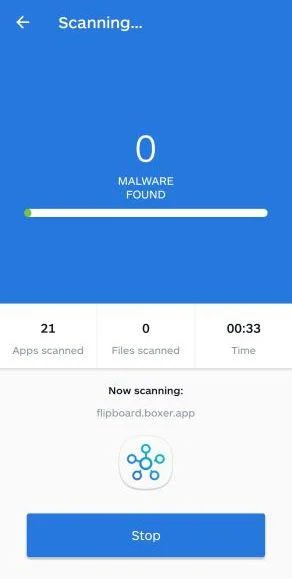
Wait for the Malwarebytes scan to complete.
Malwarebytes will now start scanning your phone for adware and other malicious apps. This process can take a few minutes, so we suggest you do something else and periodically check on the status of the scan to see when it is finished.
-
Remove the detected apps.
When the scan has been completed, you will see a list of the threats that Malwarebytes for Android has detected. Next to each detected item, tap the menu icon (three dots), then choose to uninstall the app or delete the file. Android then asks you to confirm. Tap OK or Uninstall to remove the app.
-
Restart your phone.
When the detected apps are removed, restart your phone if Malwarebytes asks you to. Then check whether the problems you noticed have stopped.
If the problems you noticed continue after the scan, see the options below.
If you are still having problems with your phone after completing these instructions, then please follow one of the steps:
- Ask for help in our Mobile Malware Removal Help & Support forum.
- Only as a last resort, reset your phone to factory settings. Read the warning below first.
- Back up your photos, videos, files, and messages, for example to your Google account or a computer.
- Make sure you know your Google account email and password. The phone asks for them after the reset. If you changed the password recently, Google recommends waiting 24 hours before you reset.
- On a Samsung phone, also make sure you know your Samsung account password.
- If you use an authenticator app for two-step verification, move your accounts to another device or save your backup codes first.
Stay Protected: Block Ads and Malicious Sites
No scan can prove a device is completely clean, so it helps to block threats before they reach you. Most infections start with a malicious ad or a fake download button — so blocking them at the source is your best defense.
We recommend AdGuard, which blocks malicious ads, phishing pages, and dangerous redirects before they can reach you.
👉 Download AdGuard and browse safely
Frequently Asked Questions About the Windows Defender Subscription Scam
1. What is the Windows Defender subscription scam email?
The Windows Defender subscription scam email is a fraudulent email sent out to unsuspecting recipients claiming they have purchased or renewed an annual Windows Defender subscription. The email contains fake invoices and order details for a $299.99 subscription purchase. In reality, it is a scam to trick users into calling the scammers or clicking malicious links. Once engaged, the criminals use social engineering and malware to access victim’s computers, steal data, and siphon funds.
2. How can I identify the Windows Defender subscription scam email?
These fraudulent emails often contain:
Subject lines related to confirming, validating or reviewing a Windows Defender purchase.
Microsoft logos and formatting designed to look legitimate.
Details for a $299.99 Windows Defender order you never actually placed.
Instructions to call a phone number or click a link to cancel, renew, or “fix” issues.
Sender addresses and reply-to emails spoofed to mimic Microsoft domains.
If an email has these characteristics but you never made the purchase claimed, it is definitely the Windows Defender subscription scam.
3. What happens if I call the phone number or click the link?
The phone numbers go to fraudulent call centers run by the scammers themselves. The links typically direct to fake Microsoft lookalike sites also controlled by the scammers. If you call or click, they will use clever deception and false threats to trick you into providing remote access to your computer. This allows them to stealthily install malware and steal personal data.
4. What do the scammers do once they gain remote access?
Once remote access is established, the scammers pretend to diagnose your system. They will falsely claim to find serious security issues like viruses, expired anti-virus software, or compromised identity theft issues that require immediate payment to resolve. In reality, they are typically installing keyloggers, password stealers, and other malware without your knowledge during this time. They use the malware and direct access to steal banking info, logins, identity details, and other sensitive data.
5. How can I prevent falling victim to this scam?
Never call numbers in unsolicited emails claiming you need to renew a subscription or pay for a service.
Don’t click any links in unexpected emails related to anti-virus software or security issues.
Contact the company directly through known legitimate channels like their official website to inquire about notifications.
Use common sense caution with any outreach demanding payments or access to your device to fix urgent issues you were not already aware of.
Carefully verify the full sender address and review linked URLs for any red flags before engaging with an email.
6. What should I do if I already provided remote access or paid money to the scammers?
If you already fell victim, immediately disconnect your device from the internet and force restart it to sever the remote connection. Run anti-malware scans, change all account passwords, monitor financial accounts for fraud, and report the incident to authorities. Alert your contacts of the scam if the crooks accessed your address book. A full system restore may be required if malware persists.
7. How can I report this scam to help prevent others from being victimized?
Reporting this scam to authorities can help get the fraudulent phone numbers and emails shut down. File detailed complaints with the FTC, FBI Internet Crime Complaint Center, Microsoft, and your local law enforcement. Include as many specifics as possible like phone numbers, email headers, bitcoin wallets, etc. to aid investigations.
The Bottom Line on the Windows Defender Subscription Email Scam
This scam has swindled countless unsuspecting individuals who didn’t realize they were being targeted by fraudsters. The emails lookconvincing, and the scammers seem professional once contact is made. It’s easy to see how so many end up falling for the con.
If an unexpected email claims you purchased or renewed an expensive subscription you don’t recall, exercise extreme caution. The Windows Defender scam preys on lack of cybersecurity knowledge, using system warnings and high pressure tactics to extort victims. Be skeptical of any unsolicited messages demanding immediate payment or offering fixes to issues you aren’t already aware of.

Join the discussion
0 commentsShare your experience or ask a question about this article.
Discussion
Start the conversation
Have a question or something useful to share? Add the first comment.