

A verification page should never ask someone to open Windows Run and paste a command. That instruction crosses the line from web interaction into computer execution.
ZigCryptoStealer has appeared behind such a chain. The visible prompt lasts seconds, yet the consequences can follow a cryptocurrency transfer much later.
Overview
ZigCryptoStealer targets copied wallet addresses
ZigCryptoStealer is malware written in the Zig programming language. Its defining behavior is watching the Windows clipboard for cryptocurrency addresses.
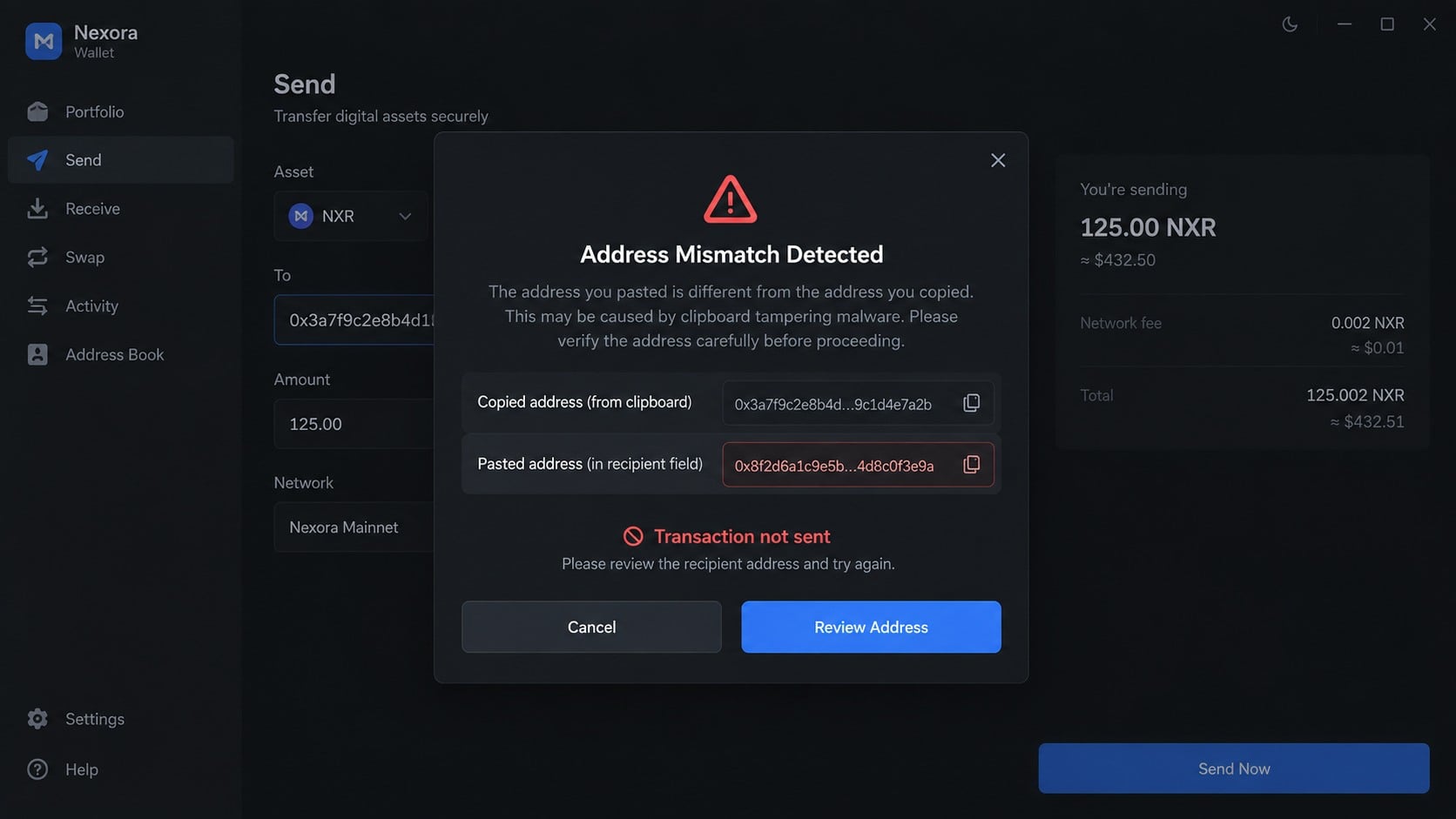
When a supported address is copied, the malware can replace it with one controlled by the attacker before the victim pastes.
The transfer interface may still look normal. The theft succeeds if the sender checks only the amount and overlooks the changed destination.
The stealer arrives through a much larger infection chain
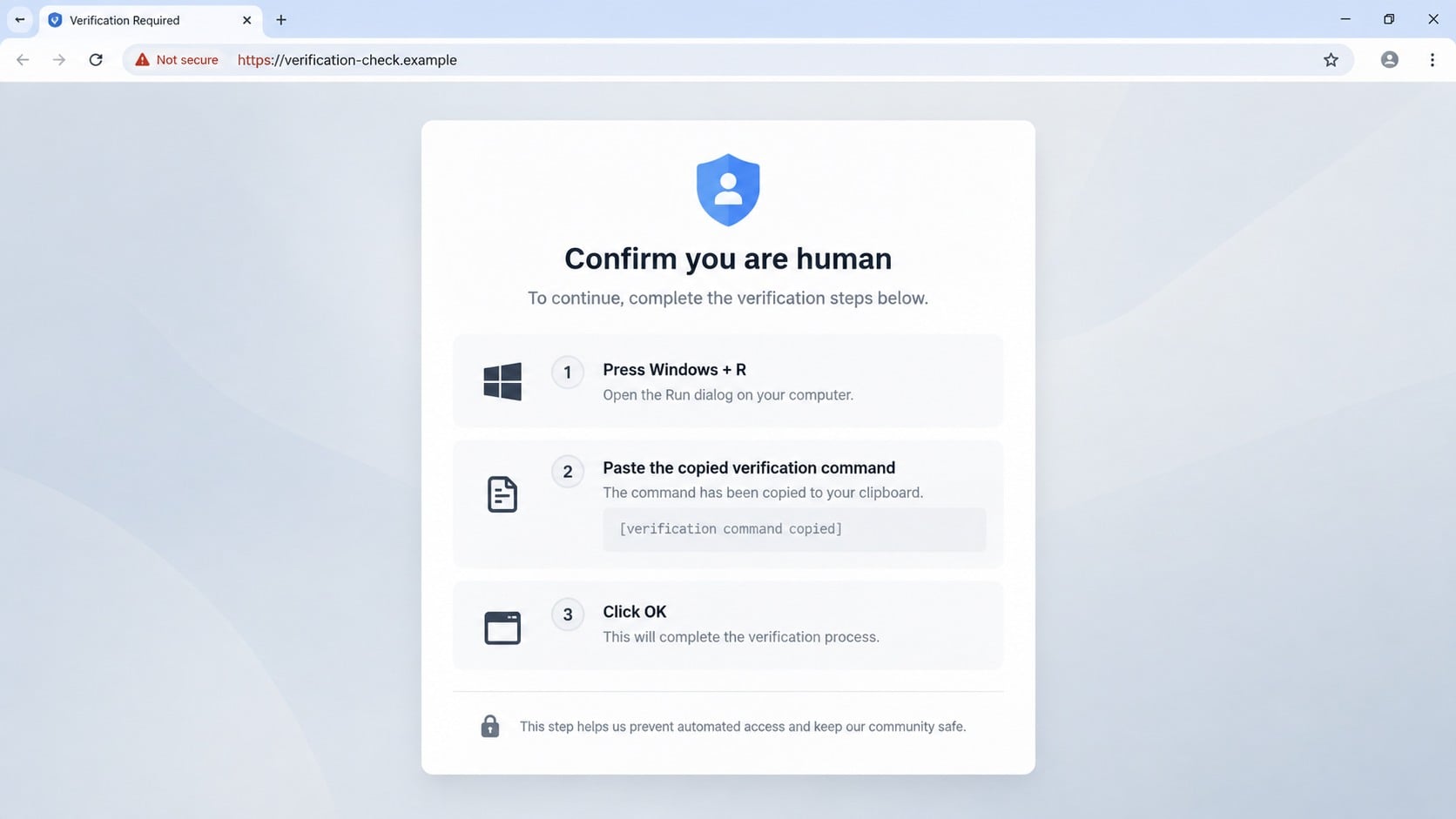
Observed delivery began on compromised websites containing injected scripts. Visitors saw a fake human-verification prompt resembling a familiar CAPTCHA workflow.
The page used ClickFix social engineering, telling users to paste and execute a copied command. That action started a layered WebDAV-based infection.
Other malware in the same chain could steal credentials, collect private keys, disable security tools, or create remote access before ZigCryptoStealer launched.
Why cryptocurrency users face special consequences
- Blockchain transfers are usually irreversible after confirmation.
- Wallet addresses are long and difficult to compare visually.
- Clipboard replacement can occur without changing the transfer amount.
- Stolen seed phrases or private keys threaten the entire wallet.
- Compromised password managers and authenticators endanger exchange accounts.
- A later transfer can be stolen even after the original fake page is closed.
Anyone who executed the fake verification should assume broad credential exposure, not merely watch for an immediate clipboard anomaly.
How ZigCryptoStealer Malware Works
Step 1: A legitimate website is silently compromised
The visitor does not necessarily begin on an obviously malicious domain. Attackers can inject code into an otherwise genuine website.
The altered page loads additional JavaScript from outside infrastructure. That script decides when to display the deceptive verification flow.
This placement helps the lure inherit trust from the compromised site. A familiar article or business page can suddenly present an unexpected security check.
The injected content may be selective. Different visitors can see different behavior based on location, device, browser, or previous interactions.
Refreshing later may produce a normal page, which makes the victim question what happened and complicates reproduction.
The safest response to any unusual command-based verification is to close the tab without following its keyboard instructions.
Step 2: A fake CAPTCHA turns the visitor into the installer
The prompt claims that proving humanity requires opening the Windows Run dialog, pasting clipboard content, and confirming execution.
Real CAPTCHA systems evaluate actions inside the webpage. They do not require PowerShell, Command Prompt, Terminal, Run, or copied system commands.
The copied text may be hidden from view or presented as harmless verification data. In reality, it instructs Windows to retrieve or launch remote content.
Because the user performs the action, the resulting process can resemble intentional activity. That social step attempts to bypass ordinary download hesitation.
ClickFix is effective because each instruction sounds small. The danger appears only when the browser’s clipboard, Run, network retrieval, and execution are combined.
Closing the page after pressing OK does not stop a command already running. Disconnect the computer if the sequence was completed.
Step 3: WebDAV retrieves a disguised DLL
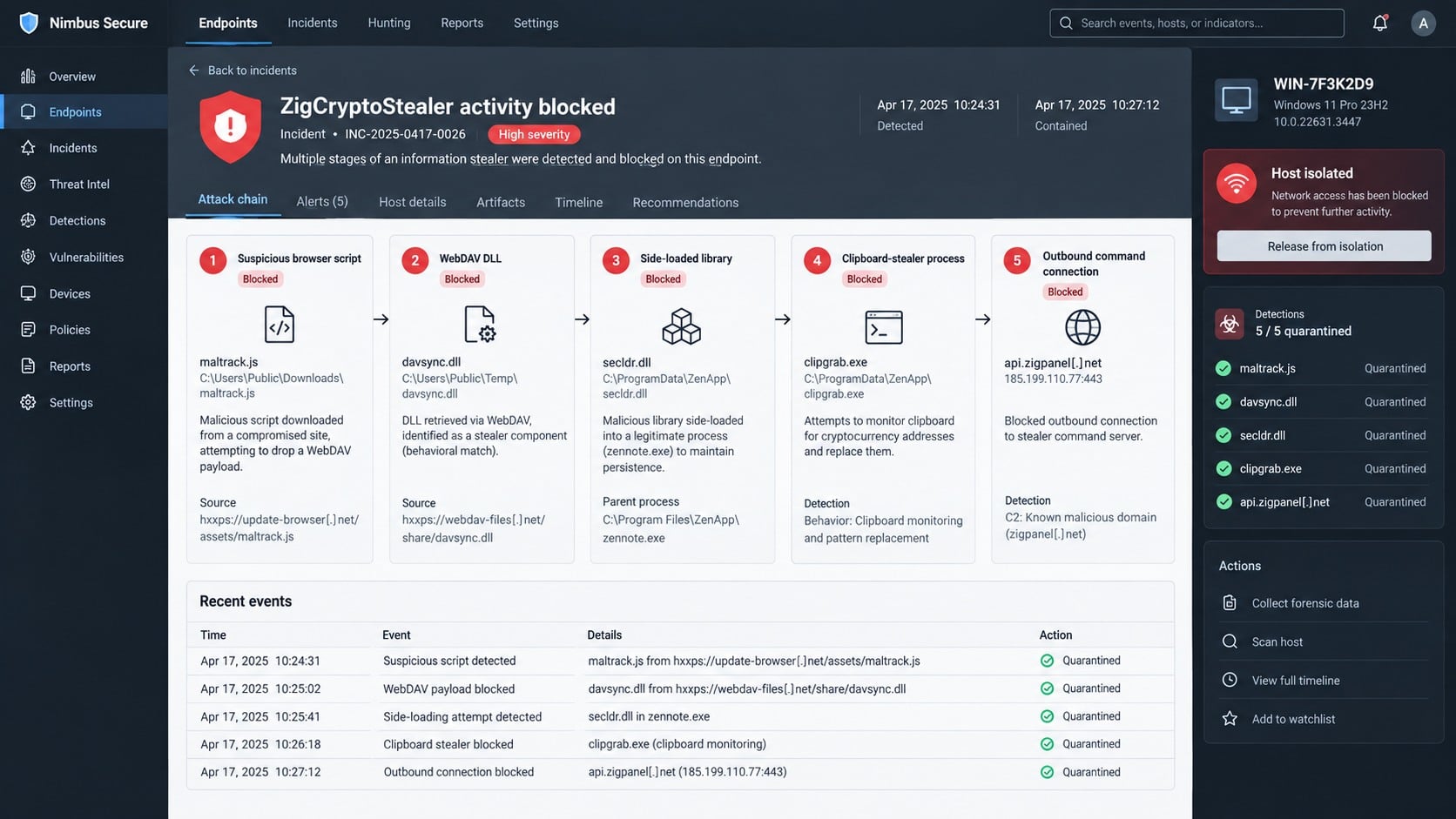
In the investigated chain, Windows executed a remotely hosted DLL through WebDAV, a technology that exposes remote content like a file location.
A filename resembling a web address or verification component can make the activity look less like a conventional executable download.
The system utility rundll32.exe can load DLL code. Attackers abuse that legitimate binary so the launch blends with normal Windows components.
Multiple loader branches were observed. One involved a file named pf.ch, while another used the misleading name verification.google.
These filenames are indicators from one campaign, not universal requirements. Operators can rebuild the chain with different names and servers.
Defenders should focus on behavior: browser-driven command execution, WebDAV access, unusual DLL loading, and unexpected network connections.
Step 4: Amatera steals credentials and deploys more payloads
The first major payload was the Amatera information stealer. It received detailed collection rules from command infrastructure after launching.
Those rules covered browsers, messaging applications, password managers, authenticators, FTP clients, mail programs, VPN tools, and remote-access software.
Cryptocurrency exposure extended beyond clipboard addresses. The configuration referenced more than 100 desktop wallet locations and numerous secret-bearing file patterns.
Documents, Downloads, Desktop, and recent-file locations were searched for private keys, wallet backups, certificates, password databases, and authentication material.
Amatera could also receive secondary tasks. That design lets the operator choose different follow-on tools for different infected systems.
ZigCryptoStealer was one follow-on payload. Another branch installed unauthorized remote-management software, showing why cleanup cannot focus on one executable.
Step 5: A signed program side-loads malicious code
The secondary archive included a legitimate signed browser component beside a malicious library using a filename the trusted executable expected.
When launched, the legitimate program loaded the nearby attacker-controlled DLL. This technique is known as DLL side-loading.
A valid signature on the main executable does not make every file in its folder trustworthy. The loaded library must be assessed separately.
The malicious library used a NativeAOT loader to decrypt and place further code inside another process.
The package also carried a vulnerable driver used to interfere with endpoint protection. Signed but flawed drivers can provide attackers with powerful kernel access.
This layered approach separates visible execution from the final stealer, making simple filename blocks less reliable than behavior-based detection.
Step 6: ZigCryptoStealer changes cryptocurrency destinations
Once active, the stealer repeatedly reads clipboard contents and recognizes patterns matching several cryptocurrency address formats.
When a match appears, it substitutes an attacker-selected address. The replacement occurs between copying from one window and pasting into another.
Criminals may use addresses with similar first or last characters, hoping a quick visual check will miss the different middle.
The malware can retrieve current controller information through data stored in a blockchain smart contract, a method sometimes called EtherHiding.
That contract acts as a changeable signpost. Operators update stored text, and infected systems learn a new destination without receiving a traditional configuration file.
Blocking one domain may therefore provide only temporary relief. Endpoint removal and network monitoring remain necessary.
Step 7: A mistaken transfer becomes permanent
The stealer does not need to access the wallet’s signing key when the victim willingly signs a transfer to the substituted address.
Hardware wallets protect keys, but they cannot correct a destination the owner approves. Their trusted display must be checked before confirmation.
Once broadcast and confirmed, the transaction generally cannot be canceled by a bank, wallet developer, exchange, or antivirus company.
That finality makes prevention unusually important. Compare the complete address or use a verified address book and small test transfer.
If a transfer was misdirected, contact the sending and receiving services immediately. Recovery is unlikely, but rapid tracing can still support an investigation.
Preserve the transaction identifier, substituted address, original intended address, time, amount, and related endpoint evidence.
How to Identify a ZigCryptoStealer Infection
Recall any command-based verification prompt
Consider whether a webpage recently asked you to press Windows+R, paste text, open PowerShell, use Terminal, or run a verification command.
Browser history may identify the compromised page, although the page can appear normal later. Record the time and every action completed.
Do not revisit the page from the suspected computer. Use a security professional or isolated analysis environment when reproduction is necessary.
Test clipboard behavior without risking funds
On an isolated system, copy a non-sensitive public wallet address and paste it into a plain text editor. Compare every character.
Use several supported address types only if an investigator recommends testing. Do not open a funded wallet on the compromised endpoint.
A mismatch strongly indicates clipboard tampering, but a match does not prove cleanliness because malware can be selective or temporarily inactive.
Review the multi-stage endpoint timeline
Search protection history and logs for browser scripts, Run activity, PowerShell, WebDAV connections, rundll32, side-loaded DLLs, or driver installation.
Pay attention to a signed executable loading a library from a temporary or newly created folder instead of its normal installation directory.
Check whether endpoint protection was stopped, excluded, or impaired. Restore security controls before trusting a clean scan result.
Audit wallets and high-value accounts
Review recent transactions, saved withdrawal addresses, API keys, active sessions, login locations, password-manager access, and authenticator changes.
Look for withdrawals that used an unfamiliar destination, especially transactions made after copying an address on the affected computer.
Private keys, seed phrases, or wallet files stored on that endpoint should be considered exposed even without an unauthorized transfer.
What to Do If ZigCryptoStealer Infected Your Computer
- Disconnect the computer. Remove wired and wireless network access. Do not open wallets, exchanges, email, or password managers on the suspected endpoint.
- Stop cryptocurrency transfers. Treat every pasted address as unsafe until devices are clean. Cancel any unbroadcast transaction and verify pending activity elsewhere.
- Move assets from a trusted device. If seed material may be exposed, create a new wallet securely and transfer funds after carefully verifying addresses.
- Secure exchange accounts. Revoke sessions and API keys, reset passwords, replace multifactor methods, and enable withdrawal locks or address allowlists where available.
- Preserve the chain. Record the fake verification page, command time, suspicious files, protection alerts, wallet addresses, and transaction identifiers without executing samples.
- Perform offline removal. Run Microsoft Defender Offline, restore disabled protections, then complete a full Malwarebytes scan for loaders, stealers, drivers, and remote-access tools.
- Rotate every secret. Replace passwords, tokens, private keys, SSH keys, certificates, and recovery codes that were stored, typed, or copied on the device.
- Block repeat exposure. After rebuilding trust, use AdGuard to reduce malicious advertising and known unsafe pages that can deliver deceptive ClickFix prompts.
- Report stolen funds quickly. Contact exchanges and law enforcement with transaction evidence. Avoid recovery agents demanding upfront cryptocurrency payments.
- Reinstall when uncertainty remains. A clean operating-system build is appropriate when drivers, side-loading, remote access, or broad credential theft occurred.
Is Your Device Infected? Run a Free Malware Scan
Slow performance, constant pop-ups, or strange behavior? These are classic signs of a malware infection. The fastest way to find out is to scan your device with Malwarebytes Free — one of the most trusted malware removal tools available.
The free version detects and removes the most common threats, including:
- Adware — the cause of those annoying pop-ups
- Browser hijackers — unwanted redirects and changed homepages
- Trojans and spyware — hidden programs stealing your data
- Potentially unwanted programs (PUPs) — software you never asked for
👉 Select your device below — Windows, Mac, or Android — then follow the simple steps to download Malwarebytes, scan your system, and remove any threats it finds. The scan usually takes 5 to 20 minutes.
Run a Malware Scan with Malwarebytes for Windows
Malwarebytes is one of the most popular and trusted anti-malware tools for Windows — and it’s completely free for removing infections. It catches threats that many antivirus programs miss, including adware, browser hijackers, and trojans. Follow the steps below to scan and clean your PC in just a few minutes.
Download Malwarebytes
Click the button below to download the latest version of Malwarebytes for Windows from the official source. The free version is all you need — it will scan your computer and remove adware, browser hijackers, and other malicious software at no cost.
Download MalwarebytesOfficial installer for Windows 11 and 10. Your download starts right away.Want real-time protection? See Malwarebytes Premium Malwarebytes Free for WindowsScans and removes malware at no cost
-
Install Malwarebytes
When the download finishes, open your Downloads folder and double-click the MBSetup file. If Windows shows a User Account Control pop-up, click “Yes” to allow the installation.

Follow the On-Screen Prompts to Install Malwarebytes
The setup wizard will walk you through a few quick screens:
-
Choose where you’re installing the program — “Personal Computer” or “Work Computer” — then click Next.

-
Malwarebytes will now install on your device. This usually takes under a minute.

-
When installation is complete, the “Welcome to Malwarebytes” screen will open automatically.

-
On the final screen, click Open Malwarebytes to launch the program.

-
Enable “Scan for Rootkits”
Before scanning, turn on rootkit detection so Malwarebytes can find even the most hidden threats. Click the Settings gear icon on the left side of the screen.

In the settings menu, find “Scan for rootkits” and click the toggle so it turns blue.

Done? Click “Dashboard” in the left pane to return to the main screen.
Start the Scan
Click the blue Scan button. Malwarebytes will automatically update its virus database and start checking your computer for malware.

-
Wait for the Scan to Finish
The scan checks your entire system for browser hijackers and other malicious programs, so it can take 5 to 20 minutes depending on your computer. Feel free to do something else — just check back occasionally to see the progress.

-
Quarantine the Detected Threats
When the scan is done, you’ll see a list of everything Malwarebytes found — malware, adware, and potentially unwanted programs. Click the “Quarantine” button to remove all of them at once.

Malwarebytes will now remove the malicious files and registry entries and move them safely into quarantine.

-
Restart Your Computer
Some threats can only be fully removed after a reboot. If Malwarebytes asks you to restart, click Yes. Once you’re logged back in, Malwarebytes has finished removing the threats it found.

That’s it — your Windows PC is now clean of trojans, adware, and other malware, and should be back to running smoothly.
If you are still having problems with your computer after completing these instructions, then please follow one of the steps:
- Run a computer scan with ESET Online Scanner
- Ask for help in our Windows Malware Removal Help & Support forum.
Run a Malware Scan with Malwarebytes for Mac
Malwarebytes for Mac is a free on-demand scanner that removes the malware other security software tends to miss — adware, browser hijackers, and unwanted programs included. Cleaning an infected Mac with Malwarebytes has always been completely free, and it’s our go-to recommendation. Follow the steps below to scan and clean your Mac in just a few minutes.
-
Download Malwarebytes for Mac
Click the button below to download the latest version of Malwarebytes for Mac.
Download MalwarebytesOfficial installer for macOS. Your download starts right away.Want real-time protection? See Malwarebytes PremiumMalwarebytes Free for MacScans and removes malware at no cost -
Open the Malwarebytes setup file
When the download finishes, open your Downloads folder and double-click the setup file to begin the installation.

-
Follow the On-Screen Prompts to Install Malwarebytes
The Malwarebytes for Mac Installer will guide you through a few quick screens. Click “Continue” and keep following the prompts until the installation completes.



When the installation is complete, Malwarebytes opens to the Welcome to Malwarebytes screen. Click “Get started“.
-
Select “Personal Computer” or “Work Computer”
Malwarebytes will ask what type of computer you’re installing it on. Click either Personal Computer or Work Computer, whichever applies.

-
Start the Scan
Click the “Scan” button. Malwarebytes will automatically update its detection database and begin checking your Mac for malware.

-
Wait for the Scan to Finish
Malwarebytes will scan your Mac for adware, browser hijackers, and other malicious programs. This can take a few minutes, so feel free to do something else — just check back occasionally to see the progress.

-
Quarantine the Detected Threats
When the scan is done, you’ll see a list of everything Malwarebytes found. Click the “Quarantine” button to remove all the threats at once.

-
Restart Your Mac
Malwarebytes will now remove all the malicious files it found. Some threats can only be fully removed after a reboot — if Malwarebytes asks you to restart, allow it. Once you’re logged back in, your Mac is clean.

That’s it — your Mac is now free of adware, rogue browser extensions, and other potentially harmful software.
If you are still experiencing problems while trying to remove a malicious program from your computer, please ask for help in our Mac Malware Removal Help & Support forum.
Run a Malware Scan with Malwarebytes for Android
Malwarebytes for Android automatically detects and removes dangerous threats like malware and ransomware so you don’t have to worry about your most-used device being compromised. Aggressive detection of adware and potentially unwanted programs keeps your Android phone or tablet running smooth.
-
Download Malwarebytes for Android.
You can download Malwarebytes for Android by clicking the link below.
Get Malwarebytes for AndroidOpens Google Play in a new tab.Want real-time protection? See Malwarebytes Premium for AndroidMalwarebytes for AndroidScans your phone and removes malware at no cost -
Install Malwarebytes for Android on your phone.
In the Google Play Store, tap “Install” to install Malwarebytes for Android on your device.

When the installation process has finished, tap “Open” to begin using Malwarebytes for Android. You can also open Malwarebytes by tapping on its icon in your phone menu or home screen.

-
Follow the on-screen prompts to complete the setup process
When Malwarebytes will open, you will see the Malwarebytes Setup Wizard which will guide you through a series of permissions and other setup options.
This is the first of two screens that explain the difference between the Premium and Free versions. Swipe this screen to continue.
Tap on “Got it” to proceed to the next step.
Malwarebytes for Android will now ask for a set of permissions that are required to scan your device and protect it from malware. Tap on “Give permission” to continue.
Tap on “Allow” to permit Malwarebytes to access the files on your phone.
-
Update database and run a scan with Malwarebytes for Android
You will now be prompted to update the Malwarebytes database and run a full system scan.

Click on “Update database” to update the Malwarebytes for Android definitions to the latest version, then click on “Run full scan” to perform a system scan.

-
Wait for the Malwarebytes scan to complete.
Malwarebytes will now start scanning your phone for adware and other malicious apps. This process can take a few minutes, so we suggest you do something else and periodically check on the status of the scan to see when it is finished.

-
Click on “Remove Selected”.
When the scan has been completed, you will be presented with a screen showing the malware infections that Malwarebytes for Android has detected. To remove the malicious apps that Malwarebytes has found, tap on the “Remove Selected” button.

-
Restart your phone.
Malwarebytes for Android will now remove all the malicious apps that it has found. To complete the malware removal process, Malwarebytes may ask you to restart your device.
That’s it — your Android phone is now clean — no more malicious apps, adware, or browser redirects.
If you are still having problems with your phone after completing these instructions, then please follow one of the steps:
- Restore your phone to factory settings by going to Settings > General management > Reset > Factory data reset.
- Ask for help in our Mobile Malware Removal Help & Support forum.
Stay Protected: Block Ads and Malicious Sites
Now that your device is clean, keep it that way. Most infections start with a malicious ad or a fake download button — so blocking them at the source is your best defense.
We recommend AdGuard, which blocks malicious ads, phishing pages, and dangerous redirects before they can reach you.
👉 Download AdGuard and browse safely
Cryptocurrency Recovery and Wallet Safety
A clipboard theft does not automatically expose the private key. However, the surrounding stealer can collect wallet files, secrets, and authentication data.
Assume a hot wallet used on the infected endpoint is unsafe. Create replacement keys on a clean, updated device.
Never type an old seed phrase into a random “recovery checker.” That phrase grants complete control over the wallet.
Hardware-wallet users should update through the manufacturer’s official software and verify the destination on the device’s own trusted screen.
Use an address book for recurring destinations, but independently verify changes. A compromised account can alter saved withdrawal information.
For a large transfer, send a small test first. Confirm arrival through a trusted block explorer and the recipient before sending the remainder.
Whitelisting can delay or block withdrawals to new destinations. Enable it before an incident, because security waiting periods may apply.
If funds reached an attacker address, blockchain tracing can follow movement. Tracing does not itself reverse a transaction or guarantee recovery.
Share evidence with legitimate authorities and regulated exchanges. Do not publish seed phrases, account documents, or full private records while seeking help.
Beware of a second scam. Anyone guaranteeing recovery for an upfront fee or requesting wallet access may be targeting victims again.
How to Recognize and Stop ClickFix Prompts
A legitimate web verification stays inside the browser page. It may ask for a checkbox, image selection, or behavior challenge.
It will not ask for Windows Run, PowerShell, Command Prompt, Terminal, keyboard shortcuts that open system tools, or pasted code.
Do not assume copied content is visible. A webpage can place a longer command on the clipboard than the text shown onscreen.
If you copied but did not execute the instruction, clear the clipboard and close the page. The greater danger begins when Windows runs it.
If you executed it, disconnect immediately rather than waiting for symptoms. Information stealers are designed to finish quickly and quietly.
Organizations can restrict scripting, block suspicious WebDAV behavior, monitor unusual system utilities, and train staff around command-based verification lures.
Browser updates and content filtering help, but compromised legitimate websites can still carry injected scripts. Human recognition remains important.
The simplest rule is reliable: a website cannot require a system command to prove that you are human.
Frequently Asked Questions
What is ZigCryptoStealer?
It is a clipboard-focused cryptocurrency stealer that recognizes copied wallet addresses and can substitute destinations controlled by an attacker.
Is the fake CAPTCHA itself the malware?
The page is the social-engineering stage. It tricks the visitor into executing a command that retrieves and launches the malware chain.
Can a hardware wallet stop clipboard replacement?
It protects signing keys, but users must still compare the destination shown on the hardware display before approving a transaction.
Does changing my exchange password solve the problem?
No. Revoke sessions and API keys, replace multifactor recovery, inspect withdrawal settings, and clean or rebuild the computer.
Can a stolen cryptocurrency transfer be reversed?
Usually not after confirmation. Rapid reporting may help exchanges trace or freeze later movement, but no outcome is guaranteed.
Why use a blockchain contract for command information?
It gives operators a changeable public location for controller data, helping infected systems discover new infrastructure when domains are blocked.
The Bottom Line
ZigCryptoStealer turns one fake verification command into a layered credential and cryptocurrency threat, then waits for a routine copy-and-paste action.
Never run system commands from a CAPTCHA. If you did, isolate the endpoint, secure wallets from clean hardware, rotate secrets, and investigate the entire chain.

Join the discussion
0 commentsShare your experience or ask a question about this article.
Your progress
Did these steps help?
Let us know how the guide worked for you.
Describe what you see and the step you reached. Keep passwords and other private information out.
Discussion
Start the conversation
Have a question or something useful to share? Add the first comment.