

An email says your mail service is changing, and several messages are already waiting. You don’t want to miss a customer reply over a routine update.
The notice combines two familiar names and gives you one obvious button. Before pressing it, take a moment to follow the story it tells.
Overview
A made-up merger supplies the reason for an account update
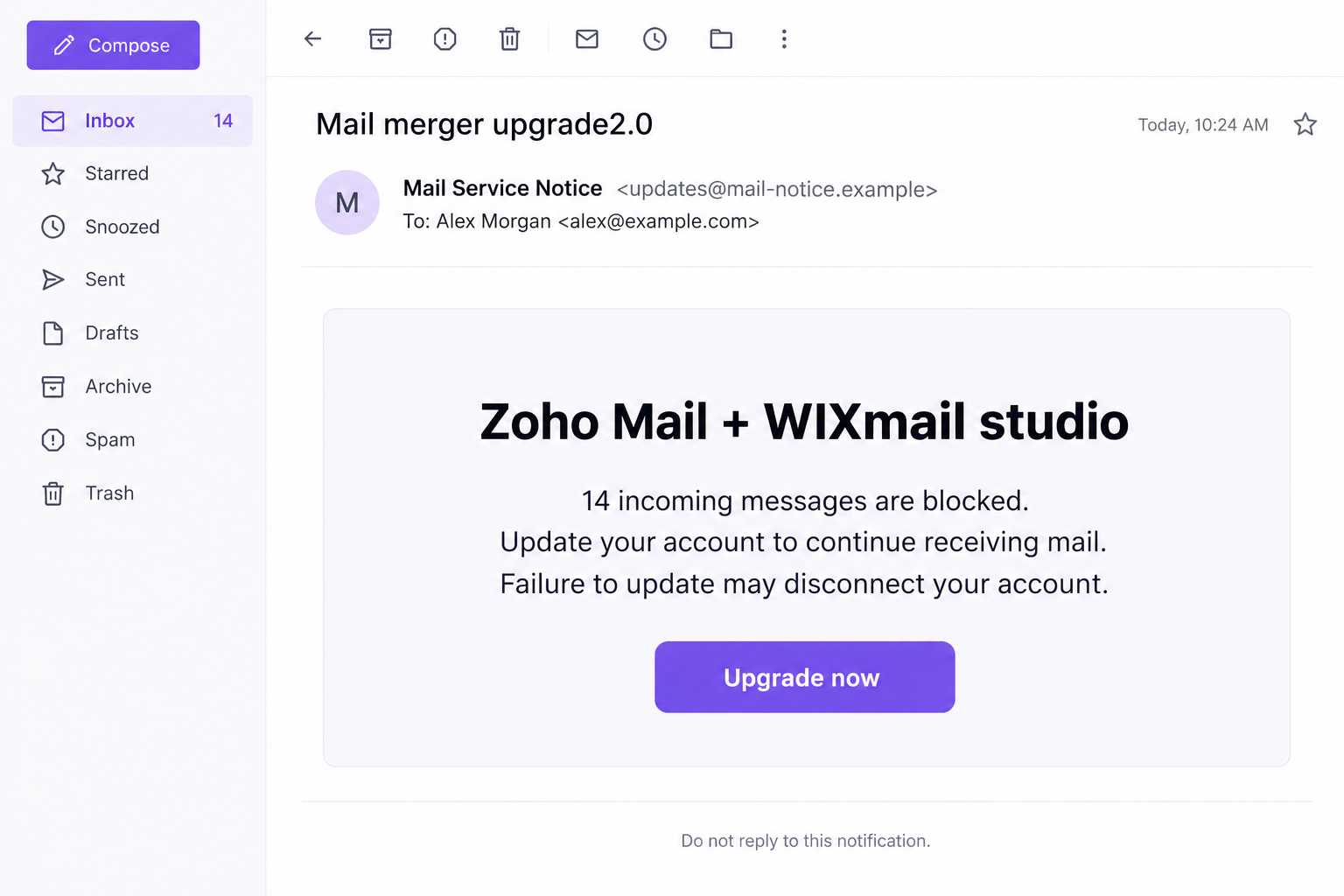
The Zoho and Wix mail merger email scam claims that a combined mail service needs an upgrade to version 2.0. It is a phishing notice.
The message says 14 incoming messages are blocked and threatens permanent disconnection unless the recipient acts. Its update button leads toward a false sign-in page.
The names belong to genuine companies being impersonated. This email’s invented upgrade process should not be mistaken for a real instruction from either provider.
The supposed repair asks for access to your mailbox
The reported destination seeks an email address and password. That is the sensitive disclosure, not a harmless confirmation that you saw a service announcement.
A password entered there can expose the corresponding account. It doesn’t matter whether the page calls the action an upgrade, release, or verification.
No executable malware or particular account theft was independently established in this example. The demonstrated concern is the false message and credential-collection route.
Check the real account before trying to rescue missing mail
Open your usual mailbox or account settings yourself. A stranger’s message should not choose the sign-in page for a service you already use.
- Don’t use the merger notice to update a password or unlock mail.
- Ask your actual administrator about any planned service change.
- Verify missing messages through normal mail tools and known senders.
- Secure the precise account whose credentials you entered.
- Report the imitation without forwarding a clickable lure to colleagues.
Why Combining Two Brands Can Hide a Basic Mismatch
Businesses often use several cloud services at once. A website can be managed through one company while its email is handled by another.
That makes a cross-brand announcement less obviously strange than it might first sound. You may not know every relationship behind your organization’s subscriptions.
The email relies on that uncertainty. Instead of explaining an established account change, it gives the combination an official-sounding name and asks you to proceed.
You don’t need to become an expert on either company to challenge it. Ask whether your organization actually authorized the change described.
A supplier’s name in an email is not a notice inside your genuine account. A styled heading is not an announcement from your own administrator.
Nor does a website subscription automatically mean every message mentioning the site builder concerns your email account. Identify which service the request supposedly affects.
If the account relationship is unclear, stop before supplying credentials. Your administrator or genuine provider can explain it through a trusted contact route.
Even a real future partnership wouldn’t authenticate this message. A corporate relationship and a particular password-collection page are separate questions.
How the Zoho and Wix Mail Merger Email Scam Works
Step 1: An unexpected announcement invents a migration task
The message frames the change as something the provider has already decided. The recipient is left with the apparently smaller job of completing an update.
That can discourage questions about whether a migration exists. You start thinking about finishing your part rather than checking who assigned it.
A version number adds a technical touch without proving anything. Software can have version numbers; an email can also invent one.
Look for a genuine account notification or internal change plan. Don’t treat the message’s own explanation as its confirmation.
If you don’t use the services named, there is no reason to create an account to resolve the notice. Receiving the email doesn’t establish a customer relationship.
Step 2: Blocked messages make delay seem costly
The claim about waiting messages gives the fictional upgrade an immediate consequence. You may imagine an order, invoice, or colleague’s question sitting out of reach.
That imagined importance can make a small number feel persuasive. The sender doesn’t need to identify the actual messages if you supply the possibilities yourself.
Don’t let the number become a fact merely through repetition. Check genuine delivery information or ask a known sender whether something is missing.
A real delivery problem can have many causes. It should be investigated through the actual provider or administrator, not an unrelated password form.
If your mailbox still works, that is useful context. If it doesn’t, the outage still doesn’t authenticate the surprise email.
You can take a service problem seriously while rejecting an unverified repair route. Those choices are compatible.
Step 3: A disconnection threat narrows attention to the button
The warning escalates from missed messages to losing access entirely. It encourages action before the reader asks whether an ordinary user should be managing this change.
That is particularly uncomfortable at work. Nobody wants to explain that they ignored something labeled as a required account update.
But reporting a suspicious instruction is not ignoring a real responsibility. Ask your established IT contact to verify the requirement.
A genuine process should not depend on secrecy from your own administrator. Don’t let the sender’s claim of automation prevent you from checking elsewhere.
The prominent button is convenient because the sender controls it. Convenience says nothing about where the form will send your password.
Step 4: The update route asks you to sign in again
The reported button leads to credential phishing rather than a legitimate upgrade. The requested email password is the asset the operator wants.
A familiar login design can make that transition feel routine. Before entering anything, identify the service and actual destination.
Don’t try your password to see whether the page recognizes you. A failed response may occur after information has already been sent.
The same caution applies if the address is prefilled. Knowing your email address does not demonstrate that the page belongs to its provider.
If a further code or approval request appears, read the genuine provider’s message. Its meaning is not decided by the merger page’s explanation.
No particular second-factor flow was demonstrated in this case. The practical rule is to reject unexplained approvals rather than invent a new verification step.
Step 5: Mailbox access can turn an upgrade story into a wider incident
A business mailbox can hold customer conversations, shared files, and password-reset messages. Exposure may matter beyond the mail service itself.
Someone using the account could also send convincing messages from inside an existing relationship. A colleague may trust the account without knowing its access changed.
These are potential consequences, not proof they happened to every recipient. Review actual account activity and ask the administrator to assess the scope.
Do not limit recovery to a single new password if unfamiliar sessions or other access remain. Follow the real provider’s account-security options.
And don’t let the false sender supervise the response. A promise to cancel the upgrade cannot secure a genuinely exposed mailbox.
Check Where Your Email Is Really Managed
Begin with the mailbox route you used before the notice arrived. A saved bookmark or established app is more useful than an emailed shortcut.
If your organization manages the account, ask who handles mail administration. The owner of a website subscription may not be the same person.
Describe the alleged change without forwarding sensitive details. Ask whether any upgrade, migration, or user action is actually scheduled.
Don’t change mail routing, domain records, or billing settings merely because the notice mentions two providers. Those changes can interrupt a working service.
For a genuine missing message, record the sender and approximate time. Your administrator can investigate delivery without asking you to type a password into a stranger’s form.
If several colleagues received the same notice, let the appropriate team coordinate. Multiple independent test logins can turn one suspicious email into several exposed accounts.
Keep genuine provider notices separate from the phishing copy. A real maintenance event elsewhere doesn’t validate this sender’s button.
Finally, don’t assume every Zoho or Wix message is false afterward. Learn the verified account route so you can handle real tasks without relying on imitation emails.
Use the Providers’ Actual Recovery Information
Wix’s phishing guidance recommends checking suspicious messages against the account opened directly, rather than signing in through the disputed email.
It also explains that some legitimate Wix delivery infrastructure can carry messages written by site users. A platform’s involvement in delivery doesn’t necessarily endorse the content.
That is why a familiar sender label is not enough. Assess the account action and the person or organization requesting it.
For Zoho accounts, the official sessions guide explains viewing active sessions and ending unwanted ones.
Reach the real account first, then review the details for sessions you don’t recognize. A location alone may need interpretation; ask support if uncertain.
Zoho’s password-recovery guidance distinguishes personal account recovery from organization-managed recovery through an administrator.
Use the route that matches your account. Don’t give an unsolicited helper recovery codes because they claim to be coordinating the merger.
If a different provider’s password was entered, contact that provider instead. The brand in the email does not determine which account was actually exposed.
What to Do if You Have Fallen Victim to This Scam
Stop following the upgrade notice. Close its sign-in page and don’t request another release link. Keep the original message for reporting.
If you entered nothing, note that limited interaction. You do not need to invent a missing-mail emergency simply because the notice claimed one.
Change the exposed account password through the genuine service. Use a trusted device if suspicious software was also installed. Choose a new, unique password.
Handle reused passwords on other services separately. Don’t send the replacement to the sender or anyone offering to finish the update.
Review sessions and account-recovery access. Follow the affected provider’s instructions for unfamiliar logins, connected apps, and recovery information. Keep multifactor protection enabled.
For a managed account, let your administrator coordinate these changes. A password reset and session review are related actions, not interchangeable assurances.
Inspect relevant mailbox changes with authorized help. Ask about forwarding, message rules, and suspicious sent messages. Preserve findings before removing unauthorized settings.
If contacts received fraudulent requests, warn them through a reliable channel. Don’t forward the harmful button as part of that warning.
Check connected consequences, not every account indiscriminately. Look for unexpected reset messages or financial instructions connected with the exposed mailbox. Report actual irregularities promptly.
Contact a bank or card issuer if financial details or payments were involved. A mailbox password change cannot reverse a completed transfer.
Report the imitation and verify genuine mail delivery. Use your provider’s phishing report feature and established company support. Check any real service issue outside the false notice.
Keep the incident reference and relevant timestamps. An abuse report does not automatically restore account access or release legitimately delayed mail.
Investigate any software the notice persuaded you to install. Tell IT about downloaded updates, browser extensions, or remote-access tools. Malwarebytes can help examine possible device threats.
AdGuard can reduce some misleading advertisements, not authenticate merger notices. Neither a blocker nor a scan removes a password already collected elsewhere.
Is Your Device Infected? Run a Free Malware Scan
Slow performance, constant pop-ups, or strange behavior? These are classic signs of a malware infection. The fastest way to find out is to scan your device with Malwarebytes Free — one of the most trusted malware removal tools available.
The free version detects and removes the most common threats, including:
- Adware — the cause of those annoying pop-ups
- Browser hijackers — unwanted redirects and changed homepages
- Trojans and spyware — hidden programs stealing your data
- Potentially unwanted programs (PUPs) — software you never asked for
👉 Select your device below — Windows, Mac, or Android — then follow the simple steps to download Malwarebytes, scan your system, and remove any threats it finds. The scan usually takes 5 to 20 minutes.
Run a Malware Scan with Malwarebytes for Windows
Malwarebytes is one of the most popular and trusted anti-malware tools for Windows — and it’s completely free for removing infections. It catches threats that many antivirus programs miss, including adware, browser hijackers, and trojans. Follow the steps below to scan and clean your PC in just a few minutes.
Download Malwarebytes
Click the button below to download the latest version of Malwarebytes for Windows from the official source. The free version is all you need — it will scan your computer and remove adware, browser hijackers, and other malicious software at no cost.
Download MalwarebytesOfficial installer for Windows 11 and 10. Your download starts right away.Want real-time protection? See Malwarebytes Premium Malwarebytes Free for WindowsScans and removes malware at no cost
-
Install Malwarebytes
When the download finishes, open your Downloads folder and double-click the MBSetup file. If Windows shows a User Account Control pop-up, click “Yes” to allow the installation.

Follow the On-Screen Prompts to Install Malwarebytes
The setup wizard will walk you through a few quick screens:
-
Choose where you’re installing the program — “Personal Computer” or “Work Computer” — then click Next.

-
Malwarebytes will now install on your device. This usually takes under a minute.

-
When installation is complete, the “Welcome to Malwarebytes” screen will open automatically.

-
On the final screen, click Open Malwarebytes to launch the program.

-
Enable “Scan for Rootkits”
Before scanning, turn on rootkit detection so Malwarebytes can find even the most hidden threats. Click the Settings gear icon on the left side of the screen.

In the settings menu, find “Scan for rootkits” and click the toggle so it turns blue.

Done? Click “Dashboard” in the left pane to return to the main screen.
Start the Scan
Click the blue Scan button. Malwarebytes will automatically update its virus database and start checking your computer for malware.

-
Wait for the Scan to Finish
The scan checks your entire system for browser hijackers and other malicious programs, so it can take 5 to 20 minutes depending on your computer. Feel free to do something else — just check back occasionally to see the progress.

-
Quarantine the Detected Threats
When the scan is done, you’ll see a list of everything Malwarebytes found — malware, adware, and potentially unwanted programs. Click the “Quarantine” button to remove all of them at once.

Malwarebytes will now remove the malicious files and registry entries and move them safely into quarantine.

-
Restart Your Computer
Some threats can only be fully removed after a reboot. If Malwarebytes asks you to restart, click Yes. Once you’re logged back in, Malwarebytes has finished removing the threats it found.

That’s it — your Windows PC is now clean of trojans, adware, and other malware, and should be back to running smoothly.
If you are still having problems with your computer after completing these instructions, then please follow one of the steps:
- Run a computer scan with ESET Online Scanner
- Ask for help in our Windows Malware Removal Help & Support forum.
Run a Malware Scan with Malwarebytes for Mac
Malwarebytes for Mac is a free on-demand scanner that removes the malware other security software tends to miss — adware, browser hijackers, and unwanted programs included. Cleaning an infected Mac with Malwarebytes has always been completely free, and it’s our go-to recommendation. Follow the steps below to scan and clean your Mac in just a few minutes.
-
Download Malwarebytes for Mac
Click the button below to download the latest version of Malwarebytes for Mac.
Download MalwarebytesOfficial installer for macOS. Your download starts right away.Want real-time protection? See Malwarebytes PremiumMalwarebytes Free for MacScans and removes malware at no cost -
Open the Malwarebytes setup file
When the download finishes, open your Downloads folder and double-click the setup file to begin the installation.

-
Follow the On-Screen Prompts to Install Malwarebytes
The Malwarebytes for Mac Installer will guide you through a few quick screens. Click “Continue” and keep following the prompts until the installation completes.



When the installation is complete, Malwarebytes opens to the Welcome to Malwarebytes screen. Click “Get started“.
-
Select “Personal Computer” or “Work Computer”
Malwarebytes will ask what type of computer you’re installing it on. Click either Personal Computer or Work Computer, whichever applies.

-
Start the Scan
Click the “Scan” button. Malwarebytes will automatically update its detection database and begin checking your Mac for malware.

-
Wait for the Scan to Finish
Malwarebytes will scan your Mac for adware, browser hijackers, and other malicious programs. This can take a few minutes, so feel free to do something else — just check back occasionally to see the progress.

-
Quarantine the Detected Threats
When the scan is done, you’ll see a list of everything Malwarebytes found. Click the “Quarantine” button to remove all the threats at once.

-
Restart Your Mac
Malwarebytes will now remove all the malicious files it found. Some threats can only be fully removed after a reboot — if Malwarebytes asks you to restart, allow it. Once you’re logged back in, your Mac is clean.

That’s it — your Mac is now free of adware, rogue browser extensions, and other potentially harmful software.
If you are still experiencing problems while trying to remove a malicious program from your computer, please ask for help in our Mac Malware Removal Help & Support forum.
Run a Malware Scan with Malwarebytes for Android
Malwarebytes for Android automatically detects and removes dangerous threats like malware and ransomware so you don’t have to worry about your most-used device being compromised. Aggressive detection of adware and potentially unwanted programs keeps your Android phone or tablet running smooth.
-
Download Malwarebytes for Android.
You can download Malwarebytes for Android by clicking the link below.
Get Malwarebytes for AndroidOpens Google Play in a new tab.Want real-time protection? See Malwarebytes Premium for AndroidMalwarebytes for AndroidScans your phone and removes malware at no cost -
Install Malwarebytes for Android on your phone.
In the Google Play Store, tap “Install” to install Malwarebytes for Android on your device.

When the installation process has finished, tap “Open” to begin using Malwarebytes for Android. You can also open Malwarebytes by tapping on its icon in your phone menu or home screen.

-
Follow the on-screen prompts to complete the setup process
When Malwarebytes will open, you will see the Malwarebytes Setup Wizard which will guide you through a series of permissions and other setup options.
This is the first of two screens that explain the difference between the Premium and Free versions. Swipe this screen to continue.
Tap on “Got it” to proceed to the next step.
Malwarebytes for Android will now ask for a set of permissions that are required to scan your device and protect it from malware. Tap on “Give permission” to continue.
Tap on “Allow” to permit Malwarebytes to access the files on your phone.
-
Update database and run a scan with Malwarebytes for Android
You will now be prompted to update the Malwarebytes database and run a full system scan.

Click on “Update database” to update the Malwarebytes for Android definitions to the latest version, then click on “Run full scan” to perform a system scan.

-
Wait for the Malwarebytes scan to complete.
Malwarebytes will now start scanning your phone for adware and other malicious apps. This process can take a few minutes, so we suggest you do something else and periodically check on the status of the scan to see when it is finished.

-
Click on “Remove Selected”.
When the scan has been completed, you will be presented with a screen showing the malware infections that Malwarebytes for Android has detected. To remove the malicious apps that Malwarebytes has found, tap on the “Remove Selected” button.

-
Restart your phone.
Malwarebytes for Android will now remove all the malicious apps that it has found. To complete the malware removal process, Malwarebytes may ask you to restart your device.
That’s it — your Android phone is now clean — no more malicious apps, adware, or browser redirects.
If you are still having problems with your phone after completing these instructions, then please follow one of the steps:
- Restore your phone to factory settings by going to Settings > General management > Reset > Factory data reset.
- Ask for help in our Mobile Malware Removal Help & Support forum.
Stay Protected: Block Ads and Malicious Sites
Now that your device is clean, keep it that way. Most infections start with a malicious ad or a fake download button — so blocking them at the source is your best defense.
We recommend AdGuard, which blocks malicious ads, phishing pages, and dangerous redirects before they can reach you.
👉 Download AdGuard and browse safely
Help Colleagues Without Spreading the Login Trap
A short internal warning can identify the two-brand upgrade story and tell staff where to report it. Keep the message easy to recognize.
Do not ask colleagues to open the link and confirm what they see. Their screens may differ, and investigating does not require risking more credentials.
Encourage people who already responded to say what they entered. “I clicked” is less useful than knowing whether they supplied a password or approved a code.
Keep blame out of the response. Fast disclosure helps the team protect accounts before a misleading conversation spreads further.
Frequently Asked Questions
Is the merger upgrade notice genuine?
The described notice is a phishing message. Don’t use its update button or supply credentials through its linked page.
Any real service change should be verified through your actual account or administrator.
Are the 14 blocked messages really waiting?
That number is part of the false notice, not a verified delivery record. Check real delivery information if you believe mail is missing.
A password form on an unrelated site cannot establish what your mailbox received.
Does this mean Zoho and Wix are responsible?
No. Their identities are used in the phishing story. The deceptive message is not evidence that either company authorized the credential request.
Keep the accusation attached to the imitation.
What if I entered my Gmail or another provider’s password?
Secure that actual account through its own provider. The brand printed on the false page doesn’t change which password you disclosed.
Review related access and reused credentials as appropriate.
Do I need to change domain settings?
Not because this email tells you to. Unverified routing or domain changes can create a new service problem.
Ask the authorized administrator whether any genuine action is required.
Will a scan restore an exposed mailbox?
Device scanning addresses possible software threats. Account recovery, sessions, and unauthorized mailbox settings need separate attention.
Use both routes only when the actual exposure calls for them.
The Bottom Line
Do not upgrade through the false Zoho and Wix merger email. Its missing-mail story leads toward surrendering an existing account password.
If you entered one, secure that real account now and involve your administrator where appropriate. Verify genuine service tasks through the provider you already use.

Join the discussion
0 commentsShare your experience or ask a question about this article.
Discussion
Start the conversation
Have a question or something useful to share? Add the first comment.