


An email announces a major Zoho server upgrade, a short deadline, and several attractive improvements. For a busy team, clicking may seem completely routine.
The message becomes more troubling when its sender, destination, and unusual login request are examined together. Those details expose what the polished design conceals.
Overview
The message invents an administrator-level emergency
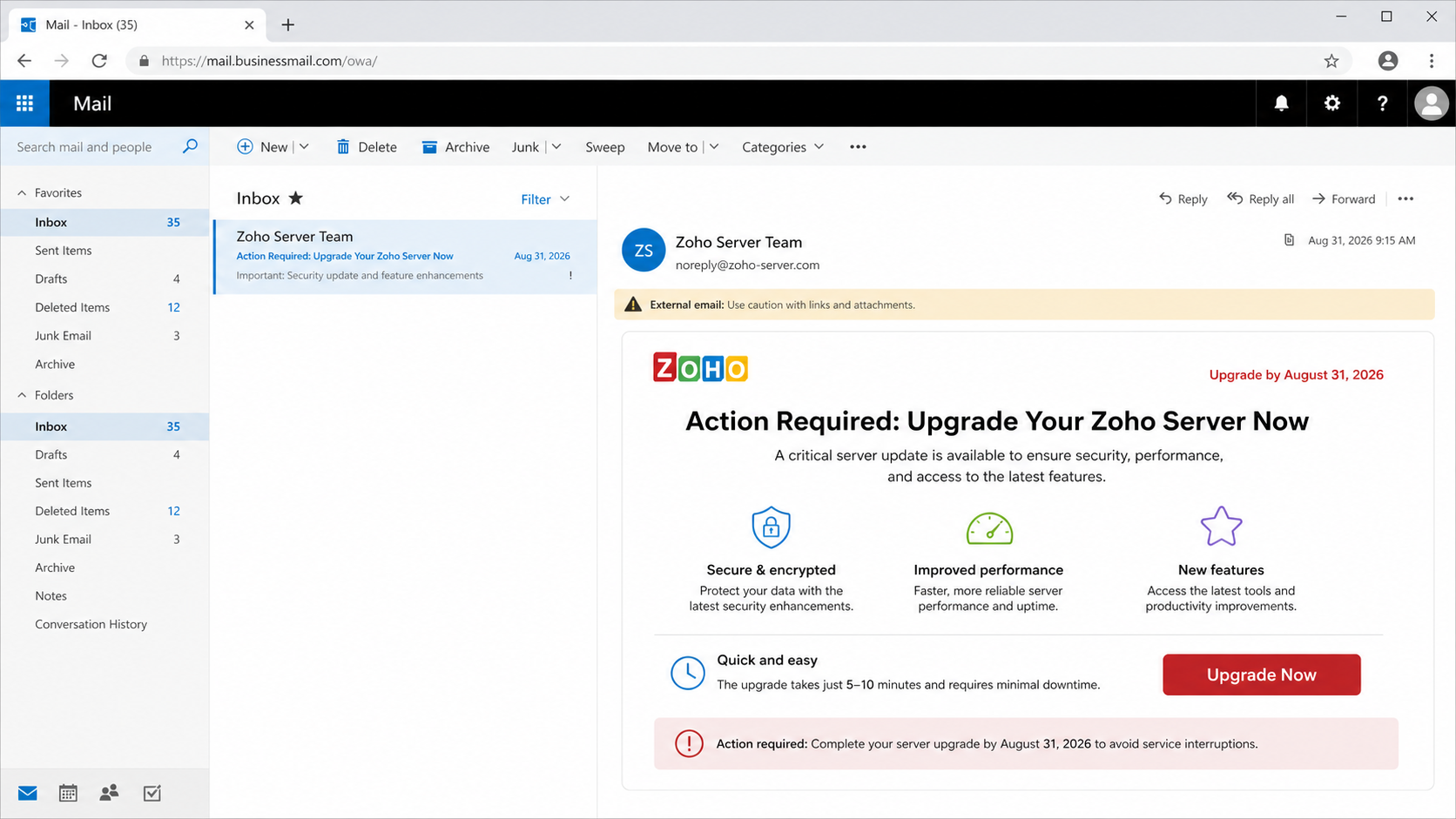
The Zoho Server Update email scam claims a major upgrade is available. It presents the change as necessary for performance, security, and new features.
One analyzed sample promised faster API responses, advanced patches, automation, reporting improvements, and real-time analytics. The abundance of benefits makes the notice sound planned.
A deadline raises the stakes. Recipients are warned that delaying could produce limited support, reduced performance, or service interruption.
The message says the process requires only 5 to 10 minutes and includes automatic backup. These reassurances are designed to remove operational objections.
The button does not perform a Zoho upgrade
The “Upgrade Now” button sends the visitor away from Zoho’s infrastructure. The sample inspected in August 2026 redirected to a craftum.io subdomain.
That address had no legitimate relationship with Zoho Corporation. The mismatch matters more than logos, colors, or claims printed inside the email.
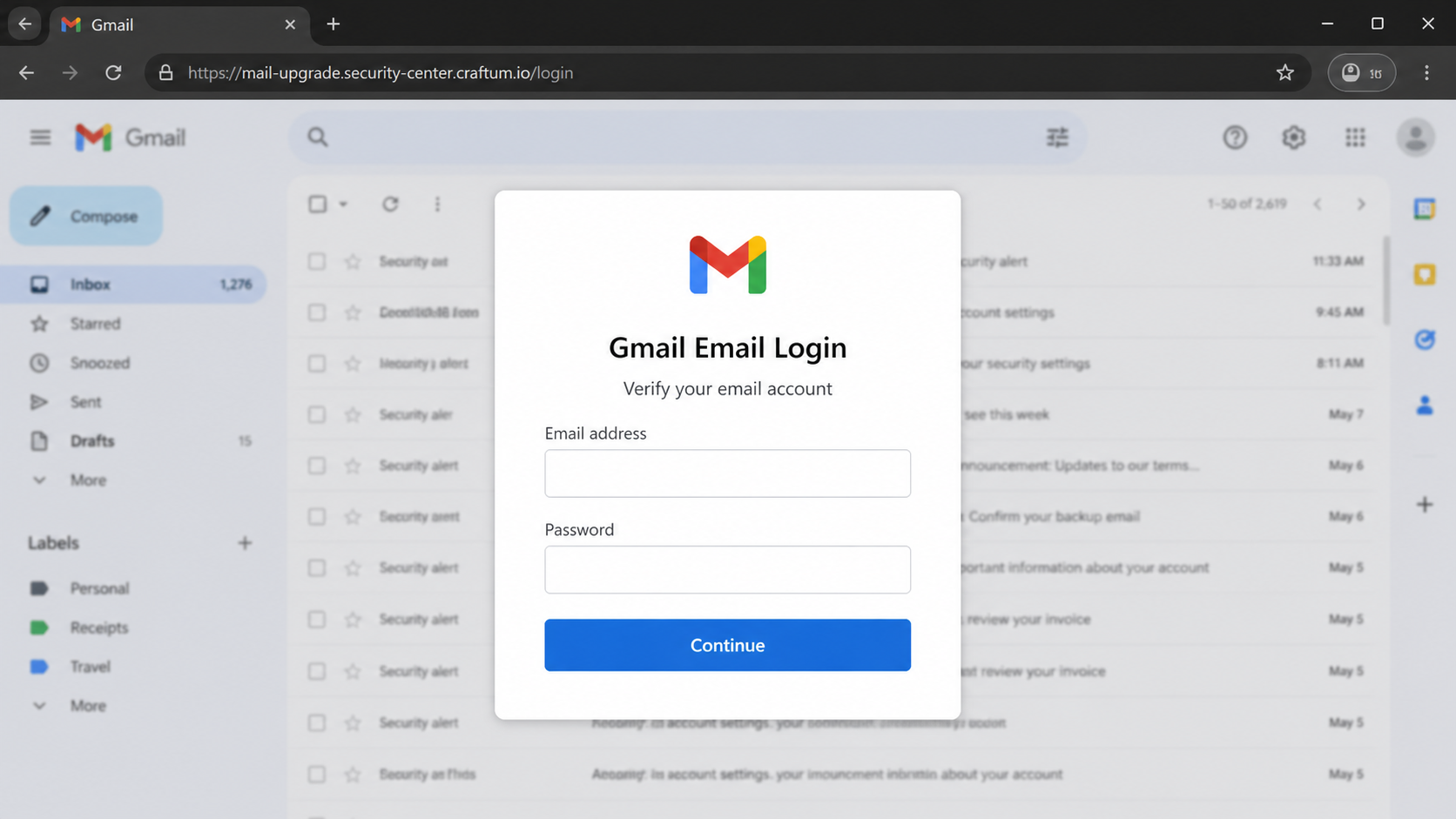
The destination reportedly identified the visitor’s email provider and displayed a matching sign-in panel. A Gmail address could therefore produce a Gmail-themed form.
This adaptive design prevents every target from seeing the same counterfeit page. The brand changes, but the requested credential remains the objective.
Email access is the valuable prize
A stolen mailbox gives attackers more than messages. It can contain invoices, contracts, password resets, customer records, cloud links, and internal conversations.
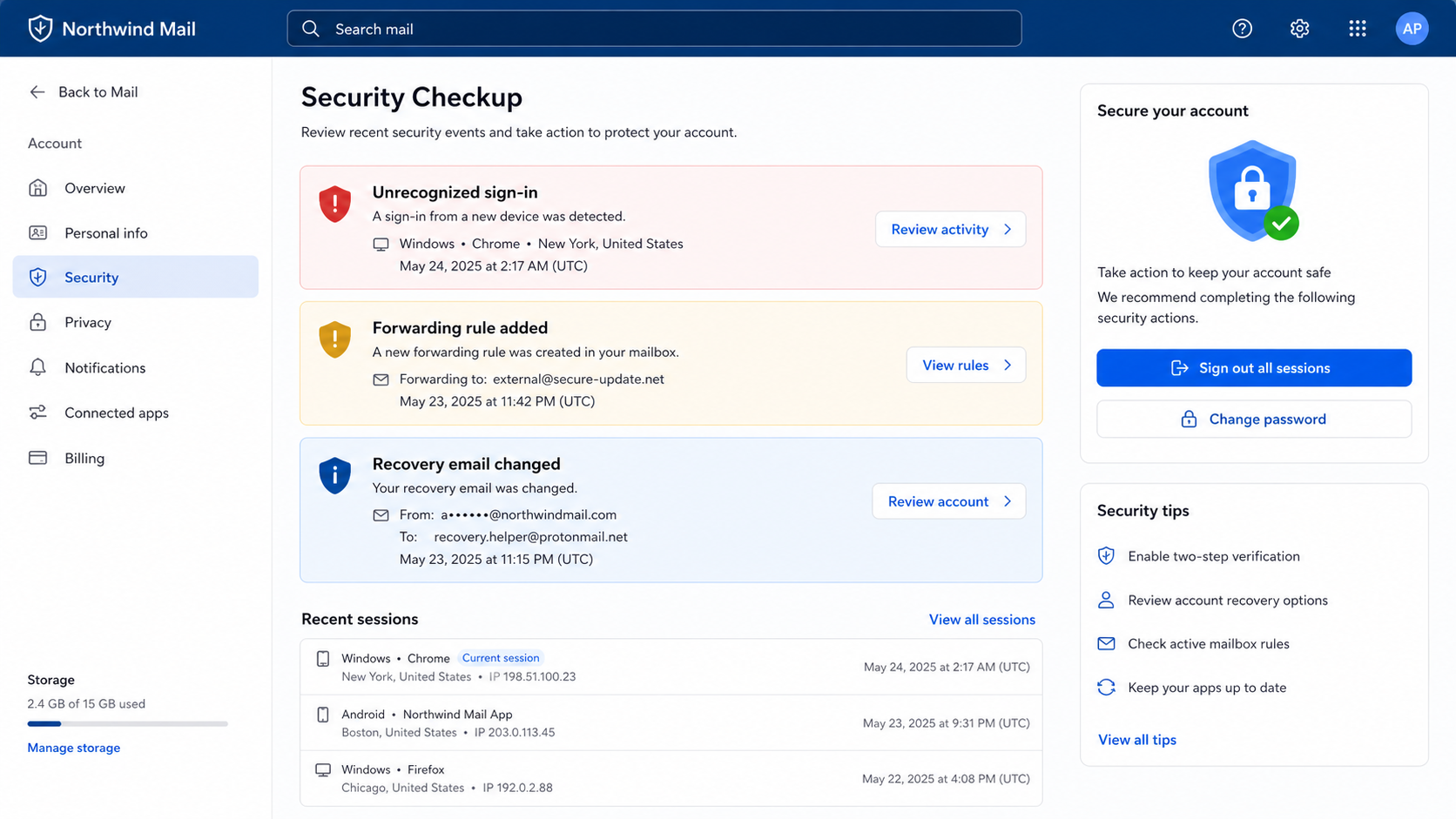
Criminals may add forwarding rules, register recovery methods, or create application passwords. Those changes let them watch the account after the owner changes one password.
Business mailboxes also support convincing follow-up fraud. An intruder can reply inside genuine threads and redirect a payment using familiar names and context.
Zoho is not responsible for this campaign. The company’s identity is being copied to make an unrelated credential-harvesting operation feel trustworthy.
- The subject says immediate server action is required.
- Technical benefits make the email sound administrative.
- A deadline creates fear of reduced service.
- The sender and linked domain do not match Zoho.
- The destination adapts to the recipient’s mail provider.
- The form asks for an existing mailbox password.
- Submitted credentials can enable broader account takeover.
Zoho’s own security guidance says it never asks customers to send passwords through email. Unexpected links should be inspected before any account information is entered.
Legitimate administrators can verify changes from the normal Zoho console, a saved bookmark, or their organization’s documented support route.
There is no reason to let a surprise message choose the login page for an important business mailbox.
How The Scam Works
Step 1: A bulk phishing email reaches workplace inboxes
Attackers distribute the same upgrade story across many addresses, hoping to reach businesses that use Zoho Mail, Zoho CRM, or another Zoho service.
Even recipients outside Zoho may click because their employer uses several cloud products. The message’s broad “Hello Team” greeting supports mass delivery.
The display name can read “Zoho Server Team” while the underlying address belongs to an unrelated domain. Mail clients emphasize the friendly name first.
Some gateways add an external-sender banner. Employees accustomed to vendor messages may dismiss that warning without comparing the domain.
Spam filtering reduces exposure but cannot remove every well-formatted lure. The campaign relies on one person treating the email like routine maintenance.
Step 2: Technical language manufactures credibility
The body lists plausible improvements such as security fixes, analytics, automation, and faster database queries. Each phrase resembles normal software release language.
Specific numbers, including “50% faster,” create a false impression of testing. No release note, tenant identifier, administrator ticket, or official documentation supports them.
“Secure and encrypted” appears beside the button as if it certifies the destination. Text inside an email cannot authenticate the website it links to.
Automatic backup is another calming detail. It answers a concern before the recipient raises it, making the fictional process feel carefully designed.
The message does not explain why an ordinary user must upgrade a provider-managed server. That conceptual mismatch is easy to miss under time pressure.
Step 3: The deadline narrows the reader’s options
A date near the message’s arrival creates artificial urgency. The recipient is encouraged to act before checking with IT or opening the actual administration portal.
The threatened consequence remains vague. “Limited support” and “reduced performance” sound serious without identifying a service, subscription, region, or affected feature.
Legitimate enterprise changes normally include documentation, account context, staged rollout information, and an administrative notice visible after direct sign-in.
Phishing replaces that context with a single prominent button. The easiest action on the page is also the only path the attacker controls.
Slowing down breaks this design. A separate browser visit can confirm whether any genuine alert exists inside the account.
Step 4: The upgrade button redirects through an unrelated host
Clicking does not install a server patch. It opens infrastructure selected by the attacker, sometimes after intermediate tracking or redirection pages.
In the analyzed campaign, the reported destination used craftum.io. Readers should not assume that address remains active or that future copies reuse it.
Campaign operators rotate pages after reports, takedowns, or filtering. Blocking one indicator helps, but recognizing the behavior protects against replacements.
The browser padlock only means the connection uses encryption. It cannot certify that the operator is Zoho or that the request is honest.
Before entering anything, compare the registrable domain with Zoho’s documented regional login domains and the organization’s approved custom domains.
Step 5: The page selects a familiar sign-in costume
An adaptive phishing kit can read the email address or domain supplied through the link. It then chooses a matching brand for the login form.
A Microsoft user may see a Microsoft-style panel, while a Gmail user receives Google colors. This personalization makes the transition feel coherent.
The form may display a blurred inbox behind the fields. That backdrop suggests the account is already recognized and only needs quick verification.
The login is not being processed by the real provider. The form sends the typed username and password to infrastructure controlled by criminals.
A failed-login message can request the password twice. Repetition helps attackers distinguish a typing mistake from the victim’s actual credential.
Step 6: Attackers test the stolen mailbox
Submitted credentials may be used immediately or passed to another operator. Automated tools can test common webmail endpoints before the victim notices.
If multifactor authentication is enabled, the criminal may prompt for a code, ask the victim to approve a notification, or steal an active session.
Successful access allows review of sent mail, vendor relationships, upcoming payments, shared files, and password-reset opportunities.
The attacker may search for words like invoice, wire, payroll, tax, contract, DocuSign, or bank. Those searches identify profitable conversations quickly.
Deleting security notices from the inbox can delay detection. A forwarding rule silently copies new mail to another address.
Step 7: The compromised account attacks trusted contacts
A hijacked mailbox carries the reputation of its real owner. Messages sent from it can pass ordinary familiarity checks and appear inside existing threads.
Suppliers may receive a changed bank account, colleagues may receive another fake document, and customers may be asked to confirm confidential information.
Because the conversation history is genuine, grammar and context can be unusually convincing. The original phishing victim becomes the next campaign’s trusted sender.
That expansion explains why workplace incidents require immediate reporting. Securing one password without notifying administrators may leave rules, sessions, and downstream victims unaddressed.
A complete response contains the breach, reviews activity, warns affected contacts, and checks whether financial instructions changed during the access window.
Red Flags Inside the Zoho Upgrade Message
A cloud provider does not need every employee to patch its central servers through an emailed password form. Provider infrastructure is managed through controlled administrative processes.
The generic greeting also conflicts with the importance of the claimed change. A major tenant upgrade should identify the customer, service, and account context.
Benefits are unusually broad, covering speed, security, AI, reporting, and analytics simultaneously. Marketing abundance replaces concrete release information.
The deadline threatens consequences without linking to a release note inside Zoho’s official domain. Urgency is doing work that documentation should perform.
Most importantly, the final page asks for email credentials on a non-Zoho host. That alone is sufficient reason to close it.
Sender, Domain, and Account Checks
Expand the complete sender address
Do not trust “Zoho Server Team” as proof. Open the message details and examine the address after the @ symbol.
Check Reply-To, return path, and authentication results when available. A mismatch between those fields can reveal impersonation or an abused sending service.
Forward suspicious messages to the internal security team as an attachment so technical headers remain available for investigation.
Inspect the destination without visiting it
Hover over the upgrade button on a computer, or long-press it on a phone, to preview the actual destination.
Read from the final slash backward toward the domain. Attackers place trusted words inside long subdomains to distract from the site owner.
If uncertainty remains, open Zoho from a known bookmark. Never use the email’s convenient route as a verification shortcut.
Confirm whether an upgrade belongs to your role
Ask who manages the organization’s Zoho tenant. Most employees do not perform provider server upgrades, database migrations, or platform security patches.
Administrators should check the official console, service status, vendor documentation, and internal change calendar. A real notice should have supporting context.
Call a known colleague or support number when the request affects production access. Do not reply to the suspicious sender for confirmation.
Review mailbox persistence after exposure
A password change is essential but incomplete. Inspect forwarding, filters, delegates, recovery addresses, application passwords, connected apps, and active sessions.
Revoke unfamiliar OAuth grants and sign out other devices. Confirm multifactor methods still belong to the authorized user.
Search sent and deleted folders for messages created during the suspected compromise, then warn recipients through a separate trusted channel.
What to Do if You Have Fallen Victim to This Scam
- Disconnect from the phishing page. Close the tab and do not submit another password, verification code, recovery answer, or approval prompt.
- Contact workplace IT immediately. Provide the email, link, approximate click time, submitted information, device, and any multifactor action you completed.
- Change the password from a clean route. Use the genuine provider site, choose a unique credential, and replace it anywhere reused.
- End unauthorized access. Revoke sessions, remove unknown devices, delete malicious forwarding rules, and restore recovery details.
- Strengthen sign-in protection. Enable multifactor authentication, preferably with an authenticator or security key rather than easily intercepted methods.
- Examine business activity. Review sent mail, deleted messages, cloud files, invoices, and financial conversations for tampering.
- Scan the affected device. Update the system and run Malwarebytes if a file downloaded, an extension appeared, or other suspicious behavior followed.
- Block malicious advertising and redirects. AdGuard can reduce exposure to hostile pages, although account recovery remains the immediate priority.
- Warn contacts selectively. Notify people who received messages or changed instructions from the compromised account without broadcasting sensitive incident details.
- Report the infrastructure. Submit the phishing message to Zoho, the email provider, domain host, organizational security team, and FTC.
Is Your Device Infected? Run a Free Malware Scan
Slow performance, constant pop-ups, or strange behavior? These are classic signs of a malware infection. A quick way to check is to scan your device with Malwarebytes Free, one of the most trusted malware removal tools available. If you only visited a scam page and didn’t download or install anything, this scan is optional.
The free version detects and removes the most common threats, including:
- Adware — the cause of those annoying pop-ups
- Browser hijackers — unwanted redirects and changed homepages
- Trojans and spyware — hidden programs stealing your data
- Potentially unwanted programs (PUPs) — software you never asked for
👉 Select your device below — Windows, Mac, or Android — then follow the simple steps to download Malwarebytes, scan your system, and remove any threats it finds. The scan usually takes 5 to 20 minutes.
Run a Malware Scan with Malwarebytes for Windows
Malwarebytes is one of the most popular and trusted anti-malware tools for Windows — and it’s completely free for removing infections. It catches threats that many antivirus programs miss, including adware, browser hijackers, and trojans. Follow the steps below to scan your PC and remove what Malwarebytes finds.
Download Malwarebytes
Click the button below to download the latest version of Malwarebytes for Windows from the official source. The free version is all you need — it will scan your computer and remove adware, browser hijackers, and other malicious software at no cost.
Download MalwarebytesOfficial installer for Windows 11 and 10. Your download starts right away.Want real-time protection? See Malwarebytes Premium Malwarebytes Free for WindowsScans and removes malware at no cost
-
Install Malwarebytes
When the download finishes, open your Downloads folder and double-click the MBSetup file. If Windows shows a User Account Control pop-up, click “Yes” to allow the installation.

Follow the On-Screen Prompts to Install Malwarebytes
The setup wizard will walk you through a few quick screens:
-
Choose where you’re installing the program — “Personal Computer” or “Work Computer” — then click Next.

-
Malwarebytes will now install on your device. This usually takes under a minute.

-
When installation is complete, the “Welcome to Malwarebytes” screen will open automatically.

-
On the final screen, click Open Malwarebytes to launch the program.

-
Optional: Check for rootkits with a Custom Scan
You don’t need to change any settings for a normal scan. The standard Threat Scan in the next step is enough for most problems, so you can go straight to it.
If you also want to check for rootkits, use a Custom Scan. In current versions of Malwarebytes, rootkit scanning is only available there:
- On the Scanner tile, click the three-dot menu and select Advanced Scan.
- Choose Custom Scan. In its options, check Scan for rootkits.
- Select your system drive (usually C:\) as the location to scan, then start the scan. It takes longer than a Threat Scan.
- When it finishes, review and quarantine the results as described in the steps below.
Rootkit scanning isn’t available on Windows devices with ARM processors.
Start the Scan
Click the blue Scan button. Malwarebytes will automatically update its virus database and start checking your computer for malware.

-
Wait for the Scan to Finish
The scan checks your entire system for browser hijackers and other malicious programs, so it can take 5 to 20 minutes depending on your computer. Feel free to do something else — just check back occasionally to see the progress.

-
Quarantine the Detected Threats
When the scan is done, you’ll see a list of everything Malwarebytes found — malware, adware, and potentially unwanted programs. Click the “Quarantine” button to remove all of them at once.

Malwarebytes will now remove the malicious files and registry entries and move them safely into quarantine.

-
Restart Your Computer
Some threats can only be fully removed after a reboot. If Malwarebytes asks you to restart, click Yes. Once you’re logged back in, Malwarebytes has finished removing the threats it found.

When the scan is done, check whether the problems you noticed have stopped. If they continue, see the options below.
If you are still having problems with your computer after completing these instructions, then please follow one of the steps:
- Run a computer scan with ESET Online Scanner
- Ask for help in our Windows Malware Removal Help & Support forum.
Run a Malware Scan with Malwarebytes for Mac
Malwarebytes for Mac is a free on-demand scanner that removes the malware other security software tends to miss — adware, browser hijackers, and unwanted programs included. Cleaning an infected Mac with Malwarebytes has always been completely free, and it’s our go-to recommendation. Follow the steps below to scan your Mac and remove what Malwarebytes finds.
-
Download Malwarebytes for Mac
Click the button below to download the latest version of Malwarebytes for Mac.
Download MalwarebytesOfficial installer for macOS. Your download starts right away.Want real-time protection? See Malwarebytes PremiumMalwarebytes Free for MacScans and removes malware at no cost -
Open the Malwarebytes setup file
When the download finishes, open your Downloads folder and double-click the setup file to begin the installation.

-
Follow the On-Screen Prompts to Install Malwarebytes
The Malwarebytes for Mac Installer will guide you through a few quick screens. Click “Continue” and keep following the prompts until the installation completes.



When the installation is complete, Malwarebytes opens to the Welcome to Malwarebytes screen. Click “Get started“.
Malwarebytes needs Full Disk Access to check your whole Mac. When it asks, open System Settings > Privacy & Security > Full Disk Access, turn on Malwarebytes (it may be listed as Malwarebytes Protection), and confirm with your password or Touch ID. Then return to Malwarebytes. On macOS Monterey and earlier, this setting is in System Preferences > Security & Privacy > Privacy.
-
Select “Personal Computer” or “Work Computer”
Malwarebytes will ask what type of computer you’re installing it on. Click either Personal Computer or Work Computer, whichever applies.

-
Start the Scan
Click the “Scan” button. Malwarebytes will automatically update its detection database and begin checking your Mac for malware.

-
Wait for the Scan to Finish
Malwarebytes will scan your Mac for adware, browser hijackers, and other malicious programs. This can take a few minutes, so feel free to do something else — just check back occasionally to see the progress.

-
Quarantine the Detected Threats
When the scan is done, you’ll see a list of everything Malwarebytes found. Click the “Quarantine” button to remove all the threats at once.

-
Restart Your Mac
Malwarebytes will now remove all the malicious files it found. Some threats can only be fully removed after a reboot — if Malwarebytes asks you to restart, allow it. Once you’re logged back in, check whether the problems you noticed have stopped. If they come back, save the scan report and ask for help in our forum.

If the problems you noticed continue after the scan, see the options below.
If you are still experiencing problems while trying to remove a malicious program from your computer, please ask for help in our Mac Malware Removal Help & Support forum.
Run a Malware Scan with Malwarebytes for Android
Malwarebytes for Android scans your phone or tablet for malware, adware, and potentially unwanted apps. The free version scans only when you start a scan. Real-time protection, which checks apps automatically, is part of the paid Premium version.
-
Download Malwarebytes for Android.
You can download Malwarebytes for Android by clicking the link below.
Get Malwarebytes for AndroidOpens Google Play in a new tab.Want real-time protection? See Malwarebytes Premium for AndroidMalwarebytes for AndroidScans your phone and removes malware at no cost -
Install Malwarebytes for Android on your phone.
In the Google Play Store, tap “Install” to install Malwarebytes for Android on your device.

When the installation process has finished, tap “Open” to begin using Malwarebytes for Android. You can also open Malwarebytes by tapping on its icon in your phone menu or home screen.

-
Follow the on-screen prompts to complete the setup process
When Malwarebytes opens, it walks you through a short setup. Tap Get started and follow the prompts. If you see an offer for a trial or a paid plan, read it before you accept. You can skip it and keep using the free scanner.
Malwarebytes will ask for permission to access the files on your phone so it can scan them. Tap Allow, or turn on the permission in the Android screen that opens, then return to Malwarebytes.
-
Run a scan with Malwarebytes for Android
On the main screen, tap Scan now. In some versions, you open the menu, tap Scanner, and then tap Run a scan.
-
Wait for the Malwarebytes scan to complete.
Malwarebytes will now start scanning your phone for adware and other malicious apps. This process can take a few minutes, so we suggest you do something else and periodically check on the status of the scan to see when it is finished.

-
Remove the detected apps.
When the scan has been completed, you will see a list of the threats that Malwarebytes for Android has detected. Next to each detected item, tap the menu icon (three dots), then choose to uninstall the app or delete the file. Android then asks you to confirm. Tap OK or Uninstall to remove the app.
-
Restart your phone.
When the detected apps are removed, restart your phone if Malwarebytes asks you to. Then check whether the problems you noticed have stopped.
If the problems you noticed continue after the scan, see the options below.
If you are still having problems with your phone after completing these instructions, then please follow one of the steps:
- Ask for help in our Mobile Malware Removal Help & Support forum.
- Only as a last resort, reset your phone to factory settings. Read the warning below first.
- Back up your photos, videos, files, and messages, for example to your Google account or a computer.
- Make sure you know your Google account email and password. The phone asks for them after the reset. If you changed the password recently, Google recommends waiting 24 hours before you reset.
- On a Samsung phone, also make sure you know your Samsung account password.
- If you use an authenticator app for two-step verification, move your accounts to another device or save your backup codes first.
Stay Protected: Block Ads and Malicious Sites
No scan can prove a device is completely clean, so it helps to block threats before they reach you. Most infections start with a malicious ad or a fake download button — so blocking them at the source is your best defense.
We recommend AdGuard, which blocks malicious ads, phishing pages, and dangerous redirects before they can reach you.
👉 Download AdGuard and browse safely
Frequently Asked Questions
Is Zoho requiring users to upgrade a server through email?
The analyzed message is fraudulent. Its button leads away from Zoho and requests credentials on unrelated infrastructure.
Verify genuine platform notices after navigating directly to the approved Zoho administration area.
What subject line does the scam use?
One observed subject was “Action Required: Upgrade Your Zoho Server Now.” Attackers can change wording, deadlines, and promised benefits.
Detection should focus on the unexpected request, sender domain, destination, and password form rather than one exact sentence.
What happens after clicking Upgrade Now?
The sample redirected to a non-Zoho domain and displayed a fake mail-provider login. Future destinations may differ.
Clicking alone does not always compromise an account, but submitted credentials or downloaded files require an immediate response.
Why does the page show my real email provider?
Phishing kits can use an email address or domain embedded in the link to select matching branding automatically.
Personalization makes the form look relevant. It does not establish that the provider owns the website.
Is changing the password enough?
Not necessarily. Attackers may retain sessions, forwarding rules, delegates, connected applications, or altered recovery methods.
Review the entire security configuration and involve administrators when a workplace account was exposed.
Can the email install malware?
This observed campaign focused on credential theft through a link. A separate variant could include files or additional malicious redirects.
If anything downloaded or executed, run a trusted security scan and tell IT exactly what occurred.
The Bottom Line
The Zoho Server Update email scam is a credential phishing operation disguised as routine cloud maintenance. Its technical polish cannot authenticate the sender.
The decisive warning is the off-domain login request. Close the page, reach Zoho independently, and let administrators verify any genuine change.
If credentials were submitted, act beyond a password reset. Remove persistence, inspect business activity, and warn contacts before the stolen mailbox causes wider harm.

Join the discussion
0 commentsShare your experience or ask a question about this article.
Discussion
Start the conversation
Have a question or something useful to share? Add the first comment.