


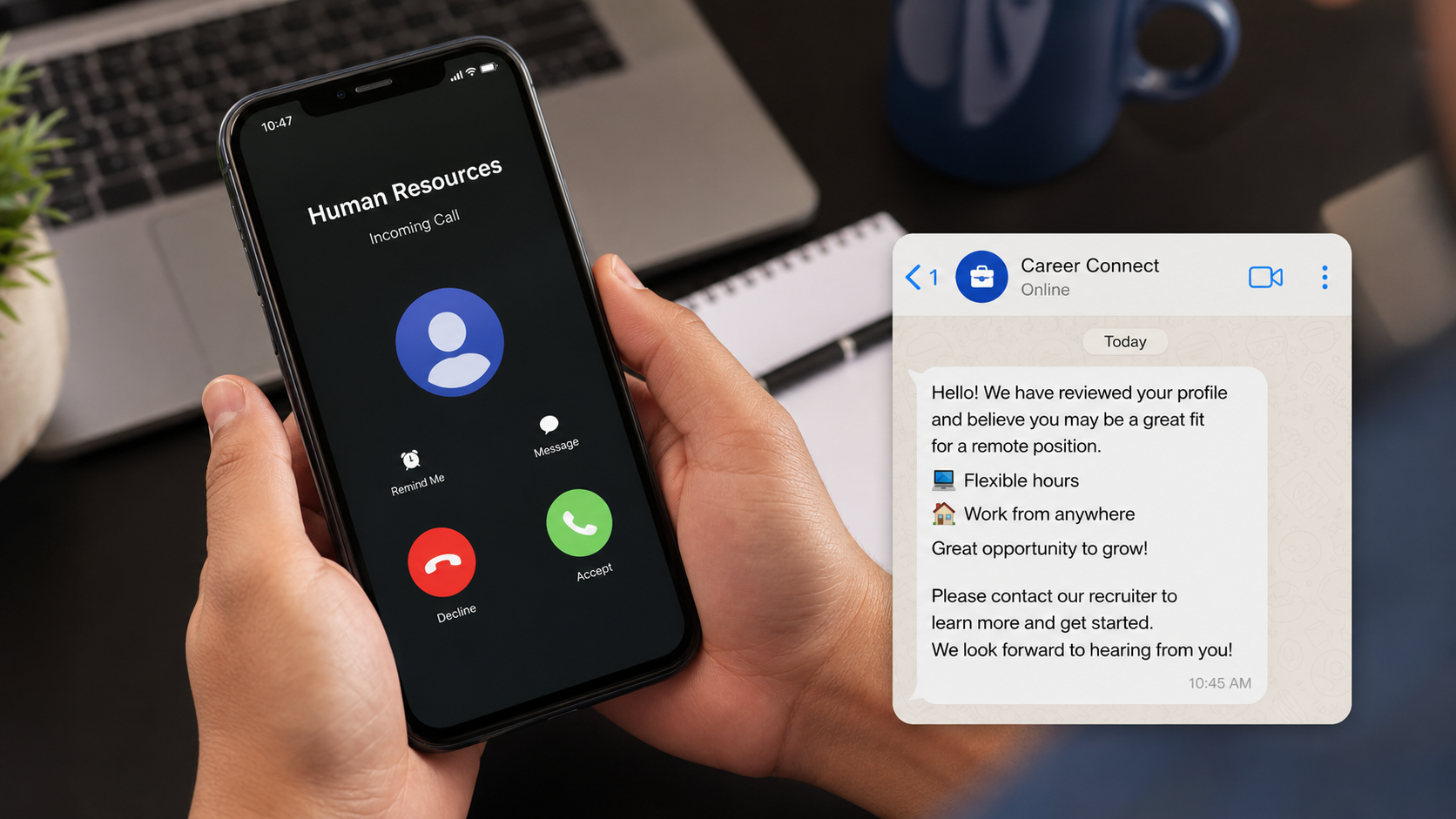
The call is brief, polished, and oddly flattering. A recorded voice says someone from “Indeed Human Resources” reviewed your profile and wants to discuss a flexible job with excellent pay.
The next instruction is usually simple: save a number and continue the conversation on WhatsApp or Telegram.
Overview
The call is not a normal message from an employer
The Indeed Human Resources scam call is an unsolicited robocall or live call that falsely presents the speaker as an Indeed recruiter or HR representative. It offers a vague remote job and directs the recipient to contact a different number through a private messaging app.
Indeed is a real employment platform, but its name is being borrowed. According to Indeed’s security guidance, Indeed does not call, text, or use WhatsApp or Telegram to offer jobs directly to job seekers.
A genuine employer may contact an applicant after receiving an application and the applicant’s contact information. That is different from a stranger claiming to represent Indeed itself and offering work you never pursued.
The fake job is designed to move you off the platform
Indeed can monitor and restrict suspicious activity that occurs on its platform. Scammers try to move targets to WhatsApp, Telegram, Signal, or ordinary text messages, where they control the pace and can delete accounts easily.
Common promises include:
- Remote work requiring only a phone for one or two hours a day
- High daily earnings for rating products or optimizing listings
- Immediate hiring without an application or real interview
- Flexible schedules with guaranteed commissions and bonuses
- Free training followed by paid “tasks”
- A starter payment that appears to prove the job is legitimate
- Equipment or onboarding that requires an advance payment
Several frauds can follow the same opening call
Some recipients are sent into a task scam, where a fake dashboard shows growing earnings but requires deposits to continue. Others are asked to buy equipment, cash a fake check, receive parcels, transfer cryptocurrency, or provide identity documents.
The first call does not reveal the full scheme. Its purpose is to find people who respond, follow instructions, and are currently motivated to secure work.
Why the Offer Can Feel Believable
Job seekers commonly post résumés on several sites and may not remember every application. A caller can exploit that uncertainty by saying a hiring manager found the profile through Indeed.
The script often avoids a specific employer, job title, location, or recruiter name. Vague language sounds flexible, but it also prevents the recipient from verifying anything concrete.
Caller ID is not proof. Internet calling services let criminals display local or familiar-looking numbers, and a number can be abandoned after only a few days.
A small payment at the beginning can be part of the manipulation. Scammers sometimes pay $5 or $20 for an easy task so a later request for hundreds or thousands seems like a business expense rather than theft.
How the Scam Works
Step 1: An automated call reaches a large list of phone numbers
The campaign begins with bulk dialing. A recording may say, “I am from Indeed Human Resources and would like to discuss a role,” then tell the listener to save a number or press a key.
The criminals do not need to know whether each person uses Indeed. Enough recipients are actively job hunting that the brand name creates immediate relevance.
Step 2: The victim moves to WhatsApp or Telegram
The recording cannot conduct a believable interview, so it moves the conversation to a messaging app. A profile there may display an Indeed logo, a stock photograph, and a professional title.
Moving off-platform also prevents the real company from reviewing the exchange. The scammer can use disappearing messages, replace accounts, and introduce other supposed supervisors.
Step 3: A recruiter presents a vague, unusually profitable role
The job may involve rating hotels, reviewing products, boosting app visibility, processing orders, or “optimizing” data. The tasks require little experience and promise earnings far above the work described.
There is no meaningful interview. Questions focus on your age, location, bank access, cryptocurrency familiarity, and availability rather than your qualifications.
Step 4: The scammer builds confidence with training or a small payout
You may receive access to a professional-looking portal that records clicks and displays commissions. A group chat can contain fake workers posting screenshots of successful withdrawals.
A small initial withdrawal may genuinely arrive. That payment is marketing for the fraud and is intended to make the victim comfortable depositing a larger amount later.
Step 5: The work suddenly requires your own money
The platform may claim your account has encountered a combined task, negative balance, premium order, tax, or withdrawal requirement. You are told to add funds to complete the set and release all earnings.
Payments are commonly requested through cryptocurrency, wire transfers, peer-to-peer apps, or gift cards because they are difficult to reverse. A legitimate employer pays workers; it does not require deposits to unlock wages.
Step 6: Each payment creates another invented obstacle
After one deposit, the dashboard may show a larger commission but demand a verification fee. Paying that can trigger a tax, credit-score repair charge, security deposit, or final withdrawal fee.
The displayed balance is not money held for you. It is a number controlled by the criminals, and they can increase it whenever a larger promise helps extract another payment.
Step 7: The scammers disappear or reuse the victim’s identity
When the victim stops paying, the recruiter becomes threatening, claims the account breached a contract, or blocks contact. The fake site may vanish and reopen under a new name.
Passports, driver’s licenses, tax details, résumés, selfies, and bank information collected during onboarding may be used for identity theft or sold to other fraud groups.
Company, Address, and Fulfillment Checks
The employer must exist outside the recruiter’s messages
Search for the legal business name, official website, careers page, and established contact channels. A logo, incorporation document, and professional-looking website can all be copied or created for a short-lived operation.
Call the company using a number you found independently and ask whether the recruiter and vacancy are real. Do not use the number in the offer letter.
The work location and address should withstand scrutiny
Look up the address and compare it with the company’s official records. A residential property, virtual mailbox, unrelated shop, or borrowed office address does not confirm an employer’s presence.
For remote roles, ask where the team is legally based, which entity will employ you, and what jurisdiction appears on payroll documents.
The hiring process should match a real organization
Legitimate hiring normally includes an application, role-specific discussion, identifiable interviewers, and time to review terms. Instant acceptance after a text-only interview is not meaningful due diligence.
Compare the recruiter’s email domain with the official company domain. Lookalike spelling and free webmail accounts are common in fake offers.
Equipment, payroll, and task fulfillment need independent checks
Ask how equipment is ordered, who owns it, and whether a known supplier is involved. Do not deposit a check and forward part of it to a vendor selected by the recruiter.
Payroll should not require crypto deposits, gift cards, account upgrades, or processing packages. A worker’s earnings must not depend on sending money first.
What a Legitimate Recruiter Should Be Able to Explain
A real recruiter should provide a specific title, duties, reporting line, employment type, salary range, location, and reason your background fits. Those details should remain consistent across the posting, interview, and written offer.
They should also understand the employer’s hiring process and arrange conversations with relevant team members. Evasive answers, copied descriptions, and constant changes suggest the role is only a pretext.
Reasonable employers allow candidates to verify an offer and read a contract. A deadline designed to prevent one phone call to the company is not a competitive hiring process.
If a recruiter claims confidentiality, ask what exactly is confidential and why. Secrecy should never prevent you from confirming the identity of the organization that supposedly intends to employ and pay you.
Task Scams, Fake Checks, and Equipment Fees
The task scam version
Task scams imitate simple digital work and turn it into a gambling-like sequence of deposits. The victim is told that completing a batch is the only way to withdraw previous earnings.
There is no outside customer paying for the clicks. Money shown on the portal usually comes from numbers entered by the scam operator, while real deposits go directly to criminal-controlled accounts.
The fake-check version
A supposed employer may send a check for a home office, then instruct you to buy equipment from an approved vendor. Your bank may show the funds before discovering that the check is counterfeit.
When the check is reversed, the payment sent to the fake vendor remains your responsibility. Availability of funds does not mean a check has finally cleared.
The parcel or money-mule version
Some fake jobs ask workers to receive packages, open bank accounts, transfer payments, or convert funds into cryptocurrency. Those tasks may involve stolen goods or criminal proceeds.
Do not assume a written contract makes the activity lawful. A scammer can create professional documents quickly, while the person whose name appears on the bank or shipping record may face the consequences.
How to Verify a Job Opportunity
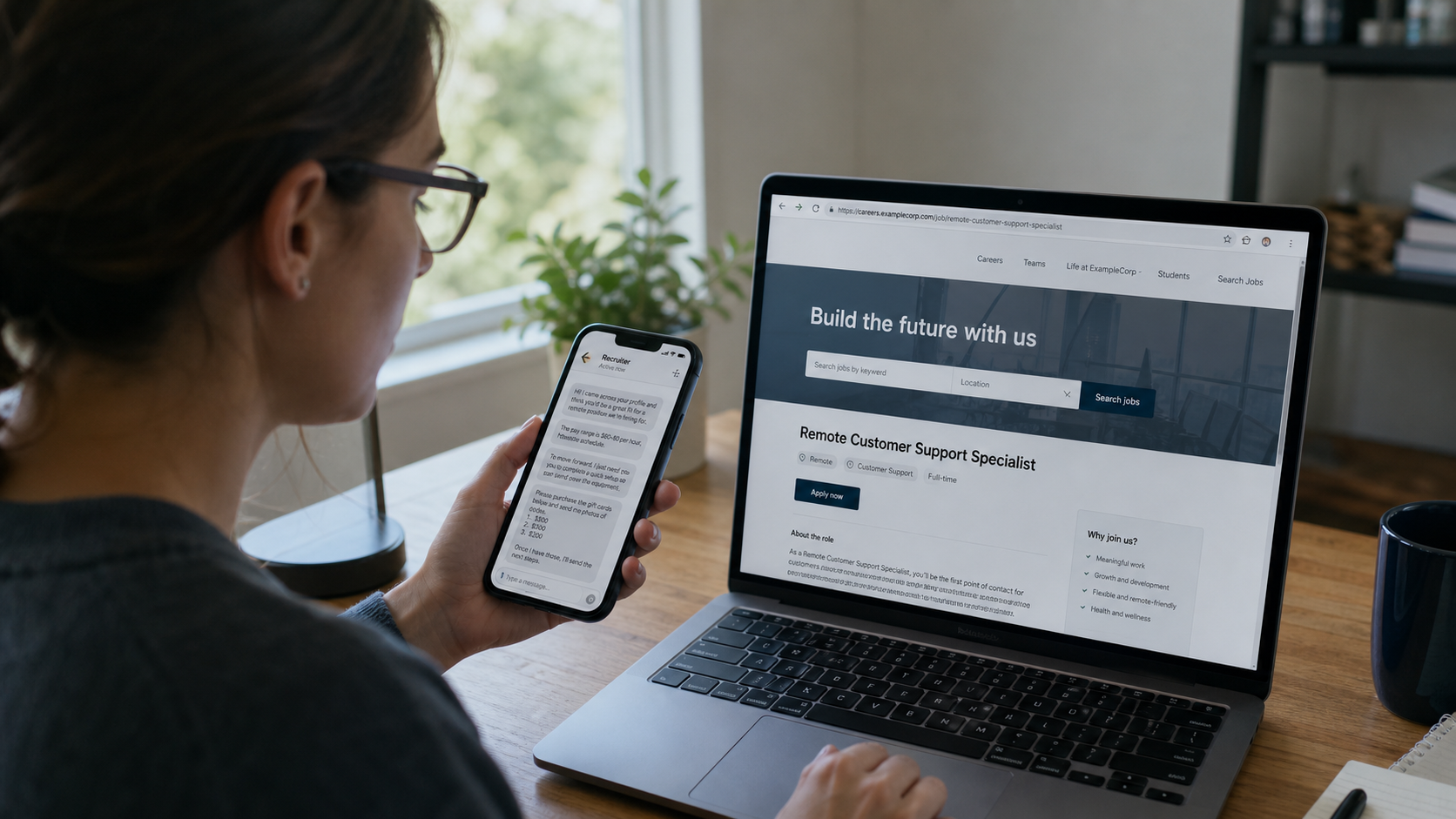
Search for the employer’s official website independently and find its careers page. Compare the role, location, recruiter, and application process with what the caller described.
Official Indeed recruiting emails use the `@indeed.com` domain. A lookalike such as `@indeed-careers.com`, a free email service, or a messaging-only interview deserves caution.
Ask for a video interview, detailed job description, legal company name, physical address, and supervisor information. Then verify those details through contact information you found yourself.
Do not provide a Social Security number, passport, bank login, or tax identity before verifying the employer and reaching the appropriate stage of legitimate onboarding.
What to Do if You Have Fallen Victim to This Scam
- Stop all payments and communication. Do not send a final fee to release wages or repair a negative balance. Save the chat, call log, website, wallet addresses, receipts, and usernames before blocking the accounts.
- Contact the payment provider immediately. Tell the bank, card issuer, transfer service, or cryptocurrency exchange that the transaction was induced by fraud. Ask about recalls, freezes, disputes, and preservation of destination-account records.
- Protect the identity documents you shared. Place a fraud alert or credit freeze where available, monitor credit reports, and report compromised tax or government identification to the issuing authority.
- Secure your online accounts. Change reused passwords, enable multifactor authentication, review active sessions, and remove unfamiliar devices from email, messaging, financial, and job-search accounts.
- Report the fake recruiter. Send the phone number, profile, messages, and job details to Indeed, WhatsApp or Telegram, your carrier, and the platform that hosted the fake portal.
- File an official fraud report. Report the incident to the appropriate national fraud agency and local police, particularly if money, identity documents, or mule activity was involved. Keep the report number.
- Reject recovery offers. Anyone promising guaranteed recovery for an upfront fee may be another scammer using victim lists. Work only with your financial institution, law enforcement, or a verified attorney.
- Check devices used with the fake portal. Remove remote tools or unknown downloads and run Malwarebytes to identify malicious or unwanted software before signing in to important accounts.
- Reduce exposure to the fraudulent sites. AdGuard can block known phishing pages and dangerous redirects, but financial reports and credential changes still require direct action.
Is Your Device Infected? Run a Free Malware Scan
Slow performance, constant pop-ups, or strange behavior? These are classic signs of a malware infection. A quick way to check is to scan your device with Malwarebytes Free, one of the most trusted malware removal tools available. If you only visited a scam page and didn’t download or install anything, this scan is optional.
The free version detects and removes the most common threats, including:
- Adware — the cause of those annoying pop-ups
- Browser hijackers — unwanted redirects and changed homepages
- Trojans and spyware — hidden programs stealing your data
- Potentially unwanted programs (PUPs) — software you never asked for
👉 Select your device below — Windows, Mac, or Android — then follow the simple steps to download Malwarebytes, scan your system, and remove any threats it finds. The scan usually takes 5 to 20 minutes.
Run a Malware Scan with Malwarebytes for Windows
Malwarebytes is one of the most popular and trusted anti-malware tools for Windows — and it’s completely free for removing infections. It catches threats that many antivirus programs miss, including adware, browser hijackers, and trojans. Follow the steps below to scan your PC and remove what Malwarebytes finds.
Download Malwarebytes
Click the button below to download the latest version of Malwarebytes for Windows from the official source. The free version is all you need — it will scan your computer and remove adware, browser hijackers, and other malicious software at no cost.
Download MalwarebytesOfficial installer for Windows 11 and 10. Your download starts right away.Want real-time protection? See Malwarebytes Premium Malwarebytes Free for WindowsScans and removes malware at no cost
-
Install Malwarebytes
When the download finishes, open your Downloads folder and double-click the MBSetup file. If Windows shows a User Account Control pop-up, click “Yes” to allow the installation.

Follow the On-Screen Prompts to Install Malwarebytes
The setup wizard will walk you through a few quick screens:
-
Choose where you’re installing the program — “Personal Computer” or “Work Computer” — then click Next.

-
Malwarebytes will now install on your device. This usually takes under a minute.

-
When installation is complete, the “Welcome to Malwarebytes” screen will open automatically.

-
On the final screen, click Open Malwarebytes to launch the program.

-
Optional: Check for rootkits with a Custom Scan
You don’t need to change any settings for a normal scan. The standard Threat Scan in the next step is enough for most problems, so you can go straight to it.
If you also want to check for rootkits, use a Custom Scan. In current versions of Malwarebytes, rootkit scanning is only available there:
- On the Scanner tile, click the three-dot menu and select Advanced Scan.
- Choose Custom Scan. In its options, check Scan for rootkits.
- Select your system drive (usually C:\) as the location to scan, then start the scan. It takes longer than a Threat Scan.
- When it finishes, review and quarantine the results as described in the steps below.
Rootkit scanning isn’t available on Windows devices with ARM processors.
Start the Scan
Click the blue Scan button. Malwarebytes will automatically update its virus database and start checking your computer for malware.

-
Wait for the Scan to Finish
The scan checks your entire system for browser hijackers and other malicious programs, so it can take 5 to 20 minutes depending on your computer. Feel free to do something else — just check back occasionally to see the progress.

-
Quarantine the Detected Threats
When the scan is done, you’ll see a list of everything Malwarebytes found — malware, adware, and potentially unwanted programs. Click the “Quarantine” button to remove all of them at once.

Malwarebytes will now remove the malicious files and registry entries and move them safely into quarantine.

-
Restart Your Computer
Some threats can only be fully removed after a reboot. If Malwarebytes asks you to restart, click Yes. Once you’re logged back in, Malwarebytes has finished removing the threats it found.

When the scan is done, check whether the problems you noticed have stopped. If they continue, see the options below.
If you are still having problems with your computer after completing these instructions, then please follow one of the steps:
- Run a computer scan with ESET Online Scanner
- Ask for help in our Windows Malware Removal Help & Support forum.
Run a Malware Scan with Malwarebytes for Mac
Malwarebytes for Mac is a free on-demand scanner that removes the malware other security software tends to miss — adware, browser hijackers, and unwanted programs included. Cleaning an infected Mac with Malwarebytes has always been completely free, and it’s our go-to recommendation. Follow the steps below to scan your Mac and remove what Malwarebytes finds.
-
Download Malwarebytes for Mac
Click the button below to download the latest version of Malwarebytes for Mac.
Download MalwarebytesOfficial installer for macOS. Your download starts right away.Want real-time protection? See Malwarebytes PremiumMalwarebytes Free for MacScans and removes malware at no cost -
Open the Malwarebytes setup file
When the download finishes, open your Downloads folder and double-click the setup file to begin the installation.

-
Follow the On-Screen Prompts to Install Malwarebytes
The Malwarebytes for Mac Installer will guide you through a few quick screens. Click “Continue” and keep following the prompts until the installation completes.



When the installation is complete, Malwarebytes opens to the Welcome to Malwarebytes screen. Click “Get started“.
Malwarebytes needs Full Disk Access to check your whole Mac. When it asks, open System Settings > Privacy & Security > Full Disk Access, turn on Malwarebytes (it may be listed as Malwarebytes Protection), and confirm with your password or Touch ID. Then return to Malwarebytes. On macOS Monterey and earlier, this setting is in System Preferences > Security & Privacy > Privacy.
-
Select “Personal Computer” or “Work Computer”
Malwarebytes will ask what type of computer you’re installing it on. Click either Personal Computer or Work Computer, whichever applies.

-
Start the Scan
Click the “Scan” button. Malwarebytes will automatically update its detection database and begin checking your Mac for malware.

-
Wait for the Scan to Finish
Malwarebytes will scan your Mac for adware, browser hijackers, and other malicious programs. This can take a few minutes, so feel free to do something else — just check back occasionally to see the progress.

-
Quarantine the Detected Threats
When the scan is done, you’ll see a list of everything Malwarebytes found. Click the “Quarantine” button to remove all the threats at once.

-
Restart Your Mac
Malwarebytes will now remove all the malicious files it found. Some threats can only be fully removed after a reboot — if Malwarebytes asks you to restart, allow it. Once you’re logged back in, check whether the problems you noticed have stopped. If they come back, save the scan report and ask for help in our forum.

If the problems you noticed continue after the scan, see the options below.
If you are still experiencing problems while trying to remove a malicious program from your computer, please ask for help in our Mac Malware Removal Help & Support forum.
Run a Malware Scan with Malwarebytes for Android
Malwarebytes for Android scans your phone or tablet for malware, adware, and potentially unwanted apps. The free version scans only when you start a scan. Real-time protection, which checks apps automatically, is part of the paid Premium version.
-
Download Malwarebytes for Android.
You can download Malwarebytes for Android by clicking the link below.
Get Malwarebytes for AndroidOpens Google Play in a new tab.Want real-time protection? See Malwarebytes Premium for AndroidMalwarebytes for AndroidScans your phone and removes malware at no cost -
Install Malwarebytes for Android on your phone.
In the Google Play Store, tap “Install” to install Malwarebytes for Android on your device.

When the installation process has finished, tap “Open” to begin using Malwarebytes for Android. You can also open Malwarebytes by tapping on its icon in your phone menu or home screen.

-
Follow the on-screen prompts to complete the setup process
When Malwarebytes opens, it walks you through a short setup. Tap Get started and follow the prompts. If you see an offer for a trial or a paid plan, read it before you accept. You can skip it and keep using the free scanner.
Malwarebytes will ask for permission to access the files on your phone so it can scan them. Tap Allow, or turn on the permission in the Android screen that opens, then return to Malwarebytes.
-
Run a scan with Malwarebytes for Android
On the main screen, tap Scan now. In some versions, you open the menu, tap Scanner, and then tap Run a scan.
-
Wait for the Malwarebytes scan to complete.
Malwarebytes will now start scanning your phone for adware and other malicious apps. This process can take a few minutes, so we suggest you do something else and periodically check on the status of the scan to see when it is finished.

-
Remove the detected apps.
When the scan has been completed, you will see a list of the threats that Malwarebytes for Android has detected. Next to each detected item, tap the menu icon (three dots), then choose to uninstall the app or delete the file. Android then asks you to confirm. Tap OK or Uninstall to remove the app.
-
Restart your phone.
When the detected apps are removed, restart your phone if Malwarebytes asks you to. Then check whether the problems you noticed have stopped.
If the problems you noticed continue after the scan, see the options below.
If you are still having problems with your phone after completing these instructions, then please follow one of the steps:
- Ask for help in our Mobile Malware Removal Help & Support forum.
- Only as a last resort, reset your phone to factory settings. Read the warning below first.
- Back up your photos, videos, files, and messages, for example to your Google account or a computer.
- Make sure you know your Google account email and password. The phone asks for them after the reset. If you changed the password recently, Google recommends waiting 24 hours before you reset.
- On a Samsung phone, also make sure you know your Samsung account password.
- If you use an authenticator app for two-step verification, move your accounts to another device or save your backup codes first.
Stay Protected: Block Ads and Malicious Sites
No scan can prove a device is completely clean, so it helps to block threats before they reach you. Most infections start with a malicious ad or a fake download button — so blocking them at the source is your best defense.
We recommend AdGuard, which blocks malicious ads, phishing pages, and dangerous redirects before they can reach you.
👉 Download AdGuard and browse safely
Frequently Asked Questions
Does Indeed have a Human Resources team that cold-calls job seekers?
Indeed does not call or text job seekers to offer them employment. A real employer may contact someone who applied and shared a number, but it should identify the company and verifiable role.
Why do the callers ask me to add them on WhatsApp?
The move takes the conversation away from Indeed’s safeguards and gives the scammer a private channel for fake documents, payment instructions, and pressure.
Is a remote job automatically suspicious?
No. Many legitimate jobs are remote. The red flags are unsolicited contact, vague duties, immediate hiring, messaging-only interviews, deposits, fake checks, and requests for sensitive information too early.
Can I trust a recruiter who pays me for the first task?
No. A small payment can be deliberate bait. Judge the business model and verification evidence, especially whether later tasks require you to deposit your own money.
What if I deposited the employer’s check but have not spent it?
Do not move the funds. Contact your bank’s fraud department, explain that the check may be counterfeit, and follow its instructions while the deposit is investigated.
Can a legitimate employer ask for tax and banking details?
Yes, but only after a verified hiring process and through secure onboarding. A stranger on WhatsApp should not receive identity documents, bank credentials, or tax numbers.
The Bottom Line
An unsolicited “Indeed Human Resources” call is a doorway into fake-job fraud, not a shortcut to employment. Do not move the conversation to a private app, pay to work, or share sensitive documents until the employer and role are independently verified.

Join the discussion
0 commentsShare your experience or ask a question about this article.
Discussion
Start the conversation
Have a question or something useful to share? Add the first comment.