

You want to know whether a token or transaction is safe. A page calling itself a wallet checker seems like a sensible place to begin.
Before asking it for an answer, examine the access it requests. A safety check should not quietly become a different kind of financial decision.
Overview
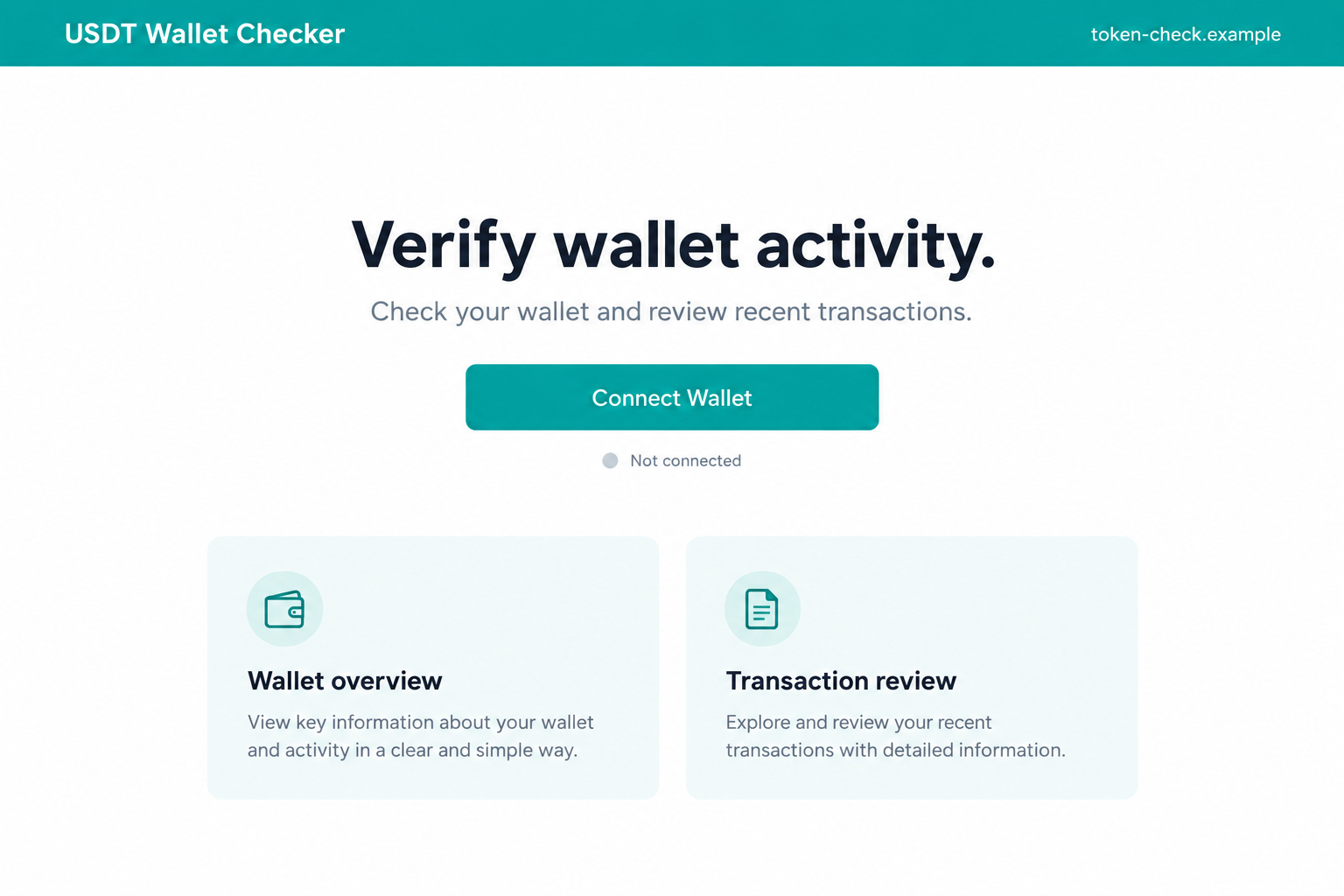
A supposed verification service uses Tether’s name as reassurance
The USDT wallet checker scam presents a false service for checking wallets and transactions. The reported example used usdtscanner[.]xyz.
Its reassuring purpose disguises the risk: wallet interaction associated with a cryptocurrency drainer. This is not a service authorized by Tether.
Tether and genuine USDT are not the fraud being exposed. The problem is a separate site using a familiar token’s identity to solicit dangerous access.
Reading public activity is different from authorizing spending
A public blockchain record can be inspected without giving a stranger permission to move your tokens. A spending approval answers a very different question.
Connection, approval, signature, and transfer are not interchangeable actions. A basic connection does not automatically hand over every asset in a wallet.
The exact chain and transaction payload from this reported page were not independently reproduced. Check what you actually approved rather than assuming a universal draining method.
Keep control while you investigate the asset
There is no need to use the reported checker as a safety test. Start with your wallet’s trusted support information and independent public records.
- Don’t sign an unexplained request to obtain a safety rating.
- Identify the network and token before interpreting a transaction.
- Use Tether’s actual protocol information when checking token identity.
- Review approvals separately from website connections if applicable.
- Never supply recovery words to unlock a checker.
Why a Safety Tool Is an Effective Disguise
People looking for a checker are already trying to avoid fraud. That makes the service seem aligned with their interests before it has earned any trust.
You may be worried about an unfamiliar payment, a strange token, or an address someone sent you. A quick verdict seems more useful than a complicated investigation.
The danger is allowing that worry to justify a new permission. A page can promise to identify risk while asking you to create it.
Keep the original question in view. Checking whether a transaction exists does not require granting another address permission to spend unrelated holdings.
Likewise, identifying an authentic token is not the same as depositing it into an unknown service. A tool’s label doesn’t decide what its transaction does.
A green badge or completed animation can be designed by the page’s operator. It is not necessarily a result from an independent security assessment.
Don’t treat a claim of verification as a warranty against later losses. Understand what was checked, by whom, and without which permissions.
If those questions have no clear answer, leave. You can postpone a transaction without surrendering your wallet to an unfamiliar checker.
How the USDT Wallet Checker Scam Works
Step 1: The page offers certainty about something you are worried about
The service presents itself as a way to assess wallets and transactions. Its purpose sounds protective, not speculative or promotional.
That can lower the resistance someone would have toward an obvious giveaway. They believe they are reducing exposure, not taking a financial chance.
But the offer still comes from a website operator whose authority needs checking. A security-related name is not a credential.
If another person recommends the checker, assess that recommendation too. A trading counterparty or private-message helper should not choose your only verification route.
Be particularly cautious if they insist their payment cannot proceed until you use one particular tool. Their preferred page may be part of the deception.
That scenario is a warning sign to recognize, not a confirmed interaction with a named counterparty in this case.
Step 2: A familiar token identity makes the interface seem specialized
The USDT name suggests the page understands a widely used asset. It can make an otherwise unfamiliar domain feel connected to the token issuer.
Don’t infer that relationship from the heading. A site can mention Tether or display familiar colors without being operated or approved by it.
The reported checker could not be captured as a working page during this review. Its availability is separate from the risk of previously granted permissions.
Memorizing one suspicious address is not sufficient protection either. A similar interface can appear elsewhere while the underlying request remains the same.
Use independently obtained official information to confirm a claimed relationship. Do not let the checker certify its own status.
Step 3: The check becomes a wallet request
The reported scheme leads visitors into wallet interaction. Read the wallet’s actual prompt rather than relying on the webpage’s explanation of it.
If a request concerns an approval, identify the token and the address receiving authority. A label such as scanning doesn’t change those details.
A spending cap can authorize more than a one-time inspection. Depending on the token and chain, it may remain available for later use.
Other requests can have different effects. Don’t assume every signature is an approval, or that every wallet ecosystem uses the same permission model.
If the prompt cannot be understood, reject it. You don’t need to take an uncertain action just because the page says the check is nearly complete.
Never enter a recovery phrase when a supposed connection fails. Restoring an entire wallet is not an appropriate response to an unknown checker.
Step 4: Leaving the page may not undo the authority granted
Some consequential wallet actions survive the browser session. An approval recorded on-chain is not erased simply because you close the tab.
A finalized transfer is another outcome again. Revoking future permission does not automatically return assets already moved.
That distinction prevents a misleading sense of completion. Removing the website from a connections list is not a universal recovery procedure.
Review the actual account history through trusted software. Note whether the record concerns a connection, an allowance, or an asset movement.
If a secret was disclosed as well, handle that separately. Replacing a compromised recovery secret requires more than an allowance review.
Do not accept the checker’s own cancellation screen as the final answer. Confirm the relevant state through your real wallet or appropriate independent records.
Checking USDT Without Giving Away Spending Rights
First identify the network. The same token name can appear across different chains, and records from one network do not automatically describe another.
Tether’s supported-protocol information provides official token details and links for several networks. Use the entry matching the asset you are checking.
Compare identifiers carefully instead of relying on a ticker or picture. An asset can use a familiar name without being the issuer’s genuine token.
A public explorer can show recorded activity, but interpret it within its limits. A successful transaction does not certify the honesty of its recipient.
Finding the correct token contract also doesn’t give an address an all-purpose safety certificate. Token identity and the purpose of a proposed payment remain separate questions.
If a page claims to provide a risk score, ask what the score means. Don’t confuse a private service’s assessment with approval from the token issuer.
A genuine service should explain its limits without demanding unrelated spending rights. If the explanation only appears after signing, you can leave without obtaining a score.
Nor does it establish that a person controls every address they mention. Public records and claims made in a private chat are different kinds of information.
A displayed balance is not a promise that someone will pay you. Don’t release goods or send another payment because a checker displays reassuring numbers.
Never use a real transfer as an authenticity test for an unfamiliar service. A small loss is still a loss, and permission may extend beyond that amount.
If you need help understanding a record, use your wallet’s genuine support route. Provide the public transaction reference without exposing keys or recovery material.
Approvals Need Their Own Review
MetaMask’s allowance guidance distinguishes disconnecting a website from revoking permission for a contract to move tokens.
First check whether those instructions apply to your wallet and network. A useful Ethereum-token guide isn’t automatically the right procedure for a different blockchain.
Use the actual network and genuine provider documentation to find an appropriate review method. Avoid advertisements for another mysterious cleanup tool.
MetaMask also explains how spending caps can be inspected and revoked on its supported networks.
Revocation is an on-chain action and may require a network fee. That does not justify paying a stranger’s release fee or signing an unclear replacement request.
Read the proposed revocation before approving it. A fake revoke page can misuse the same desire for safety as the original checker.
If assets have already moved, preserve that transaction separately. Reducing future authority and investigating a past transfer are related but different tasks.
Don’t claim every approval is malicious. Legitimate decentralized services can need permissions; the issue is whether this specific request is understood, necessary, and trusted.
What to Do if You Have Fallen Victim to This Scam
Reject any remaining request and leave the checker. Stop using its scan, reconnect, or repair buttons. Don’t repeat an action just because the page gives an error.
If you only inspected the page, record that. The absence of any signing or disclosure changes the appropriate response.
Inspect activity through the genuine wallet. Look for the network, affected token, approximate time, and transaction references. Keep confirmed changes separate from the page’s claims.
Do not reconnect to obtain a supposed report. An independently reached explorer or provider can help examine public records without wallet secrets.
Review relevant allowances and connections. Follow the real wallet provider’s instructions for the account and chain involved. Revoke unwanted authority where supported and appropriate.
Understand the expected network fee and action before signing. Disconnecting a site alone does not necessarily remove an existing spending approval.
Escalate a disclosed key or recovery phrase. Follow compromised-wallet guidance from a trusted environment. New secrets may be needed to protect remaining assets.
Don’t assume the allowance review covers secret exposure. Avoid adding more funds to an account that shows signs of automated sweeping.
Report actual losses with useful records. Save transaction identifiers and relevant communications. Contact any exchange or payment service whose account was directly involved.
Use the appropriate fraud-reporting route for your location. Crypto records can be traceable, but tracing does not guarantee that a transfer can be reversed.
Check device exposure if you installed something. A suspicious extension, downloaded scanner, or remote connection needs its own investigation with updated protection such as Malwarebytes.
A device scan is not an approval revocation and cannot recover spent crypto. Continue wallet containment even if the scan reports no threats.
Reduce repeated promotional exposure. Remove unwanted site notifications and keep the browser current. AdGuard can reduce some ads that direct readers toward misleading services.
It doesn’t certify checkers or wallet requests. Be wary of follow-up messages offering guaranteed recovery through another verification site.
Is Your Device Infected? Run a Free Malware Scan
Slow performance, constant pop-ups, or strange behavior? These are classic signs of a malware infection. The fastest way to find out is to scan your device with Malwarebytes Free — one of the most trusted malware removal tools available.
The free version detects and removes the most common threats, including:
- Adware — the cause of those annoying pop-ups
- Browser hijackers — unwanted redirects and changed homepages
- Trojans and spyware — hidden programs stealing your data
- Potentially unwanted programs (PUPs) — software you never asked for
👉 Select your device below — Windows, Mac, or Android — then follow the simple steps to download Malwarebytes, scan your system, and remove any threats it finds. The scan usually takes 5 to 20 minutes.
Run a Malware Scan with Malwarebytes for Windows
Malwarebytes is one of the most popular and trusted anti-malware tools for Windows — and it’s completely free for removing infections. It catches threats that many antivirus programs miss, including adware, browser hijackers, and trojans. Follow the steps below to scan and clean your PC in just a few minutes.
Download Malwarebytes
Click the button below to download the latest version of Malwarebytes for Windows from the official source. The free version is all you need — it will scan your computer and remove adware, browser hijackers, and other malicious software at no cost.
Download MalwarebytesOfficial installer for Windows 11 and 10. Your download starts right away.Want real-time protection? See Malwarebytes Premium Malwarebytes Free for WindowsScans and removes malware at no cost
-
Install Malwarebytes
When the download finishes, open your Downloads folder and double-click the MBSetup file. If Windows shows a User Account Control pop-up, click “Yes” to allow the installation.

Follow the On-Screen Prompts to Install Malwarebytes
The setup wizard will walk you through a few quick screens:
-
Choose where you’re installing the program — “Personal Computer” or “Work Computer” — then click Next.

-
Malwarebytes will now install on your device. This usually takes under a minute.

-
When installation is complete, the “Welcome to Malwarebytes” screen will open automatically.

-
On the final screen, click Open Malwarebytes to launch the program.

-
Enable “Scan for Rootkits”
Before scanning, turn on rootkit detection so Malwarebytes can find even the most hidden threats. Click the Settings gear icon on the left side of the screen.

In the settings menu, find “Scan for rootkits” and click the toggle so it turns blue.

Done? Click “Dashboard” in the left pane to return to the main screen.
Start the Scan
Click the blue Scan button. Malwarebytes will automatically update its virus database and start checking your computer for malware.

-
Wait for the Scan to Finish
The scan checks your entire system for browser hijackers and other malicious programs, so it can take 5 to 20 minutes depending on your computer. Feel free to do something else — just check back occasionally to see the progress.

-
Quarantine the Detected Threats
When the scan is done, you’ll see a list of everything Malwarebytes found — malware, adware, and potentially unwanted programs. Click the “Quarantine” button to remove all of them at once.

Malwarebytes will now remove the malicious files and registry entries and move them safely into quarantine.

-
Restart Your Computer
Some threats can only be fully removed after a reboot. If Malwarebytes asks you to restart, click Yes. Once you’re logged back in, Malwarebytes has finished removing the threats it found.

That’s it — your Windows PC is now clean of trojans, adware, and other malware, and should be back to running smoothly.
If you are still having problems with your computer after completing these instructions, then please follow one of the steps:
- Run a computer scan with ESET Online Scanner
- Ask for help in our Windows Malware Removal Help & Support forum.
Run a Malware Scan with Malwarebytes for Mac
Malwarebytes for Mac is a free on-demand scanner that removes the malware other security software tends to miss — adware, browser hijackers, and unwanted programs included. Cleaning an infected Mac with Malwarebytes has always been completely free, and it’s our go-to recommendation. Follow the steps below to scan and clean your Mac in just a few minutes.
-
Download Malwarebytes for Mac
Click the button below to download the latest version of Malwarebytes for Mac.
Download MalwarebytesOfficial installer for macOS. Your download starts right away.Want real-time protection? See Malwarebytes PremiumMalwarebytes Free for MacScans and removes malware at no cost -
Open the Malwarebytes setup file
When the download finishes, open your Downloads folder and double-click the setup file to begin the installation.

-
Follow the On-Screen Prompts to Install Malwarebytes
The Malwarebytes for Mac Installer will guide you through a few quick screens. Click “Continue” and keep following the prompts until the installation completes.



When the installation is complete, Malwarebytes opens to the Welcome to Malwarebytes screen. Click “Get started“.
-
Select “Personal Computer” or “Work Computer”
Malwarebytes will ask what type of computer you’re installing it on. Click either Personal Computer or Work Computer, whichever applies.

-
Start the Scan
Click the “Scan” button. Malwarebytes will automatically update its detection database and begin checking your Mac for malware.

-
Wait for the Scan to Finish
Malwarebytes will scan your Mac for adware, browser hijackers, and other malicious programs. This can take a few minutes, so feel free to do something else — just check back occasionally to see the progress.

-
Quarantine the Detected Threats
When the scan is done, you’ll see a list of everything Malwarebytes found. Click the “Quarantine” button to remove all the threats at once.

-
Restart Your Mac
Malwarebytes will now remove all the malicious files it found. Some threats can only be fully removed after a reboot — if Malwarebytes asks you to restart, allow it. Once you’re logged back in, your Mac is clean.

That’s it — your Mac is now free of adware, rogue browser extensions, and other potentially harmful software.
If you are still experiencing problems while trying to remove a malicious program from your computer, please ask for help in our Mac Malware Removal Help & Support forum.
Run a Malware Scan with Malwarebytes for Android
Malwarebytes for Android automatically detects and removes dangerous threats like malware and ransomware so you don’t have to worry about your most-used device being compromised. Aggressive detection of adware and potentially unwanted programs keeps your Android phone or tablet running smooth.
-
Download Malwarebytes for Android.
You can download Malwarebytes for Android by clicking the link below.
Get Malwarebytes for AndroidOpens Google Play in a new tab.Want real-time protection? See Malwarebytes Premium for AndroidMalwarebytes for AndroidScans your phone and removes malware at no cost -
Install Malwarebytes for Android on your phone.
In the Google Play Store, tap “Install” to install Malwarebytes for Android on your device.

When the installation process has finished, tap “Open” to begin using Malwarebytes for Android. You can also open Malwarebytes by tapping on its icon in your phone menu or home screen.

-
Follow the on-screen prompts to complete the setup process
When Malwarebytes will open, you will see the Malwarebytes Setup Wizard which will guide you through a series of permissions and other setup options.
This is the first of two screens that explain the difference between the Premium and Free versions. Swipe this screen to continue.
Tap on “Got it” to proceed to the next step.
Malwarebytes for Android will now ask for a set of permissions that are required to scan your device and protect it from malware. Tap on “Give permission” to continue.
Tap on “Allow” to permit Malwarebytes to access the files on your phone.
-
Update database and run a scan with Malwarebytes for Android
You will now be prompted to update the Malwarebytes database and run a full system scan.

Click on “Update database” to update the Malwarebytes for Android definitions to the latest version, then click on “Run full scan” to perform a system scan.

-
Wait for the Malwarebytes scan to complete.
Malwarebytes will now start scanning your phone for adware and other malicious apps. This process can take a few minutes, so we suggest you do something else and periodically check on the status of the scan to see when it is finished.

-
Click on “Remove Selected”.
When the scan has been completed, you will be presented with a screen showing the malware infections that Malwarebytes for Android has detected. To remove the malicious apps that Malwarebytes has found, tap on the “Remove Selected” button.

-
Restart your phone.
Malwarebytes for Android will now remove all the malicious apps that it has found. To complete the malware removal process, Malwarebytes may ask you to restart your device.
That’s it — your Android phone is now clean — no more malicious apps, adware, or browser redirects.
If you are still having problems with your phone after completing these instructions, then please follow one of the steps:
- Restore your phone to factory settings by going to Settings > General management > Reset > Factory data reset.
- Ask for help in our Mobile Malware Removal Help & Support forum.
Stay Protected: Block Ads and Malicious Sites
Now that your device is clean, keep it that way. Most infections start with a malicious ad or a fake download button — so blocking them at the source is your best defense.
We recommend AdGuard, which blocks malicious ads, phishing pages, and dangerous redirects before they can reach you.
👉 Download AdGuard and browse safely
Don’t Let a Reassuring Result Make the Next Decision for You
A green result can encourage you to continue a trade, send more assets, or trust a stranger. Each of those actions still needs its own justification.
Ask what the result actually measured. A transaction’s existence, a token’s identity, and a counterparty’s intentions cannot all be answered by one colored badge.
If another person is rushing you, step away from that conversation while checking. You should not need their permission to use an independent source.
Don’t send an additional payment to make an earlier transfer visible. Investigate the original transaction record rather than a story supplied by the checker.
Keep evidence before reporting or blocking the contact. A useful record includes what was requested, not just a screenshot of the final reassuring screen.
Finally, remember why you started checking: you wanted to retain control. Refusing an unclear permission is consistent with that goal, not a failure to finish.
Frequently Asked Questions
Is the reported USDT checker a Tether service?
No. The reported imitation uses Tether’s token name without establishing an authorized relationship. Don’t grant it wallet permissions.
Use genuine issuer and wallet documentation instead.
Does connecting alone authorize every transfer?
No. Basic connection and asset authorization are different events. Review subsequent prompts and the actual on-chain record.
Do not assume either certain theft or complete safety without identifying what happened.
Can a token’s name prove it is genuine USDT?
A name or icon is insufficient. Match the network and token identifier against appropriate official information.
That identifies the asset; it doesn’t guarantee the honesty of a person requesting payment.
Will disconnecting cancel a spending cap?
Not necessarily. A relevant on-chain approval can remain after a website connection is removed.
Use the wallet provider’s allowance guidance where it applies to your account and network.
Are stolen crypto transactions impossible to trace?
No. Public blockchain records can support tracing. The separate difficulty is recovering funds or reversing a finalized transaction.
Preserve references and report losses without trusting guaranteed-recovery claims.
Can antivirus software undo the checker interaction?
It can investigate malicious software if software exposure occurred. It does not cancel a signed transaction or replace a wallet’s exposed recovery material.
Handle each type of exposure with its appropriate remedy.
The Bottom Line
Do not use the reported USDT checker to authorize wallet activity. A safety label doesn’t make a spending request safe.
If you already interacted, identify the network and exact action involved. Review relevant permissions and respond to any transfer or secret disclosure separately.

Join the discussion
0 commentsShare your experience or ask a question about this article.
Discussion
Start the conversation
Have a question or something useful to share? Add the first comment.