


There’s a special kind of frustration that comes with being offline while your Wi-Fi is right there, glowing with a strong signal, just out of reach behind a password prompt.
Sometimes it happens in the most annoying way.
You changed the password months ago and forgot it.
A family member set the router up and no one wrote it down.
Your laptop still connects, but your phone doesn’t.
Or you reset a device, and now it’s asking for credentials you haven’t typed in ages.
The good news is that most of the time, you don’t need anything extreme.
If you’ve connected to that network before, there’s a solid chance the password is already saved somewhere.
If not, you can usually retrieve it from the router itself, especially if you still have physical access.
And if it’s truly gone, there’s still a clean “last resort” path that gets you back online without sketchy hacks or risky tools.
This guide walks you through the whole process from easiest to most “nuclear,” with clear steps that beginners can follow.
If yes, keep going. If not, the right move is to ask the owner or the location’s staff.
2) Can any device connect to it right now?
This matters a lot.
If you see multiple networks listed (2.4G and 5G), pick the one you’re trying to connect to.
If you’ve ever managed your Wi-Fi through an ISP app, open it and look for Wi-Fi settings.
The next steps show you how to reveal it.
If you don’t see a straightforward “show password” option, use the command method below. It works reliably.
netsh wlan show profiles<br>
You’ll see a list under User Profiles.
Pick the network name you need.
netsh wlan show profile name="YOUR_WIFI_NAME" key=clear<br>
If the Wi-Fi name has no spaces, quotes are optional.
Security settings → Key Content
That “Key Content” value is your Wi-Fi password.
If the Key Content line is missing, it can mean:
Enter your Mac password if prompted.
If you get an error, it usually means:
Avoid shady “Wi-Fi password viewer” apps. They often require risky permissions or root access and can create new problems.
Use the macOS steps above.
Typical flow:
You don’t need to “crack” anything.
You just need admin access to your router’s settings.
Look for Default Gateway.
Common values are:
It’s the router admin username and password.
Places to check:
A good Wi-Fi password is:
This is the “nuclear option,” but it’s legitimate and effective.
Set a guest password you can change easily.
If your router supports automatic updates, enable them.
If you lose the admin password, you end up resetting hardware again later.
Phones vary by version and manufacturer.
If the connected device can’t reveal it, use the router admin page.
If Wi-Fi won’t connect, it’s usually:
Built-in OS methods plus router admin access are safer and enough for most cases.
Sometimes it happens in the most annoying way.
You changed the password months ago and forgot it.
A family member set the router up and no one wrote it down.
Your laptop still connects, but your phone doesn’t.
Or you reset a device, and now it’s asking for credentials you haven’t typed in ages.
The good news is that most of the time, you don’t need anything extreme.
If you’ve connected to that network before, there’s a solid chance the password is already saved somewhere.
If not, you can usually retrieve it from the router itself, especially if you still have physical access.
And if it’s truly gone, there’s still a clean “last resort” path that gets you back online without sketchy hacks or risky tools.
This guide walks you through the whole process from easiest to most “nuclear,” with clear steps that beginners can follow.
First, a quick reality check (so you don’t waste time)
Before we dive into recovery steps, confirm what you’re actually trying to access.Ask yourself these two questions
1) Is this your network, or do you have permission to use it?If yes, keep going. If not, the right move is to ask the owner or the location’s staff.
2) Can any device connect to it right now?
This matters a lot.
- If at least one device still connects, that device is your best shortcut to the password.
- If nothing connects, you’ll likely need router access (admin page or reset).
Step 1: Try the obvious, because it works more often than you think
It sounds basic, but it saves time.Check the router label
Many routers and ISP-provided gateways have a sticker with:- Wi-Fi name (SSID)
- Wi-Fi password or “Wireless Key”
- Admin username/password (sometimes)
If you see multiple networks listed (2.4G and 5G), pick the one you’re trying to connect to.
Check the box, paperwork, or ISP app
Some internet providers store your Wi-Fi credentials inside their mobile app or customer portal.If you’ve ever managed your Wi-Fi through an ISP app, open it and look for Wi-Fi settings.
Ask the device that still connects
If your laptop connects automatically but your phone doesn’t, you’re already holding the key.The next steps show you how to reveal it.
Step 2: Find saved Wi-Fi passwords on Windows
If you connected to the Wi-Fi on that Windows PC before, Windows likely saved the profile.Option A: The simplest method (Settings, when available)
On many Windows versions, you can view saved Wi-Fi passwords through network settings, but the exact path can vary.If you don’t see a straightforward “show password” option, use the command method below. It works reliably.
Option B: Use Command Prompt (works on most Windows versions)
1) Open Command Prompt as Administrator
- Click Start
- Type cmd
- Right-click Command Prompt
- Click Run as administrator
2) List saved Wi-Fi profiles
Type this and press Enter:netsh wlan show profiles<br>
You’ll see a list under User Profiles.
Pick the network name you need.
3) Display the password for a specific network
Type this, replacing the name:netsh wlan show profile name="YOUR_WIFI_NAME" key=clear<br>
If the Wi-Fi name has no spaces, quotes are optional.
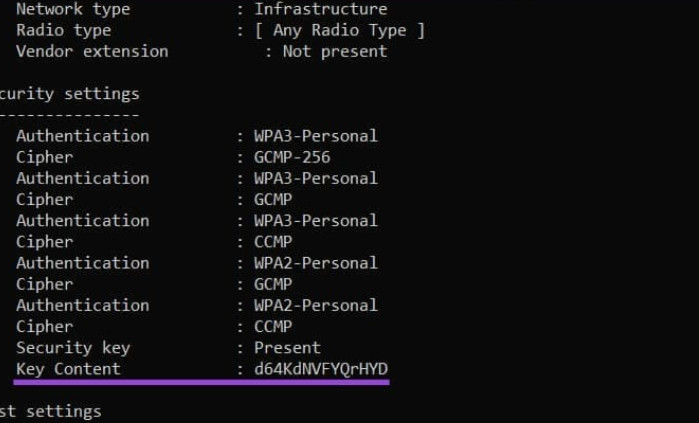
4) Find the password
Look for:Security settings → Key Content
That “Key Content” value is your Wi-Fi password.
If the Key Content line is missing, it can mean:
- The profile exists but the key isn’t stored in a way Windows can show, or
- The profile was created with different security conditions, or
- You’re not running as admin
Step 3: Find saved Wi-Fi passwords on macOS
Macs often store Wi-Fi passwords in Keychain. If the Mac has connected before, you can usually retrieve it.Option A: Keychain Access (beginner-friendly)
- Open Spotlight with Cmd + Space
- Type Keychain Access
- In the search bar (top-right), type your Wi-Fi network name
- Double-click the network entry
- Check Show password
- Enter your Mac password when asked
Option B: Terminal command (fast and direct)
- Open Spotlight (Cmd + Space)
- Type Terminal
- Run:
Enter your Mac password if prompted.
If you get an error, it usually means:
- The Wi-Fi name doesn’t match exactly, or
- The Mac never saved that network, or
- Access is restricted by Keychain permissions
Step 4: Find saved Wi-Fi passwords on Android
On many modern Android devices (often Android 10 and later), viewing the Wi-Fi password is built in.Option A: Show password or share as QR code
- Open Settings
- Tap Network & internet (or Connections)
- Tap Wi-Fi
- Tap the connected network
- Tap Share (you may need fingerprint or PIN)
- You’ll see a QR code, and many phones also show the password in plain text
- You can scan it with another phone’s camera to connect quickly
- Some QR scanners show the text password too
Option B: If Android won’t show it
If you can’t see “Share” or “Password,” it might be:- A manufacturer-specific limitation, or
- An older Android version
Avoid shady “Wi-Fi password viewer” apps. They often require risky permissions or root access and can create new problems.
Step 5: Find saved Wi-Fi passwords on iPhone and iPad
Apple’s approach depends heavily on whether you also have a Mac and whether iCloud Keychain is enabled.Option A: If you have a Mac using the same Apple ID
If iCloud Keychain is enabled, the Wi-Fi password may be visible on the Mac through Keychain Access.Use the macOS steps above.
Option B: Use Wi-Fi sharing (fastest for family devices)
If someone else’s iPhone is already connected and they’re in your contacts, Apple can share the Wi-Fi without revealing the password.Typical flow:
- Bring the new iPhone near the connected iPhone
- Attempt to join the Wi-Fi on the new device
- The connected device may pop up a “Share Password” prompt
Step 6: Log into your router and view or change the Wi-Fi password
If you have physical access to the router, this is one of the most reliable methods.You don’t need to “crack” anything.
You just need admin access to your router’s settings.
1) Connect to the router directly (best method)
If Wi-Fi is locked and you can’t connect wirelessly:- Use an Ethernet cable from your computer to the router
- Plug into a LAN port (not the WAN/Internet port)
2) Find the router’s IP address (Windows)
- Open Command Prompt
- Type:
Look for Default Gateway.
Common values are:
- 192.168.0.1
- 192.168.1.1
- 10.0.0.1
3) Open the router admin page
- Open a browser
- Type the Default Gateway address into the address bar
Example: http://192.168.1.1
4) Log in to the router
This login is not the Wi-Fi password.It’s the router admin username and password.
Places to check:
- Router label sticker
- ISP paperwork
- A note someone saved
- The router manual
5) Find the Wi-Fi settings
Look for sections like:- Wireless
- Wi-Fi
- WLAN
- Security
- SSID (network name)
- Security type (WPA2, WPA3)
- Password / Key / Passphrase
6) Change the Wi-Fi password (recommended if you’re unsure who knows it)
If you’re already in the router, it’s often best to set a fresh password you can remember.A good Wi-Fi password is:
- Long enough to resist guessing (12+ characters is a nice baseline)
- Easy to type on phones
- Not reused from email or banking
- Three random words + two numbers
- coffee-river-moon-27
Step 7: The last resort: Reset the router (only if you must)
If you cannot retrieve the Wi-Fi password and you cannot log into the router’s admin page, a reset can restore default credentials.This is the “nuclear option,” but it’s legitimate and effective.
What a reset does
- Restores factory settings
- Removes custom Wi-Fi name and password
- Removes custom router admin password
- May remove ISP settings on some gear (rare but possible)
How to reset most routers
- Find the small Reset hole button on the router
- Use a paperclip or pin
- Press and hold for 10 to 15 seconds
- Release and wait for the router to reboot
After the reset: do these three things immediately
- Set a new router admin password
- Set a new Wi-Fi password
- Disable risky convenience features if present (like WPS), and use WPA2/WPA3 security
Step 8: Make sure you never get locked out again
Once you’re back in, do a quick “future-proof” setup so this doesn’t happen again.Save the password safely
Pick one:- A password manager entry labeled “Home Wi-Fi”
- A note stored in a secure vault
- A printed card stored with router paperwork (not taped to the router if you worry about physical security)
Use a guest network for visitors
Guest networks prevent sharing your main password with everyone who visits.Set a guest password you can change easily.
Keep your router firmware updated
Router updates fix security issues and stability problems.If your router supports automatic updates, enable them.
Write down the router admin password
This matters more than people realize.If you lose the admin password, you end up resetting hardware again later.
FAQ
I’m connected on one device. Why won’t it show the password?
Some systems hide it by default, but Windows and macOS can usually reveal saved credentials using the steps above.Phones vary by version and manufacturer.
If the connected device can’t reveal it, use the router admin page.
I changed MenuShowDelay and animations, but Wi-Fi still fails
Those Windows tweaks won’t affect Wi-Fi authentication.If Wi-Fi won’t connect, it’s usually:
- wrong password
- wrong security type (rare)
- router issue
- saved profile mismatch
Should I use “Wi-Fi password recovery” software?
Avoid random third-party tools.Built-in OS methods plus router admin access are safer and enough for most cases.
I can’t log into the router admin page even with Ethernet
Make sure:- You’re plugged into a LAN port
- You used the correct gateway IP
- The computer got an IP address from the router


