


Windows 11 already ships with a security stack that is much better than people give it credit for.
The problem is not that Microsoft Defender is “bad.”
The problem is that most PCs run it with a half-finished setup.
Cloud protection is off.
Reputation checks are skipped.
Potentially unwanted apps are allowed.
Ransomware protection is ignored.
Then, the moment something sketchy happens, the user’s first instinct is to disable protection because “it’s using CPU.”
That’s how good machines get compromised.
This guide is the opposite of that approach.
You’ll tune Microsoft Defender and Windows Security the way a careful forum helper would: keep the protection that matters most, avoid the settings that create unnecessary friction, and only touch performance-sensitive options when you understand the tradeoff.
No vague tips.
No “just turn it off.”
Clear steps, clear outcomes.
It’s about three goals:
If you have a third-party antivirus installed, you might be running overlapping protections, browser filters, VPN drivers, web shields, and file system hooks. That can cause slowdowns, freezes, or weird network behavior.
It gives you strong protection with minimal performance cost for typical home and small business use.
It’s where real-time scanning, cloud protection, and exclusions live. Microsoft describes these Virus & threat protection settings as the place to customize protection, send sample files, and configure exclusions.
In Virus & threat protection settings:
Performance impact: typically low, because it’s not “scanning more,” it’s making smarter decisions when something suspicious appears.
If you’re writing a forum resource: explain it like this.
Defender can recognize a lot instantly, but brand-new malware changes constantly. Sample submission helps Microsoft build detections faster.
To enable it:
Security benefit: high.
They are installers that bundle:
Performance impact: usually minimal.
SmartScreen and reputation-based protection work earlier, especially against:
Performance impact: typically low.
Biggest “cost”: you might see more warnings when downloading weird or unsigned tools. That is often a good thing.
It works by checking apps against trusted lists and blocking suspicious access to protected folders. (Microsoft Learn)
So the right approach is:
Instead:
If your forum audience includes power users and IT admins, you can recommend ASR in a careful way:
Microsoft also warns that exclusions can severely reduce the protection provided by ASR rules.
For typical home users, ASR is optional unless you are comfortable with policy configuration and troubleshooting.
It can be a strong layer for people who mostly install mainstream apps and want fewer “surprise” installers.
But it has caveats:
If Defender is causing noticeable slowdowns, one of these is usually happening:
The fix is targeted.
If you must add an exclusion, prefer these safer patterns:
Exclusions should be your last step after confirming the slowdown is actually Defender-related.
Microsoft’s scan best practices discuss that scan performance depends on scenarios and that higher resource use can reflect stronger protection.
Practical advice for forum members:
For most home users, you won’t need those policy-level adjustments, but it’s valuable as a reference when someone is seeing heavy CPU or IO consistently.
The problem is not that Microsoft Defender is “bad.”
The problem is that most PCs run it with a half-finished setup.
Cloud protection is off.
Reputation checks are skipped.
Potentially unwanted apps are allowed.
Ransomware protection is ignored.
Then, the moment something sketchy happens, the user’s first instinct is to disable protection because “it’s using CPU.”
That’s how good machines get compromised.
This guide is the opposite of that approach.
You’ll tune Microsoft Defender and Windows Security the way a careful forum helper would: keep the protection that matters most, avoid the settings that create unnecessary friction, and only touch performance-sensitive options when you understand the tradeoff.
No vague tips.
No “just turn it off.”
Clear steps, clear outcomes.
What we mean by “Defender tuning”
Defender tuning is not about making your PC “feel faster” at the cost of safety.It’s about three goals:
- Stop the common stuff early
Phishing, malicious downloads, trojans in email attachments, fake installers, bundled junk. - Add ransomware resistance
So one bad click does not wipe your Documents folder. - Reduce unnecessary scanning and conflict
So Defender does its job quietly in the background instead of fighting with other software or chewing resources at the worst time.
Before you change anything: confirm you’re not running two real-time antiviruses
This is the single most common reason people complain about “Defender performance.”If you have a third-party antivirus installed, you might be running overlapping protections, browser filters, VPN drivers, web shields, and file system hooks. That can cause slowdowns, freezes, or weird network behavior.
Quick check
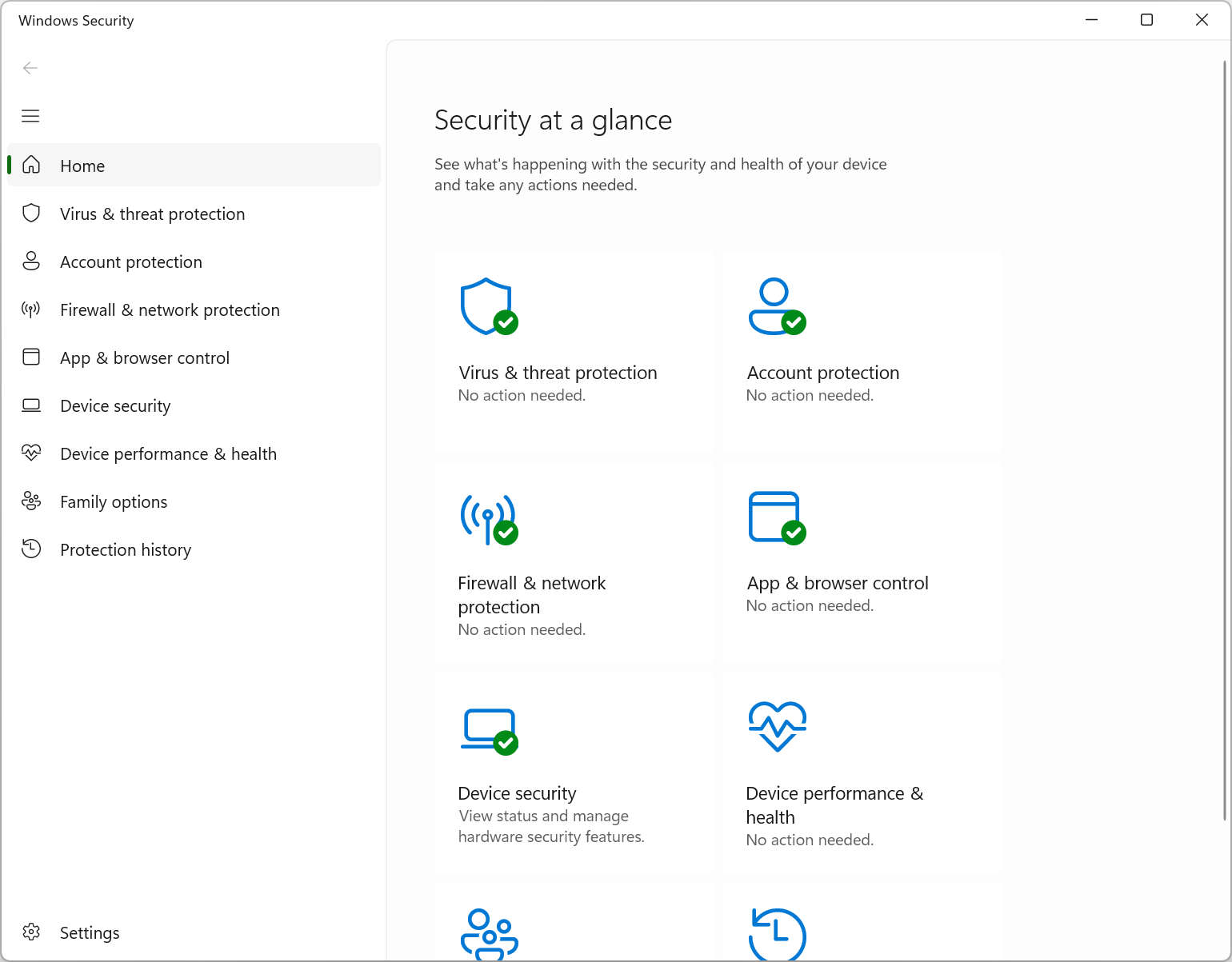
- Open Windows Security
- Click Virus & threat protection
- Look for whether Microsoft Defender Antivirus is active, or whether another AV is managing protection
The “safe baseline” that fits almost everyone
If you only do one section from this entire guide, do this one.It gives you strong protection with minimal performance cost for typical home and small business use.
Baseline checklist
- Cloud-delivered protection: ON
- Automatic sample submission: ON
- Tamper Protection: ON
- Potentially Unwanted App (PUA) blocking: ON
- SmartScreen and reputation-based protection: ON
- Ransomware protection (Controlled folder access): consider ON, with a clear plan
Part 1: Tune Microsoft Defender Antivirus (Virus & threat protection)
This is the part most people recognize as “Defender.”It’s where real-time scanning, cloud protection, and exclusions live. Microsoft describes these Virus & threat protection settings as the place to customize protection, send sample files, and configure exclusions.
Step 1: Open the right menu
- Click Start
- Type Windows Security
- Open it
- Click Virus & threat protection
- Under Virus & threat protection settings, click Manage settings
Step 2: Turn on Cloud-delivered protection
Cloud protection is one of the biggest “bang for the buck” upgrades because it helps Defender respond faster to new threats.In Virus & threat protection settings:
- Turn Cloud-delivered protection to On
Performance impact: typically low, because it’s not “scanning more,” it’s making smarter decisions when something suspicious appears.
Step 3: Turn on Automatic sample submission
In the same screen:- Turn Automatic sample submission to On
If you’re writing a forum resource: explain it like this.
Defender can recognize a lot instantly, but brand-new malware changes constantly. Sample submission helps Microsoft build detections faster.
Step 4: Keep Tamper Protection on
Tamper Protection blocks attempts to change Defender settings through the registry, which is a common trick used by malware and “security disabler” tools.To enable it:
- Windows Security
- Virus & threat protection
- Virus & threat protection settings
- Toggle Tamper Protection to On
Security benefit: high.
Part 2: Turn on PUA blocking (junkware defense that saves beginners)
A lot of infections are not dramatic “viruses.”They are installers that bundle:
- adware
- browser hijackers
- shady toolbars
- “PC cleaners”
- fake driver updaters
Step-by-step: enable PUA blocking in Windows 11
- Open Windows Security
- Click App & browser control
- Click Reputation-based protection settings
- Turn on Potentially unwanted app blocking
- Enable blocking for Apps and Downloads
Performance impact: usually minimal.
Part 3: SmartScreen and reputation-based protection (the “stop it before it runs” layer)
Defender Antivirus reacts when files hit disk and execute.SmartScreen and reputation-based protection work earlier, especially against:
- phishing sites
- malicious downloads
- suspicious apps with bad reputation
- common scam pages
Step-by-step: check SmartScreen and related toggles
- Open Windows Security
- Click App & browser control
- Open Reputation-based protection settings
- checking apps and files
- SmartScreen for Microsoft Edge
- phishing protection (if available on your build)
- potentially unwanted app blocking (from the previous section)
Performance impact: typically low.
Biggest “cost”: you might see more warnings when downloading weird or unsigned tools. That is often a good thing.
Part 4: Ransomware protection without turning your PC into a headache
Ransomware protection is where tuning matters, because the strongest setting can also be the one that causes the most “why is my app blocked?” complaints.Controlled folder access, explained simply
Controlled folder access helps protect valuable folders from unauthorized changes and is designed to reduce ransomware damage.It works by checking apps against trusted lists and blocking suspicious access to protected folders. (Microsoft Learn)
The important performance warning
Microsoft explicitly notes that if your workflow involves shared network folders, enabling controlled folder access can cause significant network performance reduction in certain scenarios, especially when untrusted processes repeatedly access file shares.So the right approach is:
- Great for protecting personal folders on a typical home PC
- Needs planning if you work from network shares or unusual tools that write into Documents constantly
Step-by-step: enable Controlled folder access
- Open Windows Security
- Click Virus & threat protection
- Scroll to Ransomware protection
- Click Manage ransomware protection
- Toggle Controlled folder access to On
How to keep it from being annoying
If a legitimate app gets blocked, do not turn the whole feature off immediately.Instead:
- Identify the blocked app
- Add it as an allowed app only if you trust it and it truly needs access
Part 5: Attack Surface Reduction rules (powerful, but for advanced users and organizations)
Attack Surface Reduction (ASR) rules are a major hardening layer. They are meant to stop common attack techniques involving scripts, macros, and suspicious behaviors.If your forum audience includes power users and IT admins, you can recommend ASR in a careful way:
- Start in audit mode
- Review what would have been blocked
- Add exclusions sparingly
- Only then enforce
Microsoft also warns that exclusions can severely reduce the protection provided by ASR rules.
For typical home users, ASR is optional unless you are comfortable with policy configuration and troubleshooting.
Part 6: Smart App Control (SAC), the “strong but picky” feature
Smart App Control is a Windows 11 feature that can run in evaluation mode or enforcement mode, observing and then blocking untrusted apps depending on suitability.It can be a strong layer for people who mostly install mainstream apps and want fewer “surprise” installers.
But it has caveats:
- It may require a clean install or reset in some scenarios to enable, depending on device state and diagnostic settings.
- It can block legitimate tools, especially niche utilities or developer workflows.
How to check if you can enable it
- Open Windows Security
- Go to App & browser control
- Look for Smart App Control
The performance section: how to reduce Defender impact without weakening safety
Here’s the honest truth.If Defender is causing noticeable slowdowns, one of these is usually happening:
- Your disk is slow or failing
- You are running multiple security products
- A specific workload is scanning a massive number of files repeatedly
- You are building code, syncing huge folders, or running VM images constantly
- A feature like controlled folder access is clashing with how you store files
The fix is targeted.
1) Use exclusions carefully, only when you can justify them
Microsoft acknowledges exclusions can be used to optimize performance and avoid false positives, but they are a tradeoff.If you must add an exclusion, prefer these safer patterns:
- Exclude a specific build output folder you fully control
- Exclude a known game folder if scanning causes stutter during patching
- Exclude VM disk image directories if you are constantly reading and writing large image files
- Downloads
- Temp folders
- Entire user profile folders
- Entire drives
How to add exclusions
- Open Windows Security
- Go to Virus & threat protection
- Under Virus & threat protection settings, click Manage settings
- Scroll to Exclusions
- Click Add or remove exclusions
- Add a File, Folder, File type, or Process as needed
Exclusions should be your last step after confirming the slowdown is actually Defender-related.
2) Schedule heavy scans for off-hours
Full scans and deep scans are the moments most people notice “Defender is slow.”Microsoft’s scan best practices discuss that scan performance depends on scenarios and that higher resource use can reflect stronger protection.
Practical advice for forum members:
- Run full scans at night
- Let real-time protection do its job during the day
3) If Defender performance is truly abnormal, use Microsoft’s performance troubleshooting guidance
Microsoft has a dedicated performance troubleshooting page for Defender for Endpoint, including specific features that can be adjusted in managed environments.For most home users, you won’t need those policy-level adjustments, but it’s valuable as a reference when someone is seeing heavy CPU or IO consistently.
Recommended “profiles” for Windows Defender
Profile A: Most users (balanced, low drama)
- Cloud-delivered protection: ON
- Automatic sample submission: ON
- Tamper Protection: ON
- PUA blocking: ON
- SmartScreen and reputation-based protection: ON
- Controlled folder access: optional, enable if you can handle occasional allow-listing
Profile B: Gamers (keep protection, reduce stutter risk)
- Everything in Profile A
- Add exclusions only if a specific game folder causes repeat scanning during updates, and only after confirming Defender is the cause
- Run full scans off-hours
Profile C: Developers and power users (safe, but flexible)
- Profile A, but be cautious with Smart App Control if you run lots of unsigned tools
- Use exclusions sparingly and document why
- Consider ASR rules only if you can test in audit mode first


