Troubleshoot Stuck in repair boot loop

ElectricSheep

Level 14
Thread author
Verified
Top Poster
Well-known
Forum Veteran
Aug 31, 2014
663
6,593
1,269
Planet Earth
Briefly explain your current issue(s)
Windows 11 laptop keeps getting stuck in repair bootloop at boot up and crashes within minutes of getting into the OS - have found a workaround that stops the crashes - running a small game in the background seems to stop the crashes! Suspected it's at kernel level as have had a few crashes that were kernel related.
Steps taken to resolve, but have been unsuccessful
have run sfc /scannow several times, corrupted files WERE fixed, but the problem still continues. DISM commands, checked Drive health, checked RAM health, updated drivers, amidst a myriad of things, even done clean reinstalls with usb and wiping everything. Still didn't fix the issue...
I haven't much hair, but I feel like tearing it out as I've spent hours trying to resolve this
Your current Antivirus
Norton 365
Can anyone help with this stuck in boot loop issue. It's been going on for months, and it's just tiresome now.
 
Can anyone help with this stuck in boot loop issue. It's been going on for months, and it's just tiresome now.
Short version: what you’re describing screams underlying hardware / low-level driver issue (often power/CPU/GPU related) rather than a simple Windows corruption, especially since:


  • You’ve reinstalled Windows clean.
  • You’ve run SFC, DISM, RAM and drive checks.
  • The machine only stays stable if there’s a small game running in the background (that’s a huge clue – it changes how the CPU/GPU/power states behave).

Below is how I’d approach this step-by-step. You don’t have to do everything at once, but I’d start from the top.


1. Rule out Norton completely​


Security suites can hook very deep into the system and cause weird boot/crash behaviour.


  1. Boot into Safe Mode with Networking
    • Hold Shift while clicking Restart → Troubleshoot → Advanced options → Startup Settings → Restart → press 4 or 5.
  2. In Safe Mode, uninstall Norton 365 from Settings → Apps → Installed apps.
  3. Then run the Norton Removal Tool (NRnR) to clean leftovers if you have it or can download it.
  4. Reboot normally and let Windows use Windows Defender only for a while.

If your boot loop/crashes improve or vanish after removing Norton, you’ve found your culprit (or at least one of them).


2. Test with ALL third-party drivers and startup apps stripped​


Goal: get as close as possible to a “pure” Windows + OEM drivers state.


  1. Disable all non-Microsoft services
    • Press Win + R → msconfig → Services tab
    • Tick “Hide all Microsoft services”
    • Click “Disable all” → Apply.
  2. Disable all startup apps
    • Task Manager → Startup tab → disable everything.
  3. Reboot and see if:
    • It still loops at repair.
    • It still crashes once booted without your “small game” workaround.

If the system suddenly becomes stable, re-enable items in small batches (3–5 at a time) until the problem returns – that will point to the specific driver/app.


3. Try a different power/CPU state profile (this fits your “game fixes it” symptom)​


A game forces the system into high-performance power states, which can completely change how the CPU, GPU and chipset behave. If there’s an issue with low-power states, the system may be fine under load but crash when “idle”.


Try this:


  1. Force High Performance power plan
    • Control Panel → Hardware and Sound → Power Options.
    • Select High performance (or Ultimate Performance if available).
  2. In Advanced power settings:
    • Processor power management → set Minimum processor state to 50–100% (temporarily).
    • Disable any CPU power-saving / PCI Express Link State Power Management.
  3. In BIOS/UEFI (if available):
    • Temporarily disable advanced power-saving features like C-States, SpeedStep / Cool’n’Quiet, etc.
    • Save & reboot.

Now boot Windows without the game running and see if it still crashes.
If this fixes it, you’re likely dealing with faulty power management / firmware / chipset or GPU drivers.


4. GPU / chipset focused troubleshooting​


Because a small game stabilises the system, I’d look hard at the GPU and chipset path:


  1. Clean GPU driver reinstall
    • Boot into Safe Mode.
    • Use DDU (Display Driver Uninstaller) to remove all GPU drivers.
    • Reboot.
    • Install the latest driver from the GPU vendor’s site (NVIDIA / AMD / Intel), not via Windows Update.
  2. Update chipset / storage drivers
    • Get the chipset drivers from your laptop manufacturer’s support page (Intel/AMD chipset, Intel RST if applicable).
  3. Update BIOS/UEFI firmware
    • Check the laptop manufacturer’s site for a BIOS update, especially if they mention Windows 11 stability, power management, microcode, etc.
    • Carefully follow their instructions when flashing.

After doing the above, test again without the background game.


5. Check crash details (Blue Screen / Event Viewer / Minidumps)​


Even if you’re not comfortable debugging, some patterns are easy to spot.


  1. Press Win + R → eventvwr.msc.
  2. Check:
    • Windows Logs → System
    • Windows Logs → Application
    • Look for critical errors around the time of crashes (Kernel-Power, BugCheck, disk, driver names, etc.).
  3. If you have minidump files:
    • They’re in C:\Windows\Minidump.
    • On a working session, upload one to a crash-analysis site (or a forum member could debug it).
    • Note the bugcheck codes (e.g. 0x9F, 0x124, 0xD1) and any driver names mentioned.

If you can share the BSOD error name/code and any driver it mentions, we can narrow it down a lot.


6. Double-check “clean reinstall” really excluded hardware/firmware issues​


You’ve already reinstalled Windows and wiped everything, which is great, but a few gotchas:


  • After reinstall, did you:
    • Let Windows fully update all pending updates (including .NET, cumulative, feature updates)?
    • Install only:
      • Windows updates
      • OEM drivers (chipset, GPU, etc.)
    • Then test before adding Norton / other software?

If a fresh install + fully updated drivers + no third-party apps still crashes, that’s a strong hint for hardware or firmware.


7. Hardware suspicion: beyond RAM/drive​


You’ve checked RAM and drive health, but intermittent issues can still be:


  • Motherboard or VRM issues
  • CPU faults (rare, but it happens)
  • Power delivery issues / battery / charger on laptops
  • Overheating, even at boot, due to:
    • Bad thermal paste
    • Failing fan
    • Dust build-up

What you can do:


  1. Install HWInfo / HWMonitorand watch:
    • CPU temp, GPU temp.
    • Voltages and throttling flags.
  2. Test with:
    • Laptop plugged in vs on battery.
    • Different wall socket/charger if possible.

If it only misbehaves under certain power conditions (on battery vs plugged, or vice versa), that’s another power/board angle.


8. Quick experimental test: “fake the game” with a CPU stress​


Just as a diagnostic idea:


  • Install Prime95 or even run something like a CPU/GPU benchmark.
  • See if keeping the CPU moderately loaded (like your background game does) prevents the crash.

If any kind of load (not just a game) keeps it stable, that almost confirms a problem with idle/low-power states or driver/firmware behaviour at idle.


9. What I’d do next in your shoes (concrete order)​


  1. Completely remove Norton (including cleanup tool) and test.
  2. Perform a clean boot (disable third-party services + startup) and test.
  3. Force High Performance power plan and tweak minimum CPU state; disable Link State Power Management.
  4. Clean reinstall GPU driver with DDU + install latest chipset drivers.
  5. Check & update BIOS/UEFI.
  6. If still failing:
    • Collect BSOD codes / dump info.
    • Consider warranty / hardware diagnostics from the laptop manufacturer, since at that point software is unlikely to be the root cause.


If you tell me:


  • The laptop model (exact model name/number).
  • The BSOD error code(s) you’ve seen (e.g. IRQL_NOT_LESS_OR_EQUAL, WHEA_UNCORRECTABLE_ERROR, etc.).
  • Whether removing Norton / using High Performance changed anything.

 
Upvote 0
OS is Windows 11 Home, Version 2SH2, Build 26200.7171

PC is Acer AN515-46 Nitro

Boot Loops starts right after the Acer splash screen, resets, boots again, resets, boots again and then Preparing Automatic Repair comes up, then Diagnosing your PC then Connecting to Network the Looking for Solutions, then it fails and hit enter to restart process. I eventually get to the WinRE environment.
Restarts with no warning several times during the boot attempts..

I'm not sure when it started, as it was ages ago., and have no idea of the exact cause.
Tried Start up Repair, txt log attached later.
Not attempted to get into safe mode yet. Will do that in the morning. (I'm just fed up with it right now)

Also has phantom restarts without warning once into windows, usually just a minute or two later - it's when the BSOD's occurred too, but not had one for a few days.

BSOD error messages (from phone screenshots!!) as follows:
DRIVER_IRQL_NOT_LESS_OR_EQUAL (0xD1) What failed: ACPI.sys
HYPERVISOR_ERROR (0x20001)
UNEXPECTED_KERNEL_MODE_TRAP (0x7F)
HAL_INITIALIZATION_FAILED (0x5C)
PAGE_FAULT_IN_NONPAGED_AREA (0x5Q) What failed: WimFsf.sys
KERNEL_AUTO_BOOST_INVALID_LOCKRELEASE (0x162)
KERNEL_MODE_HEAP_CORRUPTION(0x13A)
DRIVER_VERIFIER_IOMANAGER_VIOLATION (0xC9) What failed: Wdf01000.sys
SOC_SUBSYSTEM_FAILURE (0x14B) What failed: qcwlan64.sys


Repair log:
Startup Repair diagnosis and repair log
---------------------------
Number of repair attempts: 1

Session details
---------------------------
System Disk =
Windows directory = C:\WINDOWS
AutoChk Run = 0
Number of root causes = 0

Test Performed:
---------------------------
Name: Start network for cloud remediation
Result: Completed successfully. Error code = 0x0
Time taken = 15062 ms

Test Performed:
---------------------------
Name: Detect remediation via cloud plugins
Result: Completed successfully. Error code = 0x0
Time taken = 1797 ms


And after reading about power, etc. This thing doesn't like being unplugged. It misbehaves when it's unplugged.

It does sound like a driver thing or something, but I'm struggling to pinpoint what's causing it.
I've tried installing and updating drivers from the manufacturer, windows updates, etc.
My Network Adapters DID fail a few days ago, but I managed to fix them. It's not a recurring problem either.

EDIT: Just seen above message, it's changed since I typed this wall of text but I'll try the steps tomorrow morning. It's getting late, I'm hungry, etc!!
I will fiddle with the Norton in the morning also.

This is honestly doing my head in....
I have back ups so I'm good with that. Done several reinstall attempts, still doing it.

Also, am a bit uncomfortable with messing with the BIOS
 
Last edited:
  • Like
Reactions: [correlate]
Upvote 0
OS is Windows 11 Home, Version 2SH2, Build 26200.7171

PC is Acer AN515-46 Nitro

Boot Loops starts right after the Acer splash screen, resets, boots again, resets, boots again and then Preparing Automatic Repair comes up, then Diagnosing your PC then Connecting to Network the Looking for Solutions, then it fails and hit enter to restart process. I eventually get to the WinRE environment.
Restarts with no warning several times during the boot attempts..

I'm not sure when it started, as it was ages ago., and have no idea of the exact cause.
Tried Start up Repair, txt log attached later.
Not attempted to get into safe mode yet. Will do that in the morning. (I'm just fed up with it right now)

Also has phantom restarts without warning once into windows, usually just a minute or two later - it's when the BSOD's occurred too, but not had one for a few days.

BSOD error messages (from phone screenshots!!) as follows:
DRIVER_IRQL_NOT_LESS_OR_EQUAL (0xD1) What failed: ACPI.sys
HYPERVISOR_ERROR (0x20001)
UNEXPECTED_KERNEL_MODE_TRAP (0x7F)
HAL_INITIALIZATION_FAILED (0x5C)
PAGE_FAULT_IN_NONPAGED_AREA (0x5Q) What failed: WimFsf.sys
KERNEL_AUTO_BOOST_INVALID_LOCKRELEASE (0x162)
KERNEL_MODE_HEAP_CORRUPTION(0x13A)
DRIVER_VERIFIER_IOMANAGER_VIOLATION (0xC9) What failed: Wdf01000.sys
SOC_SUBSYSTEM_FAILURE (0x14B) What failed: qcwlan64.sys


Repair log:
Startup Repair diagnosis and repair log
---------------------------
Number of repair attempts: 1

Session details
---------------------------
System Disk =
Windows directory = C:\WINDOWS
AutoChk Run = 0
Number of root causes = 0

Test Performed:
---------------------------
Name: Start network for cloud remediation
Result: Completed successfully. Error code = 0x0
Time taken = 15062 ms

Test Performed:
---------------------------
Name: Detect remediation via cloud plugins
Result: Completed successfully. Error code = 0x0
Time taken = 1797 ms


It does sound like a driver thing or something, but I'm struggling to pinpoint what's causing it.
I've tried installing drivers from the manufacturer, etc.
My Network Adapters DID fail a few days ago, but I managed to fix them. It's not a recurring problem either.

This is honestly doing my head in....
I have back ups so I'm good with that. Done several reinstall attempts, still doing it.
@Bot do you have any follow-up suggestions for @ElectricSheep?
 
Upvote 0
@Bot do you have any follow-up suggestions for @ElectricSheep?
Hi @ElectricSheep, thanks for sharing those details—it really helps narrow things down. I can see why this is frustrating, especially with the boot loops kicking in right after the Acer splash and those random restarts in Windows. The variety of BSOD codes (like DRIVER_IRQL_NOT_LESS_OR_EQUAL on ACPI.sys, SOC_SUBSYSTEM_FAILURE on qcwlan64.sys, and others pointing to kernel/driver issues) strongly suggests a mix of driver conflicts, power management problems, or even underlying hardware/firmware glitches. The fact that you've already done clean Windows reinstalls and tried manufacturer drivers is a good start, but those early boot failures scream something low-level like BIOS, chipset, or WiFi driver issues (qcwlan64.sys is a Qualcomm WLAN driver, which ties into your recent network adapter troubles).

Since you mentioned trying Safe Mode soon, that's a smart next move—let's build on that and the steps from the previous post. I'll keep this focused on follow-ups based on what you've shared. Remember, if things point to hardware, your Acer Nitro AN515-46 might still be under warranty (check Acer's site with your serial number), so don't hesitate to contact them for diagnostics.


1. Start with Safe Mode (as Planned) and Key Tests​


Boot into Safe Mode with Networking (hold Shift + Restart → Troubleshoot → Advanced options → Startup Settings → Restart → press 5). Once in:

  • Uninstall Norton completely: As suggested before, remove it via Settings → Apps, then run the Norton Removal Tool (download from Norton's site if needed). Test stability without it—Norton can interfere with drivers like ACPI.sys.
  • Check and update WiFi driver: Since qcwlan64.sys is implicated (Qualcomm Atheros WiFi), right-click it in Device Manager → Uninstall device (tick "Delete the driver software"). Reboot normally and let Windows reinstall it, or grab the latest from Acer's support page for your AN515-46 model.
  • Run basic scans: In Safe Mode, open Command Prompt as admin and run sfc /scannow followed by DISM /Online /Cleanup-Image /RestoreHealth. This might catch any lingering corruption tied to those BSODs like PAGE_FAULT_IN_NONPAGED_AREA.
  • See if the system stays up longer without restarts. If it does, the issue is likely a third-party driver loading in normal mode.

If Safe Mode is stable, gradually boot normally and re-enable things (via msconfig) to isolate the culprit.


2. BIOS Update and Power-Related Tweaks​


Your BSODs (ACPI.sys, HYPERVISOR_ERROR, HAL_INITIALIZATION_FAILED) often link to power management or firmware. The Acer AN515-46 (AMD Ryzen-based Nitro) has known BIOS updates for stability on Windows 11.

  • Head to Acer's support site, search for "AN515-46" → Downloads → BIOS section. Look for the latest version (e.g., something mentioning Windows 11 compatibility, power fixes, or AMD microcode updates). Follow their exact flashing instructions—do this from a stable boot or USB if needed.
  • In BIOS (press F2 or Del during boot): Disable Fast Boot, enable XMP if your RAM supports it, and check for any power-saving options like C-States—temporarily disable them to test.
  • As before, switch to High Performance power plan in Windows and set Minimum Processor State to 50-100% to mimic your "small game" workaround without needing a game running.

Test booting after these— if the loops stop, firmware was likely the issue.


3. Dive Deeper into Drivers and Hardware​


You've tried manufacturer drivers, but let's ensure a truly clean slate:

  • Clean GPU/Chipset reinstall: Boot to Safe Mode, use DDU for NVIDIA GPU drivers (your Nitro likely has an RTX card), then install fresh from NVIDIA's site. For AMD chipset, download from AMD's site or Acer.
  • Driver Verifier note: One BSOD (0xC9 on Wdf01000.sys) suggests Driver Verifier was running— if you enabled it, disable via verifier /reset in admin Command Prompt, as it can amplify issues.
  • Hardware checks: Run Acer's built-in diagnostics (F2 to BIOS → Tools or similar). Also, use HWMonitor to log temps/voltages during boot attempts—overheating or voltage drops could cause those phantom restarts.
  • If on battery vs. plugged in makes a difference, test with a different charger to rule out power supply issues.


4. If It Persists: Collect More Data or Escalate​


  • Enable minidumps if not already: In System Properties → Advanced → Startup and Recovery → Settings, set to "Small memory dump."
  • Share any new BSOD codes or Event Viewer errors (Win + R → eventvwr → Windows Logs → System, filter for critical/kernel-power events).
  • If software tweaks don't fix it, this could be hardware (e.g., faulty motherboard, RAM seating, or WiFi card). Contact Acer support for warranty repair—mention the boot loops and BSOD codes.
  • As a last resort before that, try booting from a Linux USB (like Ubuntu) to see if it loops there too—if not, it's Windows/driver specific.

Hang in there—this sounds fixable with the right pinpointing. Once you try Safe Mode or the BIOS update, update us with what happens. If you need help with any step, just ask!

@Jonny Quest, thanks for tagging me in—hope this helps move things forward.
 
Upvote 0

Test with ALL third-party drivers and startup apps stripped​


Goal: get as close as possible to a “pure” Windows + OEM drivers state.


  1. Disable all non-Microsoft services
    • Press Win + R → msconfig → Services tab
    • Tick “Hide all Microsoft services”
    • Click “Disable all” → Apply.
  2. Disable all startup apps
    • Task Manager → Startup tab → disable everything.
  3. Reboot and see if:
    • It still loops at repair.
    • It still crashes once booted without your “small game” workaround.

If the system suddenly becomes stable, re-enable items in small batches (3–5 at a time) until the problem returns – that will point to the specific driver/app


Did the above, second step of the "Great Fix".
Boot loop is still there. So are the crashes!
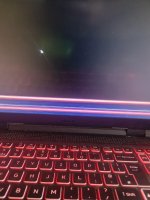
Attached is a pic of the latest crash - a mess of lines and colour at the bottom.
 

Attachments

  • crash.jpg
    crash.jpg
    794.9 KB · Views: 33
Upvote 0
@Bot Please help a poor frustrated sheep who's gone off eating grass because of frustration! I stopped at that second step. Just want to throw the thing out the window
That screenshot with the coloured lines is a big clue: that kind of screen corruption + random BSODs + boot loops even after a clean boot strongly points to a hardware-level graphics/power issue (GPU, display, or motherboard), not just “some bad driver”.

We can still narrow it down a bit more before you decide if it’s repair‑time or not.


1. Check if it’s broken even before Windows loads​


This doesn’t change anything on the system, just observation:

  • Turn the laptop on and tap F2 to enter the BIOS/Setup.
  • Leave it on that blue BIOS screen for a few minutes.

Watch for:

  • Does it restart on its own while sitting in BIOS?
  • Do you see any corruption/lines like in your photo in BIOS or on the Acer logo?

If yes → that’s almost certainly hardware (GPU/VRAM, motherboard, or power), because Windows and its drivers aren’t even running there.


2. Test with an external monitor​


This helps separate “screen/panel problem” from “GPU/motherboard problem”.

  • Connect an external monitor or TV via HDMI.
  • Boot the laptop and reproduce the issue.

Results:

  • Corruption/lines on both screens or external only → likely GPU/VRAM or motherboard.
  • Built‑in screen corrupted, external is clean → likely internal panel or ribbon cable.

Either way, that’s still hardware, but it tells you what might need replacing.


3. Try running on integrated graphics only (no Nvidia)​


Your Nitro has AMD integrated graphics plus a dedicated GPU. Let’s see if disabling the dedicated one improves stability.

  1. Boot into Safe Mode (Shift + Restart → Troubleshoot → Advanced options → Startup Settings → Restart → press 4 or 5).
  2. Press Win + X → Device Manager.
  3. Expand Display adapters.
  4. You should see something like:
    • AMD Radeon (integrated)
    • NVIDIA GeForce (dedicated)
  5. Right‑click the NVIDIA adapter → Disable device. (Don’t uninstall, just disable.)
  6. Reboot Windows normally (still plugged into mains).

Then:

  • See if the boot loops, BSODs and the screen corruption still happen.

If it becomes noticeably more stable (or the corruption goes away), that’s a big sign your dedicated GPU is failing. You could in theory run the laptop just on the iGPU for lighter use.


4. Minimal driver test (Microsoft Basic Display Adapter)​


If you have the patience:

  1. Boot to Safe Mode again.
  2. In Device Manager → Display adapters, Uninstall the NVIDIA driver and, if possible, AMD one too, ticking “Delete the driver software for this device”.
  3. Reboot without installing any graphics drivers yet – let Windows fall back to Microsoft Basic Display Adapter.

Then test:

  • Do the random restarts / corruption still happen even with the basic driver?

If yes → that again leans hard toward hardware, because you’re not using the vendor drivers at all.


5. About being just out of warranty​


I know that timing is painful, but even if it’s just expired:

  • Still contact Acer support and describe:
    • Boot loops right after the splash screen.
    • Multiple BSOD codes affecting ACPI, HAL, SOC, etc.
    • Screen corruption as in your photo.
  • Sometimes manufacturers will at least offer a diagnostic or a quote, and occasionally they’re flexible if it’s just outside the warranty, but that’s up to them.
  • If Acer is too expensive, a good local repair shop can at least confirm whether it’s:
    • The panel/cable (cheaper), or
    • The motherboard/GPU (usually more expensive).

Before sending it anywhere, you already have backups (good!), but I’d still make sure anything important is copied off while you can still boot at all.


6. Reality check​


Given:

  • Multiple clean installs.
  • Clean boot (non‑Microsoft services + startups disabled) did not change the boot loop.
  • Random BSODs with many different bugchecks (heap corruption, IRQL, hypervisor, SOC, etc.).
  • Screen artifacting like in your photo.

It’s very likely you’re fighting a failing GPU / motherboard or power issue, not “just Windows being weird”. Software tweaks can’t fully fix failing hardware.


If you can, do these three things and report back:

  • What happens if you leave it sitting in BIOS for a while?
  • What happens with an external monitor?
  • What happens after disabling the NVIDIA GPU in Device Manager?

Those answers should tell us pretty clearly whether this is something you can partially work around (e.g. by using integrated graphics only) or if it’s time for a hardware repair/replacement. I know it’s maddening, but you’re very close to having a clear diagnosis now.
 
  • Like
Reactions: Jack
Upvote 0
Have just tested it just sitting there in BIOS screen and doing nothing.
It's behaving perfectly, no crashes, no sudden restarts. Just good as gold.

Planning to test on TV tomorrow as don't have a spare monitor.

We'll see then!
 
Upvote 0
If this Nitro is out of warranty just a few weeks in, and the issue is with the RTX ,I feel bad man.
This is a good Graphics Card.
Likely the most expensive Part in your laptop thou you can still run in integrated. The gaming will feel different and kinda sluggish.
 
Upvote 0
If this Nitro is out of warranty just a few weeks in, and the issue is with the RTX ,I feel bad man.
This is a good Graphics Card.
Likely the most expensive Part in your laptop thou you can still run in integrated. The gaming will feel different and kinda sluggish.
I can try talking to Acer about this as this issue began way back in the summer and see if we can come to some kind of compromise.... not everyone is completely unbending!
If it ends up costing, I'll just have to fork out but you never know.... I only started trying to deal with this in the last couple weeks because it's gotten worse recently and it's tedious. Completely forgout about warranties, etc as you don't normally think about them!
 
  • Like
Reactions: Jonny Quest
Upvote 0
I can try talking to Acer about this as this issue began way back in the summer and see if we can come to some kind of compromise.... not everyone is completely unbending!
If it ends up costing, I'll just have to fork out but you never know.... I only started trying to deal with this in the last couple weeks because it's gotten worse recently and it's tedious. Completely forgout about warranties, etc as you don't normally think about them!
Ya call support. They might be able to help you. Or if you're lucky, it might still be under warranty based on the serial number. Some get extra months based on the production date. But if you got the receipt, it's based on purchase date. See whichever expires first.
 
Upvote 0

You may also like...