Windows Process Manager (32-bit) Malware

MangoJuice

New Member
Thread author
Dec 11, 2017
2
0
1
United States
It has been on and off for the last two weeks, and every time I run a scan it seems to not be able to locate it, since it always keeps coming back. It's causing a lot of problems, especially since I use my computer a lot for gaming, school, and other day to day activities.
 

Attachments

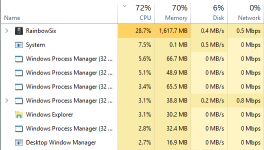
Here's what it looks like when I'm trying to use an application. It starts off low like this but can spike at random times.
 

Attachments

  • WinProcMan.png
    WinProcMan.png
    31.1 KB · Views: 5
Hello,


Please download Farbar Recovery Scan Tool x64 and save it to a flash drive.
  • Plug the flashdrive into the infected PC.
  • Click Start and while holding Shift key on your keyboard click Power --> Restart.
Note: It is important that you keep Shift key pressed while doing this or it won't work.
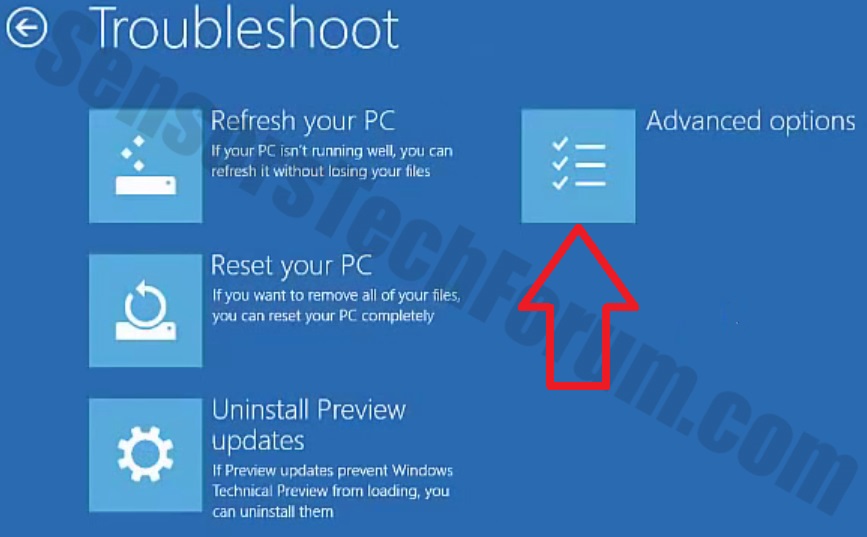
  • Now you should get a window like this where you need to click Troubleshoot.
Windows-10-2.jpg

  • In the next window, click Advanced options and select Command Prompt.
  • Now you should log in into your account and after that Command Promptwindow.
notepad.png
Access the notepad and identify your USB drive

In the Command Prompt please type in:
Code:
notepad
and press Enter.
  • When the notepad opens, go to File menu.
  • Select Open.
  • Go to Computer and search there for your USB drive letter.
  • Note down the letter and close the notepad.


FRST.gif
Scan with Farbar Recovery Scan Tool

Once back in the command prompt window, please do the following:
  • Type in e:\frst64.exe and press Enter.
    You need to replace e with the letter of your USB drive taken from notepad!
  • FRST will start to run. Give him a minute or so to load itself.
  • Click Yes to Disclaimer.
  • In the main console, please click Scan and wait.
  • When finished it will produce a logfile named FRST.txt in the root of your pendrive and display it. Close that logfile.

Transfer it to your clean machine and include it in your next reply.