

Security Shield is a rogue security software which will display fake security alerts,reporting that malware has been detected on your computer.This alerts are professional looking pop-ups and when you click on them, you are advised to buy Security Shield in order to remove the detected threats.
In reality, none of the reported issues are real, and are only used to scare you into buying Security Shield and stealing your personal financial information.
In addition,this malicious program is also causing browser redirects,system slowdowns and has hijacked your PC functions to block certain programs from running (eg: Task Manager,Registry Editor,Run command etc.).
If your computer is infected with Security Shield,then you are seeing this images:
![[Image: Security Shield virus]](http://malwaretips.com/blogs/wp-content/uploads/2012/06/Security-Shield.png "Security Shield")
![[Image: Security Shield Alert]](http://malwaretips.com/blogs/wp-content/uploads/2012/06/Security-Shield-2.png "Security Shield fake alert")
![[Image: Security Shield warning]](http://malwaretips.com/blogs/wp-content/uploads/2012/06/Security-Shield-3.png "Security Shield fake update request")
We strongly advise you to follow our Security Shield removal guide and ignore any alerts that this malicious software might generate.
Under no circumstance should you buy this rogue security software as this could lead to identity theft,and if you have, you should contact your credit card company and dispute the charge stating that the program is a scam and a computer virus.
Registration codes for Security Shield
As an optional step,you can use the following license key to register Security Shield and stop the fake alerts.
64C665BE-4DE7-423B-A6B6-BC0172B25DF2
Please keep in mind that entering the above registration code will NOT remove Security Shield from your computer , instead it will just stop the fake alerts so that you’ll be able to complete our removal guide more easily.
How to remove Security Shield (Uninstall Guide)
STEP 1: Remove Security Shield malicious files with Malwarebytes Anti-Malware
Malwarebytes Chameleon technologies will allow us to install and run a Malwarebytes Anti-Malware scan without being blocked by Security Shield.
- Download Malwarebytes Chameleon from the below link, and extract it to a folder in a convenient location.
MALWAREBYTES CHAMELEON DOWNLOAD LINK (This link will open a new web page from where you can download Malwarebytes Chameleon)
![[Image: Extract Malwarebytes Chameleon utility]](//malwaretips.com/blogs/wp-content/uploads/2013/02/malwarebytes-chameleon-zip.jpg "Extract Malwarebytes Chameleon utility")
- Make certain that your infected computer is connected to the internet and then open the Malwarebytes Chameleon folder, and double-click on the svchost.exe file.
![[Image: Double click on svchost.exe]](//malwaretips.com/blogs/wp-content/uploads/2013/02/malwarebytes-chameleon-svchost.jpg "Double click on svchost.exe")
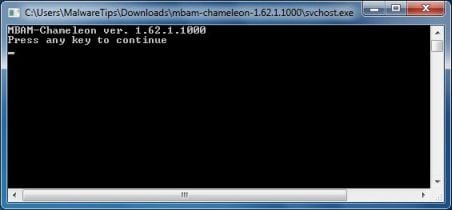
IF Malwarebytes Anti-Malware will not start, double-click on the other renamed files until you find one will work, which will be indicated by a black DOS/command prompt window. - Follow the onscreen instructions to press a key to continue and Chameleon will proceed to download and install Malwarebytes Anti-Malware for you.
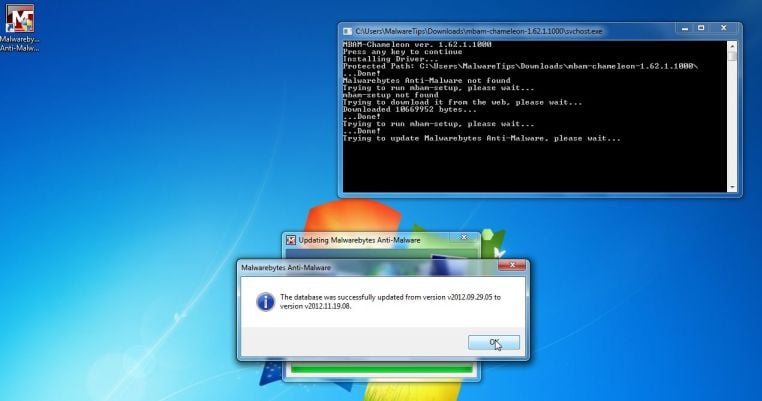
- Once it has done this, it will update Malwarebytes Anti-Malware, and you’ll need to click OK when it says that the database was updated successfully.
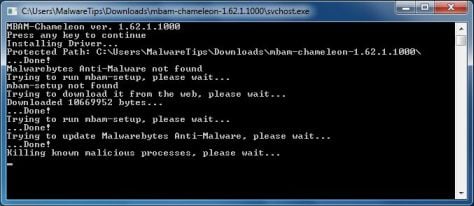
- Malwarebytes Anti-Malware will now attempt to kill all the malicious process associated with Security Shield.Please keep in mind that this process can take up to 10 minutes, so please be patient.
- Next, Malwarebytes Anti-Malware will automatically open and perform a Quick scan for Security Shield malicious files as shown below.
![[Image: Malwarebytes Anti-Malware scanning for Security Shield]](//malwaretips.com/blogs/wp-content/uploads/2013/01/malwarebytes-scan.jpg "Malwarebytes Anti-Malware scanning for Security Shield")
- Upon completion of the scan, click on Show Result
![[Image: Malwarebytes Anti-Malware scan results]](//malwaretips.com/blogs/wp-content/uploads/2013/01/malwarebytes-scan-results.jpg "Malwarebytes when the system scan has completed")
- You will now be presented with a screen showing you the malware infections that Malwarebytes Anti-Malware has detected.
Make sure that everything is Checked (ticked),then click on the Remove Selected button.
![[Image:Malwarebytes removing virus]](//malwaretips.com/blogs/wp-content/uploads/2013/01/malwarebytes-virus-removal.jpg "Click on Remove Selected to get rid of Security Shield")
- After your computer restarts, open Malwarebytes Anti-Malware and perform a Full System scan to verify that there are no remaining threats
![[Image: Extract Malwarebytes Chameleon utility]](http://malwaretips.com/blogs/wp-content/uploads/2013/02/malwarebytes-chameleon-zip.jpg "Extract Malwarebytes Chameleon utility")
![[Image: Double click on svchost.exe]](http://malwaretips.com/blogs/wp-content/uploads/2013/02/malwarebytes-chameleon-svchost.jpg "Double click on svchost.exe")



![[Image: Malwarebytes Anti-Malware scanning for Security Shield]](http://malwaretips.com/blogs/wp-content/uploads/2013/01/malwarebytes-scan.jpg "Malwarebytes Anti-Malware scanning for Security Shield")
![[Image: Malwarebytes Anti-Malware scan results]](http://malwaretips.com/blogs/wp-content/uploads/2013/01/malwarebytes-scan-results.jpg "Malwarebytes when the system scan has completed")
![[Image:Malwarebytes removing virus]](http://malwaretips.com/blogs/wp-content/uploads/2013/01/malwarebytes-virus-removal.jpg "Click on Remove Selected to get rid of Security Shield")
STEP 2: Remove Security Shield rootkit with HitmanPro
In some cases,Security Shield will also install a rootkit on victims computer.To remove this rootkit we will use HitmanPro.
- Download HitmanPro from the below link,then double-click on it to start this program.
HITMANPRO DOWNLOAD LINK (This link will open a new web page from where you can download HitmanPro)
IF you are experiencing problems while trying to start HitmanPro, you can use the Force Breach mode.To start HitmanPro in Force Breach mode, hold down the left CTRL key when you start HitmanPro and all non-essential processes are terminated, including the malware process. (How to start HitmanPro in Force Breach mode – Video) - HitmanPro will start and you’ll need to follow the prompts (by clicking on the Next button) to start a system scan with this program.
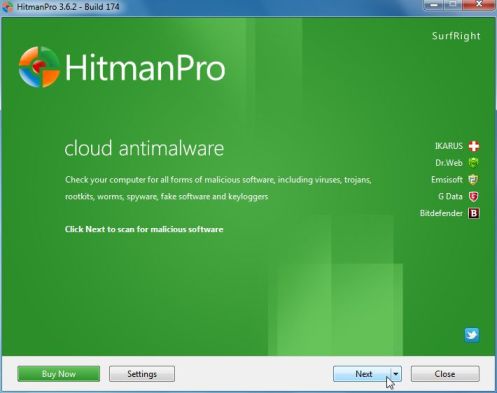
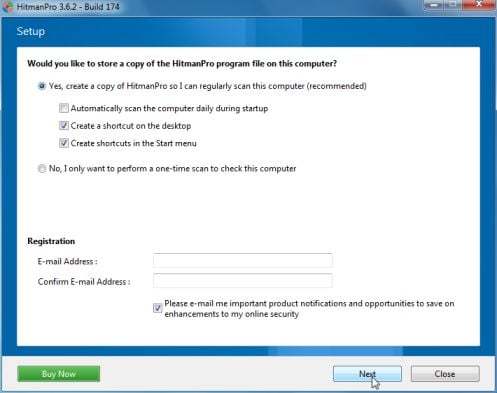
- HitmanPro will start scanning your computer for Security Shield malicious files as seen in the image below.
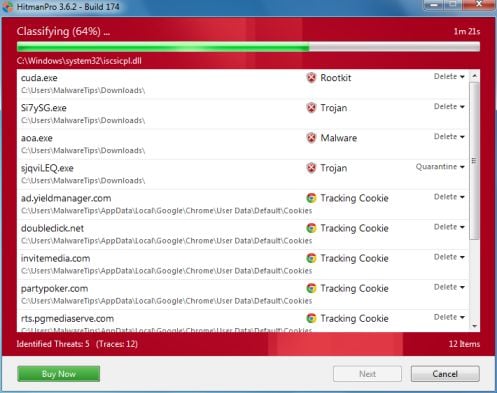
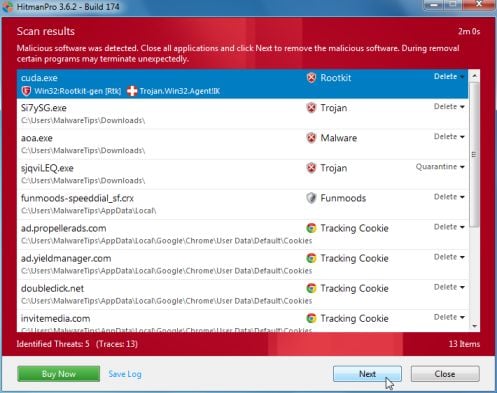
- Once the scan is complete,you’ll see a screen which will display all the infected files that this utility has detected, and you’ll need to click on Next to remove this malicious files.
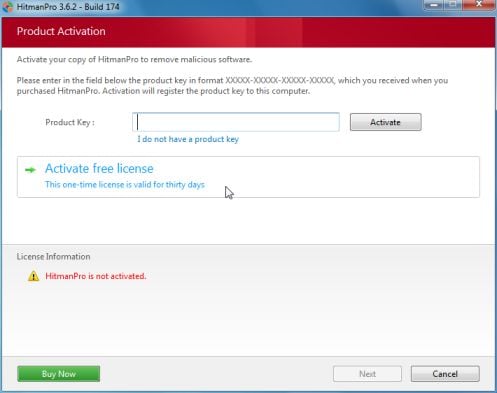
- Click Activate free license to start the free 30 days trial and remove all the malicious files from your computer.





STEP 3: Double check for any left over infections with Emsisoft Emergency Kit
- You can download Emsisoft Emergency Kit from the below link,then extract it to a folder in a convenient location.
EMSISOFT EMERGENCY KIT DOWNLOAD LINK ((This link will open a new web page from where you can download Emsisoft Emergency Kit) - Open the Emsisoft Emergency Kit folder and double click EmergencyKitScanner.bat, then allow this program to update itself.
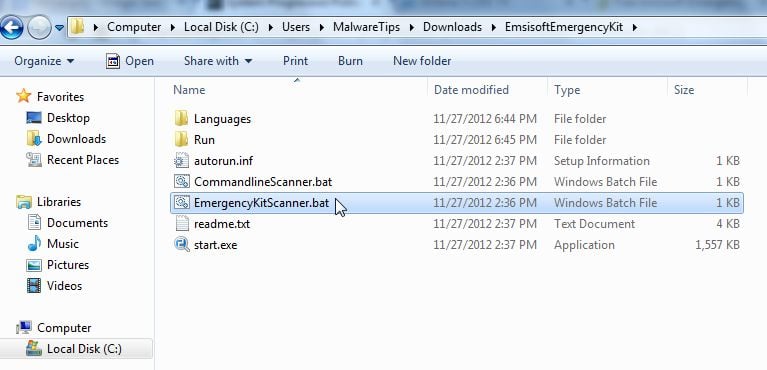
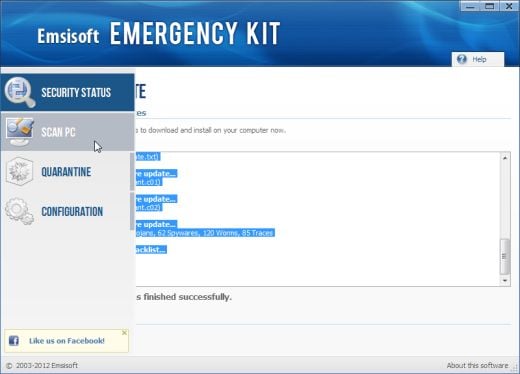
- After the Emsisoft Emergency Kit has update has completed,click on the Menu tab,then select Scan PC.
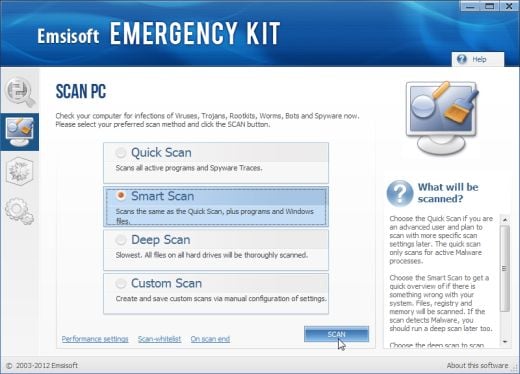
- Select Smart scan and click on the SCAN button to search for Security Shield malicious files.
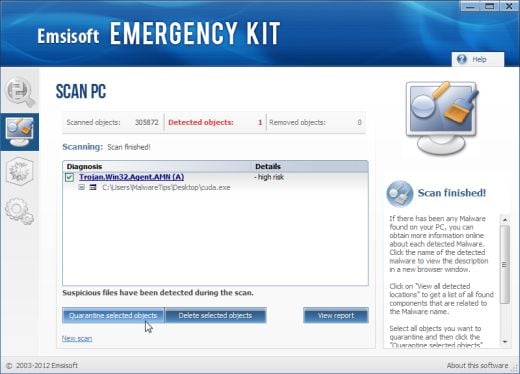
- When the scan will be completed,you will be presented with a screen reporting which malicious files has Emsisoft detected on your computer, and you’ll need to click on Quarantine selected objects to remove them.













The easiest way is to restart in safe mode and restore to a date prior to infection.
I’m on the 5th step ” Killing known malicious processes …. ”
it’s been 2 hours and it’s not done yet :c Should i continue waiting?
Hello,
This should not take more than 5-10 minutes… Please close ALL your programs (browser, docs), and try again to lauch Malwarebytes Chameleon.
Stay safe!
its works thanks dude
I can’t thank you enough for this info!
Thank you. This was very easy to follow & helped save me a lot of money. The Geek Squad wanted $200.00 just to remove the virus. Many thanks again!
THANK YOU SO MUCH!!! YOU ARE THE MAN!!!!!! :))))
Just wanted to give proper thanks to you for providing this comprehensive guide. Kudos.
Hi Stelian,
I can trace my first encounter with Security Shield back to September 2008! Yes, I paid them £16.77 for a virus, what a mug. Thankfully I used Paypal and so far have not suffered any problems with that. Nor have I had the problem with the popups and programs being stopped etc. But the round green logo sits in my system tray and occasionally tells me to do a ‘scan’.
However, after the last ‘scan’, last week, which presumably updated the virus, it now takes an age to close my computer. When I went to look for a reason for this I was amazed by all the information about SS and its terrible effects. I had no idea even after four years.
I’ve followed your instructions but Malwarebytes didn’t find the virus which presumably is a new one. I’ve also used RogueKiller but again no sign.
By the way, many thanks for making the process so easy to follow.
Hey,
I followed all the directions correctly and for some odd reason, when I restarted my computer…it seemed to be working great (no more pop ups indicating there’s a virus). But Im still not able to run any programs and when I place the cursor over the start menu….the hourglass will appear and not disappear. Did I do something wrong?
Hello Jonathan,
Can you please run a scan with Combofix, ESET online scanner and post the logs here so that I can get an idea on what’s going on:
STEP 1 : Run a scan with Combofix
Download ComboFix from here: COMBOFIX DOWNLOAD LINK #1 (This link will automatically download Combofix on your computer)
VERY IMPORTANT !!! Save as Combo-Fix.exe during the download.ComboFix must be renamed before you download to your Desktop
Notes:
STEP 2: Run a scan with ESET Online Scanner:
ESET Online Scanner Download Link (This link will automatically download ESET Online Scanner on your computer.)
NEXT,please run a scan with HitmanPro and RogueKiller as seen on the guide.
Waiting for your reply to tell me if your machine is ok and the logs.
Hi! Tried all the sequences listed above, but still show the “security shield icon” (the rip off of the MS logo) in the lower right corner of all applications I download or have downloaded. It also shows on the device manager icon as well as a few others (parental controls, add hardware, security center). I take that to mean my comp is still infected, although it seems to be running fine (I can access the net without noticeable delay, no problem with any applications, etc).
Is this common or have you seen it before? I’ve got the Kaslog.txt, the RKreport and the log.txt from combofix it those would help.
Hello Eric,
If you have run Combofix recently,can you please post the log so that I can take a look at what’s going on.The Combofix log should be located in C:\Combofix.txt
Hi Stelian,
Thank you very much for this blog and you’re reply. As mentioned previously, it is the most complete blog regarding this issue that I have come across.
Hello Eric,
Please go ahead and delete this folder: c:\programdata\pijhmfmfpdfocgy
Your computer,seems to be malware free….can you please take a screenshot of the icon that you are seeing in the system tray…?
Next,for your peace of mind, please run this two scans:
STEP 1: Run a scan with Emsisoft Emergency Kit.
EMSISOFT EMERGENCY KIT DOWNLOAD LINK (This link will open a download page in a new window from where you can download Emsisoft Emergency Kit)
STEP 2: Run a scan with Eset Online Scanner.
ESET Online Scanner Download Link (This link will automatically download ESET Online Scanner on your computer.)
Hi Stelian –
While I’m waiting for the Emsisoft download to complete and run, I’ve deleted the file and taken a screen shot of the icons that are appearing. Can you tell me how do I attach a screen shot jpg so you can see it? Thanks!
When I’ve finished running the two programs, do you want a copy of the logs?
Thanks again for your help!
Hello Eric,
Yes,you can copy/paste the logs here…And I’ll take a look.
As far as the image goes,you can use imgur.com to upload your image and then post the link here!
Hi again!
The imgur link is:
You can see the icon in the lower right corner of the Add Hardware, Device Manager, ISCSI Initiator and Parental Controls icons. It also appears on every application down load that involves virus protection/scans (such as the ESET, Hitman and the Mini tool box applications) and it shows up next to the “Run as Administrator” command when I right click an application to run it from that command. I’m very glad to hear that the computer appears to be virus free, but there remains this level of uncertainty because of this “icon” showing up. Hopefully, it’s just generating an image and not really doing anything else – but it is sure disconcerting!
I’m repeating myself, but thanks again for the time and effort you are putting into this, as well as the effort in the blog. If only Microsoft could take a page or two from your book!
Here’s the Emisoft log:
Emsisoft Emergency Kit – Version 2.0
Last update: 10/10/2012 10:34:33 PM
Scan settings:
Scan type: Smart Scan
Objects: Rootkits, Memory, Traces, C:\Windows\, C:\Program Files\, C:\Program Files (x86)\
Scan archives: Off
ADS Scan: On
Scan start: 10/10/2012 10:34:57 PM
Value: hkey_classes_root\arlnk –> url protocol detected: Trace.Registry.ares galaxy p2p plus!E1
Value: hkey_local_machine\software\classes\arlnk –> url protocol detected: Trace.Registry.ares galaxy p2p plus!E1
Scanned 619056
Found 2
Scan end: 10/10/2012 11:12:06 PM
Scan time: 0:37:09
Value: hkey_classes_root\arlnk –> url protocol Quarantined Trace.Registry.ares galaxy p2p plus!E1
Value: hkey_local_machine\software\classes\arlnk –> url protocol Quarantined Trace.Registry.ares galaxy p2p plus!E1
Quarantined 2
Just finished the ESET scan and there were no viruses found. Confirms your findings, but still leaves the question about that shield icon.
Thanks again, Stelian for all the help. If you have an idea on the icon, I’m all ears!
Hello Eric,
That’s nothing to worry about,it’s basically a Window features called User Account Control , and its meat to better protect you.
If you find it annoying,you can follow this guide: http://windows.microsoft.com/en-US/windows-vista/Turn-User-Account-Control-on-or-off , and disable it.
Stay safe!
Stelian, you totally rock!! I can’t thank you enough!
I’ve tried all of the steps with no luck :( Malwarebytes doesn’t recognize any virus on the computer and neither does Hitman.
Hello Andrew,
Can you please run a scan with Combofix, ESET online scanner and post the logs here so that I can get an idea on what’s going on:
STEP 1 : Run a scan with Combofix
Download ComboFix from one of the following locations:
COMBOFIX DOWNLOAD LINK #1 (This link will automatically download Combofix on your computer)
COMBOFIX DOWNLOAD LINK #2 (This link will automatically download Combofix on your computer)
VERY IMPORTANT !!! Save as Combo-Fix.exe during the download.ComboFix must be renamed before you download to your Desktop
Notes:
STEP 2: Run a scan with ESET Online Scanner:
ESET Online Scanner Download Link (This link will automatically download ESET Online Scanner on your computer.)
NEXT,please run a scan with HitmanPro and MBAM as seen on the guide.
Waiting for your reply to tell me if your machine is ok and the logs.
actually i got it all sorted out. I made a process viewer figured out the process and where it was coming from then i deleted the file and my computer passed all checks. Thanks.